1
Open Apps and select Social
Click on Apps > select Social from the categories..Tq27Y45yVU-G.png)
2
Click Create App
Hover over the X app and click on Create App button..5K3SM0--SSrB.png)
3
Click Login with X
Click on the Login with X button.
4
Sign in to X
Enter your X username and password > Click on Sign In.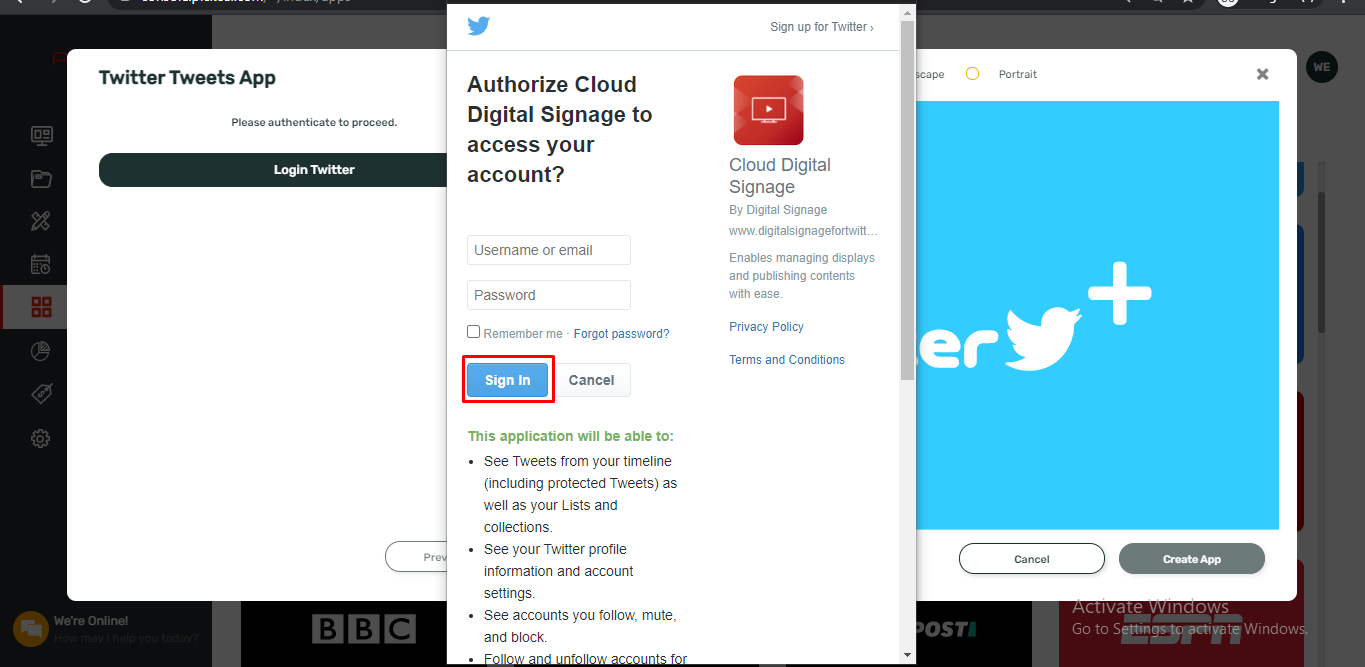
5
Configure app settings
Configure the app with the required information and click on Create App.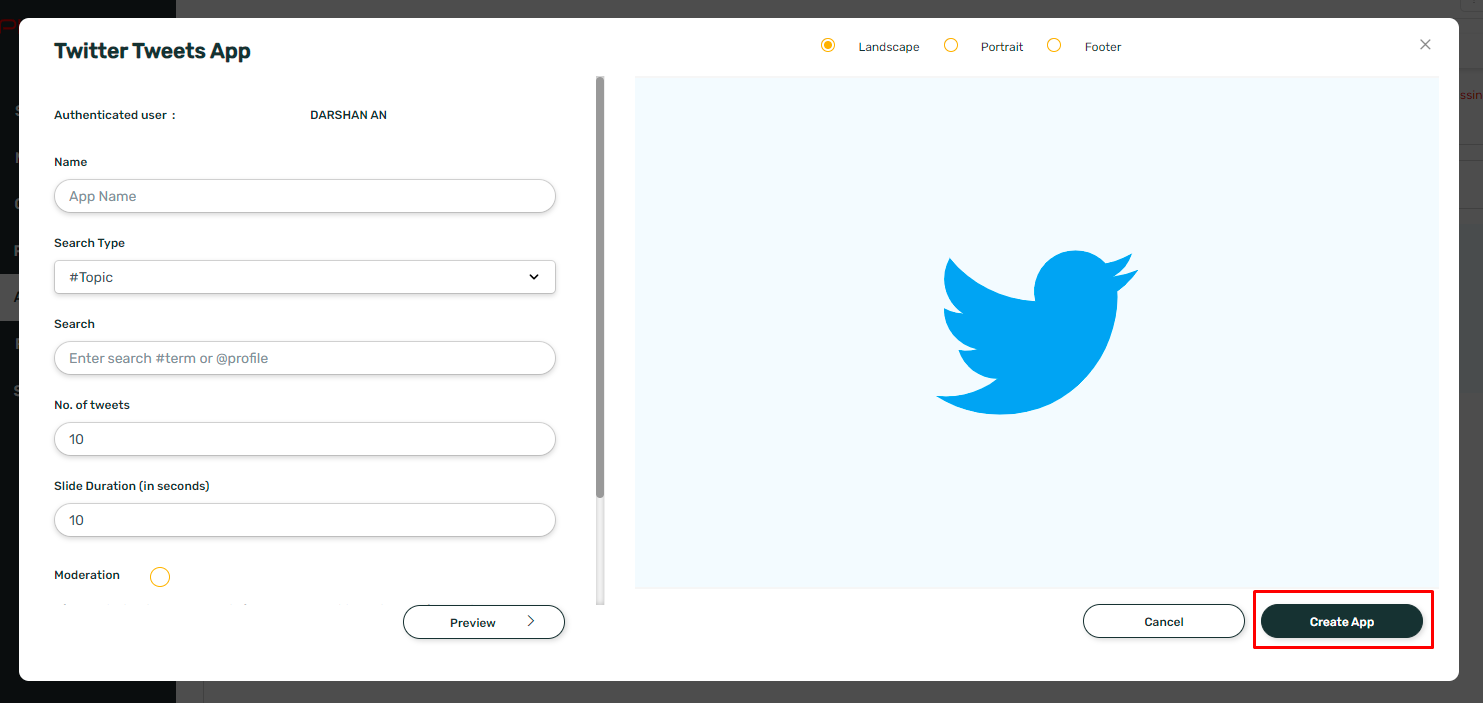
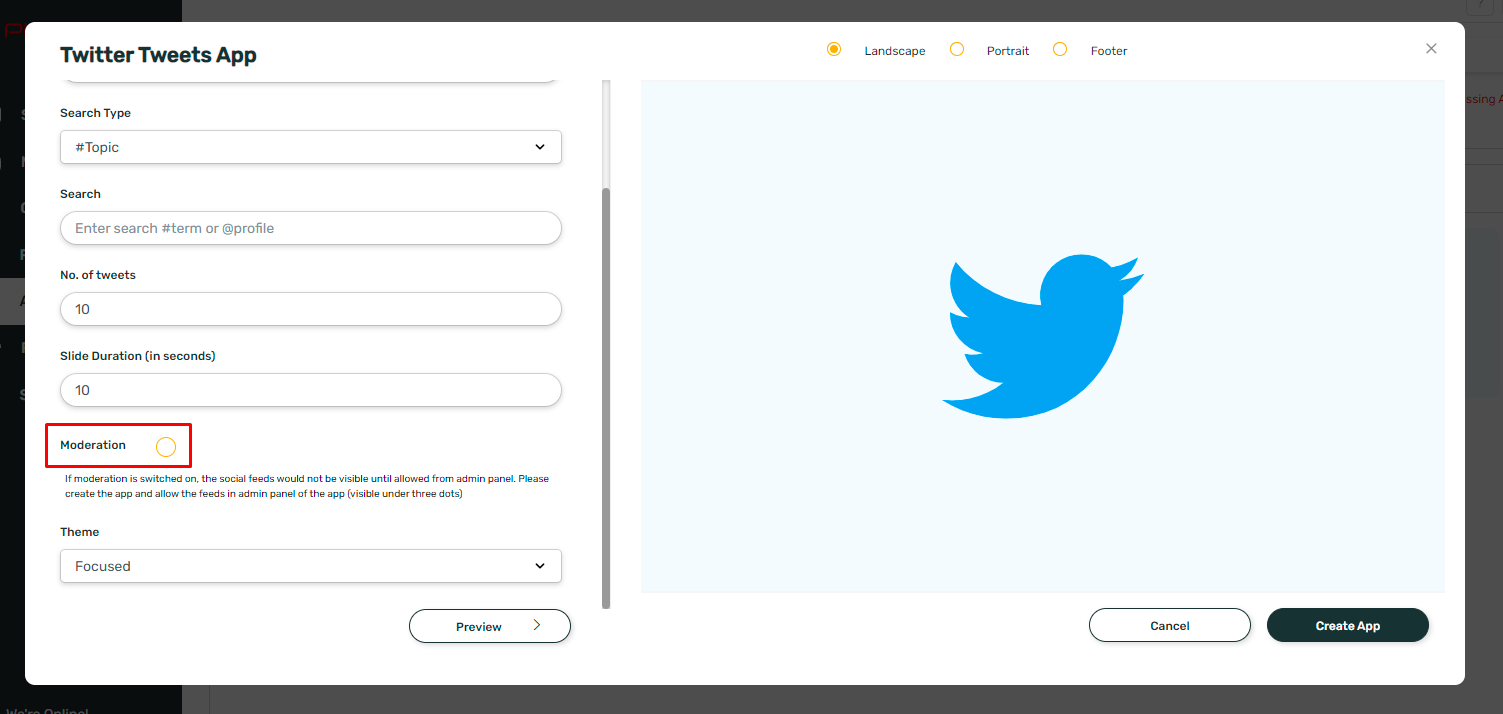
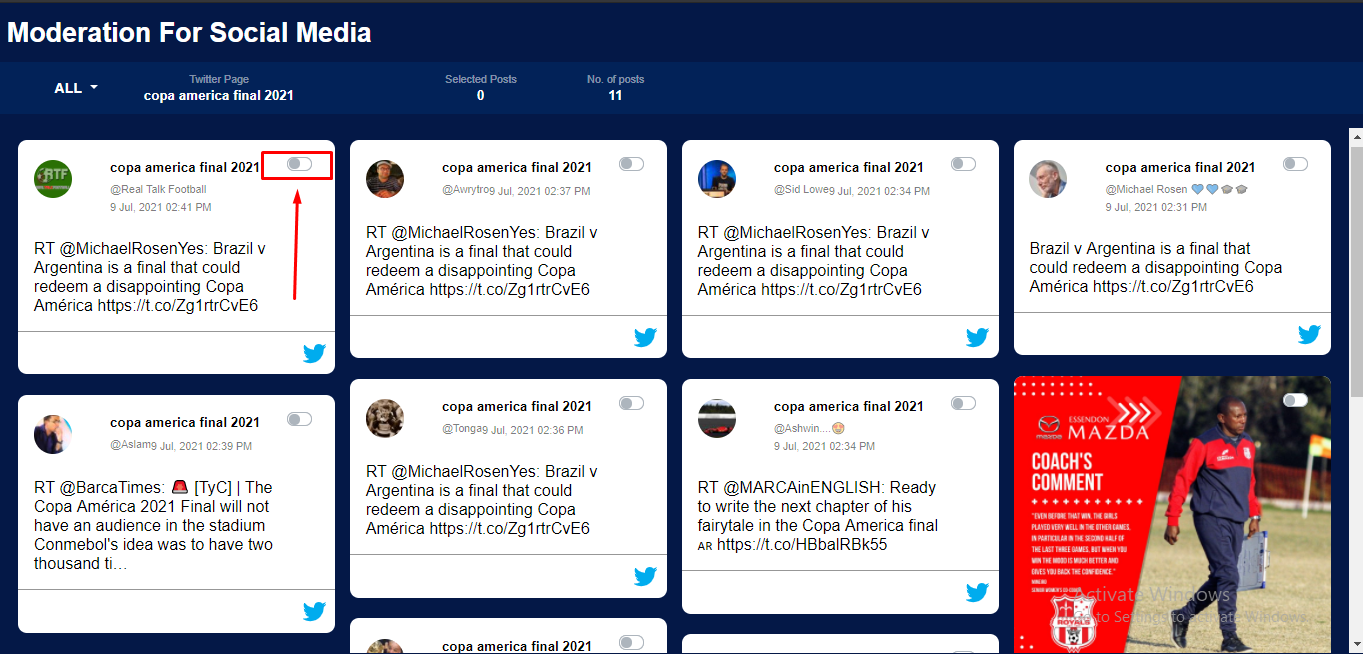
- You may or may not enable Moderation. The moderation option allows you to manually select posts. If the option is disabled, the X posts are displayed automatically in the order of newest to oldest.
- At this stage, you can preview the app only if the moderation option is disabled.
6
Access Admin Dashboard (if moderation enabled)
If you have enabled moderation, then go to the Media Module tab. Hover over the X app that you just added and click on the Three Dots and Click on Admin Dashboard.If you haven’t enabled moderation, then no need to scroll down any further, your app is ready to use.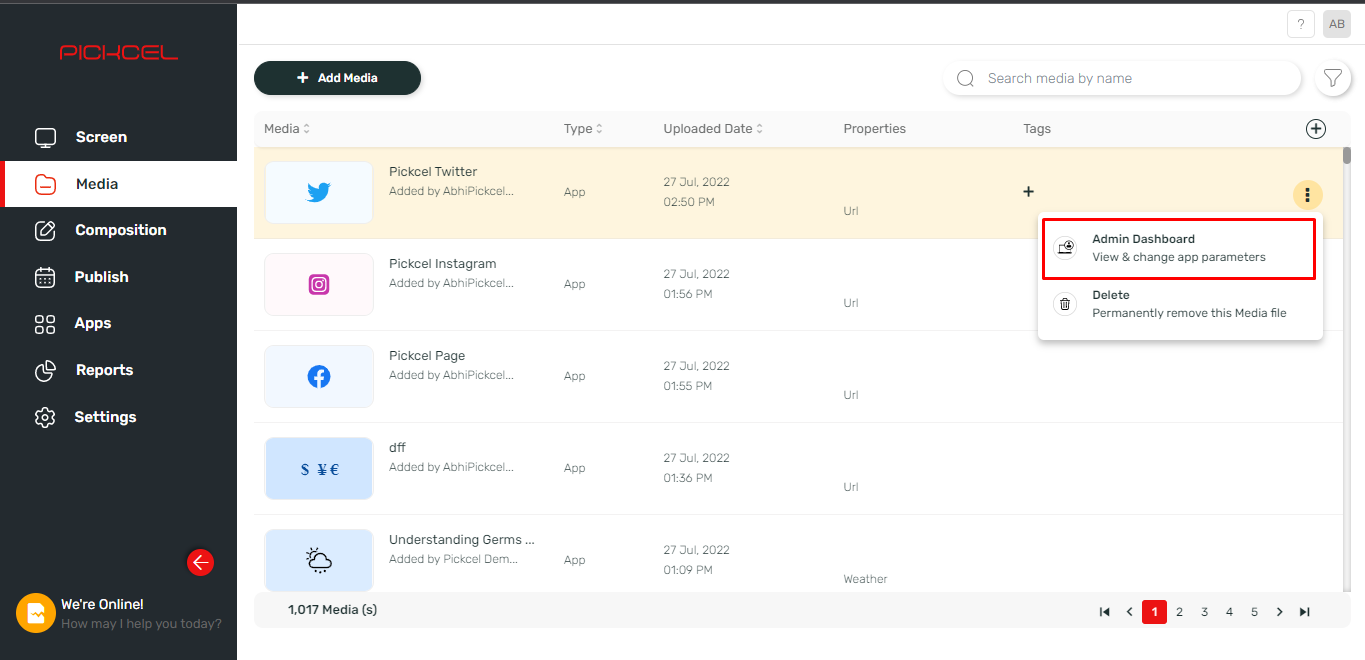
7
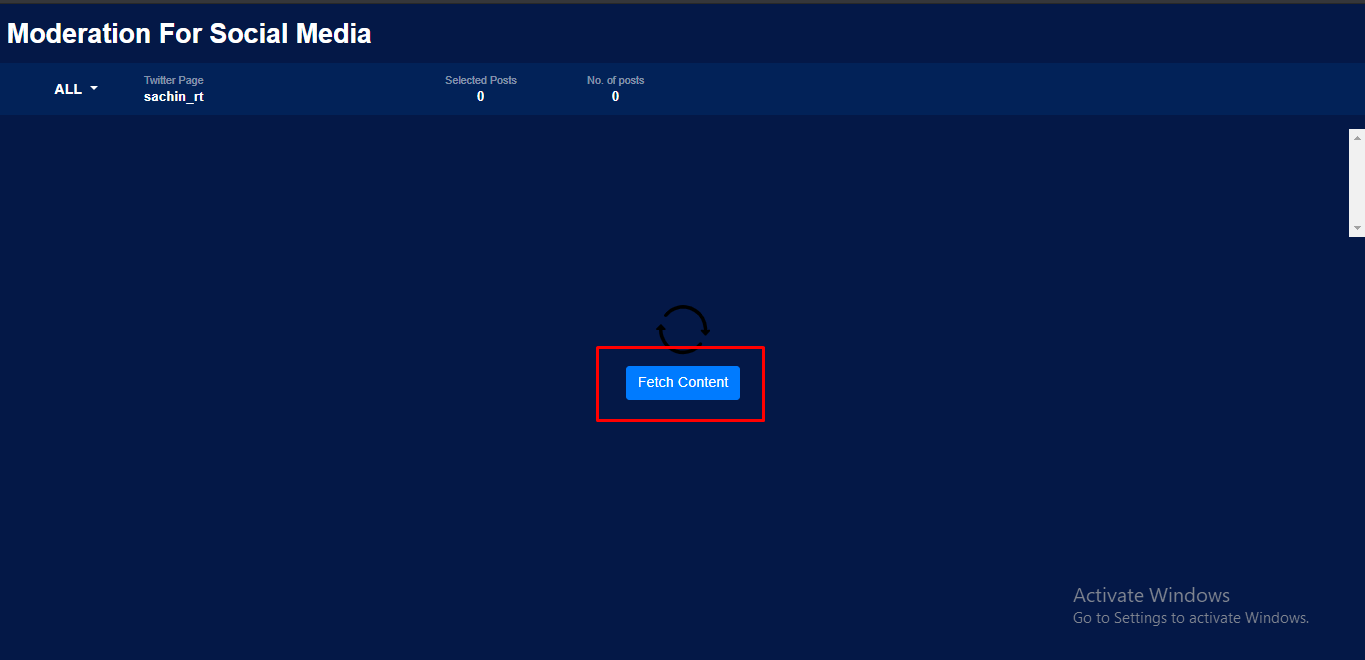
Fetch and select content
Click on the Fetch Content button.