

1. Installer update — the desktop app
The refresh-arrow button in the window header — tooltip Update Installer — checks the feed for a newer build of the manager.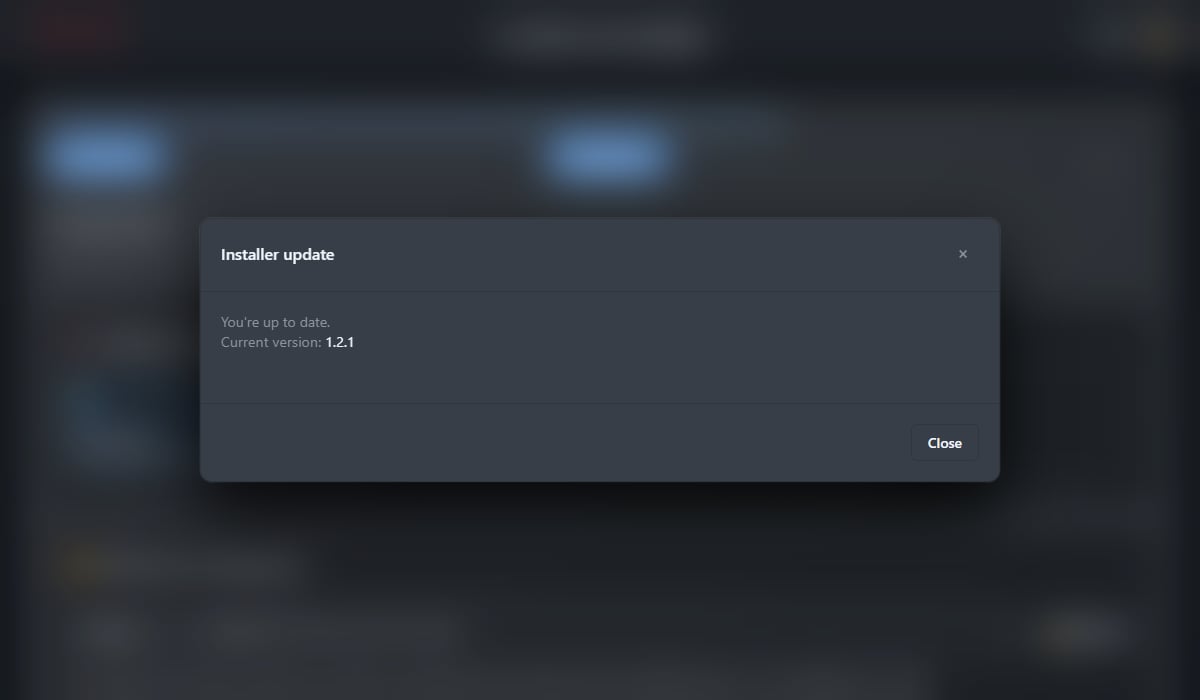
Nothing about your deployment changes: the workspace, containers and data are untouched.
Linux equivalent:
sudo pickcel-cli update-cli (add -y for non-interactive).Which release channel is this build on?
Press Ctrl + Shift + U at any time. A toast reports the environment and the feed URL baked into that installer.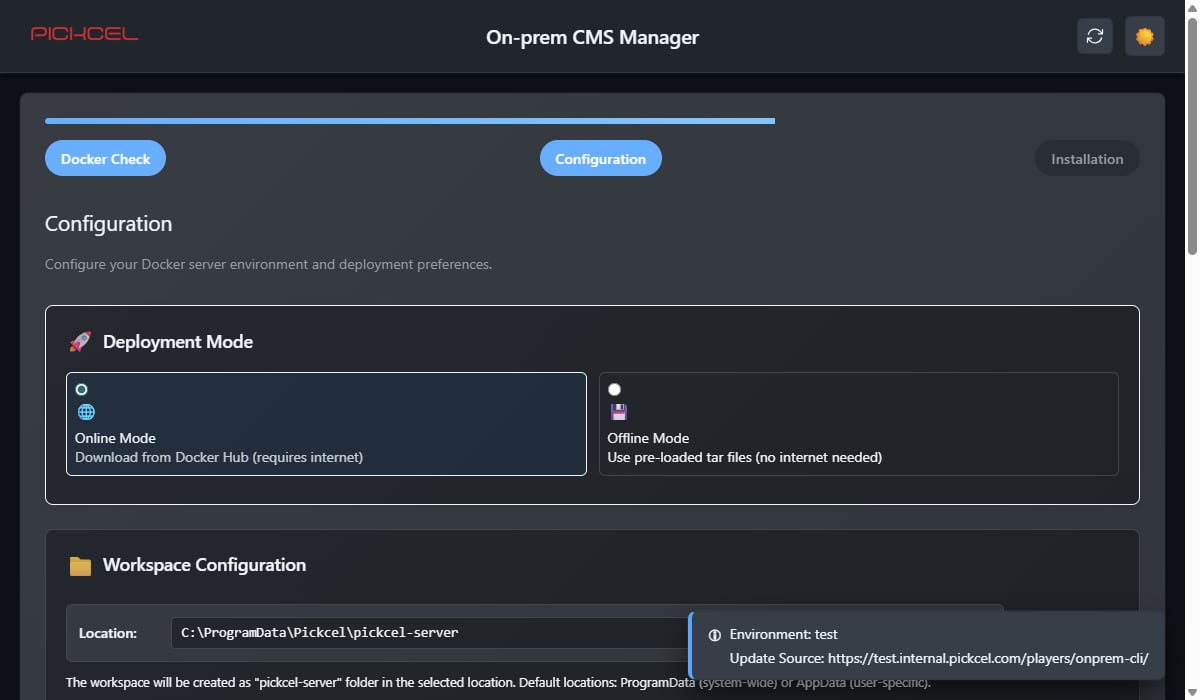
Each feed serves an
exe-version.json manifest:
2. Docker image update — the containers
Check Updates on the dashboard compares the images your workspace is pinned to against Docker Hub. What happens, in order:- Reads the image versions recorded in the workspace
- Tests Docker Hub connectivity
- If Docker Hub is reachable — fetches the latest tags and compares them
- Something behind? An Update to Latest (Online) dialog lists each image with its current and latest version. Confirm to pull and restart.
- Everything current? You get “All images are up to date!” and the adjacent button becomes Refresh Apps/Players.
- If Docker Hub is not reachable — falls back to an Update from TAR Files (Offline) dialog, where you supply newer TAR files instead. Download the latest amd64.zip for them.
Refresh Apps/Players re-syncs the app and player files from the current backend image without changing any image version. Safe to run when static assets look stale; it is not an upgrade. The Linux CLI equivalent is
pickcel-cli --online --refresh-static.webserver, backend, mongo, console, admin, libreoffice (when the Office app is enabled) and dashboard (when a dashboard server is installed).
Related
Dashboard operations
The rest of the dashboard’s buttons.
Resetting the installation
When an update leaves things in a bad state.
Troubleshooting
Symptoms and fixes.
All setup paths
Back to the scenario picker.