> ## Documentation Index
> Fetch the complete documentation index at: https://docs.pickcel.com/llms.txt
> Use this file to discover all available pages before exploring further.
# How to Monitor and Manage Screens Across Stores
> Get a unified view of online and offline screens across each store with quick management actions in Pickcel
The Store Details page provides a real-time health dashboard for all screens at a specific location. You can quickly see which screens are online, which are offline, and take immediate actions without leaving the store context.
## The Unified View
When you open a store, screens are displayed in a grid format and organized by their connectivity status:
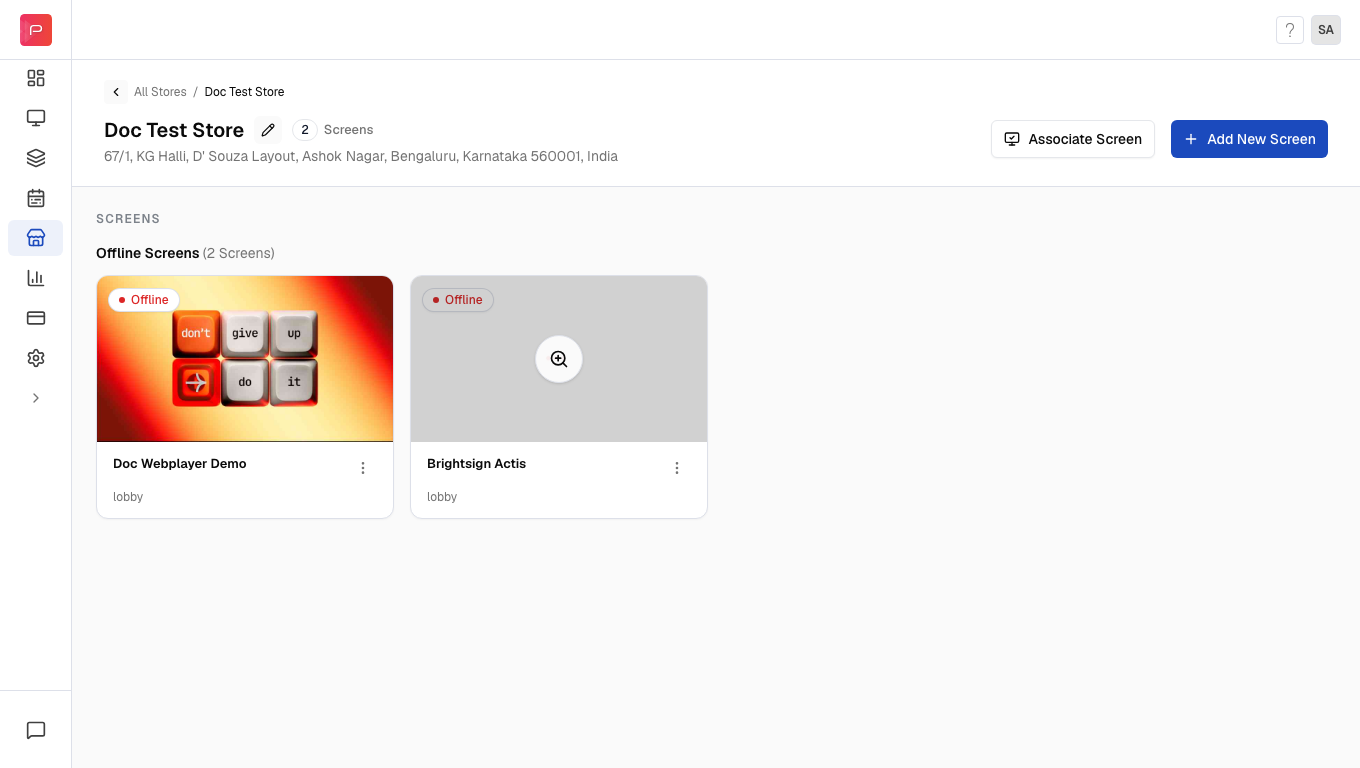 Devices that are currently connected to the Pickcel server and actively downloading or playing content. These screens show a live thumbnail of what's currently playing.
Devices that have lost internet connectivity or are powered down. These screens require attention to restore their connection.
Each screen card displays:
* **Current content thumbnail** - A preview of what's playing
* **Screen name** - The identifier you assigned during registration
* **Location within store** - The specific placement (e.g., "Main Counter", "Entrance")
* **Device specs** - Operating system and app version
***
## Screen Actions
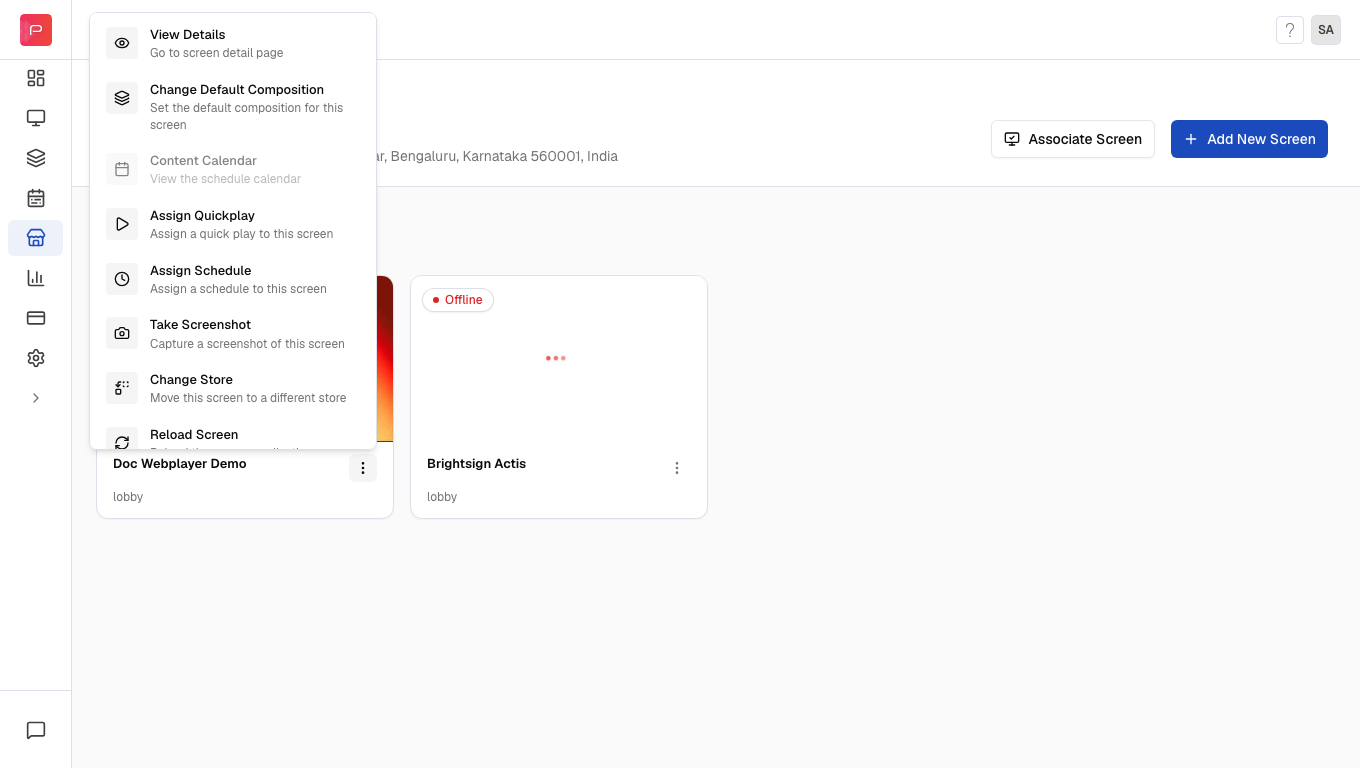
Click the **three-dot menu (...)** on any screen card to access quick management tools:
Devices that are currently connected to the Pickcel server and actively downloading or playing content. These screens show a live thumbnail of what's currently playing.
Devices that have lost internet connectivity or are powered down. These screens require attention to restore their connection.
Each screen card displays:
* **Current content thumbnail** - A preview of what's playing
* **Screen name** - The identifier you assigned during registration
* **Location within store** - The specific placement (e.g., "Main Counter", "Entrance")
* **Device specs** - Operating system and app version
***
## Screen Actions
Click the **three-dot menu (...)** on any screen card to access quick management tools:
 | Action | Description |
| :----------------------------- | :-------------------------------------------------------------------------------------------------------------------------------------- |
| **View Details** | Opens the full technical dashboard showing network health, storage usage, and logs |
| **Change Default Composition** | Assign a fallback composition that plays when no schedule is active. [Learn more](/schedule-and-publish/default-composition) |
| **Content Calendar** | View the complete timeline of media scheduled on this screen |
| **Assign Quickplay** | Immediately play an emergency message or instant promo, overriding the current schedule. [Learn more](/schedule-and-publish/quick-play) |
| **Assign Schedule** | Modify the daily or weekly playlist schedule for this screen. [Learn more](/schedule-and-publish/publish-v4) |
| **Take Screenshot** | Request a real-time capture of what's currently displayed (useful for proof-of-play) |
| **Change Store** | Reassign the screen to a different store or remove it from the current one |
| **Clear Data** | Removes all downloaded content files from the device |
| **Clear Cache** | Clears temporary system files to free up storage space |
| **Reboot** | Remotely restart the device (useful for troubleshooting playback issues) |
| **Reload** | Refresh the player application without a full device reboot |
| **Delete** | Permanently remove the screen from your account |
**Clear Data** will remove all content from the device. The screen will need to re-download content on its next sync. Use this only when necessary.
***
## Filtering Screens
Within a store, you can filter screens to quickly find specific devices:
Click the **Filter** button at the top of the screen list.
Filter by:
* **Status** - Show only Live, Offline, or Deactivated screens
* **Category** - Filter by store category attributes
* **Type** - Filter by store type attributes
* **Tags** - Select specific screen tags
* **Groups** - Filter by device groups
Use the **Any of these / All of these** toggle to control how multiple filters are applied:
* **Any of these**: Shows screens matching at least one filter
* **All of these**: Shows only screens matching all selected filters
Applied filters appear as dismissible chips at the top of the screen. Click the **X** on any chip to remove that filter.
***
## Quick Tips
Select multiple screens using checkboxes to perform bulk operations like assigning schedules or changing stores.
Portrait-oriented screens appear visually taller in the grid but follow the same card layout and actions.
## Related Documentation
* [Create a Store](/store/create-store) - Set up your first store
* [Add Screens to Store](/store/add-screens) - Associate or register screens
* [Quick Play](/schedule-and-publish/quick-play) - Emergency content playback
* [Schedules](/schedule-and-publish/publish-v4) - Set up content schedules
| Action | Description |
| :----------------------------- | :-------------------------------------------------------------------------------------------------------------------------------------- |
| **View Details** | Opens the full technical dashboard showing network health, storage usage, and logs |
| **Change Default Composition** | Assign a fallback composition that plays when no schedule is active. [Learn more](/schedule-and-publish/default-composition) |
| **Content Calendar** | View the complete timeline of media scheduled on this screen |
| **Assign Quickplay** | Immediately play an emergency message or instant promo, overriding the current schedule. [Learn more](/schedule-and-publish/quick-play) |
| **Assign Schedule** | Modify the daily or weekly playlist schedule for this screen. [Learn more](/schedule-and-publish/publish-v4) |
| **Take Screenshot** | Request a real-time capture of what's currently displayed (useful for proof-of-play) |
| **Change Store** | Reassign the screen to a different store or remove it from the current one |
| **Clear Data** | Removes all downloaded content files from the device |
| **Clear Cache** | Clears temporary system files to free up storage space |
| **Reboot** | Remotely restart the device (useful for troubleshooting playback issues) |
| **Reload** | Refresh the player application without a full device reboot |
| **Delete** | Permanently remove the screen from your account |
**Clear Data** will remove all content from the device. The screen will need to re-download content on its next sync. Use this only when necessary.
***
## Filtering Screens
Within a store, you can filter screens to quickly find specific devices:
Click the **Filter** button at the top of the screen list.
Filter by:
* **Status** - Show only Live, Offline, or Deactivated screens
* **Category** - Filter by store category attributes
* **Type** - Filter by store type attributes
* **Tags** - Select specific screen tags
* **Groups** - Filter by device groups
Use the **Any of these / All of these** toggle to control how multiple filters are applied:
* **Any of these**: Shows screens matching at least one filter
* **All of these**: Shows only screens matching all selected filters
Applied filters appear as dismissible chips at the top of the screen. Click the **X** on any chip to remove that filter.
***
## Quick Tips
Select multiple screens using checkboxes to perform bulk operations like assigning schedules or changing stores.
Portrait-oriented screens appear visually taller in the grid but follow the same card layout and actions.
## Related Documentation
* [Create a Store](/store/create-store) - Set up your first store
* [Add Screens to Store](/store/add-screens) - Associate or register screens
* [Quick Play](/schedule-and-publish/quick-play) - Emergency content playback
* [Schedules](/schedule-and-publish/publish-v4) - Set up content schedules