> ## Documentation Index
> Fetch the complete documentation index at: https://docs.pickcel.com/llms.txt
> Use this file to discover all available pages before exploring further.
# What are Roles and how do I set user Roles for a user?
> Learn about user roles in Pickcel and how to define permissions and assign roles to users
A **user role** defines a set of permissions for users to perform a group of tasks. By default, there are 4 roles: Admin, Manager, Editor, and Operator.
The first registered user is assigned as the **Admin**, who has access to everything in the account. The remaining 3 roles can be assigned to other users by the Admin.
## A. Defining the permissions of a role
In the [Pickcel console](https://console.pickcel.com), open the **Settings** module and select the **Roles** tab. The **Manager**, **Editor**, and **Operator** roles appear as cards on the left, each with a short summary of what it is for. Click a role to see its permissions.
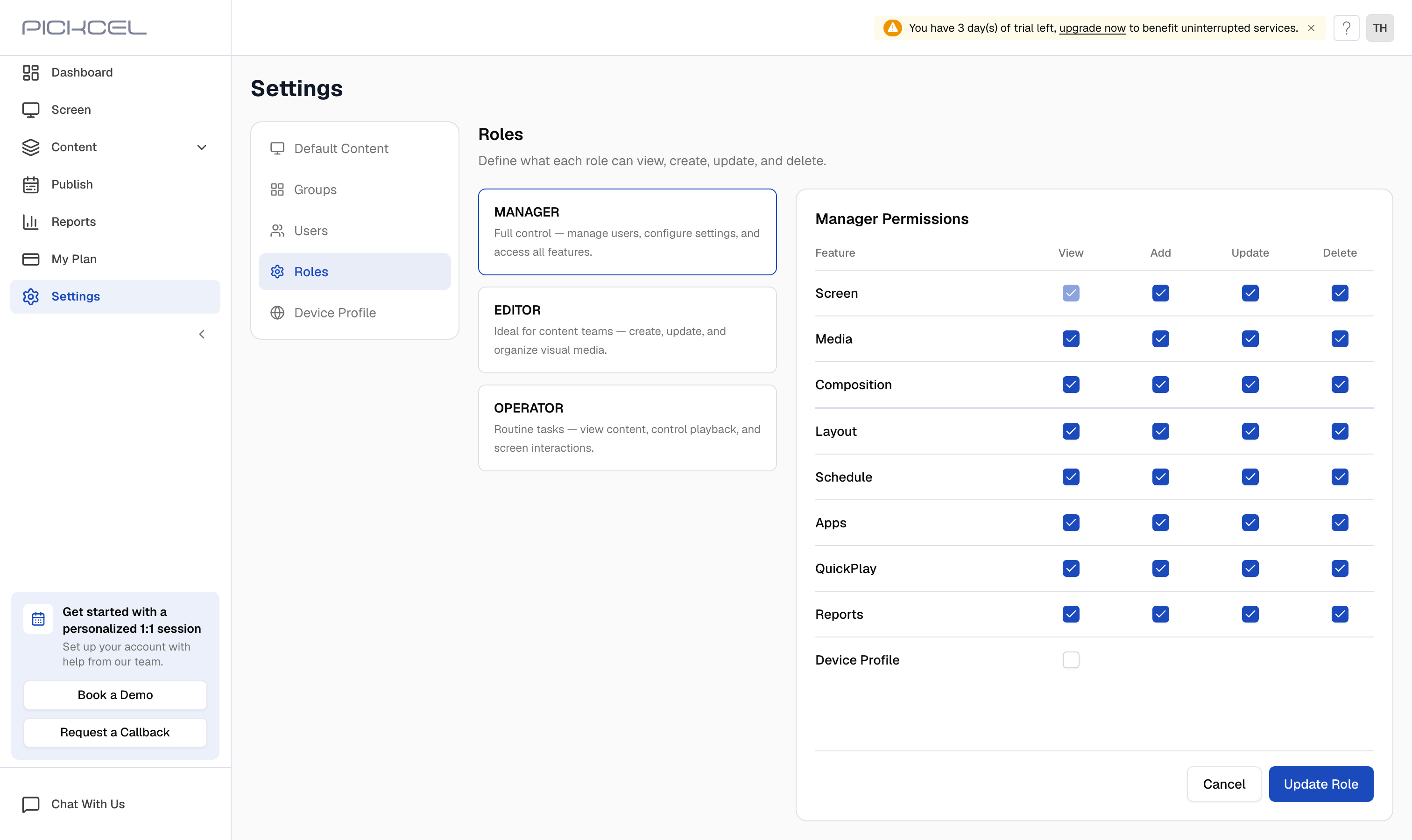
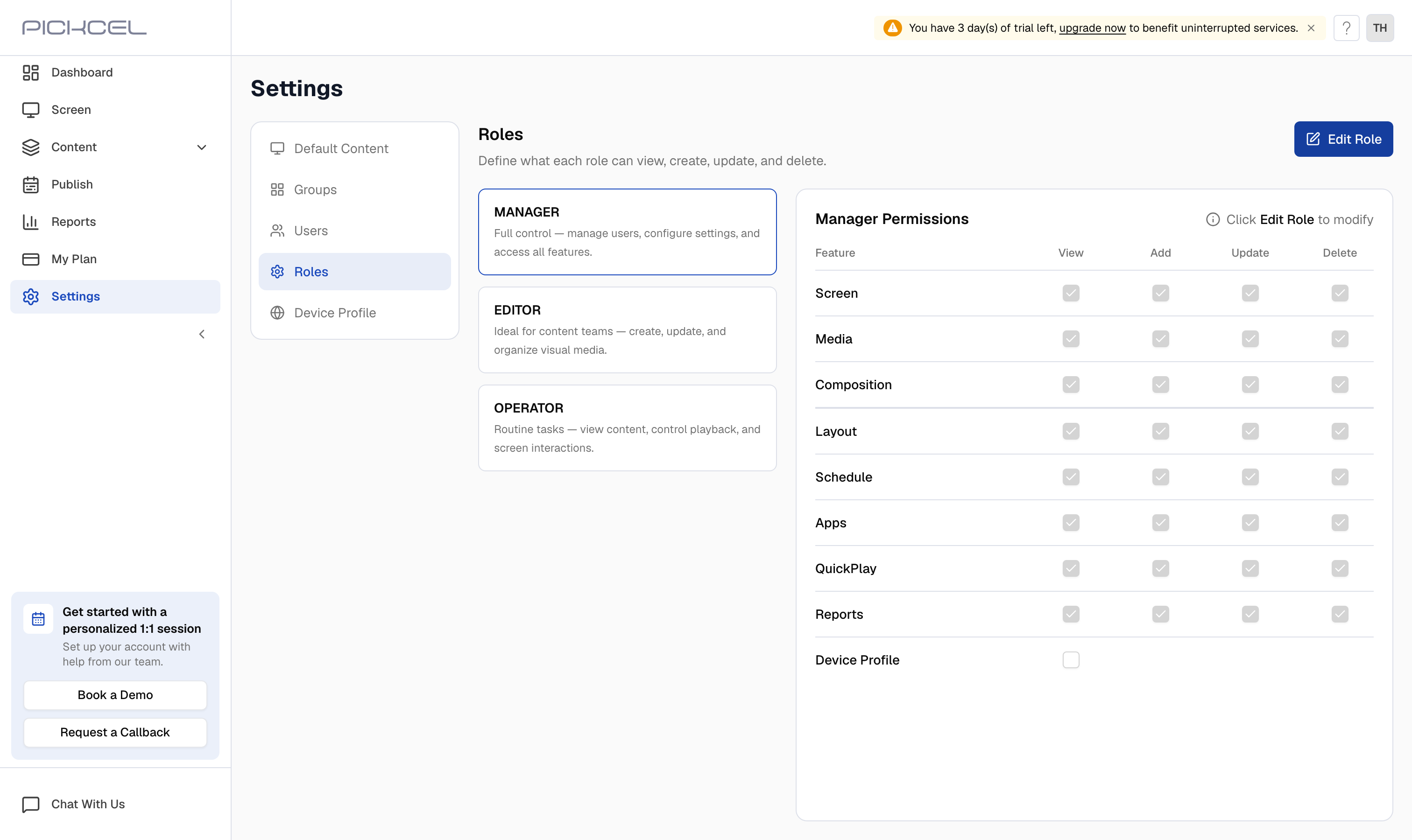 Click **Edit Role**. The permissions matrix becomes editable: for each feature (**Screen**, **Media**, **Composition**, **Layout**, **Schedule**, **Apps**, **QuickPlay**, **Reports**, **Device Profile**), tick the **View**, **Add**, **Update**, and **Delete** checkboxes you want to allow for that role. Click **Update Role** to save.
 ## B. Assigning a role to a user
You assign a role when you add a user. Each user belongs to a role and at least one group.
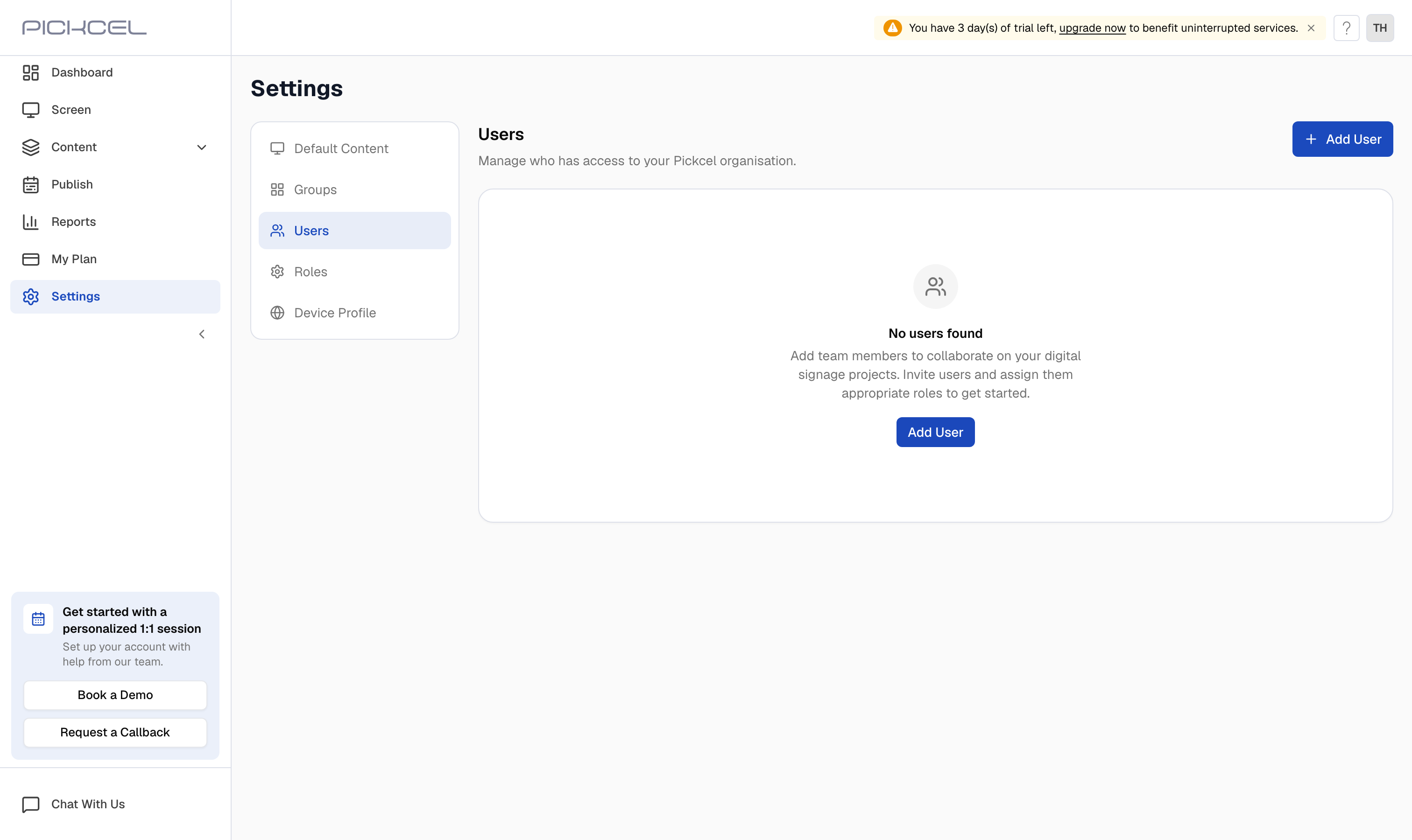
In **Settings**, switch to the **Users** tab and click **Add User**.
## B. Assigning a role to a user
You assign a role when you add a user. Each user belongs to a role and at least one group.
In **Settings**, switch to the **Users** tab and click **Add User**.
 In the **Add User** dialog, enter the **User name**, **User email**, and **Password**, then choose the role from the **Select role** dropdown (**Manager**, **Editor**, or **Operator**). Tick at least one **Group** so the user has access.
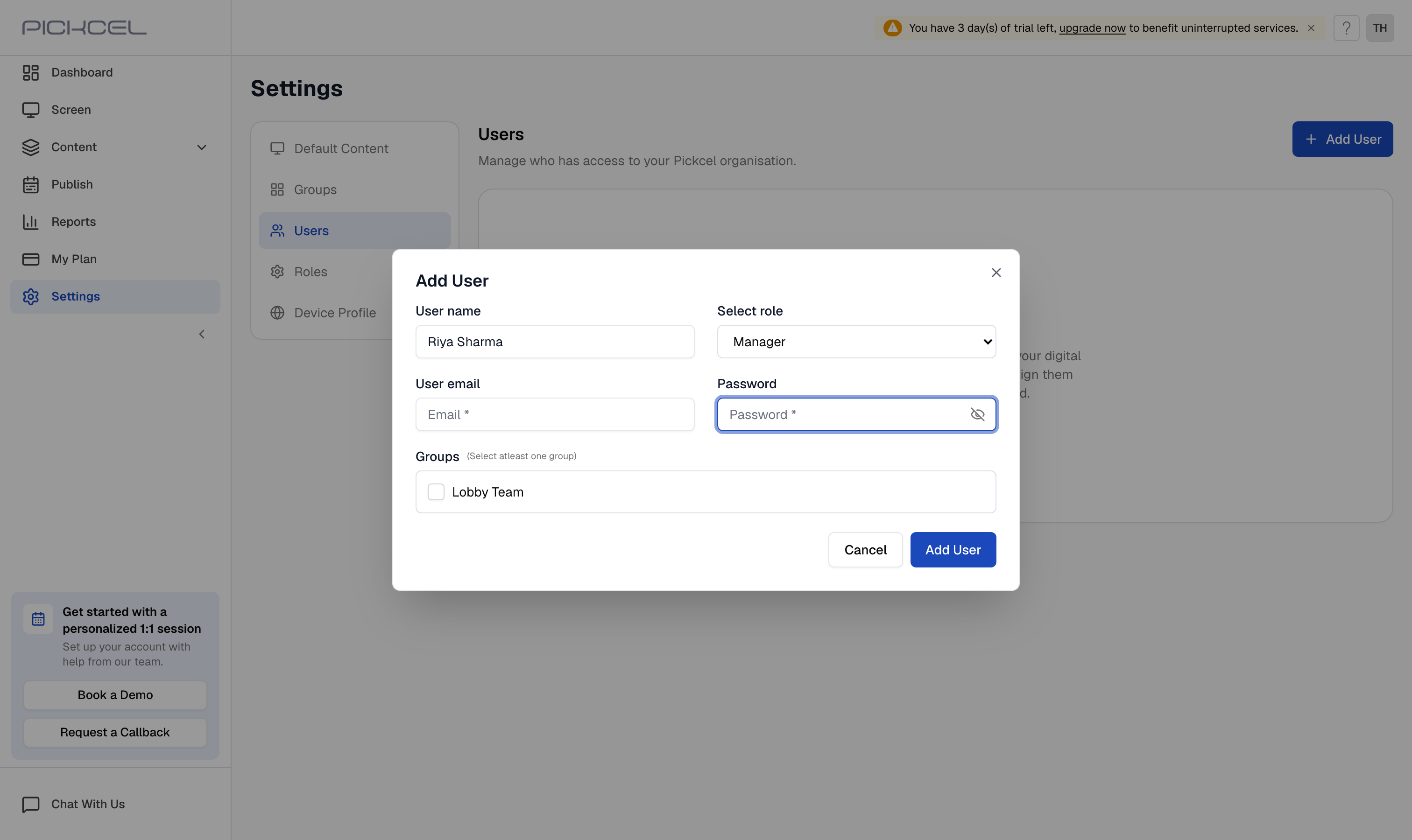 Click **Add User** to save. The user is created with the role and permissions you defined.
That's a wrap. You have successfully set a role's permissions and assigned a role to a user.
## What's Next?
* Learn how to create sub-users and assign them to a group in [Sub Users](/settings/sub-users)
* Restrict what each user can see with [Groups](/settings/groups)
Click **Add User** to save. The user is created with the role and permissions you defined.
That's a wrap. You have successfully set a role's permissions and assigned a role to a user.
## What's Next?
* Learn how to create sub-users and assign them to a group in [Sub Users](/settings/sub-users)
* Restrict what each user can see with [Groups](/settings/groups)