> ## Documentation Index
> Fetch the complete documentation index at: https://docs.pickcel.com/llms.txt
> Use this file to discover all available pages before exploring further.
# How do I give a sub-user access to specific screens?
> Control which screens a Pickcel sub-user can see by placing the user and the screen in the same group. Step-by-step guide for admins to restrict sub-user screen access.
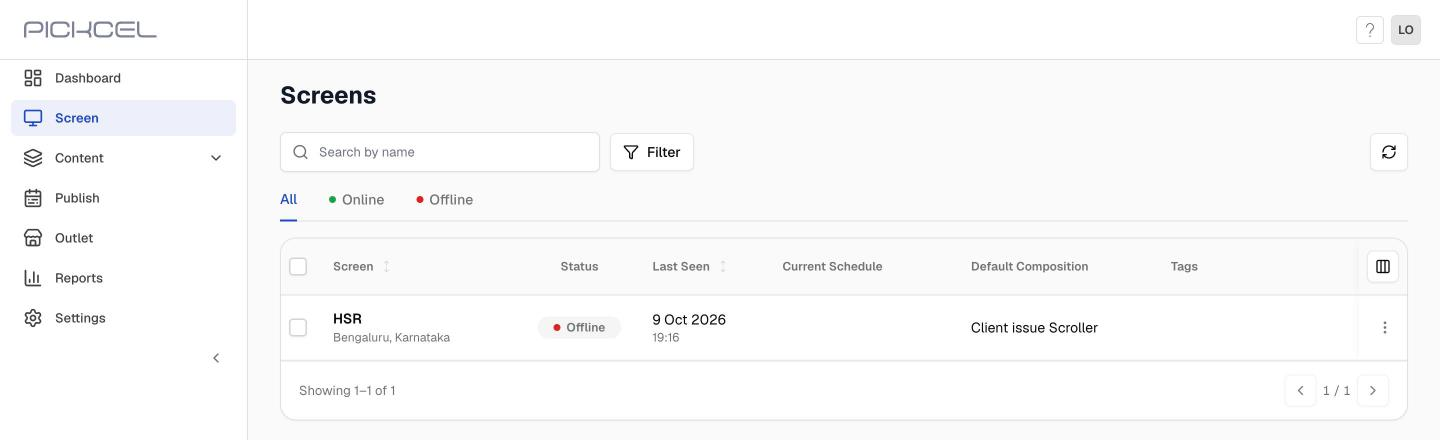
A sub-user can see a screen only when **the screen and the user belong to the same group**. Screens outside the user's groups stay hidden from them. The Admin sees every screen.
**Example:** Your office has 10 screens: one at reception, the rest in the cafeteria and meeting rooms. Priya runs the front desk and should only manage the reception screen. Create a group called **Lobby**, add Priya to it, and add the reception screen to the same group. Priya signs in and sees only the reception screen. The other nine stay hidden.
Sign in to the [Pickcel console](https://console.pickcel.com) as the **Admin** and follow the steps below.
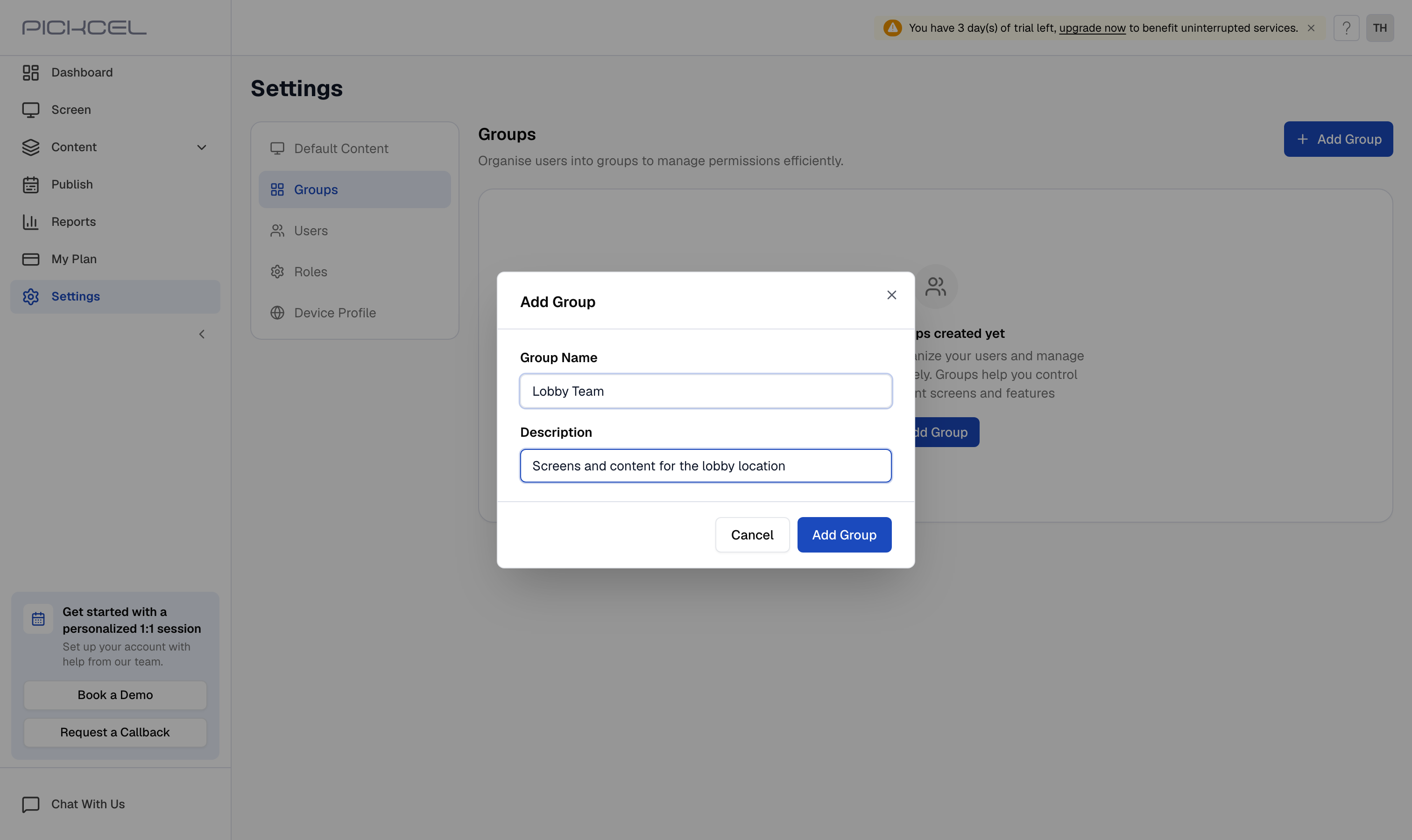
* Go to **Settings** > **Groups** and click **Add Group**.
* Enter a **Group Name** (for example, the screen's location) and a **Description**, then click **Add Group**.
* Skip this step if a suitable group already exists.
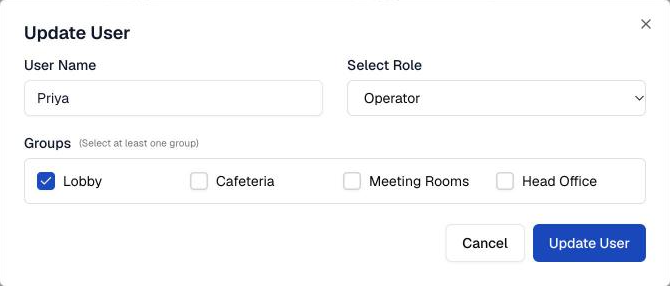
 * Go to **Settings** > **Users**.
* Click the **⋮** menu next to the sub-user and select **Edit User**.
* Under **Groups**, tick the group, then click **Update User**.
* Creating a new sub-user instead? Tick the group in the **Add User** dialog. See [Sub Users](/settings/sub-users).
* Go to **Settings** > **Users**.
* Click the **⋮** menu next to the sub-user and select **Edit User**.
* Under **Groups**, tick the group, then click **Update User**.
* Creating a new sub-user instead? Tick the group in the **Add User** dialog. See [Sub Users](/settings/sub-users).
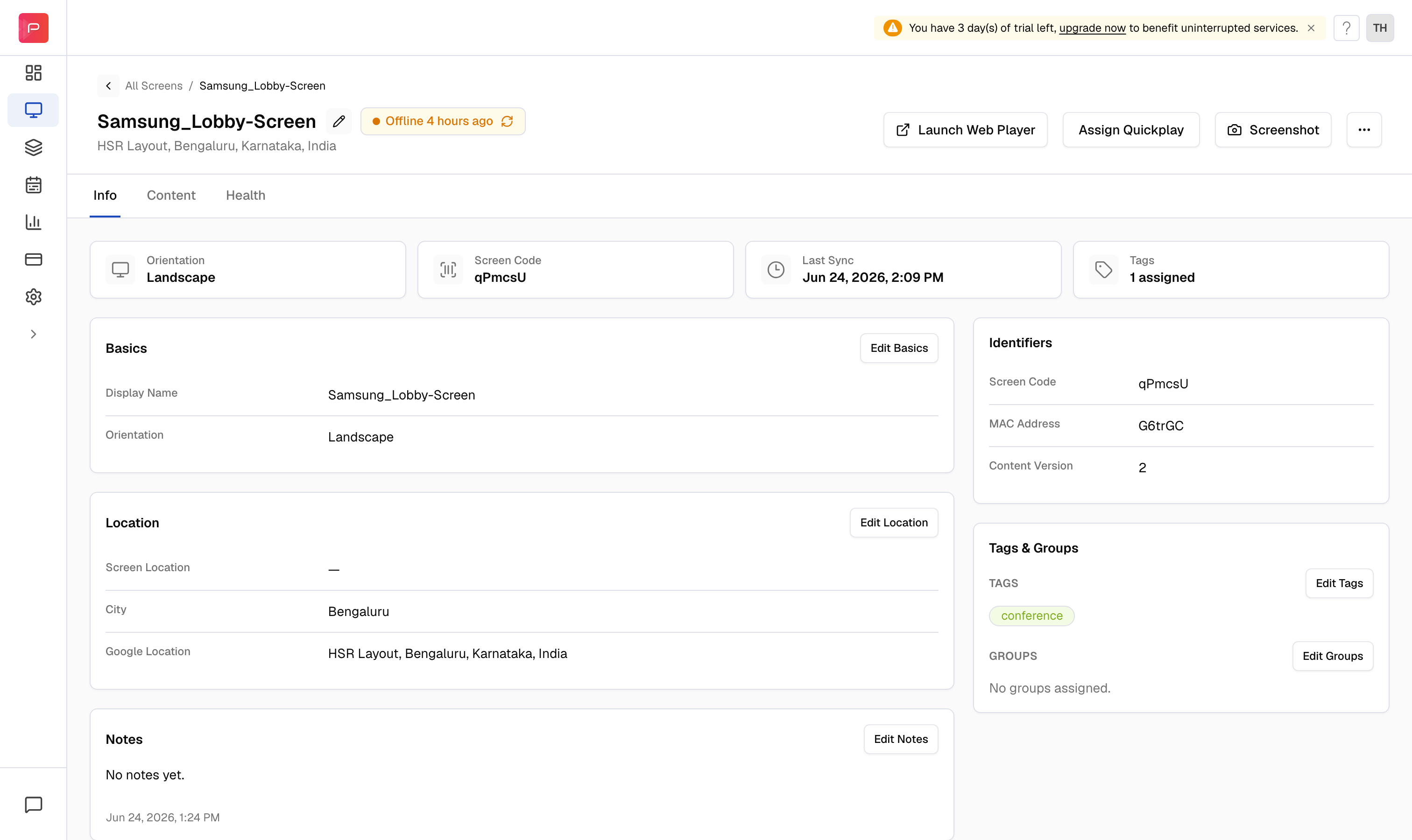
 * Go to **Screen** and click the screen you want the sub-user to see.
* On the **Info** tab, find **Tags & Groups** and click **Edit Groups** under **GROUPS**.
* Go to **Screen** and click the screen you want the sub-user to see.
* On the **Info** tab, find **Tags & Groups** and click **Edit Groups** under **GROUPS**.
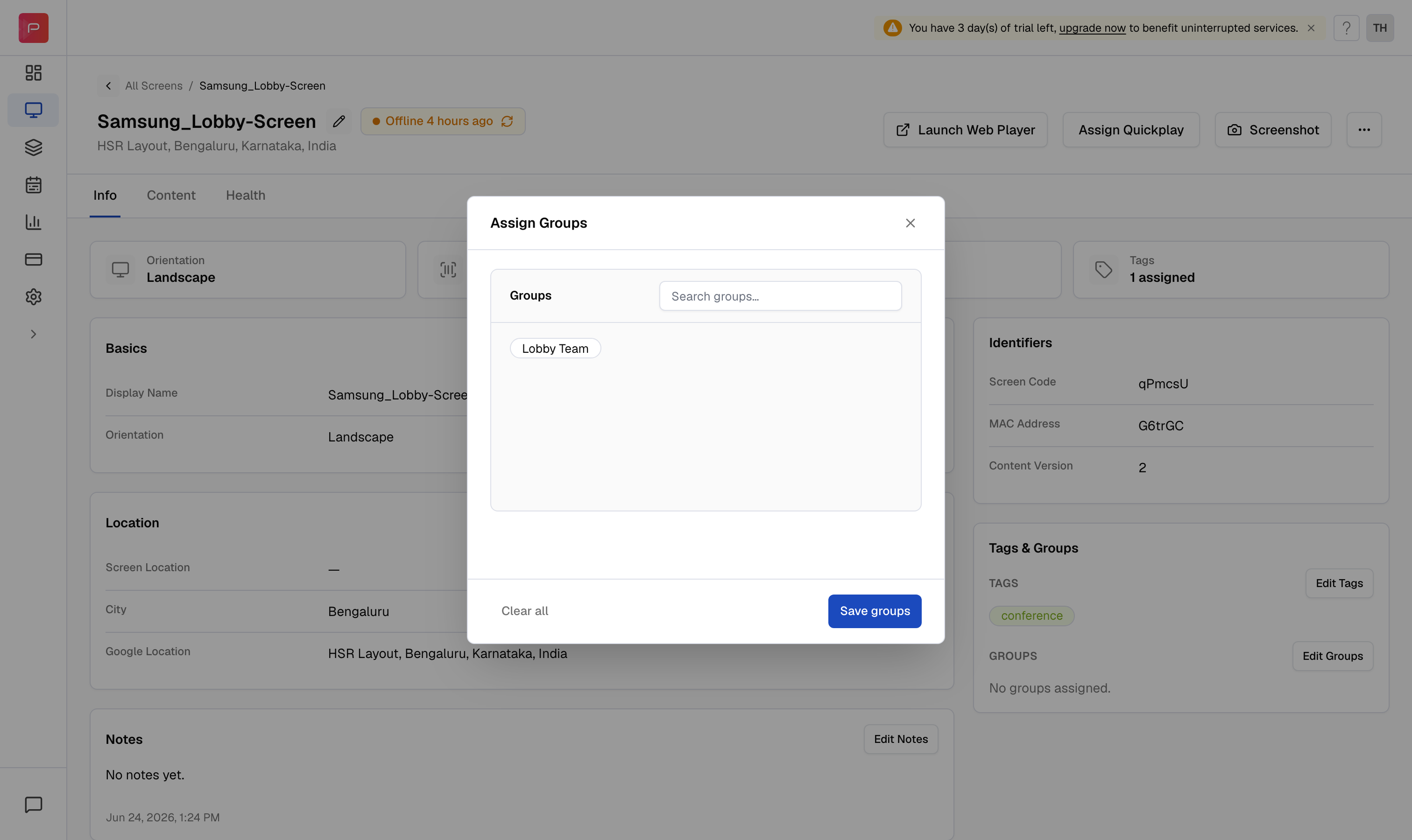
 * In **Assign Groups**, select the group you added the sub-user to.
* Click **Save groups**. The group now shows under **GROUPS** for that screen.
* Repeat steps 3 and 4 for every screen the sub-user should see.
* In **Assign Groups**, select the group you added the sub-user to.
* Click **Save groups**. The group now shows under **GROUPS** for that screen.
* Repeat steps 3 and 4 for every screen the sub-user should see.
 That's it. The next time the sub-user signs in, the **Screen** page lists only the screens you assigned to their group.
 ## Good to know
* A user can belong to several groups, and a screen can belong to several groups. One shared group is enough for access.
* Groups are assigned one screen at a time, from the screen's **Info** tab. The screen list has no bulk option for groups.
* To take access away, remove the group from the screen (**Edit Groups**) or from the user (**Edit User**).
* What the sub-user can *do* with a visible screen depends on their role. See [User Roles](/settings/user-roles).
## Troubleshooting
* Open the screen's **Info** tab and confirm the group is listed under **GROUPS**.
* Open **Settings** > **Users** > **Edit User** and confirm the same group is ticked.
* Ask the sub-user to sign out and sign back in.
* The sub-user is in another group that those screens also belong to. Check every group ticked for the user in **Edit User**.
## What's Next?
* Create and manage groups in [Groups](/settings/groups)
* Add sub-users and choose their role in [Sub Users](/settings/sub-users)
This documentation is built and hosted on [Mintlify](https://mintlify.com), a developer documentation platform.
## Good to know
* A user can belong to several groups, and a screen can belong to several groups. One shared group is enough for access.
* Groups are assigned one screen at a time, from the screen's **Info** tab. The screen list has no bulk option for groups.
* To take access away, remove the group from the screen (**Edit Groups**) or from the user (**Edit User**).
* What the sub-user can *do* with a visible screen depends on their role. See [User Roles](/settings/user-roles).
## Troubleshooting
* Open the screen's **Info** tab and confirm the group is listed under **GROUPS**.
* Open **Settings** > **Users** > **Edit User** and confirm the same group is ticked.
* Ask the sub-user to sign out and sign back in.
* The sub-user is in another group that those screens also belong to. Check every group ticked for the user in **Edit User**.
## What's Next?
* Create and manage groups in [Groups](/settings/groups)
* Add sub-users and choose their role in [Sub Users](/settings/sub-users)
This documentation is built and hosted on [Mintlify](https://mintlify.com), a developer documentation platform.