> ## Documentation Index
> Fetch the complete documentation index at: https://docs.pickcel.com/llms.txt
> Use this file to discover all available pages before exploring further.
# How can I group the screens based on store?
> Learn how to group digital signage screens by store or location using the Groups option on a screen in Pickcel
For grouping devices/screens based on the store or any other way, you can use the **Groups** option on each screen.
First you need to create groups from **Settings**. Please read this article to know more: [What is a Group and how do I add a Group?](/settings/groups)
Once you have a group created, follow the steps below to map a screen to the group.
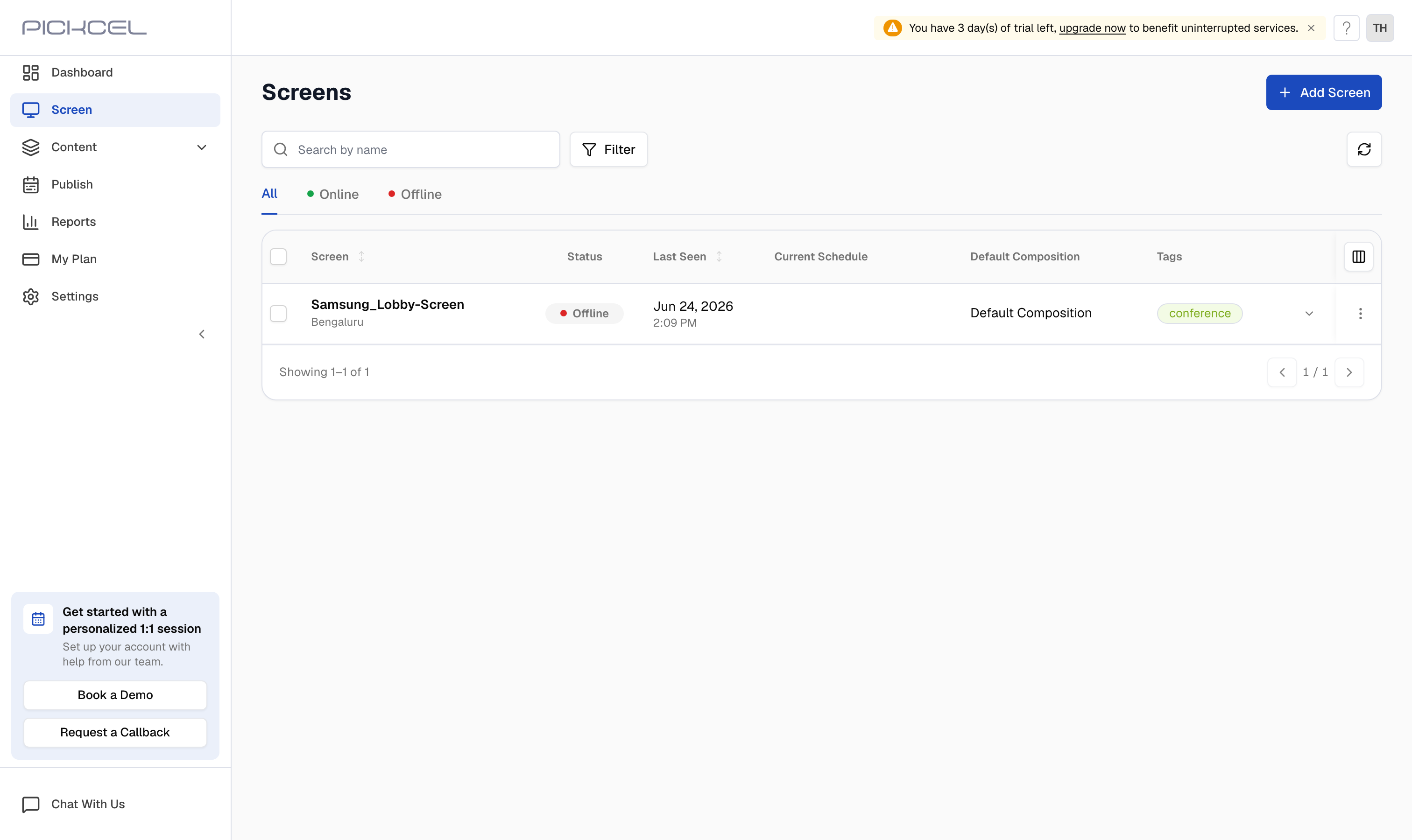
In the [Pickcel console](https://console.pickcel.com), open the **Screen** module and click the screen you want to group.
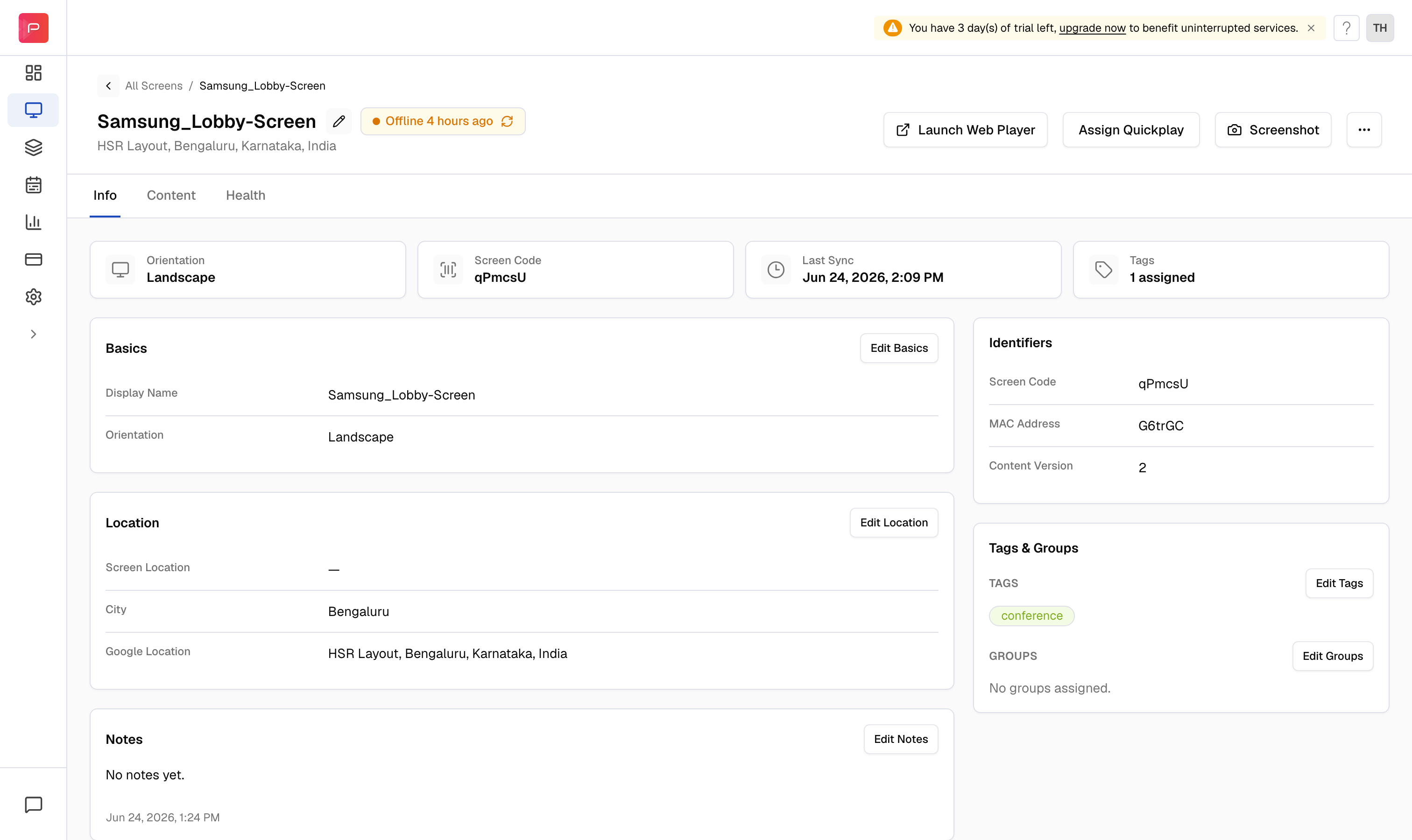
 On the screen's **Info** tab, scroll to the **Tags & Groups** section on the right. Under **GROUPS**, click **Edit Groups**.
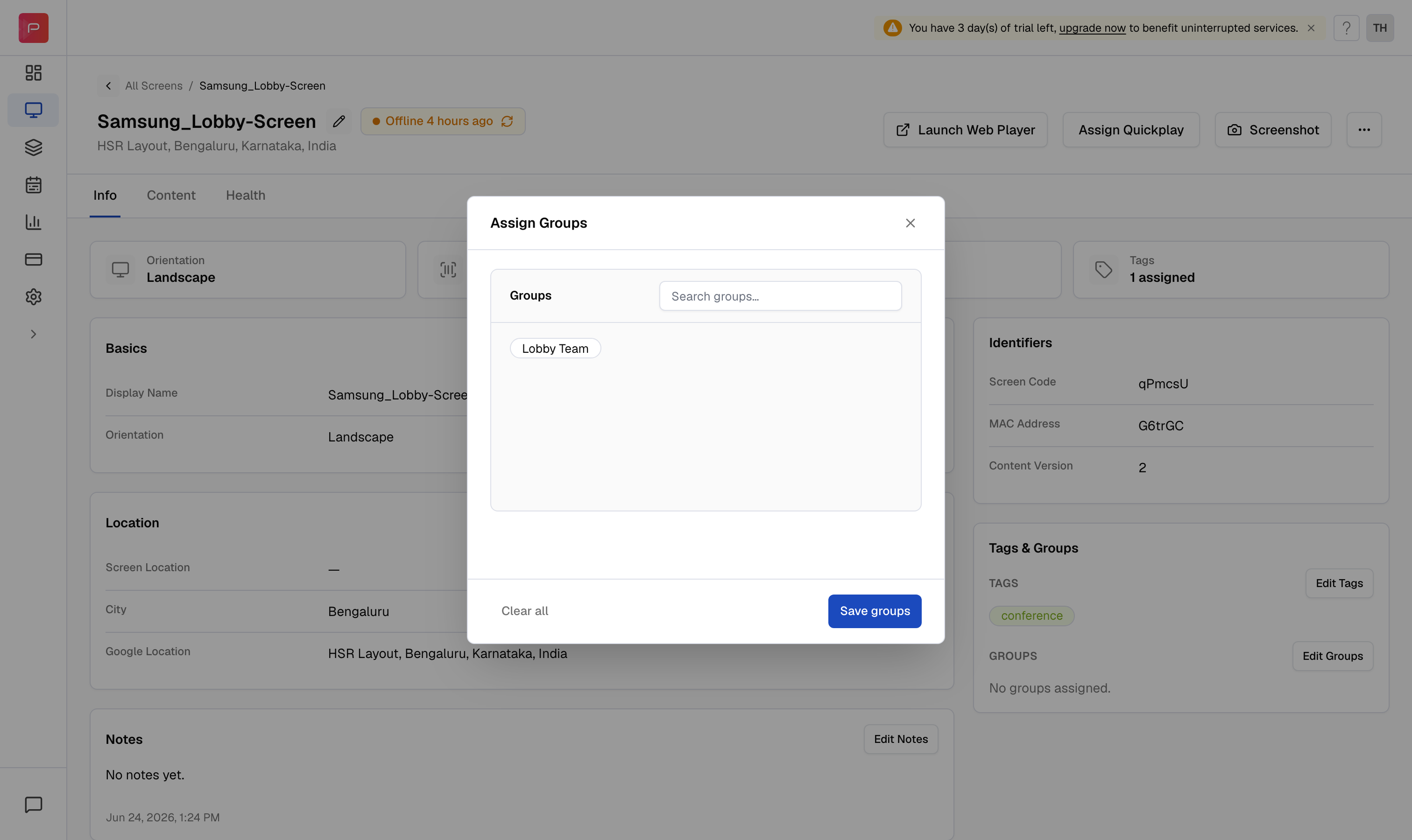
 In the **Assign Groups** dialog, search for and select the group (or store) you want to assign, then click **Save groups**.
 The selected group now appears under **GROUPS** for that screen.
If you manage multiple physical locations, you can also associate a group with a store directly when you [create the store](/store/create-store), so every screen added to that store inherits the group.
The selected group now appears under **GROUPS** for that screen.
If you manage multiple physical locations, you can also associate a group with a store directly when you [create the store](/store/create-store), so every screen added to that store inherits the group.