> ## Documentation Index
> Fetch the complete documentation index at: https://docs.pickcel.com/llms.txt
> Use this file to discover all available pages before exploring further.
# How to Set Up Offline Screen Alerts
> Learn how to configure automated email notifications for offline digital signage screens in Pickcel
The **Offline Screen Alert** feature in Pickcel sends automated email notifications when your digital signage screens go offline. Choose **Periodic** alerts at scheduled times or **Realtime** alerts shortly after downtime, and add the email addresses that should receive them.
## Step-by-Step Configuration
Log in to the [Pickcel console](https://console.pickcel.com). Open **Settings** from the left navigation, then select the **Alerts** tab.
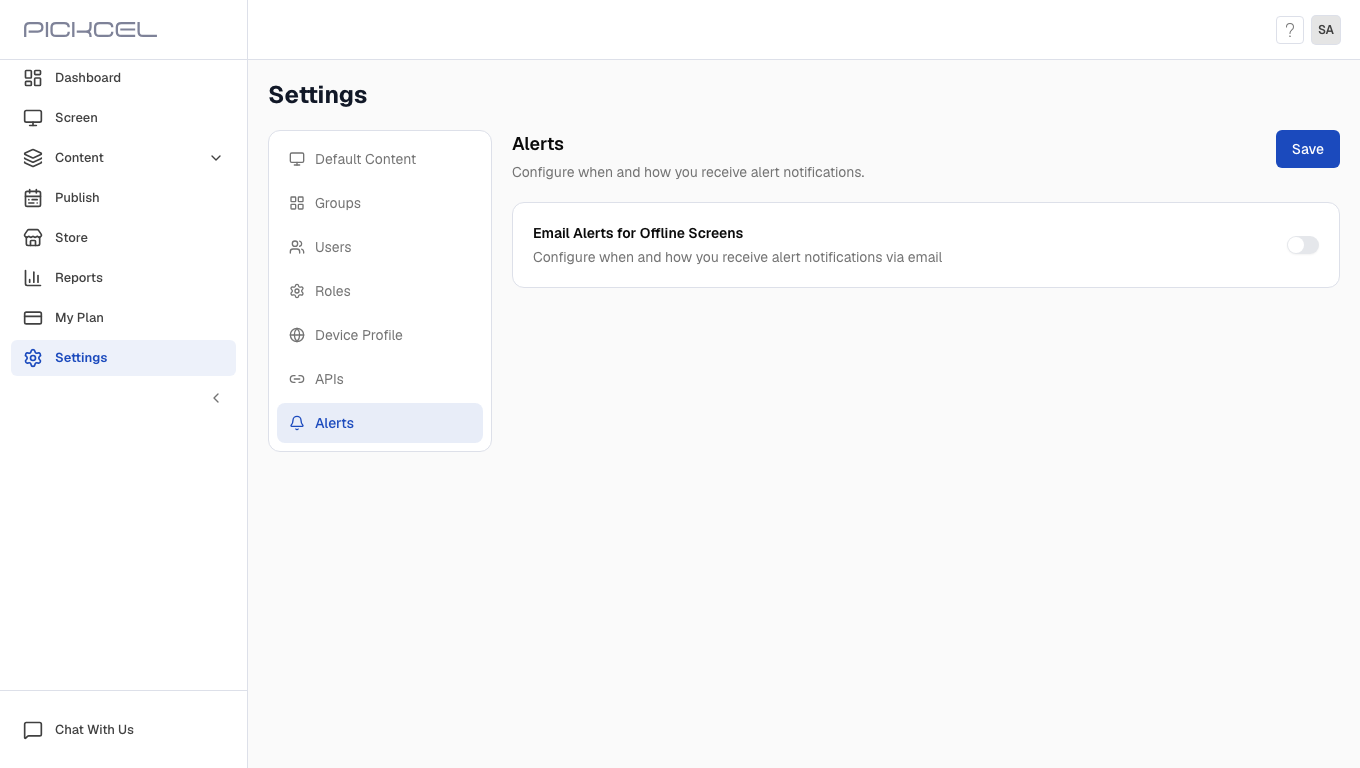 If you do not see the **Alerts** tab in Settings, this feature is not available on your account. Contact [support@pickcel.com](mailto:support@pickcel.com) to request access.
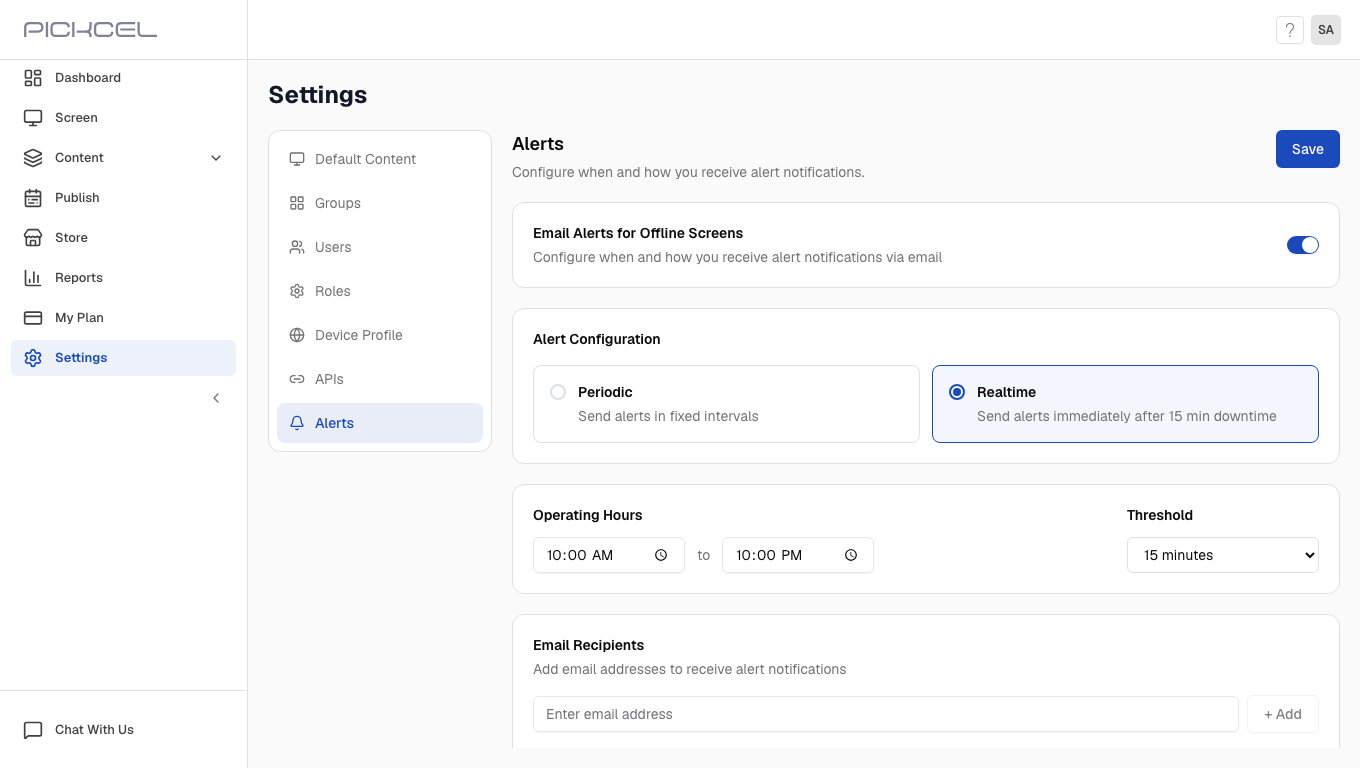
Under **Email Alerts for Offline Screens**, switch the toggle to **ON** to reveal the alert configuration options.
If you do not see the **Alerts** tab in Settings, this feature is not available on your account. Contact [support@pickcel.com](mailto:support@pickcel.com) to request access.
Under **Email Alerts for Offline Screens**, switch the toggle to **ON** to reveal the alert configuration options.
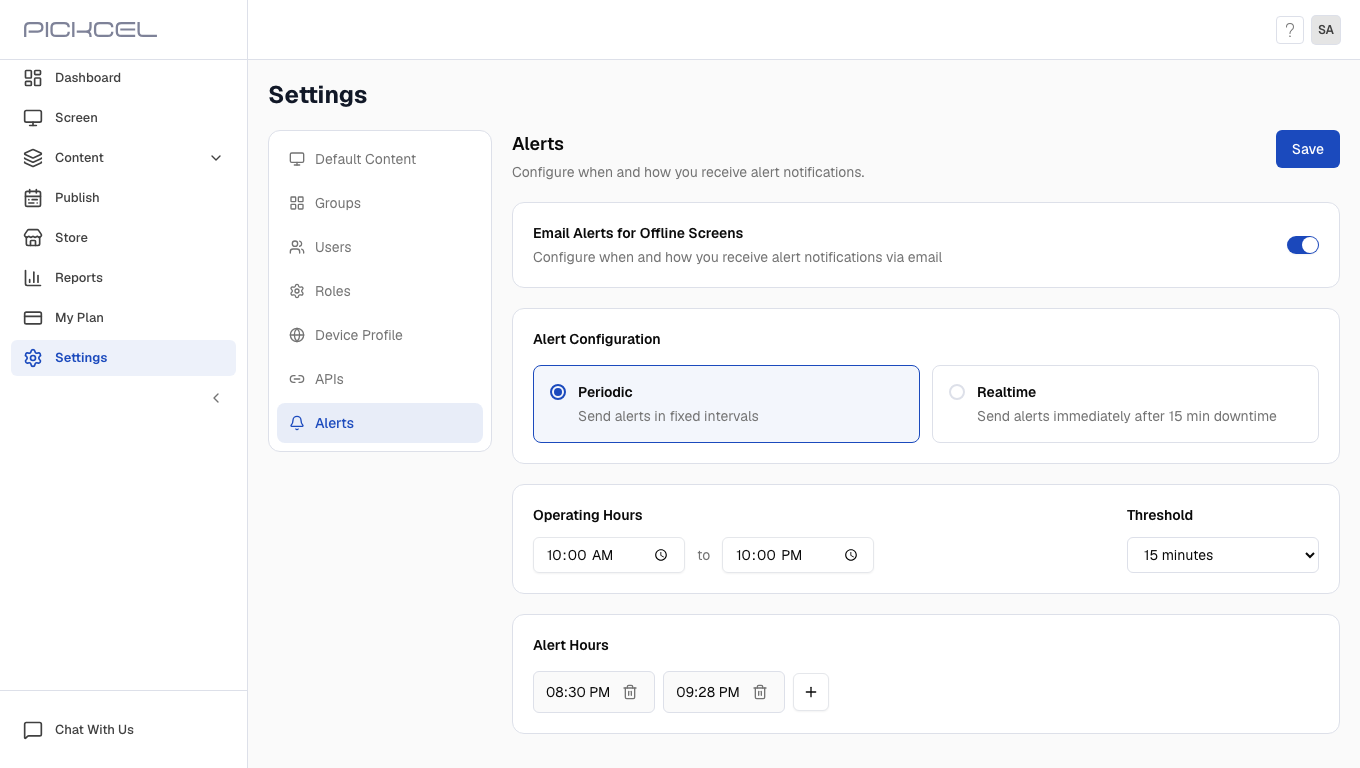 In **Alert Configuration**, select **Periodic** to send alerts at fixed intervals throughout the day.
* **Operating Hours**: Set the start and end time when alerts should be sent (for example, `10:00 AM` to `10:00 PM`).
* **Threshold**: Choose how long a screen must be offline before it counts toward an alert (for example, `15 minutes`).
* **Alert Hours**: Add one or more times when the system checks for offline screens and sends a summary email. Click **+** to add more times.
In **Alert Configuration**, select **Periodic** to send alerts at fixed intervals throughout the day.
* **Operating Hours**: Set the start and end time when alerts should be sent (for example, `10:00 AM` to `10:00 PM`).
* **Threshold**: Choose how long a screen must be offline before it counts toward an alert (for example, `15 minutes`).
* **Alert Hours**: Add one or more times when the system checks for offline screens and sends a summary email. Click **+** to add more times.
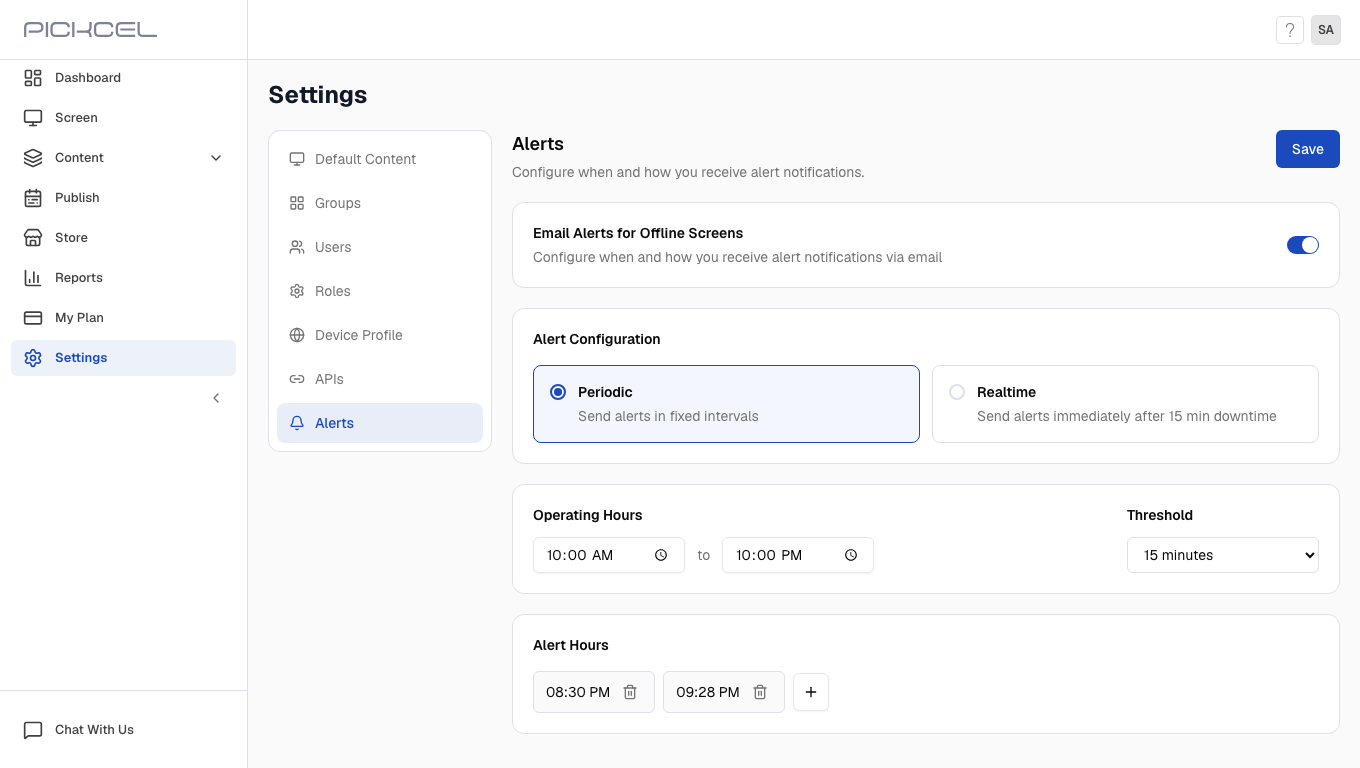 **Threshold** is a grace period that prevents alerts from brief network interruptions. A screen must stay offline longer than the threshold before it appears in a report.
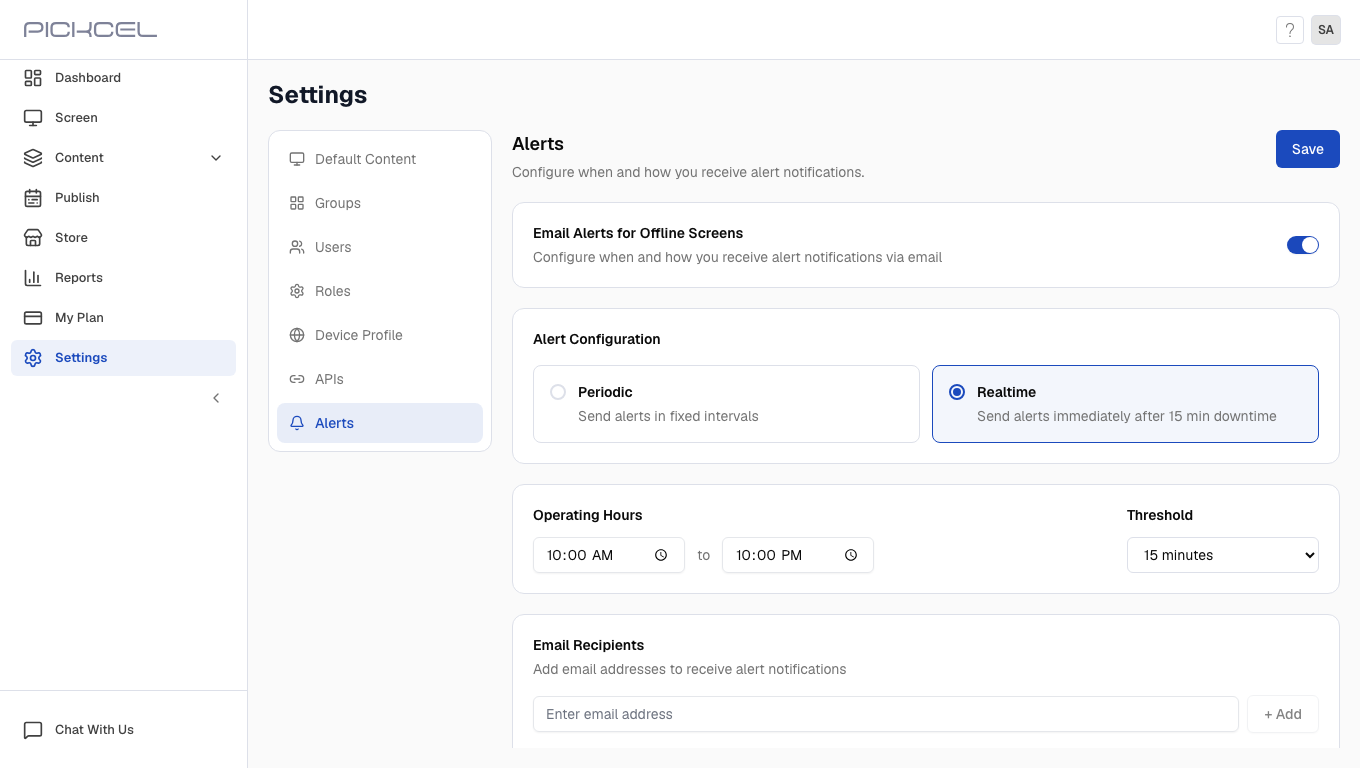
Select **Realtime** to receive alerts soon after a screen exceeds the downtime threshold. The system monitors continuously and sends follow-up alerts every 15 minutes until the screen is back online.
Set **Operating Hours** and **Threshold** the same way as periodic alerts. Realtime mode does not use **Alert Hours**.
**Threshold** is a grace period that prevents alerts from brief network interruptions. A screen must stay offline longer than the threshold before it appears in a report.
Select **Realtime** to receive alerts soon after a screen exceeds the downtime threshold. The system monitors continuously and sends follow-up alerts every 15 minutes until the screen is back online.
Set **Operating Hours** and **Threshold** the same way as periodic alerts. Realtime mode does not use **Alert Hours**.
 Use realtime alerts for critical displays where you need to respond quickly to downtime.
Scroll to **Email Recipients**. Enter a valid email address and click **+ Add**. Repeat for each person who should receive offline screen alerts. Click **Remove** next to an address to delete it from the list.
Use realtime alerts for critical displays where you need to respond quickly to downtime.
Scroll to **Email Recipients**. Enter a valid email address and click **+ Add**. Repeat for each person who should receive offline screen alerts. Click **Remove** next to an address to delete it from the list.
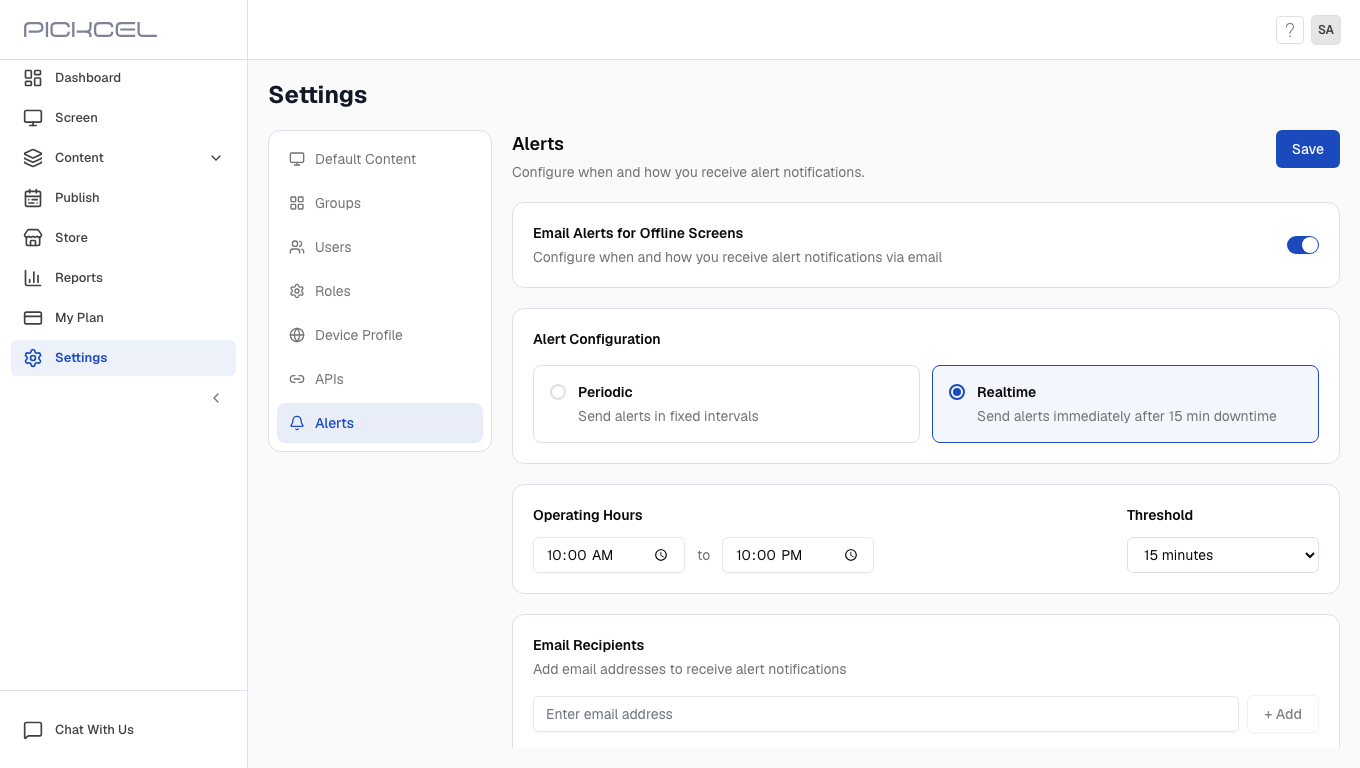 When you finish configuring alerts, click **Save** in the top-right corner of the page.
 ## Understanding Your Alerts
**What does the alert email look like?**
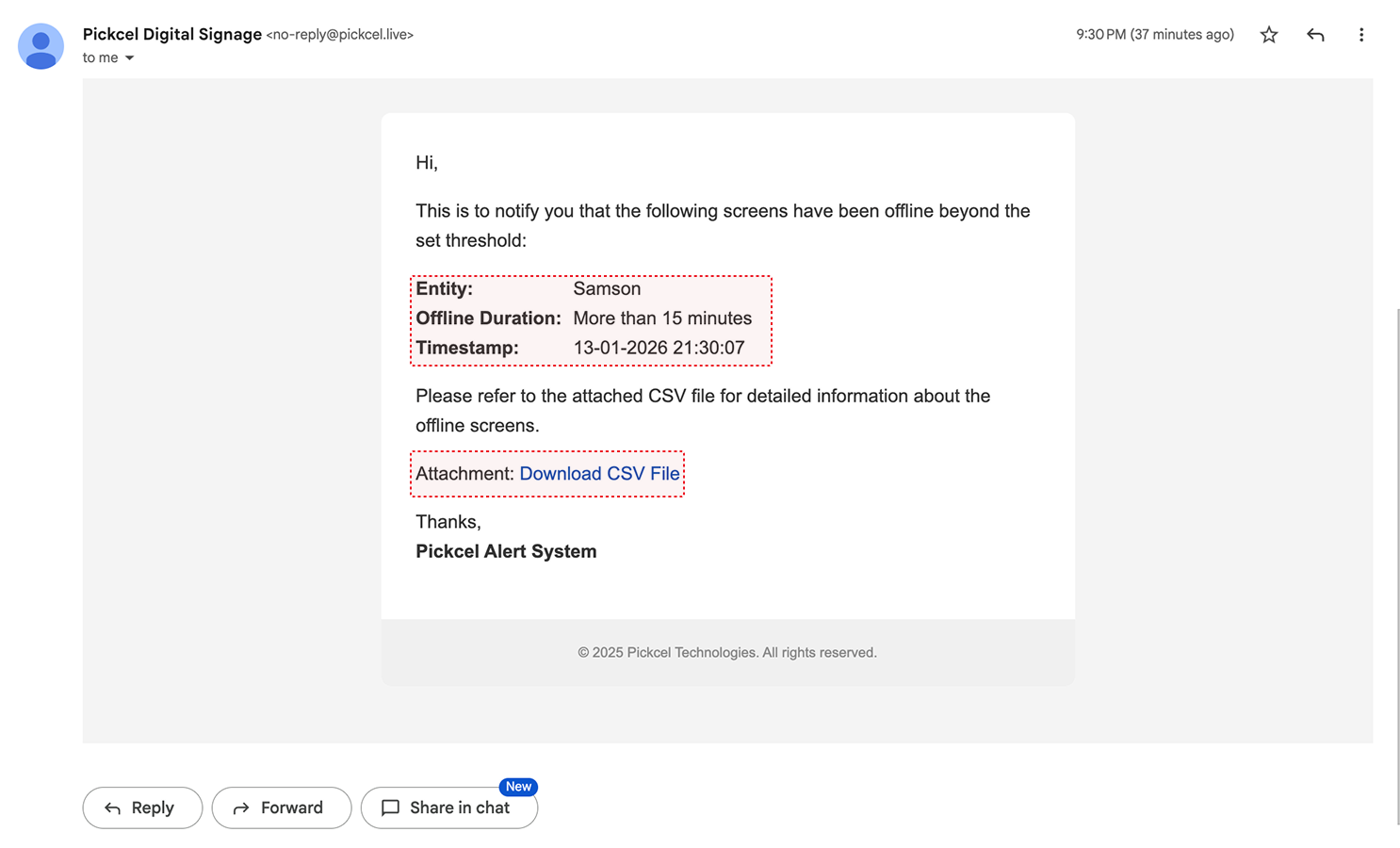
When an alert is triggered, you receive an email with:
**Subject:** `[Pickcel Alert] Screen Down Notification`
**Email body:**
* Offline duration threshold that triggered the alert
* Timestamp of when the alert was generated
* Summary of affected screens
**CSV attachment:** A detailed report (`screen-down-report.csv`) including Screen Name, Screen ID, Last Sync Time, Offline Duration, Group Name, Tags, and Custom Attributes.
## Understanding Your Alerts
**What does the alert email look like?**
When an alert is triggered, you receive an email with:
**Subject:** `[Pickcel Alert] Screen Down Notification`
**Email body:**
* Offline duration threshold that triggered the alert
* Timestamp of when the alert was generated
* Summary of affected screens
**CSV attachment:** A detailed report (`screen-down-report.csv`) including Screen Name, Screen ID, Last Sync Time, Offline Duration, Group Name, Tags, and Custom Attributes.
 ## Important Alert Behavior
The threshold applies to both **Periodic** and **Realtime** alerts. A screen must be offline longer than your threshold before it triggers any alert.
**Same-day detection:** Alerts focus on screens that went offline on the current day. The system resets daily and tracks new offline instances within today's operating window.
Not sure what "offline" means for a screen? See [Health Indicators](/faqs/health-indicators) for how Pickcel determines online, offline, and other screen states.
Need assistance? Reach out to our [support team](mailto:support@pickcel.com).
## Important Alert Behavior
The threshold applies to both **Periodic** and **Realtime** alerts. A screen must be offline longer than your threshold before it triggers any alert.
**Same-day detection:** Alerts focus on screens that went offline on the current day. The system resets daily and tracks new offline instances within today's operating window.
Not sure what "offline" means for a screen? See [Health Indicators](/faqs/health-indicators) for how Pickcel determines online, offline, and other screen states.
Need assistance? Reach out to our [support team](mailto:support@pickcel.com).