> ## Documentation Index
> Fetch the complete documentation index at: https://docs.pickcel.com/llms.txt
> Use this file to discover all available pages before exploring further.
# What is a Group and how do I add a Group?
> Learn about Groups in Pickcel and how to create groups for organizing users and controlling access to digital signage screens, media, compositions, and schedules
A **Group** is a set of users who have access to a set of modules and its details within a Pickcel Account. Screens, Media, Compositions, and Schedules are filtered based on the group. Users belonging to different groups will not be able to see each other's Screens, Media, Composition, and Schedule.
**Example:** You can set two Groups (Group 1 and Group 2) for two different geographical locations, A and B. Group 1 has access to the screens, media, and so on of Location A, and Group 2 has access to the same in Location B. Under each group, you can set the user roles (Manager/Operator/Editor). The Manager of Group 1 cannot see the screens, media, and so on of the Manager of Group 2, and vice versa.
Before creating a Sub User, you need to create at least one Group. Any sub-user must be linked to a Group when they are created.
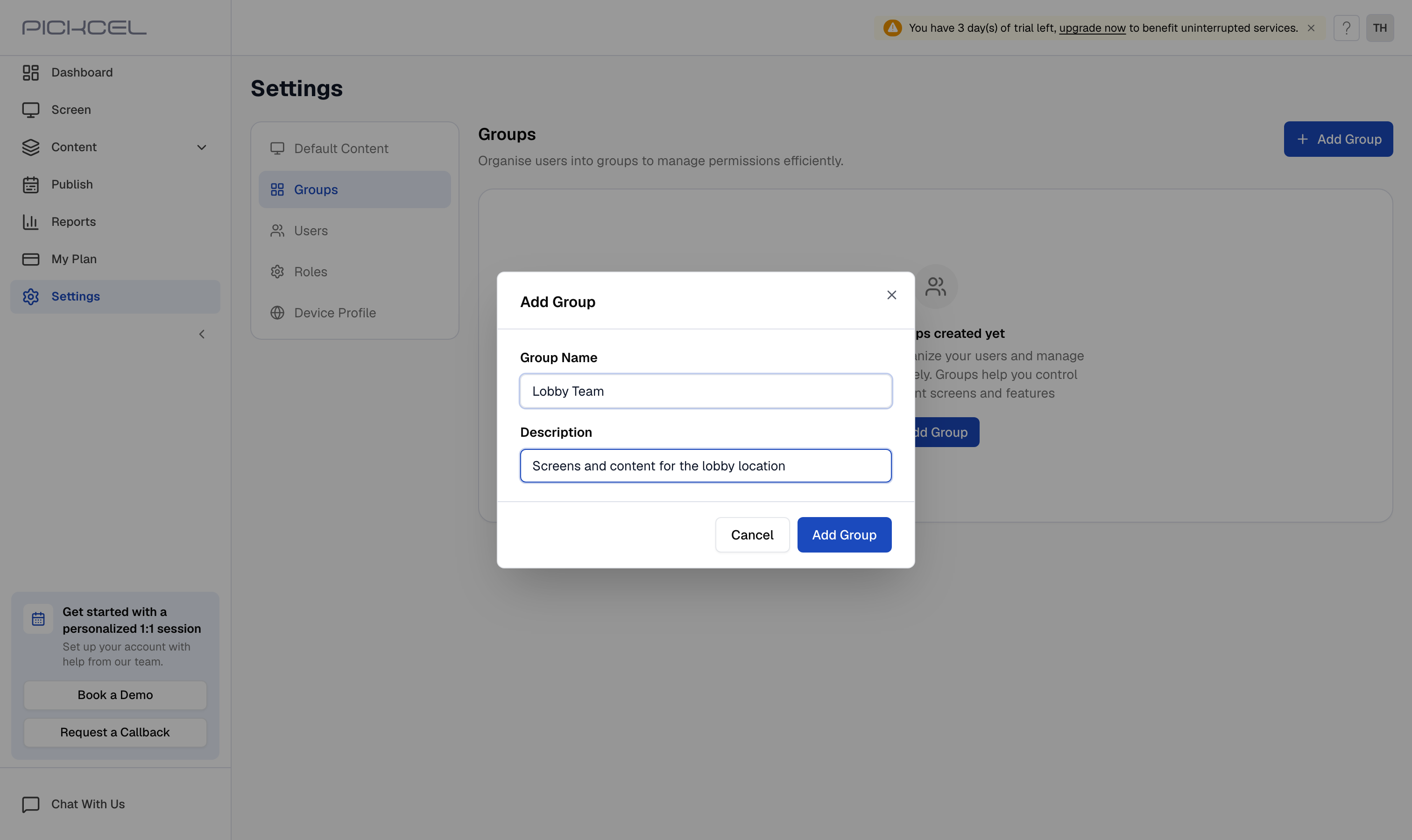
In the [Pickcel console](https://console.pickcel.com), open the **Settings** module and select the **Groups** tab. Click the **Add Group** button in the top-right.
 In the **Add Group** dialog, enter a **Group Name** and a **Description**, then click **Add Group** to create it.
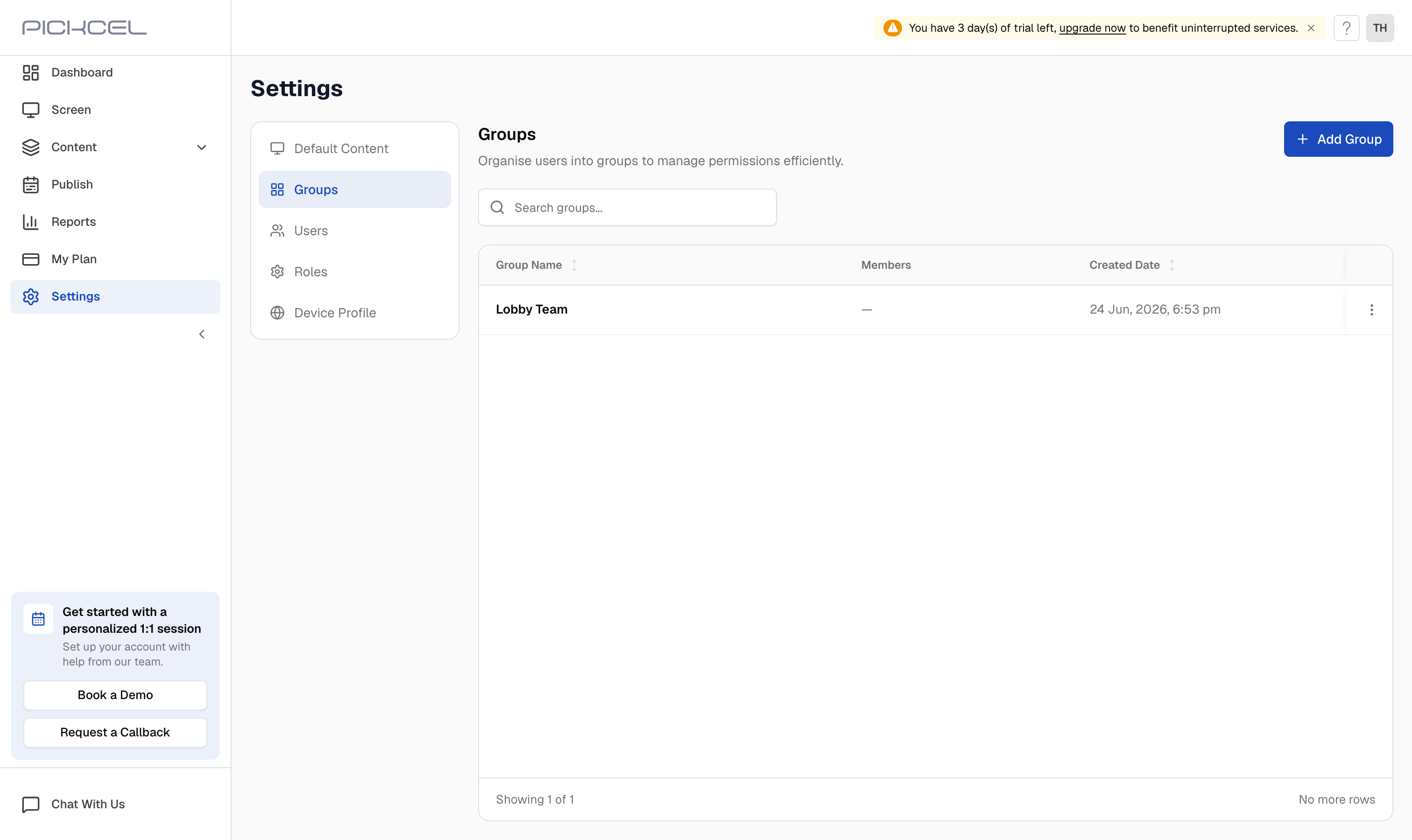
 The new group appears in the **Groups** list, ready to assign to sub-users and screens.
Next, add team members to the group. See [Who is a Sub user and How do I add sub users in Pickcel?](/settings/sub-users)
To assign screens to a group, for example to organize screens by store or location, see [How can I group the screens based on store?](/settings/screen-grouping)
The new group appears in the **Groups** list, ready to assign to sub-users and screens.
Next, add team members to the group. See [Who is a Sub user and How do I add sub users in Pickcel?](/settings/sub-users)
To assign screens to a group, for example to organize screens by store or location, see [How can I group the screens based on store?](/settings/screen-grouping)