> ## Documentation Index
> Fetch the complete documentation index at: https://docs.pickcel.com/llms.txt
> Use this file to discover all available pages before exploring further.
# What is default composition? How do I set a default composition?
> Learn what a default composition is and how to set the default composition your digital signage screens fall back to in Pickcel Settings
This page covers setting the **account-level default composition** in the Settings module. The default composition is the composition a screen plays when it has no Quick Play or scheduled content assigned to it, and it is also what new screens play automatically as soon as they are registered. If you haven't created a composition yet, see [Compositions](/compositions/compositions) first.
**If you're publishing content:** To assign a default composition to a screen while scheduling content, see [Assign Default Composition at Publish Time](/schedule-and-publish/default-composition) instead.
## Set the default composition for specific screens
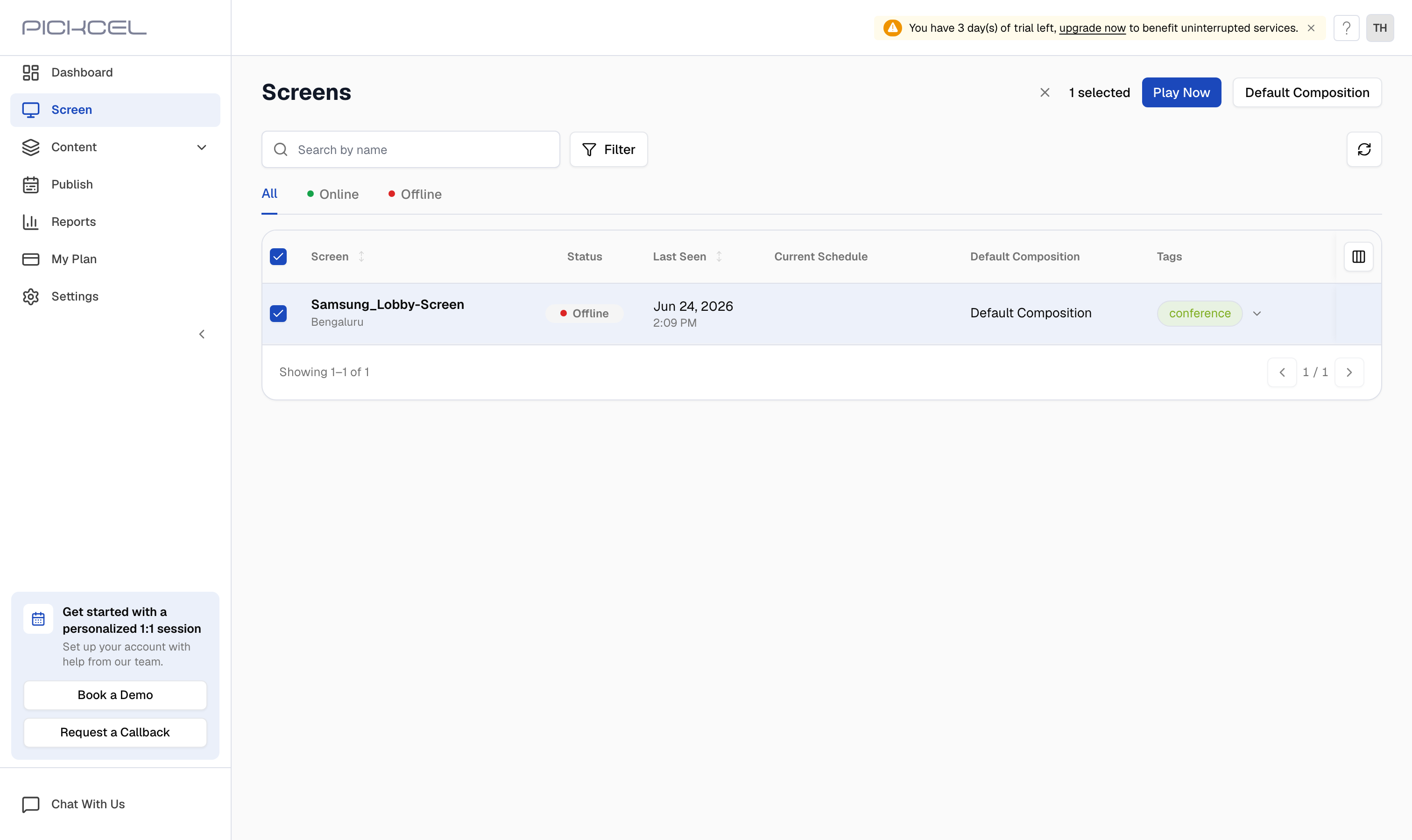
In [Pickcel console](https://console.pickcel.com/), open the **Screen** module and tick the checkbox for each screen you want to update. A toolbar appears showing how many screens are selected, with a **Default Composition** button in the top-right.
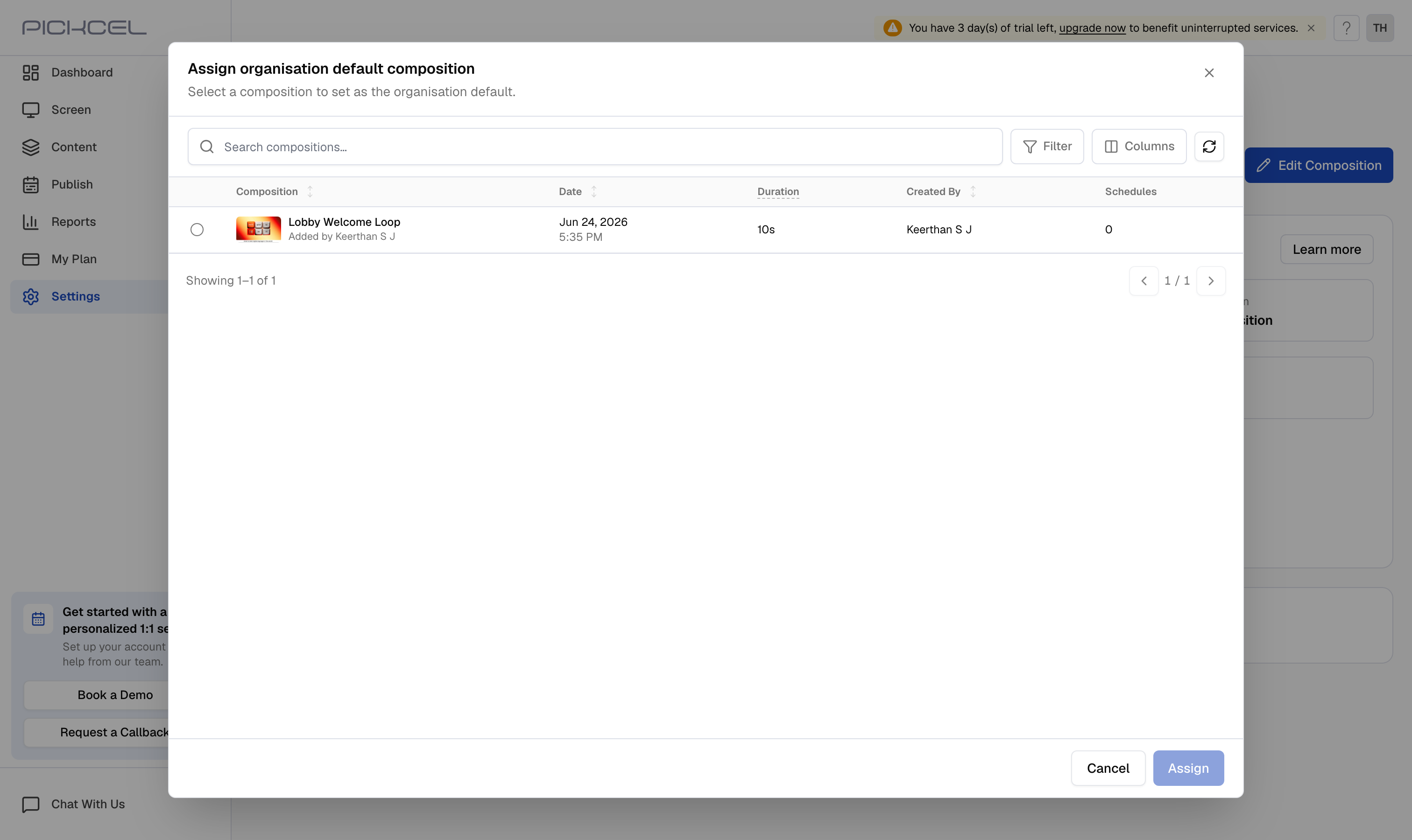
 Click **Default Composition**. In the dialog, select the composition you want, then click **Assign**. The chosen composition becomes the default for every screen you selected.
 ## Set the organisation default composition for all new screens
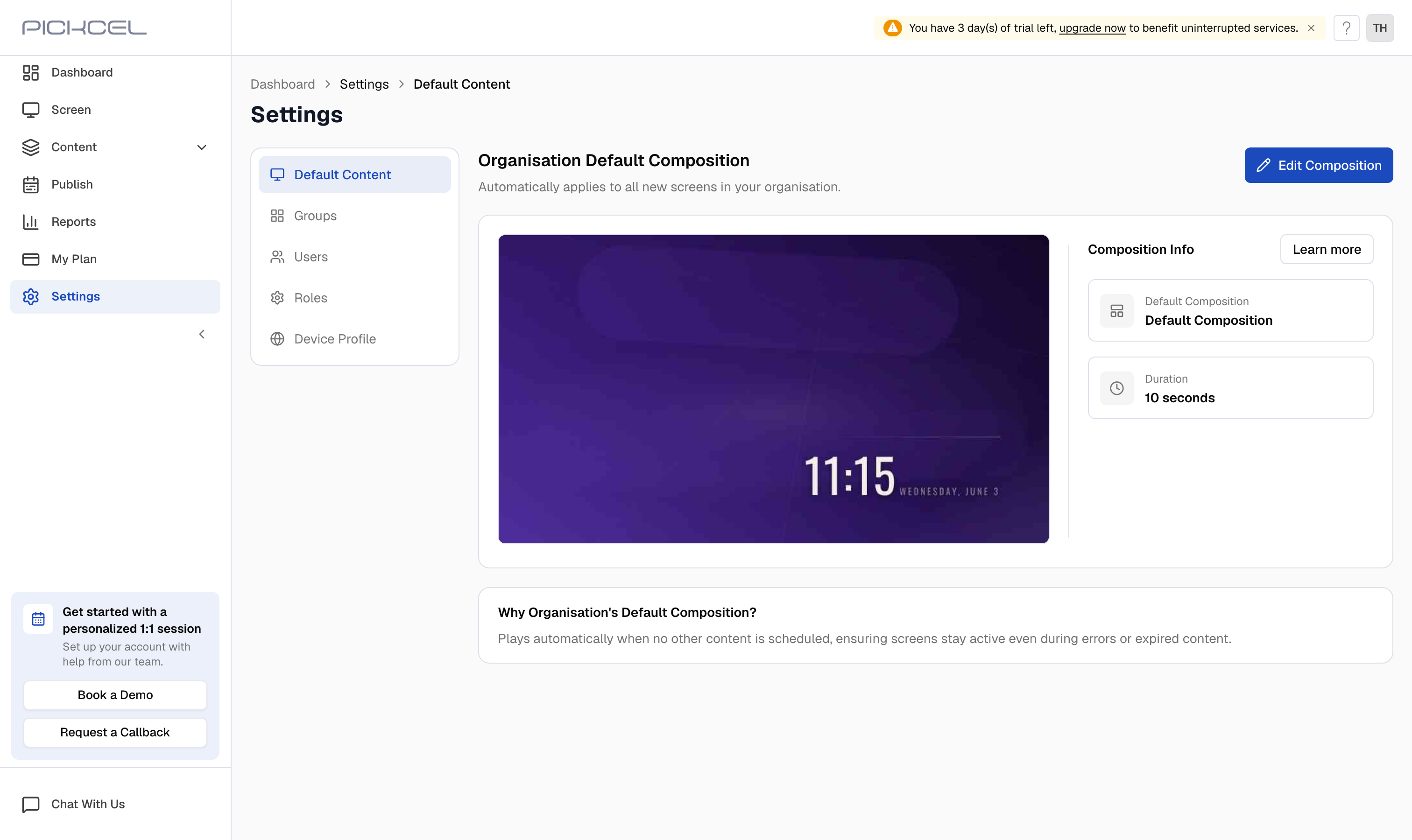
This default applies automatically to every new screen added to your organisation.
Go to the **Settings** module and open the **Default Content** tab. Under **Organisation Default Composition**, click **Edit Composition** in the top-right.
## Set the organisation default composition for all new screens
This default applies automatically to every new screen added to your organisation.
Go to the **Settings** module and open the **Default Content** tab. Under **Organisation Default Composition**, click **Edit Composition** in the top-right.
 In the dialog, select the composition you want to use, then click **Assign**. Every screen added from now on starts with this composition as its default.
Setting the organisation default applies to **new** screens going forward. To change the default on screens that already exist, use the first method and select those screens in the **Screen** module.
In the dialog, select the composition you want to use, then click **Assign**. Every screen added from now on starts with this composition as its default.
Setting the organisation default applies to **new** screens going forward. To change the default on screens that already exist, use the first method and select those screens in the **Screen** module.