> ## Documentation Index
> Fetch the complete documentation index at: https://docs.pickcel.com/llms.txt
> Use this file to discover all available pages before exploring further.
# Is it possible to integrate Pickcel API with any 3rd party application?
> Learn how to integrate the Pickcel API with third-party applications and access API documentation for your digital signage account
Yes. You can integrate the Pickcel API with third-party applications from your account. Use the **APIs** tab in Settings to open the API documentation and manage your authentication token.
API access requires a Business account.
[Log in to your Pickcel account](https://console.pickcel.com) and open the **Settings** module from the left navigation.
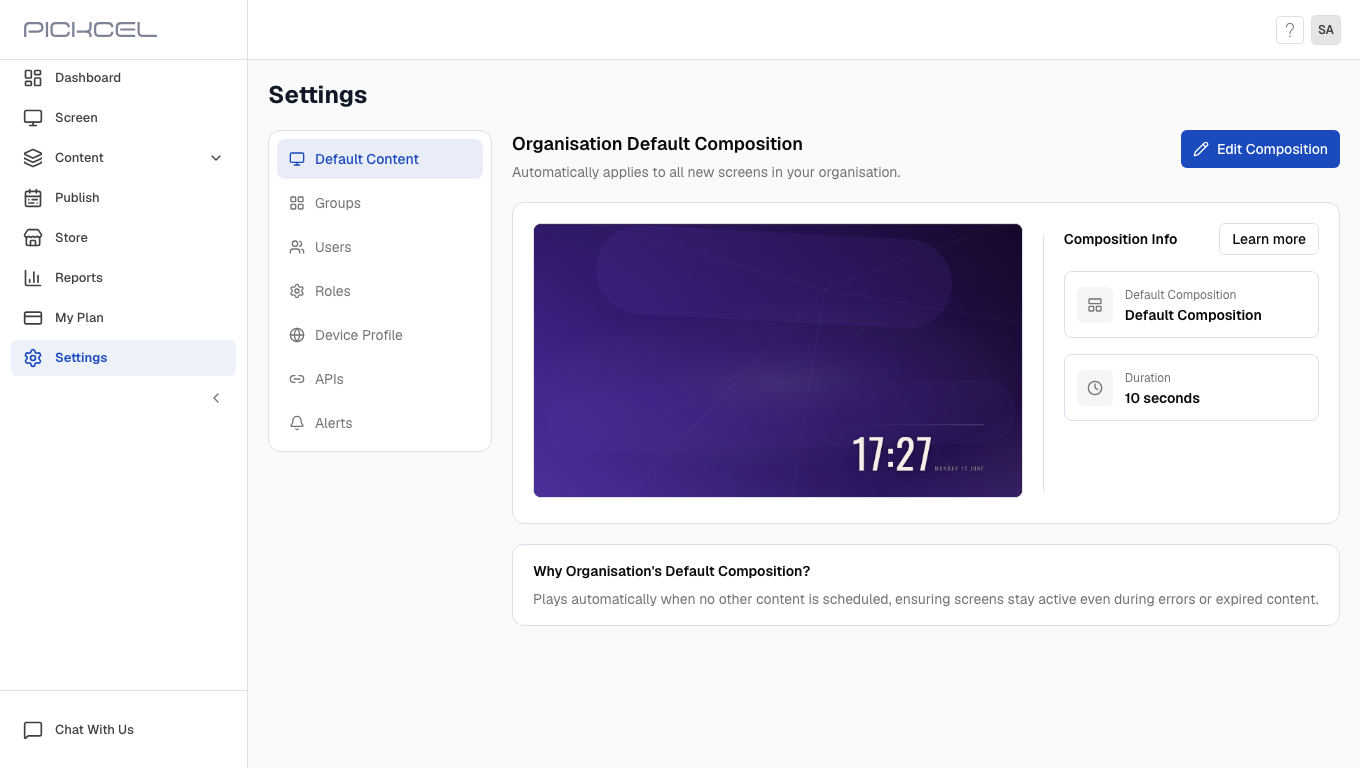 In the Settings sidebar, select **APIs**. The page shows API documentation and authentication options.
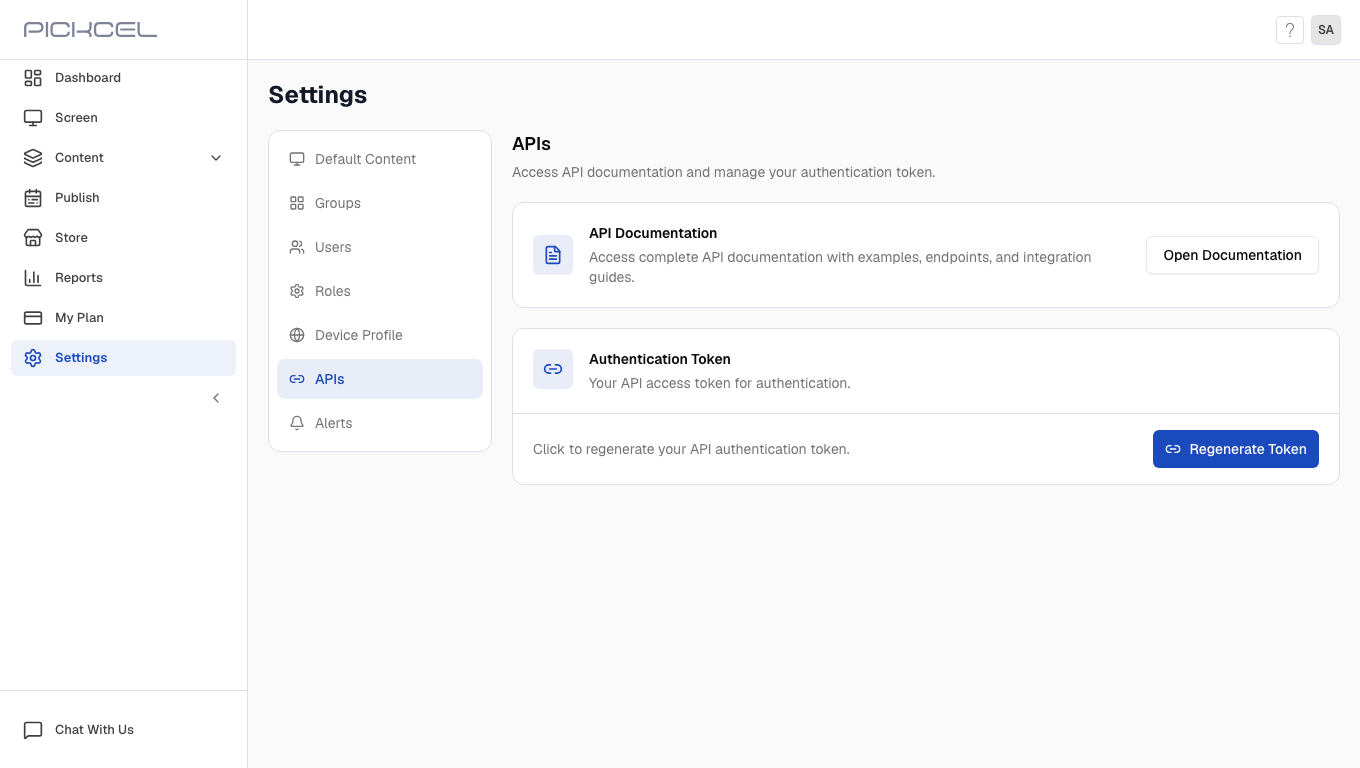 Under **API Documentation**, click **Open Documentation** to view endpoints, examples, and integration guides.
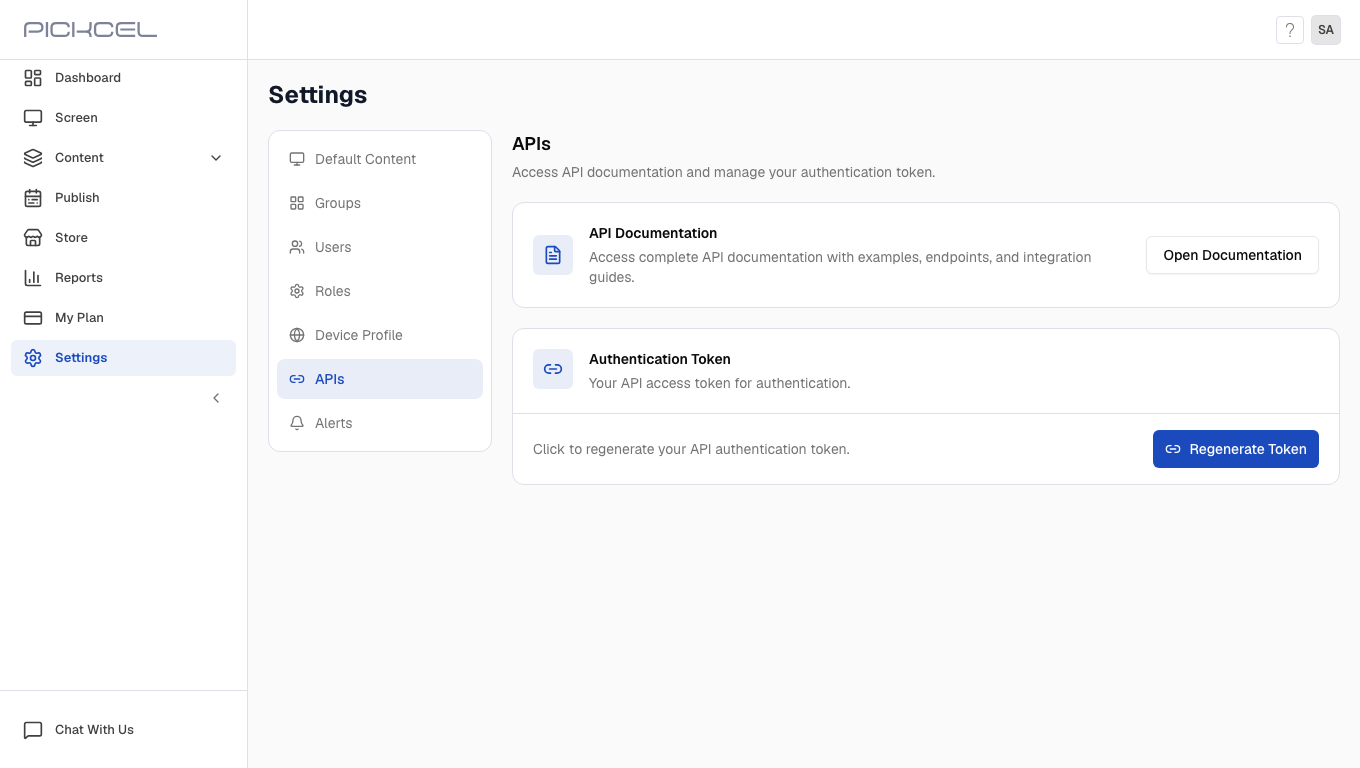 Under **Authentication Token**, click **Regenerate Token** to create a new API access token. Copy the token when it appears and store it securely. After you close the page, Pickcel shows only a masked version of the token.
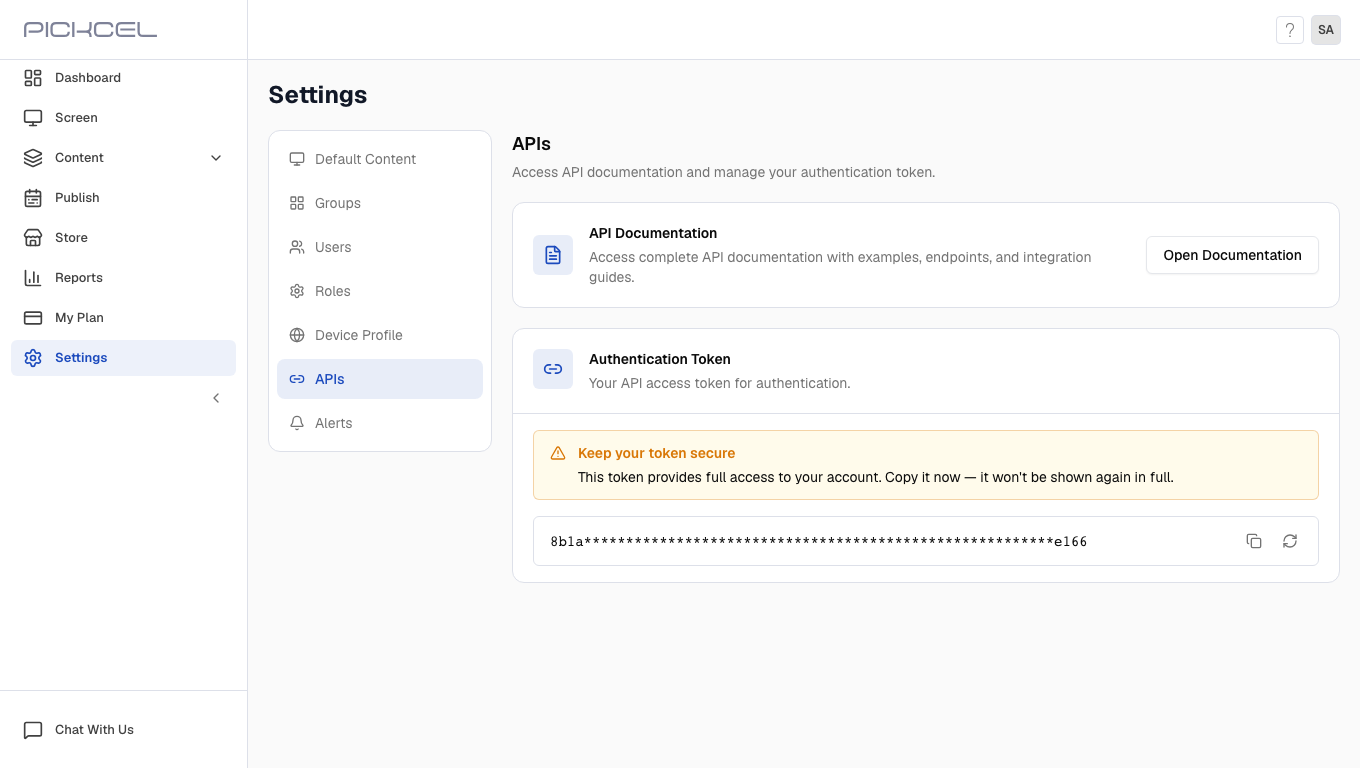 Your authentication token provides full access to your account. Store it securely and never share it publicly. If you regenerate the token, update it in every integration that uses the Pickcel API.
Need assistance? Reach out to our [support team](mailto:support@pickcel.com).
Your authentication token provides full access to your account. Store it securely and never share it publicly. If you regenerate the token, update it in every integration that uses the Pickcel API.
Need assistance? Reach out to our [support team](mailto:support@pickcel.com).