> ## Documentation Index
> Fetch the complete documentation index at: https://docs.pickcel.com/llms.txt
> Use this file to discover all available pages before exploring further.
# How to add a Webplayer (temporary screen)?
> Use Pickcel's browser-based Webplayer to register a temporary screen and preview compositions without installing player software on a device
If you do not have a display readily available, use the **Webplayer** option in the **Screen** module. The Webplayer lets you see how a composition looks on a screen without installing player software on a physical device.
The Webplayer is for **testing and preview only**. Playback may differ slightly from real hardware depending on the device and player software you deploy to later.
## Add a Webplayer screen
Log in to the [Pickcel console](https://console.pickcel.com/) and go to the **Screen** module. Click **Add Screen**.
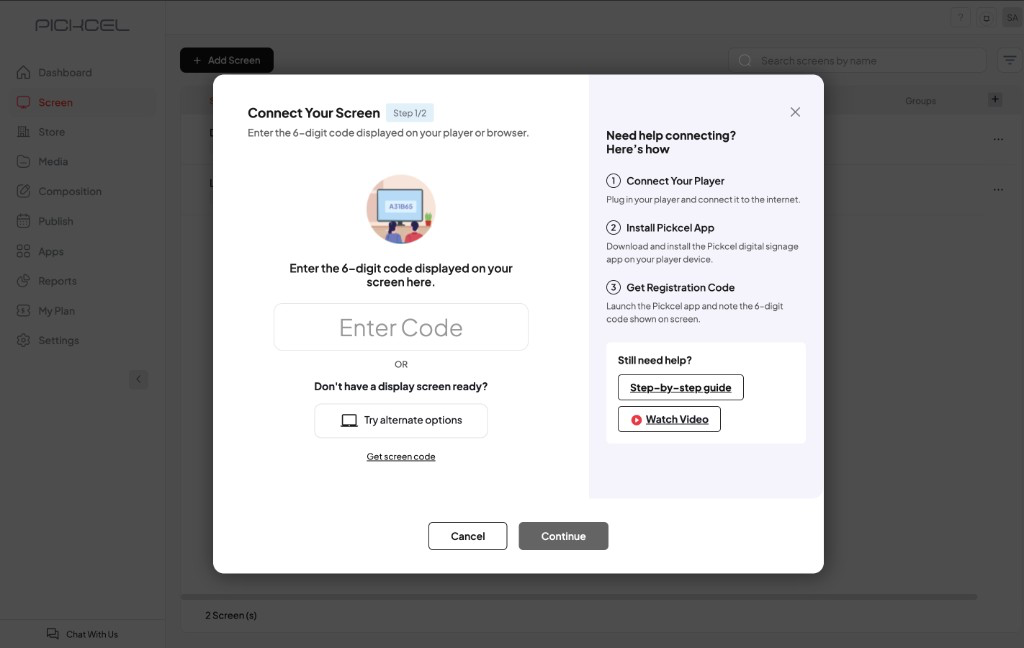
In the **Connect Your Screen** dialog, click **Try alternate options** under "Don't have a display screen ready?"
 On the **No Display Ready?** screen, choose **Try it on your browser using the Web Player**, then click **Try Now**. This opens the Webplayer in a new browser tab, no software installation required.
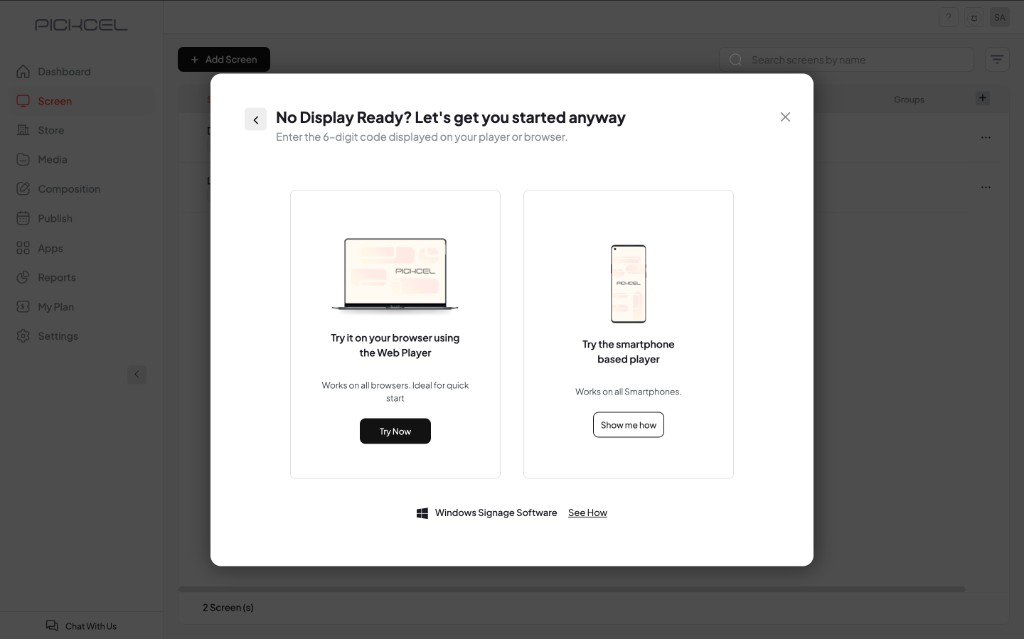 You can also use **Try the smartphone based player** if you prefer testing on a mobile device.
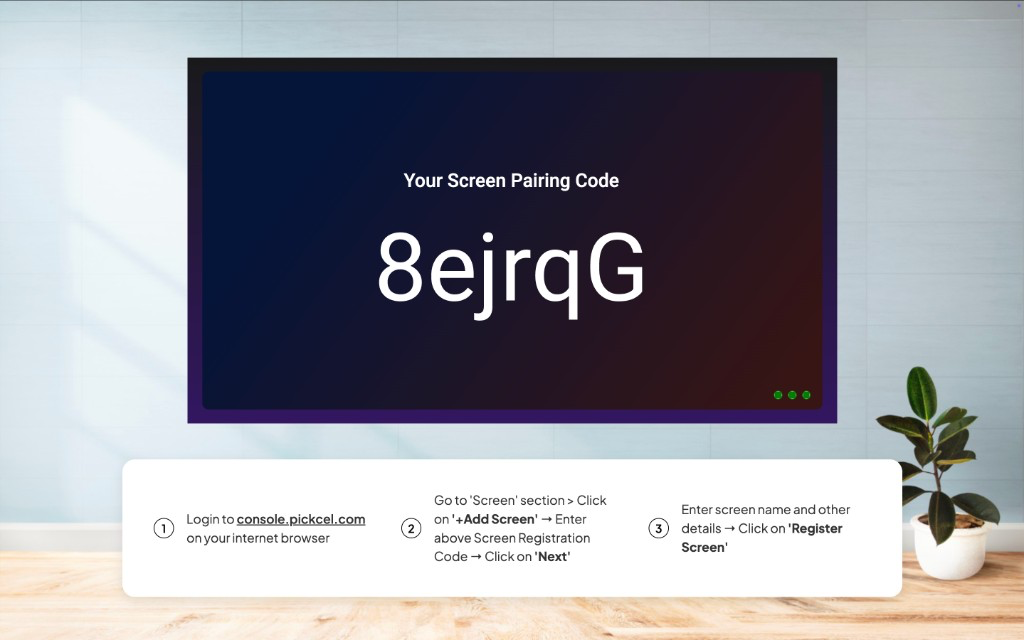
Switch to the **Web Player** tab. Copy the **screen pairing code** shown on the display.
You can also use **Try the smartphone based player** if you prefer testing on a mobile device.
Switch to the **Web Player** tab. Copy the **screen pairing code** shown on the display.
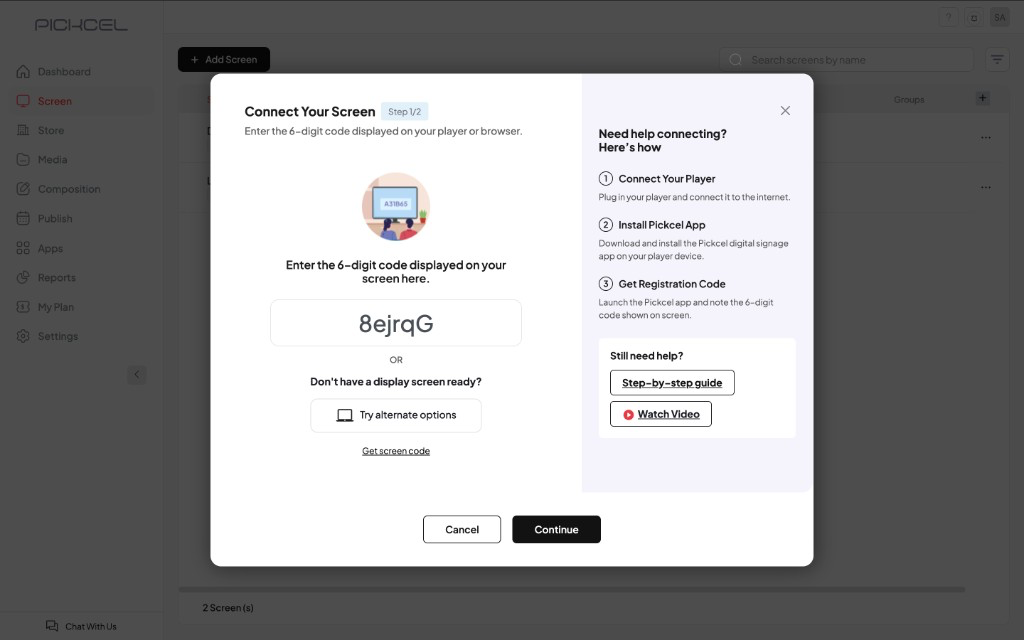
 Return to the Pickcel console tab. Paste the code into the **Enter Code** field (or click **Get screen code** if the Webplayer tab is still open), then click **Continue**.
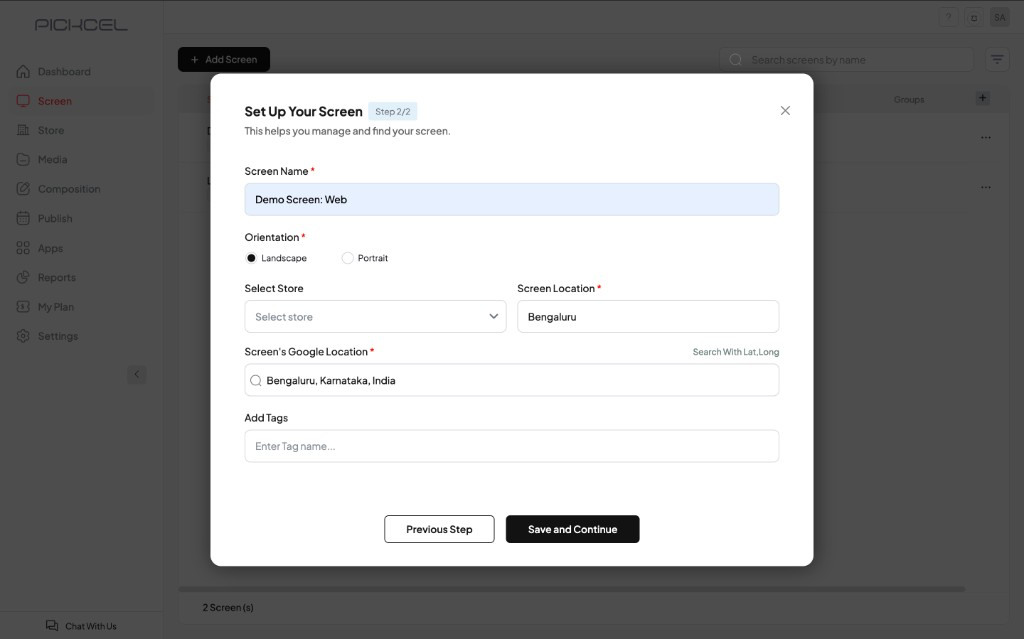
 On **Set Up Your Screen** (Step 2/2), enter the **Screen Name**, **Orientation**, **Screen Location**, and **Screen's Google Location**, then click **Save and Continue**.
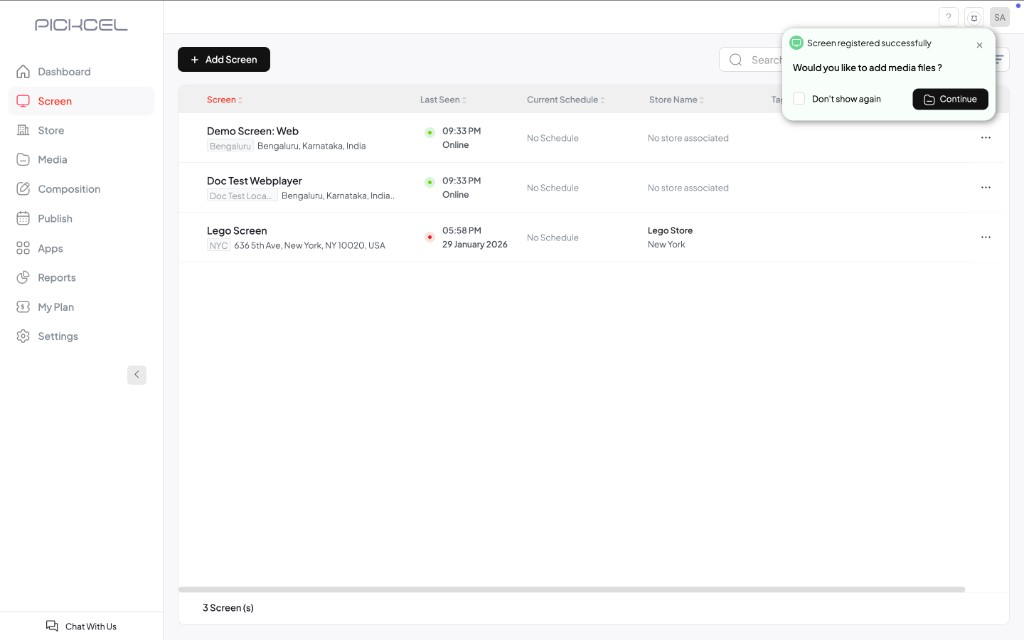
 Your virtual screen is added to the Screen list. A confirmation appears when registration completes.
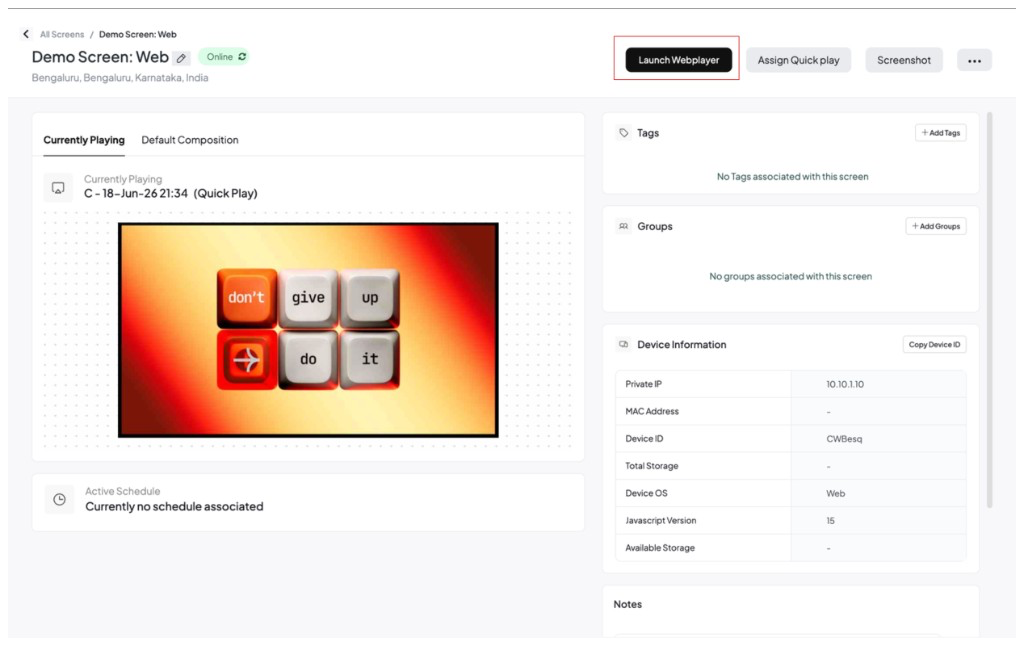
 To open the Webplayer again later, click the screen name in the Screen list to open its detail page, then click **Launch Webplayer**.
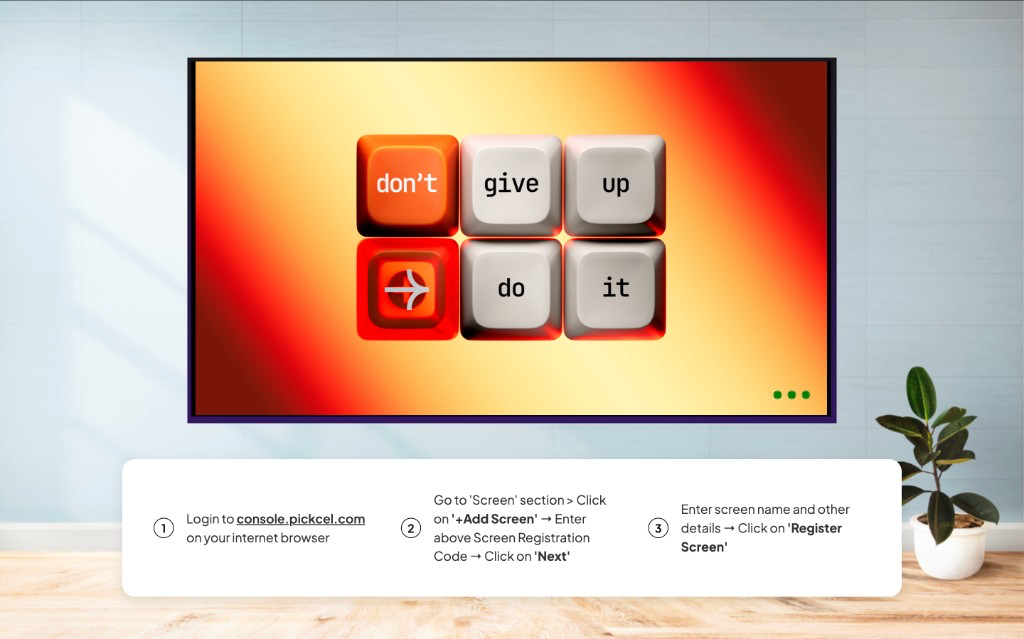
 A new browser tab opens and plays your content, as shown in the image below.
 ## Related guides
Register a physical player with a display registration code.
Set the content that plays on your Webplayer when no schedule is active.
Schedule and publish compositions to your screens.
Build the layout and content you want to preview on the Webplayer.
## Related guides
Register a physical player with a display registration code.
Set the content that plays on your Webplayer when no schedule is active.
Schedule and publish compositions to your screens.
Build the layout and content you want to preview on the Webplayer.