> ## Documentation Index
> Fetch the complete documentation index at: https://docs.pickcel.com/llms.txt
> Use this file to discover all available pages before exploring further.
# Quick Play: instantly publish content to digital signage screens
> Use Quick Play to immediately push a composition to your digital signage screens for a set duration. Overrides active schedules and resumes them automatically when done.
Quick Play pushes a single composition to your screens immediately for a fixed duration. It overrides any active schedule, existing schedules pause and automatically resume once Quick Play ends.
Quick Play supports **one composition at a time**. Make sure the composition you want to play already exists before you start.
***
## How to create a Quick Play
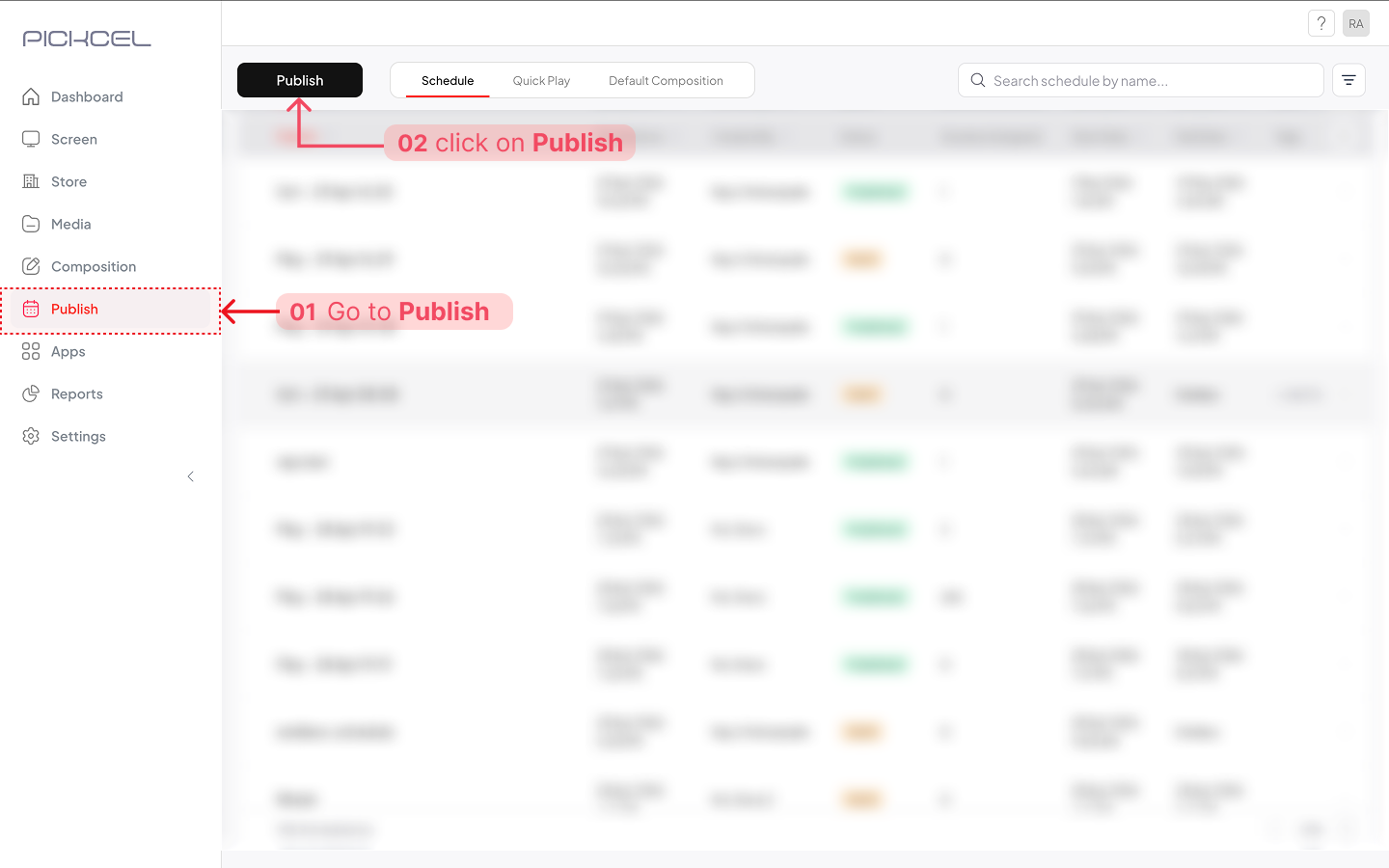
Click **Publish** in the left navigation, then click the **Publish** button.
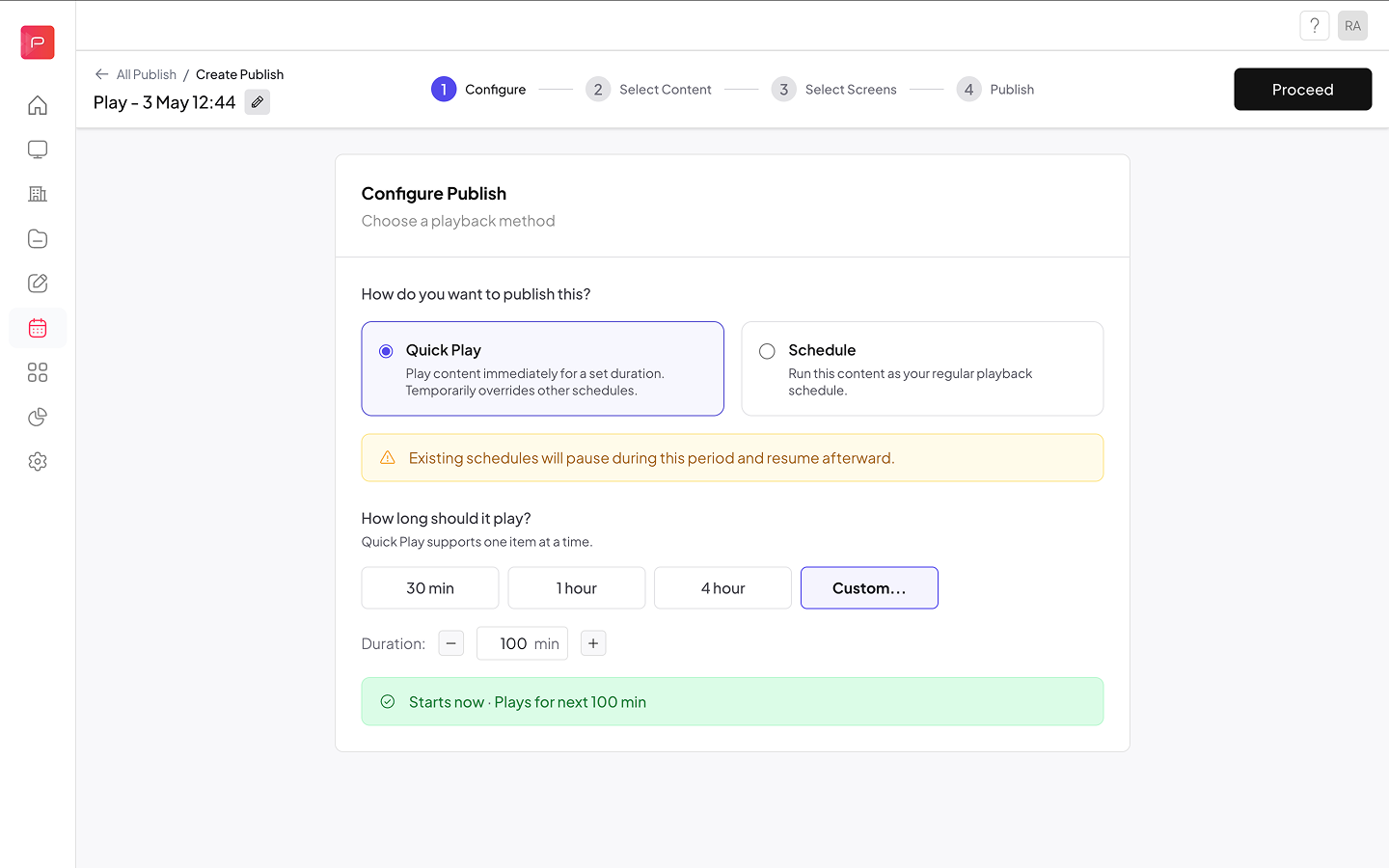
 **Quick Play** is selected by default on the **Configure Publish** page.
Choose **30 min**, **1 hour**, **4 hour**, or **Custom** (enter any number of minutes). A summary bar confirms the selection.
**Quick Play** is selected by default on the **Configure Publish** page.
Choose **30 min**, **1 hour**, **4 hour**, or **Custom** (enter any number of minutes). A summary bar confirms the selection.
 Click **Proceed**.
Click **+ Browse Content**, search or scroll to find a composition, select it, then click **Confirm**.
Click **Proceed**.
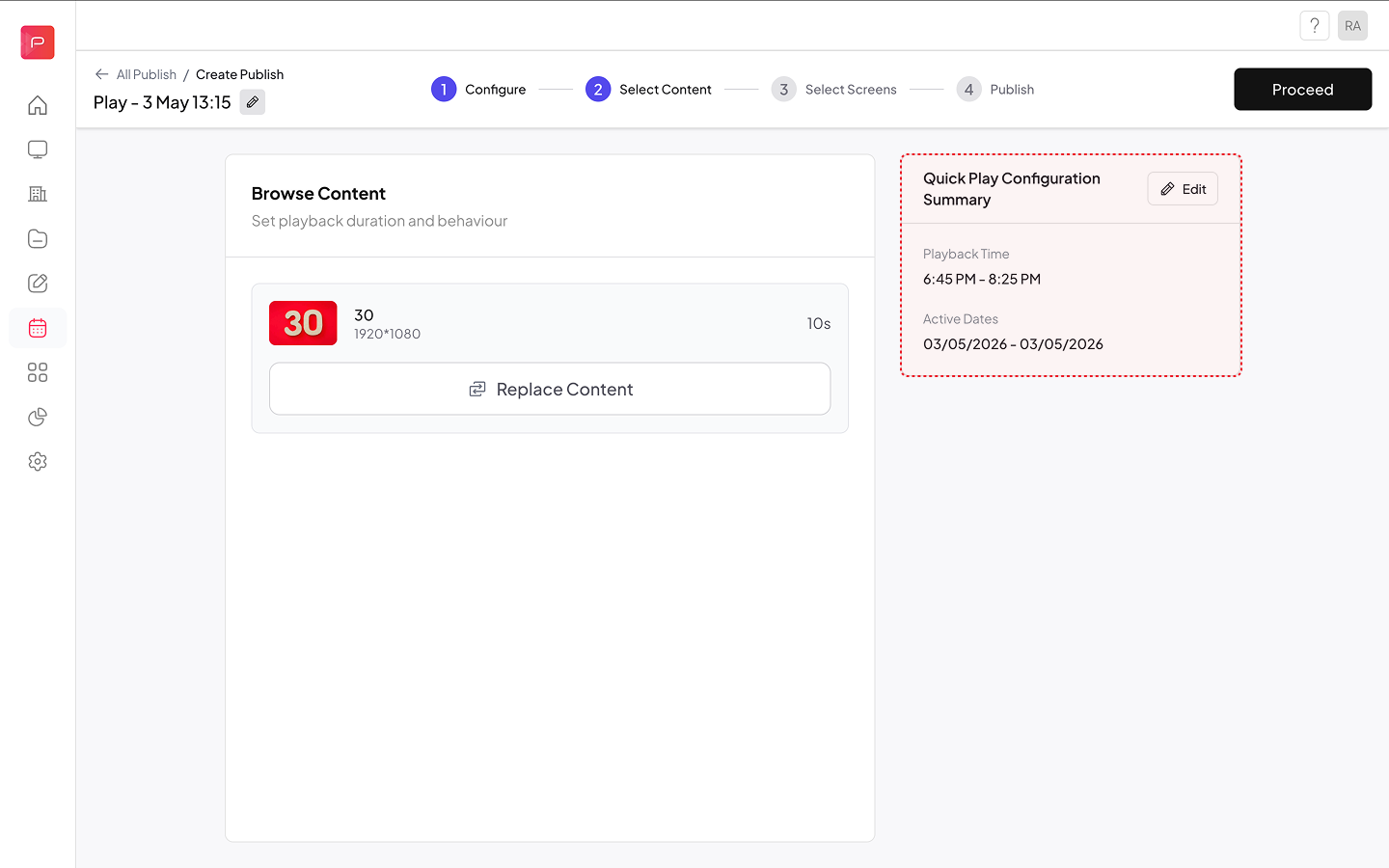
The right panel shows a **Quick Play Configuration Summary**. Click **Edit** there to adjust the duration without starting over.
Click **Proceed**.
Click **+ Browse Content**, search or scroll to find a composition, select it, then click **Confirm**.
Click **Proceed**.
The right panel shows a **Quick Play Configuration Summary**. Click **Edit** there to adjust the duration without starting over.
 Check the screens you want to target. Each row shows **Last Seen**, **Current Schedule**, and **Download Status** so you can confirm screens are online and ready.
Quick Play overrides any active schedule on the selected screens.
To save without assigning screens, click **Skip Screen Selection**, the Quick Play saves as a **Draft**.
Click **Publish**. Quick Play begins immediately and the entry appears in the **Quick Play** tab with a **Published** status.
***
## Managing Quick Plays
All your Quick Plays, active and draft, are listed under the **Quick Play** tab in the Publish module. Each entry shows the name, status, screens assigned, start date, and end date.
To delete a Quick Play, click **⋯** on the row and select **Delete**. This removes it from all assigned screens and cannot be undone.
***
## Related
* [Schedule](/schedule-and-publish/v5/schedule), run content between a defined start and end date instead of immediately
* [Advanced Schedule](/schedule-and-publish/v5/advanced-scheduler), build a full content calendar with day sequences
* [Quick Play (v4)](/schedule-and-publish/quick-play), previous workflow
Check the screens you want to target. Each row shows **Last Seen**, **Current Schedule**, and **Download Status** so you can confirm screens are online and ready.
Quick Play overrides any active schedule on the selected screens.
To save without assigning screens, click **Skip Screen Selection**, the Quick Play saves as a **Draft**.
Click **Publish**. Quick Play begins immediately and the entry appears in the **Quick Play** tab with a **Published** status.
***
## Managing Quick Plays
All your Quick Plays, active and draft, are listed under the **Quick Play** tab in the Publish module. Each entry shows the name, status, screens assigned, start date, and end date.
To delete a Quick Play, click **⋯** on the row and select **Delete**. This removes it from all assigned screens and cannot be undone.
***
## Related
* [Schedule](/schedule-and-publish/v5/schedule), run content between a defined start and end date instead of immediately
* [Advanced Schedule](/schedule-and-publish/v5/advanced-scheduler), build a full content calendar with day sequences
* [Quick Play (v4)](/schedule-and-publish/quick-play), previous workflow