> ## Documentation Index
> Fetch the complete documentation index at: https://docs.pickcel.com/llms.txt
> Use this file to discover all available pages before exploring further.
# What is Quick Play and How to assign a quick play to the screens?
> Learn how to use Quick Play to immediately display content on screens for a set duration, from the Publish module or directly from a screen
If you want to immediately display a composition on a screen for a specific duration, use **Quick Play**. Quick Play takes precedence over any existing schedule on the display and starts playing right away, which makes it ideal for urgent or emergency notifications. When the duration ends, the screen returns to its scheduled or default content.
Create a composition first if you do not have one already. See [What is a Composition? How to create a Composition?](/compositions/compositions)
There are two ways to assign a Quick Play.
## Method 1 - From the Publish module
In [Pickcel console](https://console.pickcel.com/), open the **Publish** module and click the **Quickplay** button in the top-right.
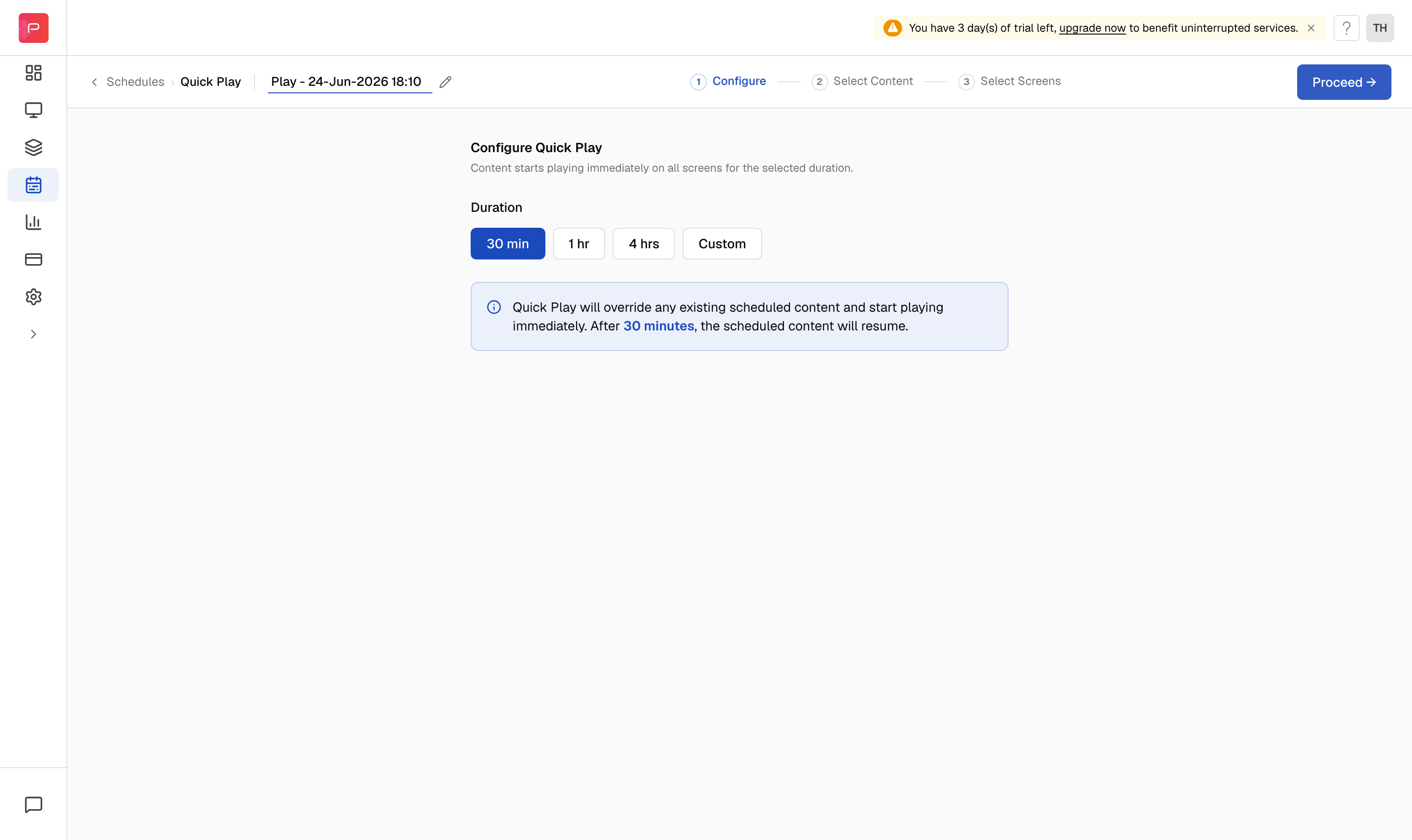
On the **Configure** step, pick how long the Quick Play should run: **30 min**, **1 hr**, **4 hrs**, or a **Custom** duration. A note reminds you that Quick Play overrides existing scheduled content and that the schedule resumes once the duration ends. Click **Proceed**.
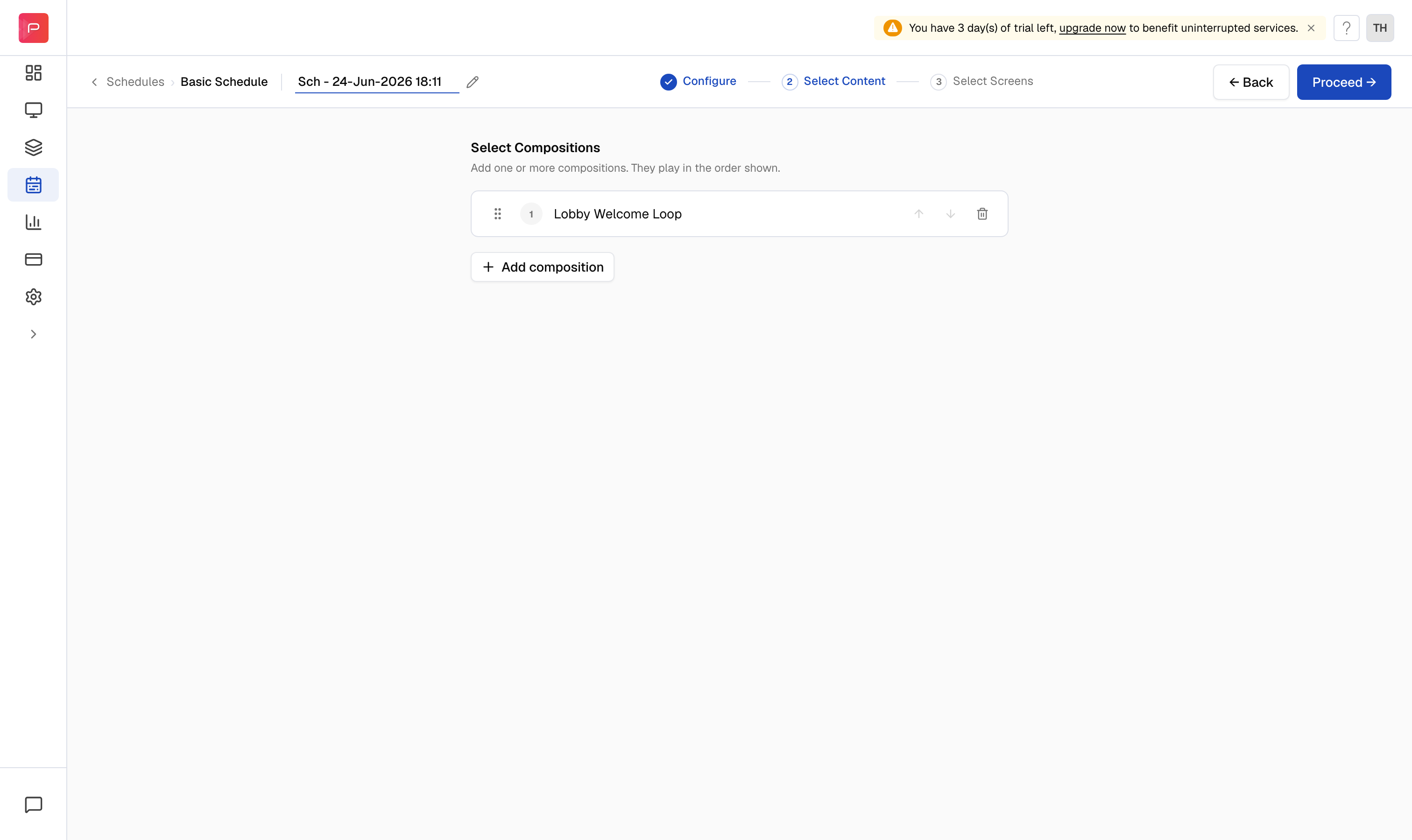
 Click **Browse compositions**, choose the composition you want to play, and click **Add**. Click **Proceed**.
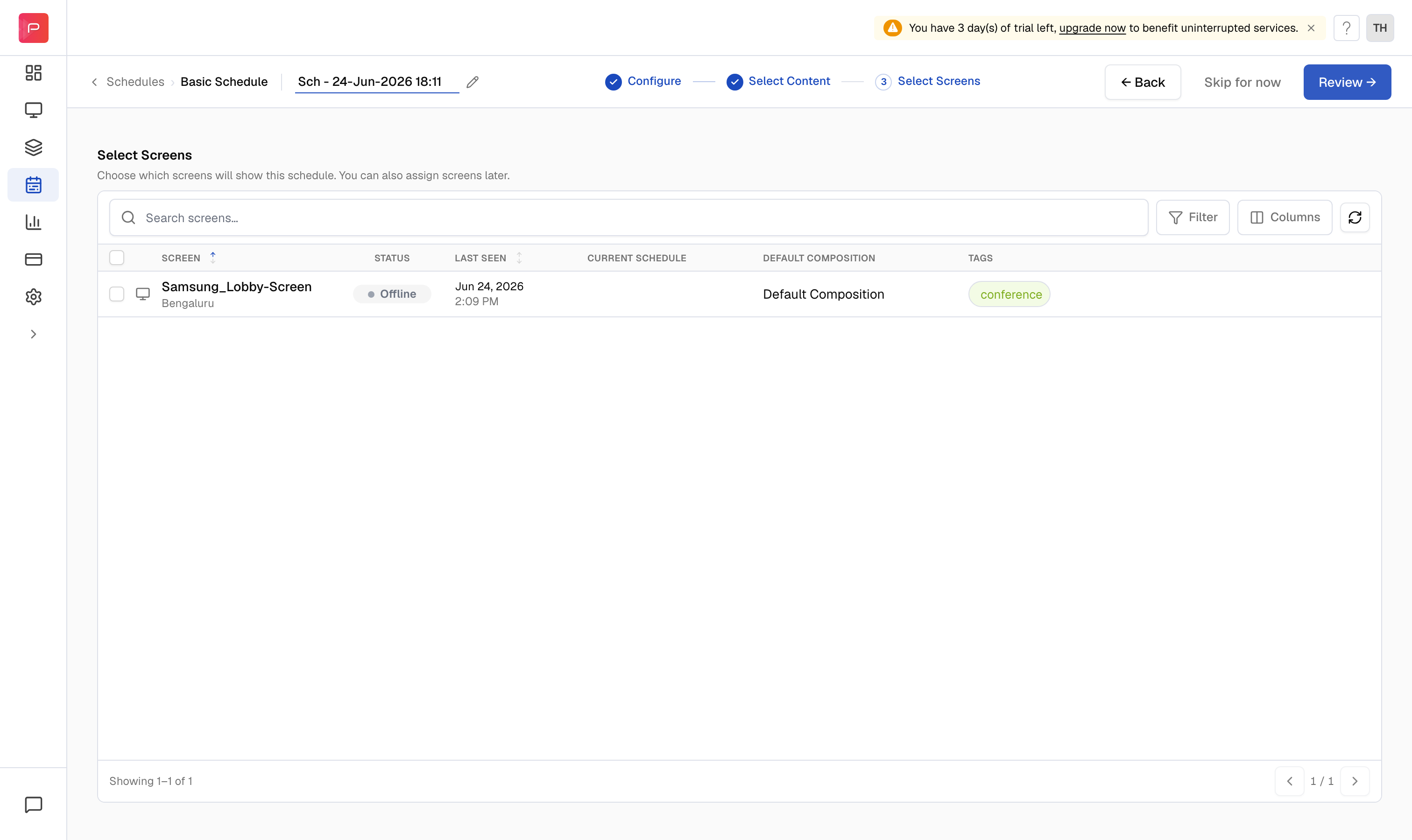
 Tick the screens that should play this Quick Play, then click **Review**. Confirm the details and click **Publish**. The content goes live on the selected screens immediately.
 ## Method 2 - From the screen
You can also start a Quick Play straight from a single screen.
In the **Screen** module, open the screen you want. Click **Assign Quickplay** in the top-right (it is also available on the **Content** tab under **Play Now**).
## Method 2 - From the screen
You can also start a Quick Play straight from a single screen.
In the **Screen** module, open the screen you want. Click **Assign Quickplay** in the top-right (it is also available on the **Content** tab under **Play Now**).
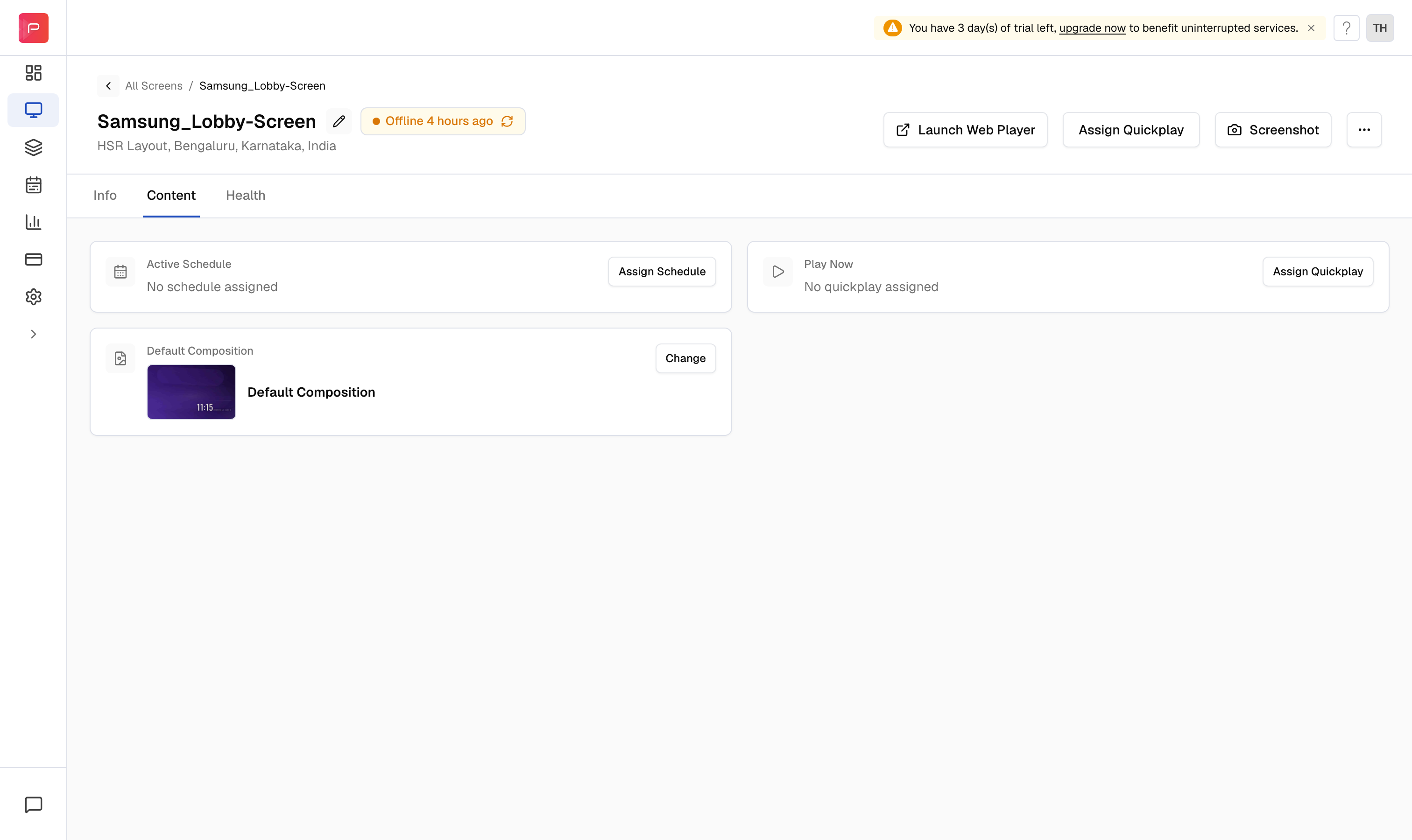 Select the composition, set the duration, and confirm. The Quick Play starts on that screen right away.