> ## Documentation Index
> Fetch the complete documentation index at: https://docs.pickcel.com/llms.txt
> Use this file to discover all available pages before exploring further.
# How do we Schedule or Publish contents on the screen using Publish module?
> Learn how to schedule and publish content to screens using the Publish module: set dates and times, choose compositions, and assign screens
Scheduling is a way to publish predefined content to your screens for the time and date of your choice. A schedule can run for anything from a few minutes to several months, and the Publish module walks you through it in three steps: **Configure**, **Select Content**, and **Select Screens**.
Before scheduling, make sure you have created the [composition](/compositions/compositions) you want to play.
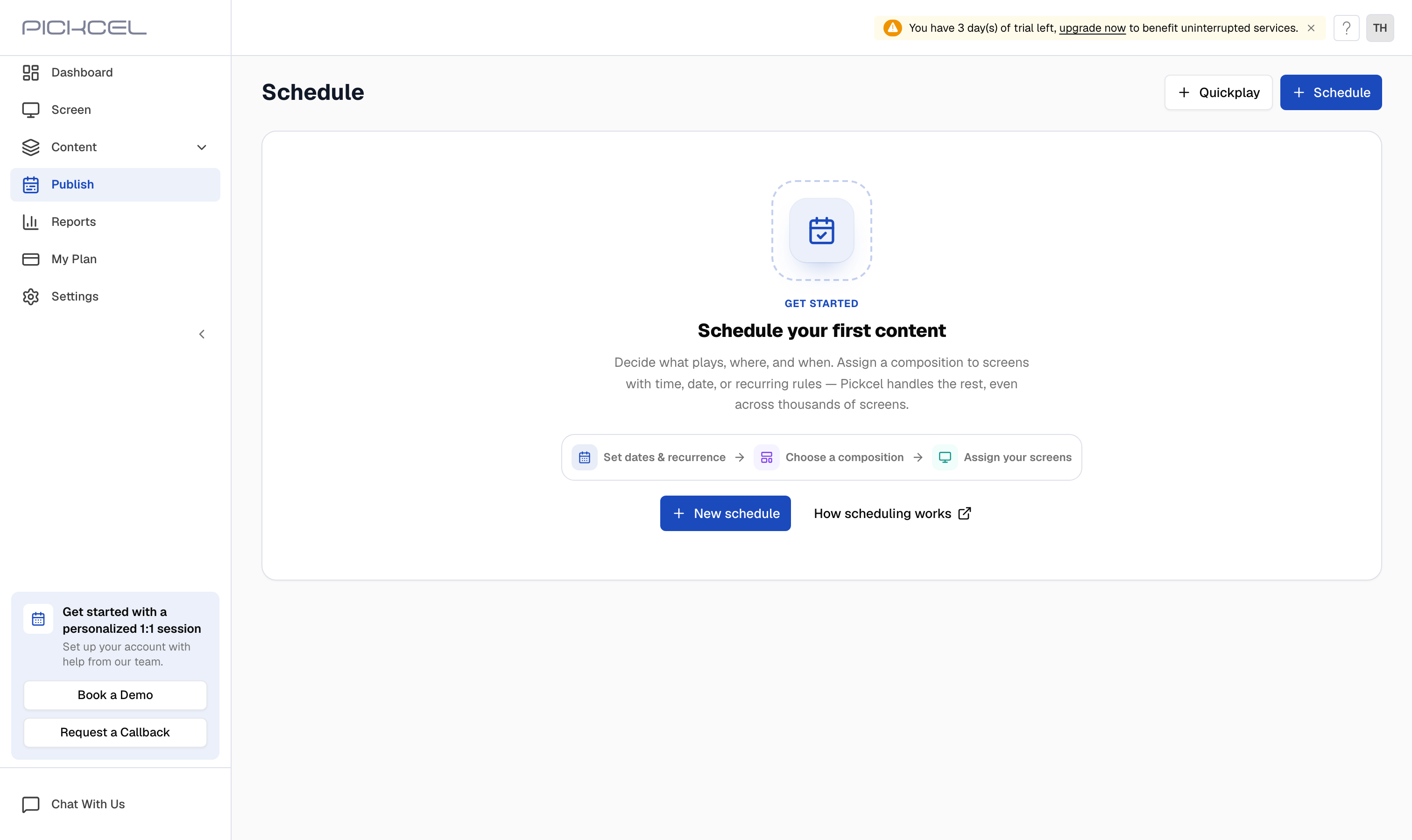
In [Pickcel console](https://console.pickcel.com/), open the **Publish** module. On the **Schedules** tab, click **New schedule** (or the **Schedule** button in the top-right).
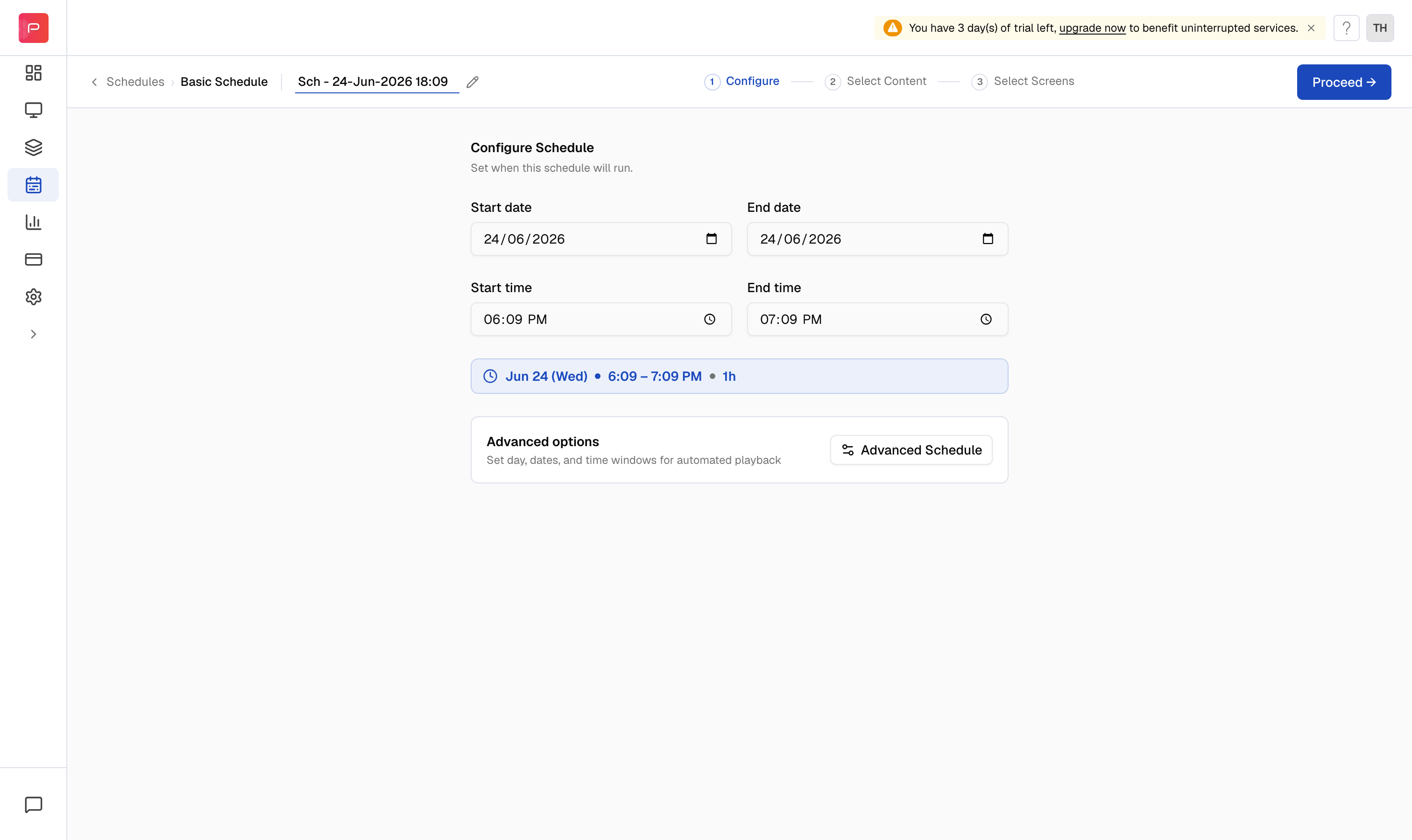
 On the **Configure** step, set the **Start date**, **End date**, **Start time**, and **End time**. A summary chip shows the day and time window you have set. To rename the schedule, edit the name field at the top.
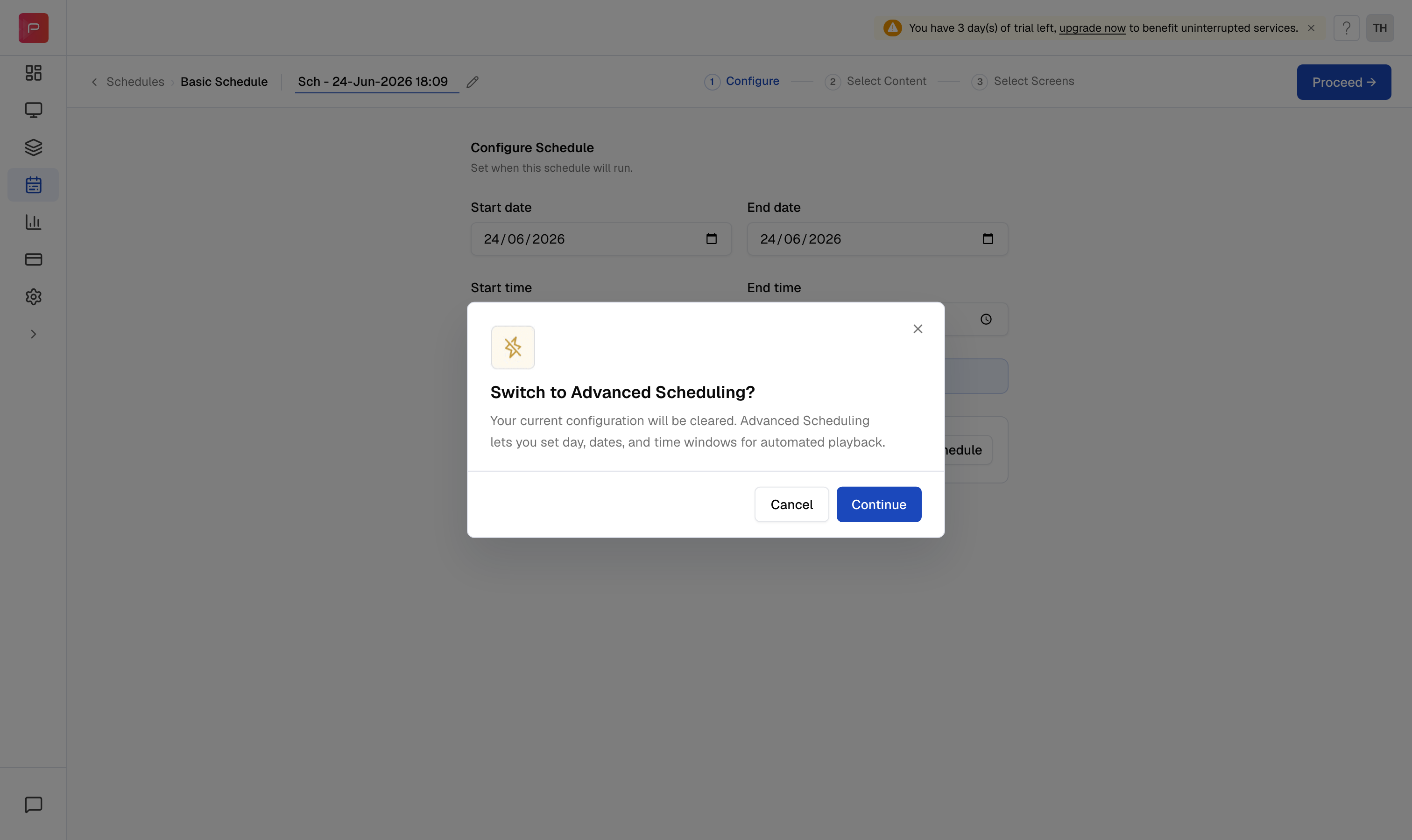
 For recurring playback across specific days, dates, or multiple time windows, click **Advanced Schedule** under **Advanced options** and confirm **Continue** to switch to advanced scheduling.
 When the timing looks right, click **Proceed**.
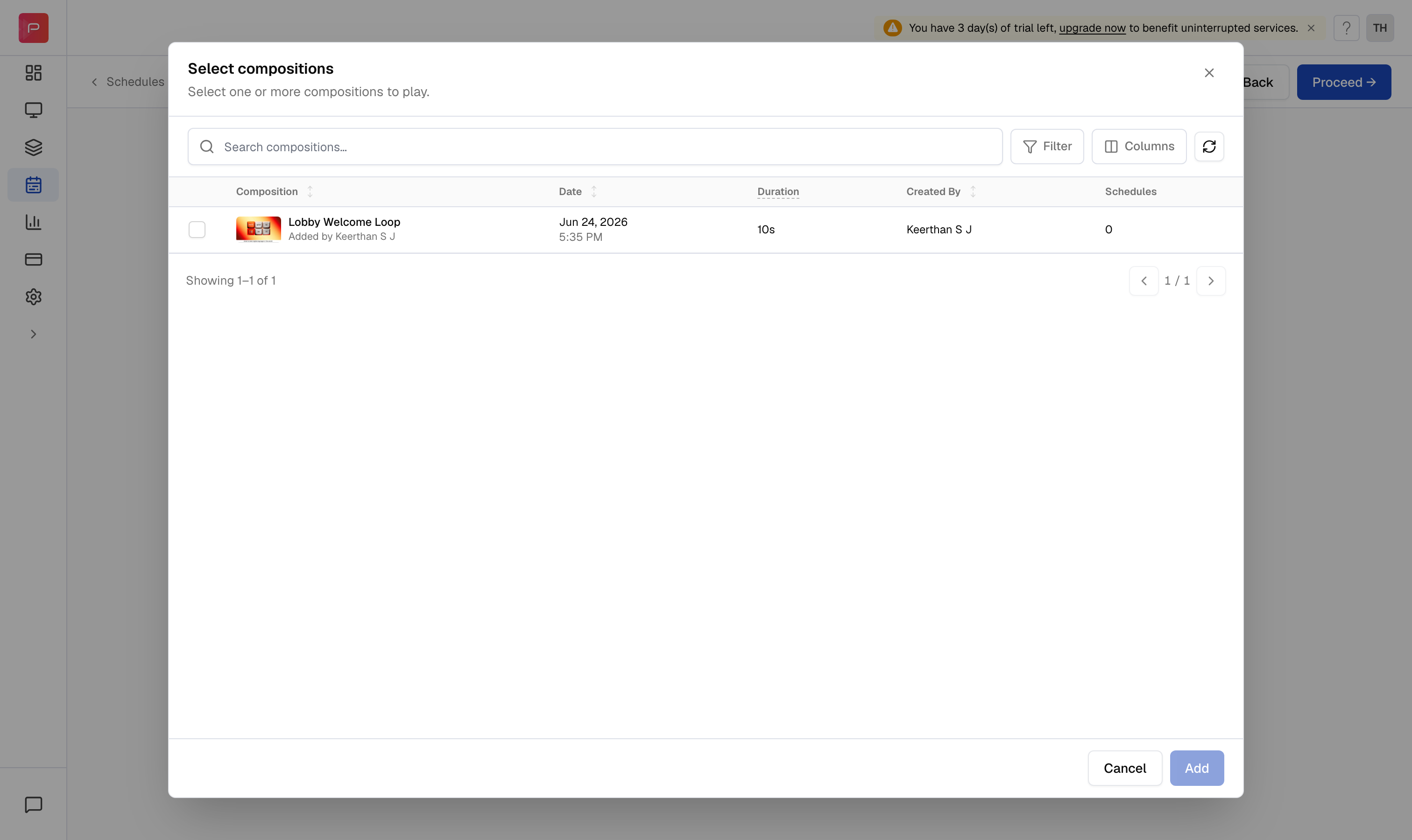
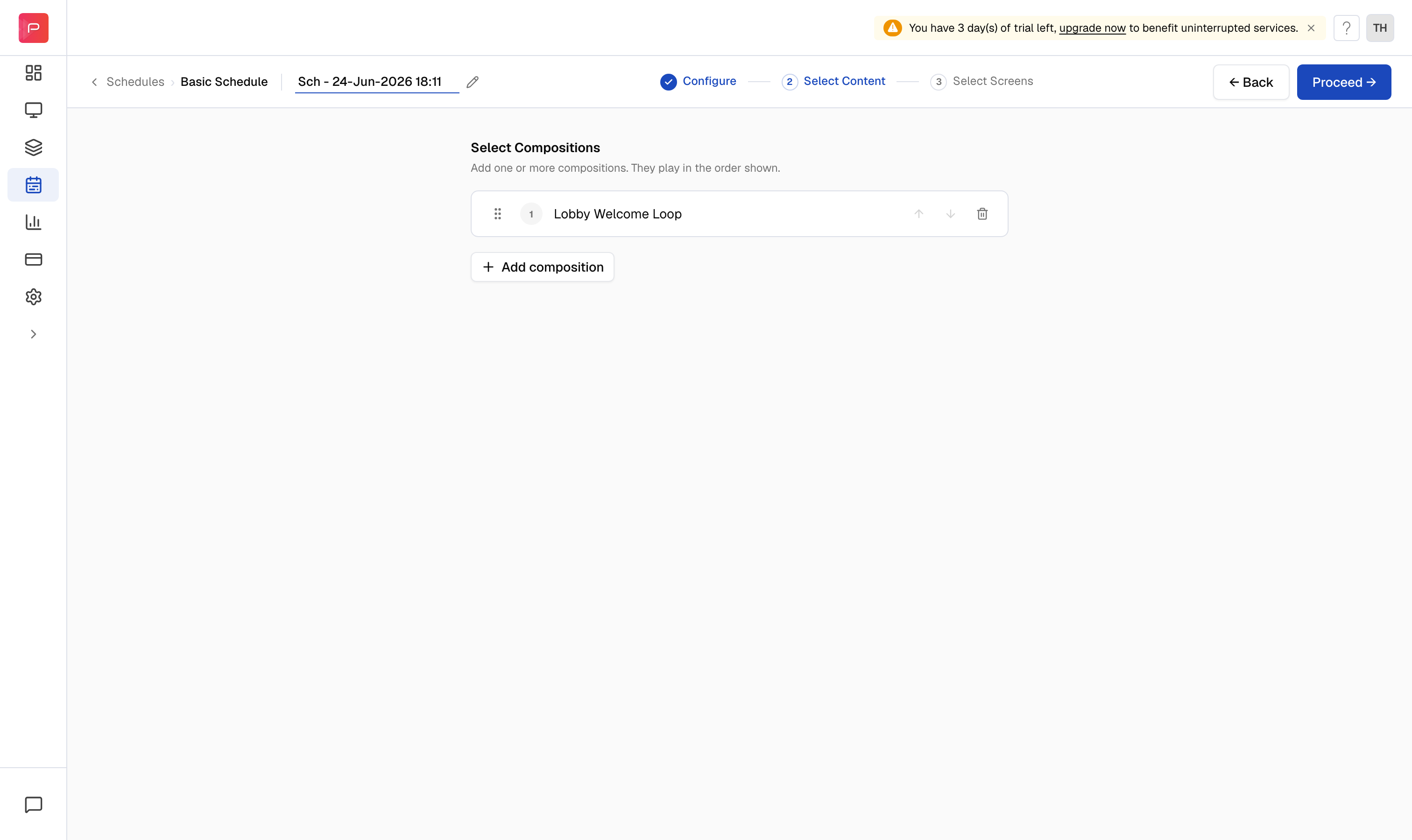
On the **Select Content** step, click **Browse compositions**, pick one or more compositions, and click **Add**. Added compositions play in the order shown; drag a row to reorder, or use the remove icon to take one out. Click **Proceed**.
When the timing looks right, click **Proceed**.
On the **Select Content** step, click **Browse compositions**, pick one or more compositions, and click **Add**. Added compositions play in the order shown; drag a row to reorder, or use the remove icon to take one out. Click **Proceed**.
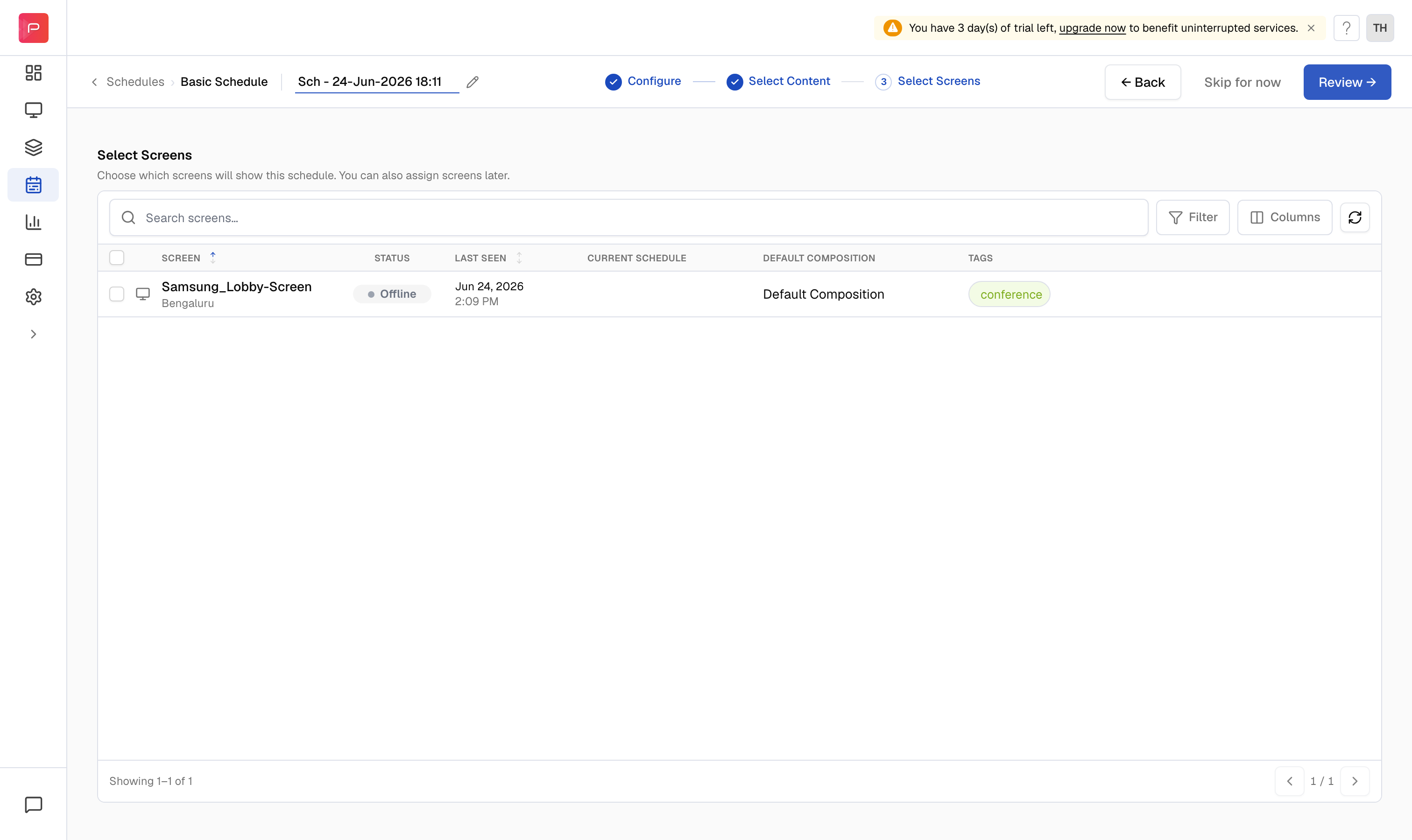
 On the **Select Screens** step, tick the screens that should play this schedule. You can search, filter, or skip this step and assign screens later with **Skip for now**. Click **Review**.
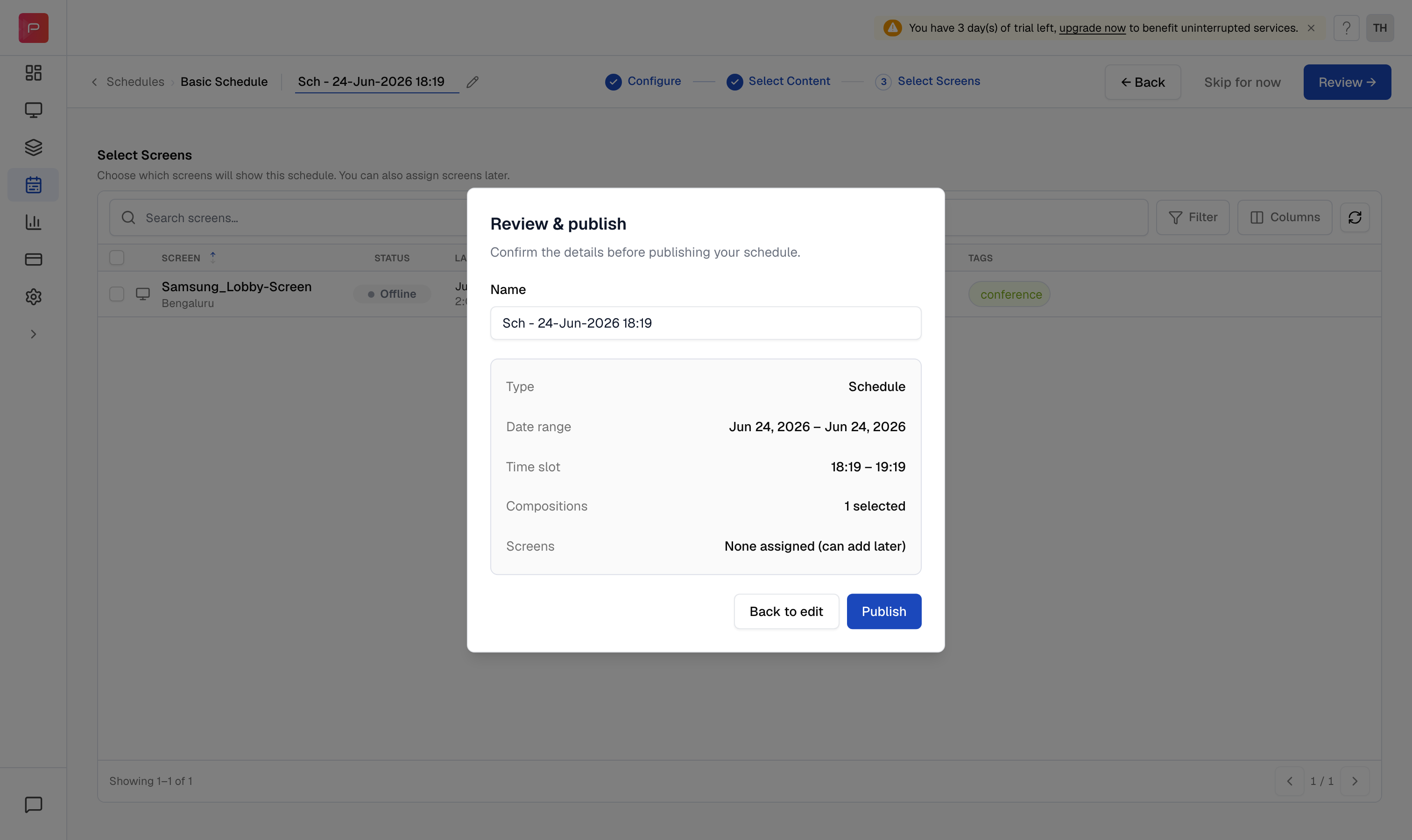
 The **Review & publish** summary lists the schedule type, date range, time slot, compositions, and screens. Confirm the details and click **Publish**.
 If you selected screens, the schedule reflects on those devices right away. If you skipped screens, open the schedule's actions menu later and use **Assign Screens**.
Need complex recurrence, such as different content on weekdays and weekends? See the [Advanced Schedule guide](/schedule-and-publish/v5/advanced-scheduler).
If you selected screens, the schedule reflects on those devices right away. If you skipped screens, open the schedule's actions menu later and use **Assign Screens**.
Need complex recurrence, such as different content on weekdays and weekends? See the [Advanced Schedule guide](/schedule-and-publish/v5/advanced-scheduler).