> ## Documentation Index
> Fetch the complete documentation index at: https://docs.pickcel.com/llms.txt
> Use this file to discover all available pages before exploring further.
# How do we Schedule or Publish contents on the screen?
> Learn the three ways to get content onto your screens: Quick Play, Schedule, and Default Composition
There are three ways to get content playing on your screens. Two of them live in the **Publish** module, which has a **Schedules** tab and a **Quickplay** tab. The third, Default Composition, is set per screen or for your whole organisation.
## 1. Quick Play
Quick Play immediately displays a composition for a set duration (**30 min**, **1 hr**, **4 hrs**, or a custom length). It overrides any existing schedule and then returns the screen to its scheduled content, which makes it perfect for urgent or emergency messages.
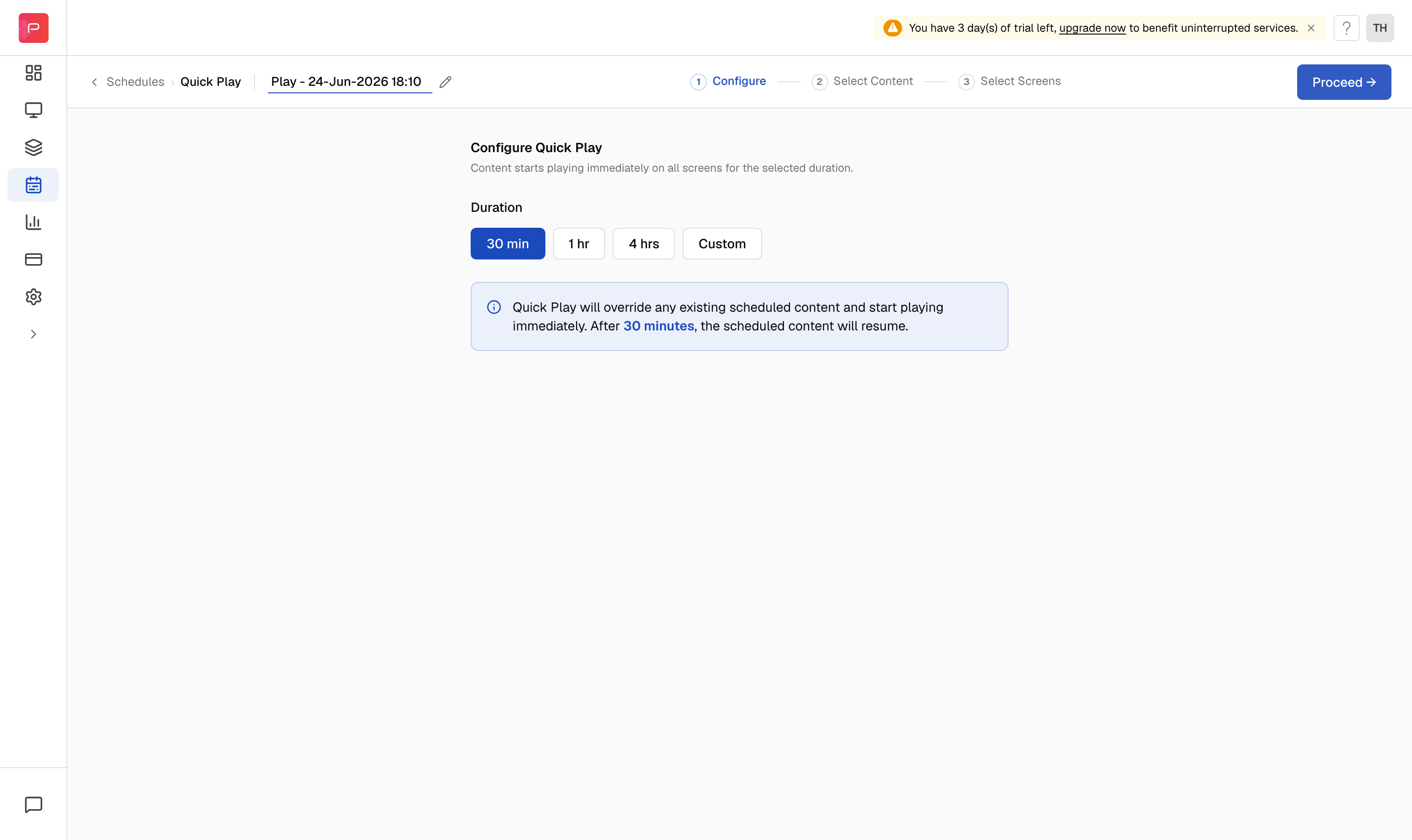 **Key steps:**
* Open the **Publish** module and click **Quickplay**
* Pick a duration, then **Proceed**
* Browse and add a composition, then **Proceed**
* Select screens, **Review**, and **Publish**
For step-by-step instructions, see the [Quick Play guide](/schedule-and-publish/quick-play).
## 2. Schedule
Scheduling publishes content at specific dates and times, with support for recurring playback and multiple time windows through **Advanced Schedule**. The Publish module guides you through **Configure**, **Select Content**, and **Select Screens**.
**Key steps:**
* Open the **Publish** module and click **Quickplay**
* Pick a duration, then **Proceed**
* Browse and add a composition, then **Proceed**
* Select screens, **Review**, and **Publish**
For step-by-step instructions, see the [Quick Play guide](/schedule-and-publish/quick-play).
## 2. Schedule
Scheduling publishes content at specific dates and times, with support for recurring playback and multiple time windows through **Advanced Schedule**. The Publish module guides you through **Configure**, **Select Content**, and **Select Screens**.
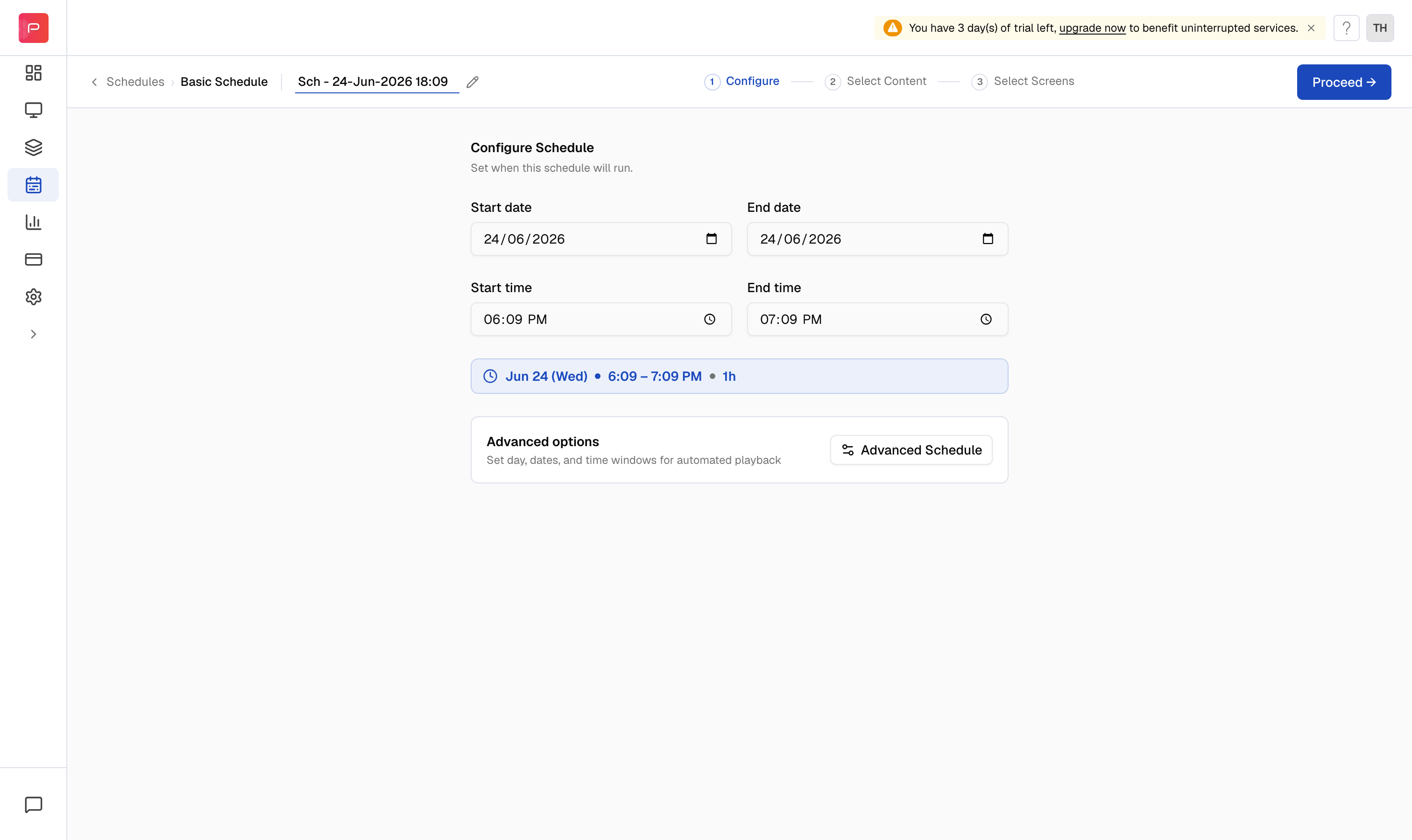 **Key steps:**
* Open the **Publish** module and click **New schedule**
* Set dates and times (or open **Advanced Schedule**), then **Proceed**
* Add one or more compositions, then **Proceed**
* Select screens, **Review**, and **Publish**
For step-by-step instructions, see the [Schedule & Publish guide](/schedule-and-publish/publish-v4).
## 3. Default Composition
A default composition is the fallback content that plays when a screen has no Quick Play or scheduled content assigned. It also plays automatically on newly added screens. You can set it for individual screens or as the organisation default for every new screen.
**Key steps:**
* Open the **Publish** module and click **New schedule**
* Set dates and times (or open **Advanced Schedule**), then **Proceed**
* Add one or more compositions, then **Proceed**
* Select screens, **Review**, and **Publish**
For step-by-step instructions, see the [Schedule & Publish guide](/schedule-and-publish/publish-v4).
## 3. Default Composition
A default composition is the fallback content that plays when a screen has no Quick Play or scheduled content assigned. It also plays automatically on newly added screens. You can set it for individual screens or as the organisation default for every new screen.
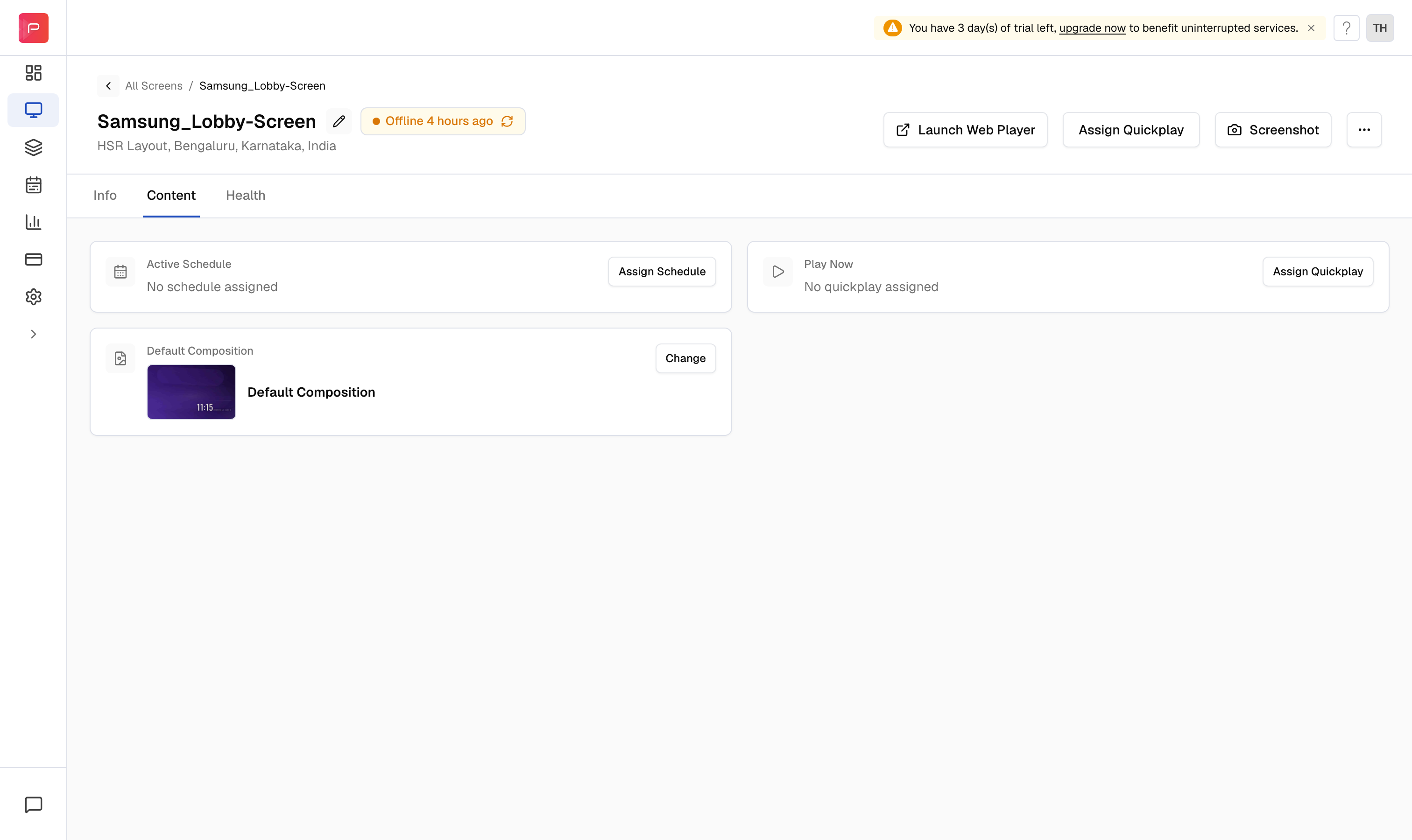 **Key steps:**
* Open a screen and use the **Default Composition** card on its **Content** tab, or
* Set the organisation default under **Settings** → **Default Content**
For step-by-step instructions, see the [Default Composition guide](/schedule-and-publish/default-composition).
**Key steps:**
* Open a screen and use the **Default Composition** card on its **Content** tab, or
* Set the organisation default under **Settings** → **Default Content**
For step-by-step instructions, see the [Default Composition guide](/schedule-and-publish/default-composition).