> ## Documentation Index
> Fetch the complete documentation index at: https://docs.pickcel.com/llms.txt
> Use this file to discover all available pages before exploring further.
# How to view and edit the Schedule from Screen details?
> Learn how to view what a screen is playing from its Content tab and how to edit a schedule from the Publish module
You can see what any screen is currently playing from its **Content** tab, and you can edit the schedule itself from the **Publish** module.
## View what a screen is playing
In [Pickcel console](https://console.pickcel.com/), open the **Screen** module and click the screen you want to check.
Switch to the **Content** tab. It shows three cards: **Active Schedule** (the schedule assigned to the screen), **Play Now** (any active Quick Play), and **Default Composition** (the fallback content). Each card has an action to assign or change its content.
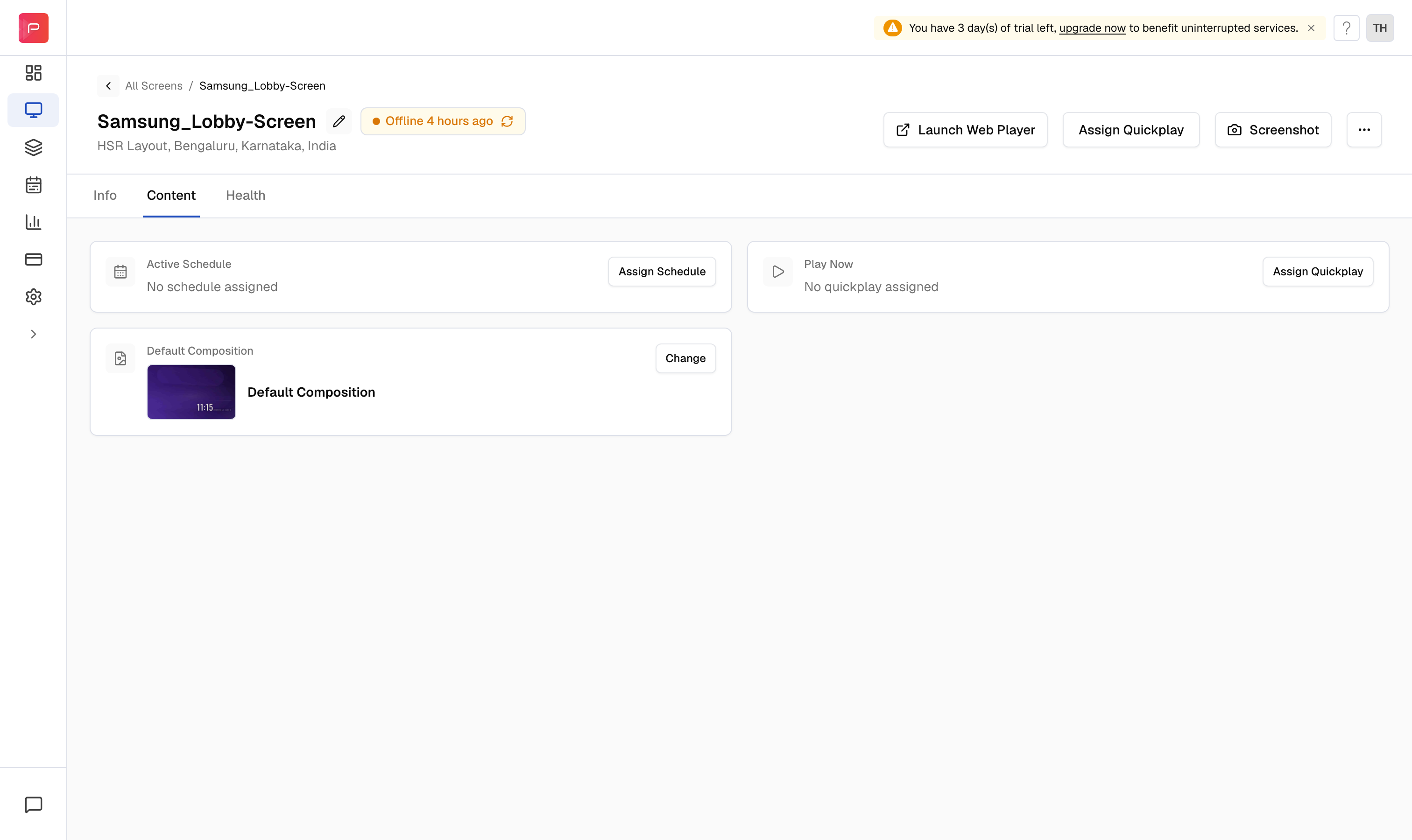 To put a schedule on this screen, click **Assign Schedule**. To change the fallback, use **Change** on the **Default Composition** card.
## Edit a schedule
Schedules are edited from the Publish module, where every change reopens the same three-step wizard you used to create them.
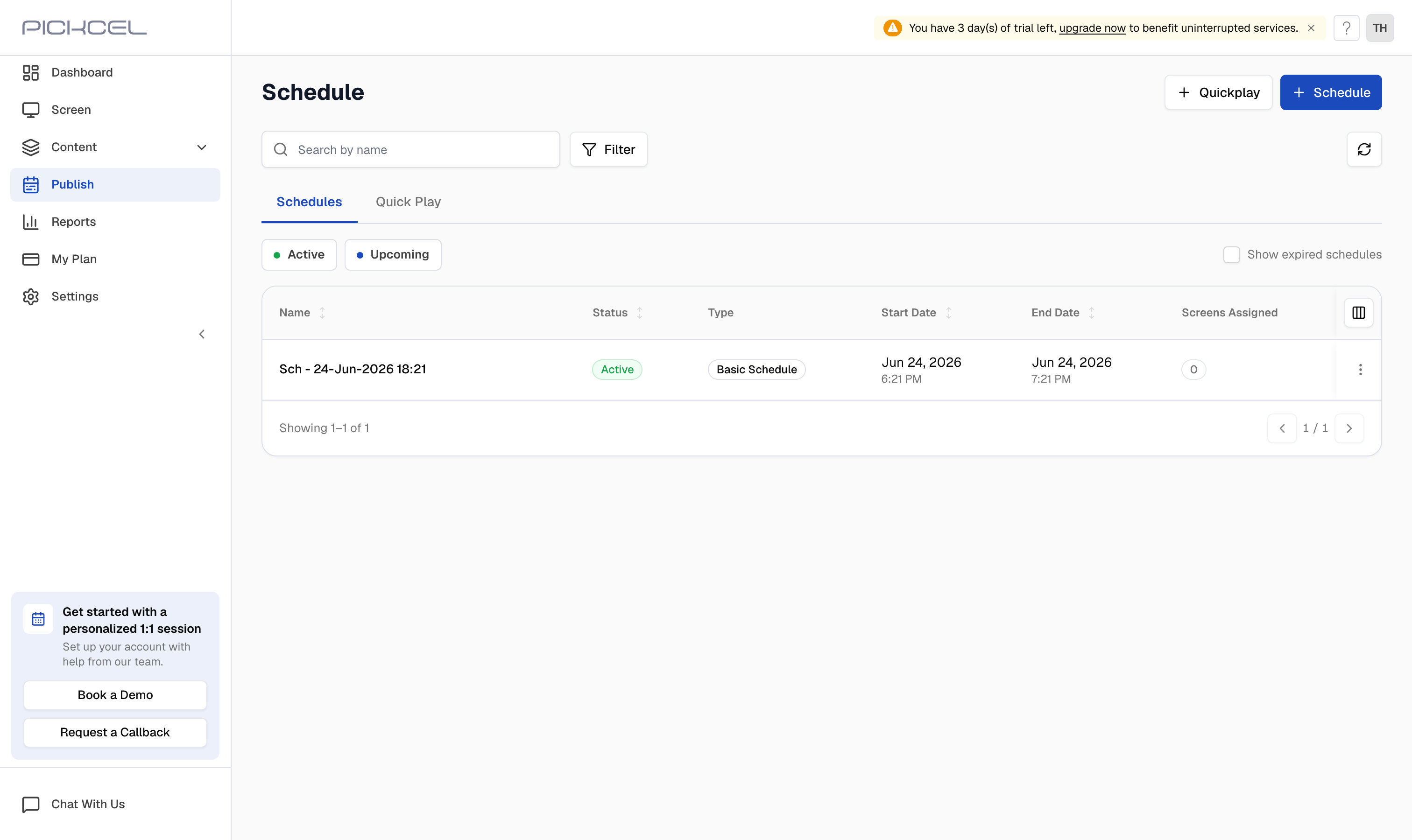
Go to the **Publish** module. The **Schedules** tab lists every schedule with its status, type, dates, and the number of screens assigned. Use the **Active** and **Upcoming** filters or the search box to find the one you need.
To put a schedule on this screen, click **Assign Schedule**. To change the fallback, use **Change** on the **Default Composition** card.
## Edit a schedule
Schedules are edited from the Publish module, where every change reopens the same three-step wizard you used to create them.
Go to the **Publish** module. The **Schedules** tab lists every schedule with its status, type, dates, and the number of screens assigned. Use the **Active** and **Upcoming** filters or the search box to find the one you need.
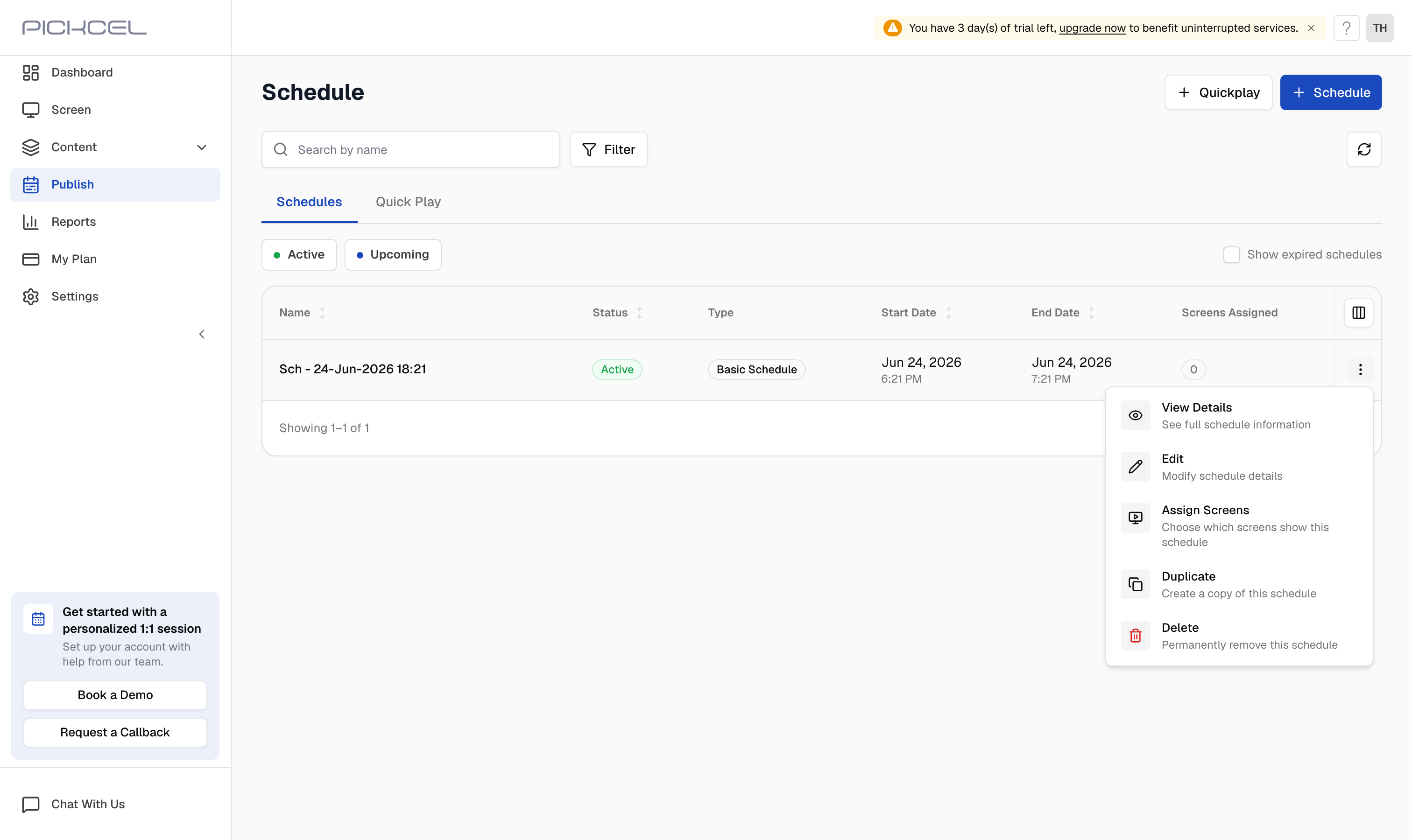
 Click the actions menu (the three dots) on the schedule's row. Choose **Edit** to change its details, or use **Assign Screens**, **Duplicate**, or **Delete** as needed.
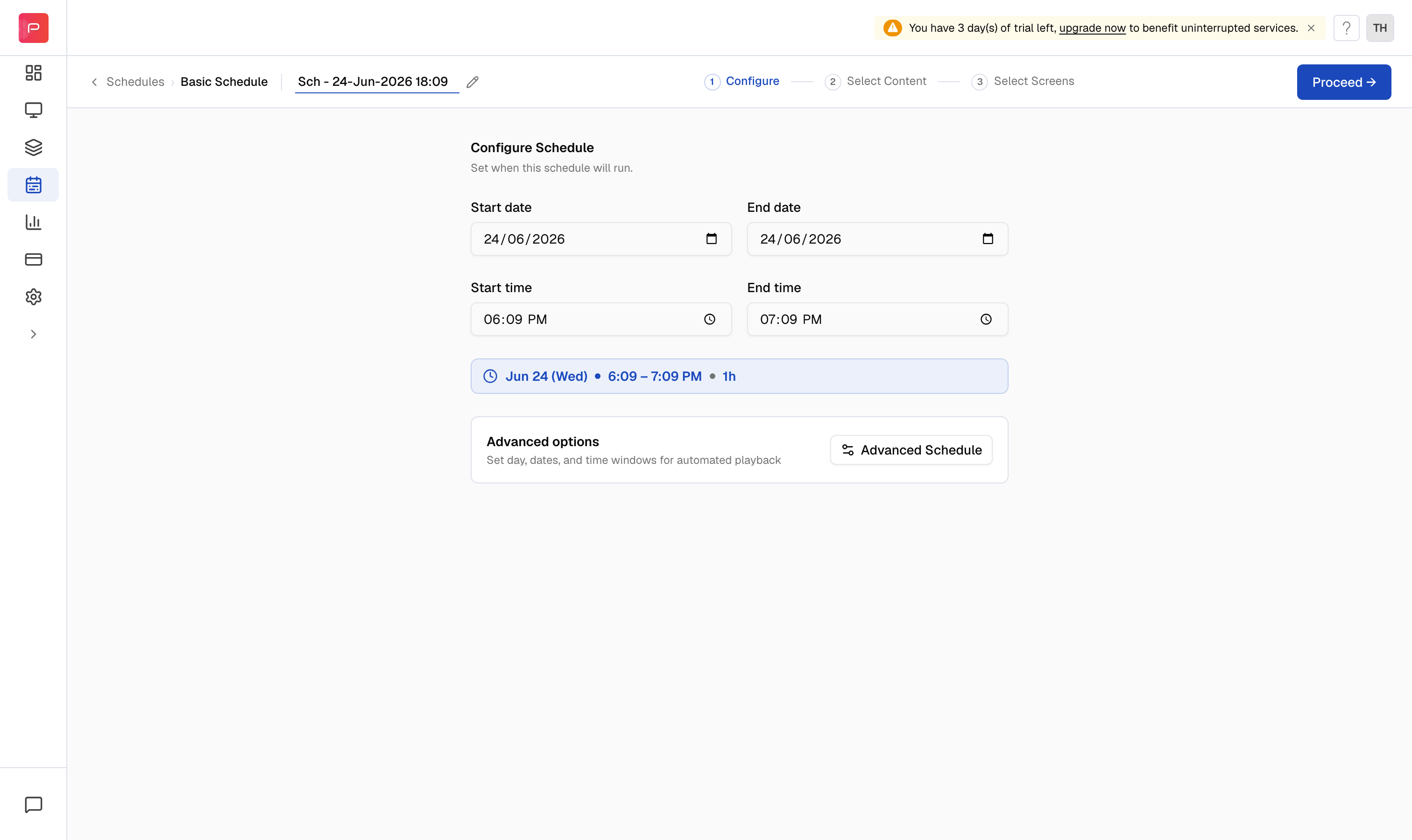
 The schedule reopens in the wizard. Adjust the dates and times on **Configure**, change compositions on **Select Content**, or update the assigned screens on **Select Screens**. Click through to **Review** and **Publish** to save your changes.
 New to scheduling? See [How do we Schedule or Publish contents on the screen using Publish module?](/schedule-and-publish/publish-v4)