> ## Documentation Index
> Fetch the complete documentation index at: https://docs.pickcel.com/llms.txt
> Use this file to discover all available pages before exploring further.
# What is default composition? How do I set a default composition?
> Learn what a default composition is and how to assign it to specific screens while publishing content
This page covers assigning default compositions **during the publishing workflow**. You can set it for a single screen or for several screens at once at the time of publishing content.
A default composition is the composition a screen plays when it has no Quick Play or scheduled content assigned to it, and it is also what new screens play automatically when first registered.
**Setting organization defaults:** To set the account-level default composition for all new screens, see [Default Composition Settings](/settings/default-composition) instead.
## Method 1 - Set it for a single screen
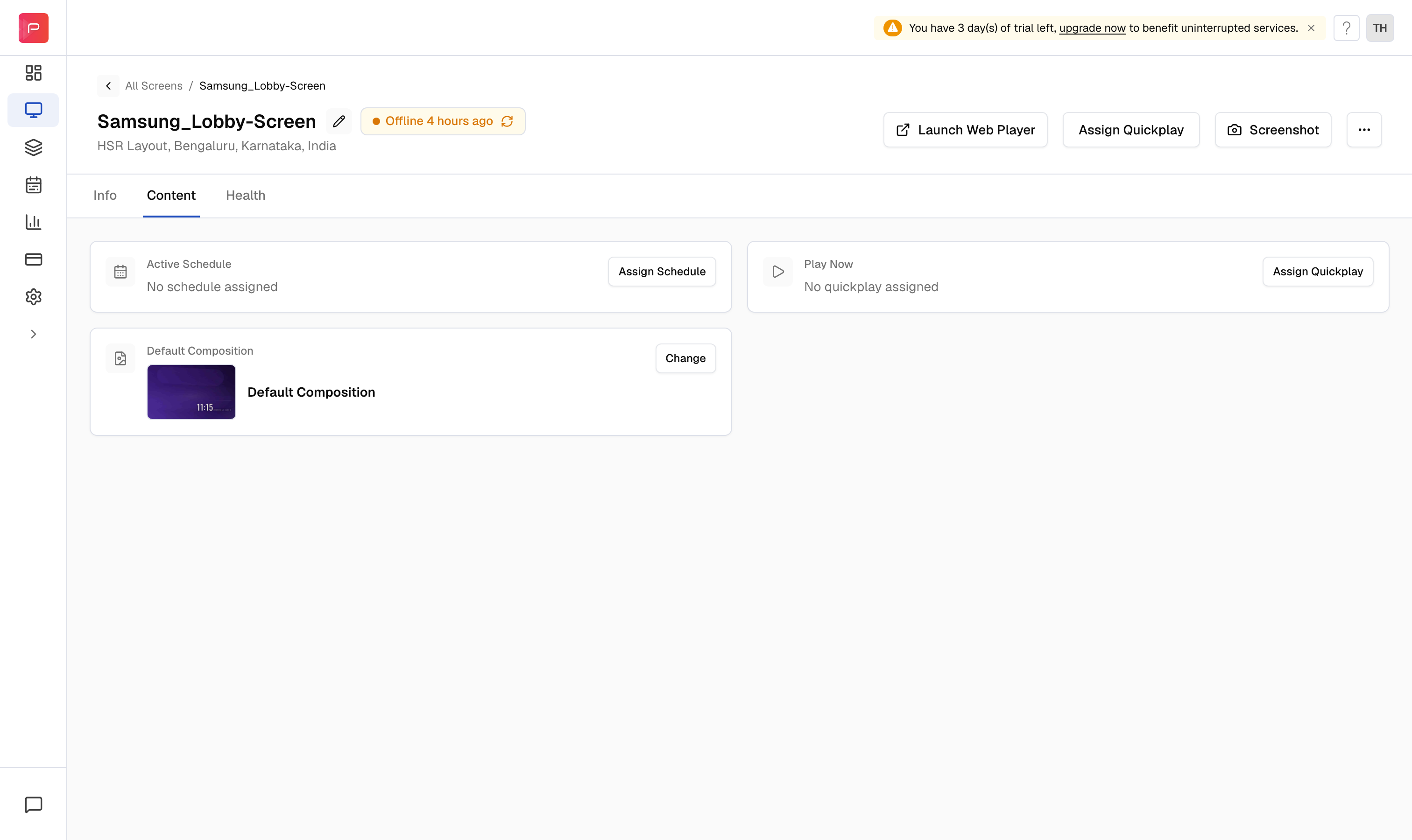
In [Pickcel console](https://console.pickcel.com/), open the **Screen** module, click the screen, and switch to the **Content** tab. On the **Default Composition** card, click **Change**.
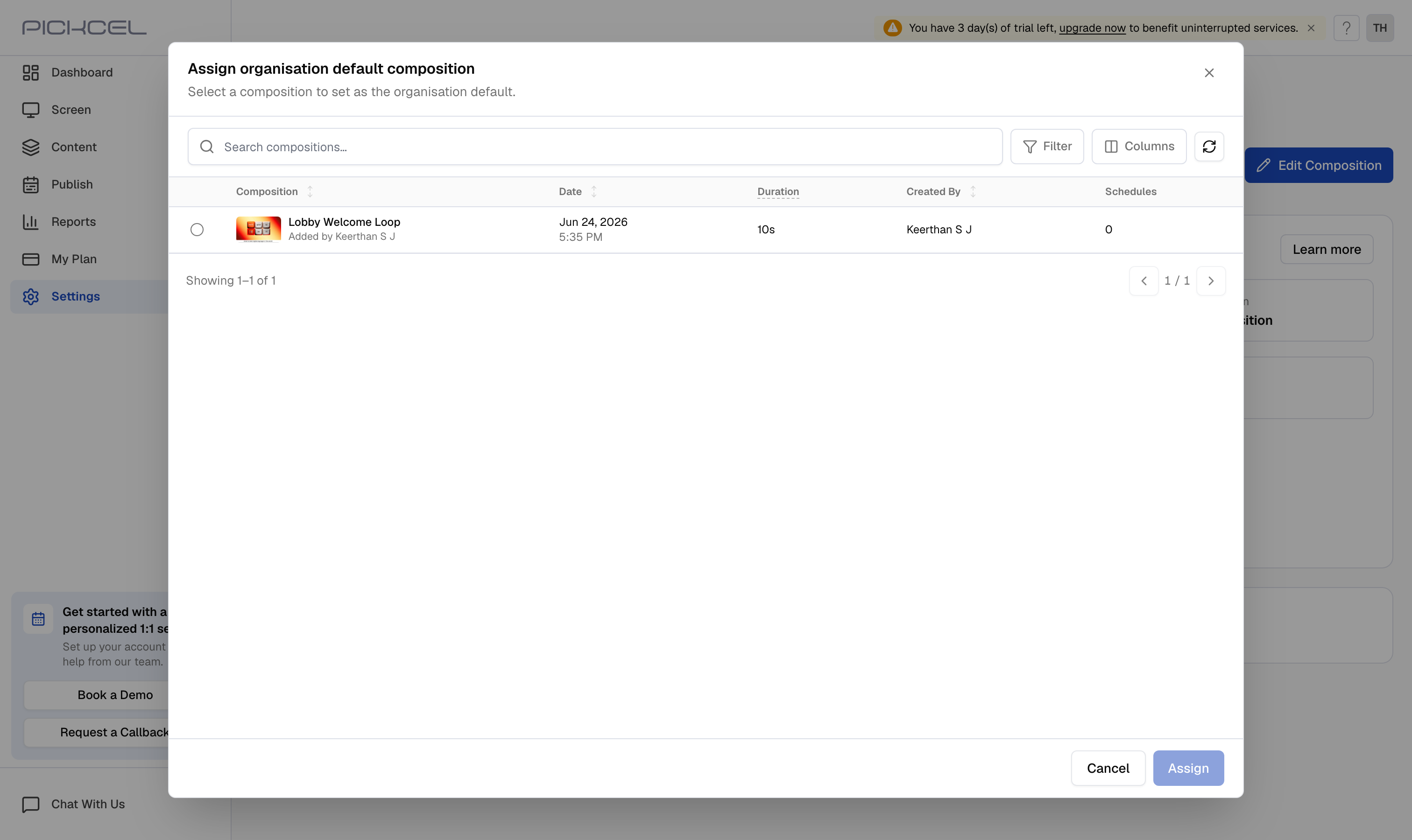
 Select the composition you want, then click **Assign**. It becomes the default for that screen.
 ## Method 2 - Set it for several screens at once
In the **Screen** module, tick the checkbox for each screen you want to update. A toolbar appears with a **Default Composition** button in the top-right.
## Method 2 - Set it for several screens at once
In the **Screen** module, tick the checkbox for each screen you want to update. A toolbar appears with a **Default Composition** button in the top-right.
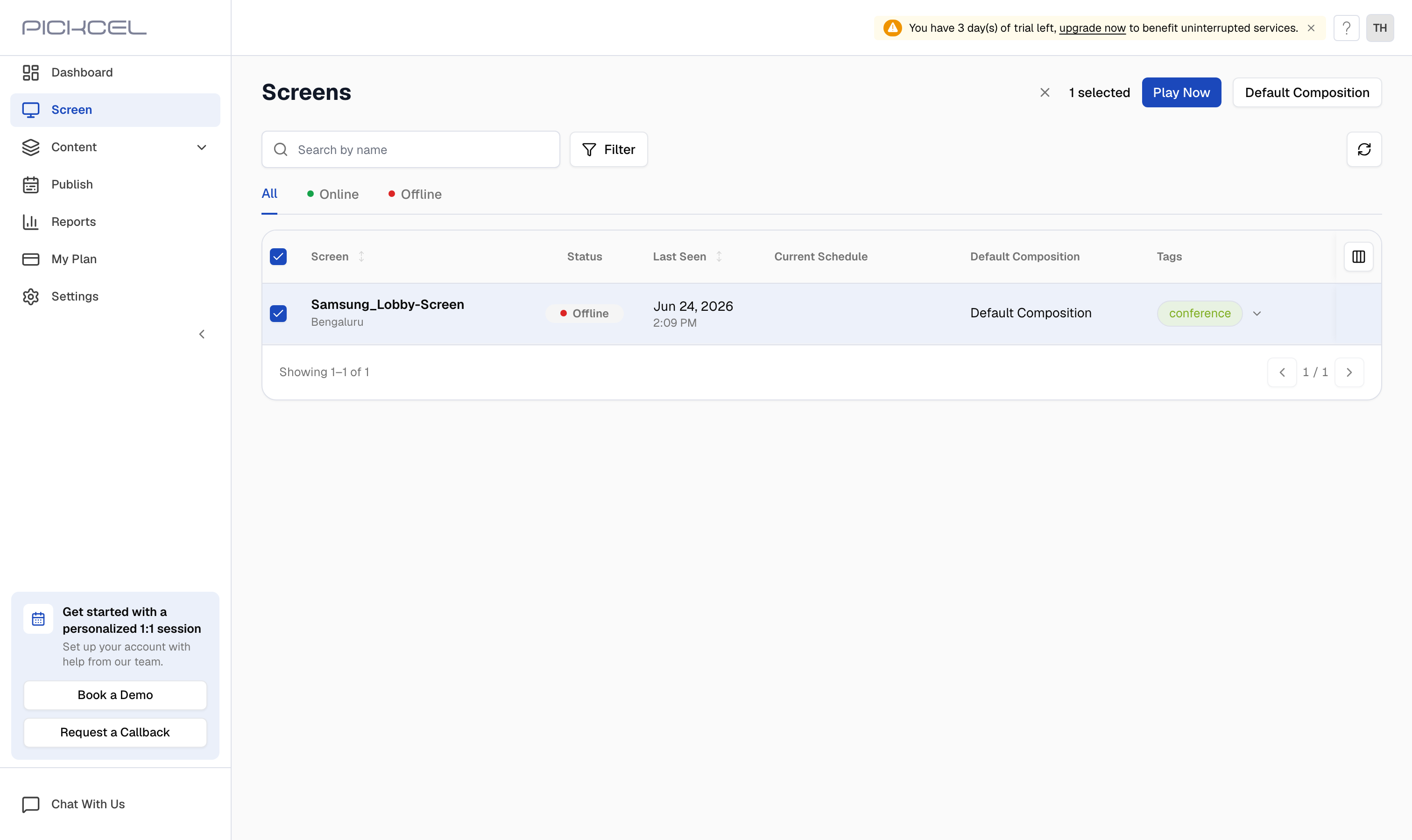 Click **Default Composition**, select the composition in the dialog, and click **Assign**. It becomes the default for every screen you selected.
## Method 3 - Set the organisation default for all new screens
This default applies automatically to every new screen added to your organisation.
Go to the **Settings** module and open the **Default Content** tab. Under **Organisation Default Composition**, click **Edit Composition**.
Click **Default Composition**, select the composition in the dialog, and click **Assign**. It becomes the default for every screen you selected.
## Method 3 - Set the organisation default for all new screens
This default applies automatically to every new screen added to your organisation.
Go to the **Settings** module and open the **Default Content** tab. Under **Organisation Default Composition**, click **Edit Composition**.
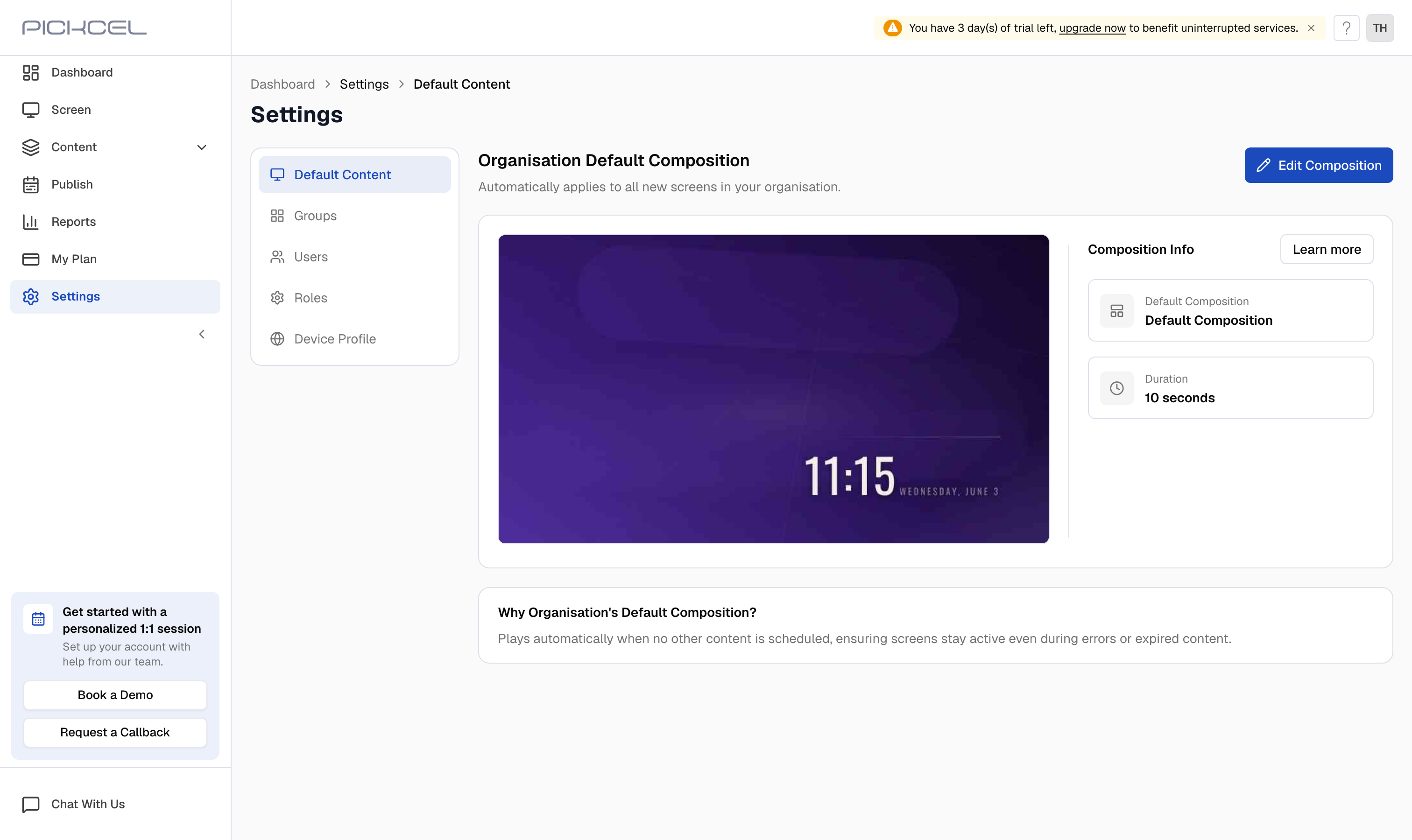 Select the composition in the dialog, then click **Assign**. Every screen added from now on starts with this composition as its default.
Setting the organisation default applies to **new** screens going forward. To change the default on screens that already exist, use Method 1 or Method 2.
Select the composition in the dialog, then click **Assign**. Every screen added from now on starts with this composition as its default.
Setting the organisation default applies to **new** screens going forward. To change the default on screens that already exist, use Method 1 or Method 2.