> ## Documentation Index
> Fetch the complete documentation index at: https://docs.pickcel.com/llms.txt
> Use this file to discover all available pages before exploring further.
# How to check media playback report in Pickcel Digital Signage?
> Generate media playback (proof-of-play) reports in Pickcel, see play counts and duration per file, then download monthly or custom-range reports.
**Media playback reports** (also called proof-of-play reports) show how many times each media file, images, videos, apps, or PDFs, was played in loops on your screens, along with the duration of each playback.
Sign in to the [Pickcel console](https://console.pickcel.com) and open **Reports** from the left sidebar. **Media playback** sits under **Content Reports**.
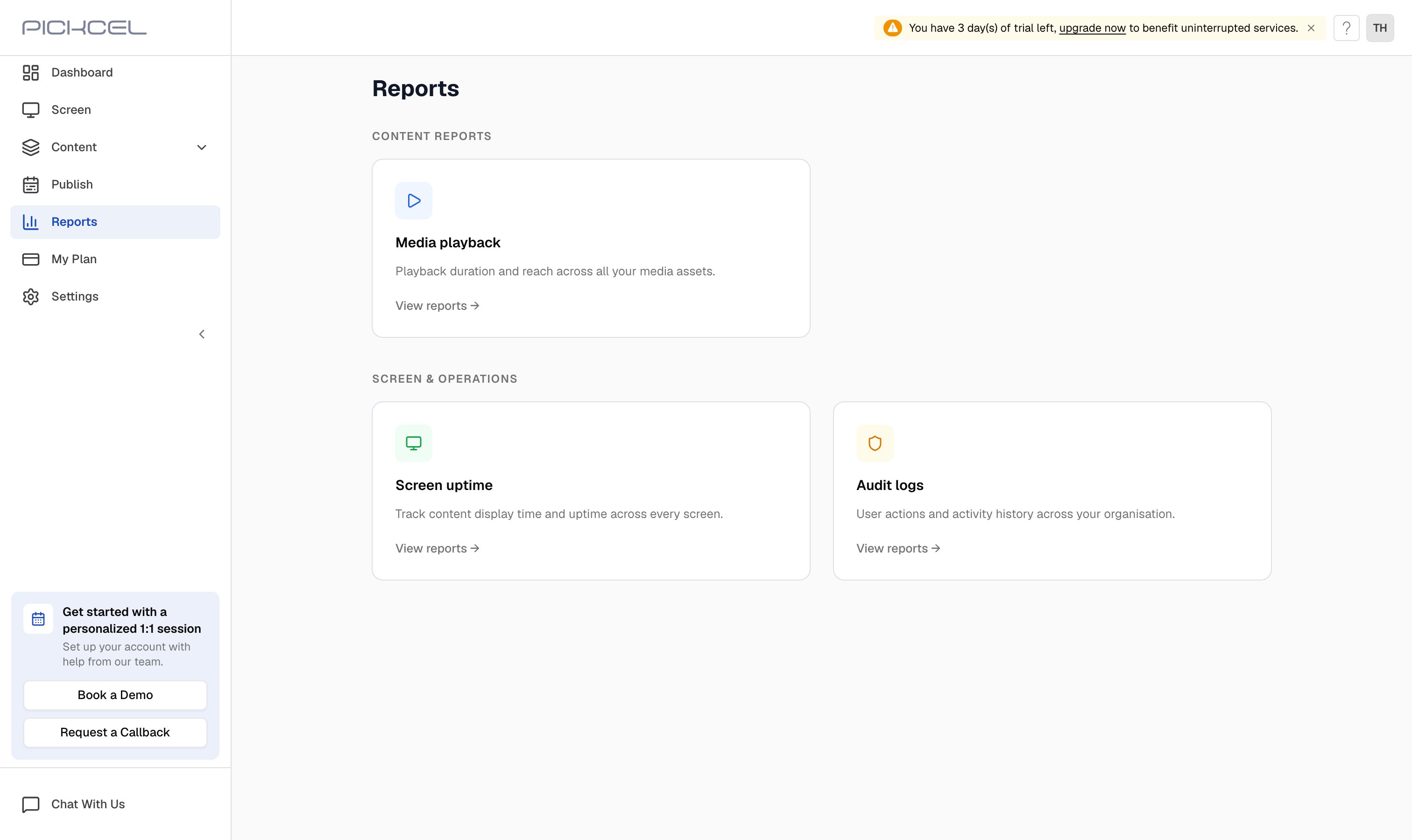 On the **Media playback** card, click **View reports** to open the media reports list. Existing reports appear in a table with the report name, number of media files included, date range, and generation time.
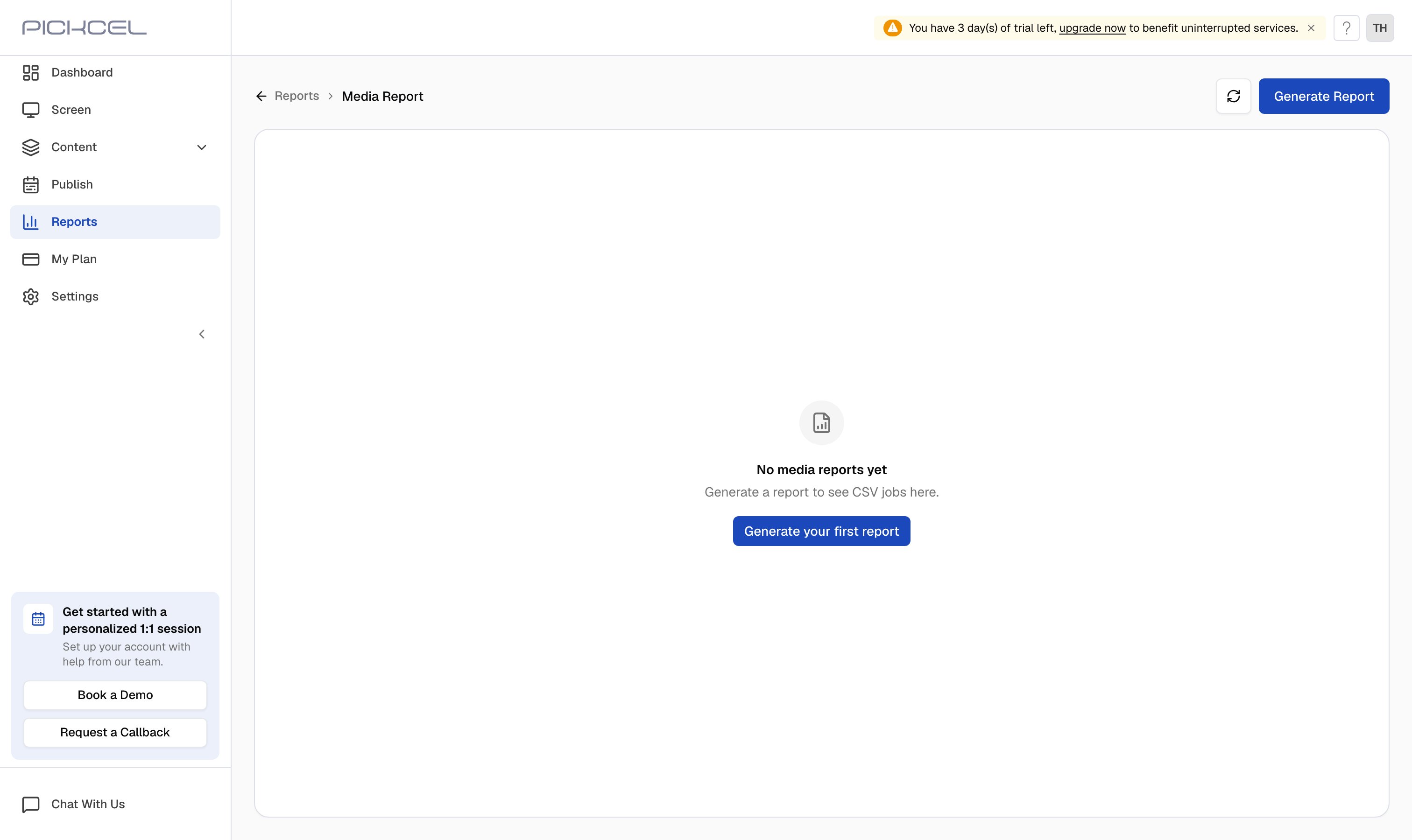 Click **Generate Report** to open the media selection dialog.
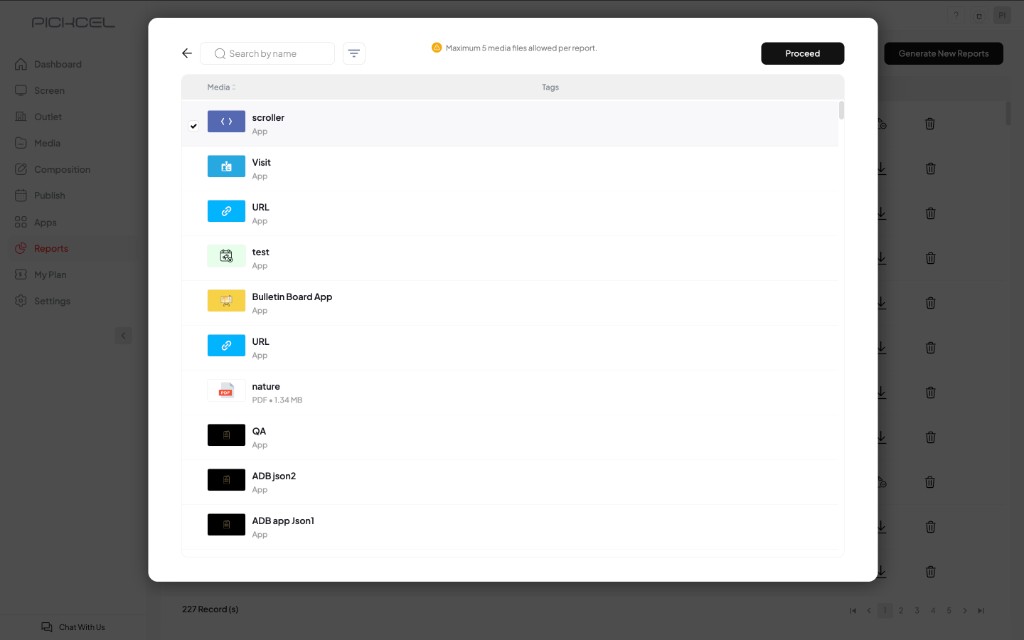
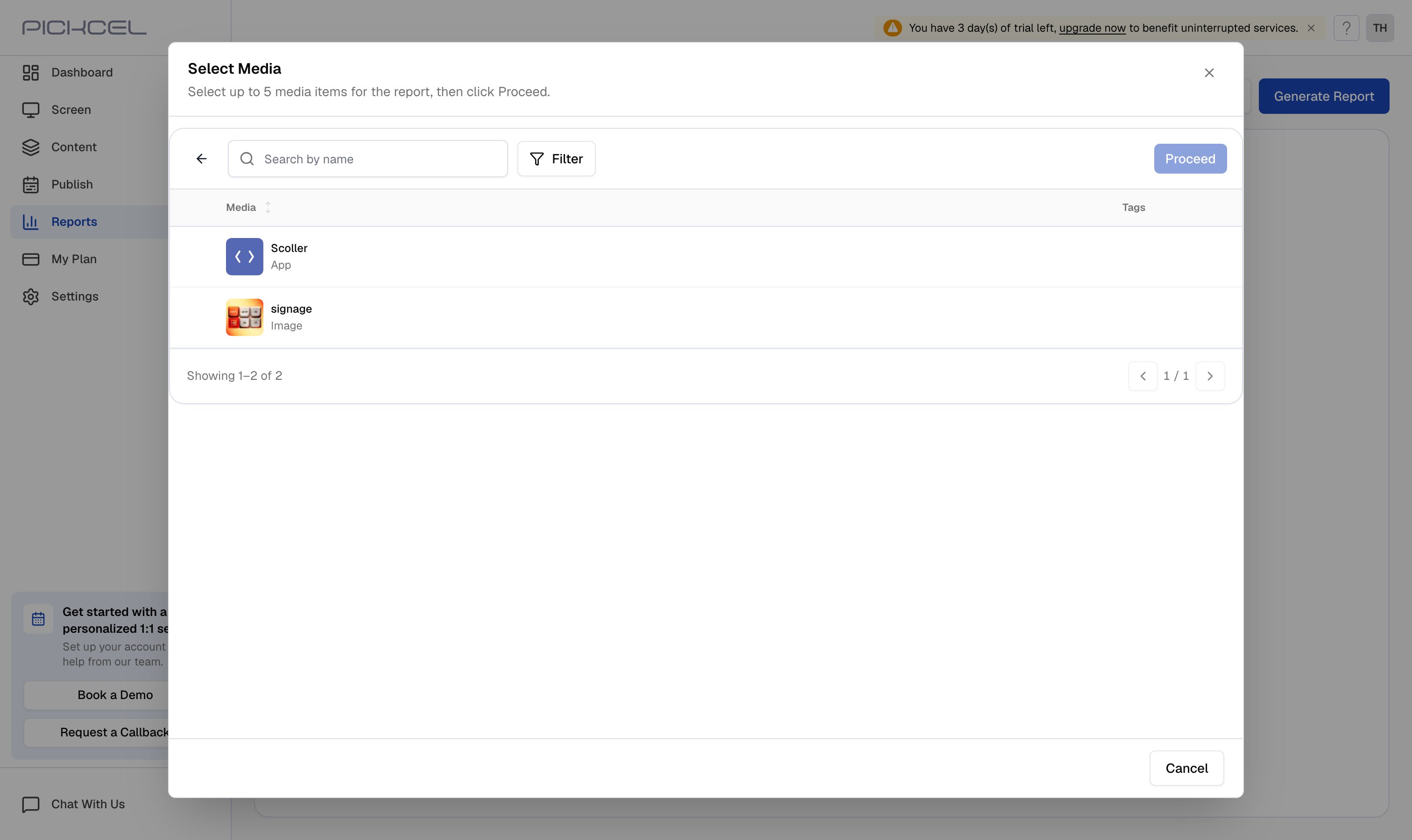 Select up to **five** media files you want included in the report. Use the search bar or **Filter** to narrow the list, then click **Proceed**.
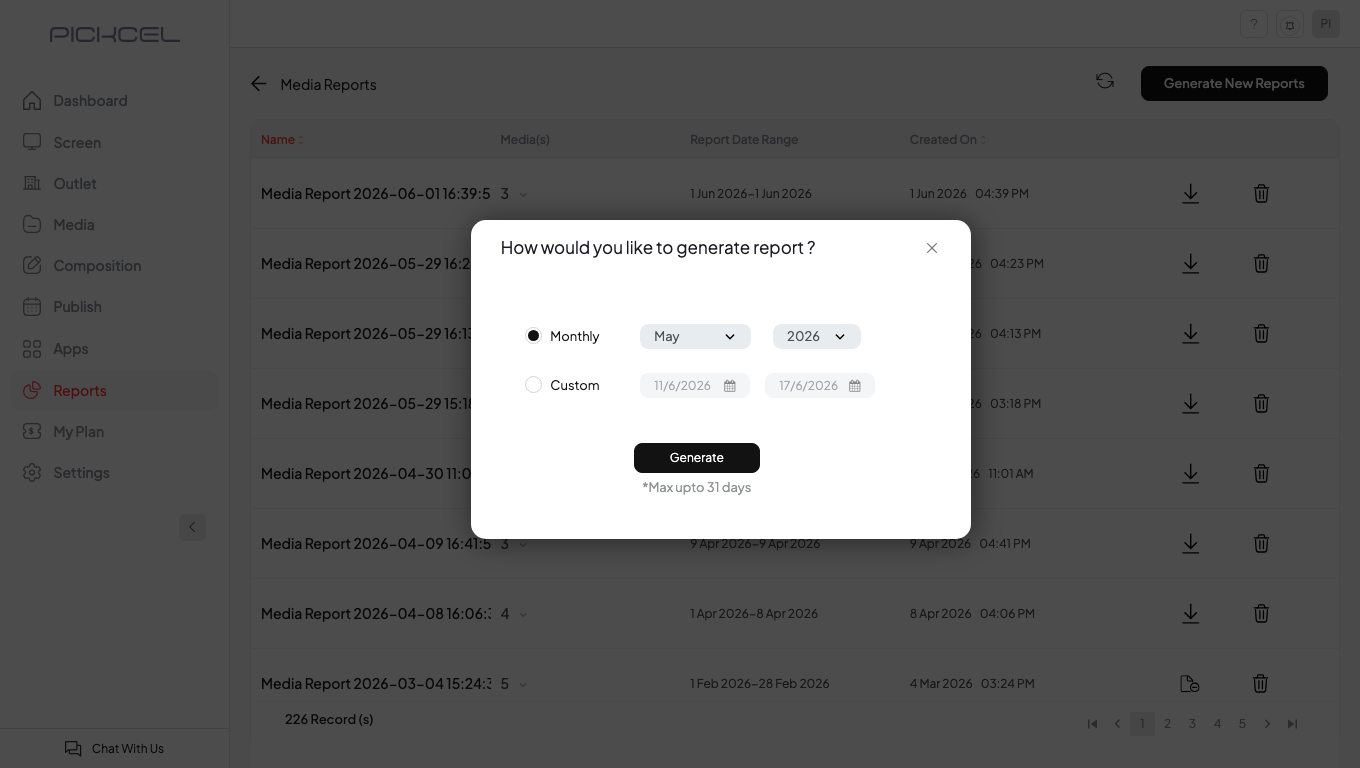
 Choose how you want to generate the report:
* **Monthly**: pick a month and year from the dropdowns.
* **Custom**: select a start and end date (up to 31 days).
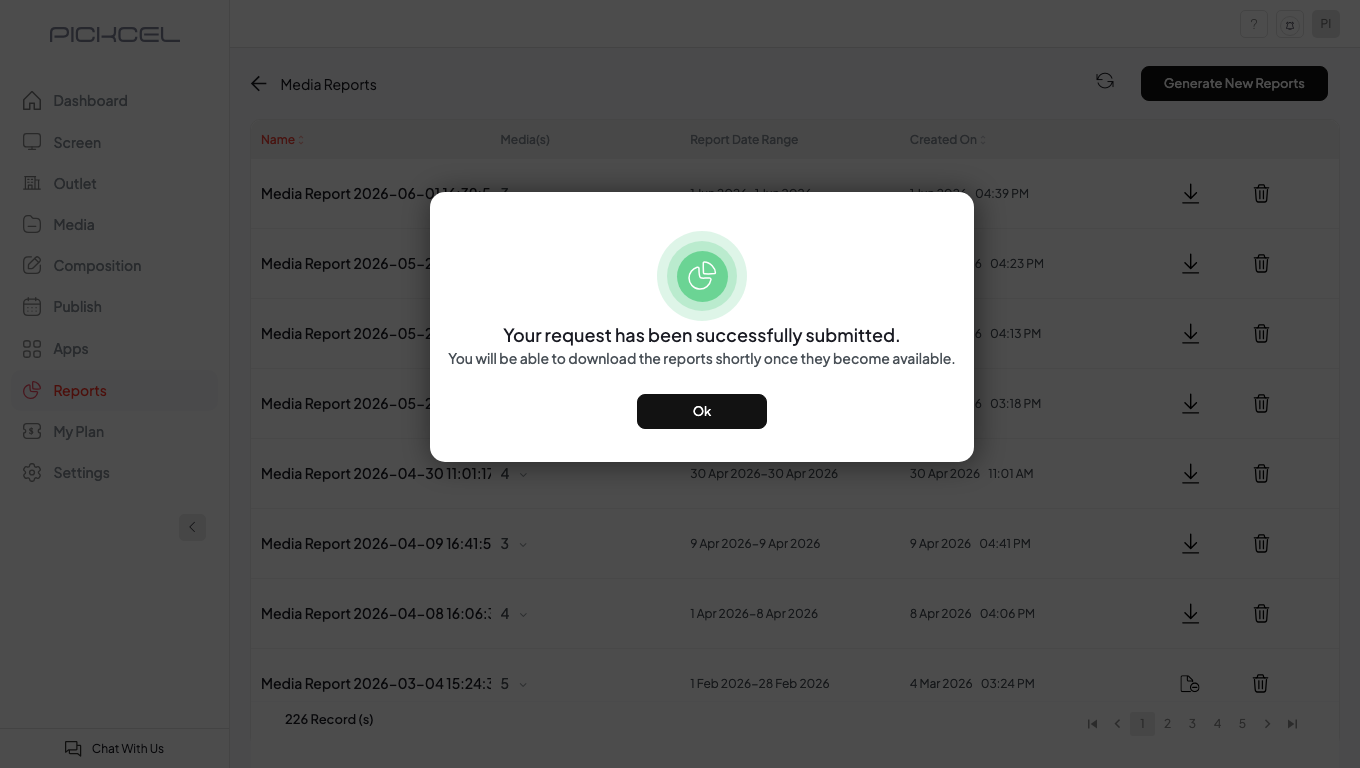
Click **Generate**. Pickcel processes the report and adds it to the list when ready.
Choose how you want to generate the report:
* **Monthly**: pick a month and year from the dropdowns.
* **Custom**: select a start and end date (up to 31 days).
Click **Generate**. Pickcel processes the report and adds it to the list when ready.
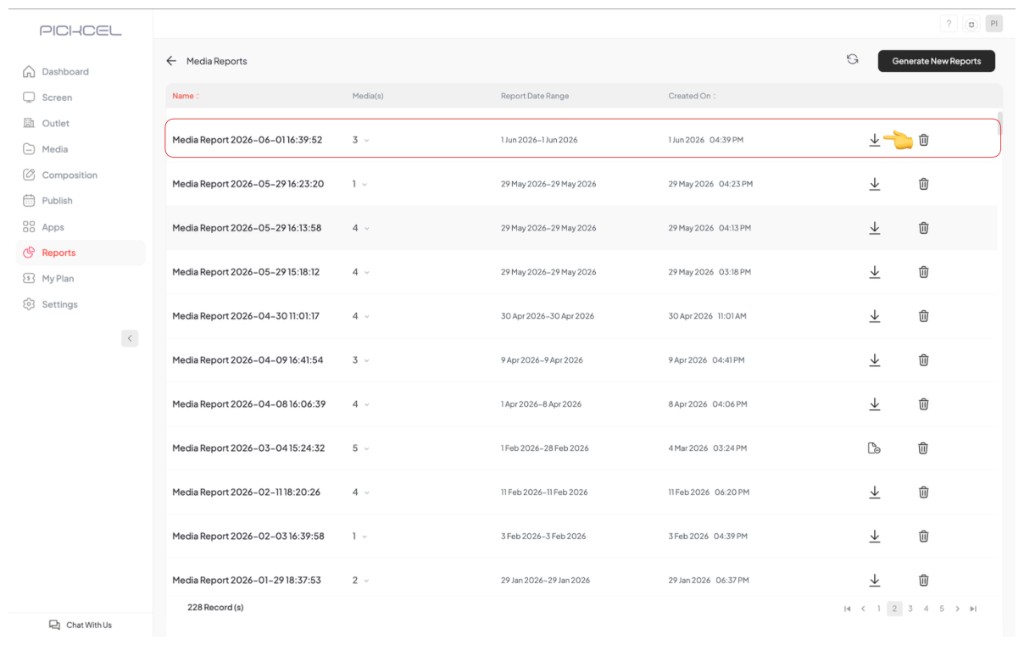
 When generation finishes, your new report appears in the **Media Reports** list.
 Click the **download** icon on the row to save the report file to your computer.
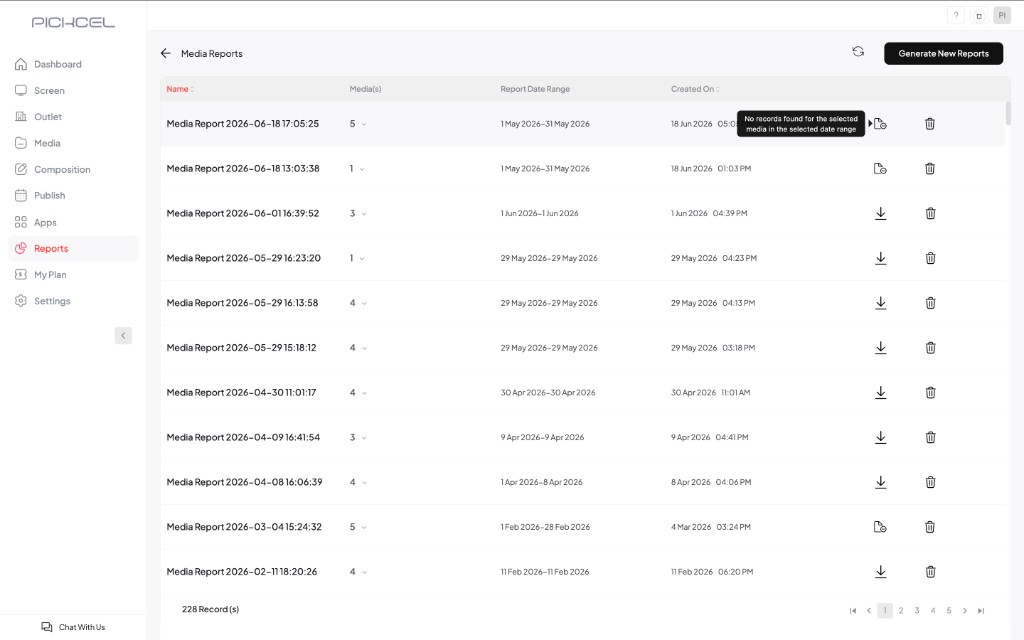
 If you see **"No records found for the selected media in the selected date range"** on a row, nothing played for that media in the chosen period, try another date range or confirm the content was published to a screen.
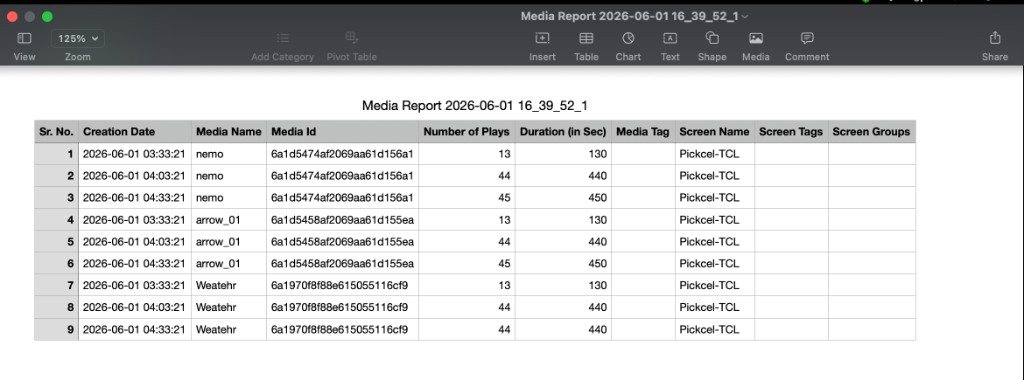
 Open the downloaded file in Excel, Google Sheets, or Numbers. Each row shows the media name, number of plays, duration in seconds, and the screen where it played.
 ## Frequently asked questions
The downloaded report lists each media file with its name, media ID, number of plays, duration in seconds, and the screen name where it played. Media tags, screen tags, and screen groups are included when available.
The player generates a report every 30 minutes. If a screen goes offline, playback logs are stored on the device. When the internet connection returns, the offline data is not uploaded immediately, it is included in the next combined report cycle along with online playback data.
You can select up to **five** media files per report when using **Generate Report**.
Custom reports support a date range of up to **31 days**.
## What's next
Monitor screen health, content downloads, and storage from your home dashboard.
Upload images, videos, apps, and PDFs to include in future playback reports.
## Frequently asked questions
The downloaded report lists each media file with its name, media ID, number of plays, duration in seconds, and the screen name where it played. Media tags, screen tags, and screen groups are included when available.
The player generates a report every 30 minutes. If a screen goes offline, playback logs are stored on the device. When the internet connection returns, the offline data is not uploaded immediately, it is included in the next combined report cycle along with online playback data.
You can select up to **five** media files per report when using **Generate Report**.
Custom reports support a date range of up to **31 days**.
## What's next
Monitor screen health, content downloads, and storage from your home dashboard.
Upload images, videos, apps, and PDFs to include in future playback reports.