> ## Documentation Index
> Fetch the complete documentation index at: https://docs.pickcel.com/llms.txt
> Use this file to discover all available pages before exploring further.
# How to install the Pickcel digital signage software through USB on a Samsung Tizen QMR-B screen?
> Step-by-step instructions to install the Pickcel digital signage player on Samsung Tizen QMR-B series screens using a USB flash drive
The supported version is Tizen OS 4 and above.
To install the Pickcel software on your Samsung Tizen QMR-B series screen, follow the steps below:
Click [**Download Samsung Tizen USB package**](https://console.pickcel.com/players/samsung/usb/3.9.0.zip) to get the pre-configured ZIP file.
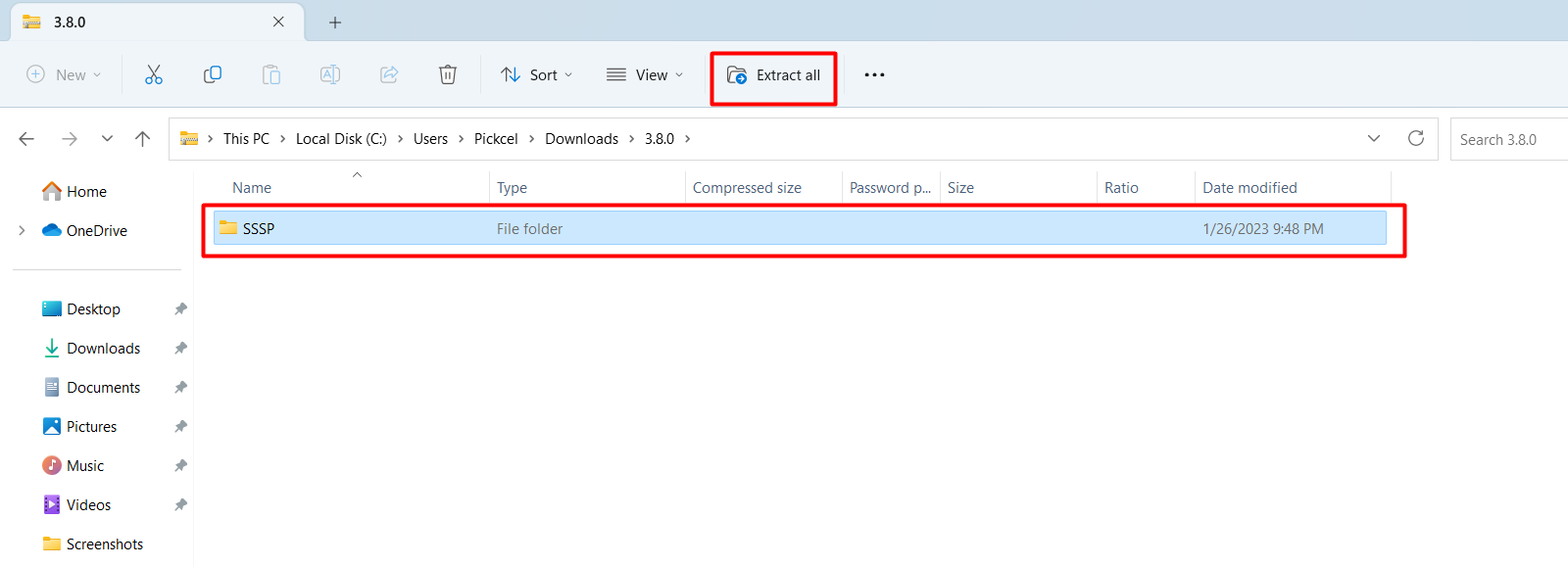
 Extract the downloaded ZIP file and copy the **SSSP** folder to your USB flash drive.
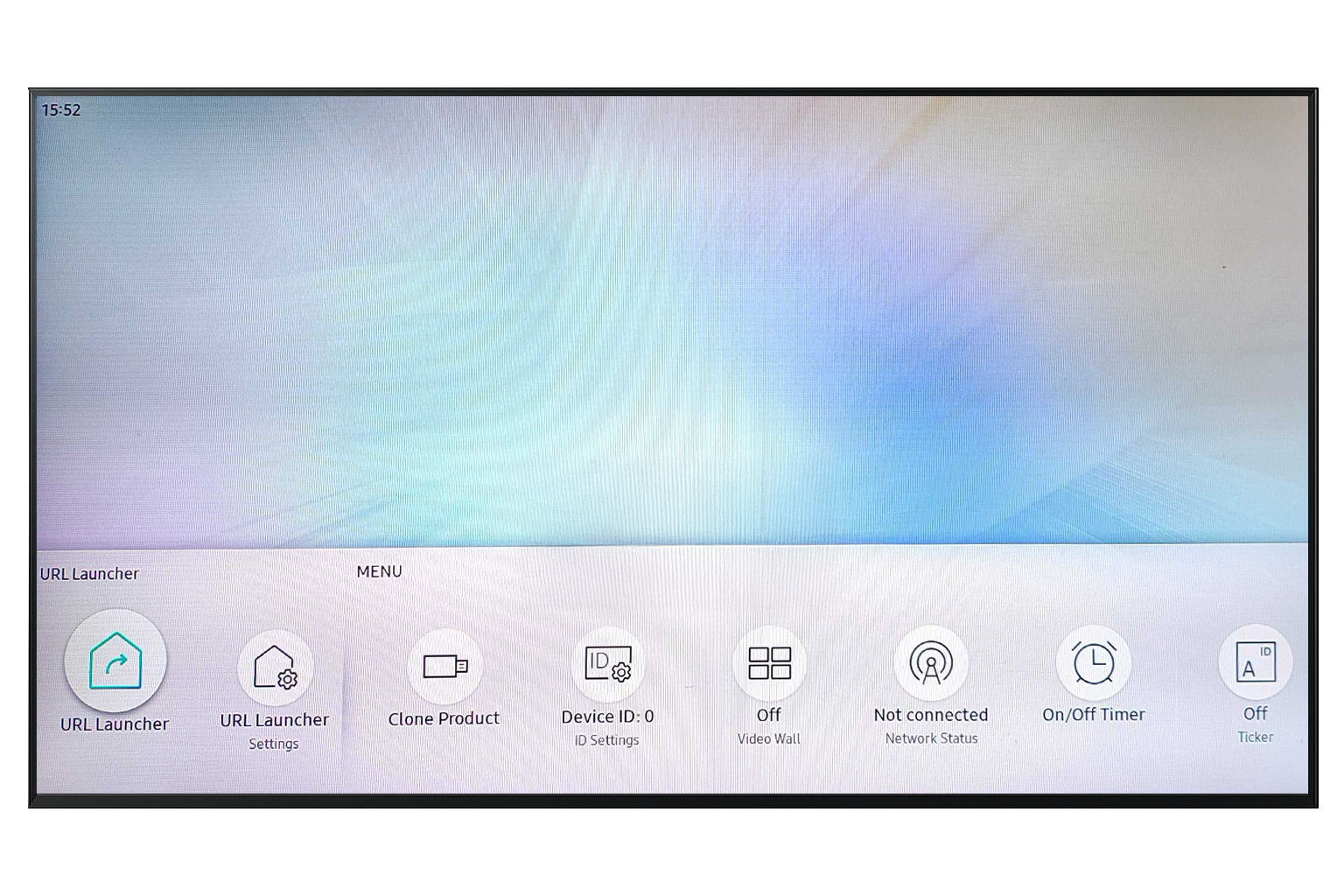
 Connect the USB drive to the screen. Using the remote, press the **Home** button and select **URL Launcher Settings** on your Samsung device.
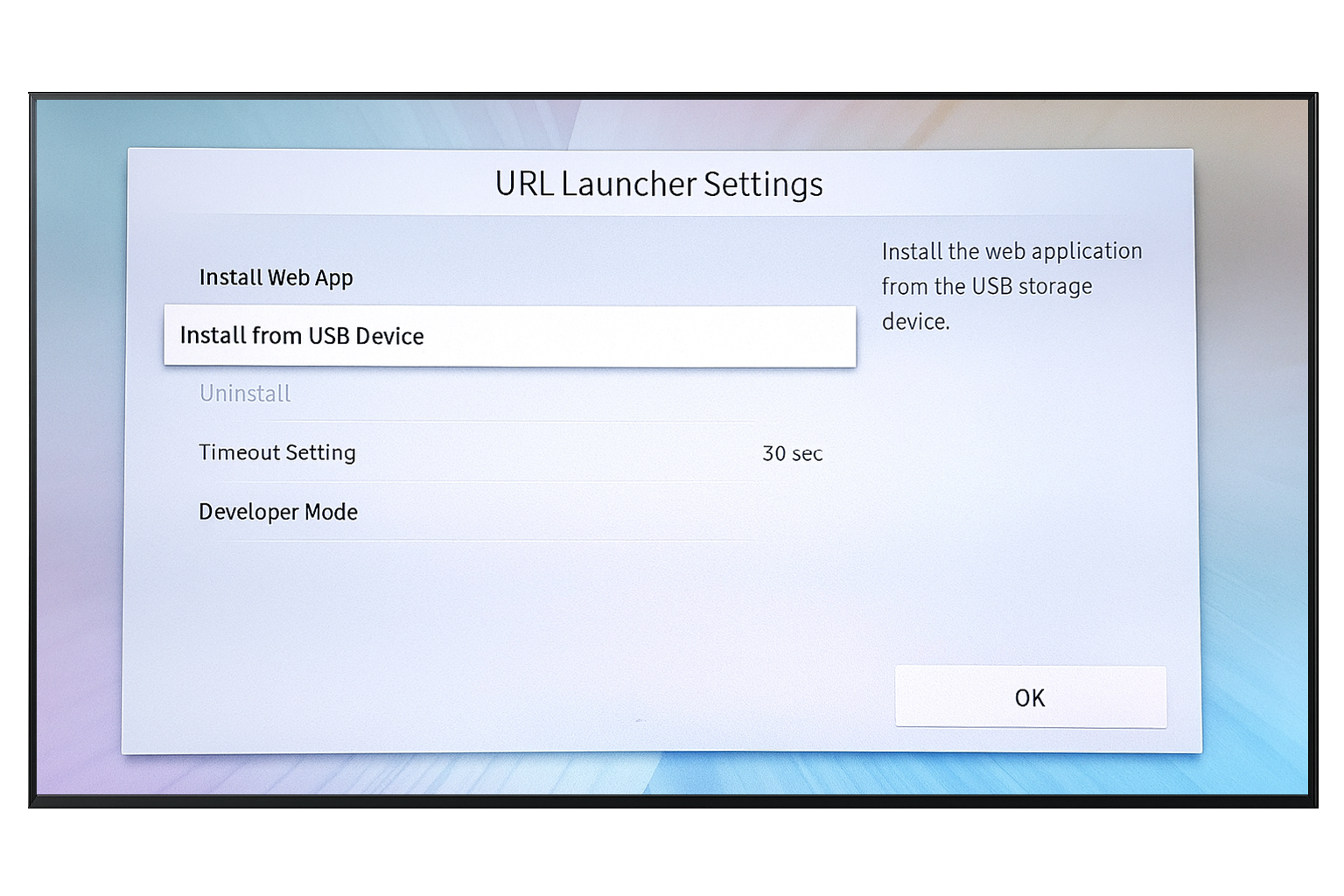
 Select **Install from USB Device** to begin the installation.
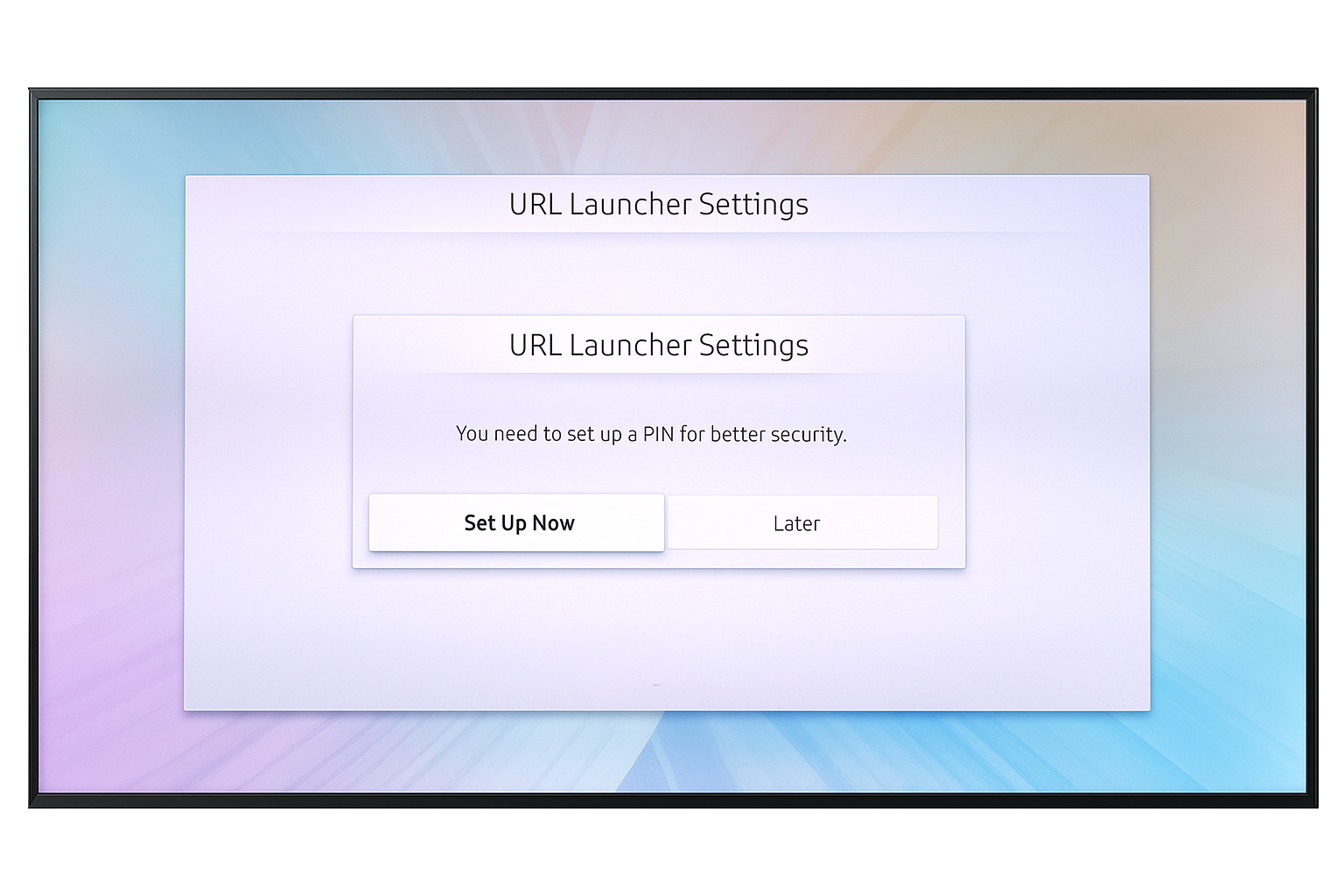
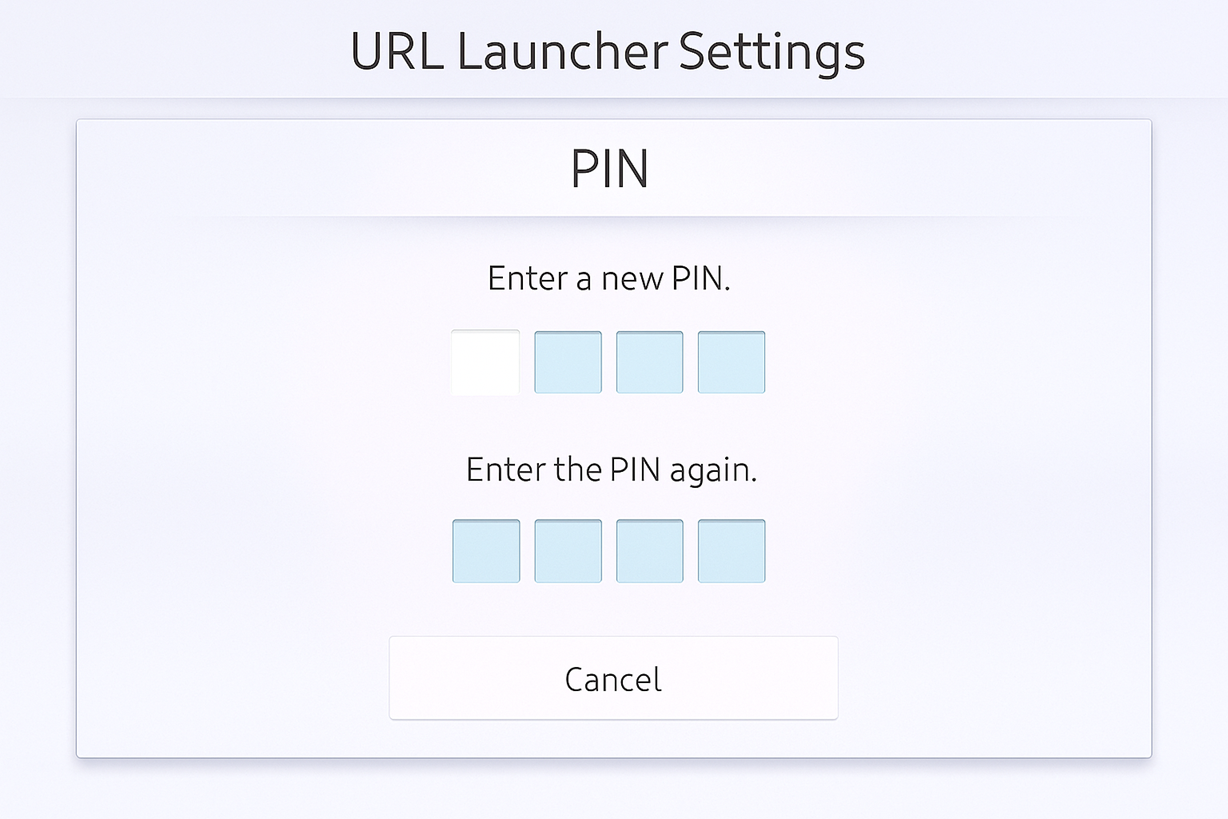
 When prompted to add a PIN, click **Set up Now** to create a new password.
 Enter and confirm a new PIN. The default password is usually **0000**.
 The Pickcel application installs automatically and launches on your Samsung Tizen screen.
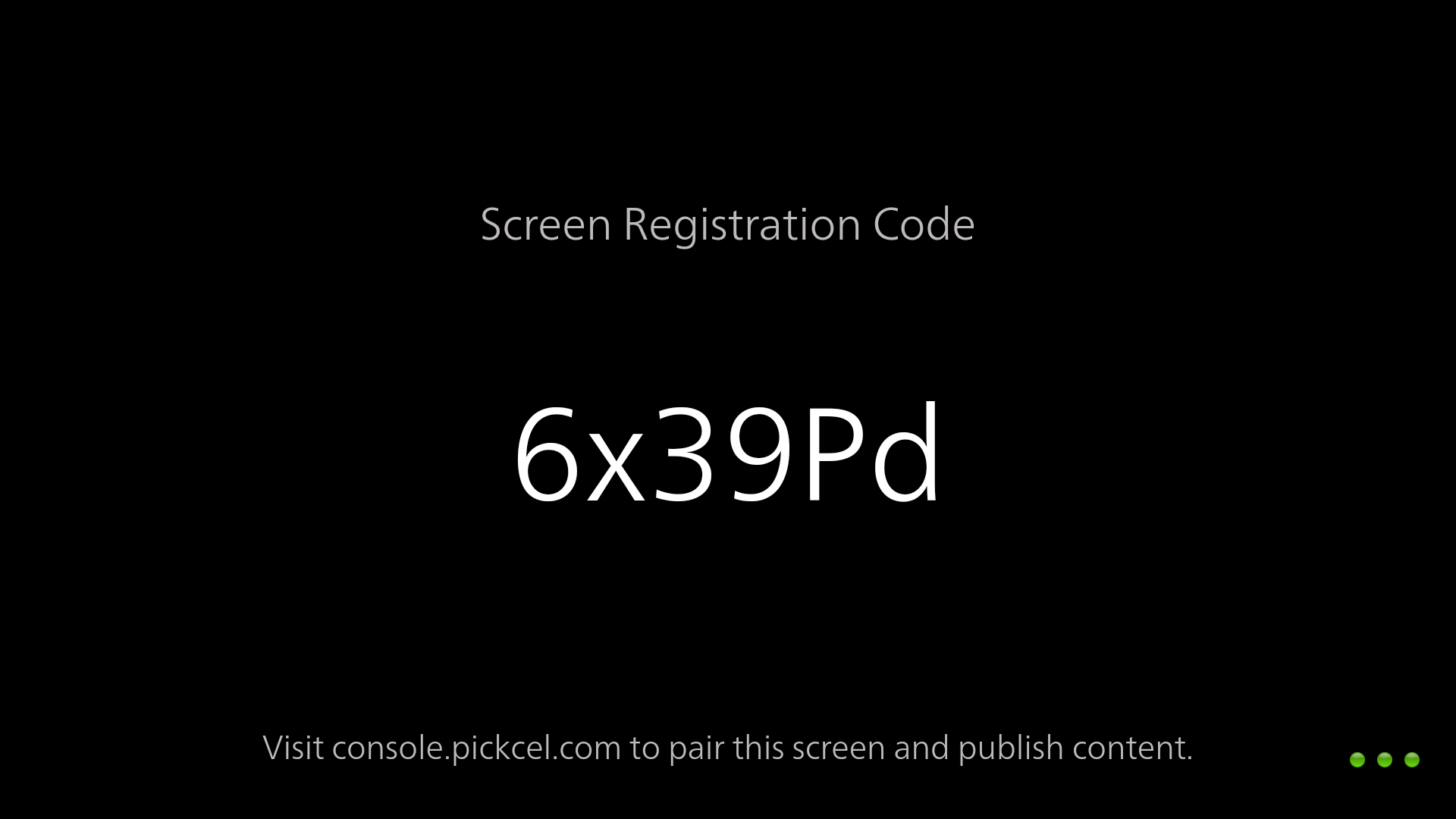
After the app launches, note the **6-digit unique Screen Registration Code**. Visit your [Pickcel Console](https://console.pickcel.com/) and enter this code to pair the screen.
The Pickcel application installs automatically and launches on your Samsung Tizen screen.
After the app launches, note the **6-digit unique Screen Registration Code**. Visit your [Pickcel Console](https://console.pickcel.com/) and enter this code to pair the screen.
 To learn how to pair your Samsung Tizen QM series device with the Pickcel console, see the [Screen Registration guide](/screen-registration/screen-registration).
**What's Next?**
With the Samsung Tizen USB installation complete, finish your setup:
* Start [**Uploading Media**](/media/add-media) to your library
* Create your first [**Composition**](/compositions/compositions) and publish content
To learn how to pair your Samsung Tizen QM series device with the Pickcel console, see the [Screen Registration guide](/screen-registration/screen-registration).
**What's Next?**
With the Samsung Tizen USB installation complete, finish your setup:
* Start [**Uploading Media**](/media/add-media) to your library
* Create your first [**Composition**](/compositions/compositions) and publish content