> ## Documentation Index
> Fetch the complete documentation index at: https://docs.pickcel.com/llms.txt
> Use this file to discover all available pages before exploring further.
# How to install Pickcel Software on Samsung Tizen (SSSP) TV New Models?
> Comprehensive guide to set up Samsung Tizen (SSSP) smart signage TVs running Tizen OS and deploy the Pickcel digital signage player
Follow the steps below for Tizen versions below 4. If you want to install the software through USB, see the [USB installation guide](/player-installation/samsung-tizen/usb).
If your TV is already configured and you only need to install the Pickcel application, skip to **Step 7: Enter the player app URL**. Otherwise, start from **Step 1**.
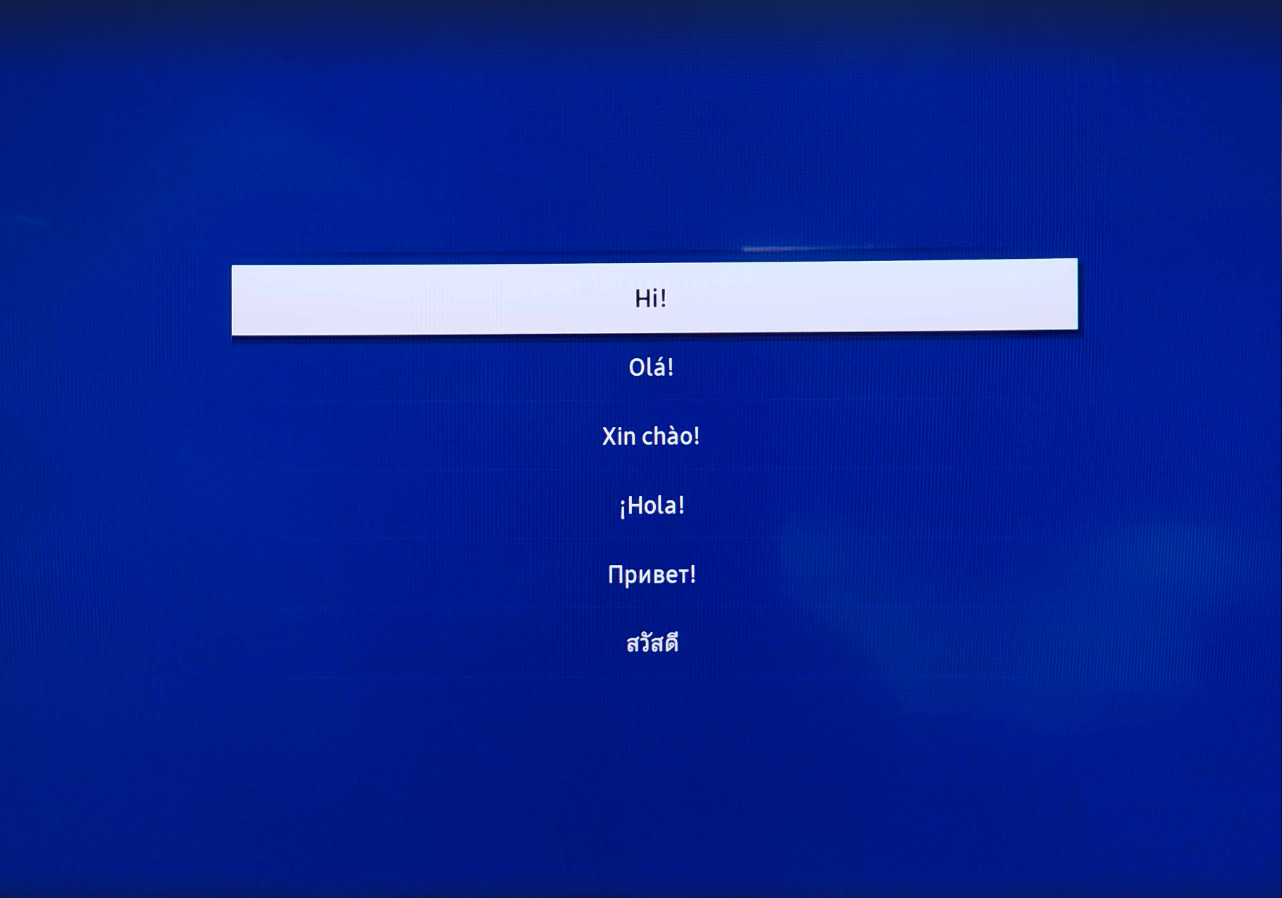
Choose the language you prefer and press **OK**.
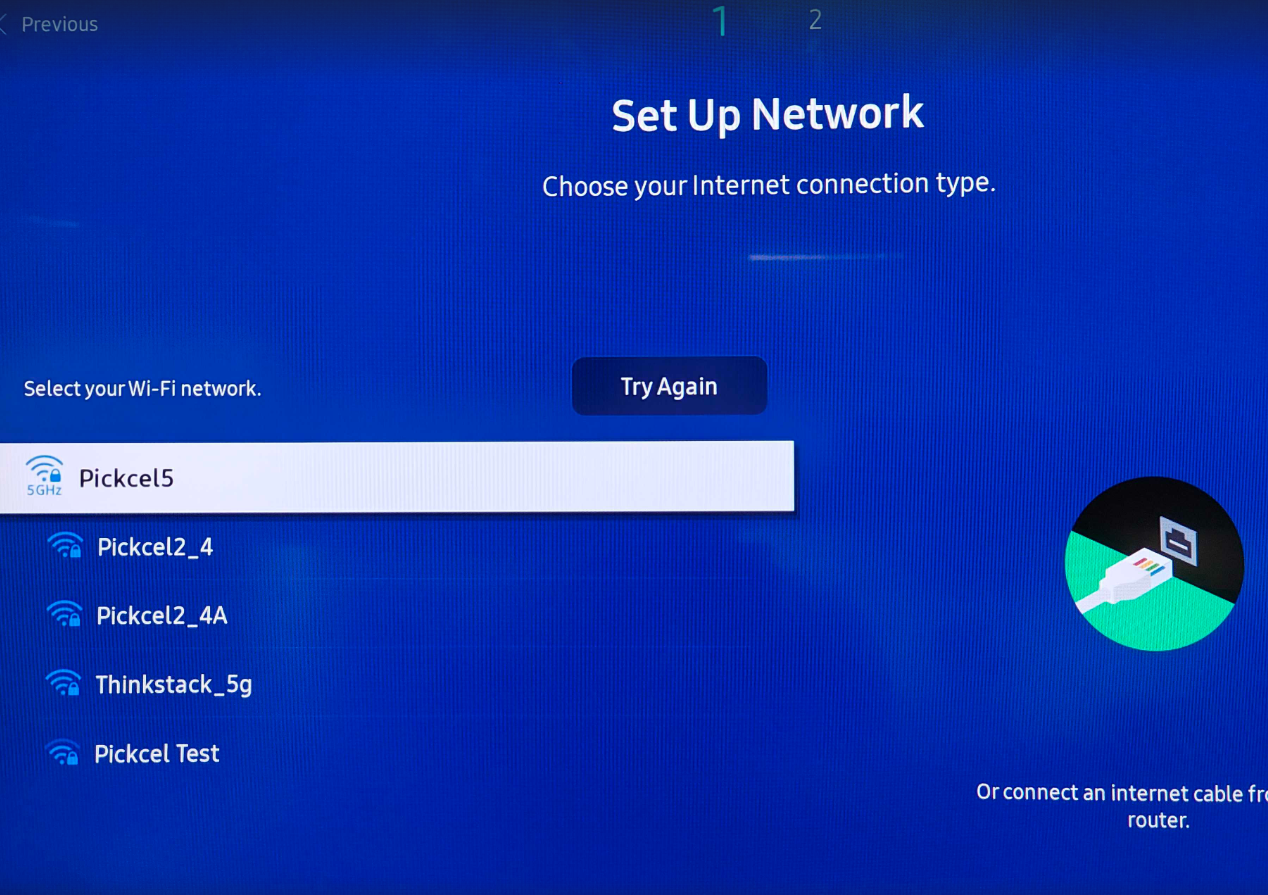
 Choose **Network** to configure your internet connection.
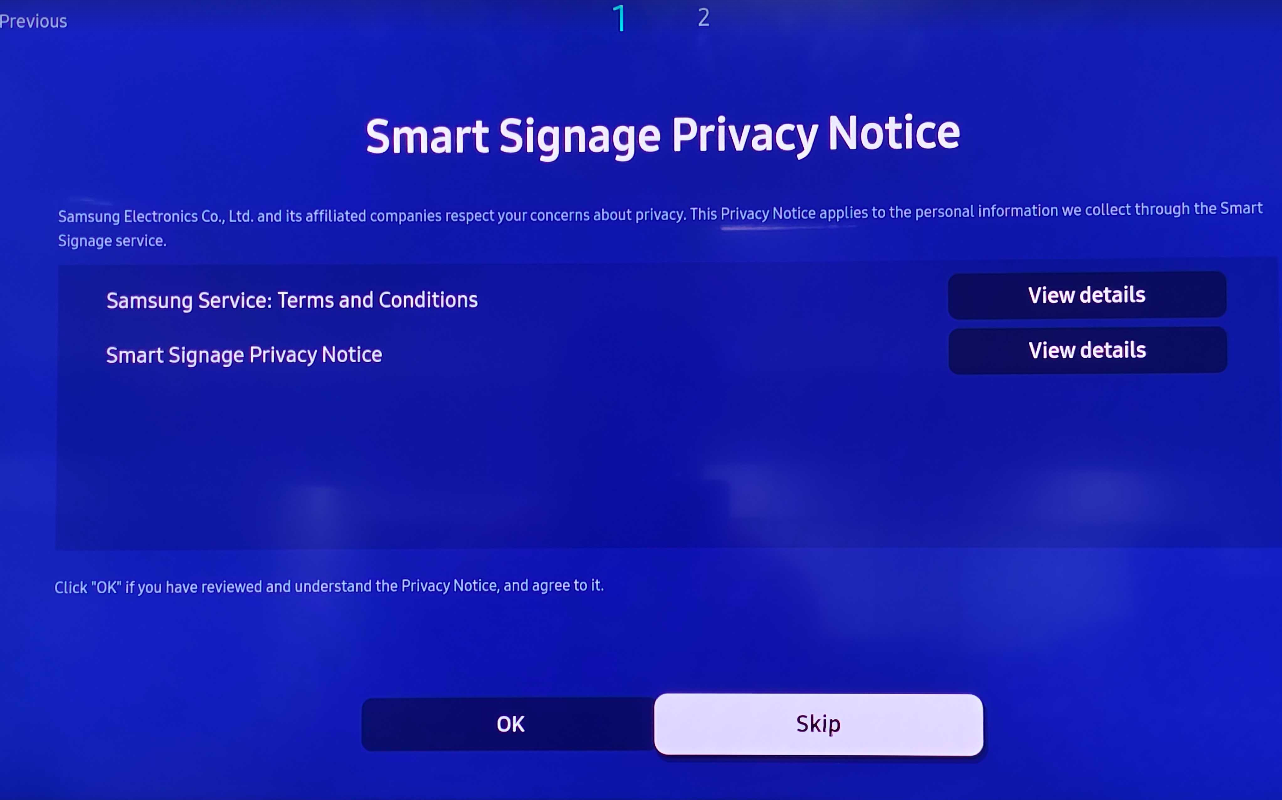
 Skip the **Smart Signage Privacy Notice** to proceed.
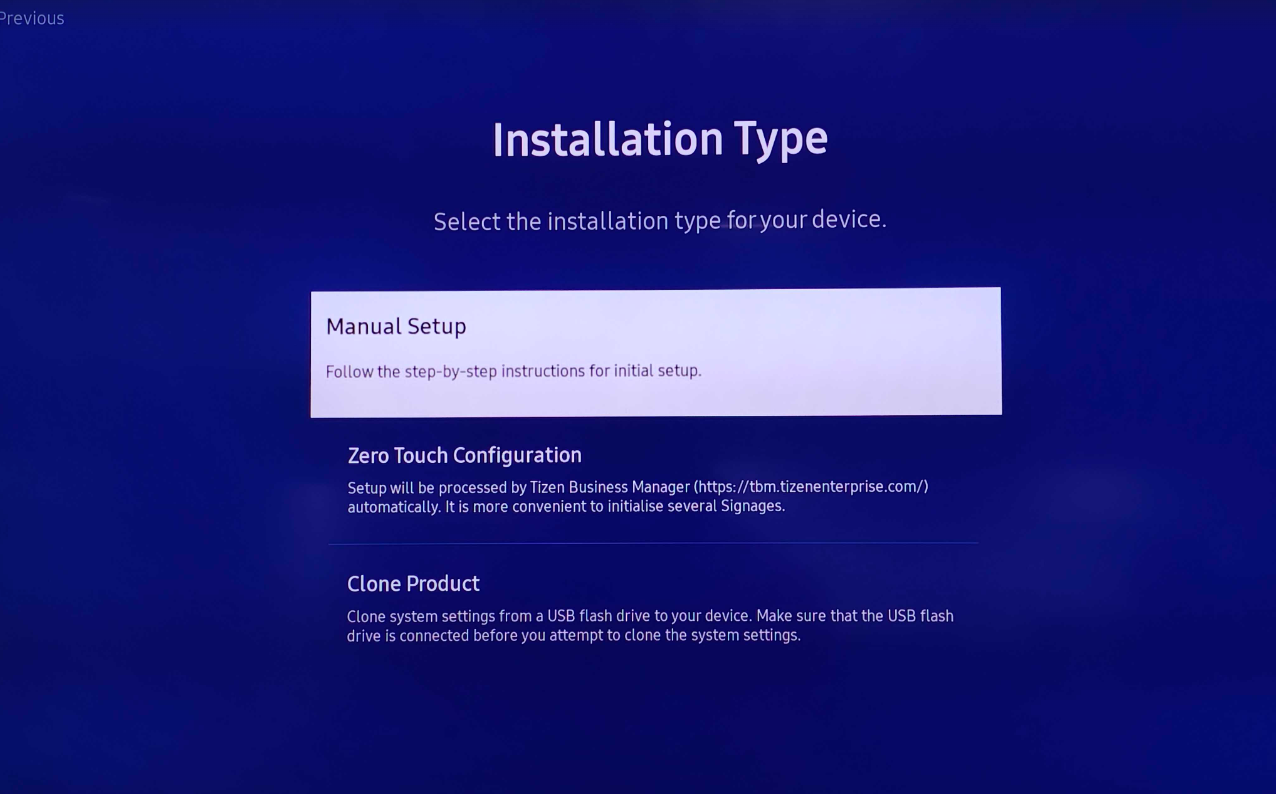
 When prompted for the installation type, choose **Manual Setup**.
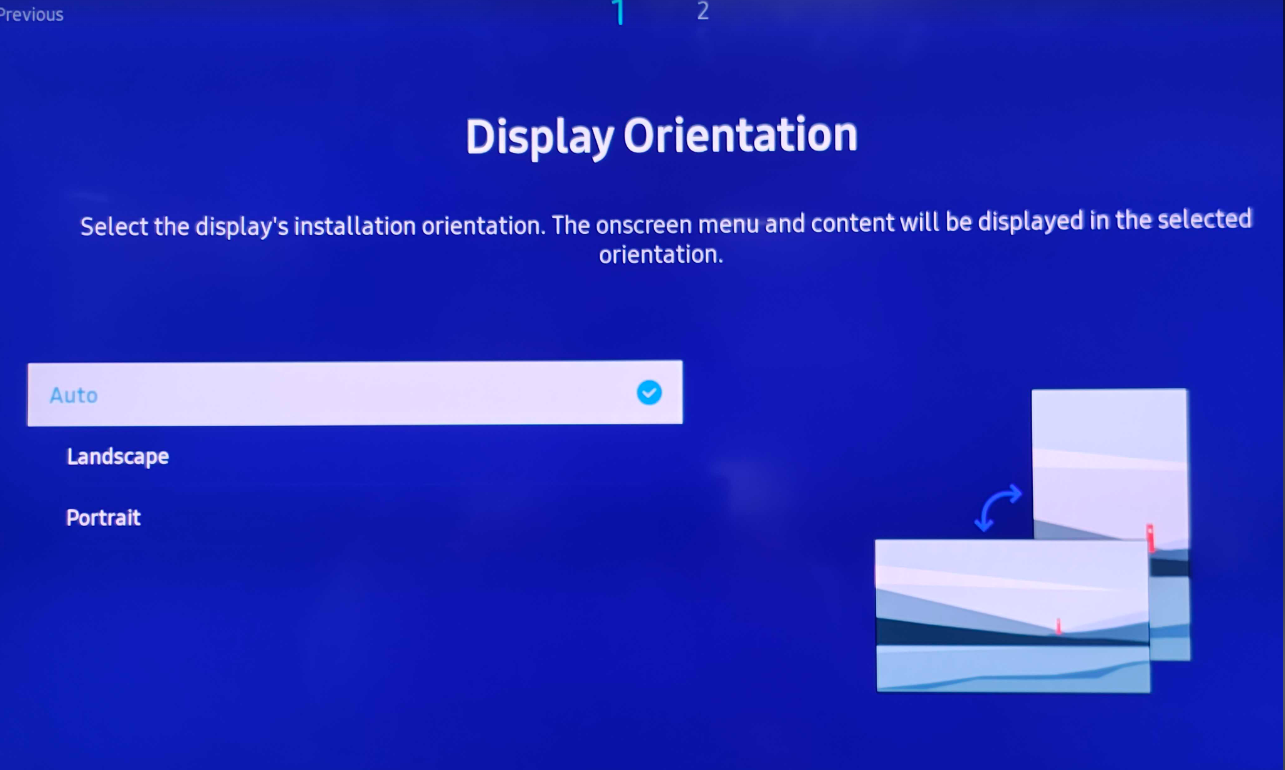
 Under **Display Orientation**, choose **Landscape** or **Portrait** based on your requirement.
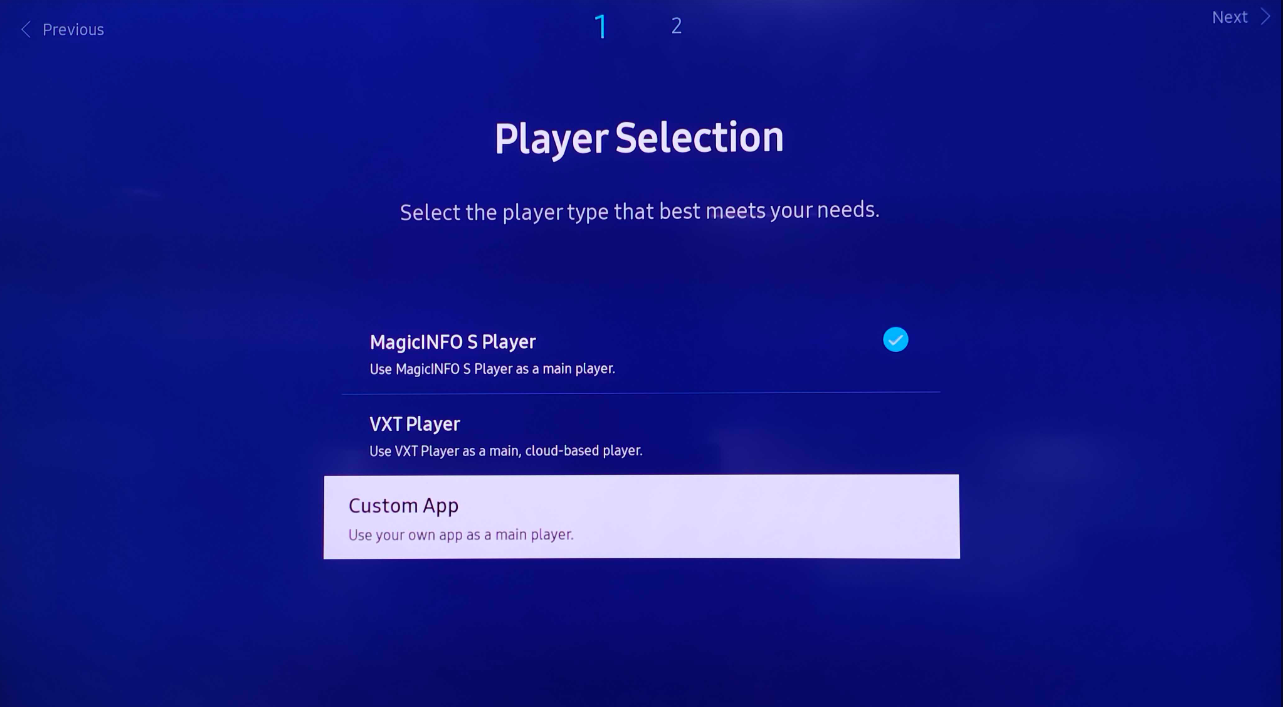
 In **Player Selection**, pick **Custom App**.
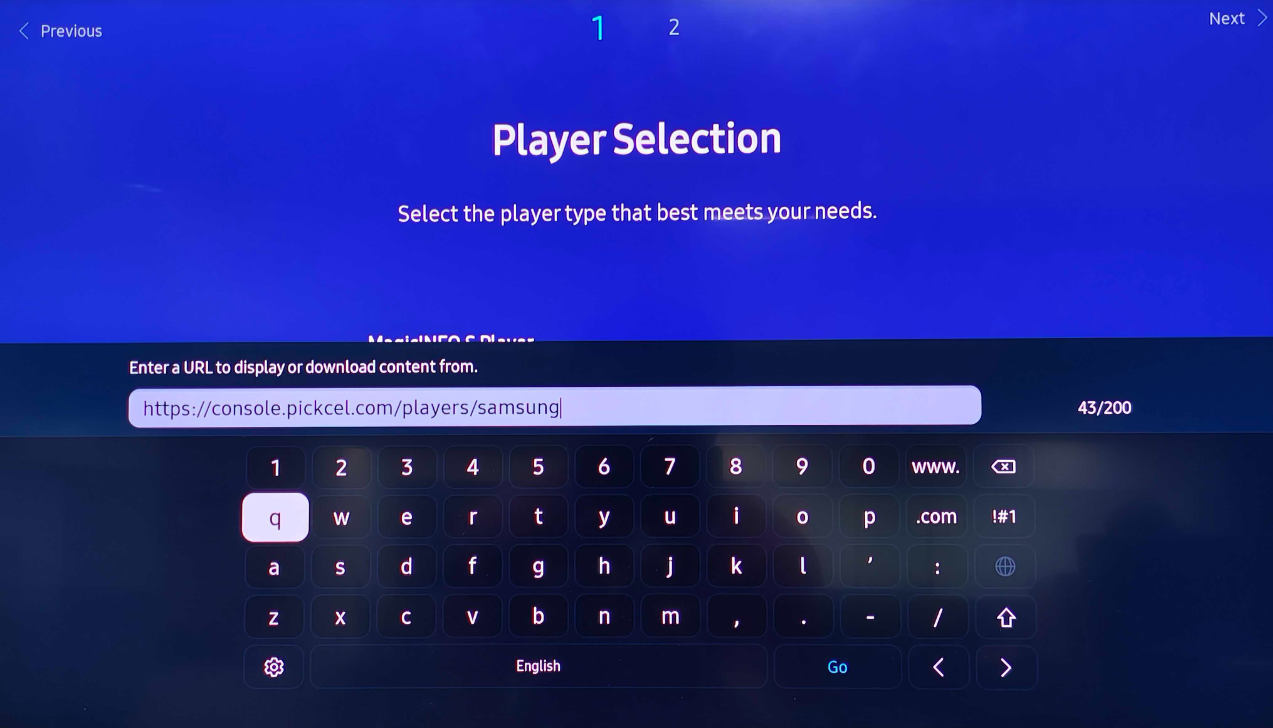
 Provide the player app URL **[https://console.pickcel.com/players/samsung](https://console.pickcel.com/players/samsung)** and click **Go**.
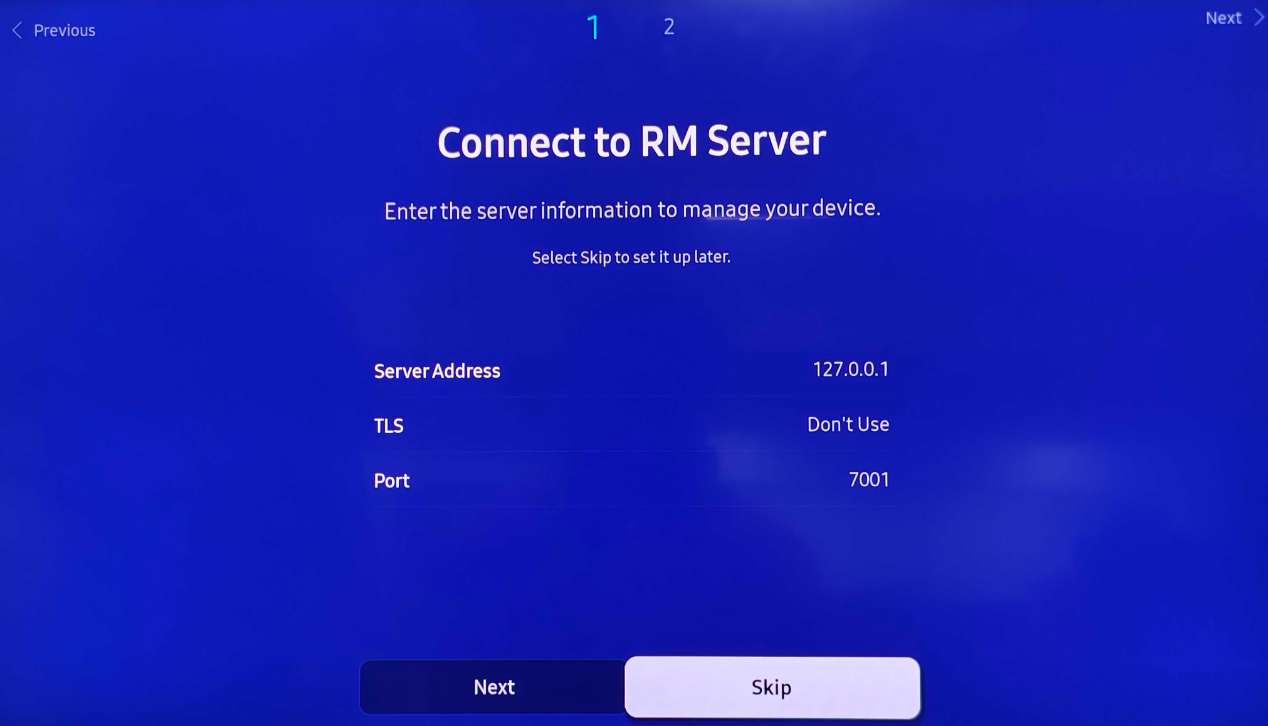
 Skip the **RM server** step to continue.
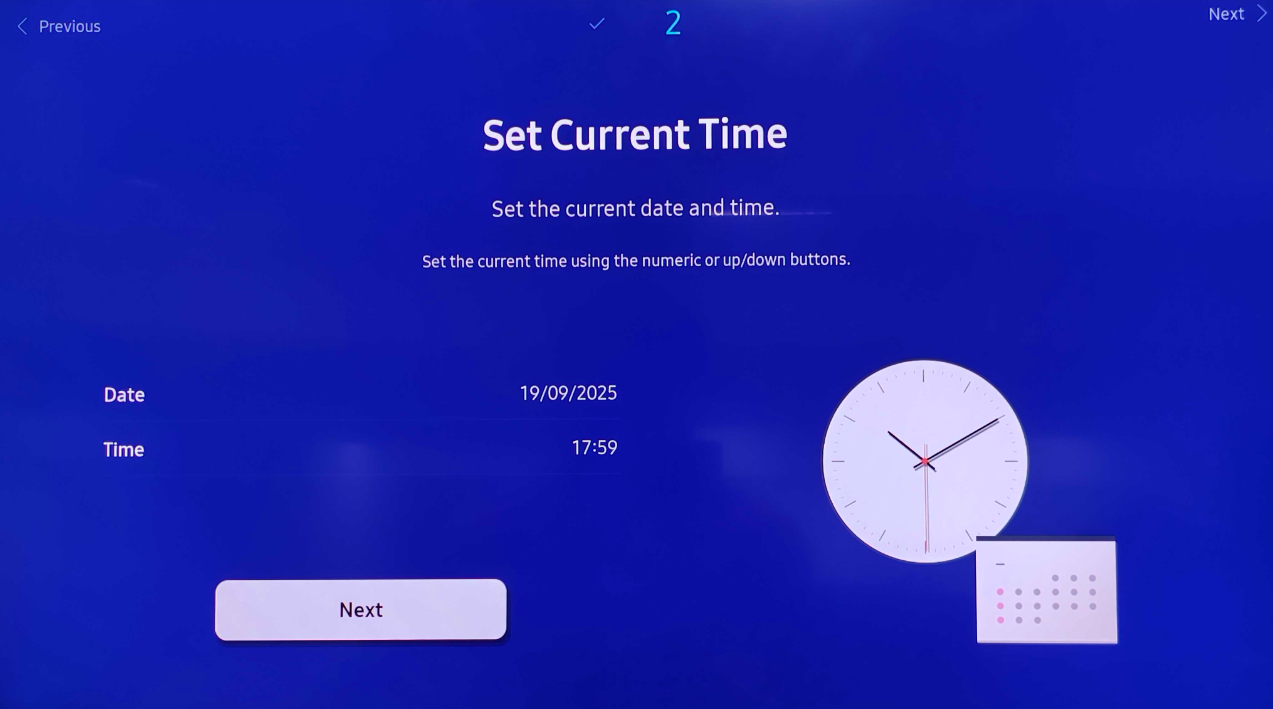
 Ensure the **Date and Time** are accurate, then click **Next**.
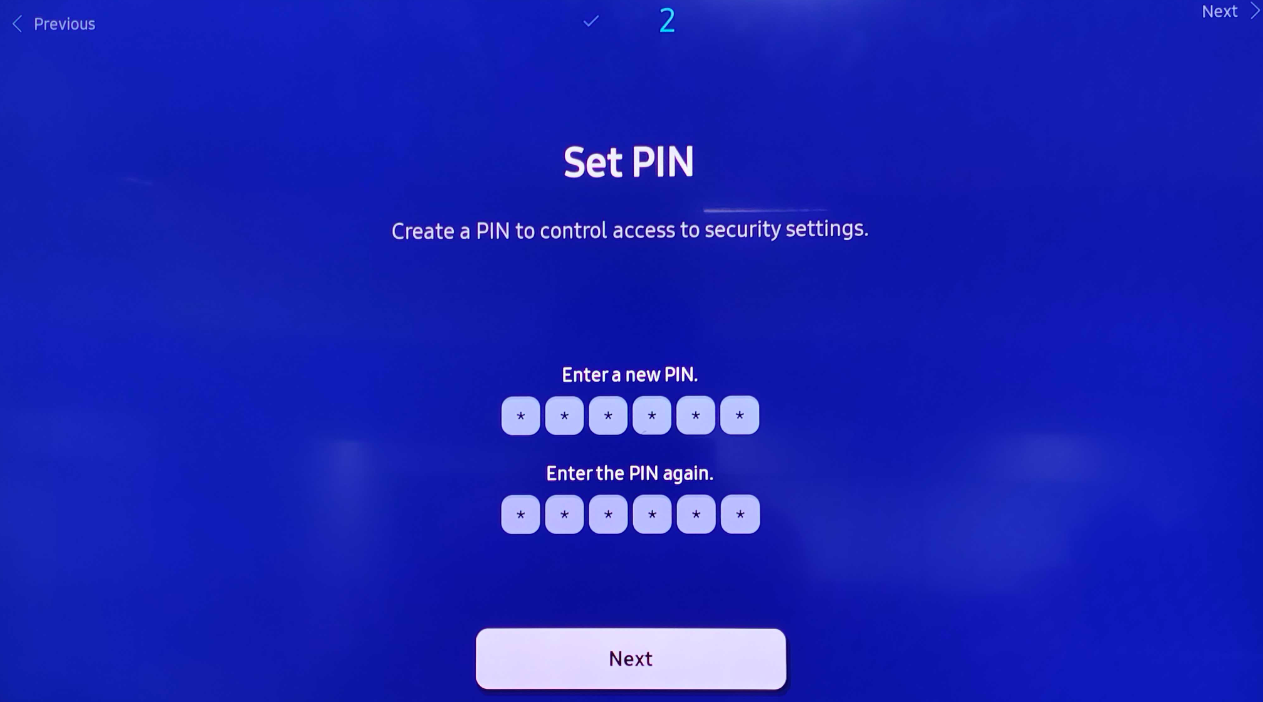
 Set a **PIN**, or click **Next** if you prefer to skip.
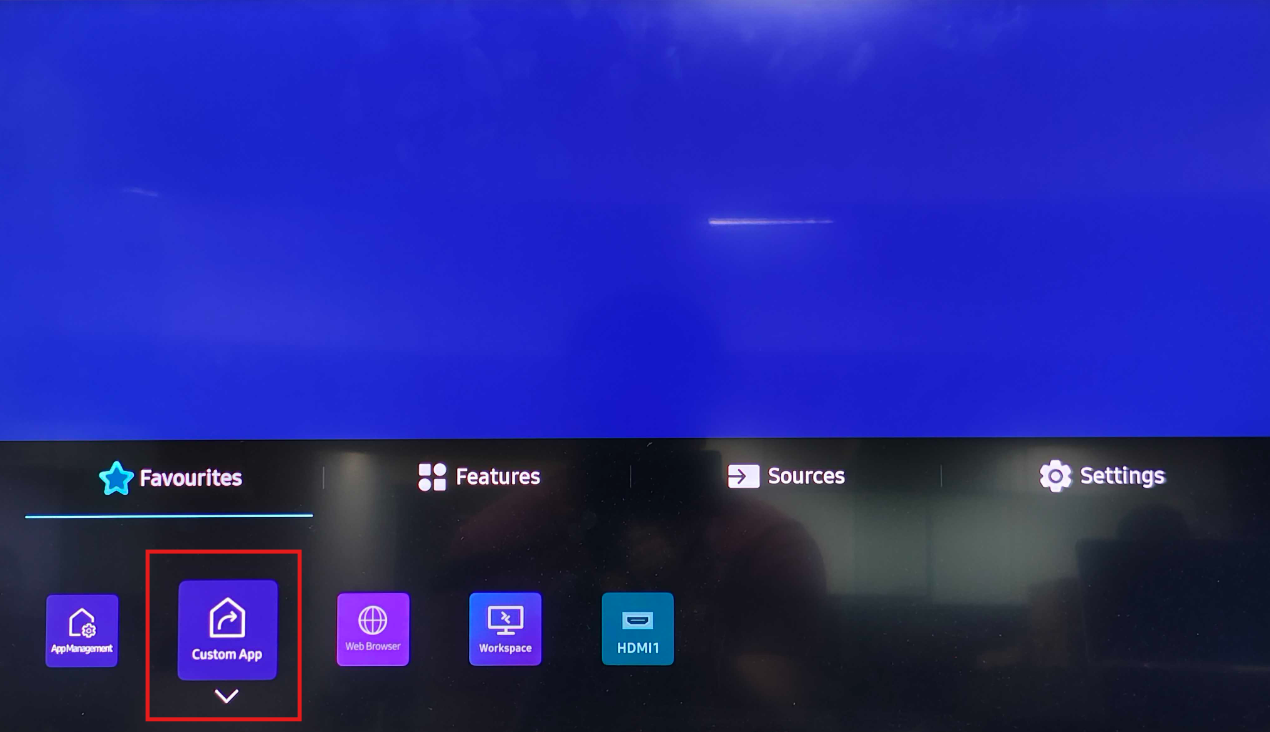
 From the **Home screen**, select **Custom App**.
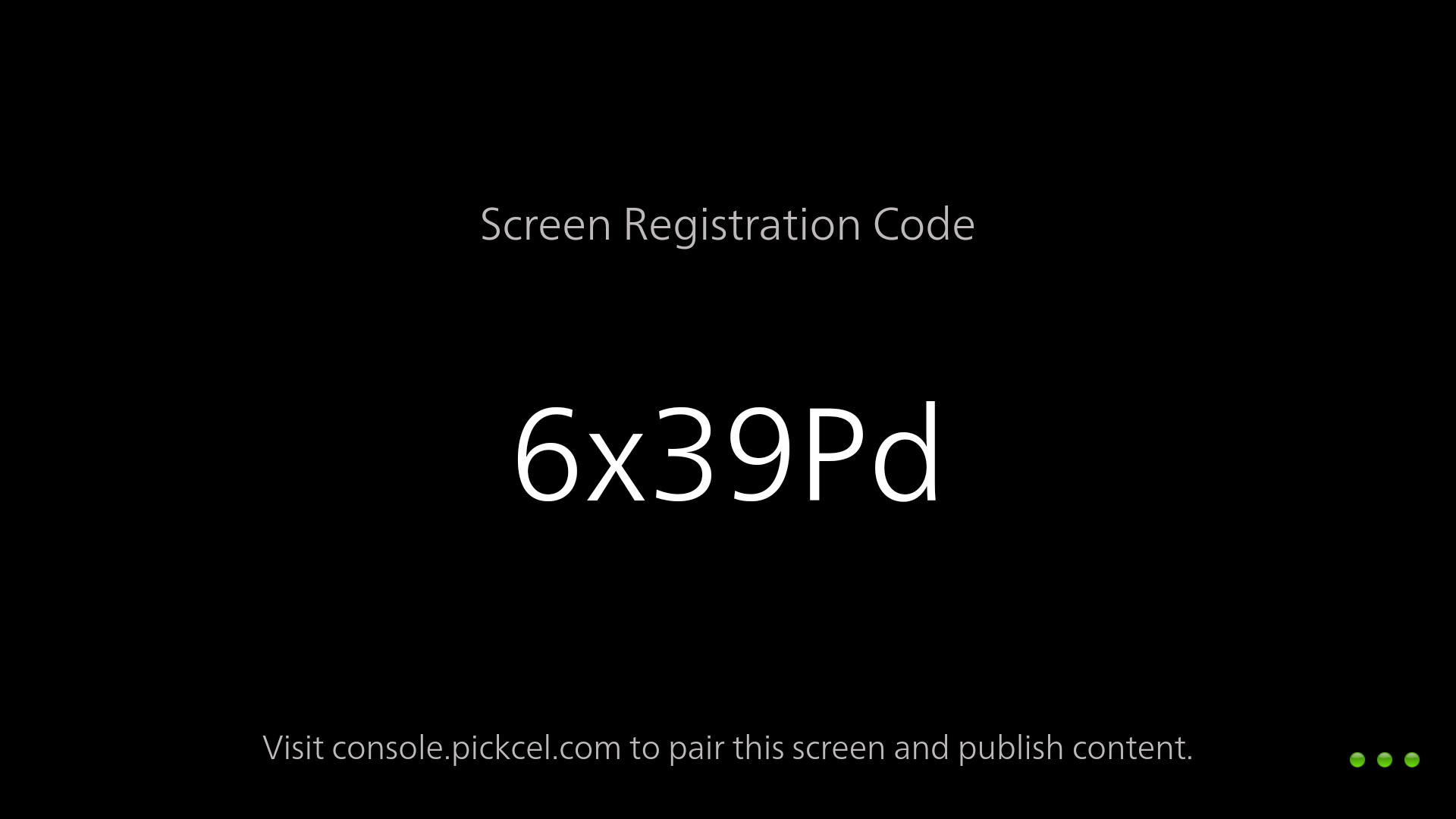
 After the app launches, note the **6-digit unique Screen Registration Code**. Visit your [Pickcel Console](https://console.pickcel.com/) and enter this code to pair the screen.
 To learn how to pair your Samsung SSSP device with the Pickcel console, see the [Screen Registration guide](/screen-registration/screen-registration).
**What's Next?**
Now that your Samsung Tizen (SSSP) player is installed, complete your setup:
* Start [**Uploading Media**](/media/add-media) to your library
* Create your first [**Composition**](/compositions/compositions) and publish content
To learn how to pair your Samsung SSSP device with the Pickcel console, see the [Screen Registration guide](/screen-registration/screen-registration).
**What's Next?**
Now that your Samsung Tizen (SSSP) player is installed, complete your setup:
* Start [**Uploading Media**](/media/add-media) to your library
* Create your first [**Composition**](/compositions/compositions) and publish content