> ## Documentation Index
> Fetch the complete documentation index at: https://docs.pickcel.com/llms.txt
> Use this file to discover all available pages before exploring further.
# How to install the Pickcel digital signage software on a macOS player?
> Follow this simple procedure to install the Pickcel Software on your Mac device from the Pickcel Website
Supported on macOS 10.14 and above.
**Considerations for Physical setup:**
* Mac system (macOS 10.14 or above).
* Active internet connection.
Download the latest DMG file: [Download the macOS player](https://console.pickcel.com/players/macos/pickcel-digital-signage.dmg)
 You can also visit the [Pickcel Download Page](https://www.pickcel.com/download/#macos) directly and **download the latest DMG file** from the **macOS** section.
Once the download is complete, locate the downloaded DMG file in your **Downloads folder** and **double-click** on it to open.
You can also visit the [Pickcel Download Page](https://www.pickcel.com/download/#macos) directly and **download the latest DMG file** from the **macOS** section.
Once the download is complete, locate the downloaded DMG file in your **Downloads folder** and **double-click** on it to open.
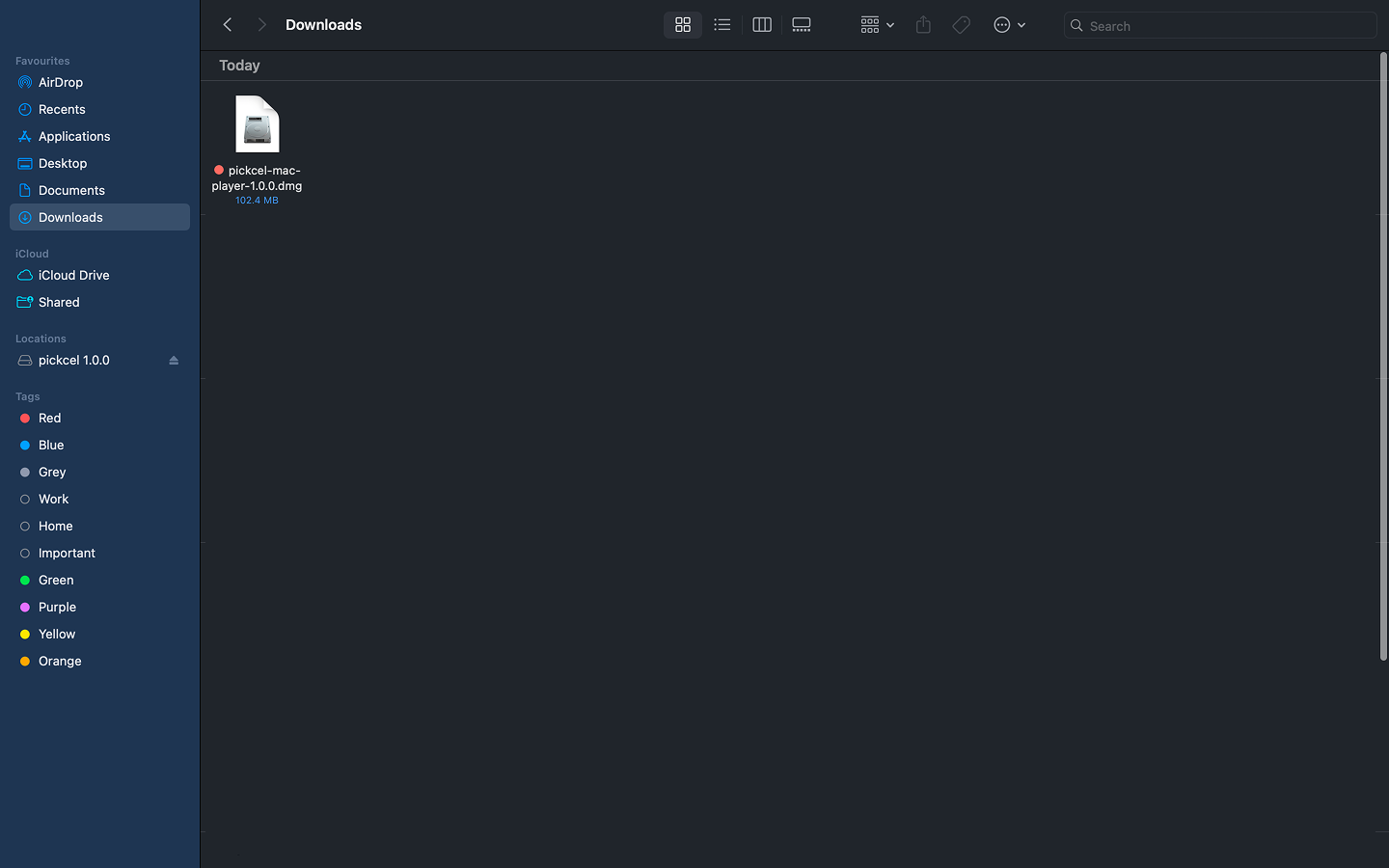 Drag the Pickcel app to the Applications folder.
 Go to the Applications folder and double-click on the Pickcel app to launch it.
If you encounter any issues during installation, please contact our [support team](mailto:support@pickcel.com) for assistance.
If you get a security warning, you'll need to adjust your system settings. Choose the method based on your macOS version:
**1. Open System Preferences:** Go to **System Preferences** > **Security & Privacy**.
Go to the Applications folder and double-click on the Pickcel app to launch it.
If you encounter any issues during installation, please contact our [support team](mailto:support@pickcel.com) for assistance.
If you get a security warning, you'll need to adjust your system settings. Choose the method based on your macOS version:
**1. Open System Preferences:** Go to **System Preferences** > **Security & Privacy**.
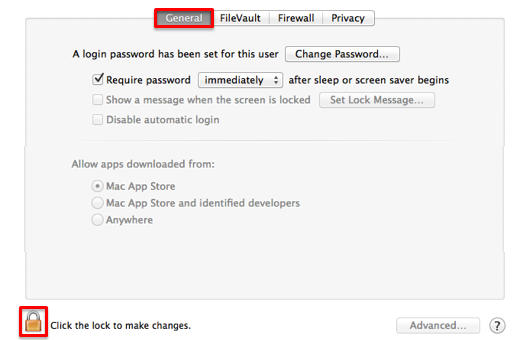
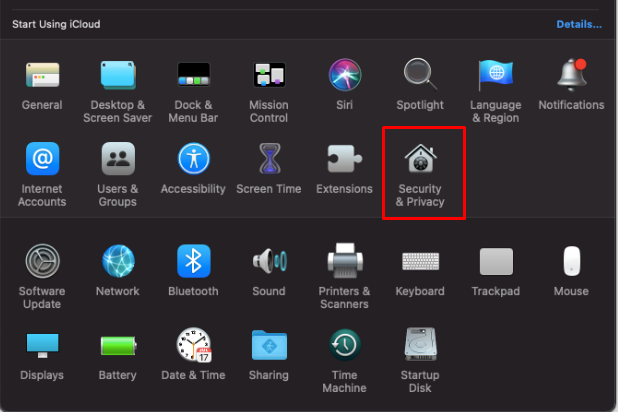 **2. Unlock Settings:** Go to the **General** tab and click the lock icon in the lower-left corner to allow changes.
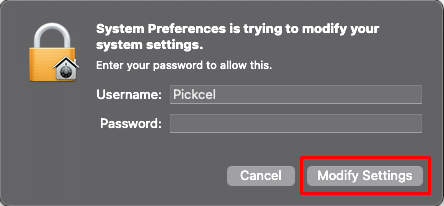
 **3. Authenticate:** Enter your computer username and password, then click **Modify Settings**.
 **4. Allow the App:** Under the **Allow apps downloaded from** section, click on the radio button next to **Anywhere**.
 If you don't see the **'Anywhere'** option in your macOS, use Method 2 instead.
**1. Launch the App:** Try to open the Pickcel app. When you get a security pop-up, click **Cancel**.
If you don't see the **'Anywhere'** option in your macOS, use Method 2 instead.
**1. Launch the App:** Try to open the Pickcel app. When you get a security pop-up, click **Cancel**.
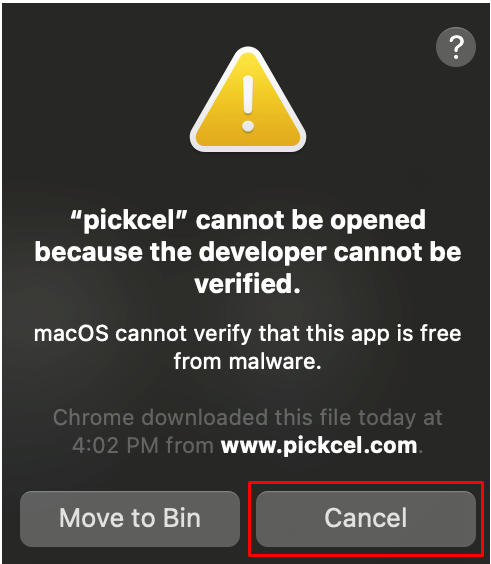 **2. Open Security & Privacy:** Go to **System Preferences** > **Security & Privacy** > **General** tab.
**3. Click Open Anyway:** You'll see a message about the blocked app. Click the **Open Anyway** button.
**2. Open Security & Privacy:** Go to **System Preferences** > **Security & Privacy** > **General** tab.
**3. Click Open Anyway:** You'll see a message about the blocked app. Click the **Open Anyway** button.
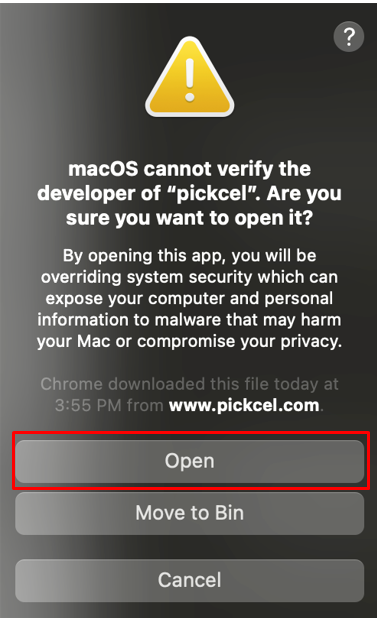
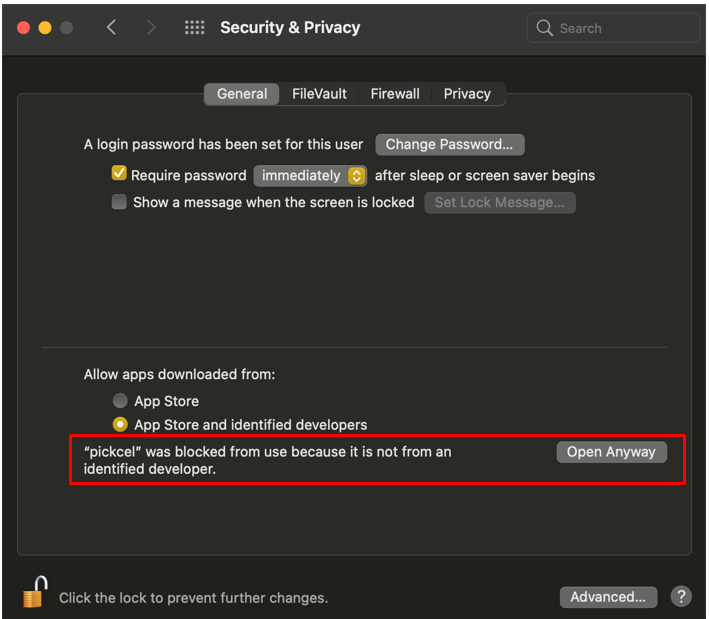 **4. Confirm:** Click **Open** in the confirmation dialog to launch the app.
 Once the Pickcel app launches, it will display a unique **6-digit alphanumeric registration code**.
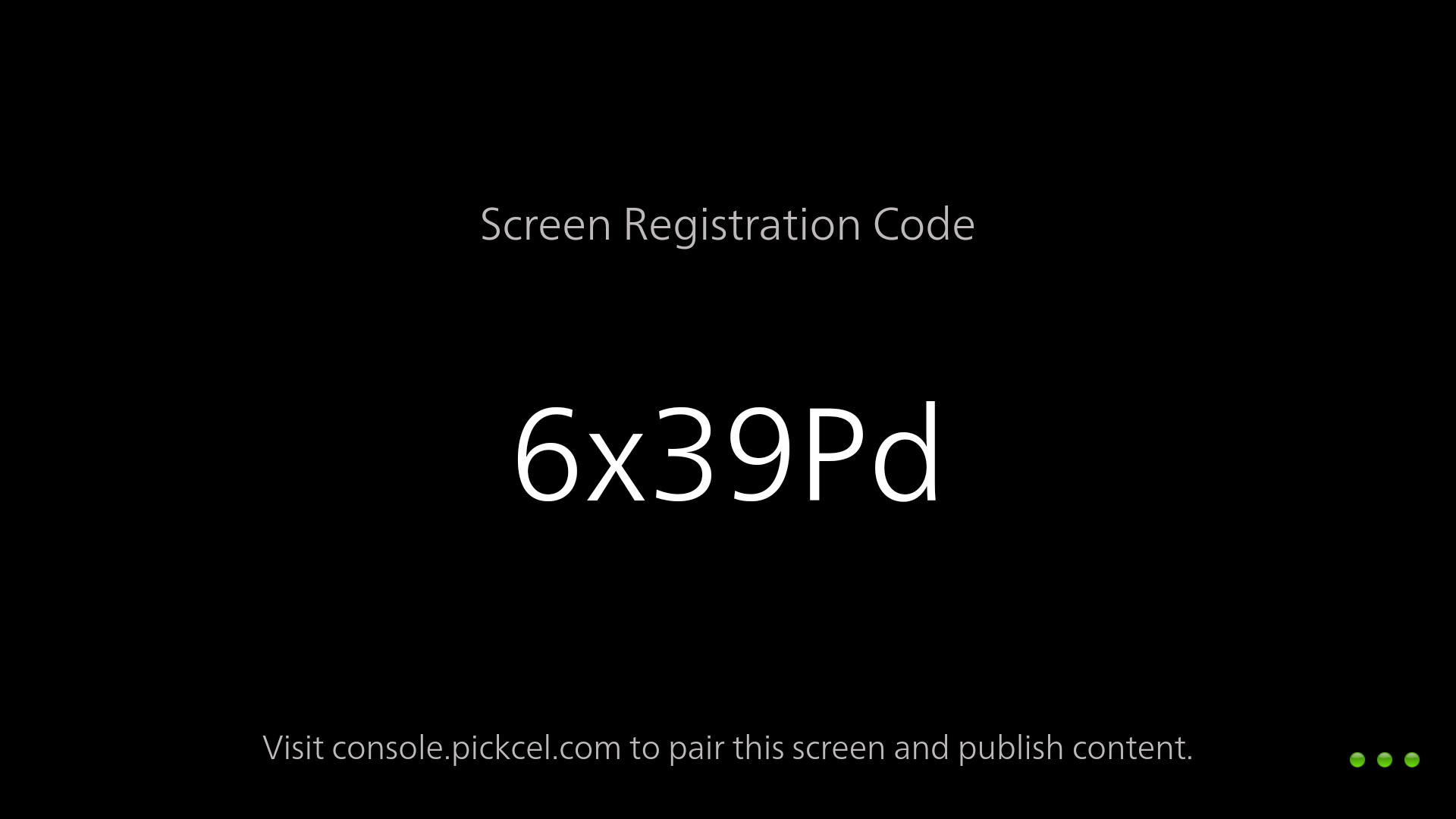 Pair your display with the Pickcel console using the registration code. You will have to enter this code on your [Pickcel console](https://console.pickcel.com/) to complete the pairing of your screen.
To learn how to pair your device with the Pickcel console, see the [Screen Registration guide](/screen-registration/screen-registration)
The installation of the Pickcel digital signage software on your Mac is complete, and you can start publishing content to your screens now.
**What's Next?**
Now that your macOS player is installed, complete your setup:
* Start [**Uploading Media**](/media/add-media) to your library
* Create your first [**Composition**](/compositions/compositions) and publish content
Pair your display with the Pickcel console using the registration code. You will have to enter this code on your [Pickcel console](https://console.pickcel.com/) to complete the pairing of your screen.
To learn how to pair your device with the Pickcel console, see the [Screen Registration guide](/screen-registration/screen-registration)
The installation of the Pickcel digital signage software on your Mac is complete, and you can start publishing content to your screens now.
**What's Next?**
Now that your macOS player is installed, complete your setup:
* Start [**Uploading Media**](/media/add-media) to your library
* Create your first [**Composition**](/compositions/compositions) and publish content