> ## Documentation Index
> Fetch the complete documentation index at: https://docs.pickcel.com/llms.txt
> Use this file to discover all available pages before exploring further.
# How to install the Pickcel digital signage software on a Linux player?
> Follow this simple procedure to install the Pickcel Software on your Linux device from the Pickcel Website
Supported on Ubuntu 18 and above.
**Considerations for Physical setup:**
* Linux system (Ubuntu 18 or above).
* Active internet connection.
Download the latest DEB file: [Download the Linux player (v3.4.3)](https://console.pickcel.com/players/linux/pickcel-digital-signage_v3.4.3.deb)
You can also visit the [Pickcel Download Page](https://www.pickcel.com/download/#linux) directly and **download the latest DEB file** from the **Linux** section.
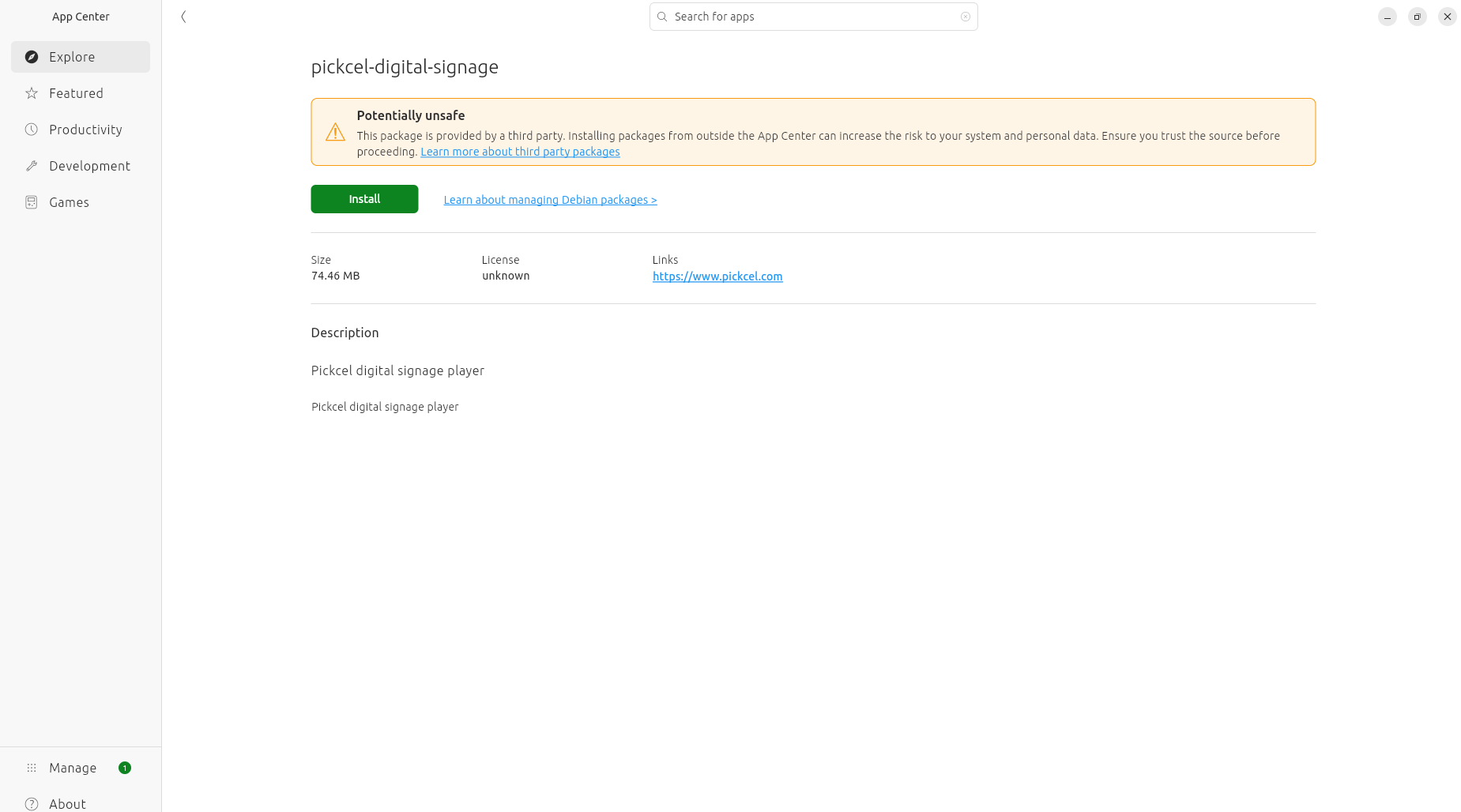
Navigate to the **Downloads** folder on your device and **double-click** on the downloaded file.
 Click on **Install** and authenticate with your password to begin the installation.
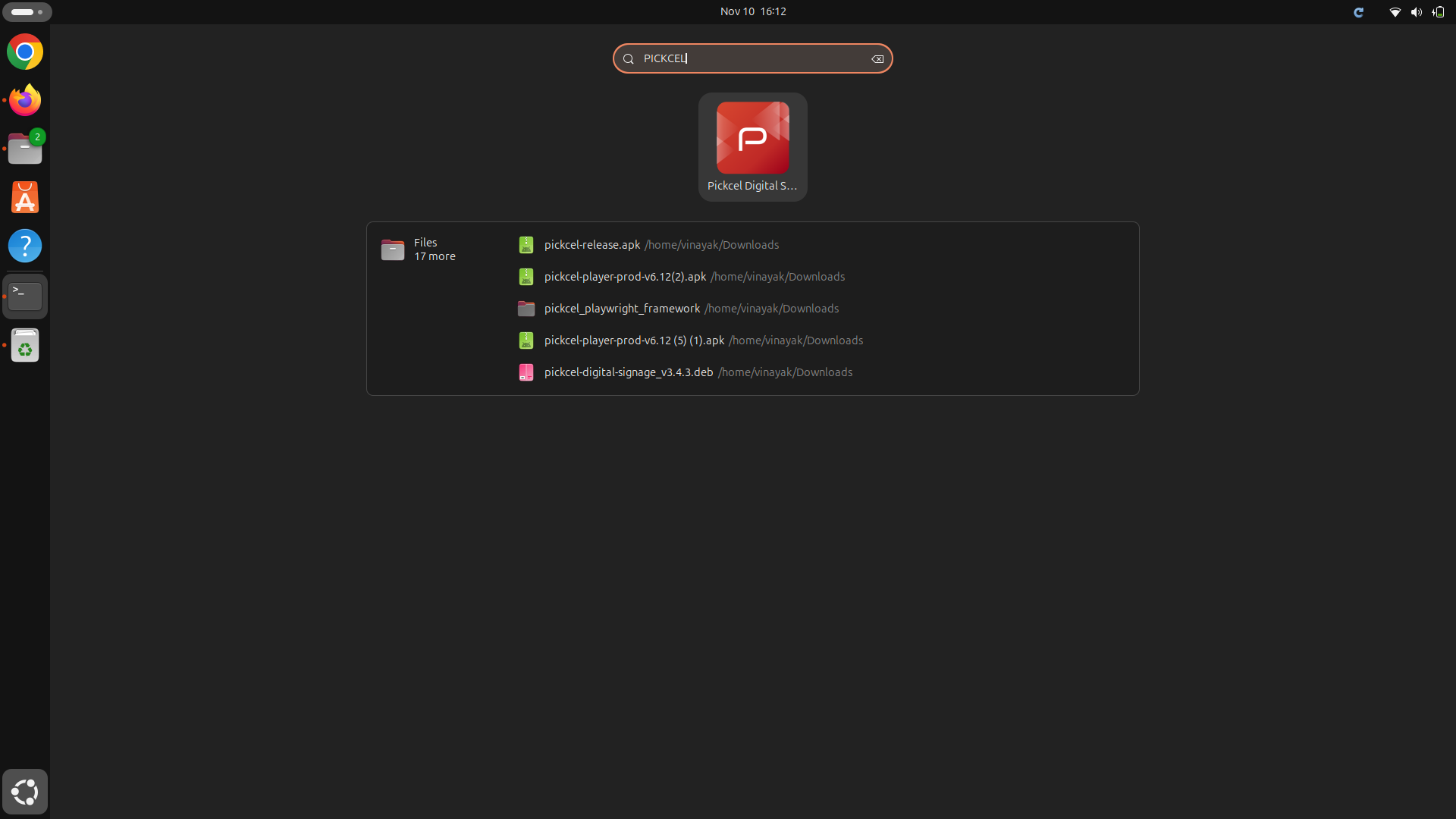
 After installation, type **Pickcel** in Dash, and launch the Pickcel application from there.
 Once the app is launched, it will show a 6-digit alphanumeric Screen Registration Code.
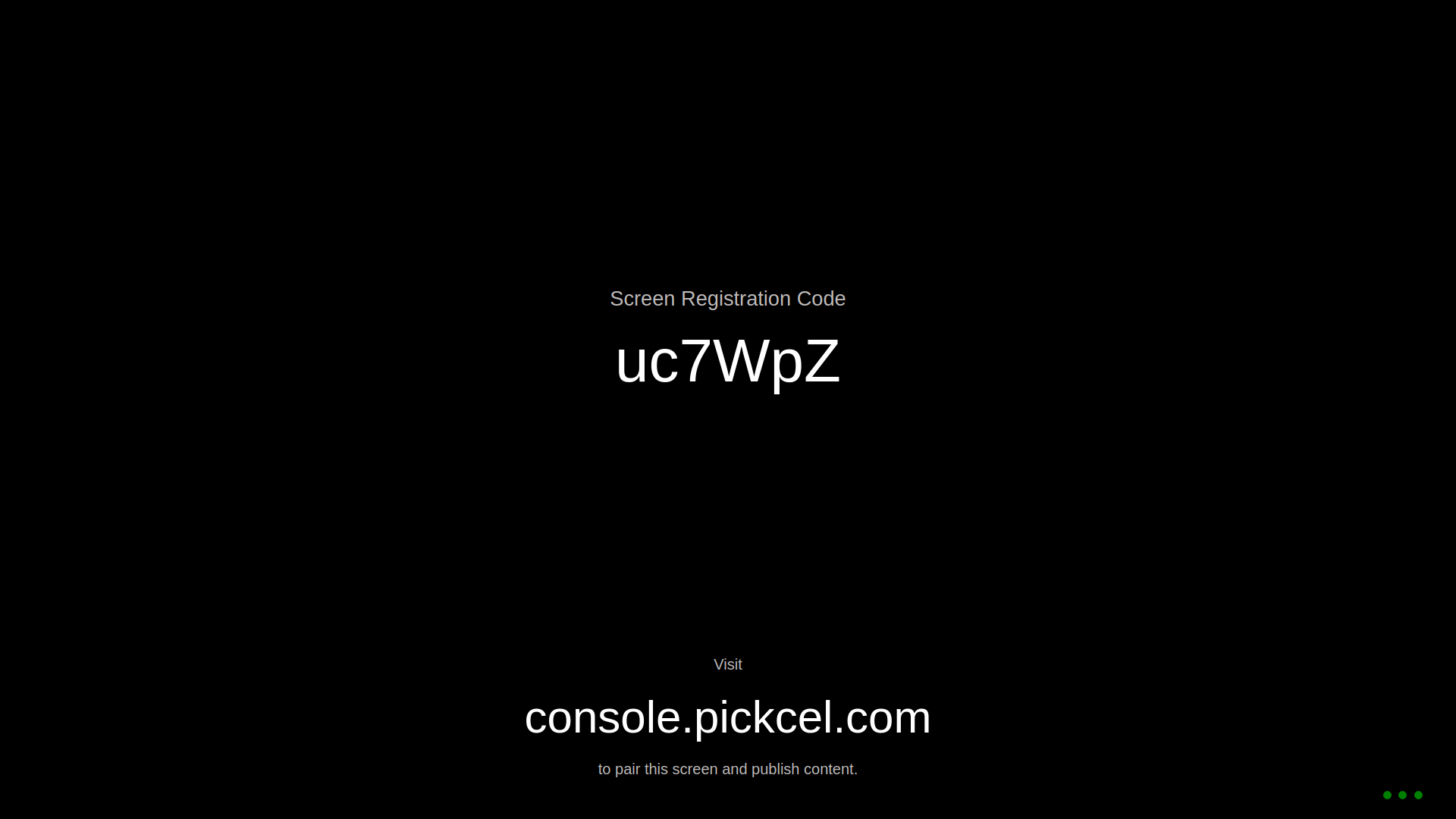 Pair your display with the Pickcel console using the registration code. You will have to enter this code on your [Pickcel console](https://console.pickcel.com/) to complete the pairing of your screen.
To learn how to pair your device with the Pickcel console, see the [Screen Registration guide](/screen-registration/screen-registration)
The installation of the Pickcel digital signage software on your Linux device is complete, and you can start publishing content to your screens now.
## How to Enable Automatic Startup (Optional)
To automatically launch the Pickcel app at system startup, follow these steps:
Open **Startup Applications** on your system.
Pair your display with the Pickcel console using the registration code. You will have to enter this code on your [Pickcel console](https://console.pickcel.com/) to complete the pairing of your screen.
To learn how to pair your device with the Pickcel console, see the [Screen Registration guide](/screen-registration/screen-registration)
The installation of the Pickcel digital signage software on your Linux device is complete, and you can start publishing content to your screens now.
## How to Enable Automatic Startup (Optional)
To automatically launch the Pickcel app at system startup, follow these steps:
Open **Startup Applications** on your system.
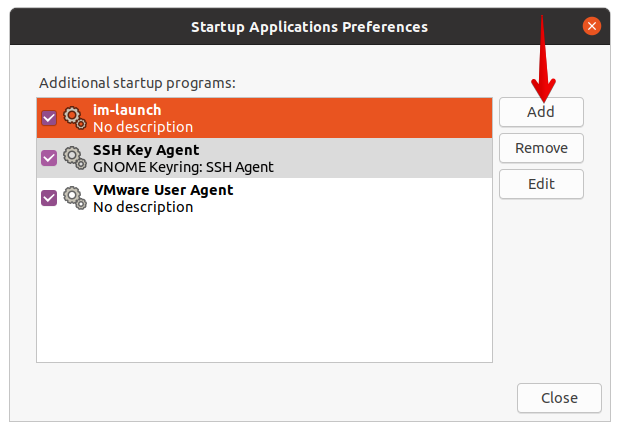
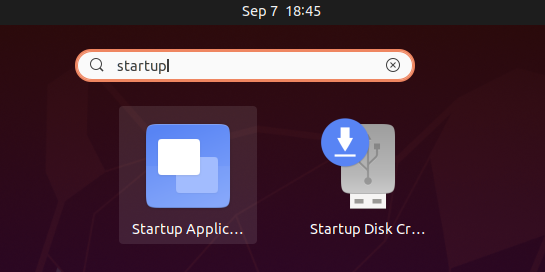 In the Startup Applications window, click on the **Add** button.
 To add the application to the startup list, you need to find the command that runs it. Open the terminal and type the following command:
```bash theme={null}
which pickcel-digital-signage
```
Press **Enter** to execute.
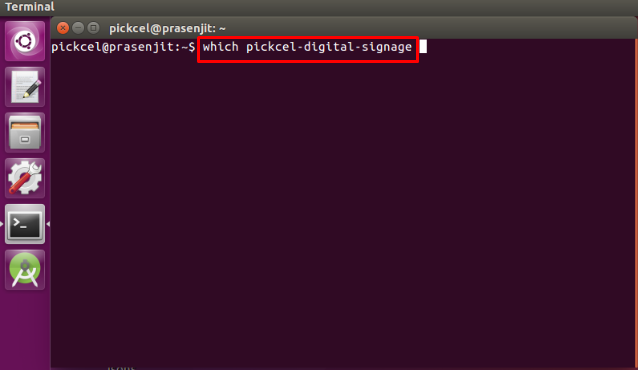
To add the application to the startup list, you need to find the command that runs it. Open the terminal and type the following command:
```bash theme={null}
which pickcel-digital-signage
```
Press **Enter** to execute.
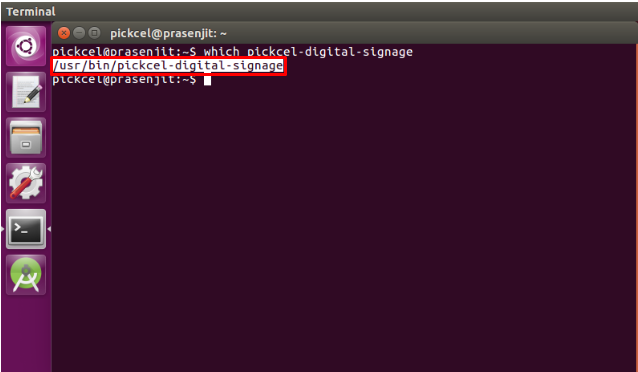
 The `which` command locates the executable file and displays its full path. The terminal will display the complete path where the Pickcel application is installed (typically `/usr/bin/pickcel-digital-signage`). Copy this path - you'll need it in the next step.
 In the Add Startup Program window, fill in the following details:
* **Name**: Enter a user-friendly name for the program (e.g., "Pickcel Digital Signage")
* **Command**: Enter `/usr/bin/pickcel-digital-signage`
Click on the **Add** button to save.
In the Add Startup Program window, fill in the following details:
* **Name**: Enter a user-friendly name for the program (e.g., "Pickcel Digital Signage")
* **Command**: Enter `/usr/bin/pickcel-digital-signage`
Click on the **Add** button to save.
 Close the Startup Applications window and restart your system. The Pickcel app will launch automatically after boot.
**What's Next?**
Now that your Linux player is installed, complete your setup:
* Start [**Uploading Media**](/media/add-media) to your library
* Create your first [**Composition**](/compositions/compositions) and publish content
Close the Startup Applications window and restart your system. The Pickcel app will launch automatically after boot.
**What's Next?**
Now that your Linux player is installed, complete your setup:
* Start [**Uploading Media**](/media/add-media) to your library
* Create your first [**Composition**](/compositions/compositions) and publish content