> ## Documentation Index
> Fetch the complete documentation index at: https://docs.pickcel.com/llms.txt
> Use this file to discover all available pages before exploring further.
# How to install the Pickcel Digital Signage Player on LG webOS via URL method
> Step-by-step guide to install the Pickcel player app on LG webOS displays using the remote URL method
The supported version of the LG WebOS Display is WebOS 4.0 and above.
You can also install the Pickcel application via USB flash drive. Learn more in the [USB flash drive installation guide](/player-installation/lg-webos/usb-flash-drive).
* To begin, ensure that your display is connected to the internet.
* Open **General** and click on the **Time & Date** option, and set the **Date & Time** and **Time Zone**.
Follow the steps below to install the Pickcel app using the URL method.
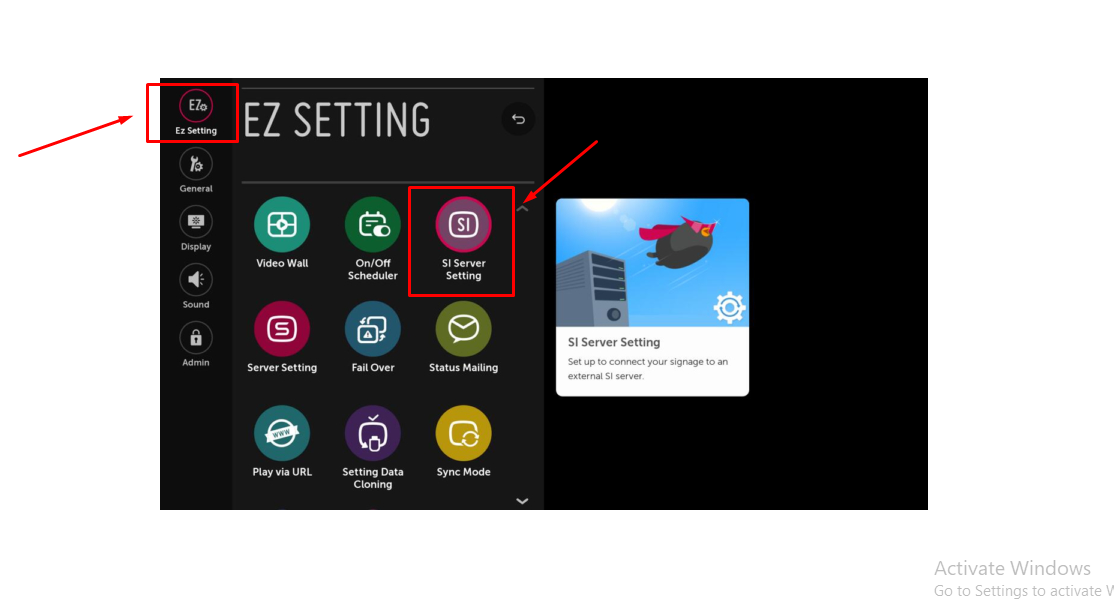
Press **Setup** on your remote control or find the **settings** button and click **OK** on your remote.
Select the **SI SERVER SETTING** under the **EZ Setting** menu.
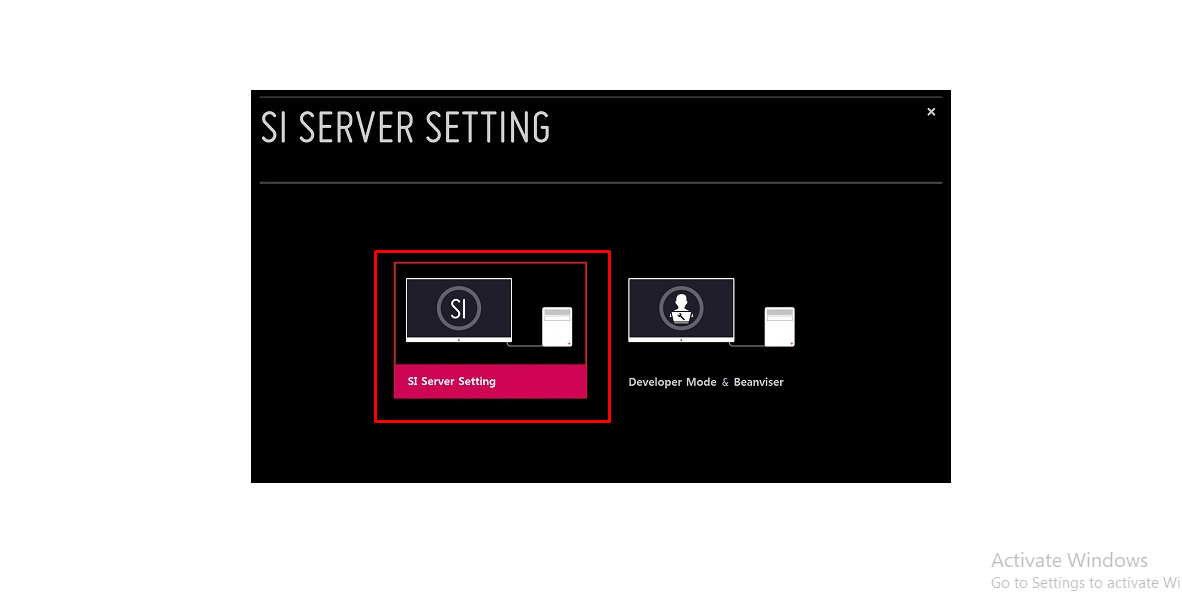
 On the **SI SERVER SETTING** screen, select the **SI Server Setting** option.
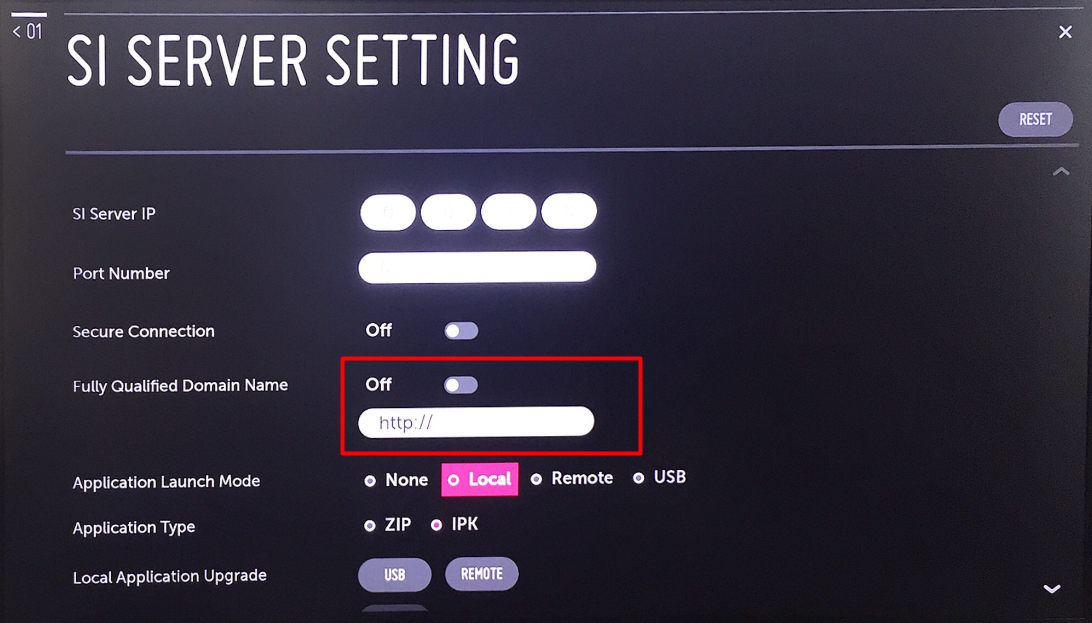
 Turn on the fully qualified domain name and type the following URL using the keyboard or remote: `https://console.pickcel.com/players/lg/com.lg.app.signage.ipk`
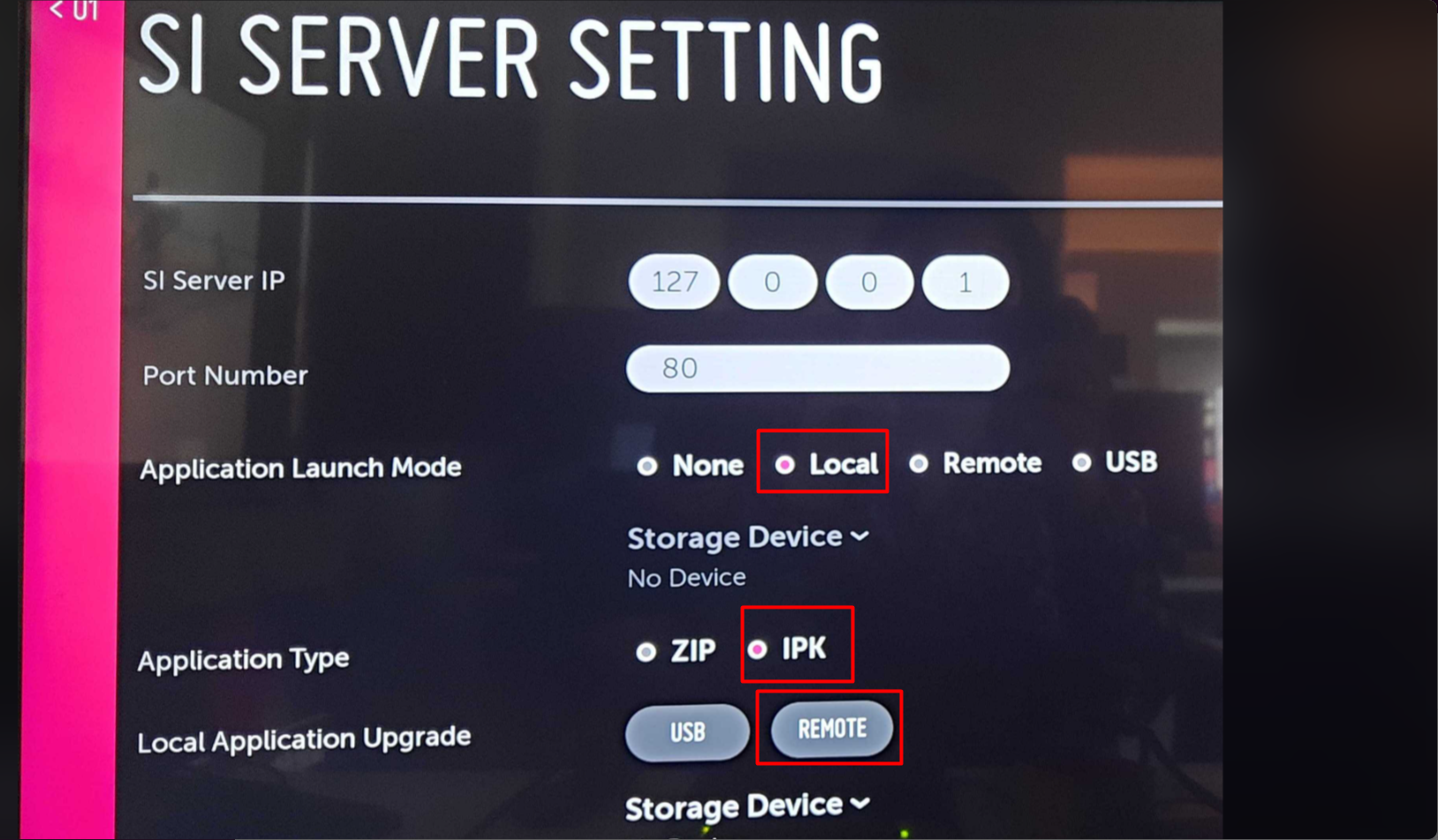
 On the settings menu, set the following fields with the values shown in the screenshot below:
1. **Application Launch Mode**: Local
2. **Application Type**: IPK
3. **Local Application Upgrade**: Remote
On the settings menu, set the following fields with the values shown in the screenshot below:
1. **Application Launch Mode**: Local
2. **Application Type**: IPK
3. **Local Application Upgrade**: Remote
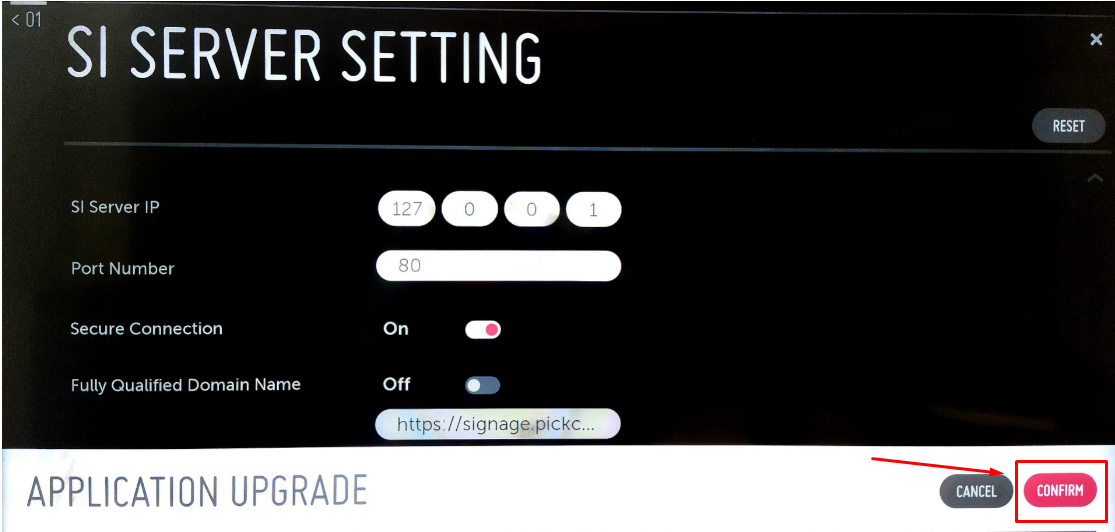
 After clicking **REMOTE**, an Application Upgrade confirmation pop-up appears. Click **CONFIRM**.
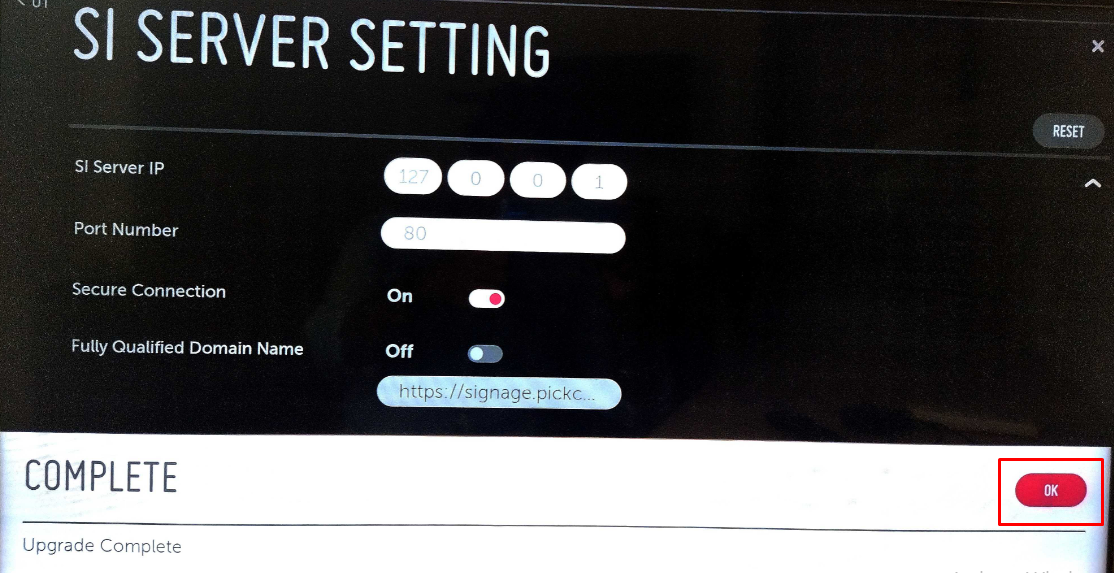
 A success message appears once installation finishes. Click **OK** and reboot the device.
 The Pickcel LG webOS signage Player should now appear in your display home menu.
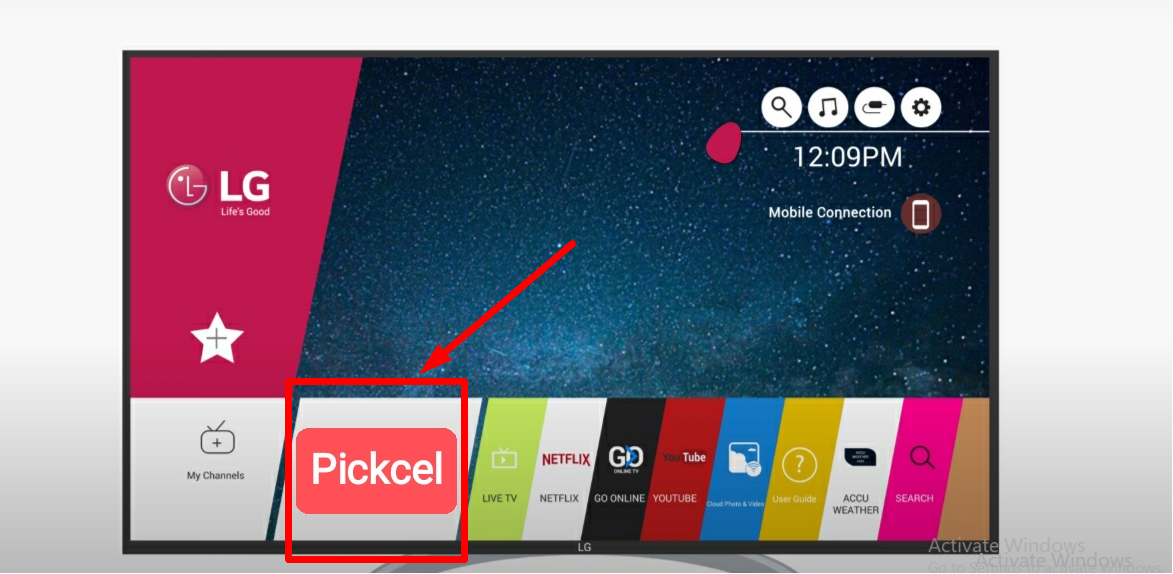 Press the **Home** button to see the Pickcel app on the home screen and select it. Press **OK** on the remote to launch the app.
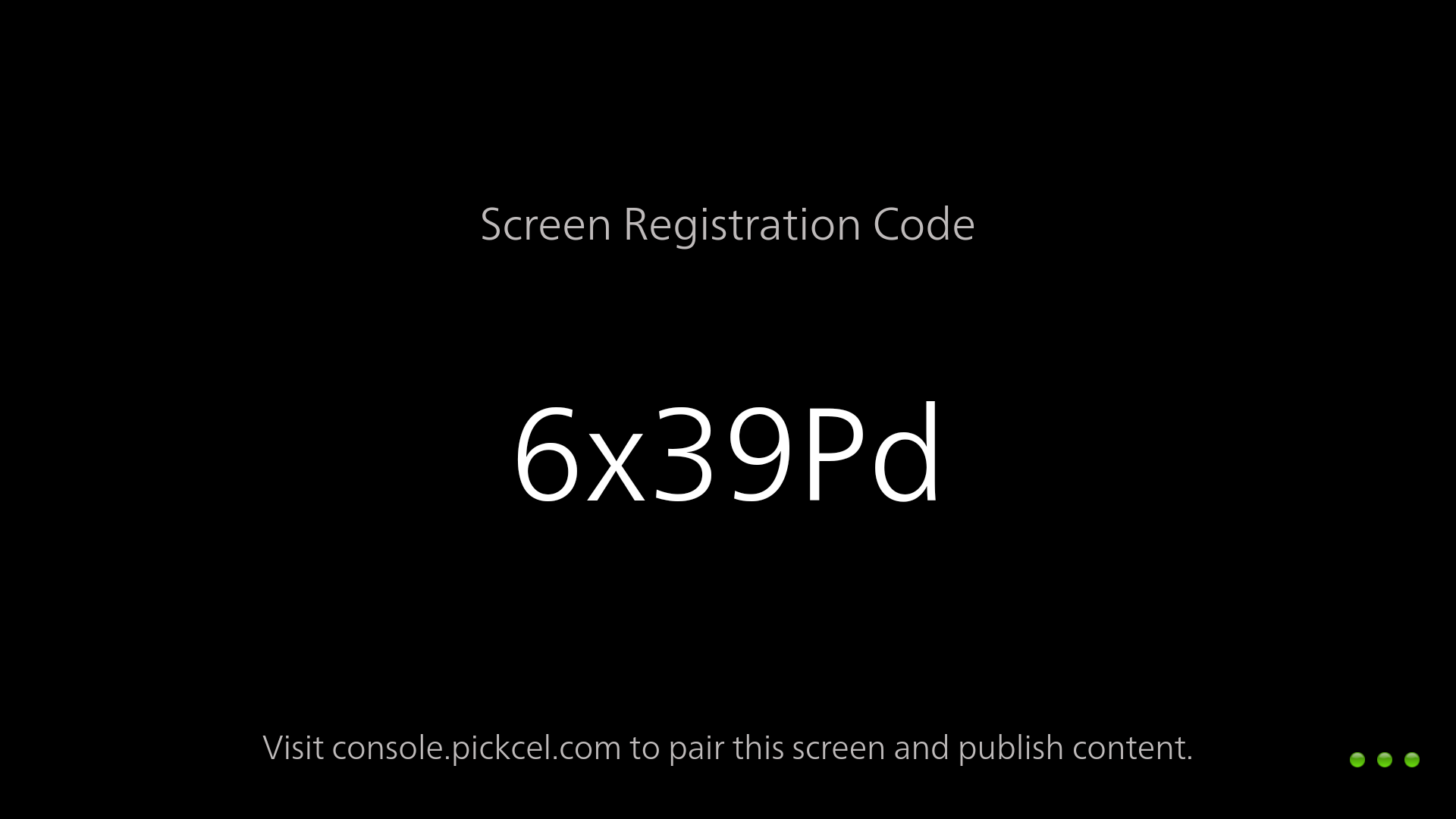
Once the app is launched, it takes a couple of minutes to connect to the internet. After it connects, a six-digit unique **Screen Registration Code** appears, which you'll use to pair this device with the Pickcel console.
To learn how to pair your LG device with the Pickcel console, see the [Screen Registration guide](/screen-registration/screen-registration).
Press the **Home** button to see the Pickcel app on the home screen and select it. Press **OK** on the remote to launch the app.
Once the app is launched, it takes a couple of minutes to connect to the internet. After it connects, a six-digit unique **Screen Registration Code** appears, which you'll use to pair this device with the Pickcel console.
To learn how to pair your LG device with the Pickcel console, see the [Screen Registration guide](/screen-registration/screen-registration).
 The Pickcel Digital Signage Player is now installed on your LG webOS display via the URL method.
**What's Next?**
* Start [**Uploading Media**](/media/add-media) to your library
* Create your first [**Composition**](/compositions/compositions) and publish content
The Pickcel Digital Signage Player is now installed on your LG webOS display via the URL method.
**What's Next?**
* Start [**Uploading Media**](/media/add-media) to your library
* Create your first [**Composition**](/compositions/compositions) and publish content