> ## Documentation Index
> Fetch the complete documentation index at: https://docs.pickcel.com/llms.txt
> Use this file to discover all available pages before exploring further.
# How do I configure a signage media player?
> General steps to set up an external signage media player (Android Box, Mi Box, Fire TV) and links to platform-specific installation guides.
These general steps apply when setting up an external signage media player such as an **Android Box, Mi Box, or Fire TV Stick**:
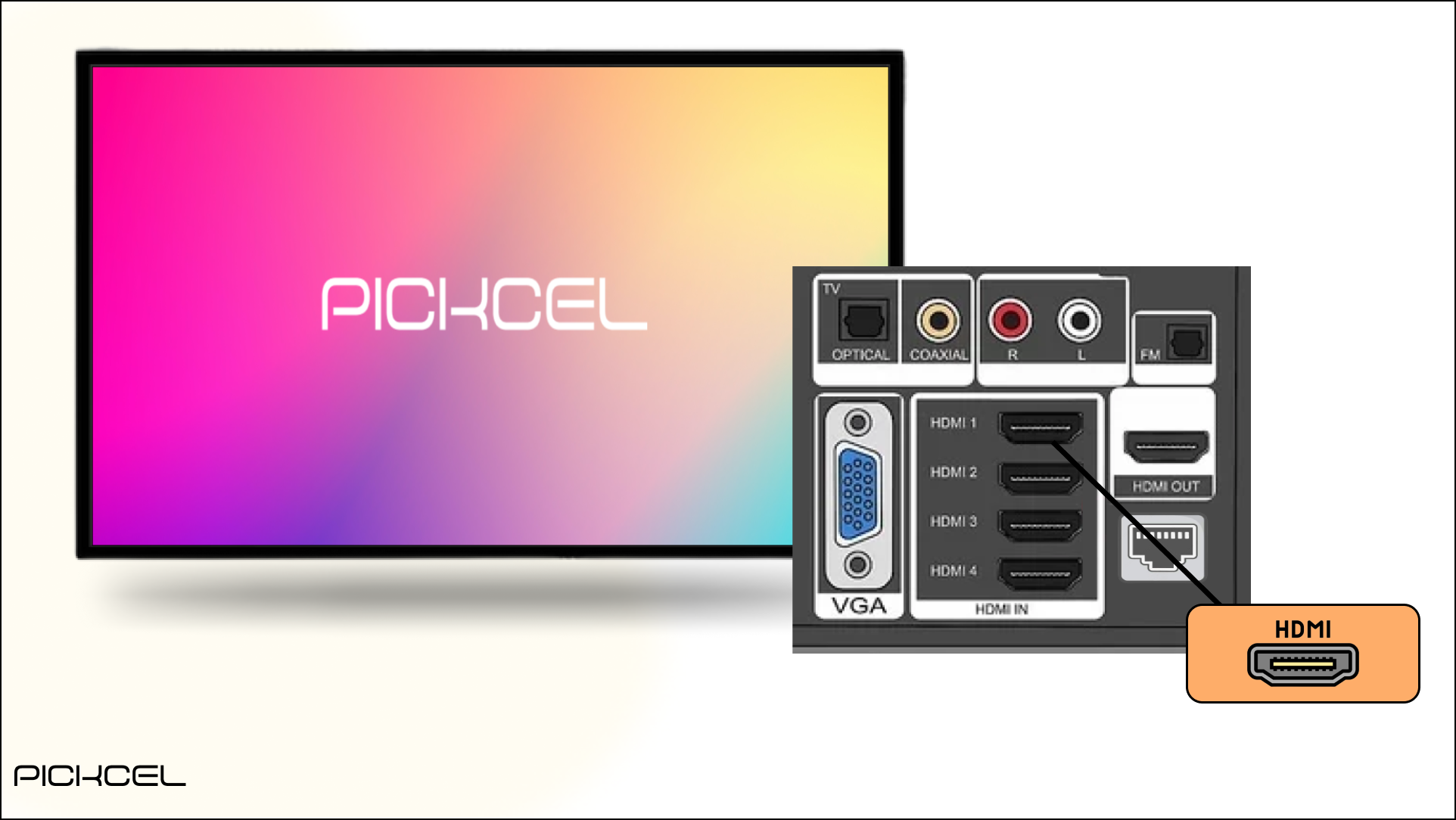
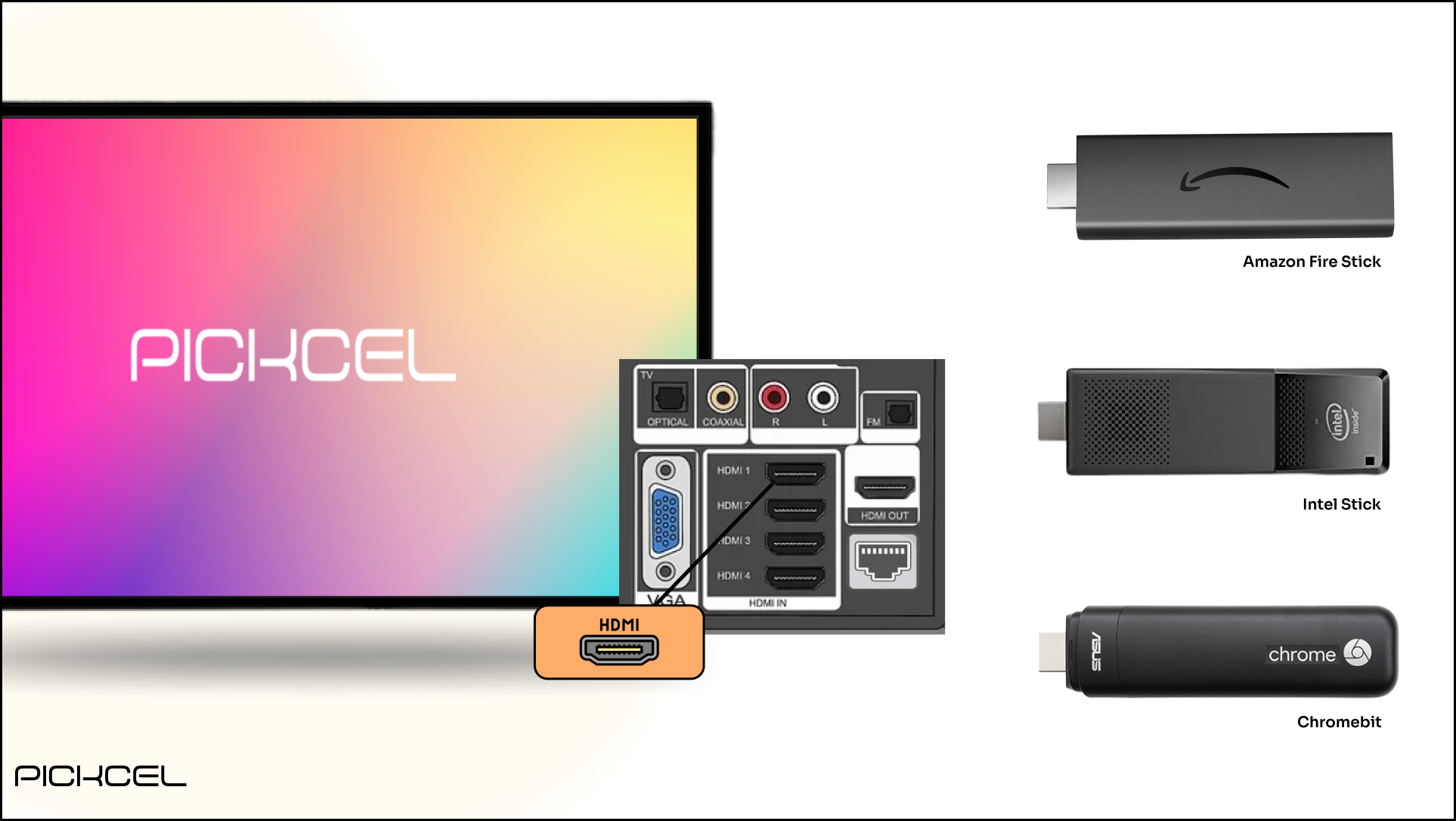 Connect the media player to your TV or display using an **HDMI** cable.
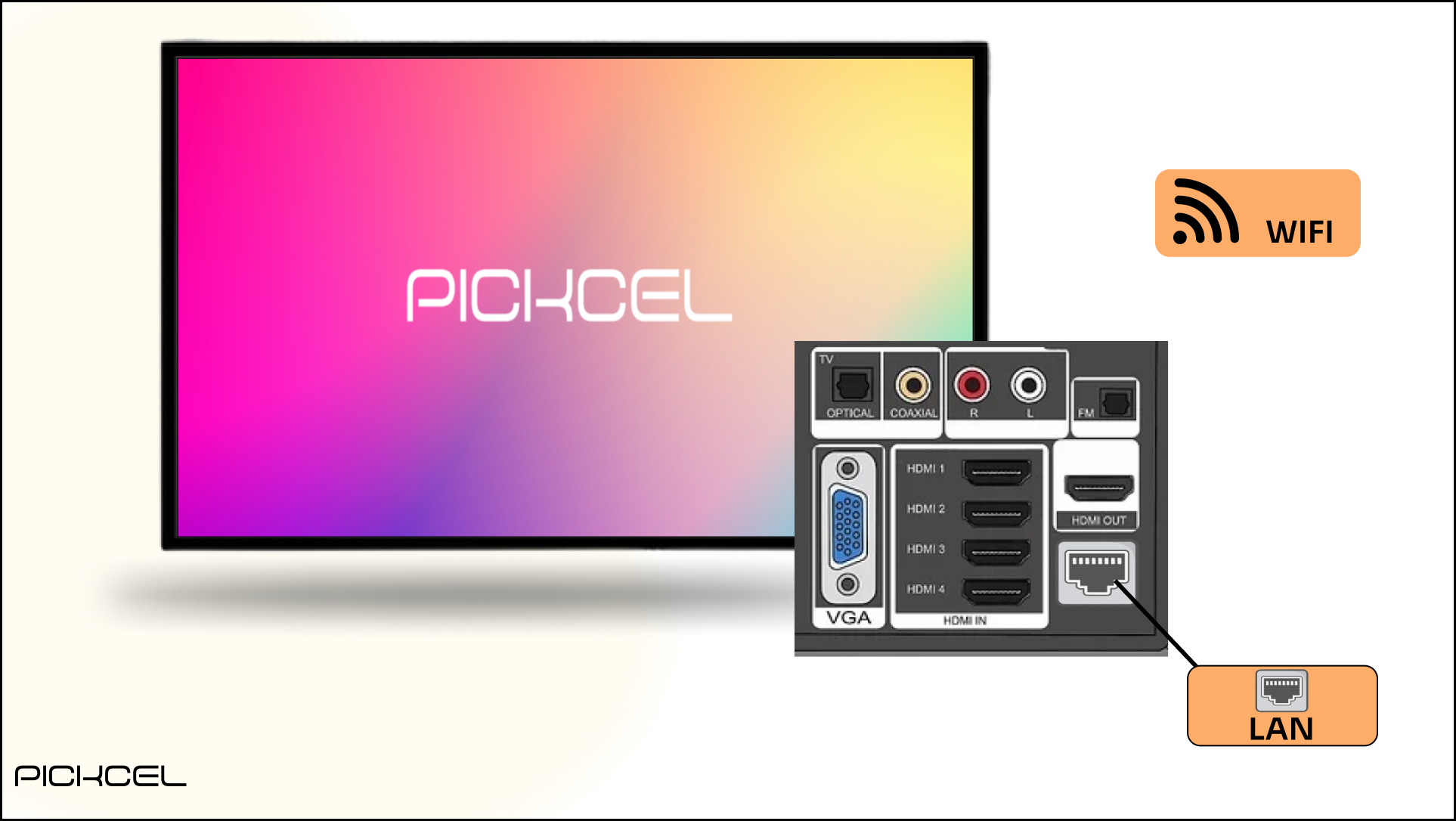
 Connect the player to the internet over **Wi-Fi** or **Ethernet**.
 On most players the **time zone** is detected automatically. If not, set it manually to match your location.
## Platform-specific installation guides
Follow the guide for your device to install and register the Pickcel player:
Install on Android devices and TVs.
Install on a Windows screen or box.
Set up Pickcel on a Raspberry Pi.
Install on LG webOS signage.
Install on Chrome OS / Chrome OS Flex.
Install on Samsung Tizen signage.
Install on Fire TV Stick.
Install on macOS.
Install on Linux.
On most players the **time zone** is detected automatically. If not, set it manually to match your location.
## Platform-specific installation guides
Follow the guide for your device to install and register the Pickcel player:
Install on Android devices and TVs.
Install on a Windows screen or box.
Set up Pickcel on a Raspberry Pi.
Install on LG webOS signage.
Install on Chrome OS / Chrome OS Flex.
Install on Samsung Tizen signage.
Install on Fire TV Stick.
Install on macOS.
Install on Linux.