> ## Documentation Index
> Fetch the complete documentation index at: https://docs.pickcel.com/llms.txt
> Use this file to discover all available pages before exploring further.
# How to install the Pickcel software on ChromeOS Flex?
> Step-by-step guide to configure Google Workspace, deploy the Pickcel kiosk app, and enroll ChromeOS Flex devices
**Prerequisites**
* Google Workspace (formerly G Suite) domain with administrator credentials
* Chrome Enterprise or Chrome Kiosk licenses for the devices you plan to enroll
* Access to the Google Admin console and Chrome Device Management (CDM)
* ChromeOS Flex device (new or factory reset) with keyboard, mouse, and internet connectivity
This guide is organized into three parts. If you already have Google Workspace set up with the required Chrome licenses, skip to **Part 2**.
## Part 1: Set up G Suite and purchase Chrome licenses
To set up Google G Suite, you first need to have a domain that you will link to your G Suite account. During the setup process, you will be prompted to create at least one user account to serve as the administrator. This administrator account will allow you to manage the G Suite settings and users for your domain.
To learn more about setting up Google G Suite, visit [this page](https://gsuite.google.com/setup/).
You will need to have a basic understanding of how Google's G Suite works.
* You can choose to start the subscription from a trial
* **OR** purchase Chrome Kiosk or Chrome Enterprise without a trial
To learn more about how to get Chrome licenses manually, read the **Purchase Upgrades Using the Admin Console** section of this [help article](https://support.google.com/chrome/a/answer/7613771?hl=en\&ref_topic=9028496) from Google.
## Part 2: Set up the Pickcel app in CDM
Once you have set up G Suite, have access to Google Admin, and have purchased Chrome licenses, you need to go to the Chrome Device Management (CDM) section of Google Admin and add **Pickcel** as the kiosk app for the devices you want to enroll. By doing so, the **Pickcel** player app will be automatically installed on the devices you enroll and set to automatically launch & run in kiosk mode when the devices are turned on.
Log in at the [Google Admin console](https://admin.google.com/AdminHome).
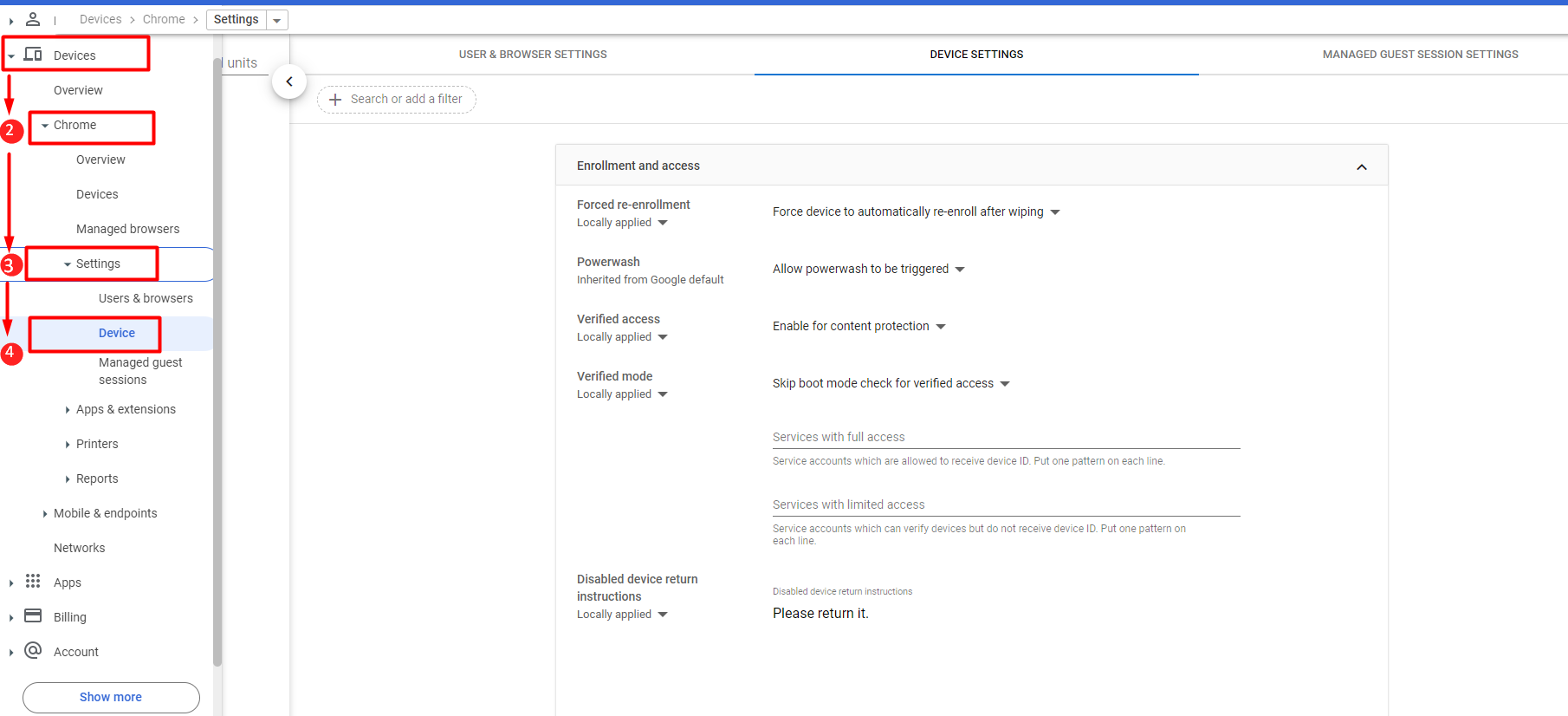
Select **Devices > Chrome > Settings** and then **Device**.
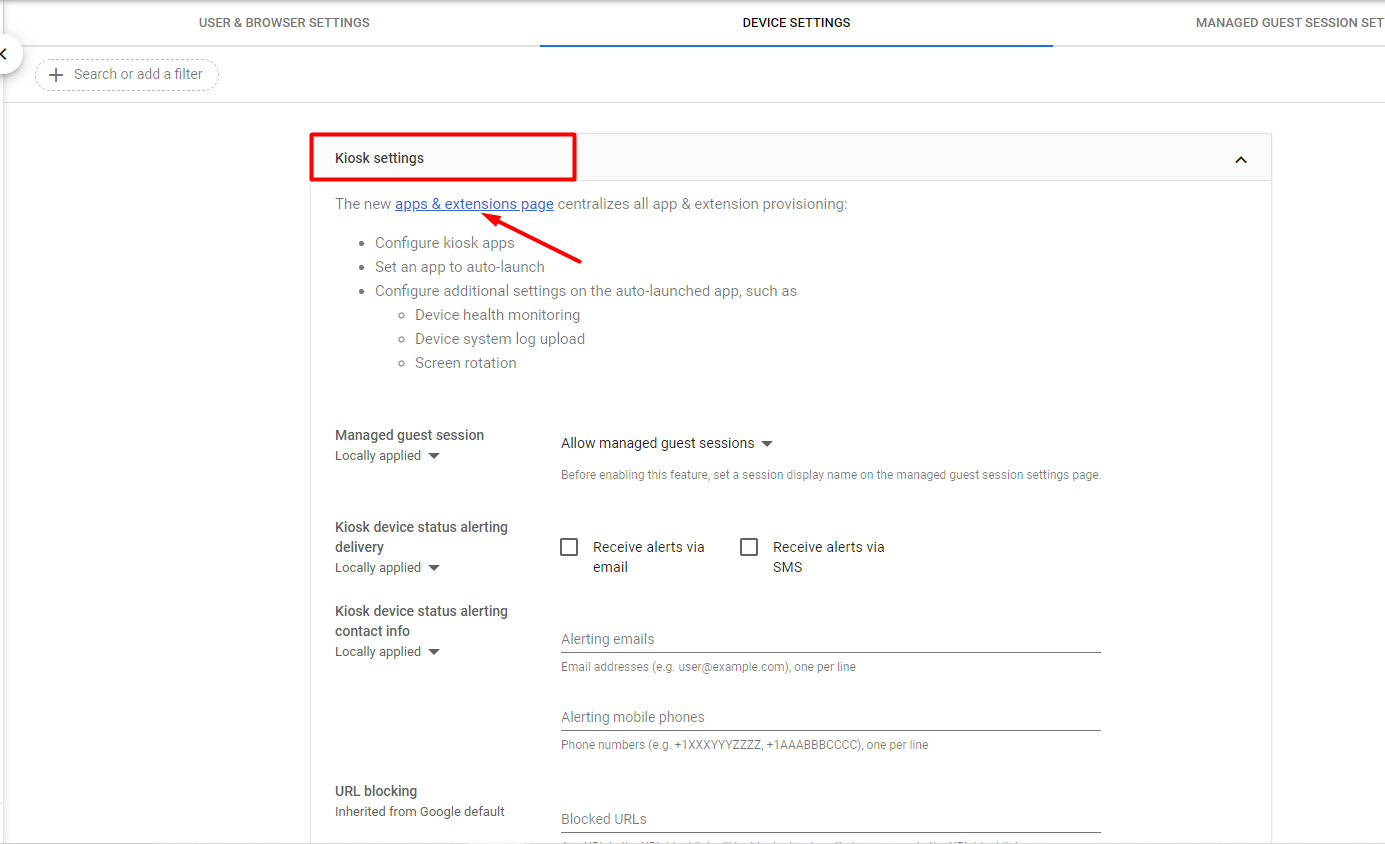
 Scroll down to **Kiosk Settings** and click on the **apps & extensions page**.
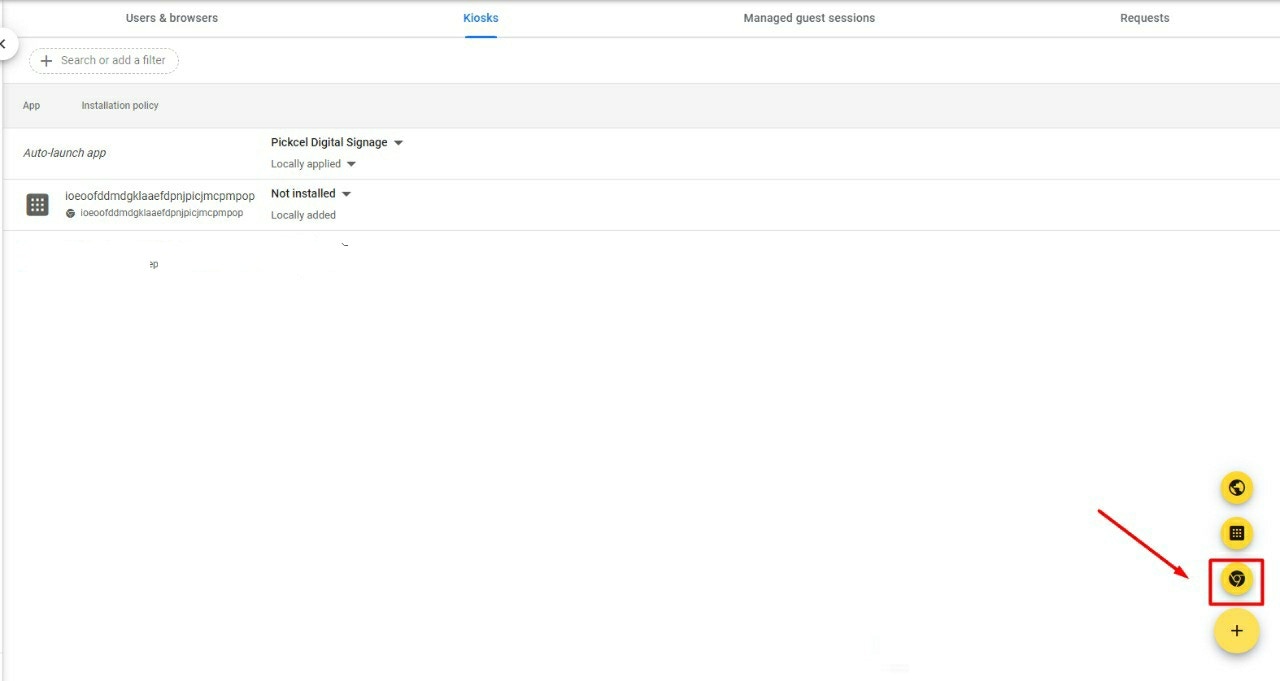
 Hover over the yellow circle on the bottom right corner and click the **Add from Chrome Web Store** icon.
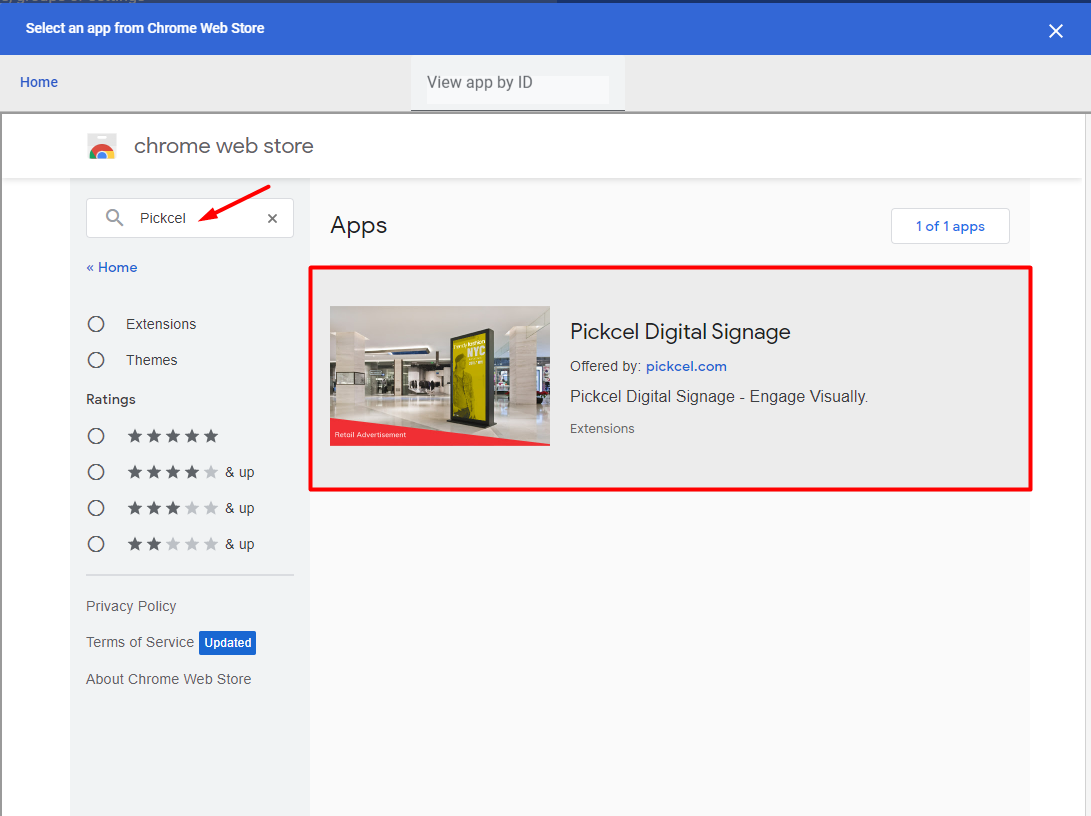
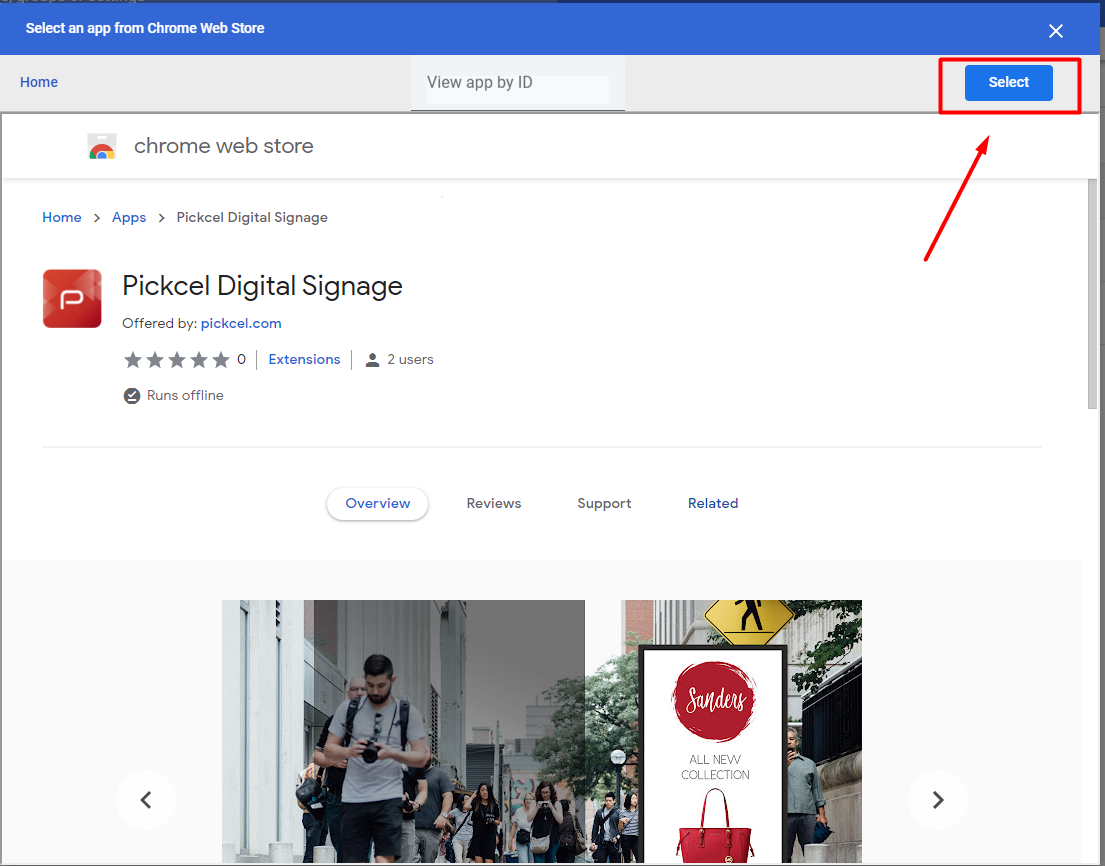
 Search for **Pickcel** and then select **Pickcel Digital Signage**.
 Click on **Select** to add the app to your Chrome device.
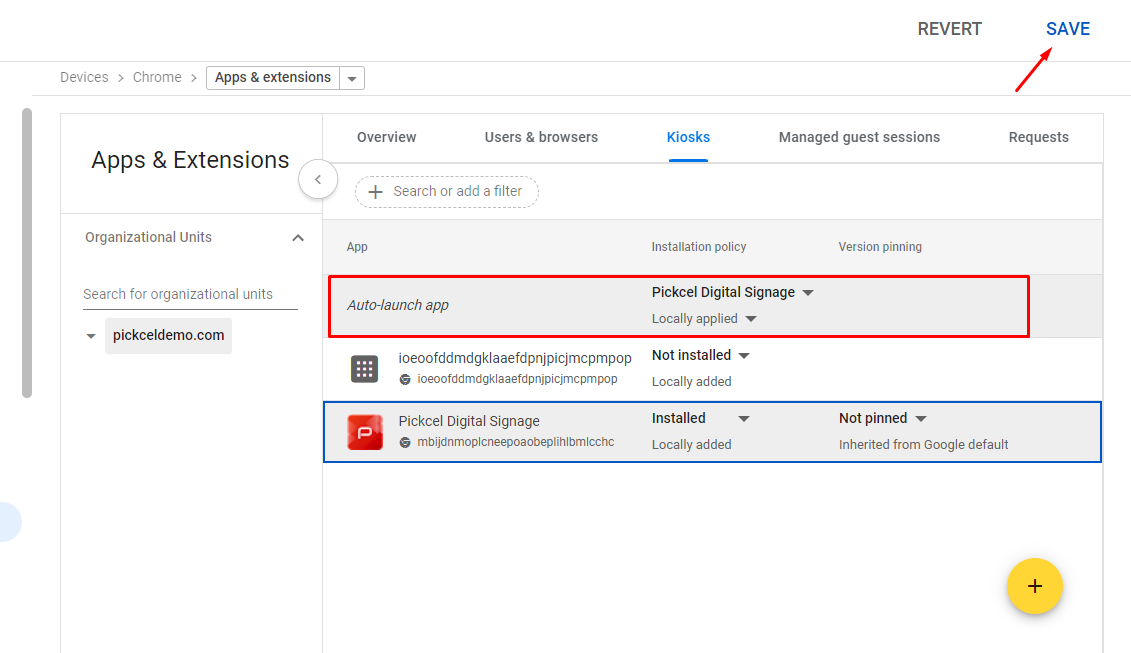
 Ensure that the **Auto-launch app** is set to **Pickcel Digital Signage** and click on the **SAVE** button. This means that the app will always start up as soon as the device is powered on.
 ## Part 3: Enrolling & setting up Chrome devices
Now that the Pickcel Digital Signage Player app has been added as the kiosk app for the devices in your account, you can start enrolling and setting up your Chrome devices.
If your Chrome device has been used before this setup, you will need to wipe your device. If this is a new device, you can go to the next step.
You can view the steps to take to [wipe a Chrome device](https://support.google.com/chrome/a/answer/1360642?hl=en#zippy=%2Cwipe-a-chromebit) and then return to this page to follow the enrollment steps below. If you have another Chrome device, refer to the [Google Chrome device wipe guide](https://support.google.com/chrome/a/answer/1360642?hl=en) about how to wipe your specific Chrome device.
* Turn on the Chrome device and follow the on-screen instructions until you see the sign-in screen. **Don't sign in yet.**
* **Before** signing in to the Chrome device, press **Ctrl + Alt + E** to go to the enrollment screen.
* Enter the username and password from your Google admin welcome letter, or the username and password for an existing G Suite user on your account that has eligibility to enroll.
* Click on **Enroll device**. You'll receive a confirmation message that the device has been successfully enrolled.
After the process, your Chrome device may reboot, and **Pickcel Digital Signage** will start as a kiosk app.
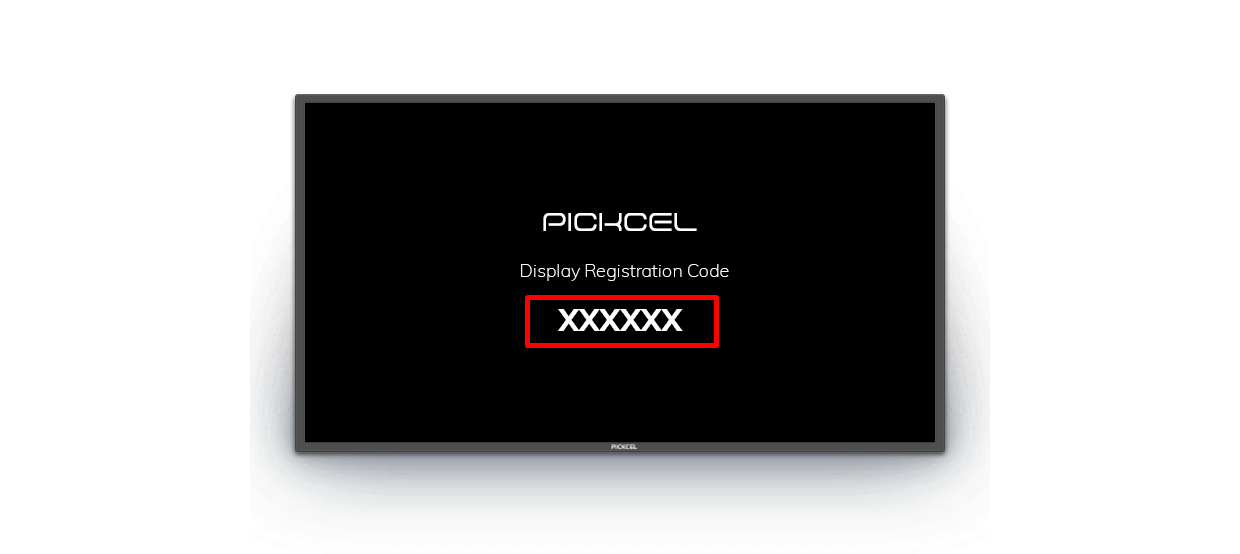
Once the app is launched, it will take a couple of minutes to connect to the internet. After the internet is connected, it will show a **6-digit unique Screen Registration Code.** Enter this code on your [Pickcel console](https://console.pickcel.com/) to complete the pairing of your screen.
## Part 3: Enrolling & setting up Chrome devices
Now that the Pickcel Digital Signage Player app has been added as the kiosk app for the devices in your account, you can start enrolling and setting up your Chrome devices.
If your Chrome device has been used before this setup, you will need to wipe your device. If this is a new device, you can go to the next step.
You can view the steps to take to [wipe a Chrome device](https://support.google.com/chrome/a/answer/1360642?hl=en#zippy=%2Cwipe-a-chromebit) and then return to this page to follow the enrollment steps below. If you have another Chrome device, refer to the [Google Chrome device wipe guide](https://support.google.com/chrome/a/answer/1360642?hl=en) about how to wipe your specific Chrome device.
* Turn on the Chrome device and follow the on-screen instructions until you see the sign-in screen. **Don't sign in yet.**
* **Before** signing in to the Chrome device, press **Ctrl + Alt + E** to go to the enrollment screen.
* Enter the username and password from your Google admin welcome letter, or the username and password for an existing G Suite user on your account that has eligibility to enroll.
* Click on **Enroll device**. You'll receive a confirmation message that the device has been successfully enrolled.
After the process, your Chrome device may reboot, and **Pickcel Digital Signage** will start as a kiosk app.
Once the app is launched, it will take a couple of minutes to connect to the internet. After the internet is connected, it will show a **6-digit unique Screen Registration Code.** Enter this code on your [Pickcel console](https://console.pickcel.com/) to complete the pairing of your screen.
 To learn how to pair your device with the Pickcel console, see the [Screen Registration guide](/screen-registration/screen-registration).