> ## Documentation Index
> Fetch the complete documentation index at: https://docs.pickcel.com/llms.txt
> Use this file to discover all available pages before exploring further.
# How to install the Pickcel Digital Signage Player app on Android from Play Store
> Step-by-step guide to download and install the Pickcel player app on Android devices using the Google Play Store
You can also install the Pickcel application from the Pickcel website. Learn more in the [APK download guide](/player-installation/android/apk-download).
**Note:** Supported on Android versions 7.1 and above.
## Set up your Android TV (first-time setup)
If you are setting up a brand-new Android TV, complete its basic setup before installing the Pickcel app:
Switch on the TV using the remote or power button.
Choose your preferred language and region from the on-screen options.
Select your Wi-Fi network and enter the password.
Sign in to your Google account to access the Play Store and sync the Pickcel app.
## Install the Pickcel app from the Play Store
From your Android player's Home screen, open the **Google Play Store** app.
Use the search option to look for **"Pickcel"**. Select the official **Pickcel Digital Signage Player** app from the results.
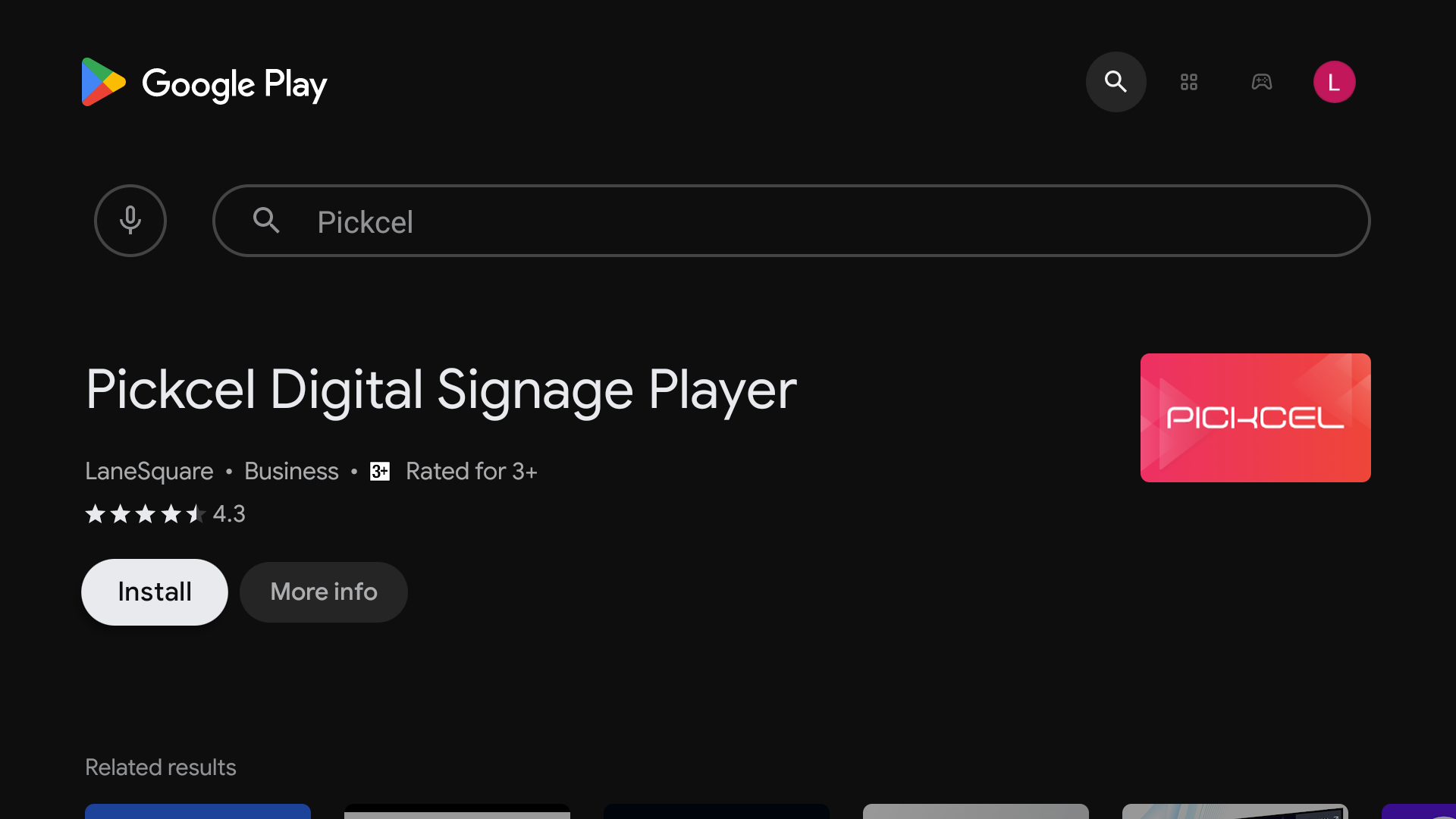 Click **Install** and wait for the process to complete.
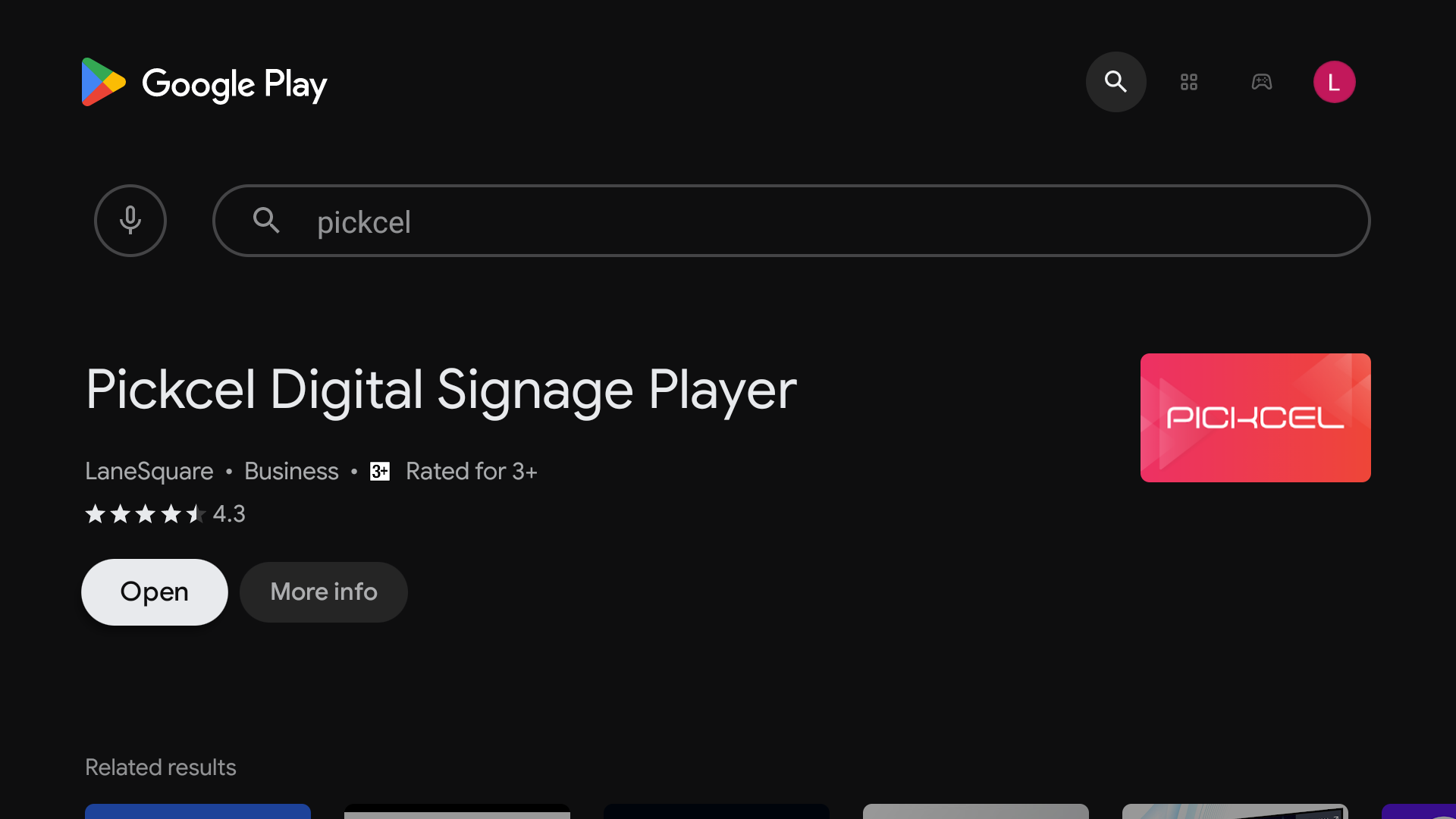
Once installed, select **Open** to launch the Pickcel app.
Click **Install** and wait for the process to complete.
Once installed, select **Open** to launch the Pickcel app.
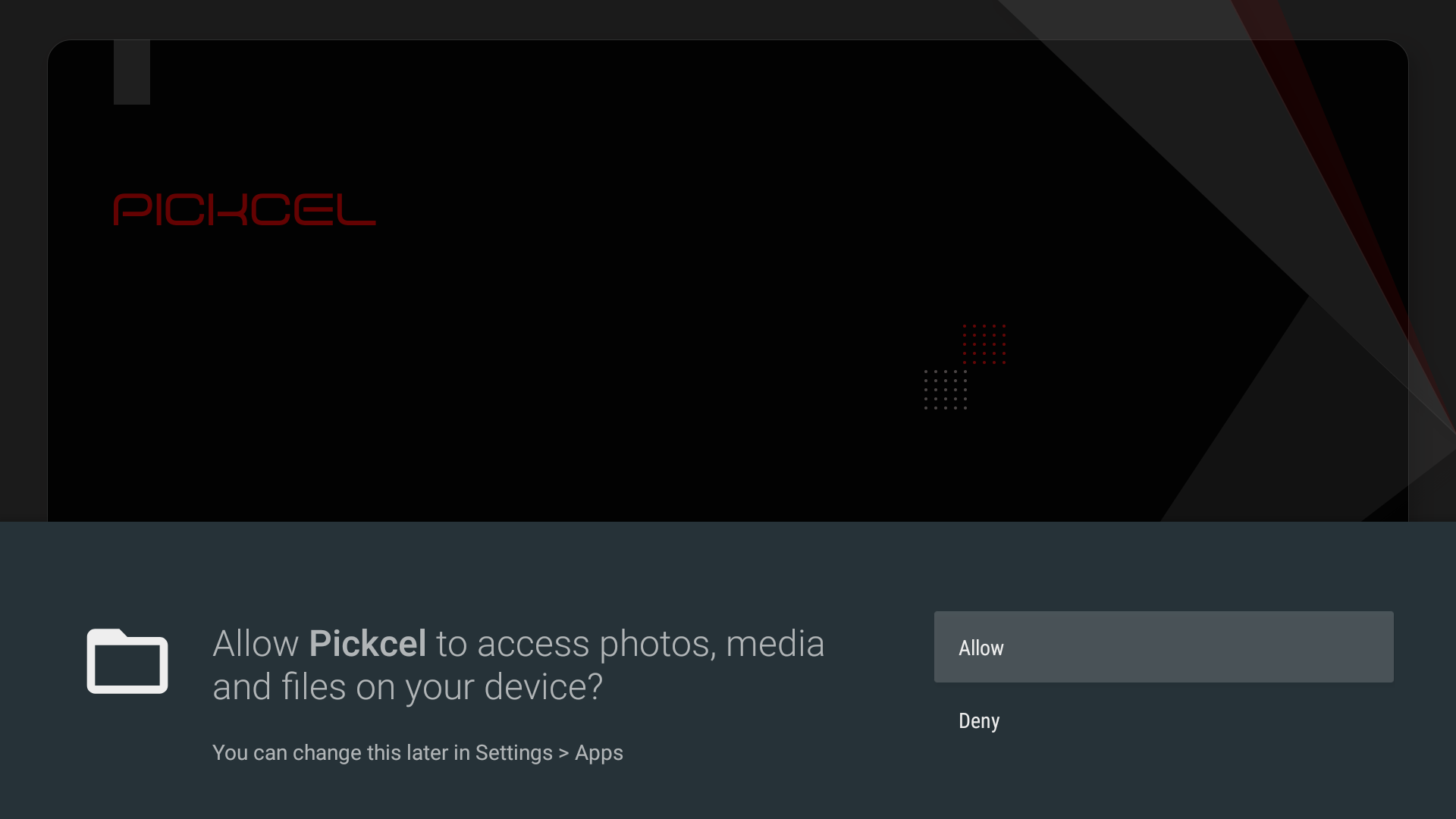
 To grant Pickcel access to your media, tap **Allow**.
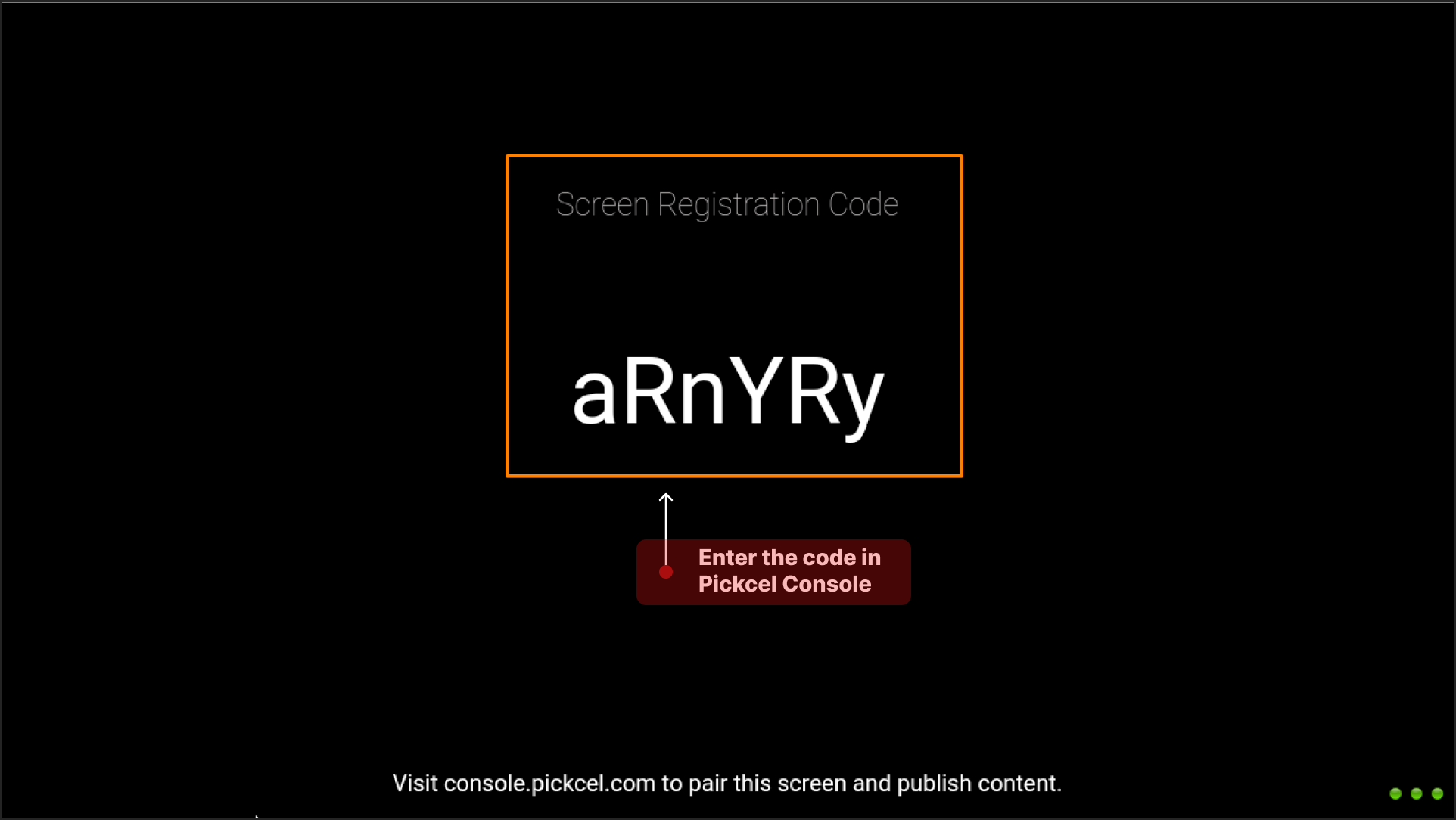
 On first launch, the app will display a six-digit Screen Registration Code.
 The Pickcel Digital Signage Player app is now installed on your Android player via the Play Store.
**Complete the Setup**
Now in a browser, sign in to the [**Pickcel Console**](https://console.pickcel.com/) and enter the six-digit code to complete the pairing of the screen.
To learn how to pair your device with the Pickcel console, see the [**Screen Registration guide**](/screen-registration/screen-registration).
The Pickcel Digital Signage Player app is now installed on your Android player via the Play Store.
**Complete the Setup**
Now in a browser, sign in to the [**Pickcel Console**](https://console.pickcel.com/) and enter the six-digit code to complete the pairing of the screen.
To learn how to pair your device with the Pickcel console, see the [**Screen Registration guide**](/screen-registration/screen-registration).