> ## Documentation Index
> Fetch the complete documentation index at: https://docs.pickcel.com/llms.txt
> Use this file to discover all available pages before exploring further.
# How to install the Pickcel Digital Signage Player app on Android via APK download
> Complete guide to manually install the Pickcel player app on Android by downloading the APK file from the Pickcel website
If your screen is a smart display with Play Store access, you can download the Pickcel app directly from the Play Store. Learn more in the [Play Store installation guide](/player-installation/android/play-store).
**Note:** Supported on Android versions 7.1 and above.
Download the latest APK from here: [Download the Android player (v7.2.0)](https://console.pickcel.com/players/android/digital-player-v7.2.0.apk)
You can also visit the [Pickcel Download Page](https://www.pickcel.com/download) directly and **download the latest APK** from the **Android** section.
Once the download is complete, open the **File Manager** on your device.
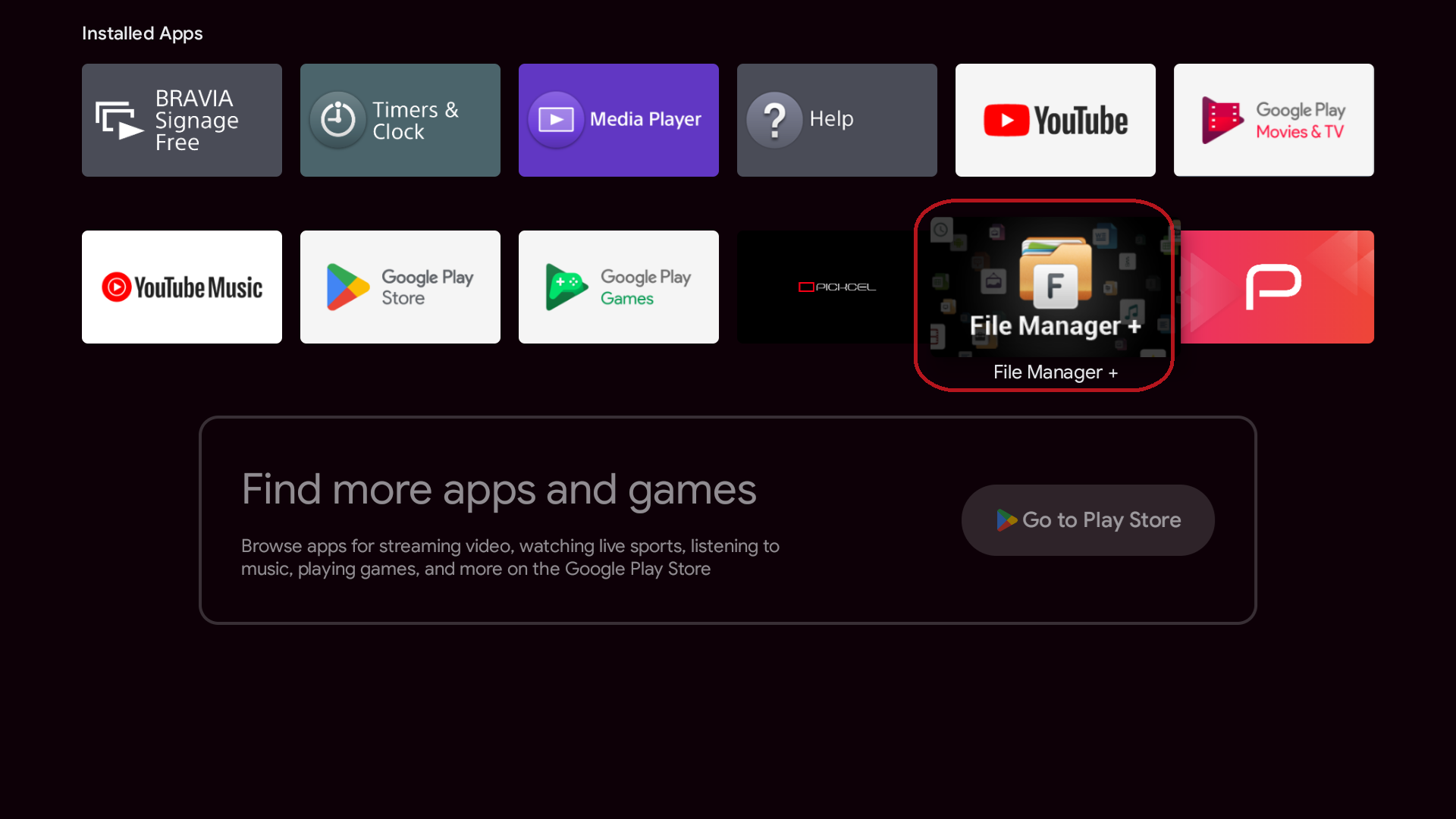 Navigate to the Downloads folder and find the downloaded APK file (for example, `digital-player-v7.2.0.apk`).
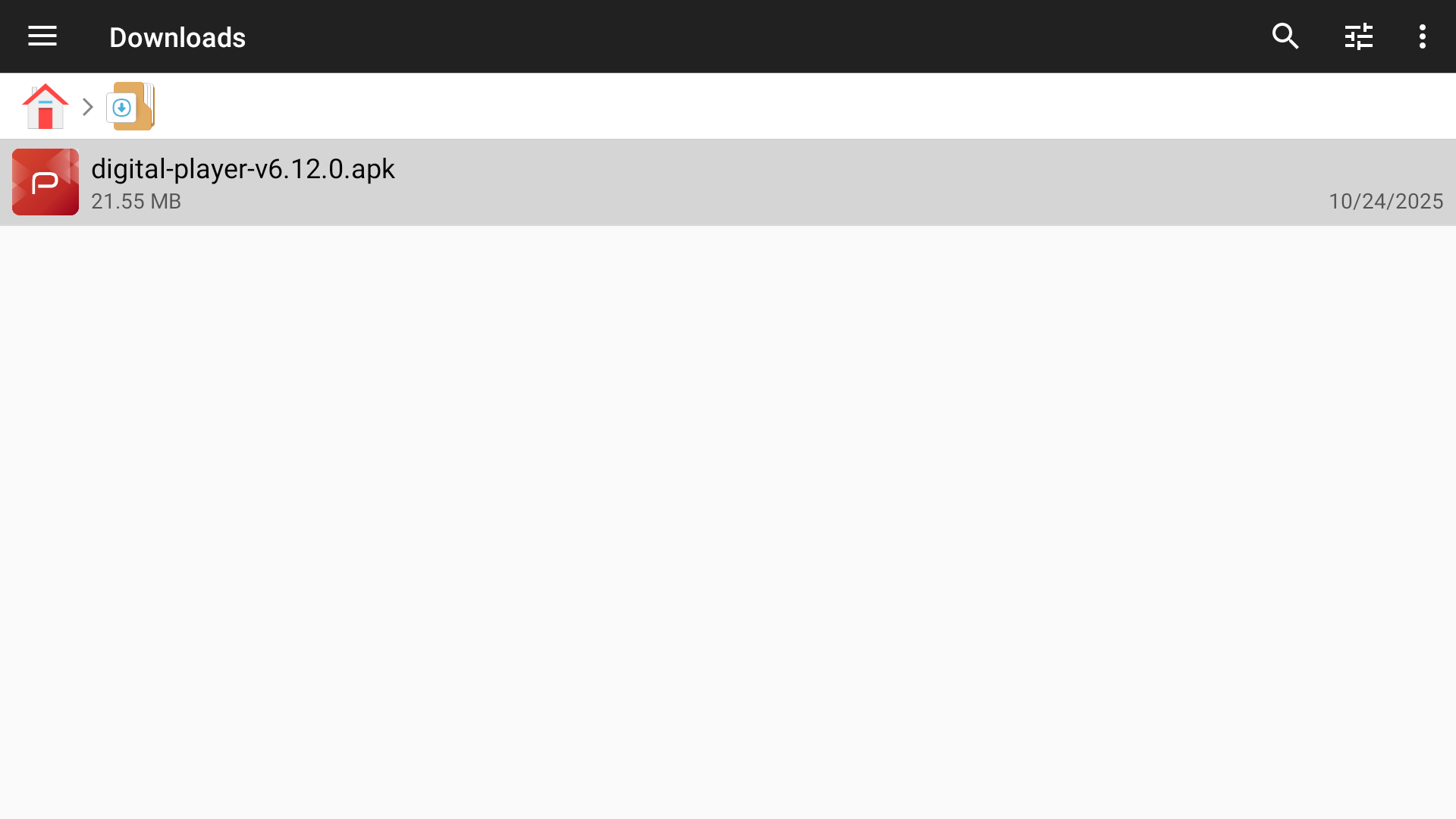 Click the downloaded APK file.
* If prompted, allow installation from **unknown sources**. Follow the on-screen instructions to complete the installation.
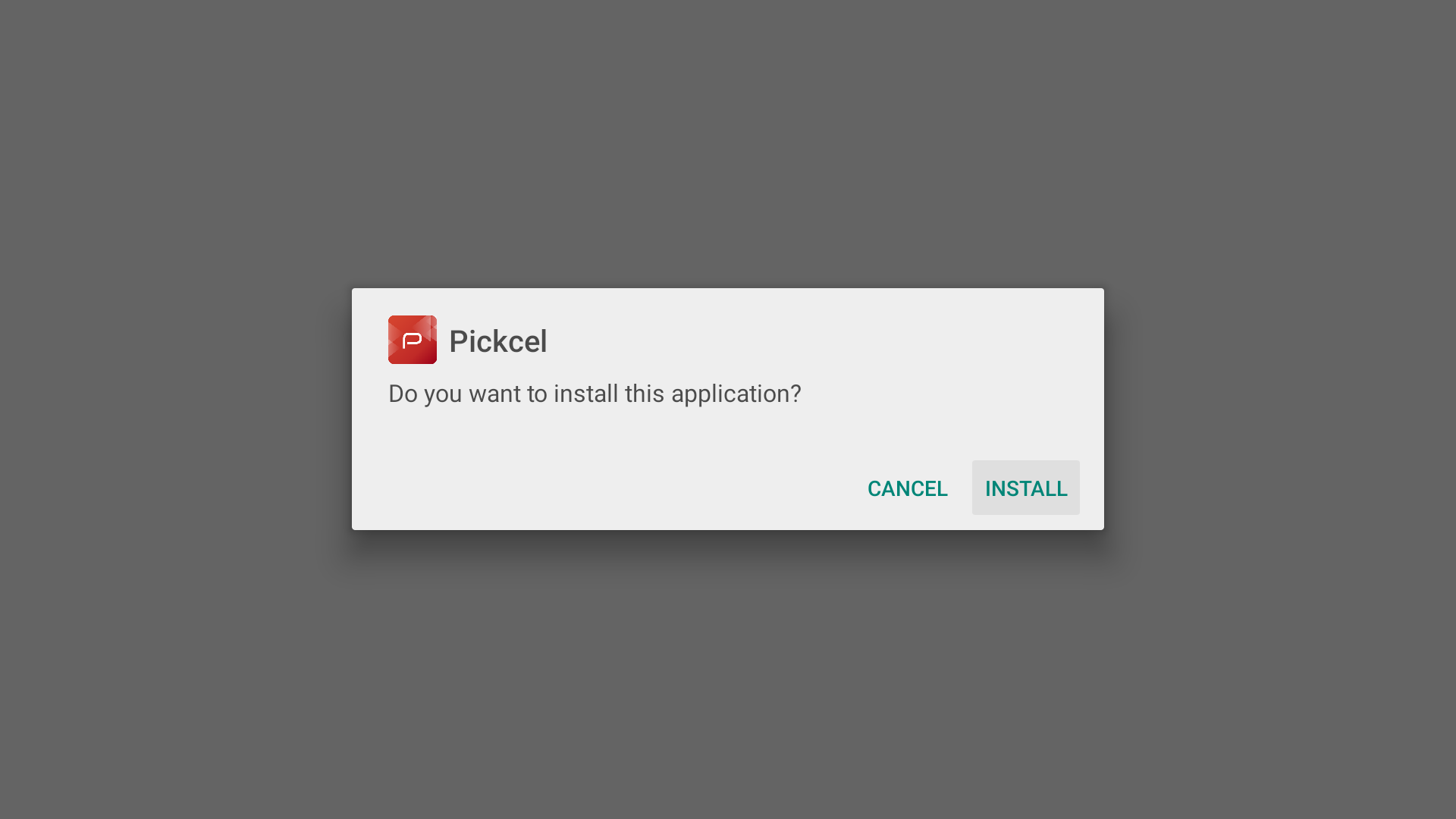
* Click **Install**.
Click the downloaded APK file.
* If prompted, allow installation from **unknown sources**. Follow the on-screen instructions to complete the installation.
* Click **Install**.
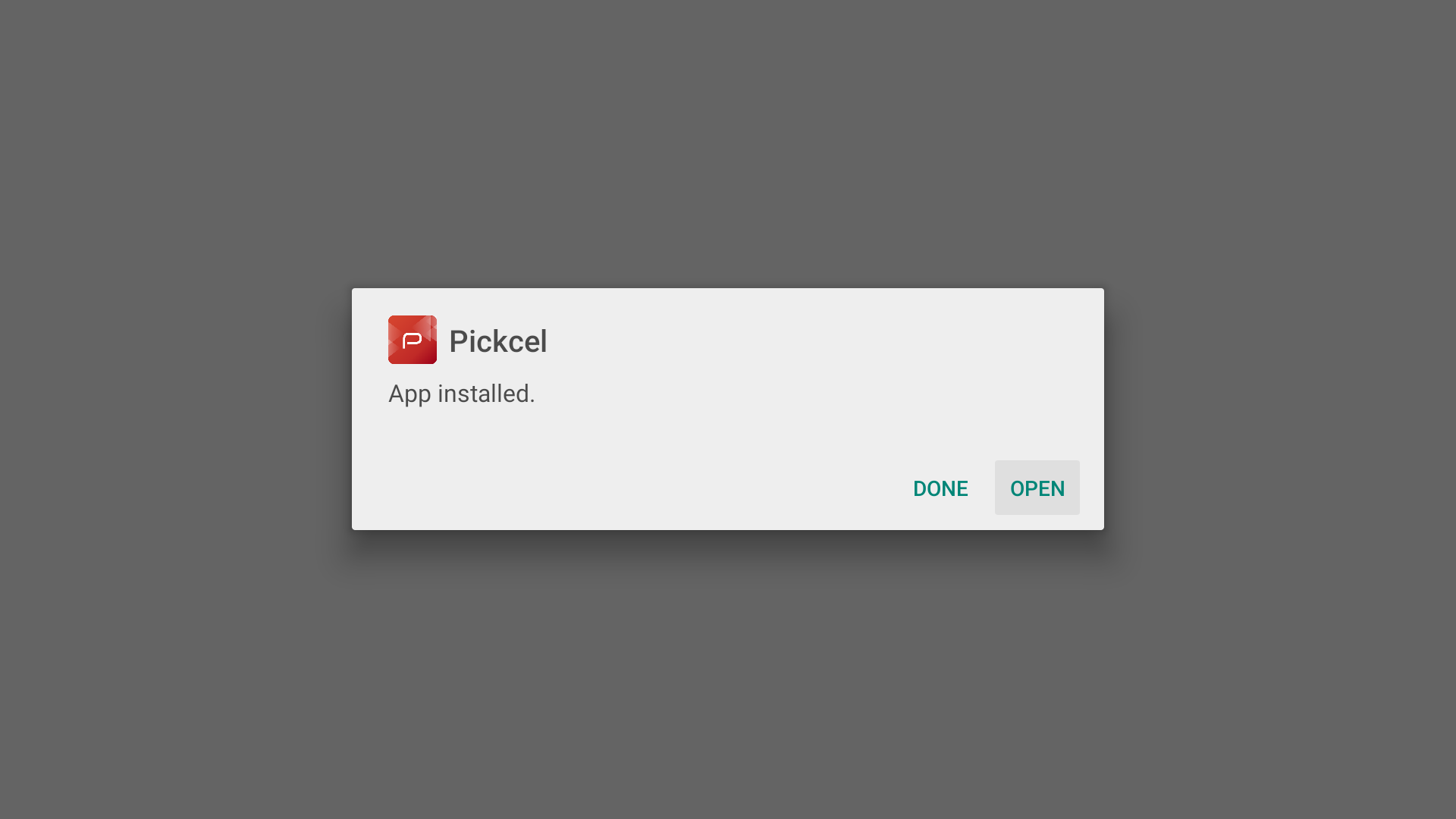
 Once installation completes, tap **Open**.
 To grant Pickcel access to your media, tap **Allow**.
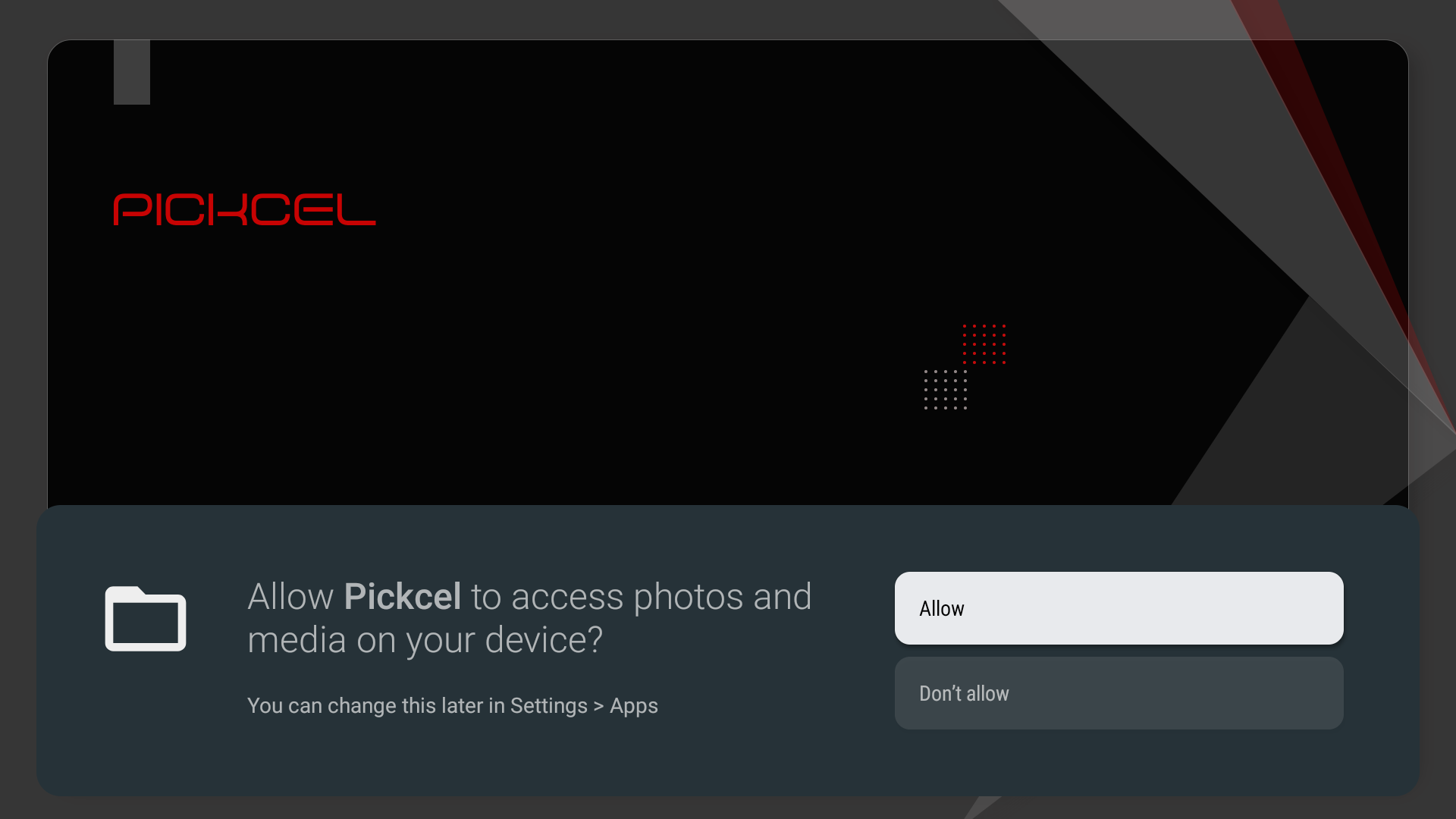 The Pickcel application will launch on your device and display a six-digit Screen Registration Code.
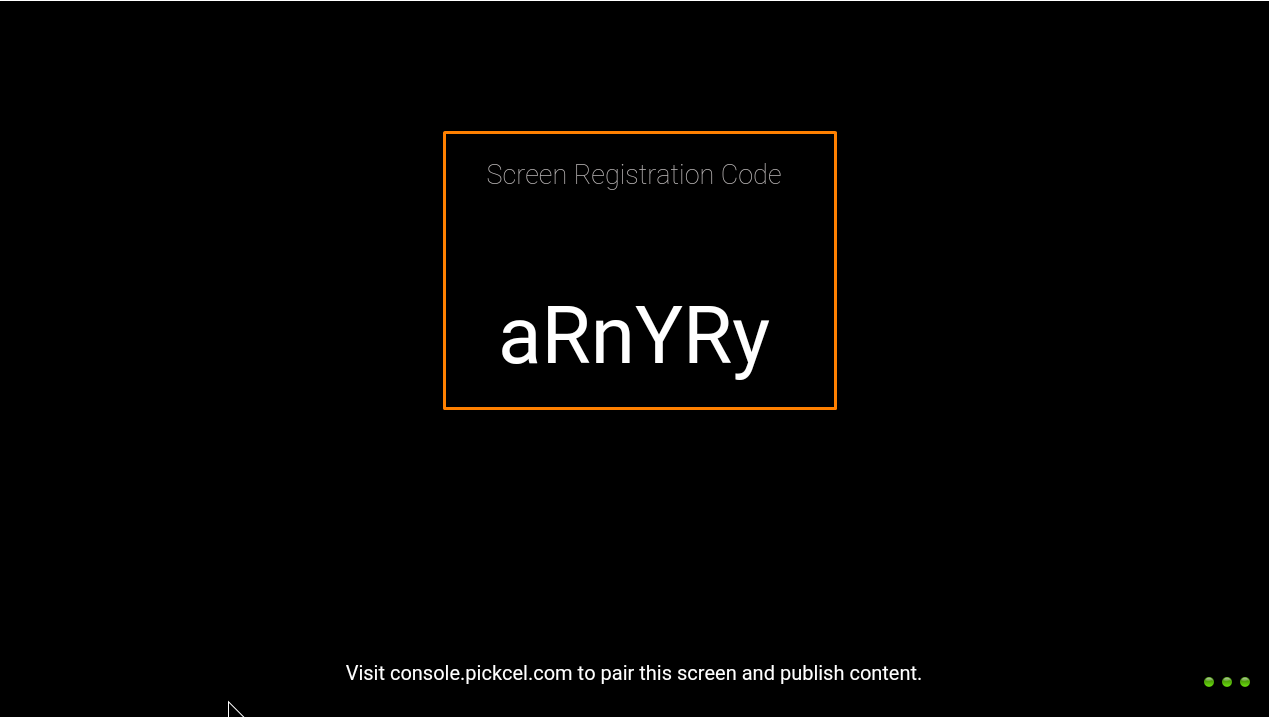 You will have to enter this code on your Pickcel console to complete the pairing of your screen.
**Complete the Setup**
Now in a browser, sign in to the [**Pickcel Console**](https://console.pickcel.com/) and enter the six-digit code to complete the pairing of the screen.
To learn how to pair your device with the Pickcel console, see the [**Screen Registration guide**](/screen-registration/screen-registration).
You will have to enter this code on your Pickcel console to complete the pairing of your screen.
**Complete the Setup**
Now in a browser, sign in to the [**Pickcel Console**](https://console.pickcel.com/) and enter the six-digit code to complete the pairing of the screen.
To learn how to pair your device with the Pickcel console, see the [**Screen Registration guide**](/screen-registration/screen-registration).