> ## Documentation Index
> Fetch the complete documentation index at: https://docs.pickcel.com/llms.txt
> Use this file to discover all available pages before exploring further.
# How to Set Up Pickcel on the Amazon Signage Stick for Digital Signage
> Follow this guide to set up the Pickcel player app on your Amazon Signage Stick and display digital signage on your device.
**Prerequisite**
An **Amazon account** is required to set up your device before installing the Pickcel player app. If you don't have one, [create an Amazon account](https://www.amazon.com/ap/register?openid.mode=checkid_setup\&openid.ns=http%3A%2F%2Fspecs.openid.net%2Fauth%2F2.0\&openid.return_to=https%3A%2F%2Fwww.amazon.com%2Fref%3Drhf_sign_in\&openid.assoc_handle=usflex) first.
Unbox your Amazon Signage Stick and set up the hardware:
* Connect the device to **power** using the provided power plug and wire.
* Connect the device to your screen via the **HDMI port**.
* Insert **batteries** into the remote control.
The device will power on automatically once connected to power, and the Amazon Signage Stick logo will appear.
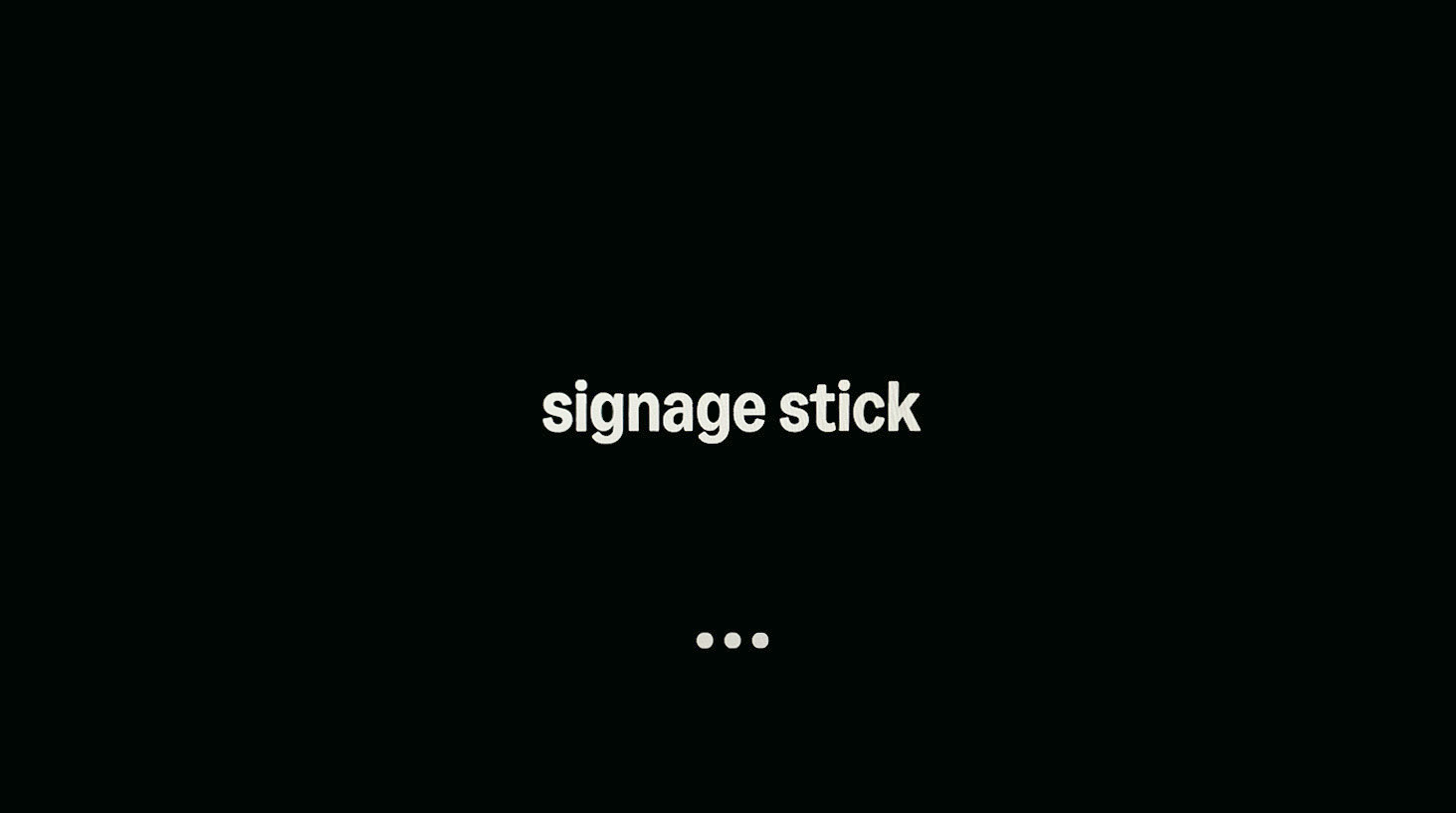 Connect the remote controller by pressing the **Home** button.
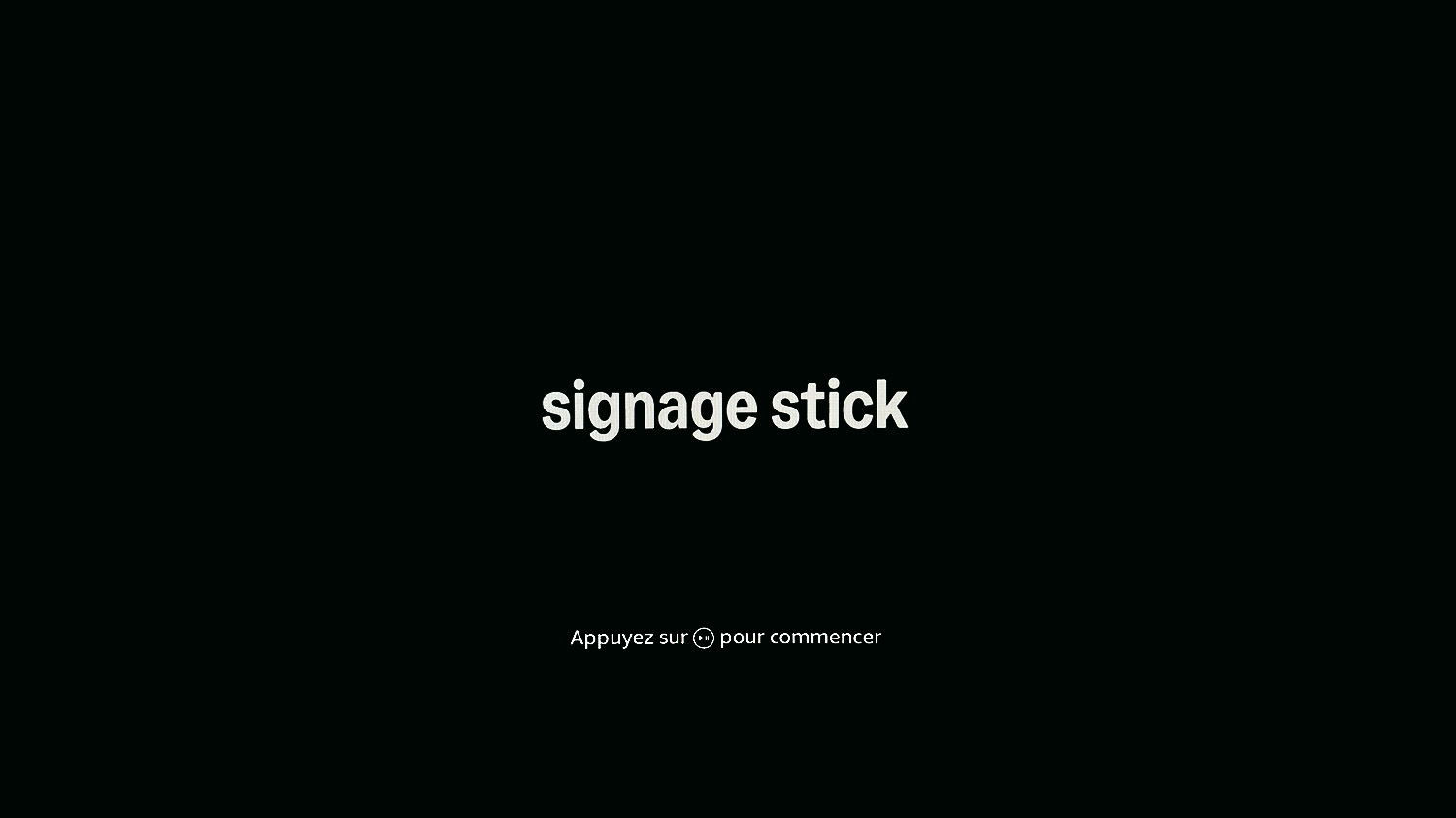
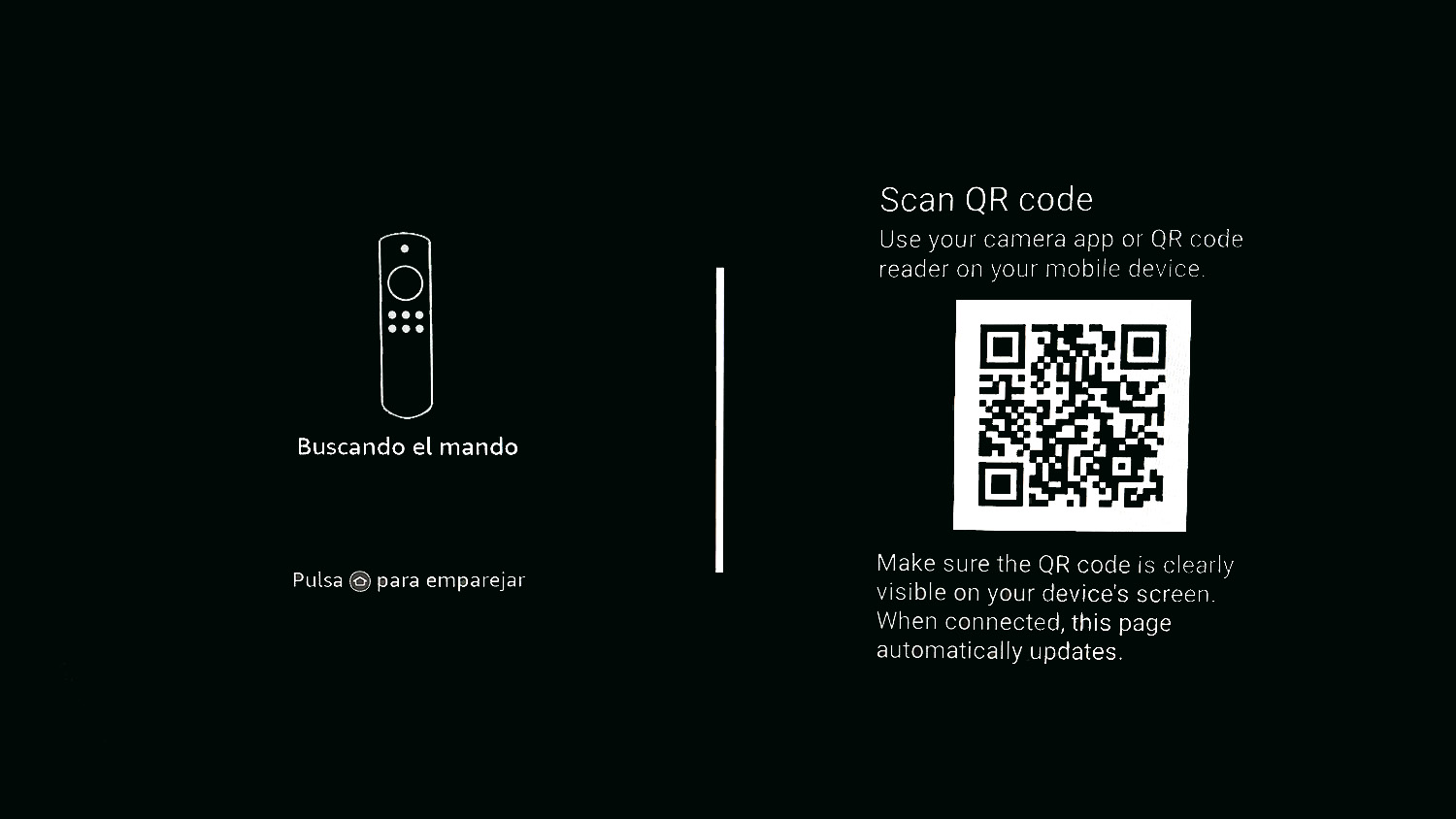 If your remote doesn't pair automatically, press and hold the **Home** button on your remote until "Press button to start" appears on-screen (about 10 seconds).
* You will be prompted to click the **Play/Pause** button to begin setup.
If your remote doesn't pair automatically, press and hold the **Home** button on your remote until "Press button to start" appears on-screen (about 10 seconds).
* You will be prompted to click the **Play/Pause** button to begin setup.
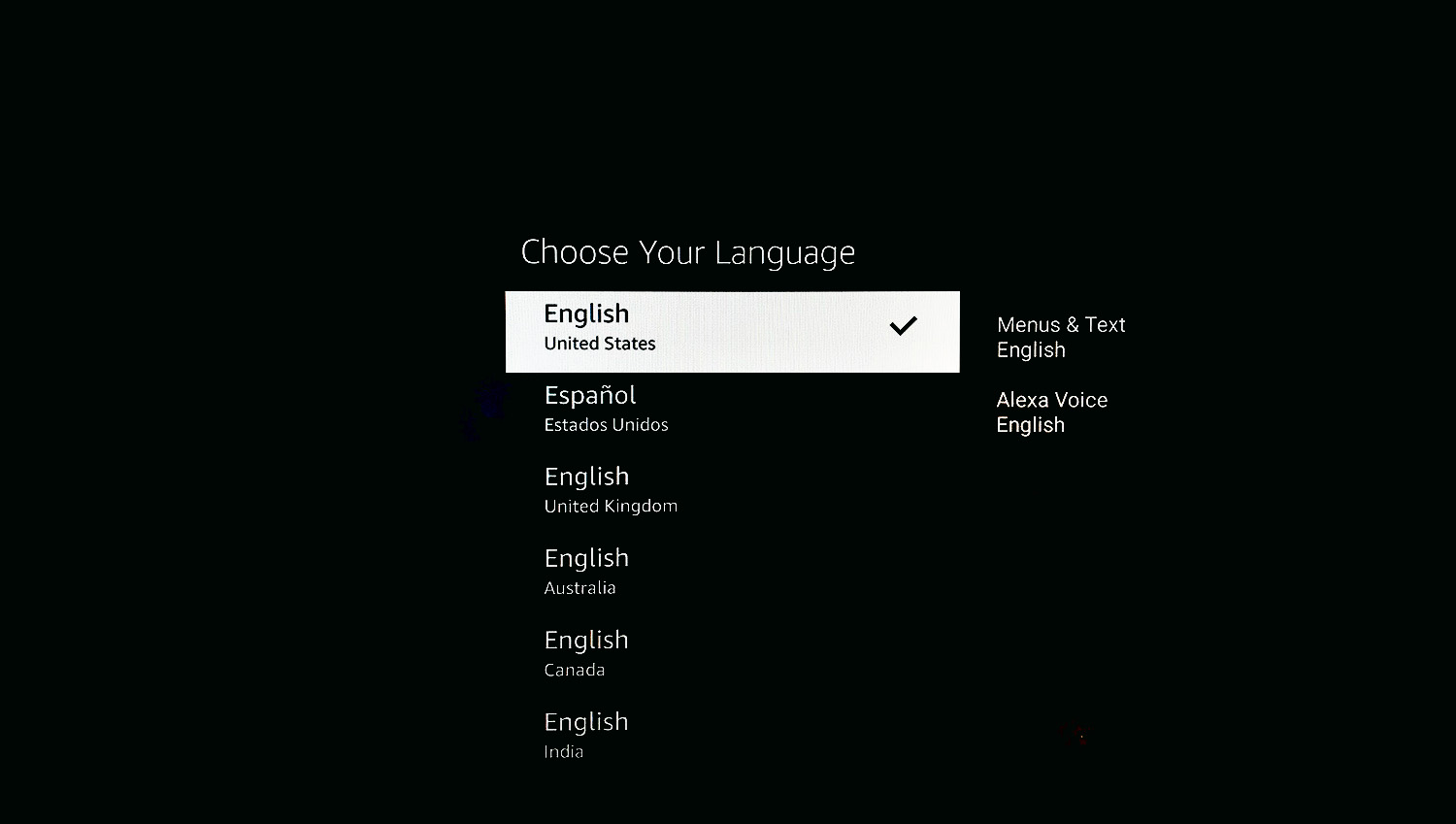
 * Select your **Language** option.
 * Select your **Wi-Fi network** and input login credentials.
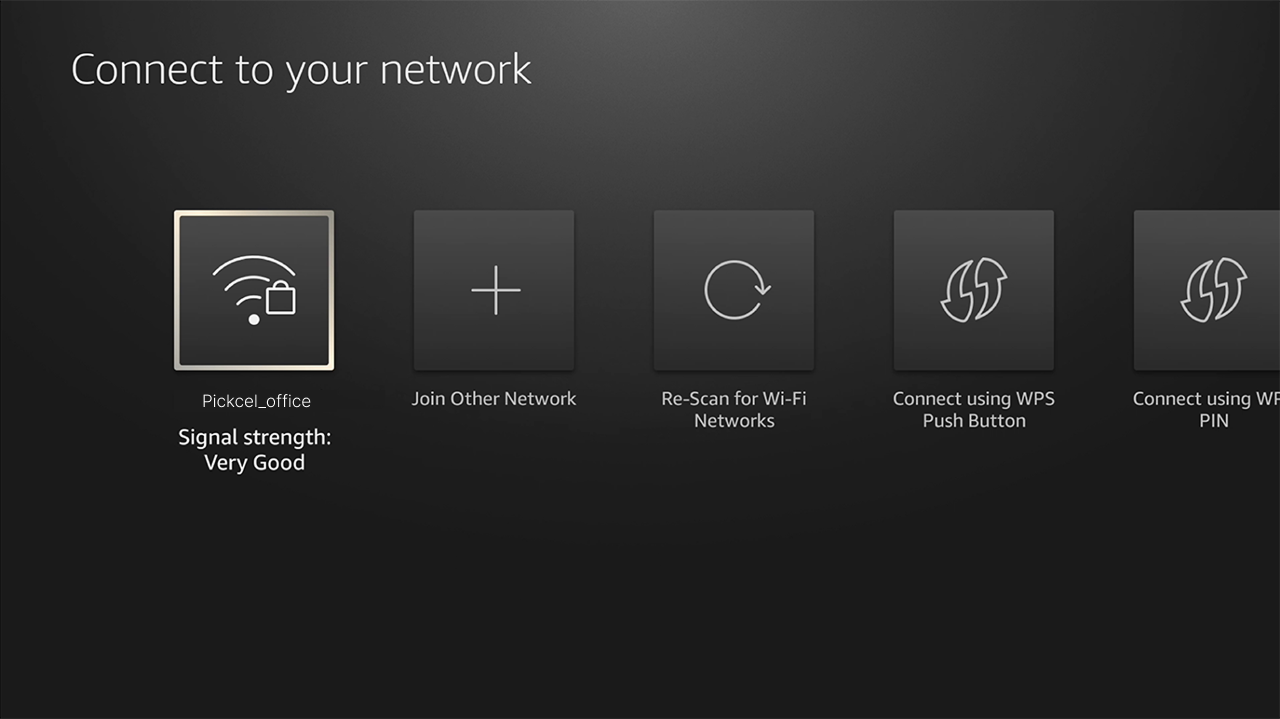 You will see a "**Connection successful**" message once the device has an internet connection. The device will then check for updates, wait a few moments for this to complete.
**Amazon Setup Resources**
Visit [**Amazon's official setup guide**](https://signage.amazon.com/category-page/setup-instructions) for detailed instructions on mobile app setup, remote pairing troubleshooting, and answers to common setup questions.
A **6-digit code from Amazon** will appear on the screen, along with a link to register your device at [https://console.signage.amazon.com/](https://console.signage.amazon.com/).
You will see a "**Connection successful**" message once the device has an internet connection. The device will then check for updates, wait a few moments for this to complete.
**Amazon Setup Resources**
Visit [**Amazon's official setup guide**](https://signage.amazon.com/category-page/setup-instructions) for detailed instructions on mobile app setup, remote pairing troubleshooting, and answers to common setup questions.
A **6-digit code from Amazon** will appear on the screen, along with a link to register your device at [https://console.signage.amazon.com/](https://console.signage.amazon.com/).
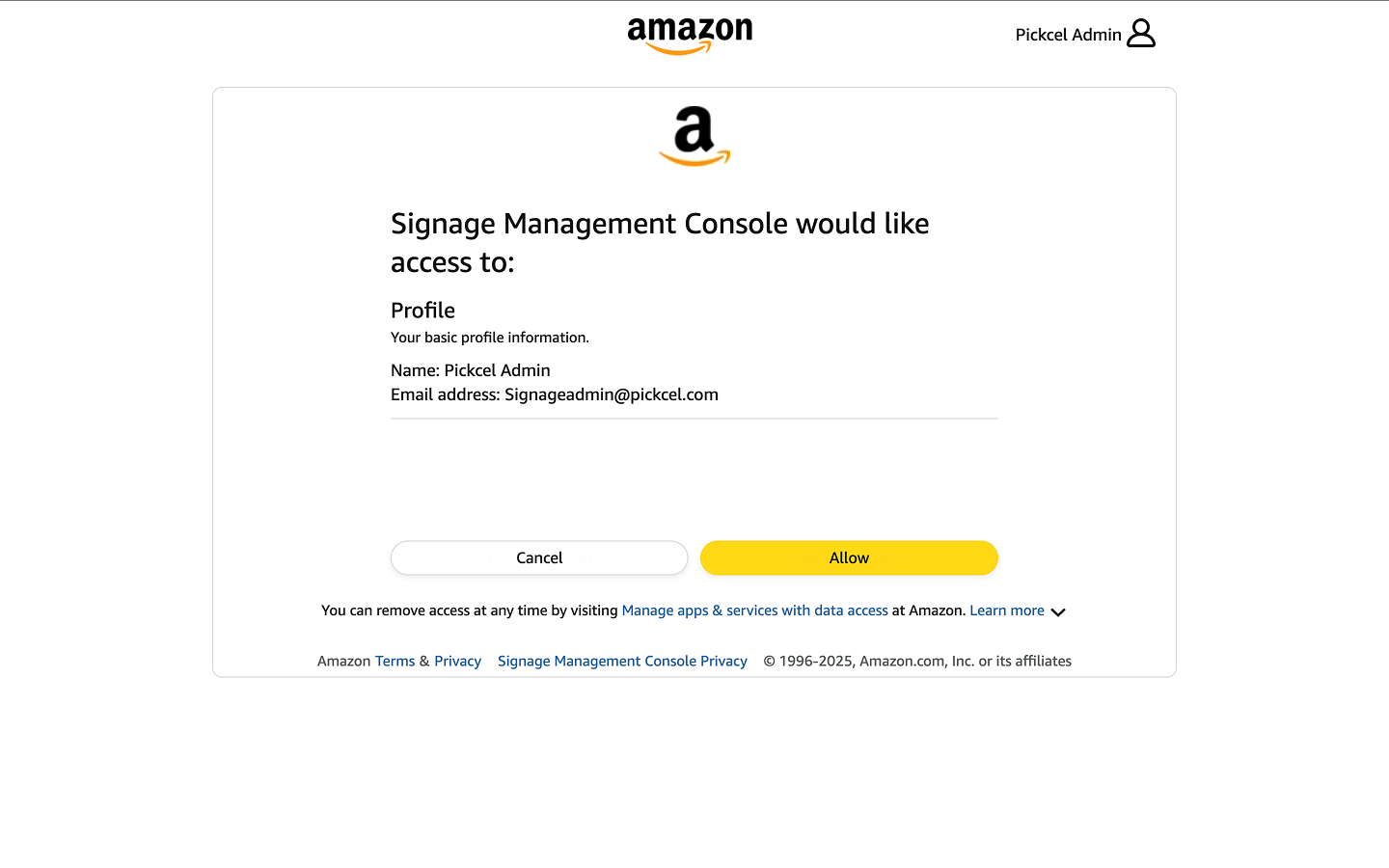
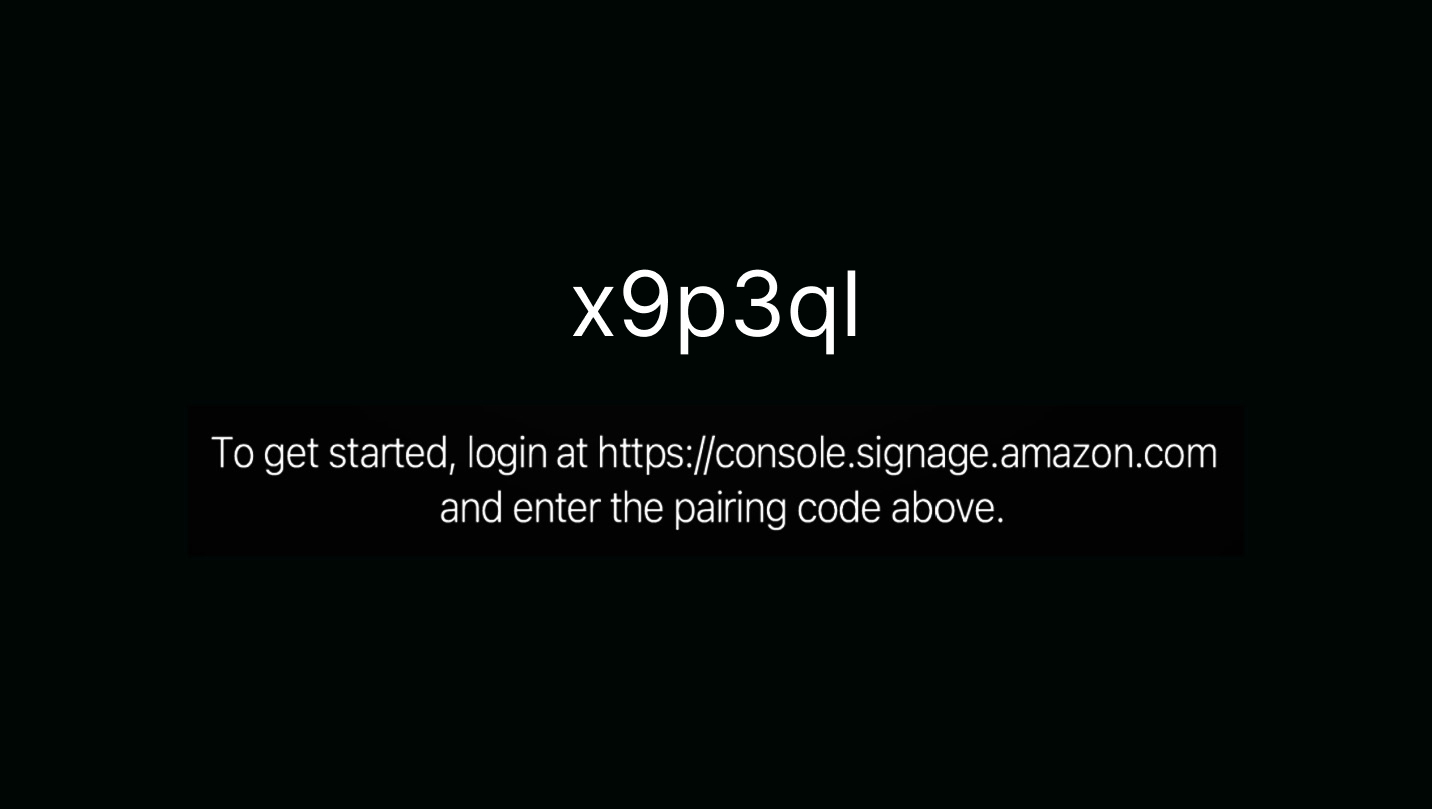 * Head to [https://console.signage.amazon.com/](https://console.signage.amazon.com/). Select **Login with Amazon** and click **Allow**.
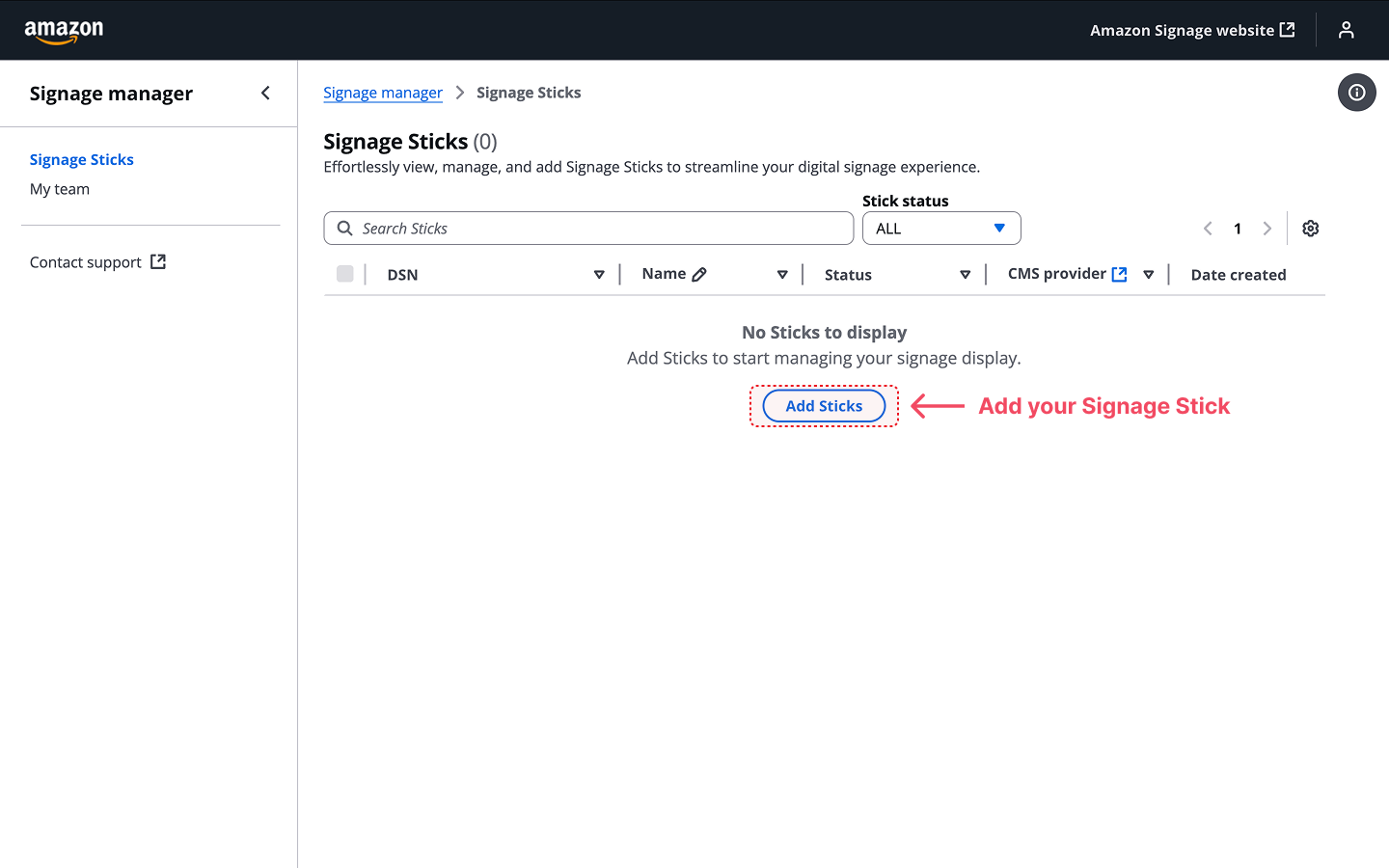
 * In your Amazon Signage account, click **+ Add Stick**.
 * Enter the **6-digit pairing code** displayed on your Amazon Signage Stick in the "Pairing code" field. Click **Verify** to proceed.
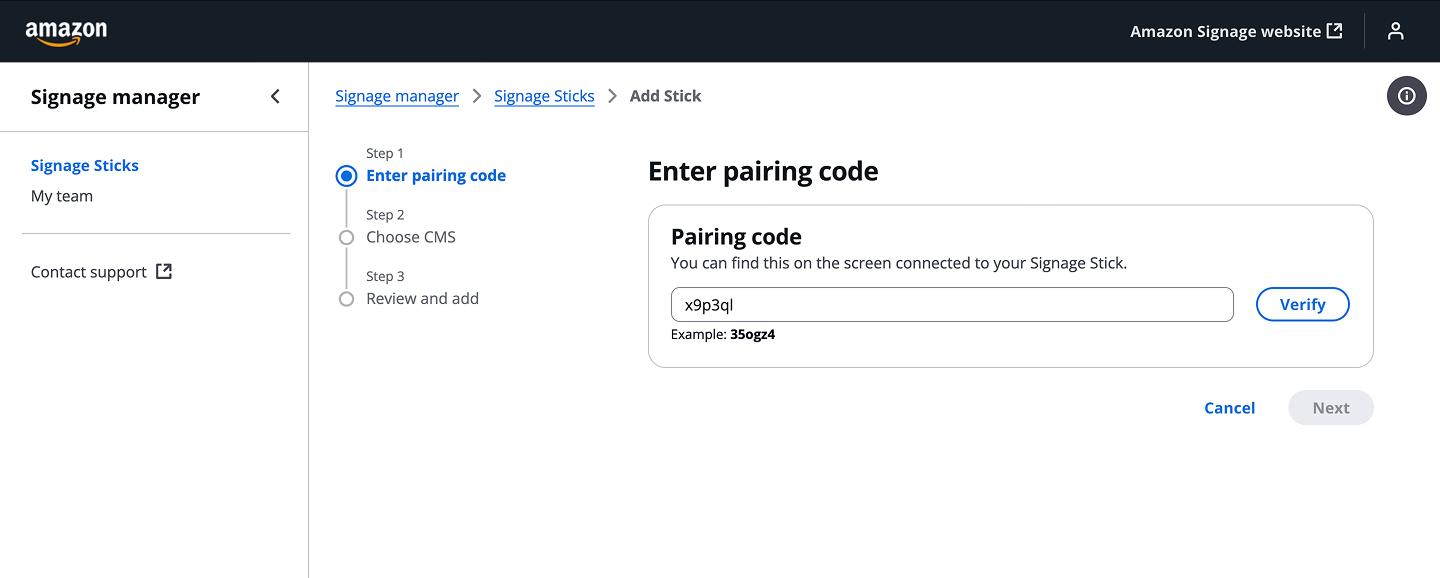 If you are accessing your Amazon Signage account for the first time, you'll be taken directly to the "Let's set up your new device!" screen where you can start with Step 1: Enter pairing code.
After verifying the pairing code, click '**Next**' to proceed to **Choose CMS**.
* Search for or scroll through the list to find **Pickcel**.
* Select **Pickcel Digital Signage** from the available CMS options.
If you are accessing your Amazon Signage account for the first time, you'll be taken directly to the "Let's set up your new device!" screen where you can start with Step 1: Enter pairing code.
After verifying the pairing code, click '**Next**' to proceed to **Choose CMS**.
* Search for or scroll through the list to find **Pickcel**.
* Select **Pickcel Digital Signage** from the available CMS options.
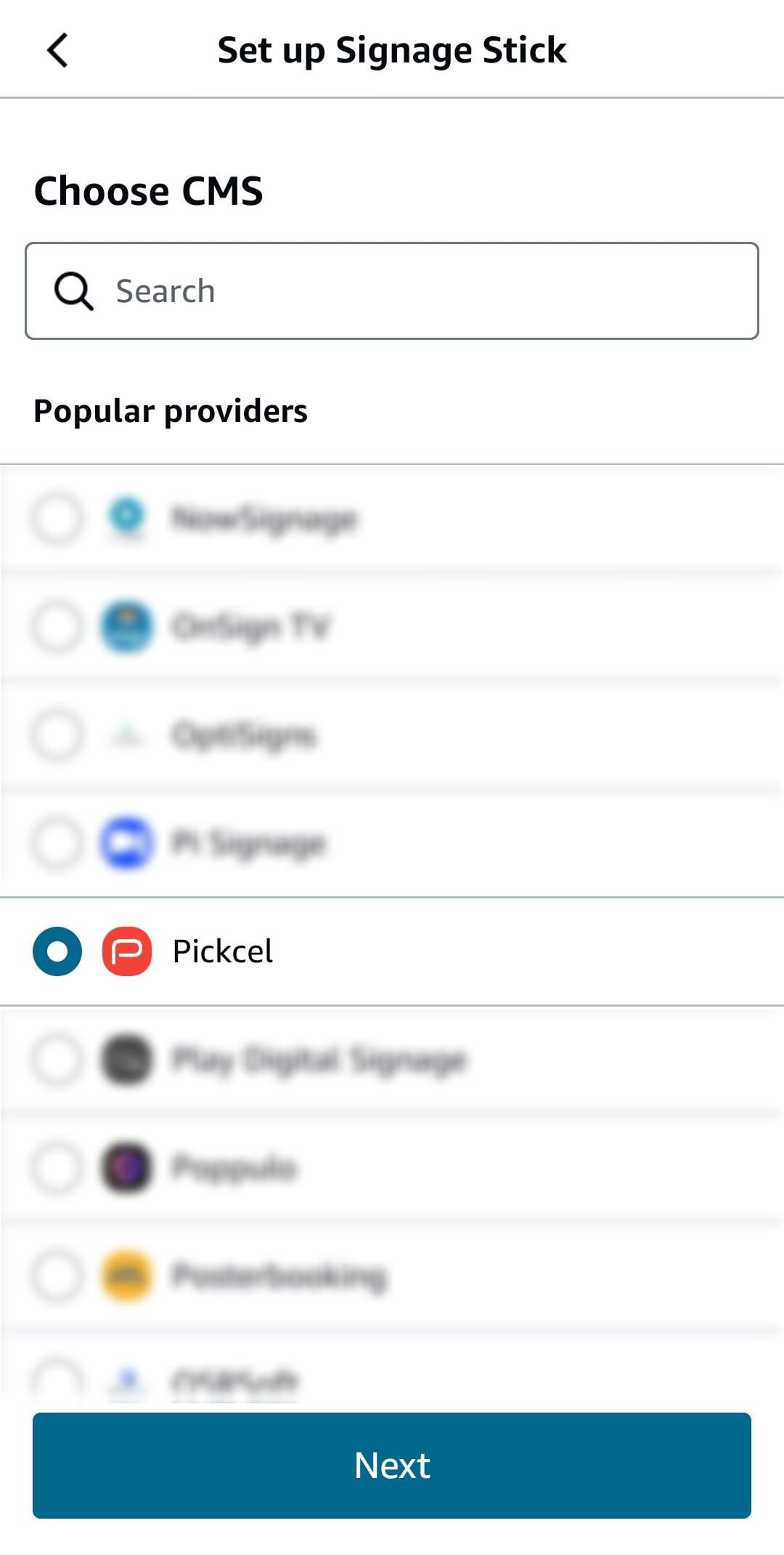 * Click **Next** to continue to the review step, confirm your selections and click **Add** to complete the signage stick registration.
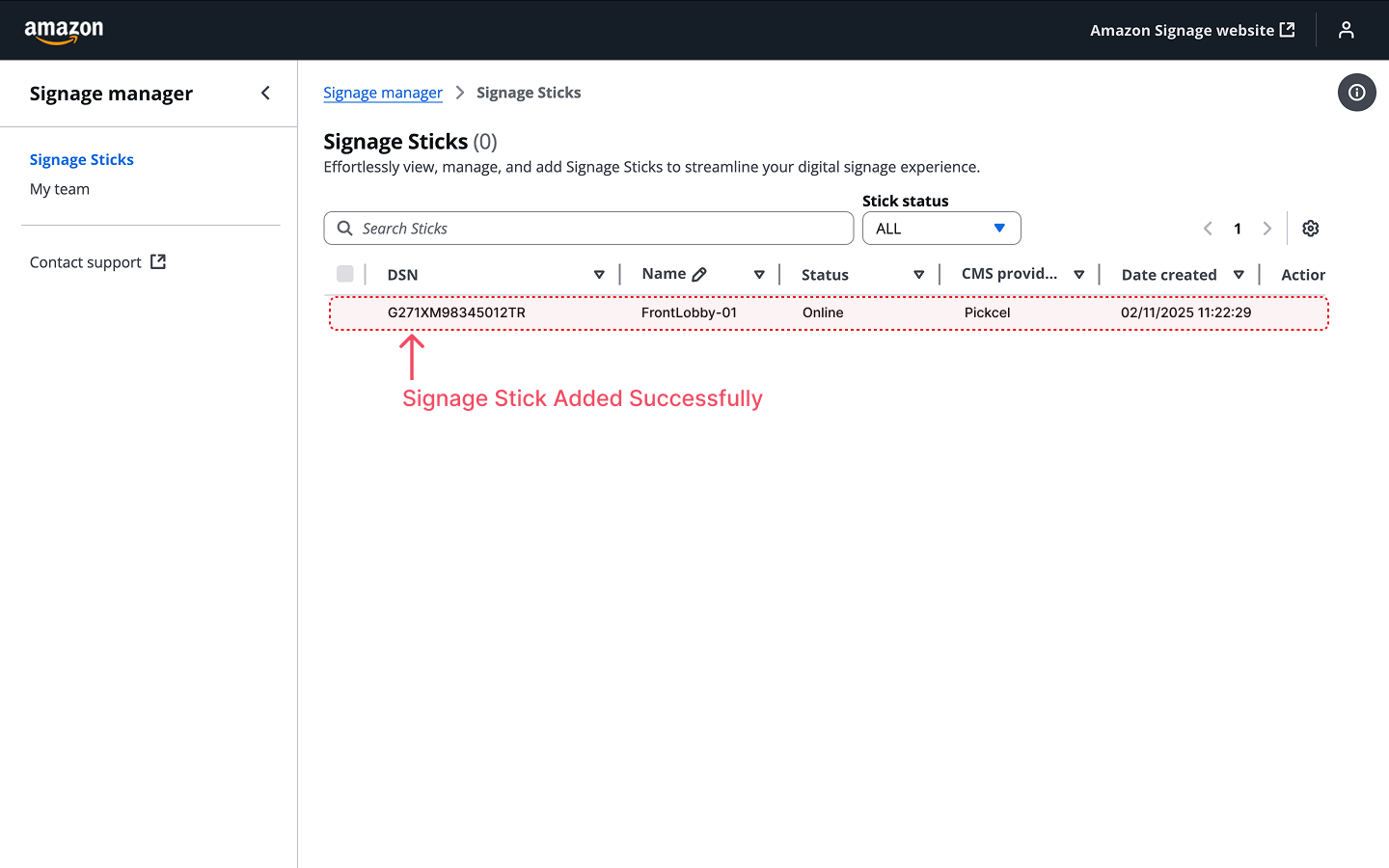
Your Signage Stick will now appear in your Signage Sticks list in the Amazon Signage Manager.
* Click **Next** to continue to the review step, confirm your selections and click **Add** to complete the signage stick registration.
Your Signage Stick will now appear in your Signage Sticks list in the Amazon Signage Manager.
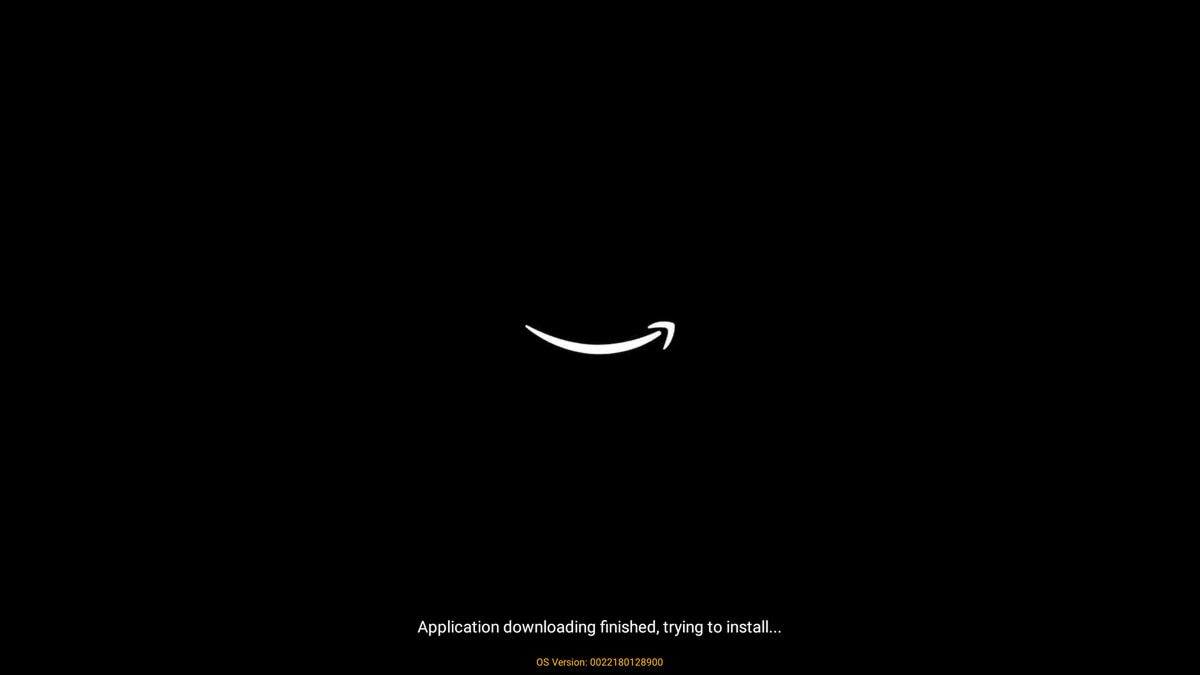
 Once the device has been registered to your Amazon Signage account, allow the device to **download and install** the Pickcel player app **automatically**. This may take a few moments.
 Once the Pickcel player app is downloaded and installed, it will automatically display a **6-digit Screen Registration Code** on your screen.
 And that's a wrap! 🎉 You've successfully installed the Pickcel Digital Signage Player on your Amazon Signage Stick.
**Complete the Setup**
Now in a browser, sign in to the [**Pickcel Console**](https://console.pickcel.com/) and enter the six-digit code to complete the pairing of the screen.
To learn how to pair your device with the Pickcel console, [**click here.**](/screen-registration/screen-registration)
And that's a wrap! 🎉 You've successfully installed the Pickcel Digital Signage Player on your Amazon Signage Stick.
**Complete the Setup**
Now in a browser, sign in to the [**Pickcel Console**](https://console.pickcel.com/) and enter the six-digit code to complete the pairing of the screen.
To learn how to pair your device with the Pickcel console, [**click here.**](/screen-registration/screen-registration)