> ## Documentation Index
> Fetch the complete documentation index at: https://docs.pickcel.com/llms.txt
> Use this file to discover all available pages before exploring further.
# How to set up the Pickcel application with Amazon Fire TV Stick?
> Step-by-step instructions to install and launch the Pickcel digital signage player on Amazon Fire TV Stick (Gen 2 and above)
Supported on Amazon Fire TV Stick Gen 2 and above.
**Using Fire OS 8?** Fire TV devices running Fire OS 8 require additional ADB setup. See [Fire OS 8 Auto Launch Setup](/player-installation/amazon/fire-os-8-auto-launch) for instructions.
Connect your Fire TV Stick to the display and, from the home screen, select **Find**.
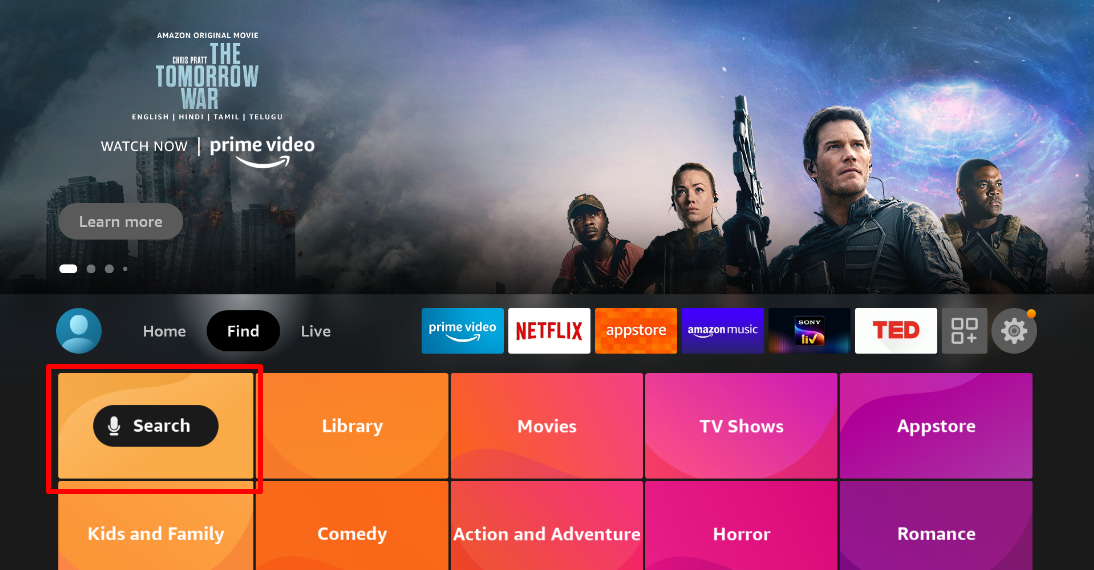
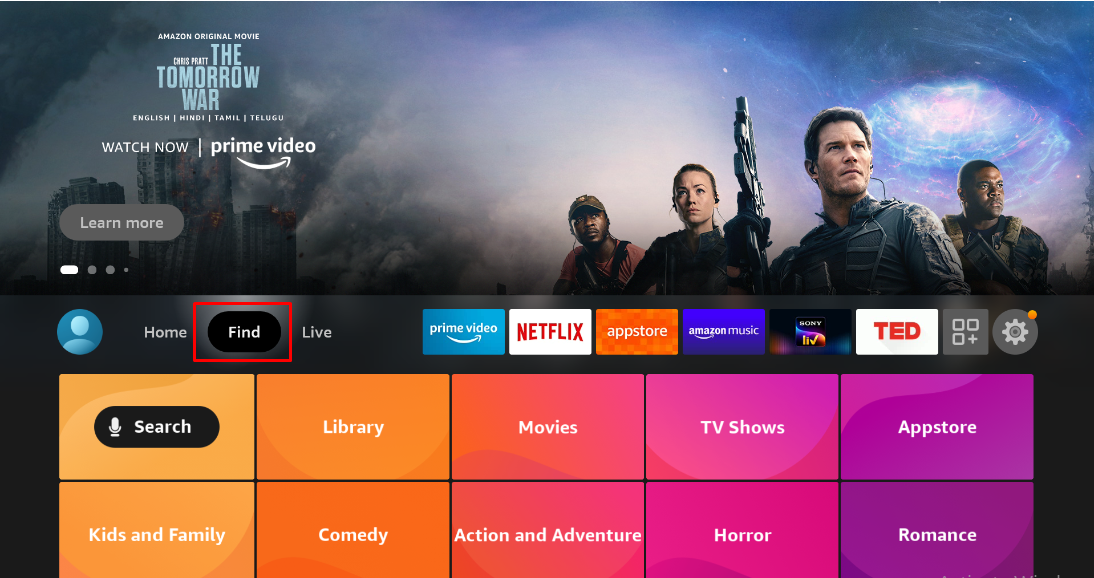 Click on **Search** to look for the Pickcel app.
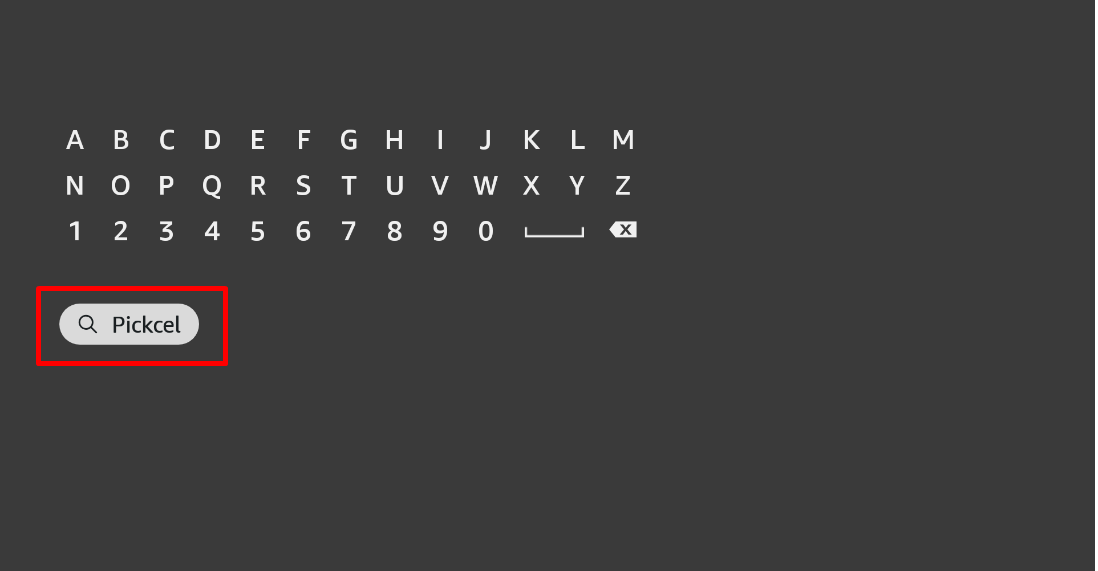
 Use the directional pad to type **Pickcel** and press the centre button to select it.
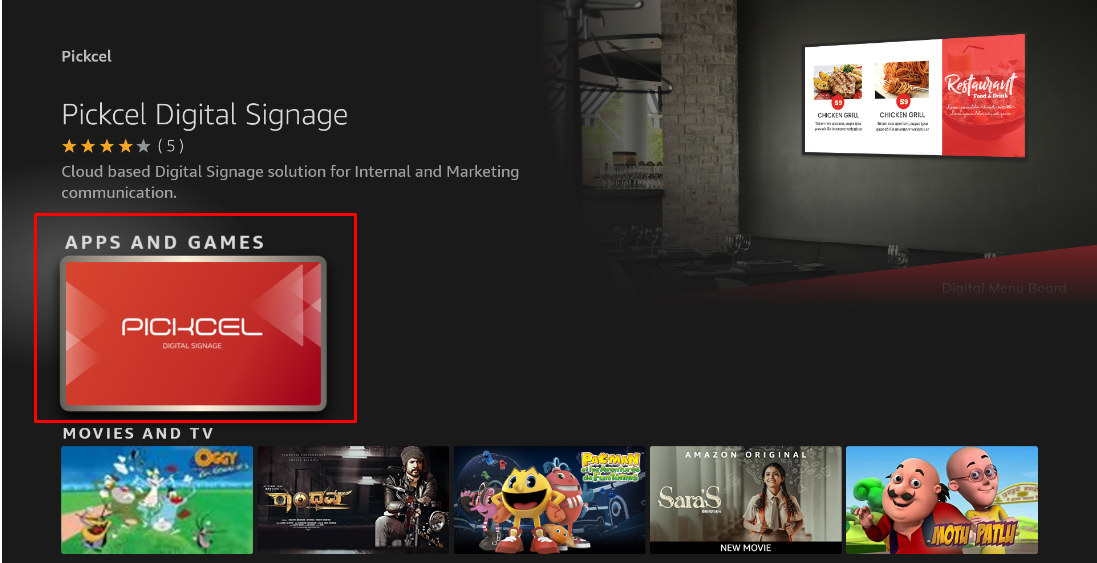
 Highlight the Pickcel Digital Signage Player app from the results and press the centre button.
 Click **Download** to begin installing the Pickcel application.
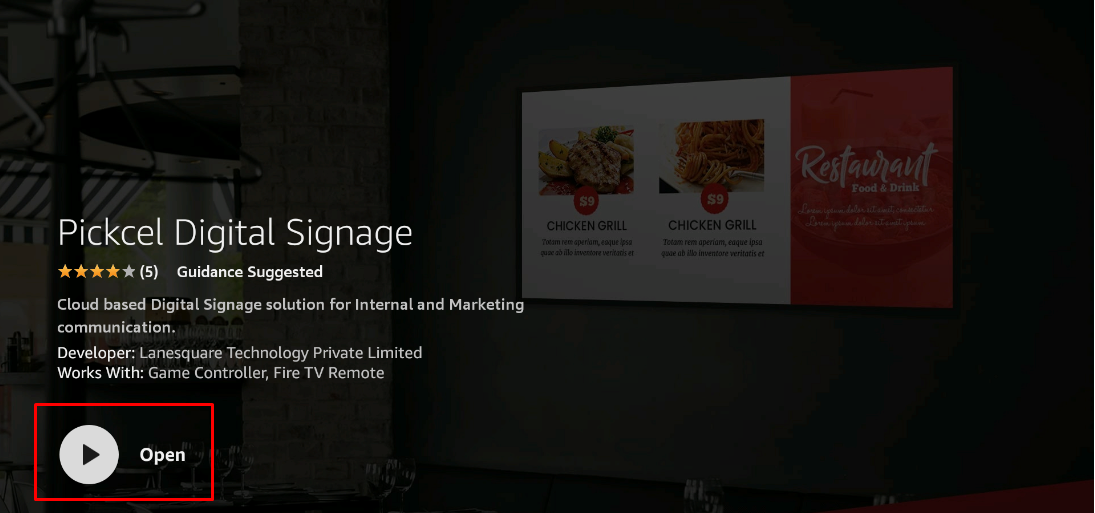
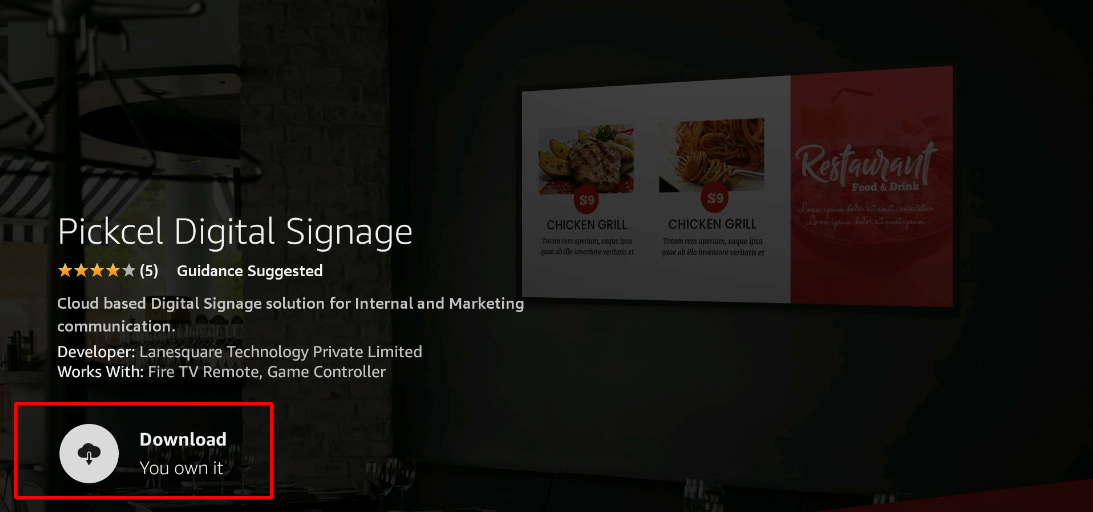 After the download finishes, select **Open** to launch the app.
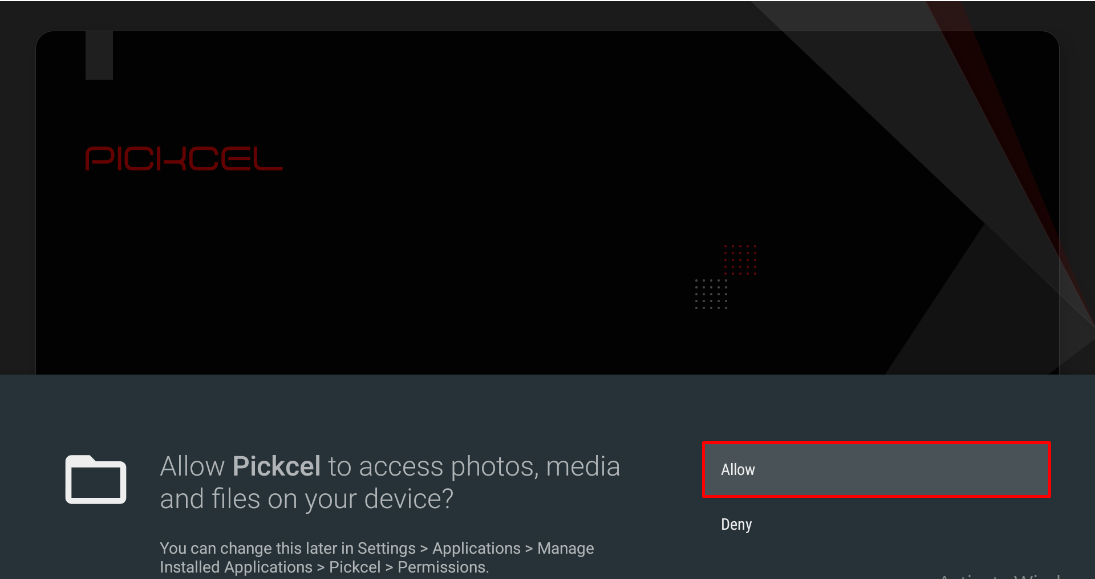
 Click **Allow** when prompted so Pickcel can access photos, media, and files on your device.
 The Pickcel app displays a unique **6-digit Screen Registration Code** once it launches.
 Visit the [Pickcel Console](https://console.pickcel.com/) and enter the registration code to pair your screen.
Need help registering your Amazon Fire TV Stick? Follow the guide at [Screen Registration](/screen-registration/screen-registration).
**What's Next?**
Now that your Amazon Fire TV Stick is installed, complete your setup:
* Start [**Uploading Media**](/media/add-media) to your library
* Create your first [**Composition**](/compositions/compositions) and publish content
Visit the [Pickcel Console](https://console.pickcel.com/) and enter the registration code to pair your screen.
Need help registering your Amazon Fire TV Stick? Follow the guide at [Screen Registration](/screen-registration/screen-registration).
**What's Next?**
Now that your Amazon Fire TV Stick is installed, complete your setup:
* Start [**Uploading Media**](/media/add-media) to your library
* Create your first [**Composition**](/compositions/compositions) and publish content