> ## Documentation Index
> Fetch the complete documentation index at: https://docs.pickcel.com/llms.txt
> Use this file to discover all available pages before exploring further.
# How to Upgrade Your Account from the Trial Plan?
> Learn how to upgrade your trial account to a paid subscription and unlock the full potential of Pickcel
Ready to unlock the full potential of your digital signage? Follow these simple steps to upgrade your trial account to a paid subscription and keep your screens running without interruption.
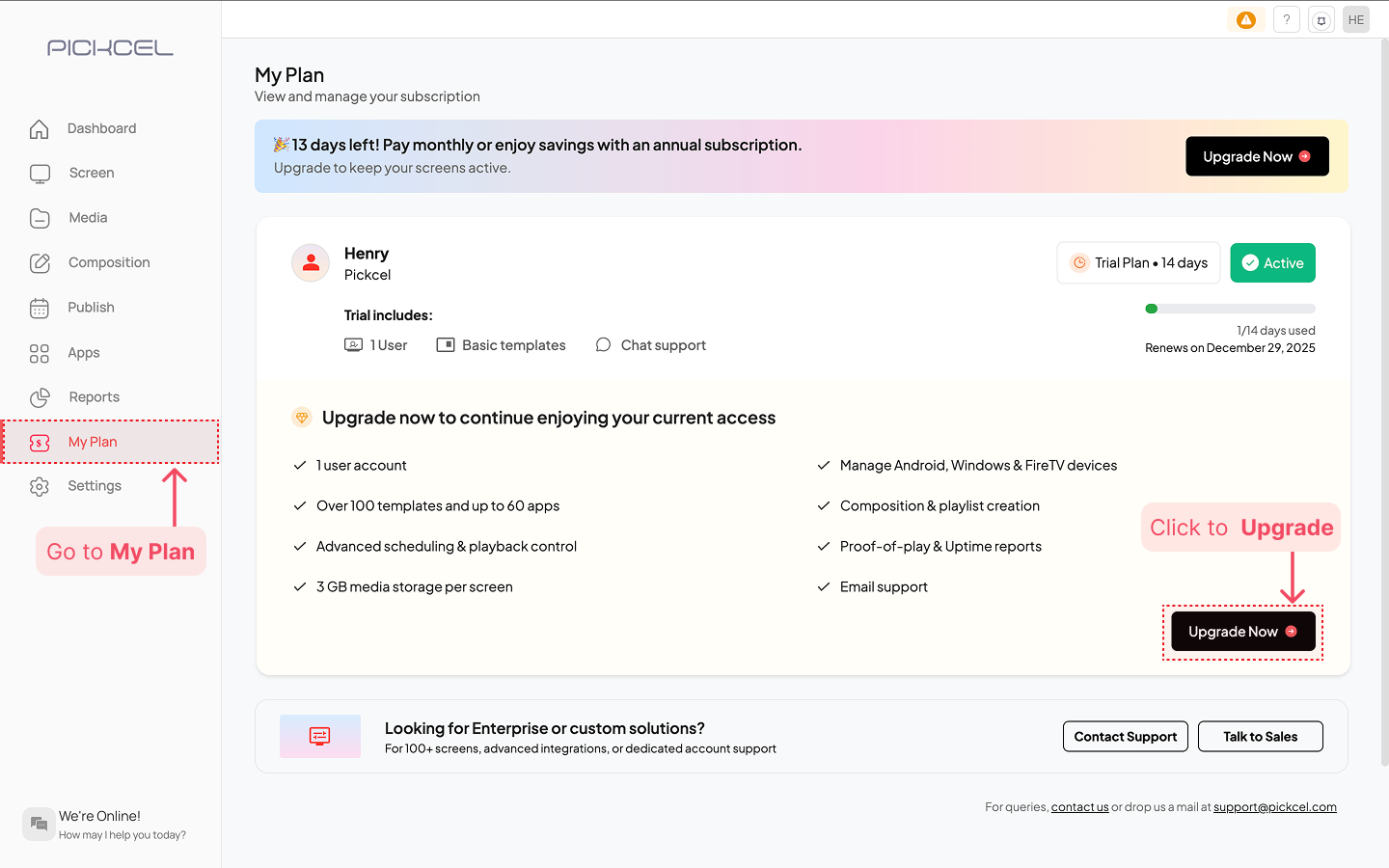
Log in to your Pickcel console. From the left-hand menu, navigate to **My Plan** and click on the **Upgrade Now** button.
 Select your preferred billing cycle (**Yearly** or **Monthly**) and then choose either the **Professional** or **Business plan** based on the features that **best fit your business needs**.
Choosing the **Yearly** plan saves you **10%** on your subscription costs.
Select your preferred billing cycle (**Yearly** or **Monthly**) and then choose either the **Professional** or **Business plan** based on the features that **best fit your business needs**.
Choosing the **Yearly** plan saves you **10%** on your subscription costs.
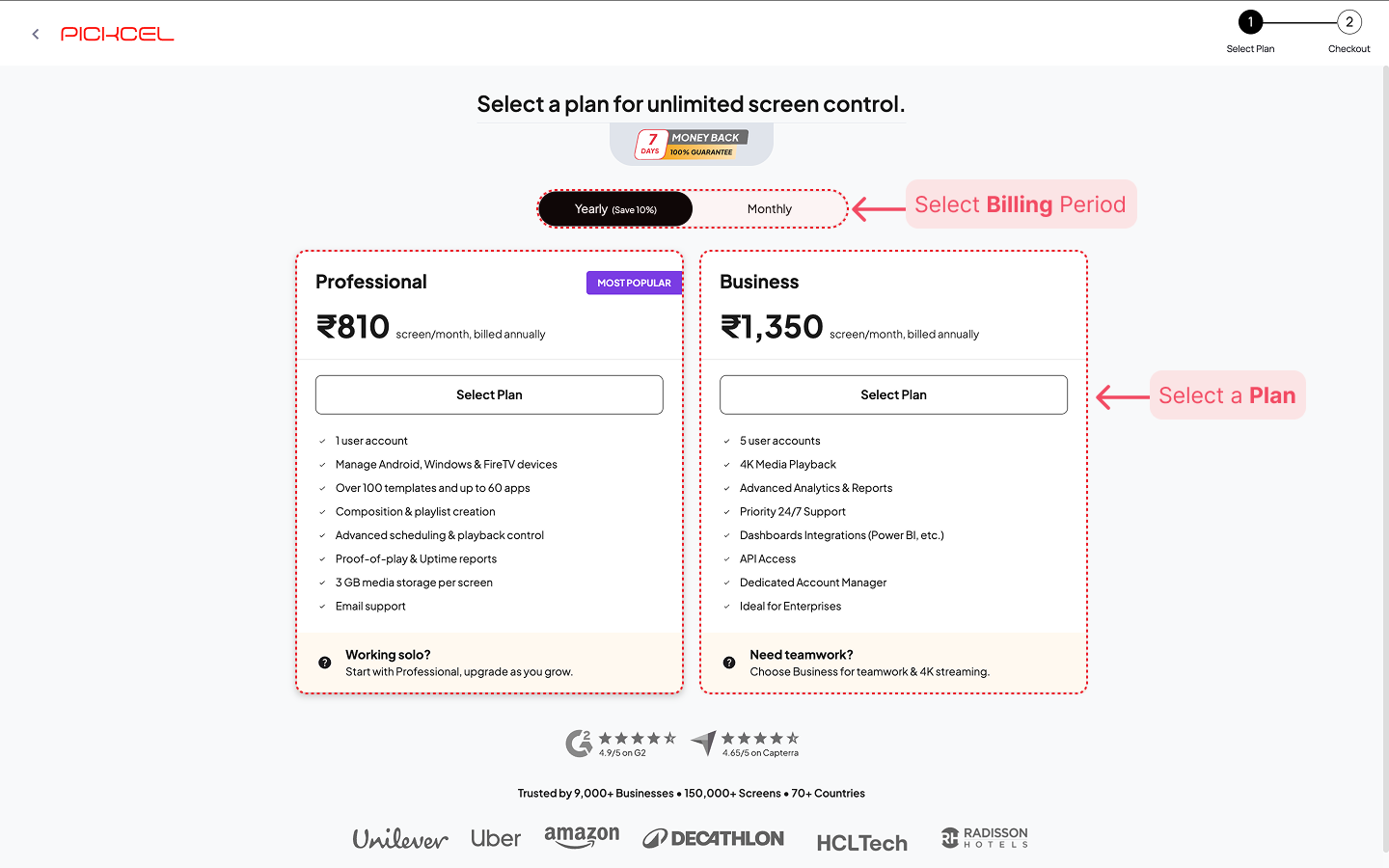 Click the **Select Plan** button on your preferred option.
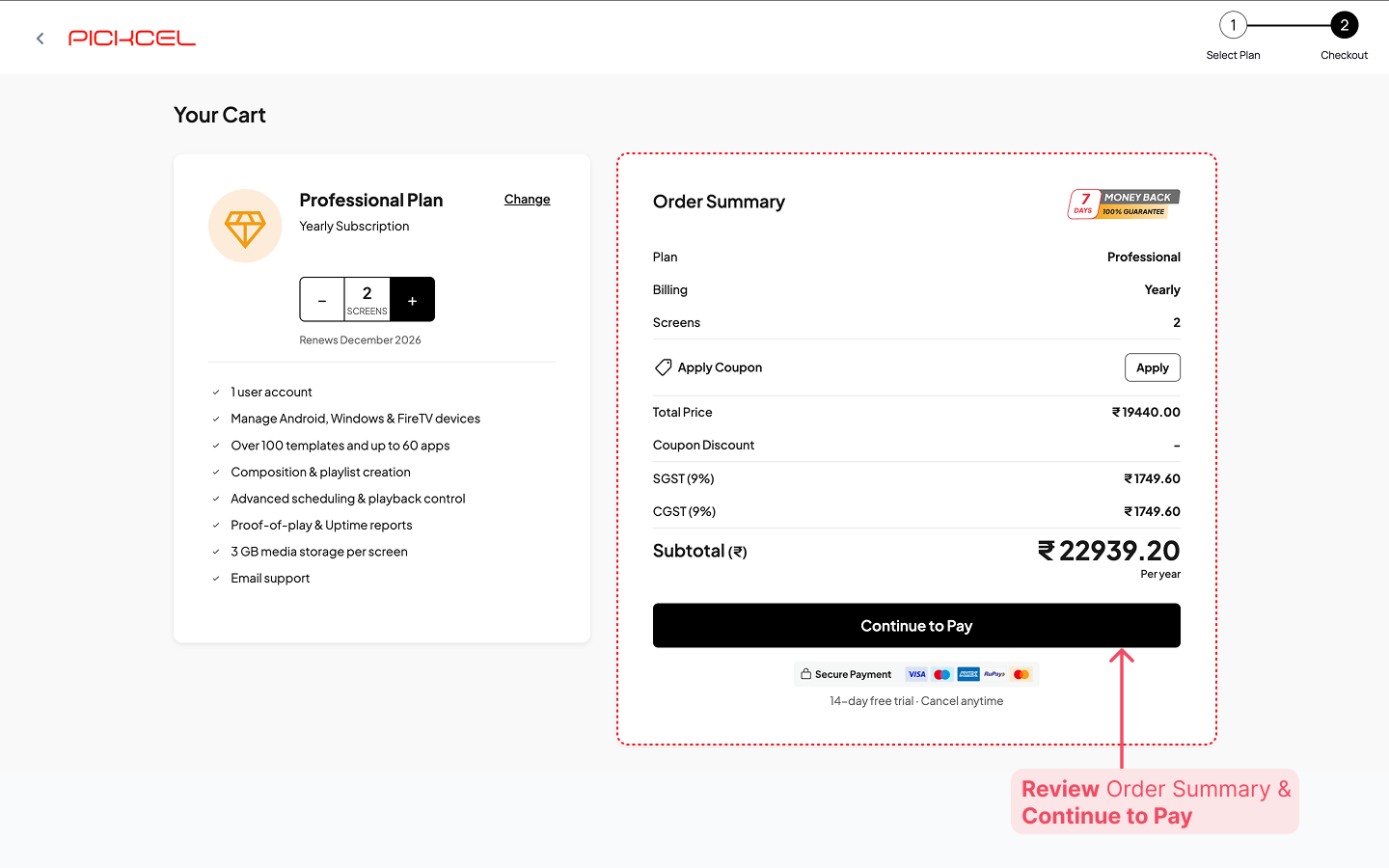
You will be directed to the Your Cart page. Here, you can **set the screen licenses**. By default, the plan includes 1 screen license.
Use the (+) button in the screen counter to add the exact number of screens you want to manage.
Click the **Select Plan** button on your preferred option.
You will be directed to the Your Cart page. Here, you can **set the screen licenses**. By default, the plan includes 1 screen license.
Use the (+) button in the screen counter to add the exact number of screens you want to manage.
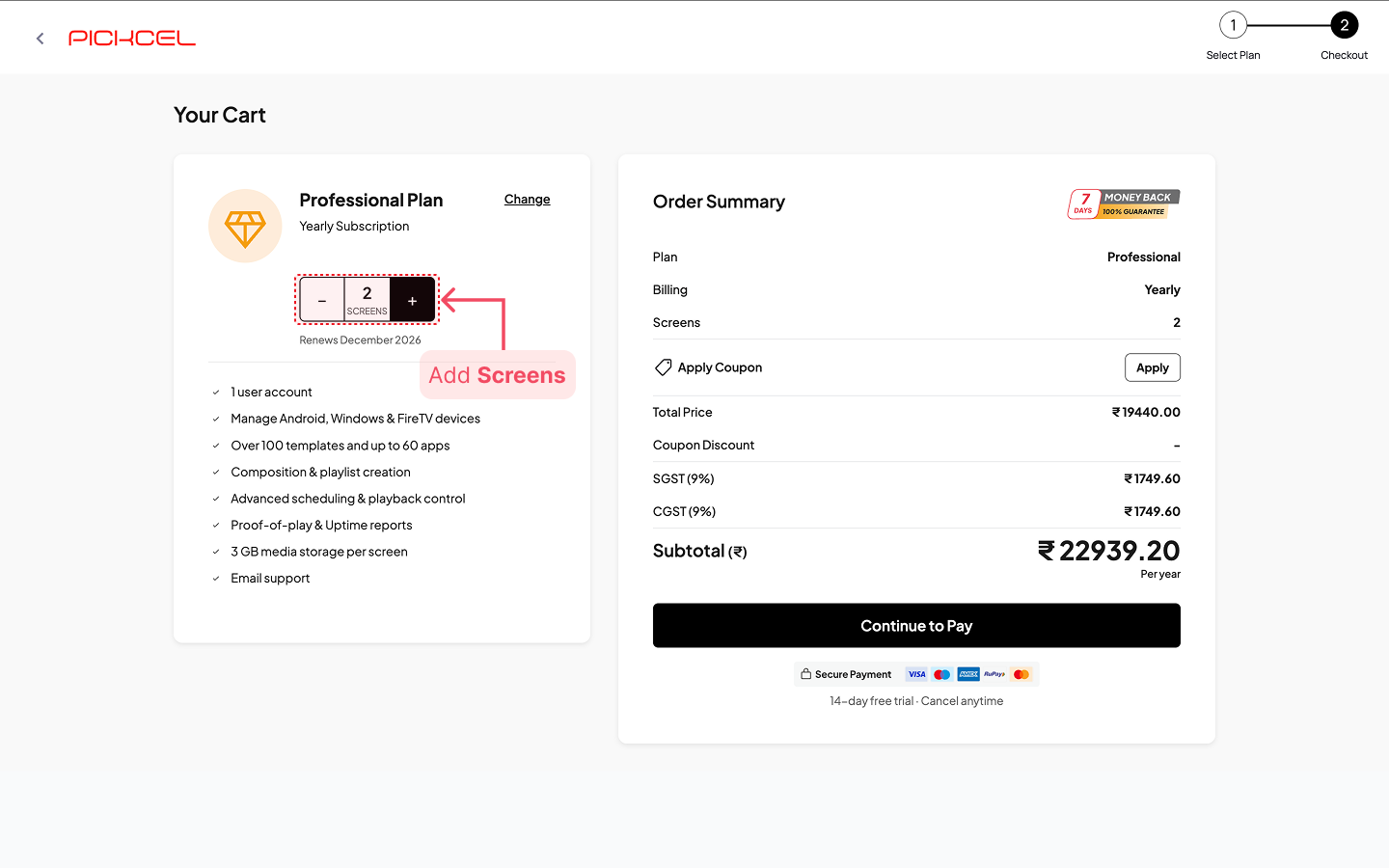 Check the renewal date displayed below the counter to know when your next billing cycle begins.
If you have a promotional code, you can apply it in the **Order Summary** section on the right:
-> Click the **Apply** button next to "Apply Coupon."
Check the renewal date displayed below the counter to know when your next billing cycle begins.
If you have a promotional code, you can apply it in the **Order Summary** section on the right:
-> Click the **Apply** button next to "Apply Coupon."
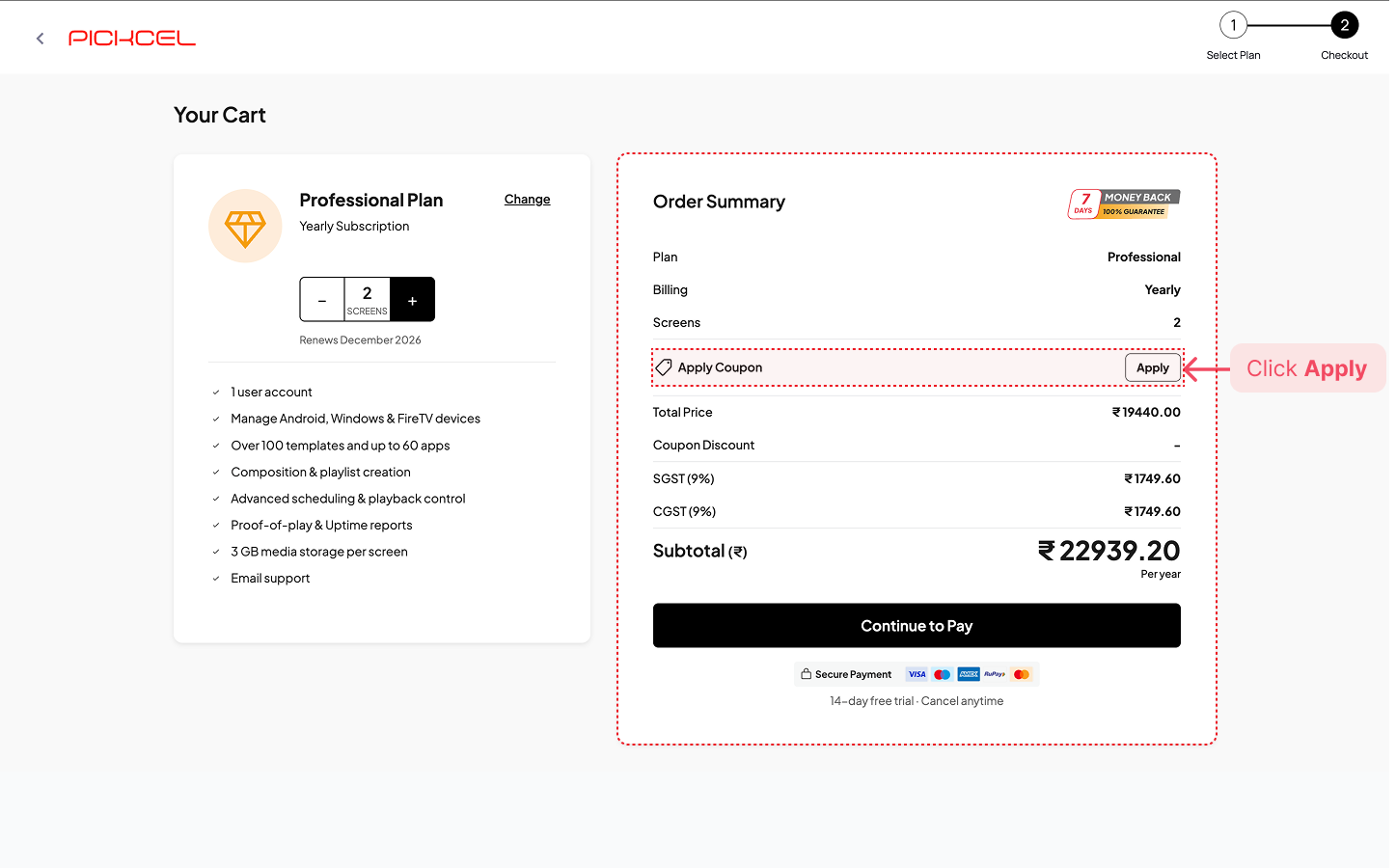 -> Enter the coupon code or select from the list of available/active coupon codes, click **Apply**.
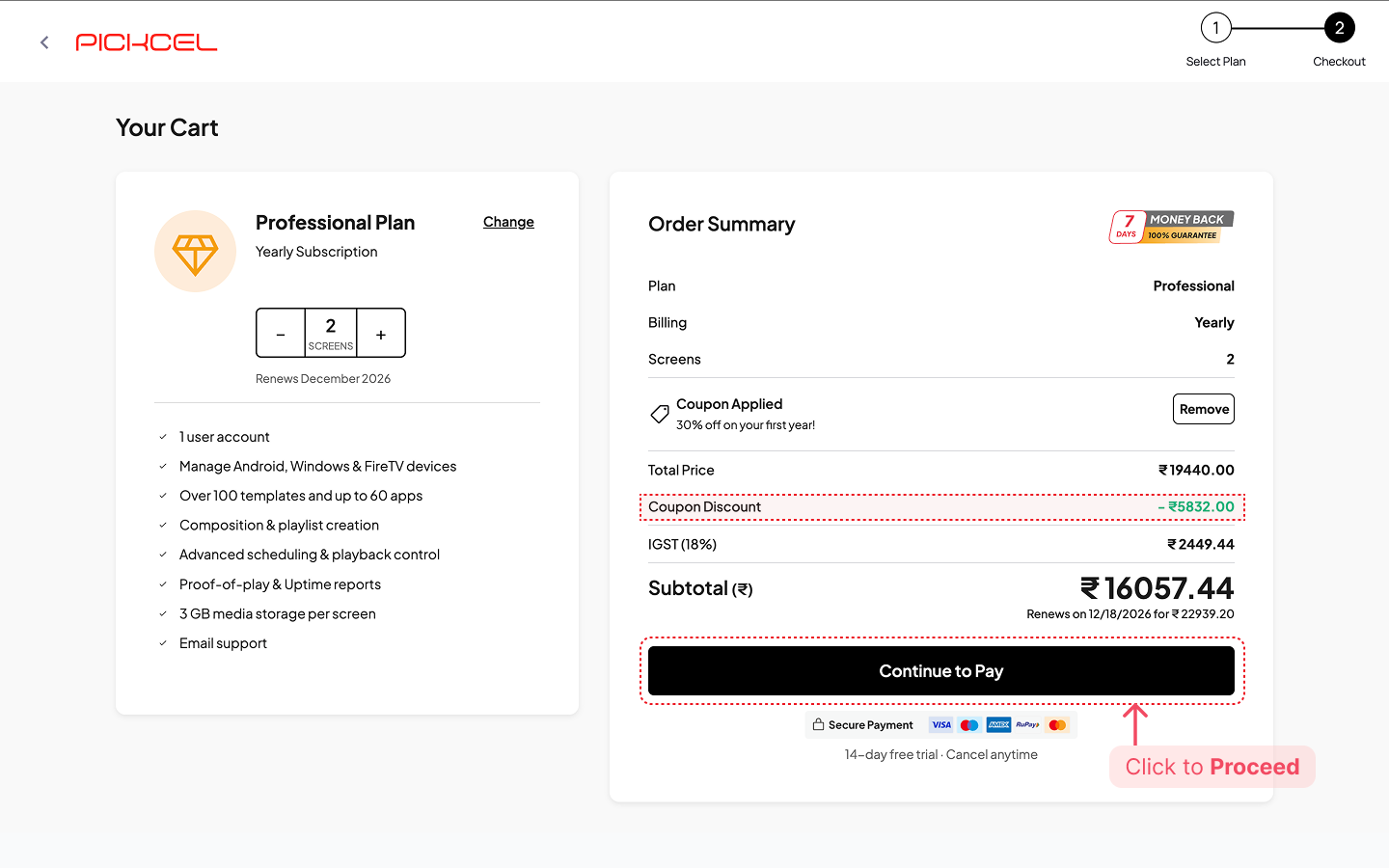
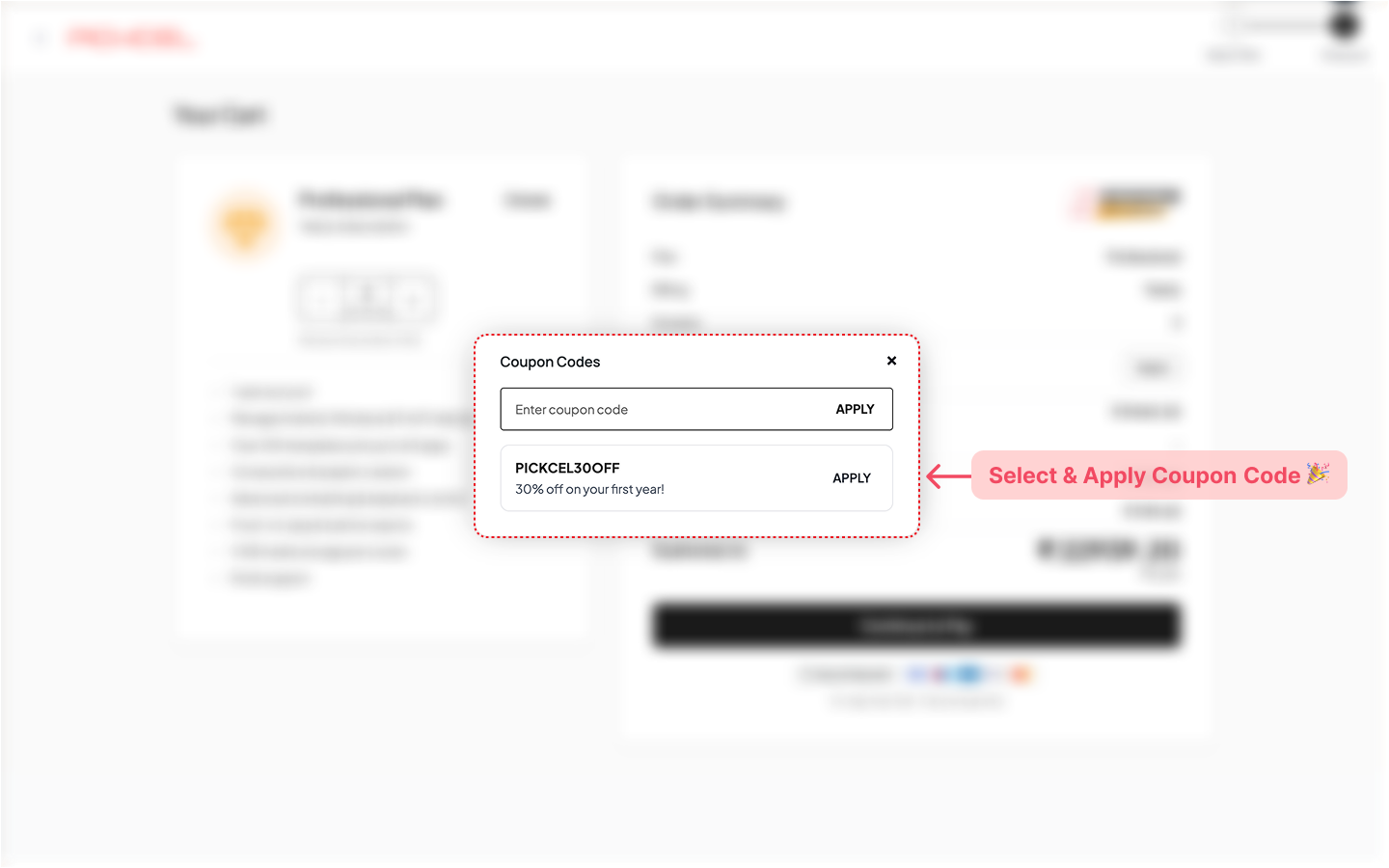 -> If valid, the **discount will immediately reflect in your total payable amount**.
 -> Available coupons will also be listed automatically in the checkout page when we're running special offers.
-> Keep an eye on our [website](https://www.pickcel.com) where we showcase active promotions and discount codes in a banner 🎉.
Once you have reviewed your order summary, click on **Continue to Pay**.
-> Available coupons will also be listed automatically in the checkout page when we're running special offers.
-> Keep an eye on our [website](https://www.pickcel.com) where we showcase active promotions and discount codes in a banner 🎉.
Once you have reviewed your order summary, click on **Continue to Pay**.
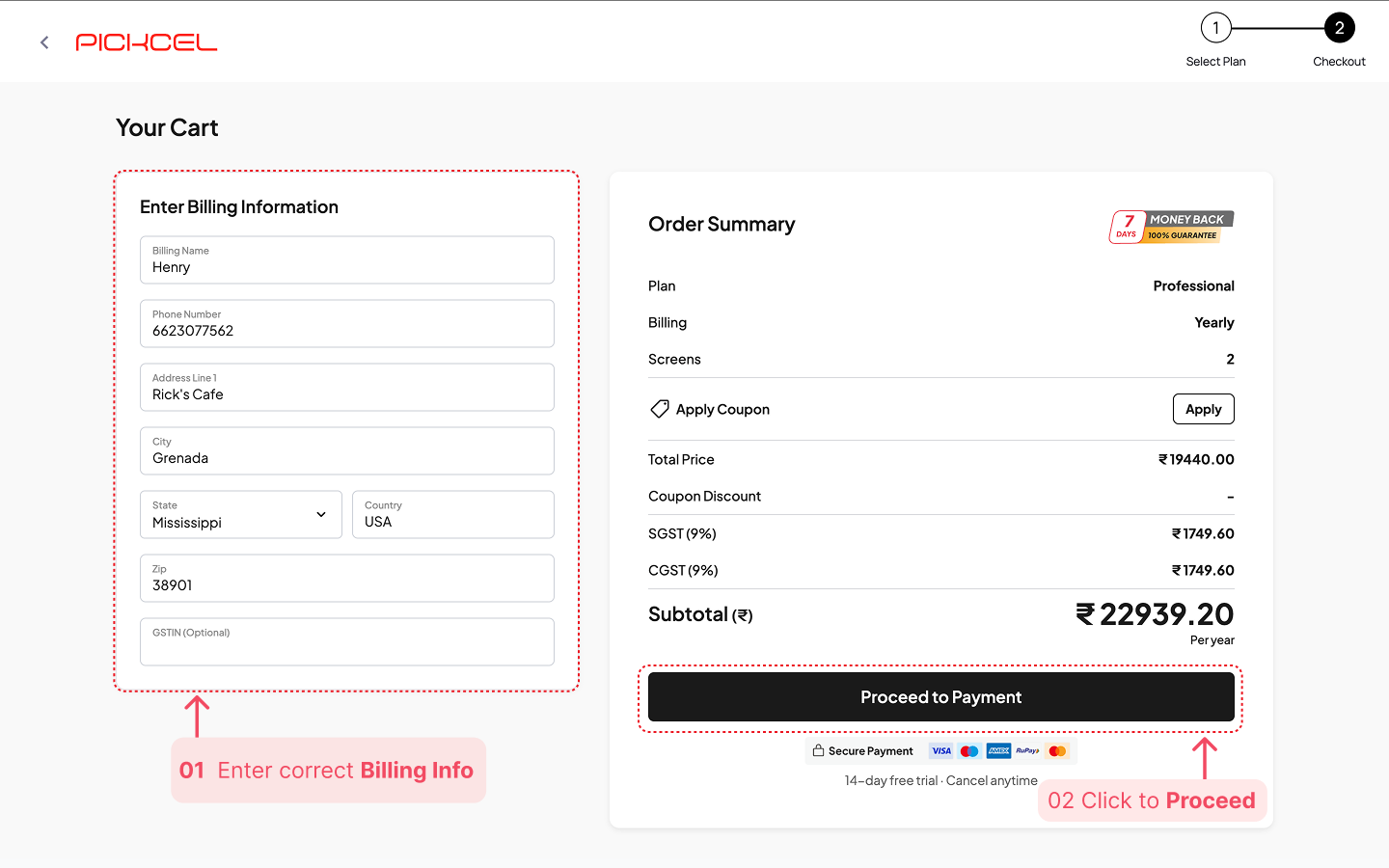
 Carefully fill in the correct billing information and click **Proceed to Payment** to continue.
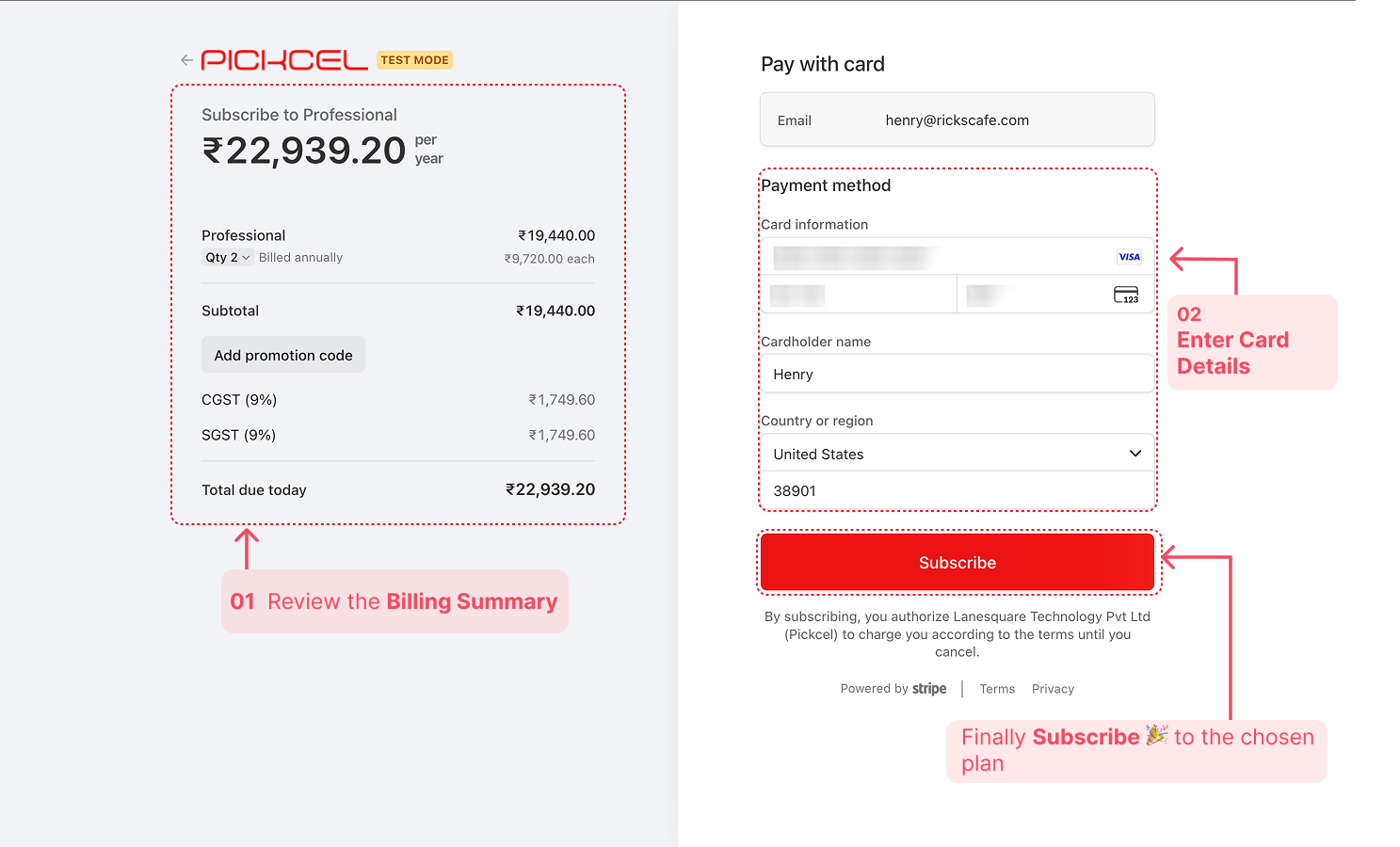
 Enter your credit or debit card details securely and click **Subscribe** to complete the transaction.
 ***
***
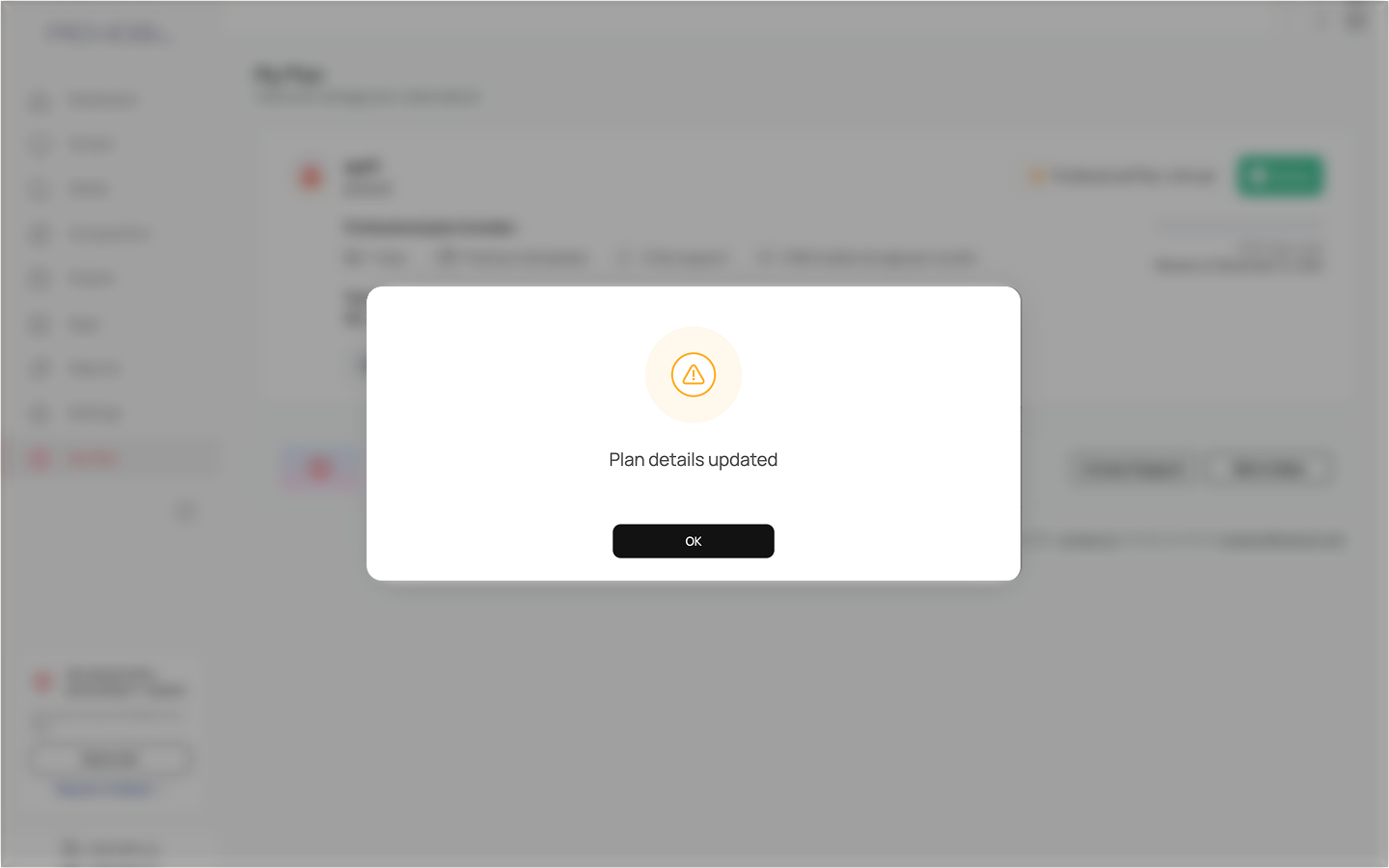
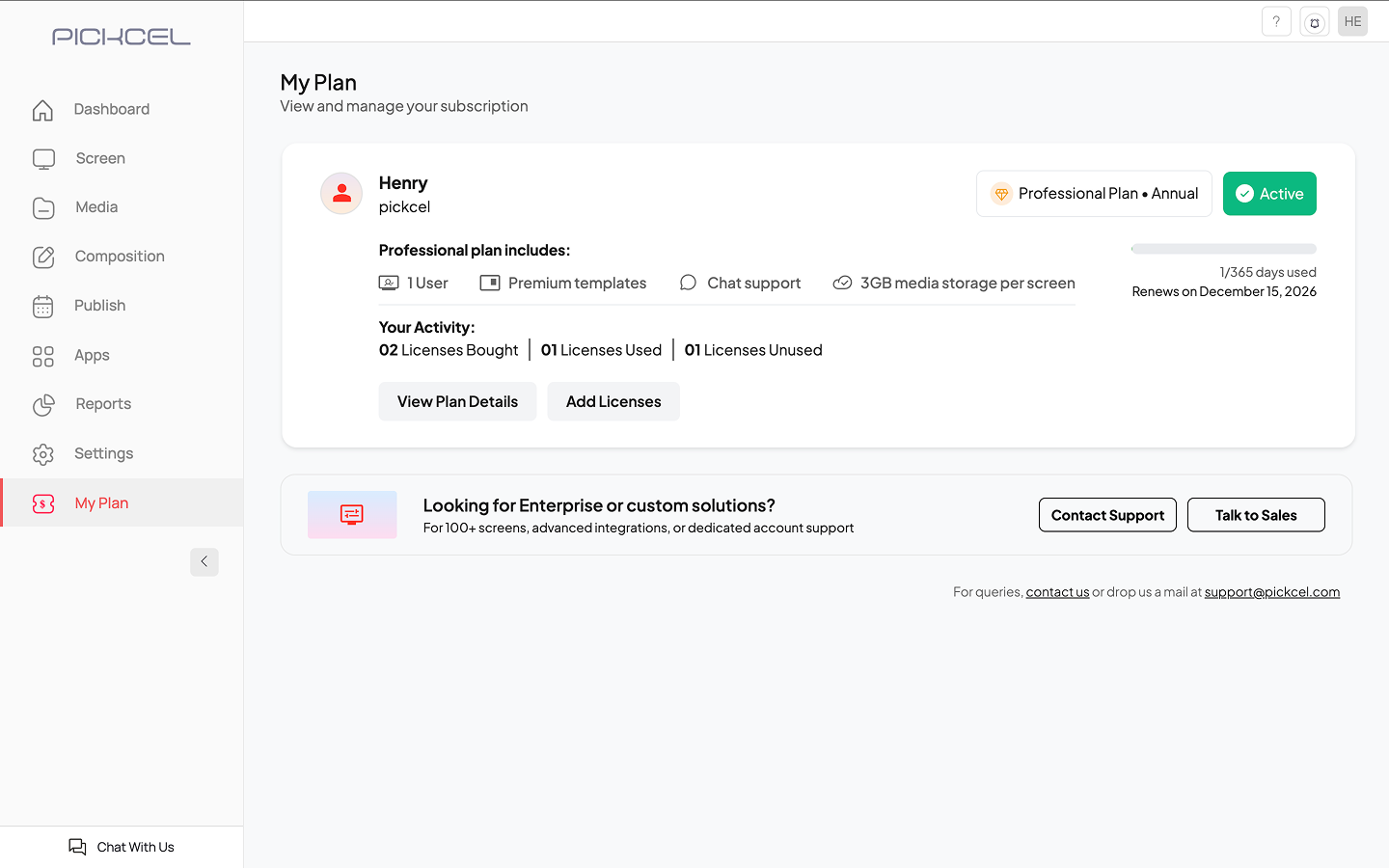 You can now enjoy the seamless experience of managing your digital signage network with the full power of Pickcel.
Contact our support team at [support@pickcel.com](mailto:support@pickcel.com) for personalized assistance
You can now enjoy the seamless experience of managing your digital signage network with the full power of Pickcel.
Contact our support team at [support@pickcel.com](mailto:support@pickcel.com) for personalized assistance