> ## Documentation Index
> Fetch the complete documentation index at: https://docs.pickcel.com/llms.txt
> Use this file to discover all available pages before exploring further.
# How to Reset Your Password in Pickcel On-Premise
> Learn how to reset or change your password in Pickcel on-premise deployment
There are two possible scenarios for resetting your password:
## Case 1: Never Logged In and Forgot the Password
If you have never logged in to your account and have forgotten the password, you will not be able to reset it yourself.
**Please contact Pickcel support:** [contact@pickcel.com](mailto:contact@pickcel.com) to request a password reset. They will verify your identity and assist you with setting a new password.
## Case 2: Logged In Previously but Forgot the Password
If you've logged in at least once and still remember your old password, follow these steps to change it:
Click your **profile icon** in the top-right corner of the dashboard.
Select **Change Password**.
Enter your current password, then enter your new password.
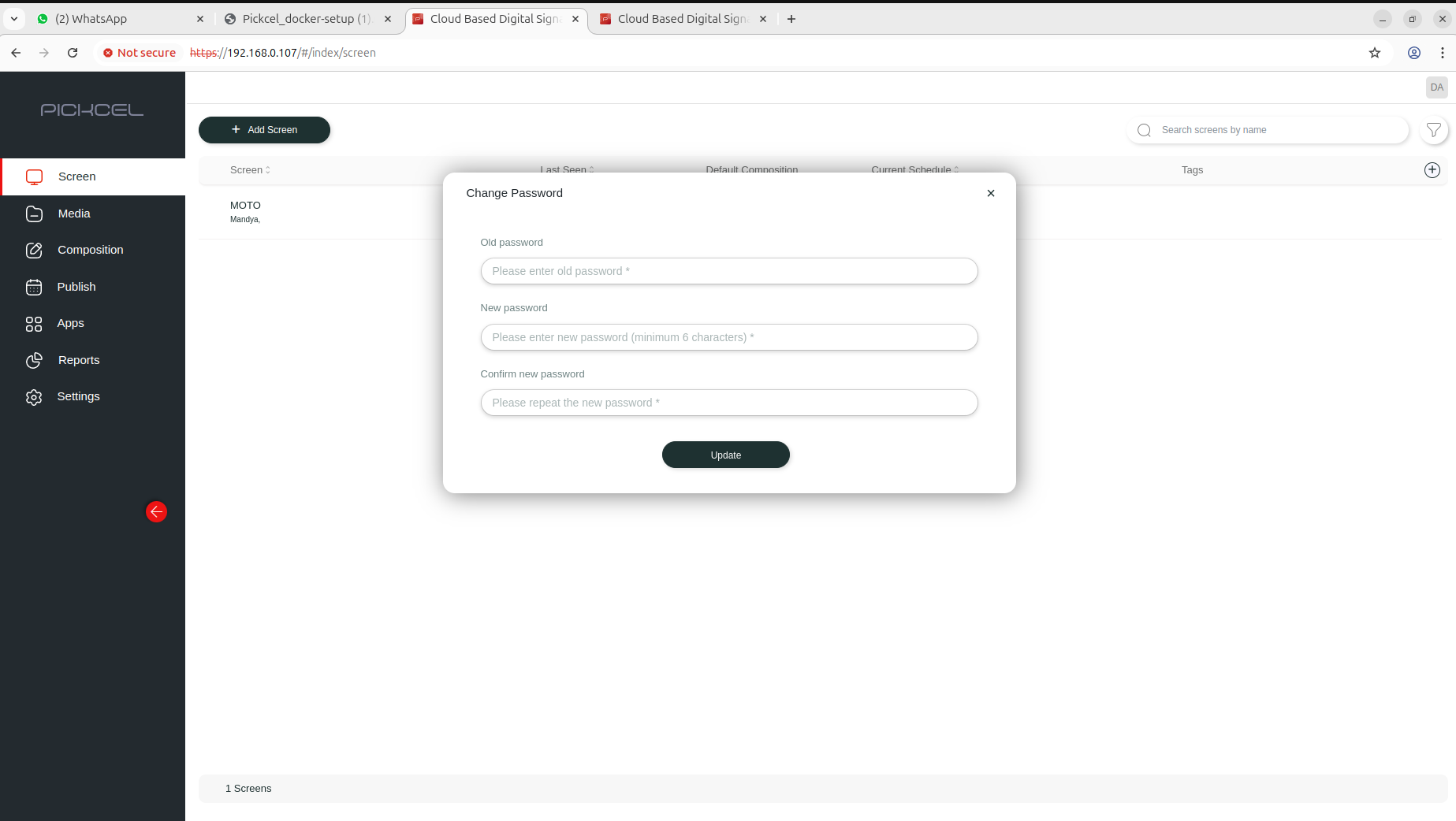 Click **Update** to save the new password.