> ## Documentation Index
> Fetch the complete documentation index at: https://docs.pickcel.com/llms.txt
> Use this file to discover all available pages before exploring further.
# On-premise setup: Linux CLI
> Setup guide for Pickcel on-premise using the Linux CLI (pickcel-cli)
**Prerequisites**
* Linux server (Ubuntu/Debian recommended), amd64
* Docker Engine + Compose v2 installed and running
* sudo / root access
* Server IP or domain name
* Internet (online setup) or the Docker image TAR files (offline setup): download **[amd64.zip](https://console.pickcel.com/players/onprem/current/amd64/amd64.zip)** and extract it
* SSL certificate + key in one folder (HTTPS only). Files must be named `server.crt` and `server.key`
* **16 GB** RAM preferred for first install, **8 GB** minimum
* **40 GB+** free disk (images + media + mongo)
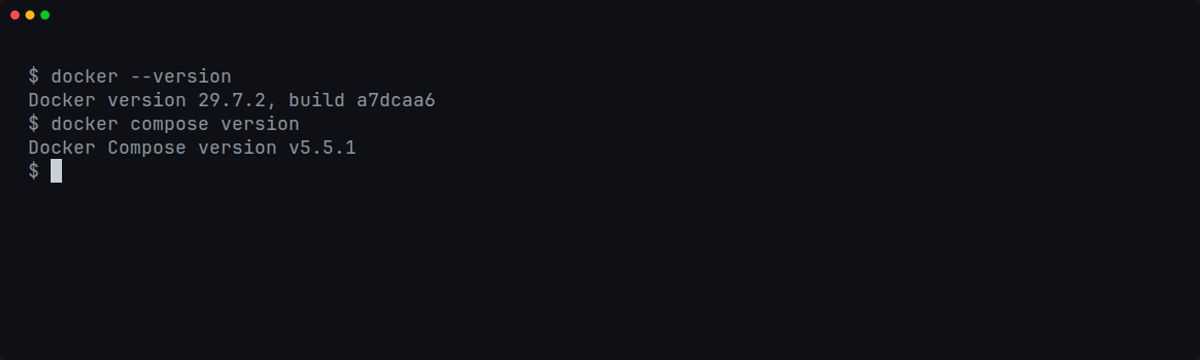
Check Docker:
```bash theme={null}
docker --version
docker compose version
docker info
```
> [!WARNING]
>
> If Docker is not installed:
>
> * Install: [https://docs.docker.com/engine/install/ubuntu/](https://docs.docker.com/engine/install/ubuntu/)
> * Post-install: [https://docs.docker.com/engine/install/linux-postinstall/](https://docs.docker.com/engine/install/linux-postinstall/)
## Install the CLI
> [!NOTE]
>
> `5.0.3` below is the current version as of this writing. Check the latest release notes or ask your Pickcel contact for the current one.
**1. Download the .deb**
```bash theme={null}
wget https://console.pickcel.com/players/onprem-cli/pickcel-cli_5.0.3_amd64.deb
```
No internet on the server? Download **[pickcel-cli\_5.0.3\_amd64.deb](https://console.pickcel.com/players/onprem-cli/pickcel-cli_5.0.3_amd64.deb)** on another machine and copy it to the server.
**2. Install**
```bash theme={null}
sudo apt install ./pickcel-cli_5.0.3_amd64.deb
```
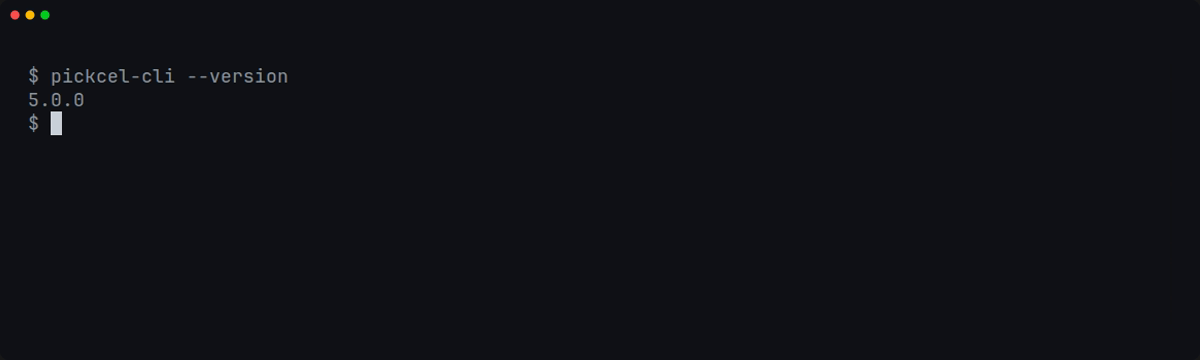
**3. Verify**
```bash theme={null}
pickcel-cli --version
```
## Setup wizard
```bash theme={null}
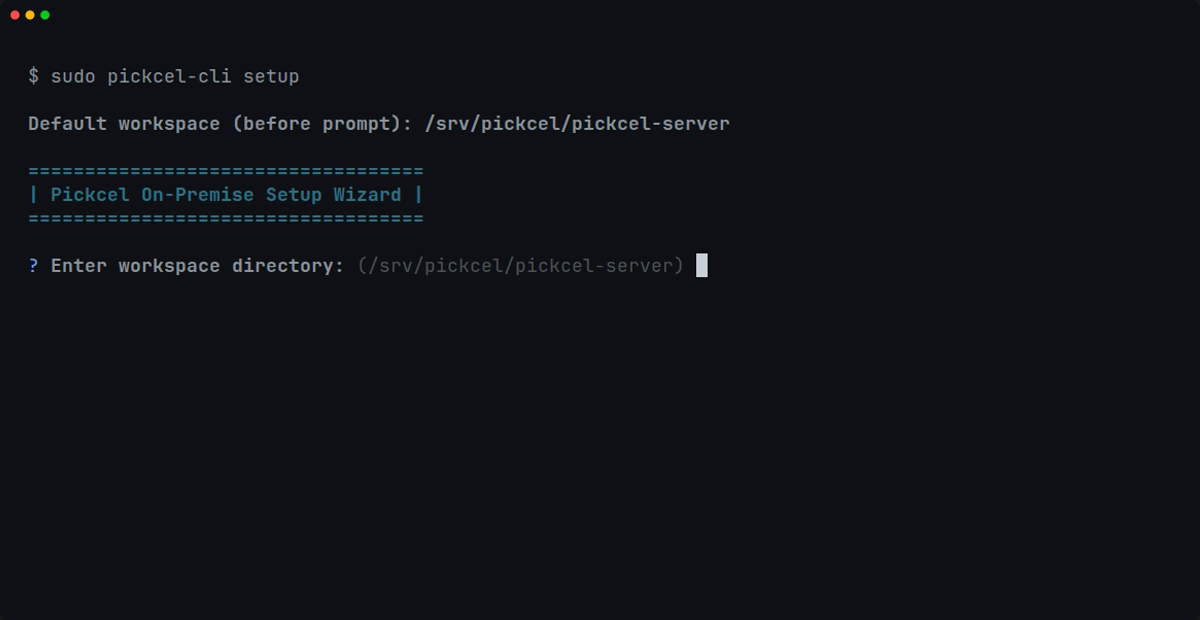
sudo pickcel-cli setup
```
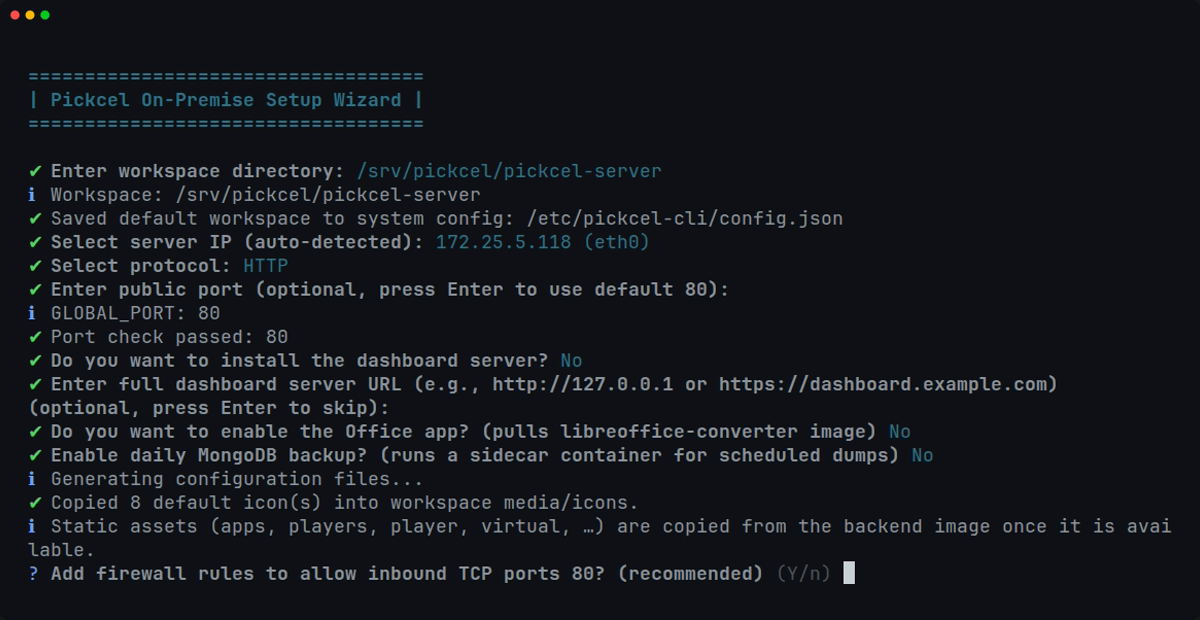
**1. Workspace directory**
Default: `/srv/pickcel/pickcel-server`. Press Enter to accept, or enter a parent folder (the CLI appends `pickcel-server` automatically).
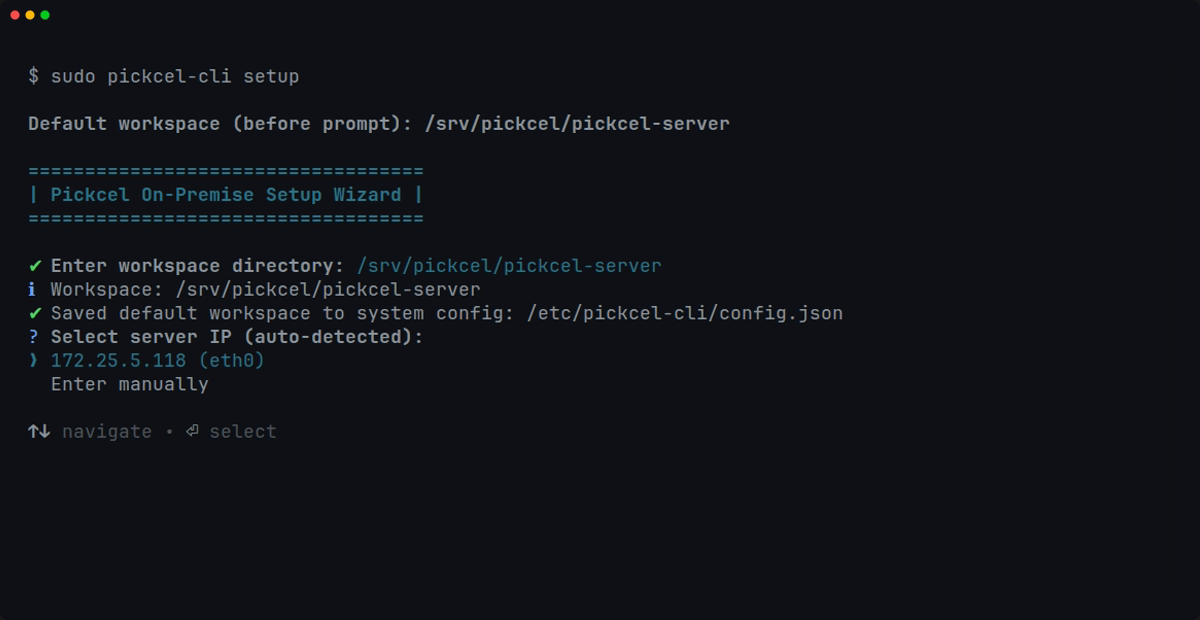
**2. Server IP**
* Auto-detected NIC list, or enter manually
* Example: `192.168.1.100`
* Skip any Docker bridge interface shown (e.g. `172.18.0.1`). Pick your real LAN NIC
**3. Protocol**
* HTTP. Default public port 80
* HTTPS. Default public port 443 (needs `server.crt` + `server.key`)
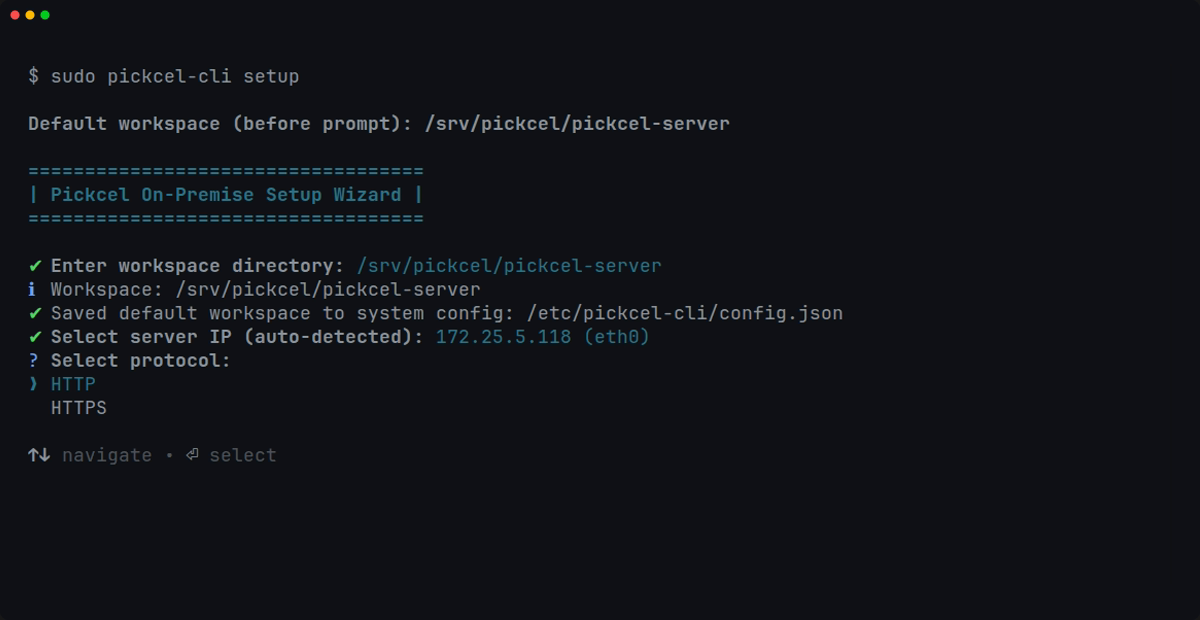
**4. Public port (GLOBAL\_PORT), optional**
* Press Enter for standard port (80 for HTTP, 443 for HTTPS)
* Or enter a free port if 80/443 is already taken (e.g. `8443` for HTTPS)
* Access the site as `https://:8443` when using a custom port
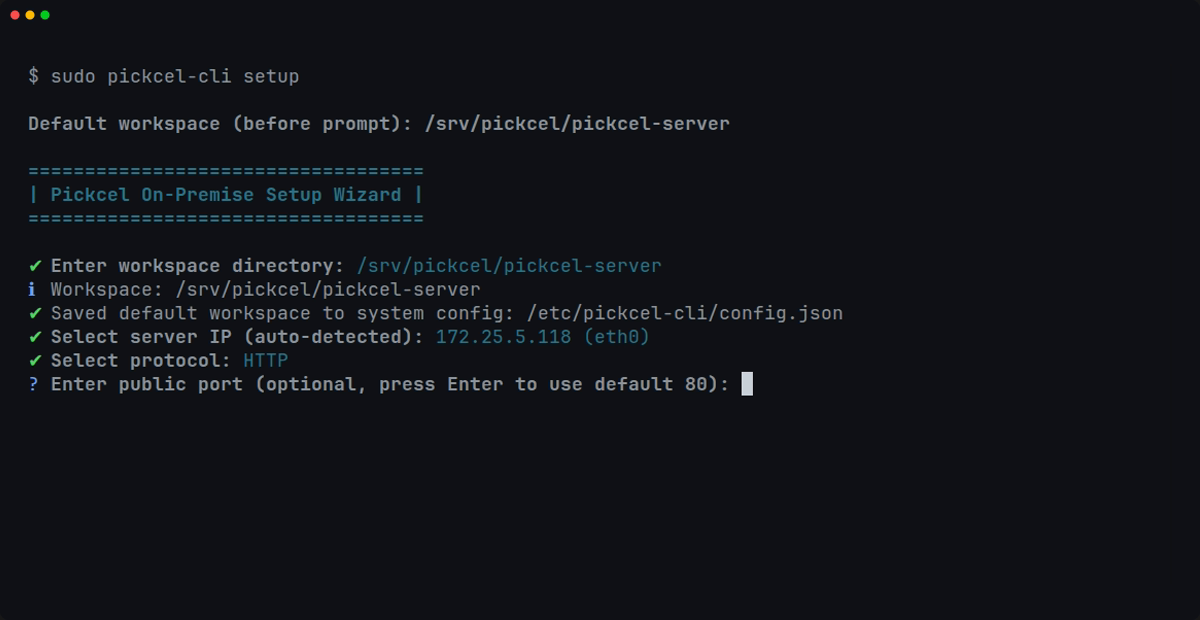
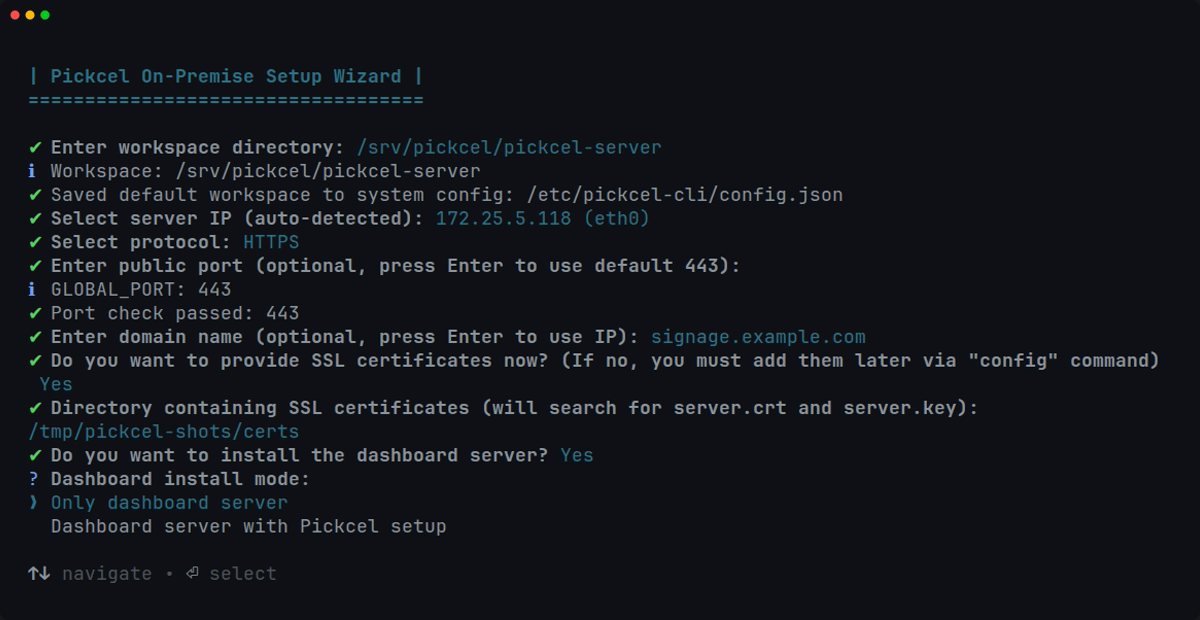
**5. Domain (HTTPS only)**
Optional. Press Enter to use IP only.
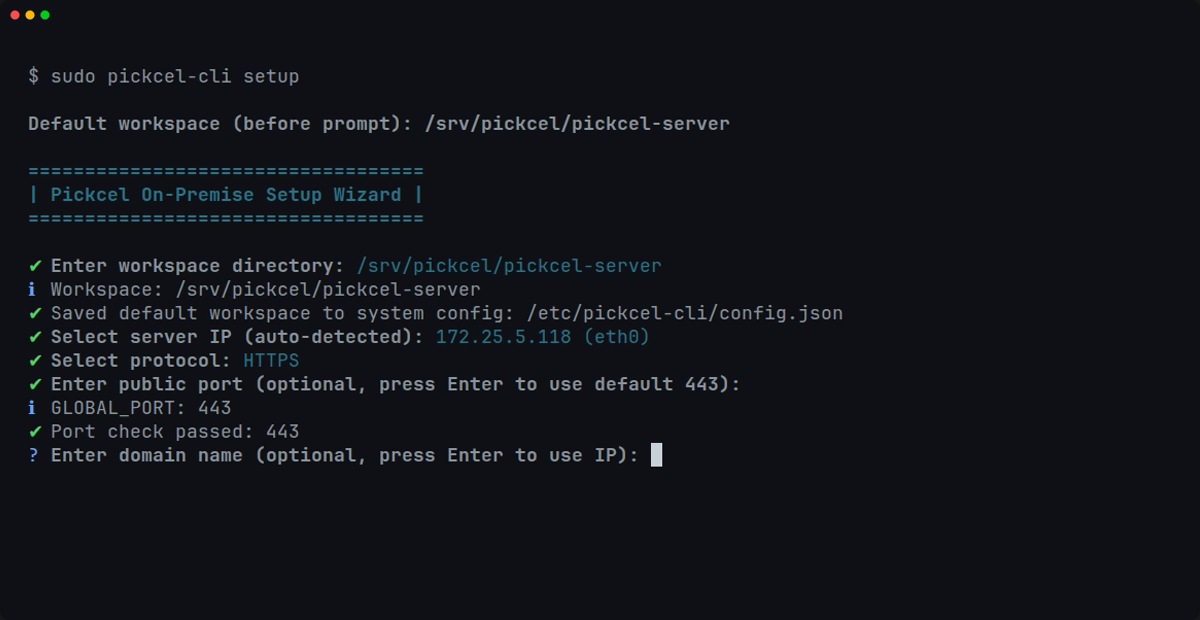
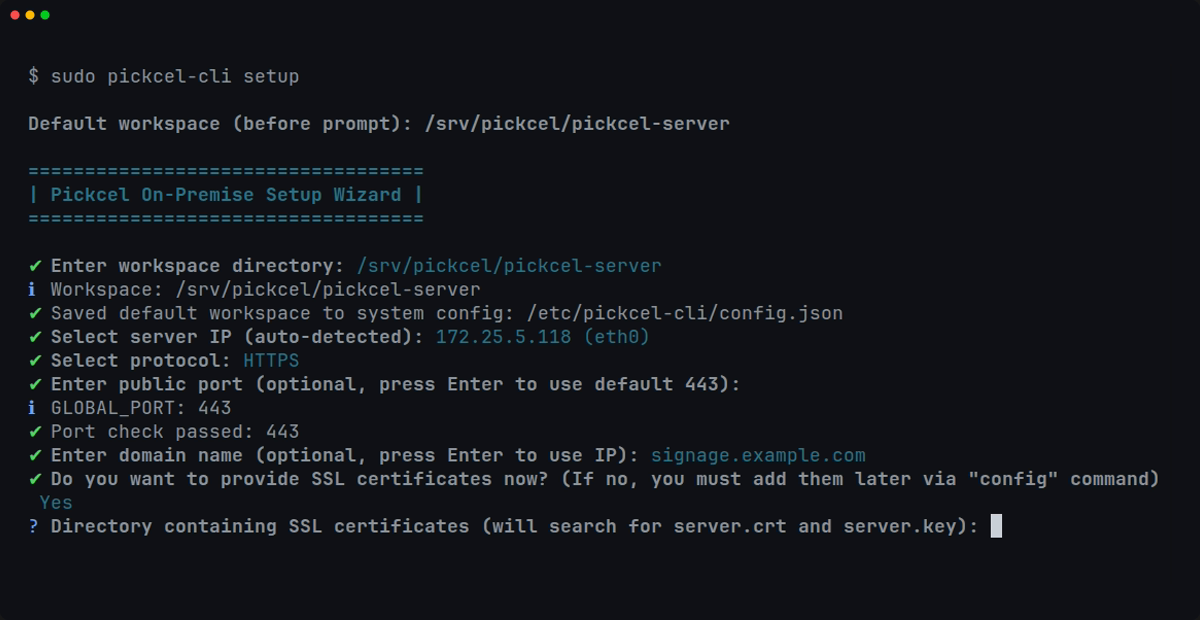
**6. SSL (HTTPS only)**
* Choose whether to provide certificates now
* If yes, enter the directory containing `server.crt` and `server.key`
* Certs are copied to `nginx/ssl/` in the workspace
* Skip during setup and add later with `pickcel-cli config`
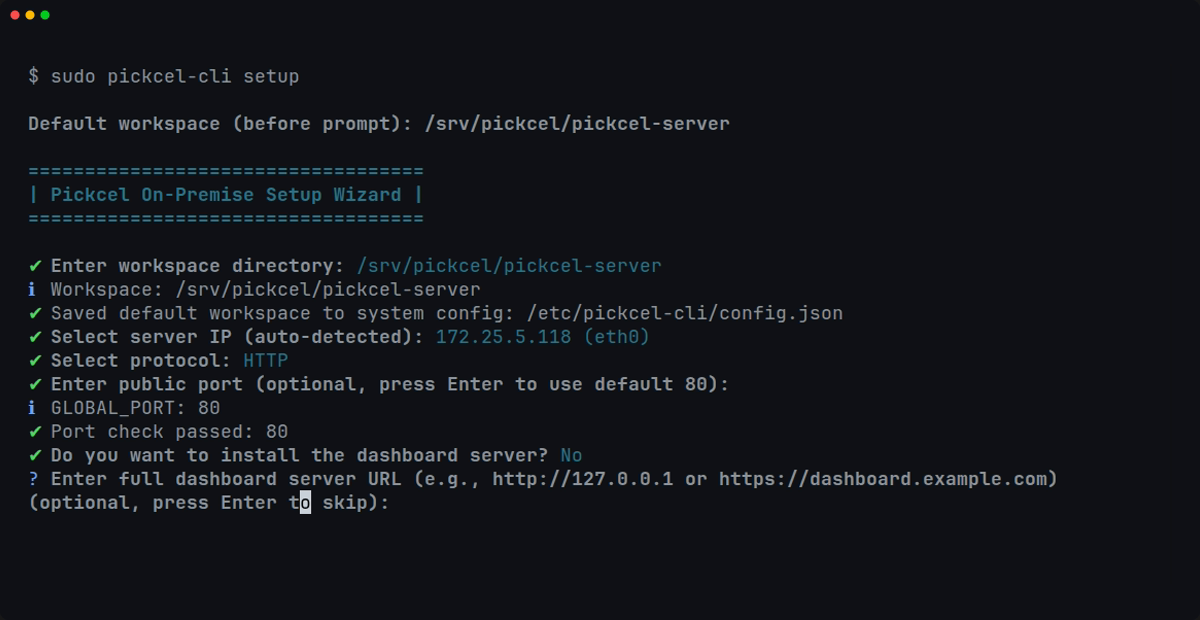
**7. Install dashboard server?**
* No. Pickcel CMS only (console + admin + backend + webserver)
* Yes → choose:
* Only dashboard server. Dashboard only, no Pickcel CMS images
* Dashboard with Pickcel. Full CMS plus local dashboard on port 3030
* Dashboard Server URL (when not installing a local dashboard): optional remote URL, press Enter to skip
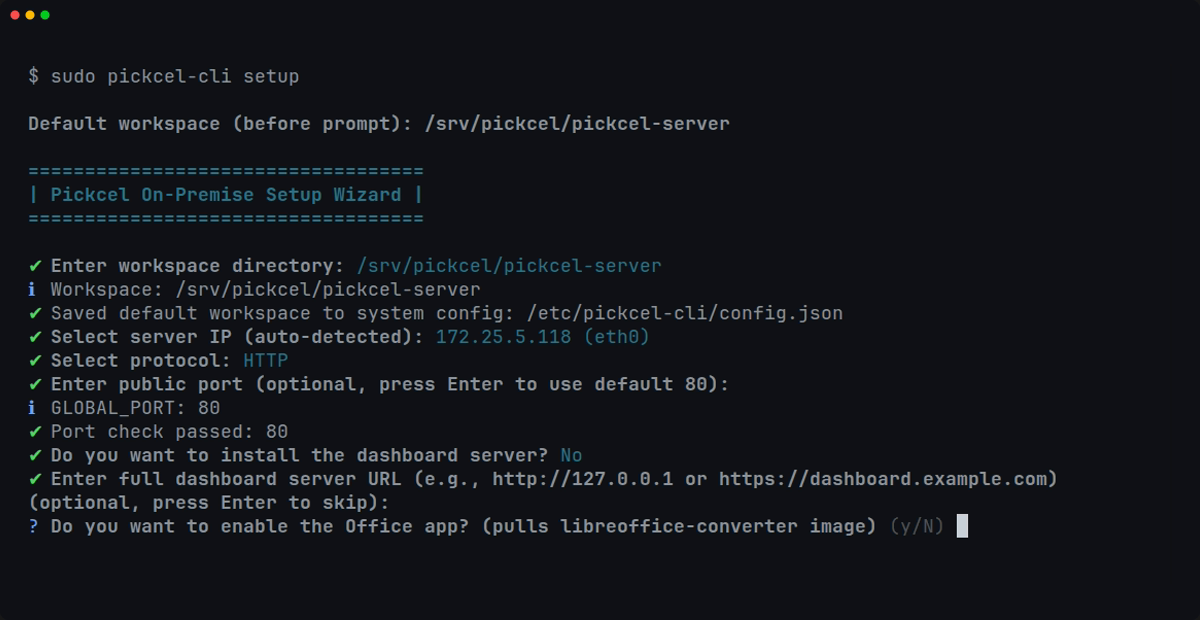
**8. Office app (not asked for dashboard-only mode)**
Default No. Set Yes only for LibreOffice document conversion (adds `libreoffice` container + TAR in offline mode).
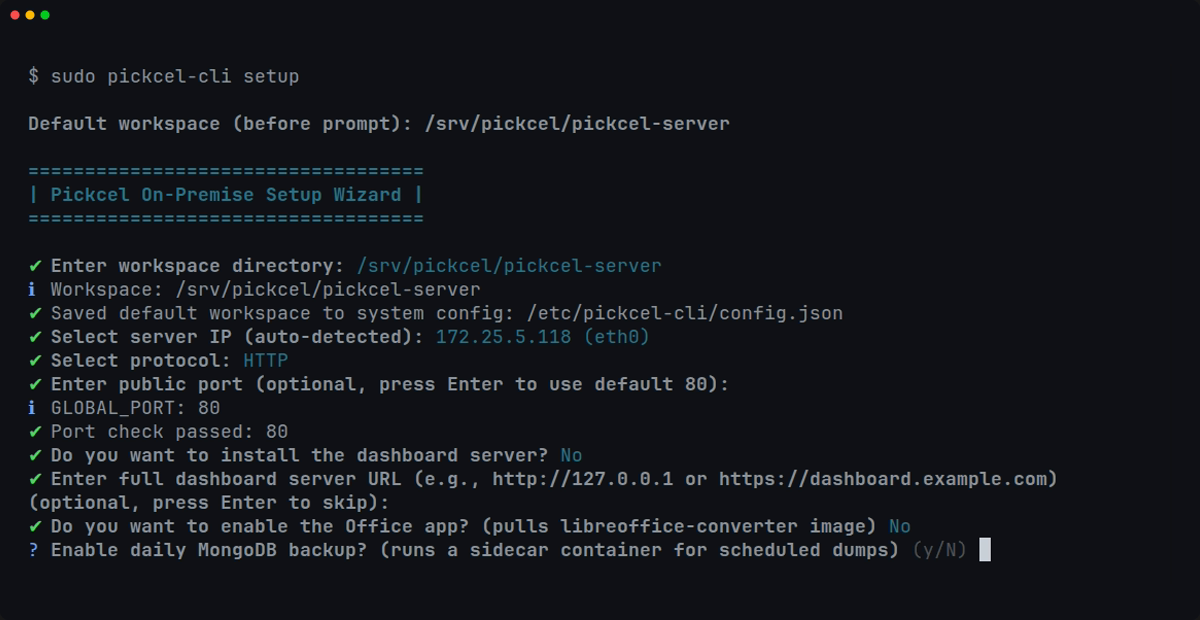
**9. MongoDB backup (not asked for dashboard-only mode)**
Default No. Set Yes for a daily Mongo backup sidecar (`mongo-backup` container).
**10. Firewall rules (Linux + root)**
Default Yes, opens inbound TCP for your public port (and 3030 when Pickcel + dashboard). Skip with `--no-firewall` or answer No.
**11. Setup mode**
**Online**
Pulls images from Docker Hub.
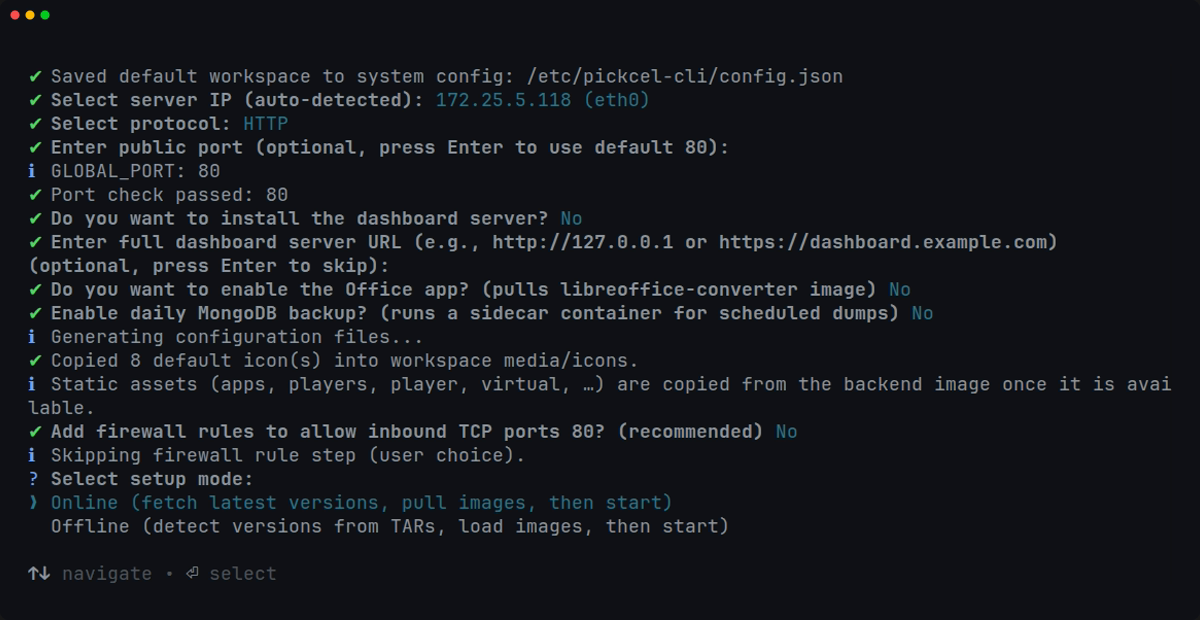
**Offline**
Loads from TAR files (prompted for TAR folder; path is saved for future runs).
Get the TAR files: download **[amd64.zip](https://console.pickcel.com/players/onprem/current/amd64/amd64.zip)** and extract it. It contains the six required TARs below. The Office app and dashboard TARs are not included.
One `.tar` per service. Version in the filename can differ, matching uses a keyword in the name.
Pickcel only / Pickcel + Dashboard (required):
| Service | Example filename | Also matches if name contains |
| :- | :- | :- |
| Webserver | `pickcel-webserver-5.0.0.tar` | `webserver`, `nginx` |
| Backend | `pickcel-backend-5.0.1.tar` | `backend` |
| MongoDB | `pickcel-mongodb-5.0.0.tar` | `mongo` |
| Console | `pickcel-console-5.0.1.tar` | `console` |
| Admin | `pickcel-admin-portal-5.0.0.tar` | `admin` |
| Redis | `pickcel-redis-7.tar` | `redis`, `memcache` |
Optional:
| When | Example filename |
| :- | :- |
| Office app = Yes | `pickcel-libreoffice-converter-1.0.0.tar` |
| Dashboard installed | `pickcel-signage-dashboard-server-1.0.tar` (or name contains `dashboard`) |
`.tar.gz` / `.tgz` also work.
> [!WARNING]
>
> Never mix `amd64` and `arm64` TARs on the same host.
When the wizard asks for the TAR folder, enter the full path of the folder with the TAR files. See **How to get the TAR folder path** below.
> **How to get the TAR folder path**
>
> Leave the setup wizard open and waiting. Get the path from a second terminal:
>
> 1. Open a new terminal window on the server (or a second SSH session).
>
> 2. Go into the folder with the TAR files. For example:
>
> ```bash theme={null}
> cd ~/pickcel-tars
> ```
>
> 3. Print the folder's full path:
>
> ```bash theme={null}
> pwd
> ```
>
> It shows something like `/home/your-name/pickcel-tars`.
>
> 4. Select that path and press **Ctrl + Shift + C** to copy it.
>
> 5. Go back to the setup wizard window, press **Ctrl + Shift + V** to paste it, then press **Enter**.
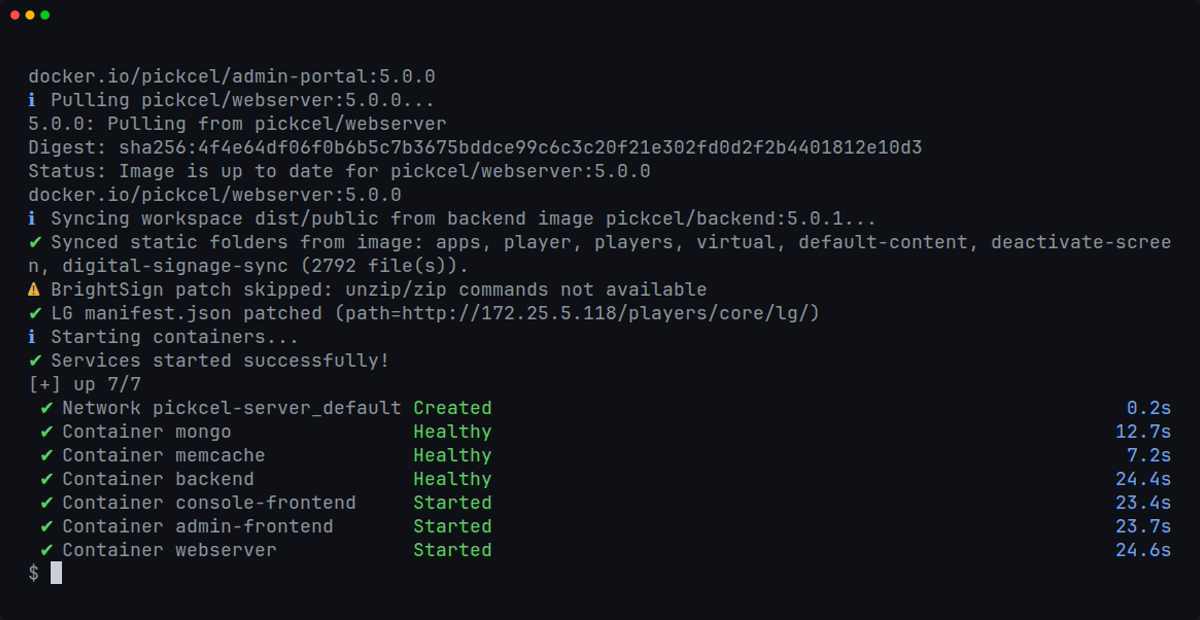
First run can take several minutes.
## Verify setup
```bash theme={null}
pickcel-cli status
```
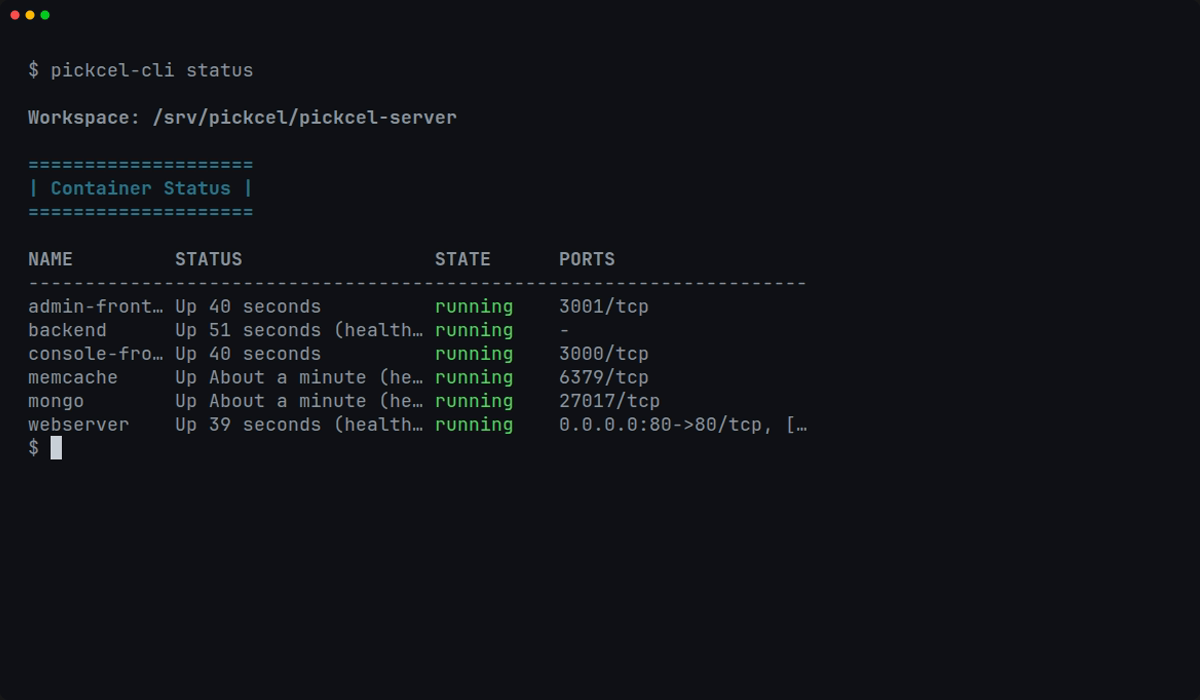
You should see containers such as `webserver`, `backend`, `console-frontend`, `admin-frontend`, `mongo`, `memcache` with status running.
Open the CMS in a browser:
* HTTP: `http://` or `http://:` if using a custom port
* HTTPS: `https://`
> [!NOTE]
>
> First login needs a valid on-premise license (not auto-migrated from older installs). With no license yet, the console's Welcome screen generates a Request Key. Send it to your Pickcel contact, then apply the License Key they return.
## Common setups
> **HTTP (typical LAN)**
>
> ```bash theme={null}
> sudo pickcel-cli setup
> # Pick IP → HTTP → Enter for default port
> # No dashboard, No Office, Online
> # Allow firewall if prompted
> ```
> **HTTPS with domain**
>
> ```bash theme={null}
> sudo pickcel-cli setup --domain example.com --ssl-dir /path/to/certs
> ```
>
> Or run interactively: HTTPS → domain → SSL directory with `server.crt` / `server.key`.
> **Offline (no internet)**
>
> Download **[amd64.zip](https://console.pickcel.com/players/onprem/current/amd64/amd64.zip)** and extract it. It contains:
>
> ```
> pickcel-webserver-5.0.0.tar
> pickcel-backend-5.0.1.tar
> pickcel-mongodb-5.0.0.tar
> pickcel-console-5.0.1.tar
> pickcel-admin-portal-5.0.0.tar
> pickcel-redis-7.tar
> ```
>
> Run:
>
> ```bash theme={null}
> sudo pickcel-cli setup --offline --images-dir /path/to/tars
> ```
> **Port 80 already in use (HTTPS on 443 only)**
>
> * Choose HTTPS
> * Press Enter for default port 443 (only 443 is published, port 80 does not need to be free)
> * Or set a custom public port (e.g. `8443`) if 443 is also taken
> * Access the site as `https://:8443`
## Non-interactive helpers
```bash theme={null}
sudo pickcel-cli setup --online
sudo pickcel-cli setup --offline --images-dir /path/to/tars
sudo pickcel-cli setup --domain example.com --ssl-dir /path/to/certs
sudo pickcel-cli setup --no-firewall --no-start
sudo pickcel-cli --workspace /custom/path setup
```
Global `-w` / `--workspace` must appear before the command.
> [!NOTE]
>
> IP, protocol, port, dashboard, Office app, and Mongo backup are always asked interactively. No flag skips them.
## After setup: day-to-day commands
### Managing the stack (start / stop / status)
```bash Auto-detect theme={null}
# Uses local images if available; prompts if any are missing
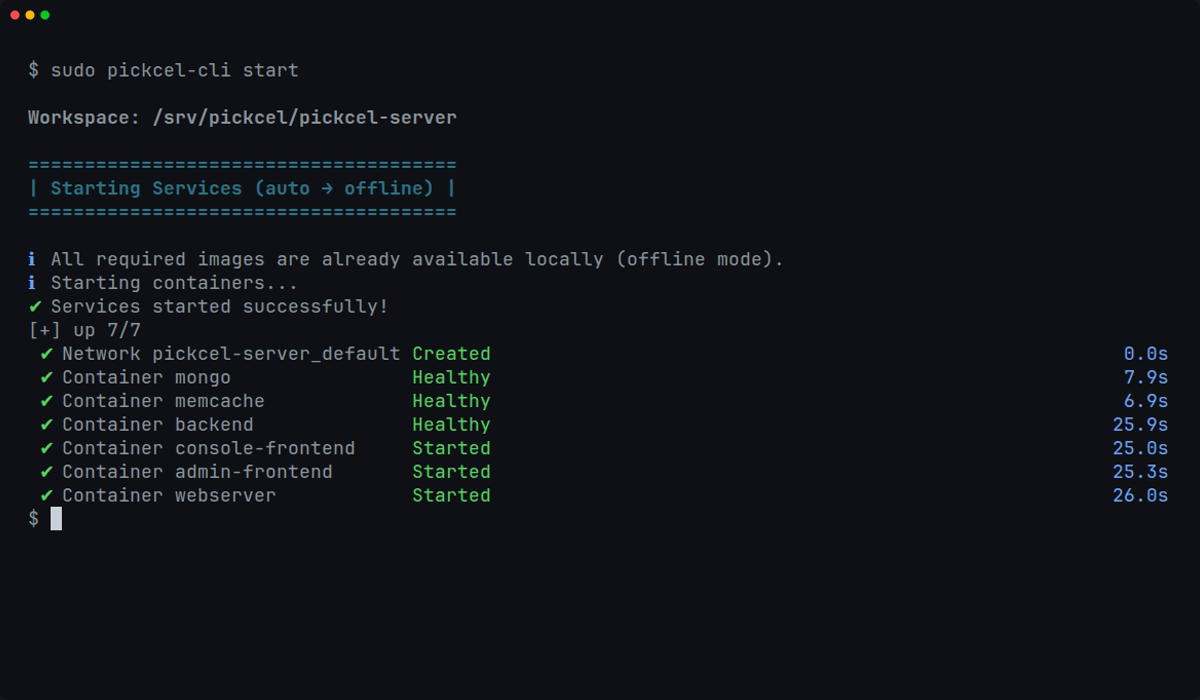
sudo pickcel-cli start
```
```bash Online theme={null}
sudo pickcel-cli start --online
```
```bash Offline theme={null}
sudo pickcel-cli start --offline --images-dir /path/to/tars
```
```bash theme={null}
sudo pickcel-cli stop
pickcel-cli status
```
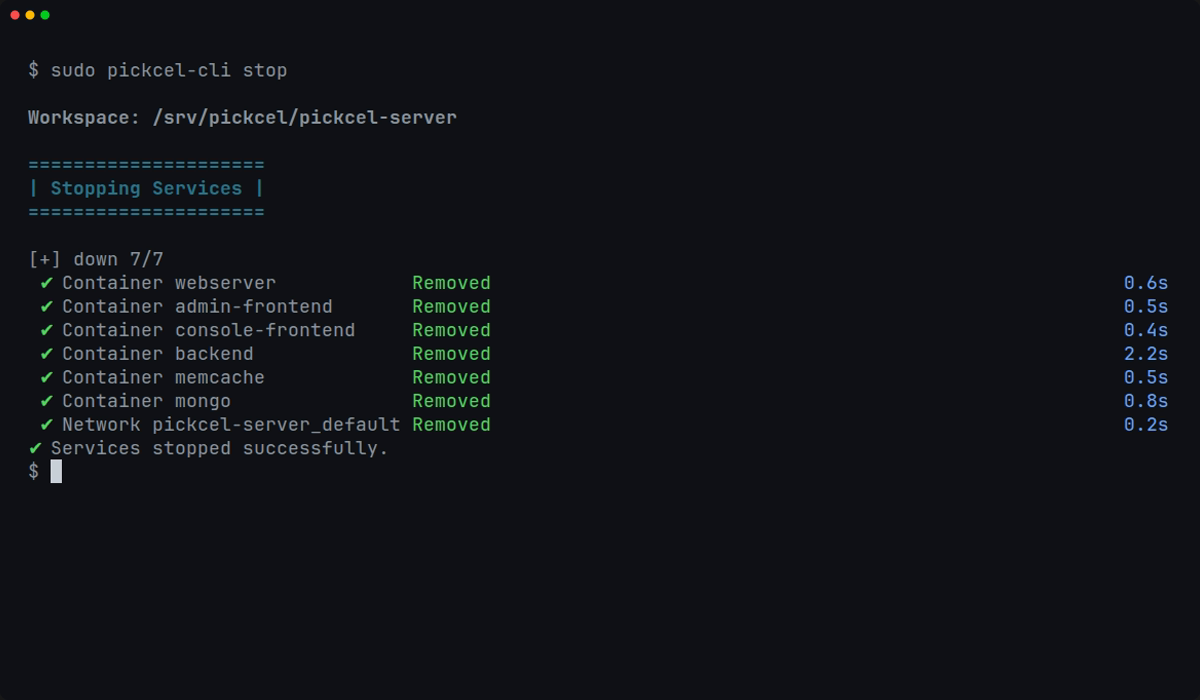
When running `pickcel-cli start` without flags: all images exist locally → offline-safe mode (`--pull=never`); any image missing → prompts online vs offline (interactive), or requires explicit flags (non-interactive).
### Logs and info
```bash theme={null}
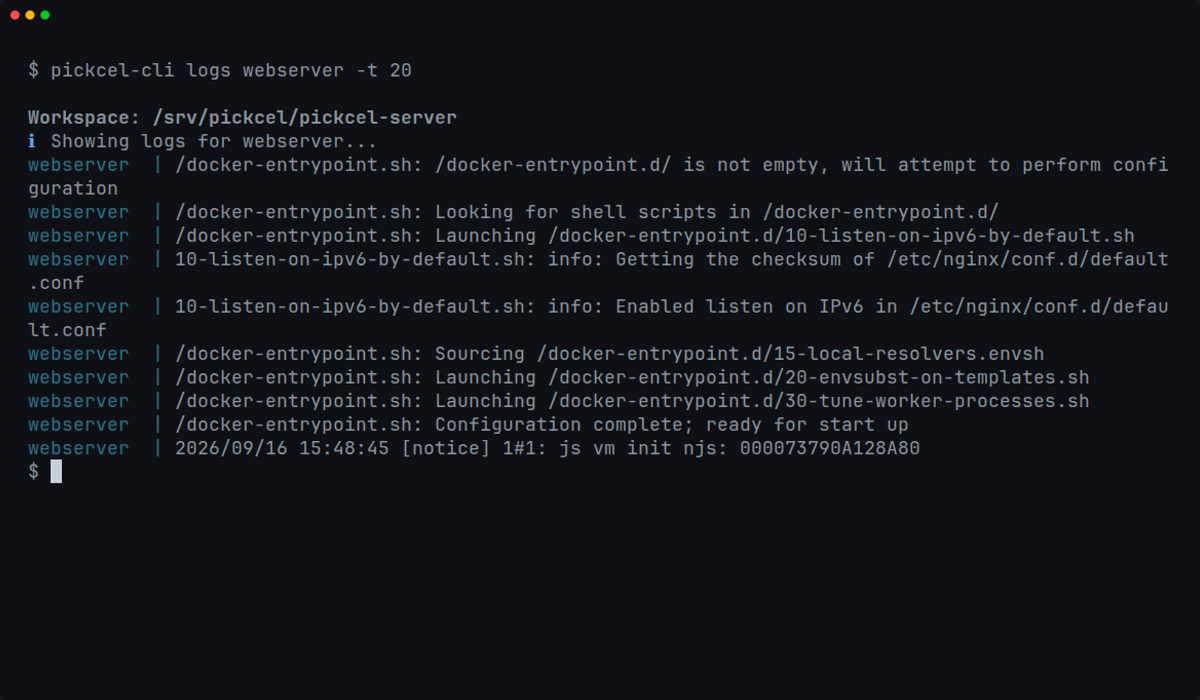
pickcel-cli logs # all containers
pickcel-cli logs backend -f # follow one container
pickcel-cli logs webserver -t 100 # last 100 lines
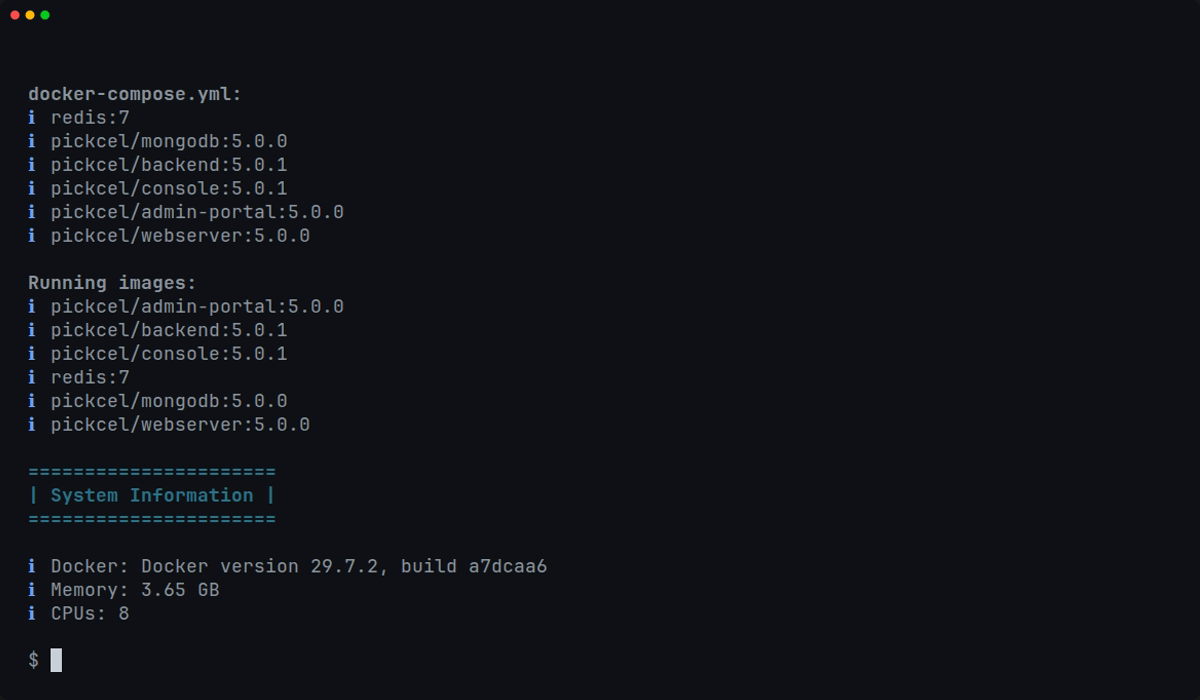
pickcel-cli info # workspace, mode, versions, URLs
```
### Change configuration
```bash theme={null}
sudo pickcel-cli config
```
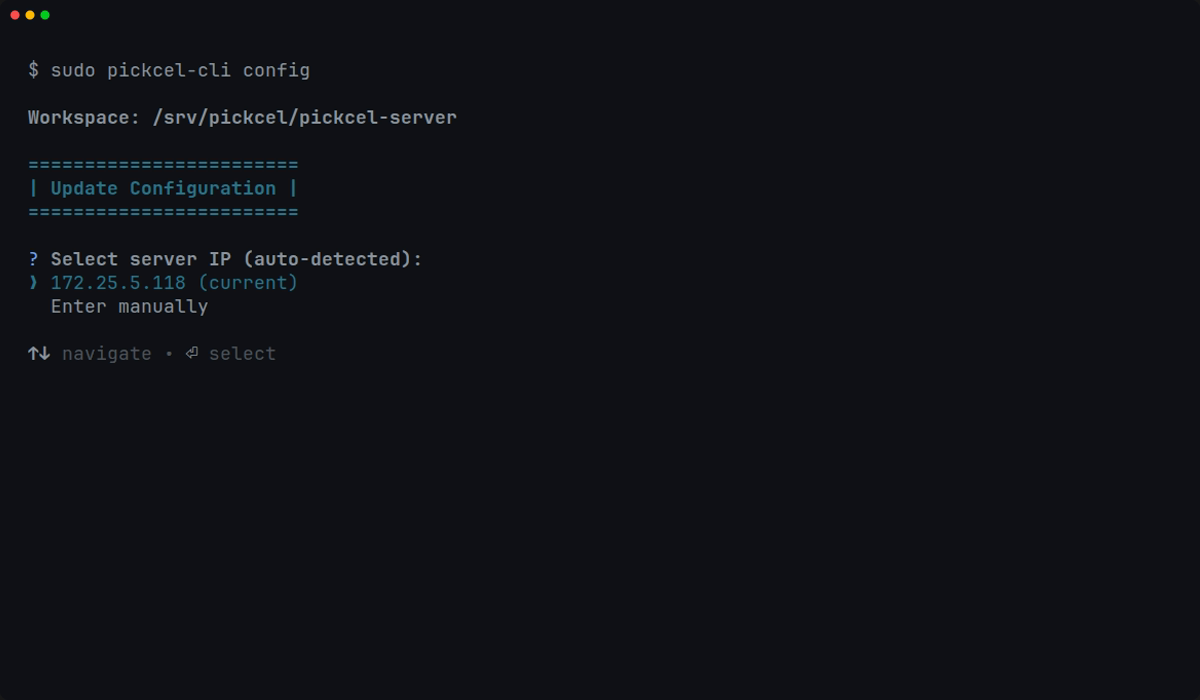
Change IP, protocol, public port, domain, SSL, dashboard URL, Office app, Mongo backup. Services restart automatically unless you pass `--no-restart`.
```bash theme={null}
pickcel-cli config --domain example.com --ssl-dir /path/to/certs
pickcel-cli config --no-restart
```
> [!WARNING]
>
> Don't run `config` right after hand-editing `NEXT_PUBLIC_*` values in `.env`. It regenerates `.env` and can overwrite them. Use `rebuild` instead.
### Update Docker images
```bash theme={null}
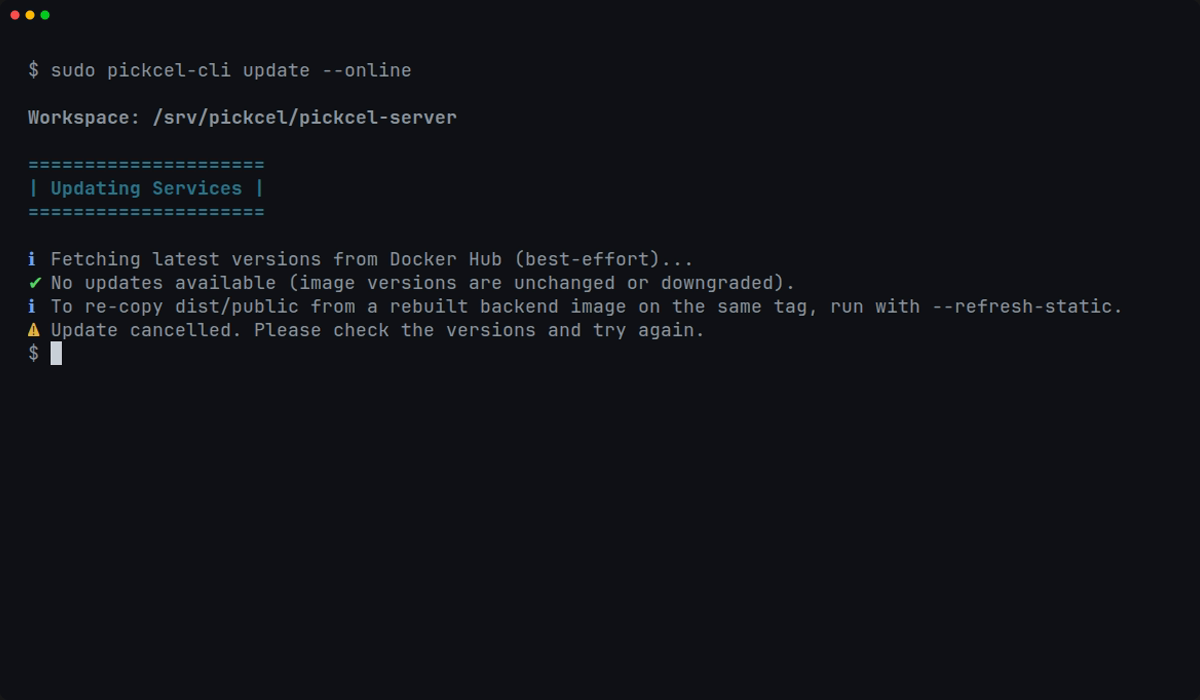
sudo pickcel-cli update --online
sudo pickcel-cli update --online -y # skip confirm
sudo pickcel-cli update --offline --images-dir /path/to/tars
sudo pickcel-cli update --online --refresh-static # re-copy apps/players from backend image
```
For an offline update, download the latest **[amd64.zip](https://console.pickcel.com/players/onprem/current/amd64/amd64.zip)**, extract it, and point `--images-dir` at that folder.
### Change NEXT\_PUBLIC\_\* values (Google Maps, MS Teams, etc.)
Console and admin frontends bake `NEXT_PUBLIC_*` keys into the Docker image at build time. Editing `.env` alone is not enough, you must rebuild.
Edit workspace `.env` (e.g. `/srv/pickcel/pickcel-server/.env`):
* `NEXT_PUBLIC_GOOGLE_MAPS_API_KEY` (console)
* `NEXT_PUBLIC_MSAL_TEAMS_CLIENT_ID`, `NEXT_PUBLIC_MSAL_POWERBI_CLIENT_ID` (console)
* `NEXT_PUBLIC_ADMIN_AUTH_DECRYPTION_KEY`, `NEXT_PUBLIC_ADMIN_FIREBASE_WEB_CONFIG` (admin)
```bash theme={null}
sudo pickcel-cli rebuild
```
Then hard-refresh the browser (Ctrl+Shift+R).
Options: `--console`, `--admin`, `--no-restart`, `--pull`. Not available in dashboard-only install mode (no console/admin images).
## Workspace folder
Default location: `/srv/pickcel/pickcel-server`
CLI config is stored separately at `/etc/pickcel-cli/config.json` (system) or `~/.config/pickcel-cli/config.json` (user).
| Path | Purpose |
| :- | :- |
| `.env` | Server URL, protocol, secrets |
| `docker-compose.yml` | Services and image tags |
| `nginx/` | Web server + SSL certs (`nginx/ssl/server.crt`, `server.key`) |
| `mongo-data/` | Database files |
| `mongo-backups/` | Daily dumps (when Mongo backup enabled) |
| `media/` | Uploaded media |
| `dist/public/` | Apps, players, widgets (synced from backend image) |
| `image-versions.json` | Pinned image tags |
| `.pickcel-cli/install-mode.json` | Install mode |
Apps and player installers are not inside the `.deb` package. They are copied from the `pickcel/backend` image during setup and updates.
## Troubleshooting (quick)
> **Docker not running**
>
> ```bash theme={null}
> sudo systemctl start docker
> docker info
> ```
> **Permission denied**
>
> Use `sudo` for setup/start/stop/update. Optionally add user to docker group:
>
> ```bash theme={null}
> sudo usermod -aG docker $USER
> # log out and back in
> ```
> **Port in use**
>
> ```bash theme={null}
> sudo ss -tulpn | grep -E ':(80|443|3030|8080|27017|6379)'
> ```
>
> Stop the conflicting service or use a custom public port during setup/config.
> **Cannot open in browser**
>
> Check `pickcel-cli status`, firewall allows your ports, try `curl http://127.0.0.1` on the server itself.
> **Apps / players 404**
>
> Backend image must be loaded. Run:
>
> ```bash theme={null}
> sudo pickcel-cli update --online --refresh-static
> ```
> **BrightSign wrong IP**
>
> Happens after IP change. Run `pickcel-cli config` to update IP and restart, or run an update so `autorun.zip` is re-patched from `.env` (needs `unzip`/`zip` on host).
> **Offline missing images**
>
> Check TAR filenames contain the service keyword (backend, console, etc). Use `--images-dir` with the correct path.
> **Google Maps / Teams not working after .env edit**
>
> Run `pickcel-cli rebuild`, then hard-refresh the browser.
> **HTTPS certificate error**
>
> Cert and key must be a matching pair, named `server.crt` / `server.key`, valid for your domain.
> **SSL skipped at setup**
>
> HTTPS will not work until you run `pickcel-cli config` with `--ssl-dir`.
> **Images not pulling**
>
> Check `ping hub.docker.com` and `docker pull pickcel/webserver:5.0.0`. Use offline mode if no internet.
## Ports (default)
| Service | Port |
| :- | :- |
| HTTP | 80 |
| HTTPS | 443 |
| Dashboard (local, Pickcel + dashboard mode) | 3030 |
| Backend (internal) | 8080 |
| MongoDB | 27017 |
| Redis (memcache container) | 6379 |
Firewall: setup can add rules automatically when run with sudo. Otherwise open inbound TCP for the ports you use.
## Notes
* Stack uses v5 images: `pickcel/backend`, `pickcel/mongodb`, `pickcel/webserver`, `pickcel/console`, `pickcel/admin-portal`
* Old names (`backendv5`, `mongov5`, `console-next`, and v4 names like `pickcel-nginxv4`) are no longer used
* Dashboard-with-Pickcel always uses host port 3030 for the local dashboard (separate from GLOBAL\_PORT)
* Player packages come from the backend image sync, not a separate cloud download in the CLI
## Update pickcel-cli
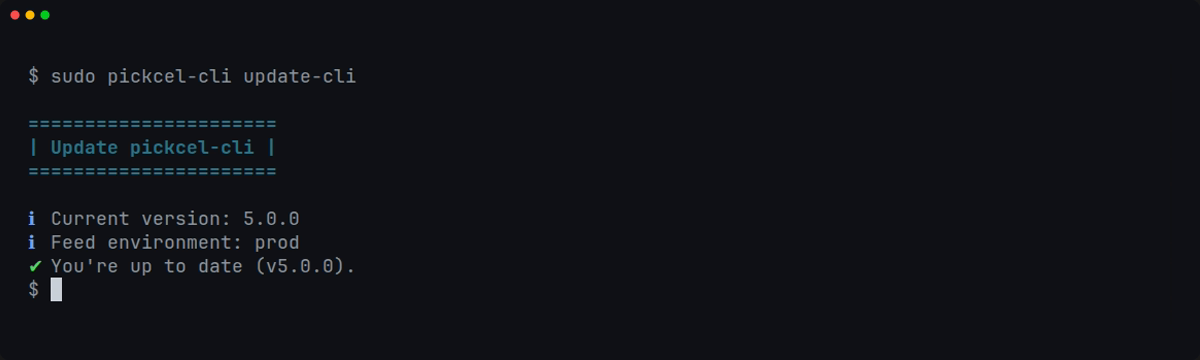
If you want to update the `pickcel-cli` tool itself, run:
```bash theme={null}
sudo pickcel-cli update-cli
```
> [!NOTE]
>
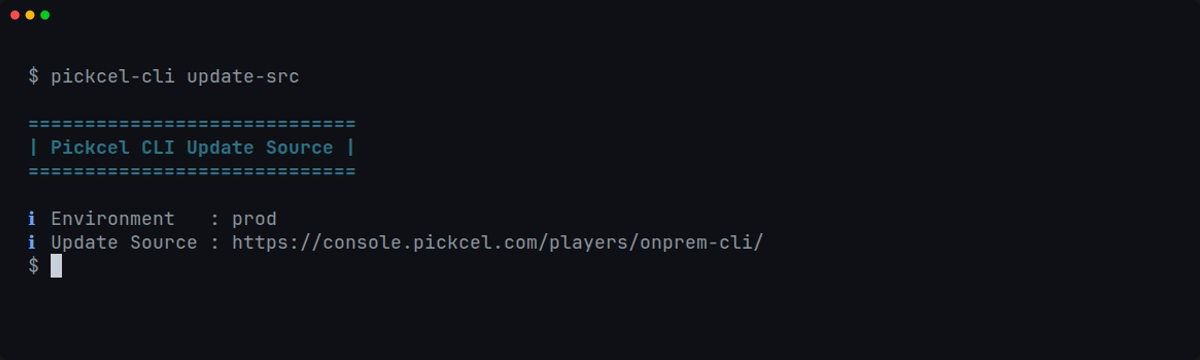
> **Troubleshooting only**: check which build environment and update source are baked into your package.
>
> ```bash theme={null}
> pickcel-cli update-src
> ```
>
> 
If you want to update the Docker images instead, see [Update Docker images](#update-docker-images) above.
## Other internal docs
> **[WSL2 setup (Windows 10/11)](/on-premise/wsl-setup)**
>
> Running this CLI on Windows? Get Docker working in WSL2 first.
> **[Windows Server setup](/on-premise/windows-server-setup)**
>
> Windows Server: WSL2 + Docker Engine, plus firewall and port forwarding.
> **[Windows GUI setup](/on-premise/windows-gui-setup)**
>
> Set up on-premise using the Windows GUI application.
> **[On-premise installation (Ubuntu)](/on-premise/on-premise-installation)**
>
> Manual Ubuntu install, setup script, and license activation.
> **[Dashboard app setup](/on-premise/dashboard-app-setup)**
>
> Configure the dashboard rendering server.
This documentation is built and hosted on [Mintlify](https://mintlify.com), a developer documentation platform.