> ## Documentation Index
> Fetch the complete documentation index at: https://docs.pickcel.com/llms.txt
> Use this file to discover all available pages before exploring further.
# How to Change the IP Address in Pickcel On-Premise Setup
> Learn how to update the IP address for your on-premise Pickcel deployment by modifying configuration files
To update the IP address for your on-premise Pickcel deployment, you need to modify two files and then restart the server. Follow the steps below:
## Edit the `.env` File
Log in to your server terminal. Open the `.env` file using the nano editor (or vi, whichever you are using): In this example: `nano .env`
Locate the following lines and replace the existing IP address with the new one:
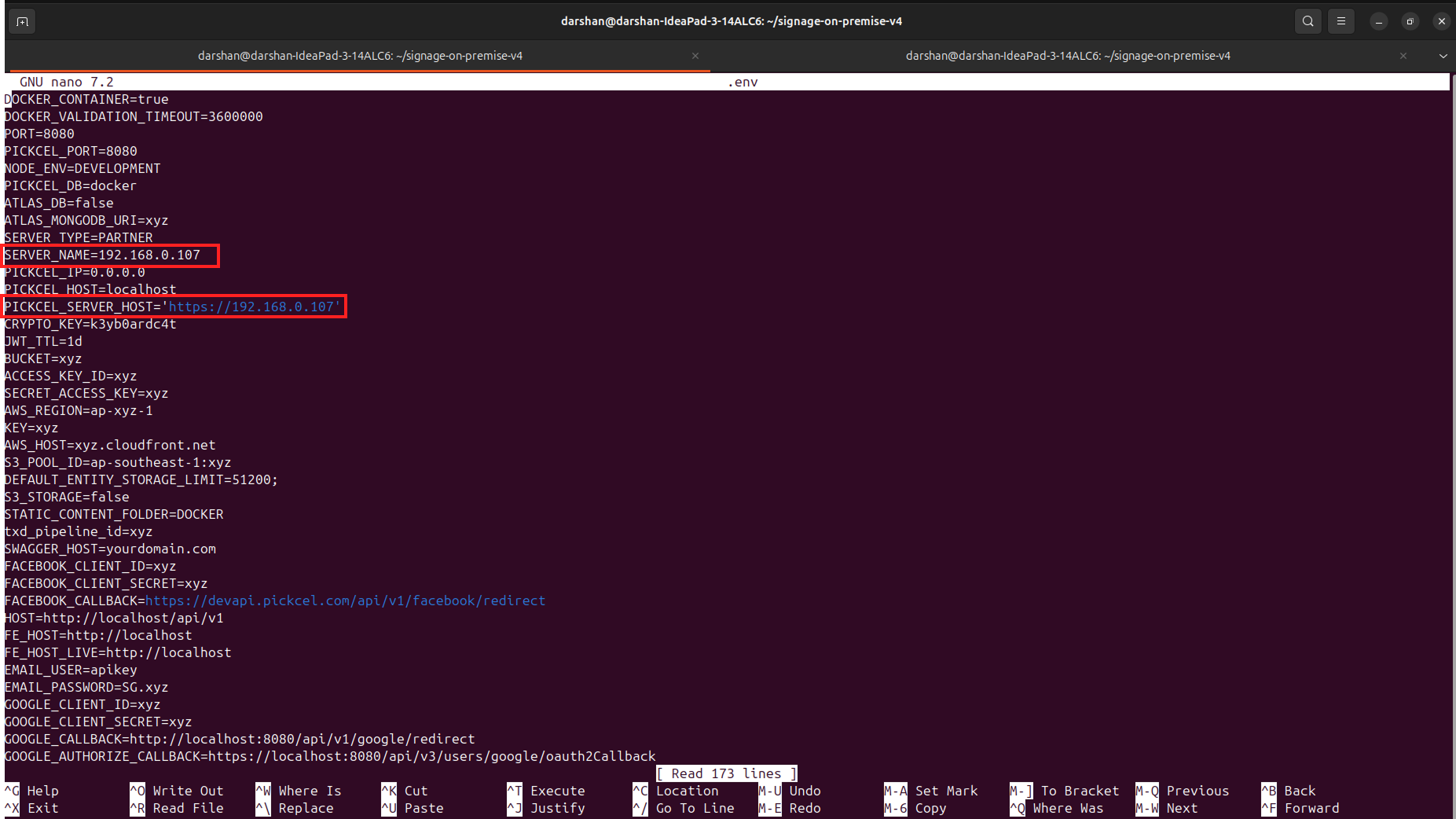 ```bash theme={null}
SERVER_NAME=your.new.ip.address
PICKCEL_SERVER_HOST=http://
```
After making the changes, save the file: Press Ctrl + X, then Y, then Enter.
## Update the NGINX Configuration
Open the NGINX config file: `nano nginx/nginx.conf`
Scroll to the bottom of the file and update the IP address where it's mentioned. Save and exit by pressing: Ctrl + X, then Y, then Enter
## Restart the Server
Run the following commands to restart your Pickcel server with the new configuration:
```bash theme={null}
sudo docker compose down
sudo docker compose up -d --build
```
After the restart, your Pickcel server will be accessible using the new IP address.
Should you encounter difficulties, please contact support at [contact@pickcel.com](mailto:contact@pickcel.com) for assistance.
```bash theme={null}
SERVER_NAME=your.new.ip.address
PICKCEL_SERVER_HOST=http://
```
After making the changes, save the file: Press Ctrl + X, then Y, then Enter.
## Update the NGINX Configuration
Open the NGINX config file: `nano nginx/nginx.conf`
Scroll to the bottom of the file and update the IP address where it's mentioned. Save and exit by pressing: Ctrl + X, then Y, then Enter
## Restart the Server
Run the following commands to restart your Pickcel server with the new configuration:
```bash theme={null}
sudo docker compose down
sudo docker compose up -d --build
```
After the restart, your Pickcel server will be accessible using the new IP address.
Should you encounter difficulties, please contact support at [contact@pickcel.com](mailto:contact@pickcel.com) for assistance.