> ## Documentation Index
> Fetch the complete documentation index at: https://docs.pickcel.com/llms.txt
> Use this file to discover all available pages before exploring further.
# What is the content approval process and how does it work in Pickcel?
> Set up the Pickcel content approval workflow so every uploaded media file is reviewed and approved before it goes live on your screens.
**Content Approval** gives you complete oversight of what goes live on your screens. Instead of letting any upload play directly, it routes every media file through a review step, strengthening compliance, governance, and control over your digital signage content.
Content Approval is available only on the **Enterprise plan**. To enable it for your account, [contact our support team](mailto:support@pickcel.com).
## How the approval workflow works
Every uploaded file starts as **Pending**. A designated **Content Approver** or **Admin** reviews it and either approves or rejects it. Only **Approved** media can be added to compositions and published to screens.
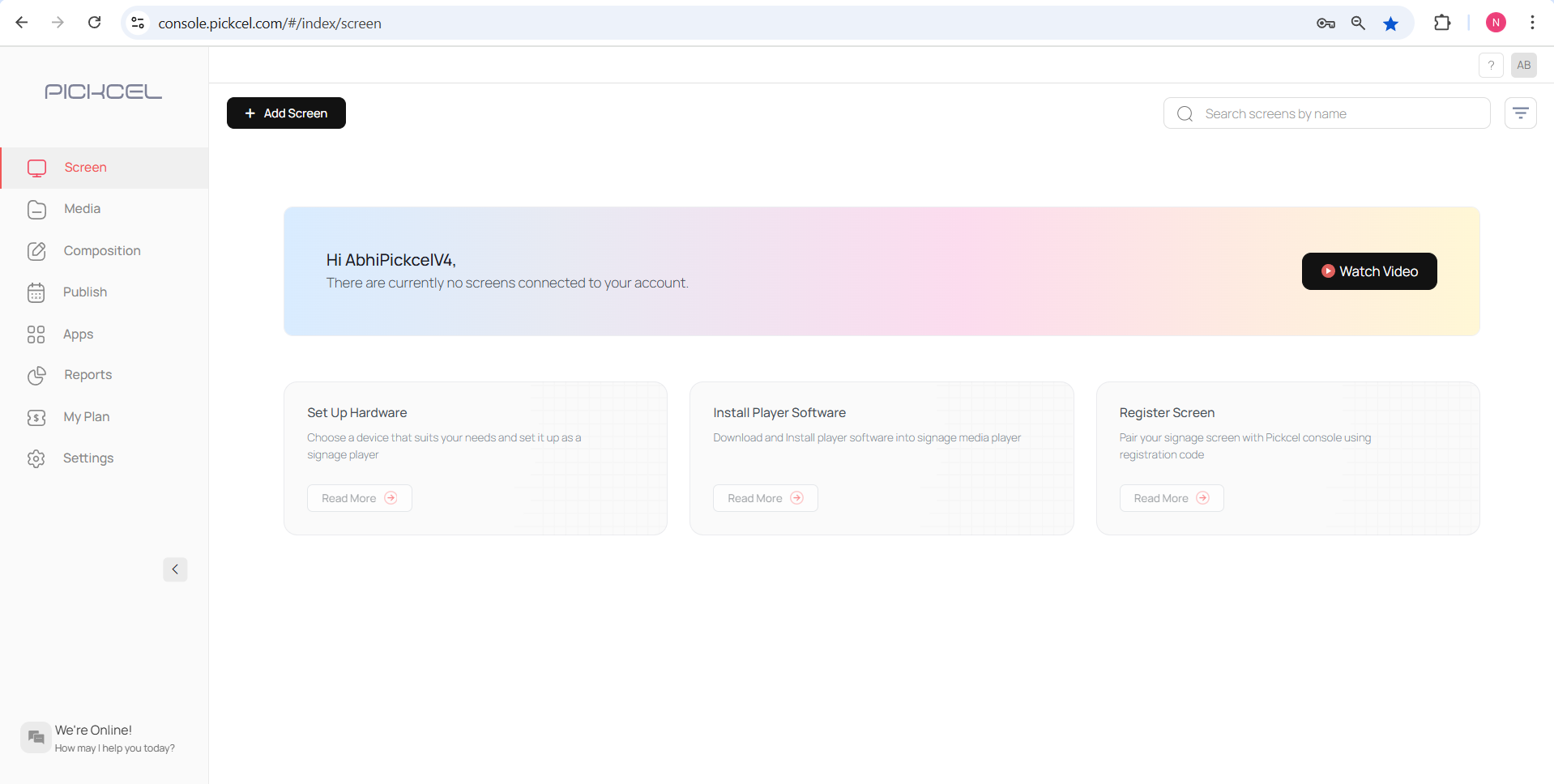
Sign in to your [Pickcel dashboard](https://console.pickcel.com/#/) with your credentials.
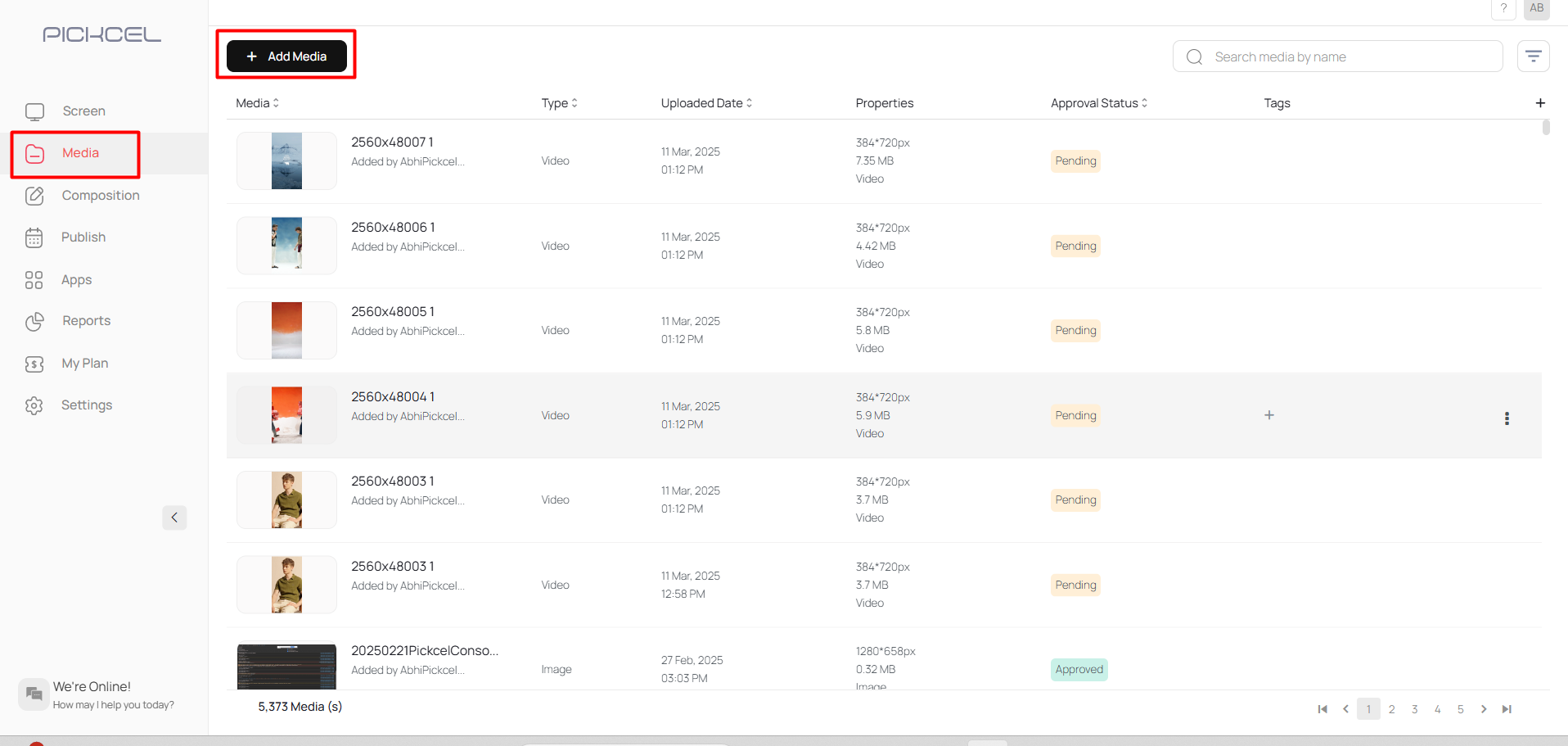
 Go to the **Media** module, click **Add Media**, and upload the files you need, images, videos, PDFs, or apps.
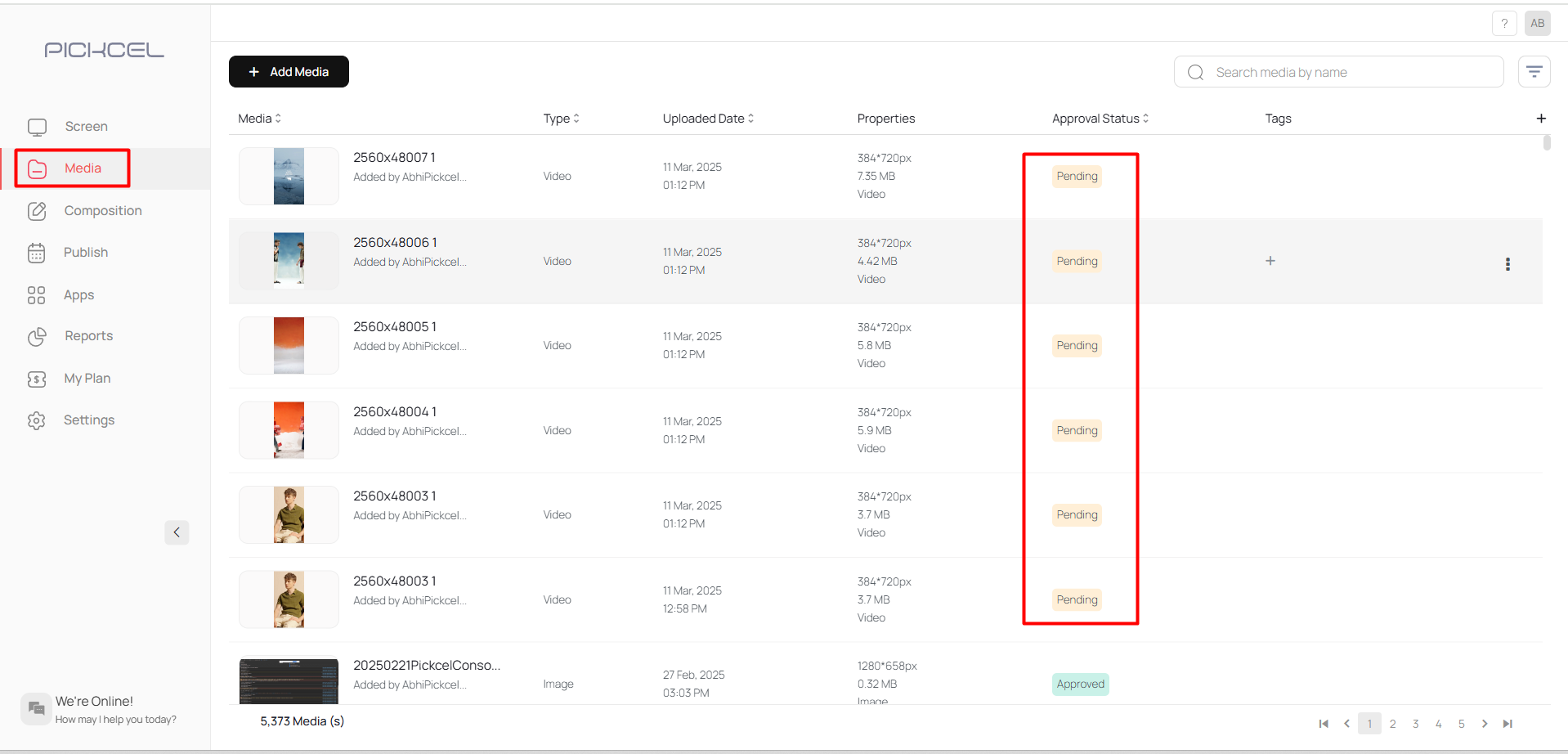
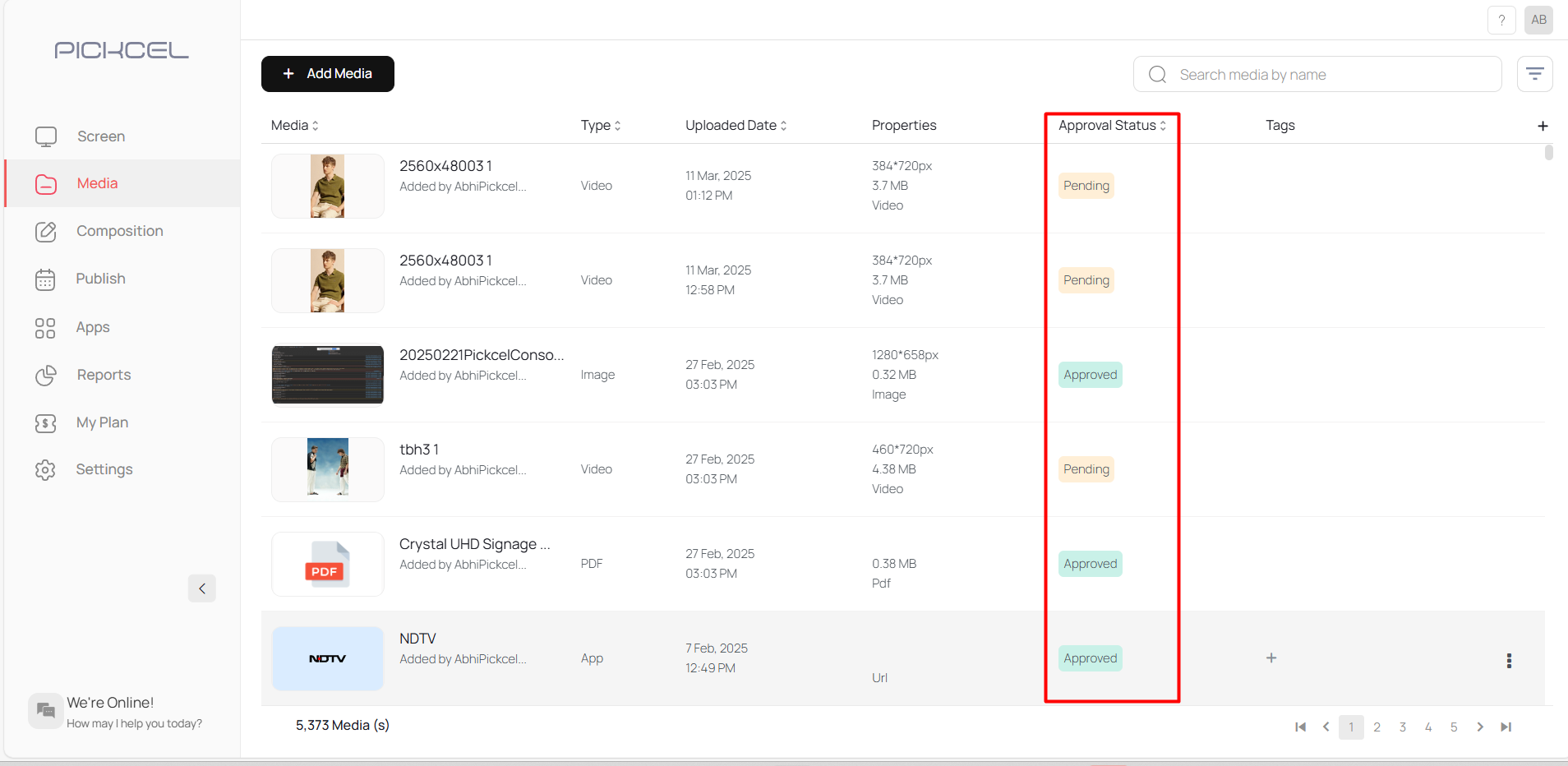
 Every uploaded file is set to **Pending** by default. You can see its state in the **Approval Status** column of the media list.
 As soon as media is uploaded, all **Content Approvers** and **Admins** receive an email about the new uploads. They can start the review directly from the **Review & Approve** button in the email.
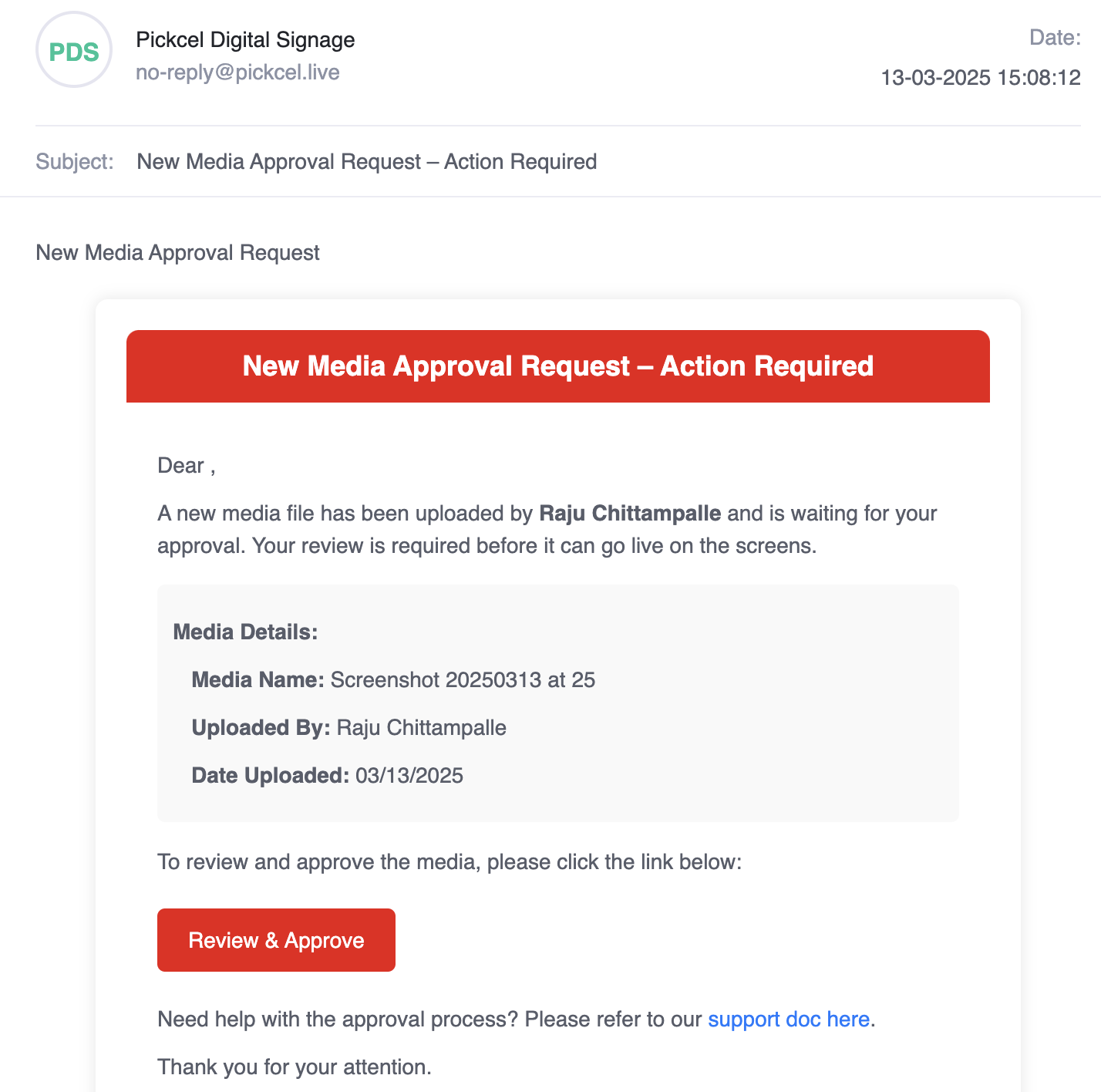 An approver can click **Review & Approve** in the email, or open the **Media** module and click the media **thumbnail** to review it.
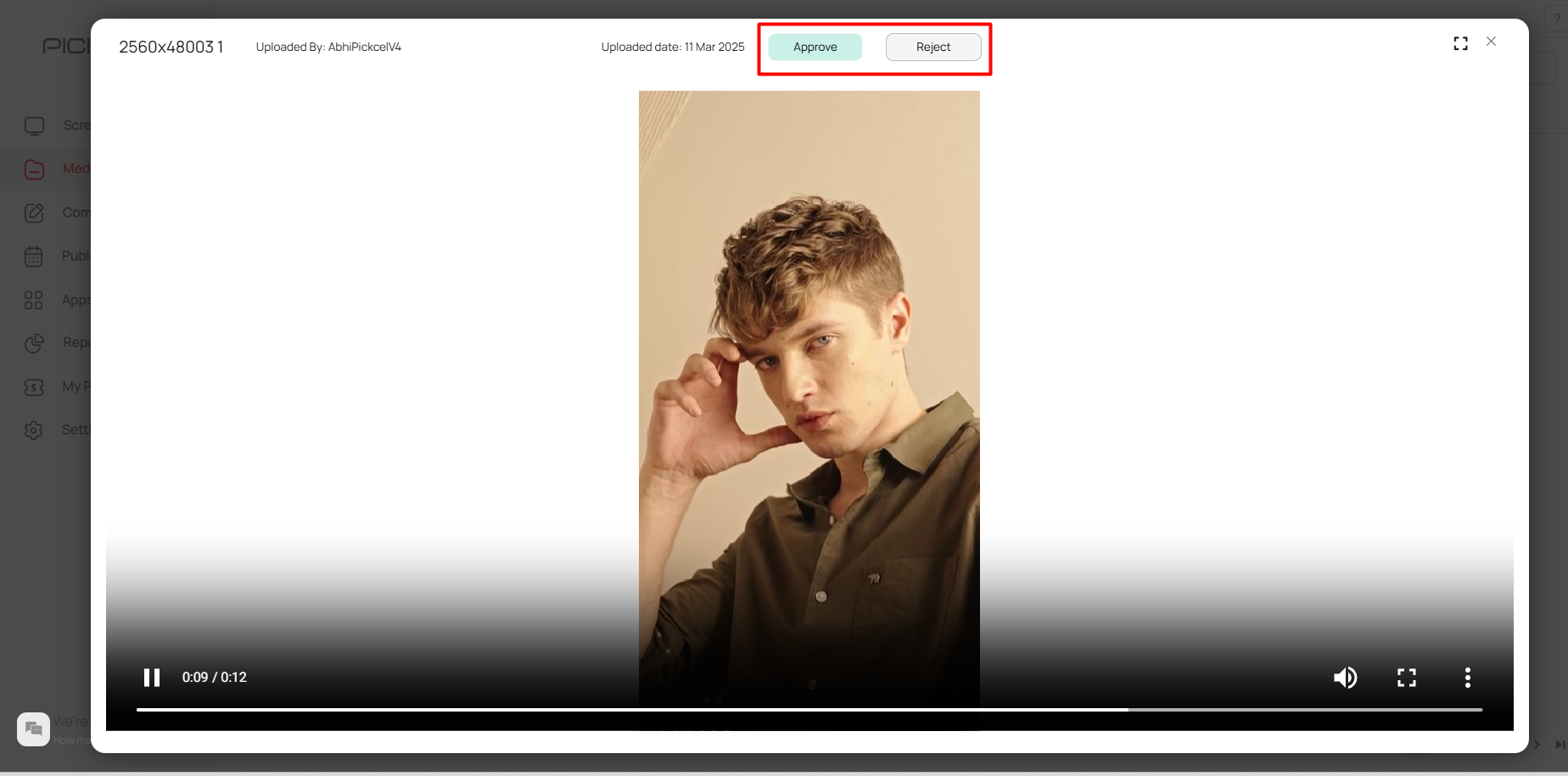
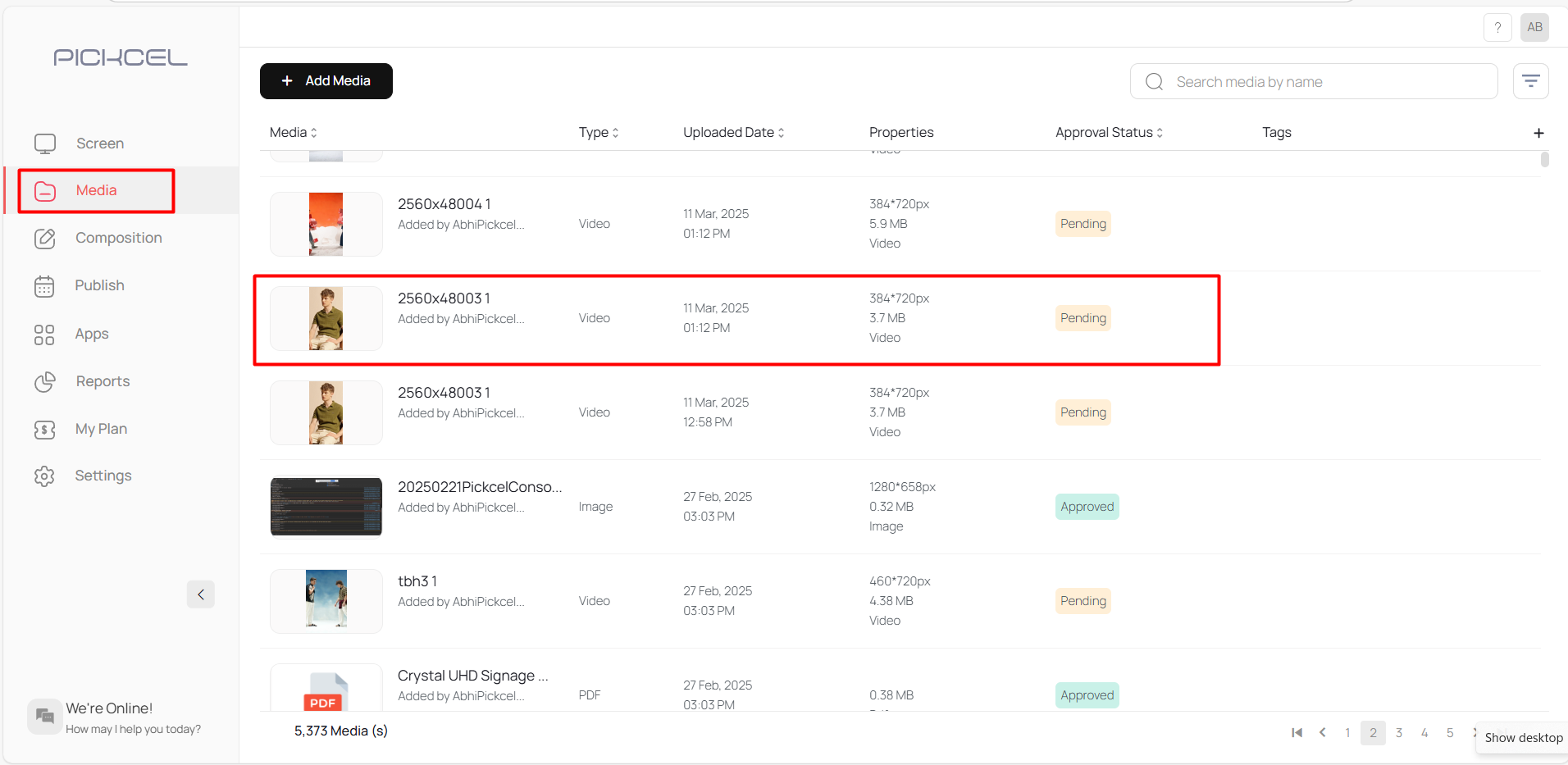 After reviewing, the approver or admin selects **Approve** or **Reject**.
 You can track the decision in two places. In the media list, the **Approval Status** column shows the state of each file.
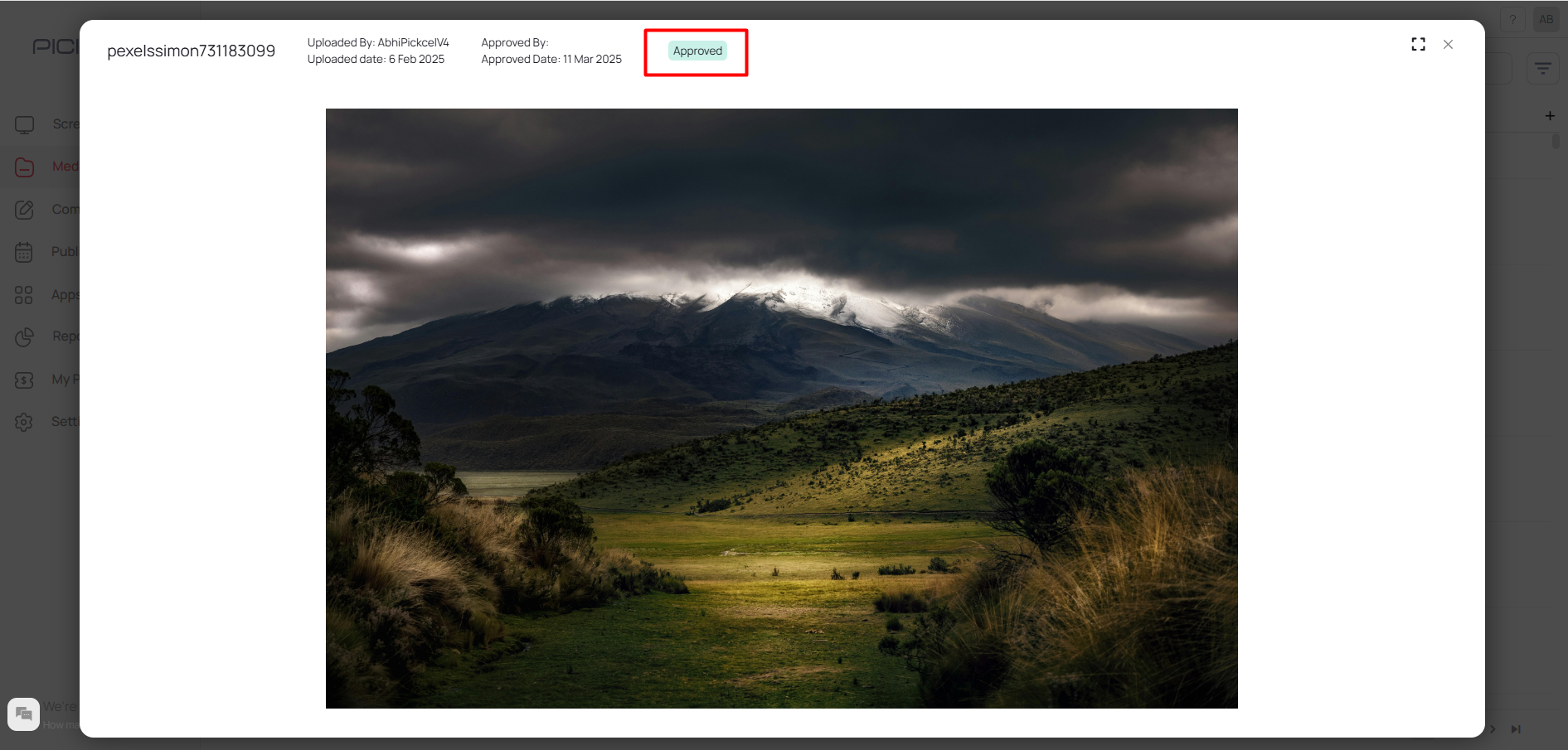
 Clicking a media thumbnail opens its details, including the status, the **approver's name**, and the **approval date**.
 Once a file is approved, go to the **Composition** module and click **Add Composition** to build your layout with the approved media.
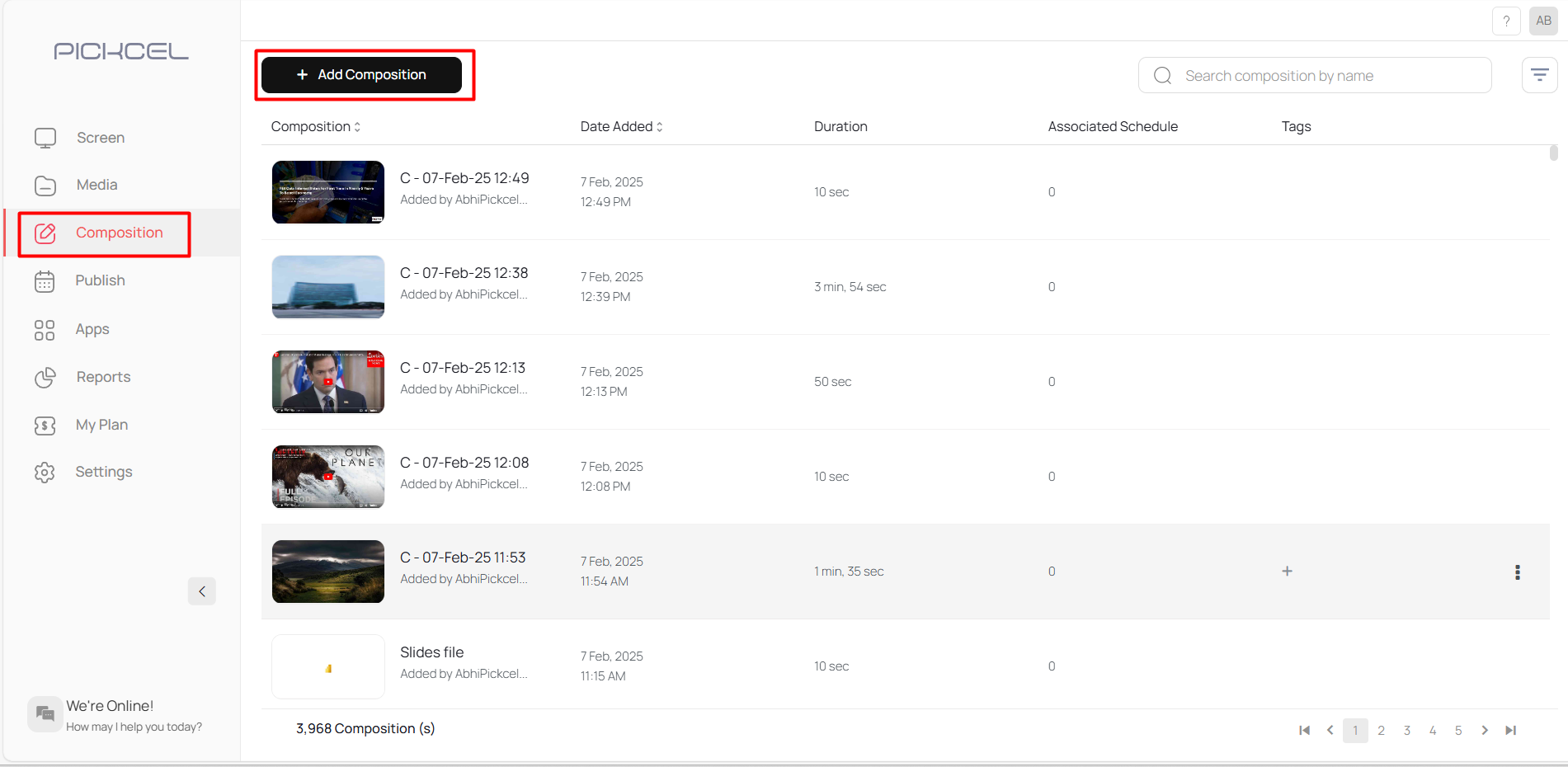 With the composition created from approved media, head to the **Publish** module and publish it to your screens. See [How to publish content](/schedule-and-publish/publish-overview) for the full steps.
## What each media state means
When you add media to a zone, its approval state decides whether it can be used:
| State | Can it be used? |
| ------------ | ------------------------------------------------------------- |
| **Approved** | Yes, available to add to any composition. |
| **Pending** | No, a restriction pop-up appears until it is approved. |
| **Rejected** | No, it cannot be used and cannot be resubmitted for approval. |
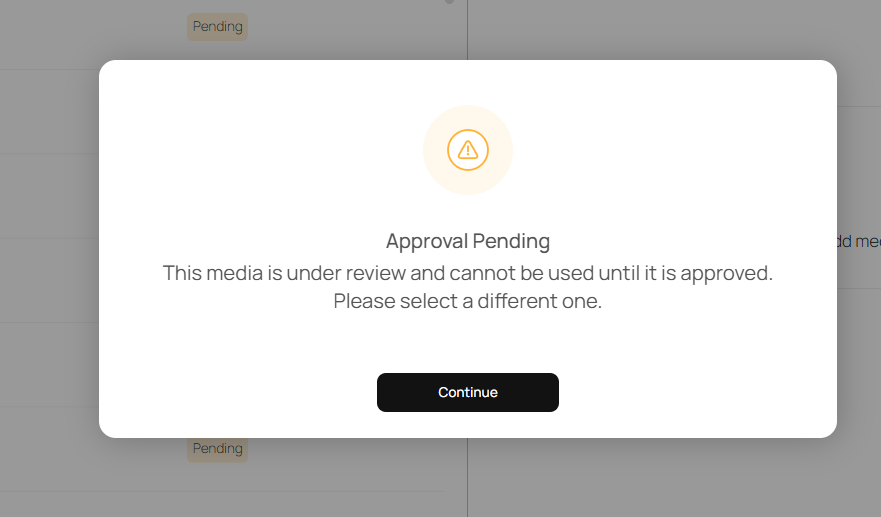
If you try to add a **Pending** file, Pickcel blocks it until review is complete:
With the composition created from approved media, head to the **Publish** module and publish it to your screens. See [How to publish content](/schedule-and-publish/publish-overview) for the full steps.
## What each media state means
When you add media to a zone, its approval state decides whether it can be used:
| State | Can it be used? |
| ------------ | ------------------------------------------------------------- |
| **Approved** | Yes, available to add to any composition. |
| **Pending** | No, a restriction pop-up appears until it is approved. |
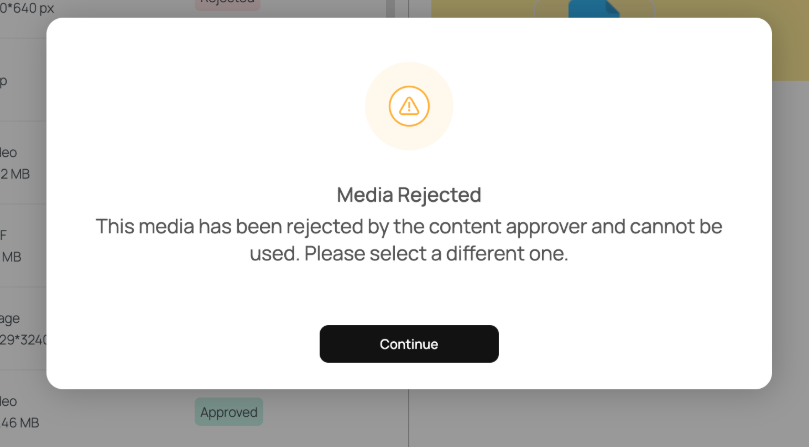
| **Rejected** | No, it cannot be used and cannot be resubmitted for approval. |
If you try to add a **Pending** file, Pickcel blocks it until review is complete:
 A **Rejected** file is blocked permanently:
 ## Points to note
* All uploaded media is **Pending** by default.
* Only **Approved** media can be used for compositions and published across screens.
* Approvers can either approve or reject media.
* A **Rejected** file cannot be used and cannot be reconsidered for approval, this is a one-time review decision to maintain content integrity.
## Frequently asked questions
Content Approval is available only on the **Enterprise plan**. To enable it for your account, [contact our support team](mailto:support@pickcel.com).
Only users with the **Content Approver** role or the **Admin** role can approve or reject uploaded media. Both are notified by email whenever new media is uploaded.
You can't. If you try to add a **Pending** file to a zone, Pickcel shows a restriction pop-up and blocks it until an approver reviews and approves the file.
No. A **Rejected** file cannot be used and cannot be resubmitted, rejection is a one-time, final decision. To use similar content, upload a new file for review.
Yes. As soon as media is uploaded, all Content Approvers and Admins receive an email with a **Review & Approve** button that takes them straight to the review screen.
The **Approval Status** column in the Media list shows each file's state. Click a media thumbnail to see more detail, including the approver's name and the approval date.
## Related guides
Upload images, videos, PDFs, and apps to your Pickcel media library.
Define roles and permissions, including who can review and approve content.
Build a multi-zone layout using your approved media.
Schedule and publish approved content to your screens.
## Points to note
* All uploaded media is **Pending** by default.
* Only **Approved** media can be used for compositions and published across screens.
* Approvers can either approve or reject media.
* A **Rejected** file cannot be used and cannot be reconsidered for approval, this is a one-time review decision to maintain content integrity.
## Frequently asked questions
Content Approval is available only on the **Enterprise plan**. To enable it for your account, [contact our support team](mailto:support@pickcel.com).
Only users with the **Content Approver** role or the **Admin** role can approve or reject uploaded media. Both are notified by email whenever new media is uploaded.
You can't. If you try to add a **Pending** file to a zone, Pickcel shows a restriction pop-up and blocks it until an approver reviews and approves the file.
No. A **Rejected** file cannot be used and cannot be resubmitted, rejection is a one-time, final decision. To use similar content, upload a new file for review.
Yes. As soon as media is uploaded, all Content Approvers and Admins receive an email with a **Review & Approve** button that takes them straight to the review screen.
The **Approval Status** column in the Media list shows each file's state. Click a media thumbnail to see more detail, including the approver's name and the approval date.
## Related guides
Upload images, videos, PDFs, and apps to your Pickcel media library.
Define roles and permissions, including who can review and approve content.
Build a multi-zone layout using your approved media.
Schedule and publish approved content to your screens.