> ## Documentation Index
> Fetch the complete documentation index at: https://docs.pickcel.com/llms.txt
> Use this file to discover all available pages before exploring further.
# How to upload media to Pickcel?
> Step-by-step guide to upload images, videos, and other assets to the Pickcel media library
Media includes the images, videos, documents, apps, and other content files that you upload to the Pickcel CMS. These assets become the content you publish on your digital signage screens.
## Supported File Formats
Pickcel supports a wide range of media formats:
* **Images**: JPG, JPEG, PNG, GIF, BMP, TIFF
* **Videos**: MP4, AVI, MOV, WMV, FLV, MKV
* **Documents**: PDF, PPT, PPTX, DOC, DOCX
* **Web Content**: HTML, URLs, RSS feeds
* **Apps**: Custom applications and integrations
## Upload Media to the Pickcel Console
Log in to your [Pickcel Console](https://console.pickcel.com/). In the left menu, expand **Content** and select **Media** to open your media library.
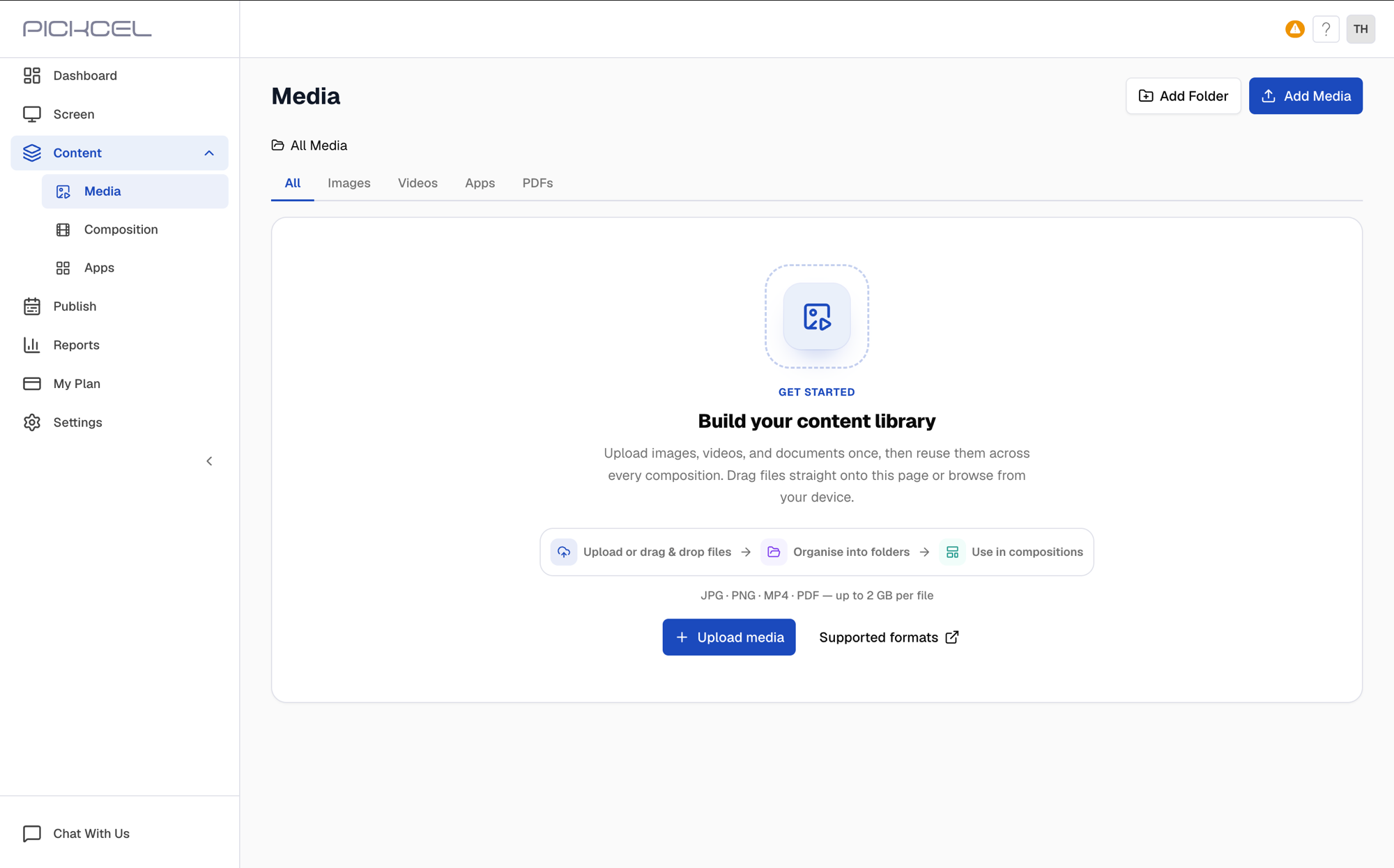 Click **Add Media** in the top-right corner. From the menu that opens, select **Upload Files**.
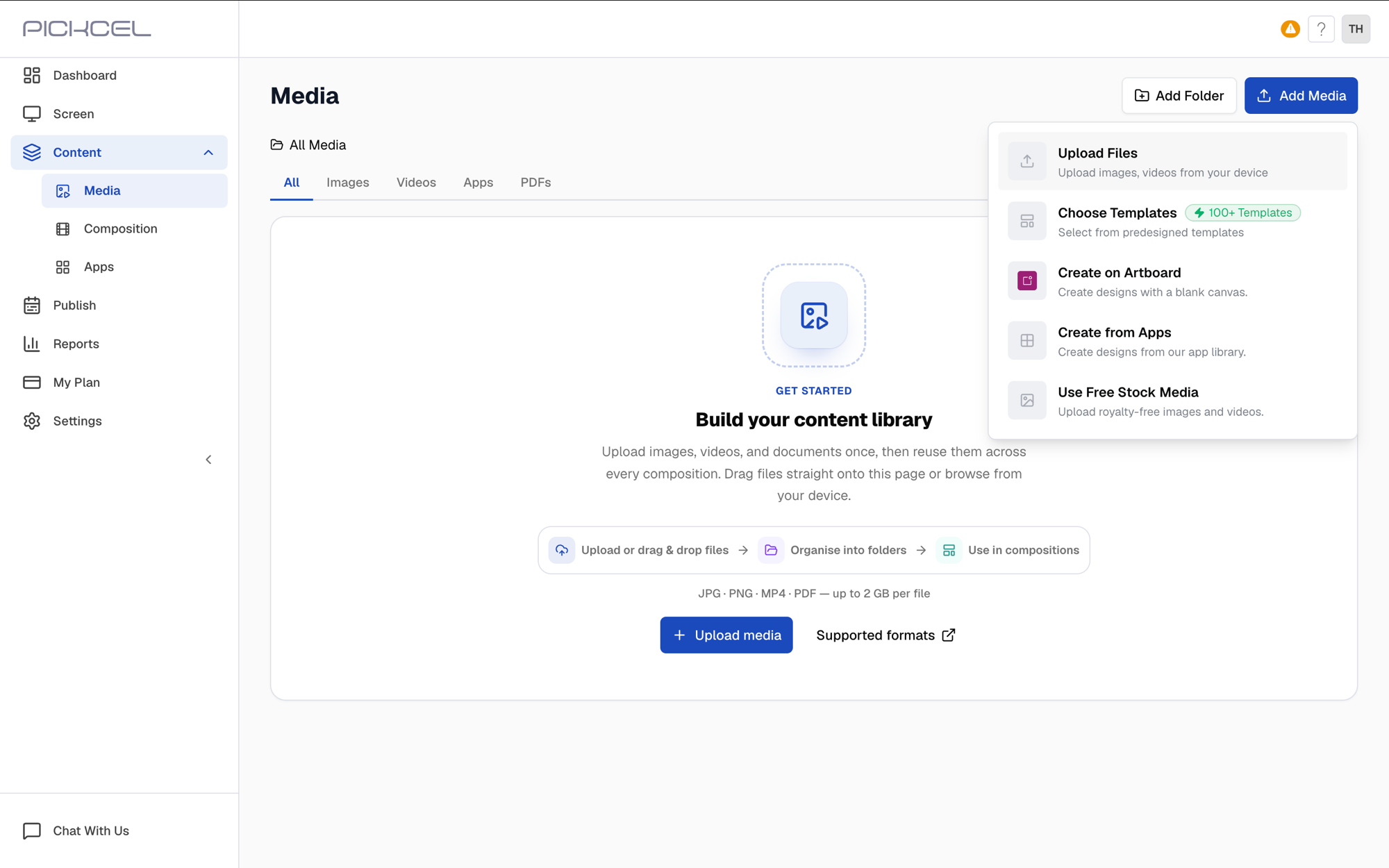 The same menu also lets you start from a **template**, design on the **Artboard**, build content **from an app**, or pull in **free stock media**. This guide covers uploading your own files.
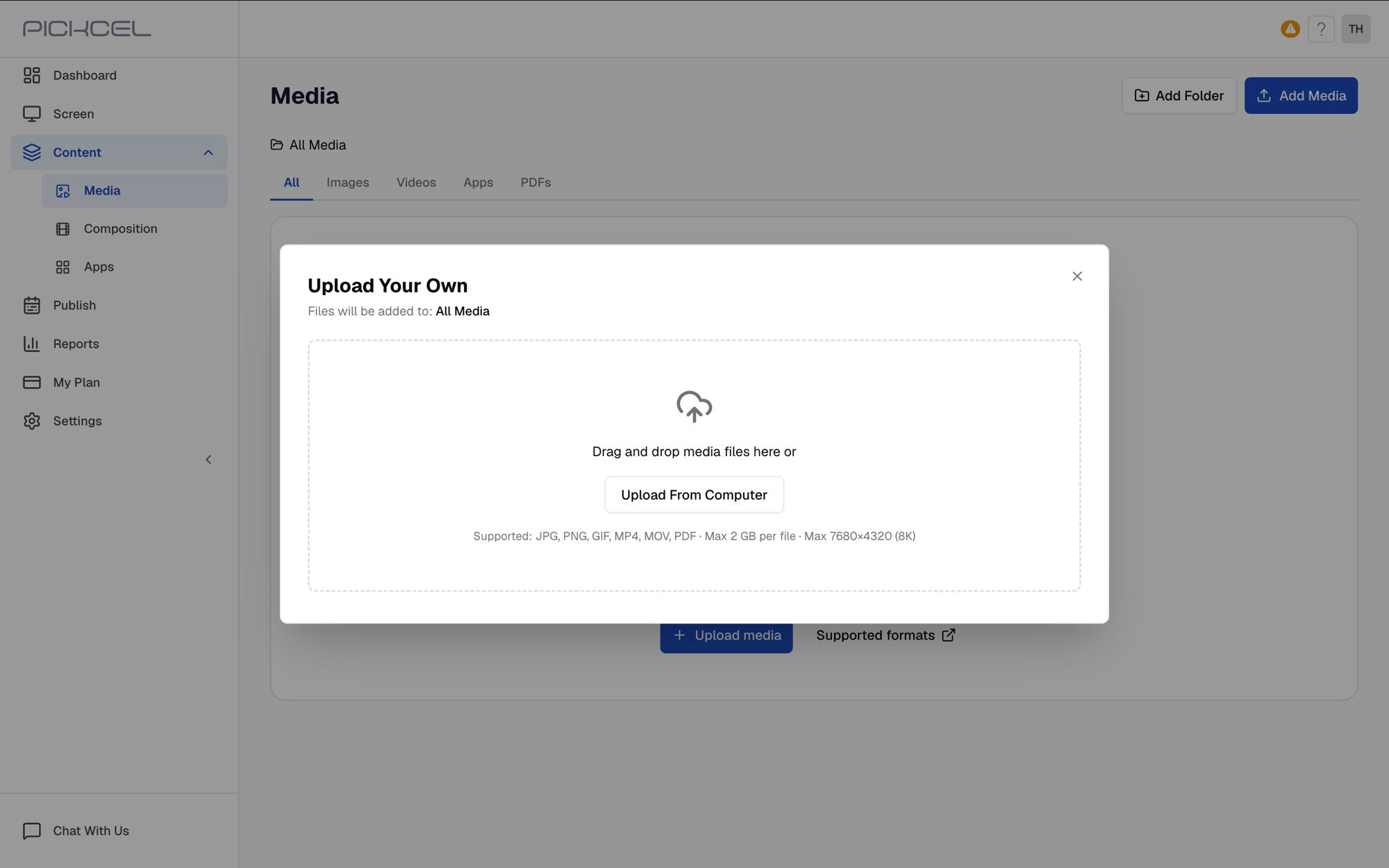
In the **Upload Your Own** window, click **Upload From Computer** to browse your device, or drag and drop files straight onto the window.
The same menu also lets you start from a **template**, design on the **Artboard**, build content **from an app**, or pull in **free stock media**. This guide covers uploading your own files.
In the **Upload Your Own** window, click **Upload From Computer** to browse your device, or drag and drop files straight onto the window.
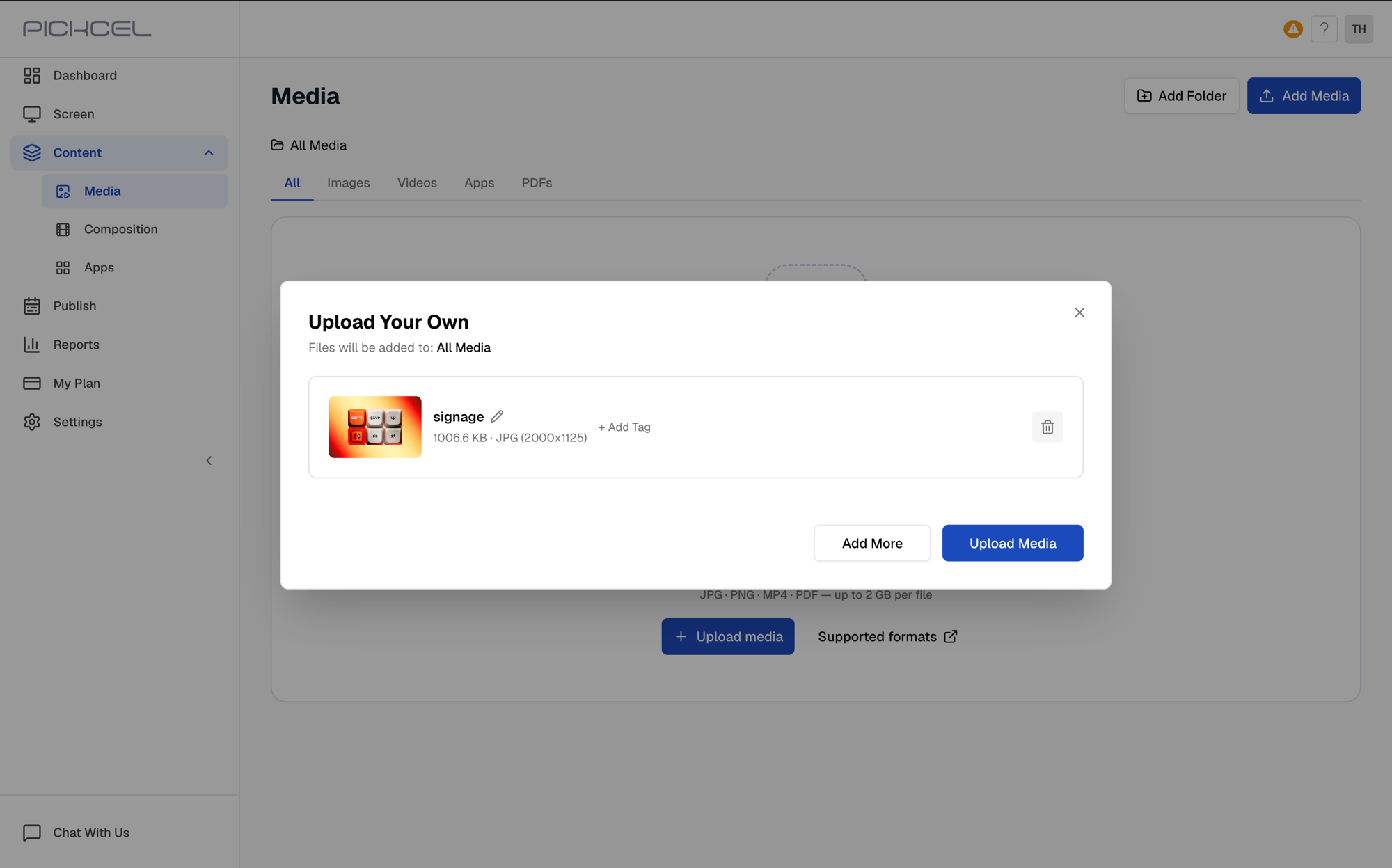
 Each selected file appears in a list, where you can rename it or **+ Add Tag**. Use **Add More** to include additional files, then click **Upload Media** to finish.
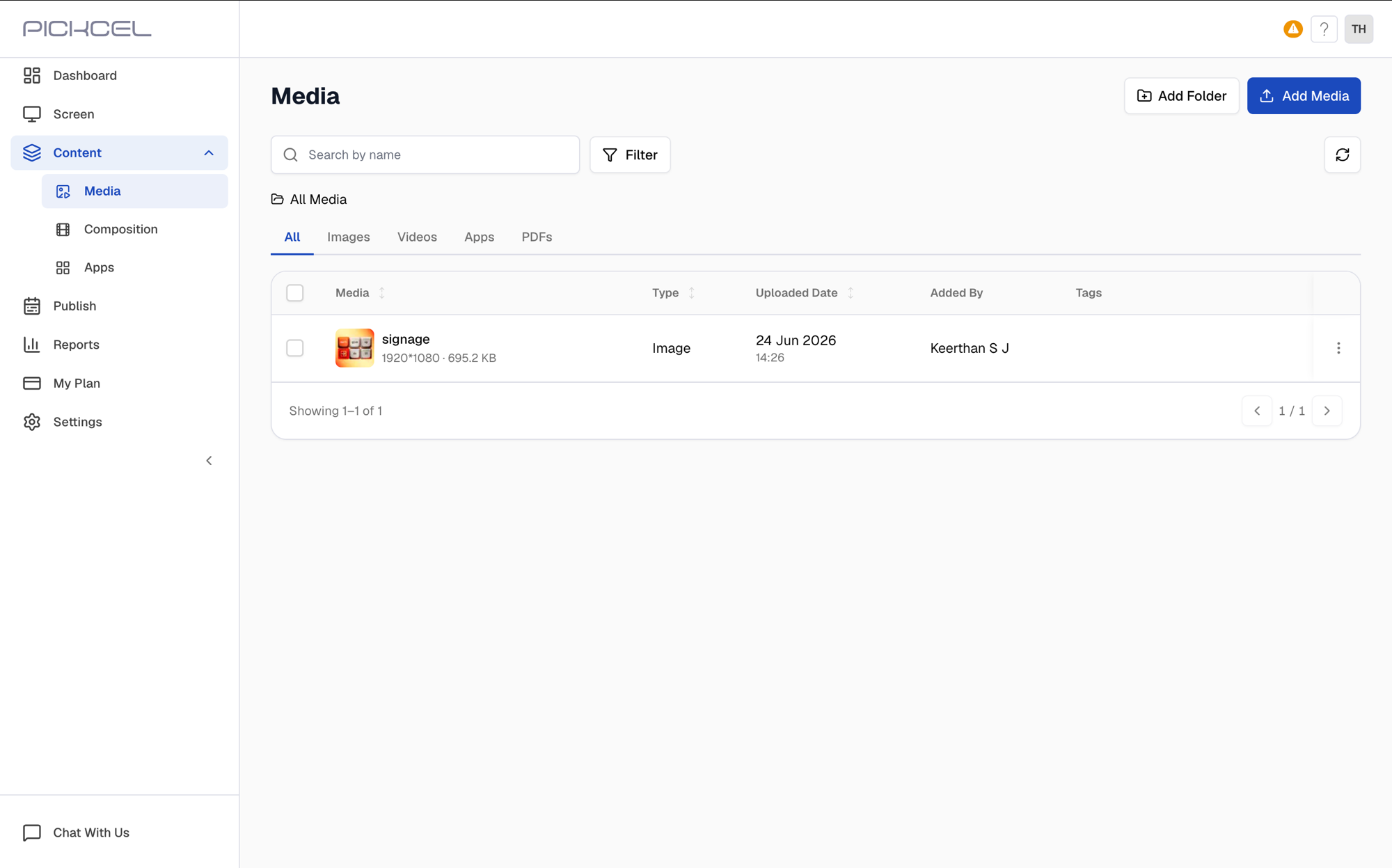
 Your uploads appear in the **All Media** list with their type, upload date, and the person who added them. Use the search box, the **Filter** button, or the format tabs (Images, Videos, Apps, PDFs) to locate files.
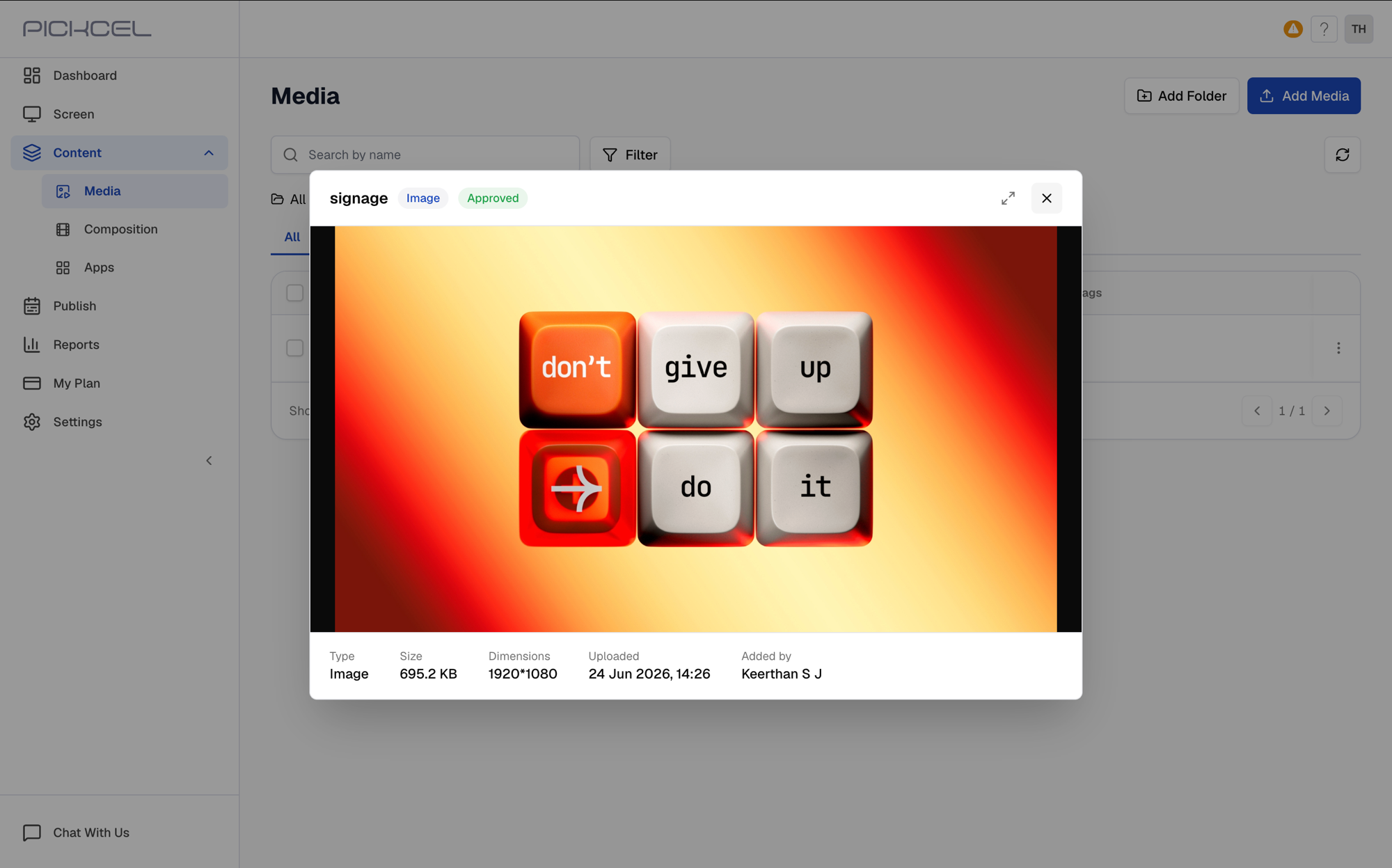
 Click a file's thumbnail to open a preview, where you can check the image or video along with its type, size, dimensions, and approval status.
 ## How many files can I upload at once?
There's no strict limit on the number of files you can upload at once. However, we recommend uploading **no more than 50 files or a total of 2 GB at a time**, whichever comes first, for the smoothest upload experience.
## Media Management Tips
* **File size limits**: Ensure your files meet the platform's maximum size requirements.
* **Format compatibility**: Use supported formats for optimum playback quality.
* **Organization**: Create folders or use categories to keep assets organized.
* **Naming**: Use descriptive names so media is easy to find later.
**What's Next?**
* Start [**Designing with Artboard**](/media/artboard/overview) for custom signage graphics.
* Use [**Canva Integration**](/media/canva) to import templates and designs.
* Build [**Compositions**](/compositions/compositions) and [**Schedules**](/compositions/sync-feature) to publish your media.
## How many files can I upload at once?
There's no strict limit on the number of files you can upload at once. However, we recommend uploading **no more than 50 files or a total of 2 GB at a time**, whichever comes first, for the smoothest upload experience.
## Media Management Tips
* **File size limits**: Ensure your files meet the platform's maximum size requirements.
* **Format compatibility**: Use supported formats for optimum playback quality.
* **Organization**: Create folders or use categories to keep assets organized.
* **Naming**: Use descriptive names so media is easy to find later.
**What's Next?**
* Start [**Designing with Artboard**](/media/artboard/overview) for custom signage graphics.
* Use [**Canva Integration**](/media/canva) to import templates and designs.
* Build [**Compositions**](/compositions/compositions) and [**Schedules**](/compositions/sync-feature) to publish your media.