> ## Documentation Index
> Fetch the complete documentation index at: https://docs.pickcel.com/llms.txt
> Use this file to discover all available pages before exploring further.
# How to Switch from MagicInfo to URL Launcher on Samsung Tizen?
> Switch a Samsung Tizen digital signage display from MagicInfo to URL Launcher or Custom App so it can run Pickcel, and stop it auto-switching back to MagicInfo.
Here's a step-by-step guide to switch your Samsung Tizen display from MagicInfo to URL Launcher or Custom App. This is required to run Pickcel on Samsung Tizen displays that currently use MagicInfo.
## Switching Method
Press the **Source** button on your Samsung remote control.
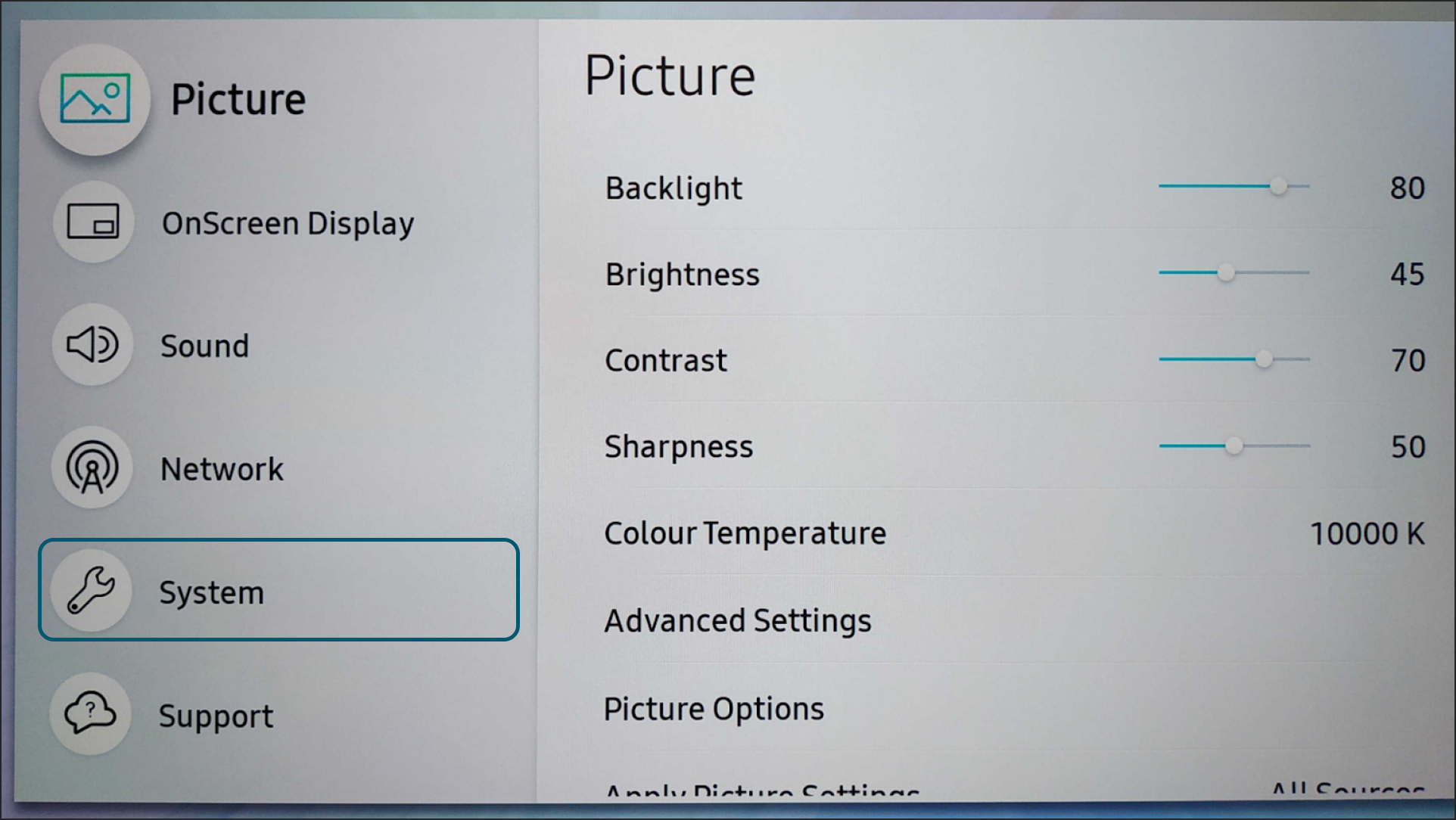 Select **HDMI** (or another source like DVI) to switch away from MagicInfo. MagicInfo runs as its own source on these displays, so you need to leave it before the **System** menu settings become accessible.
 Press the **Menu** button on your remote and navigate to **System**.
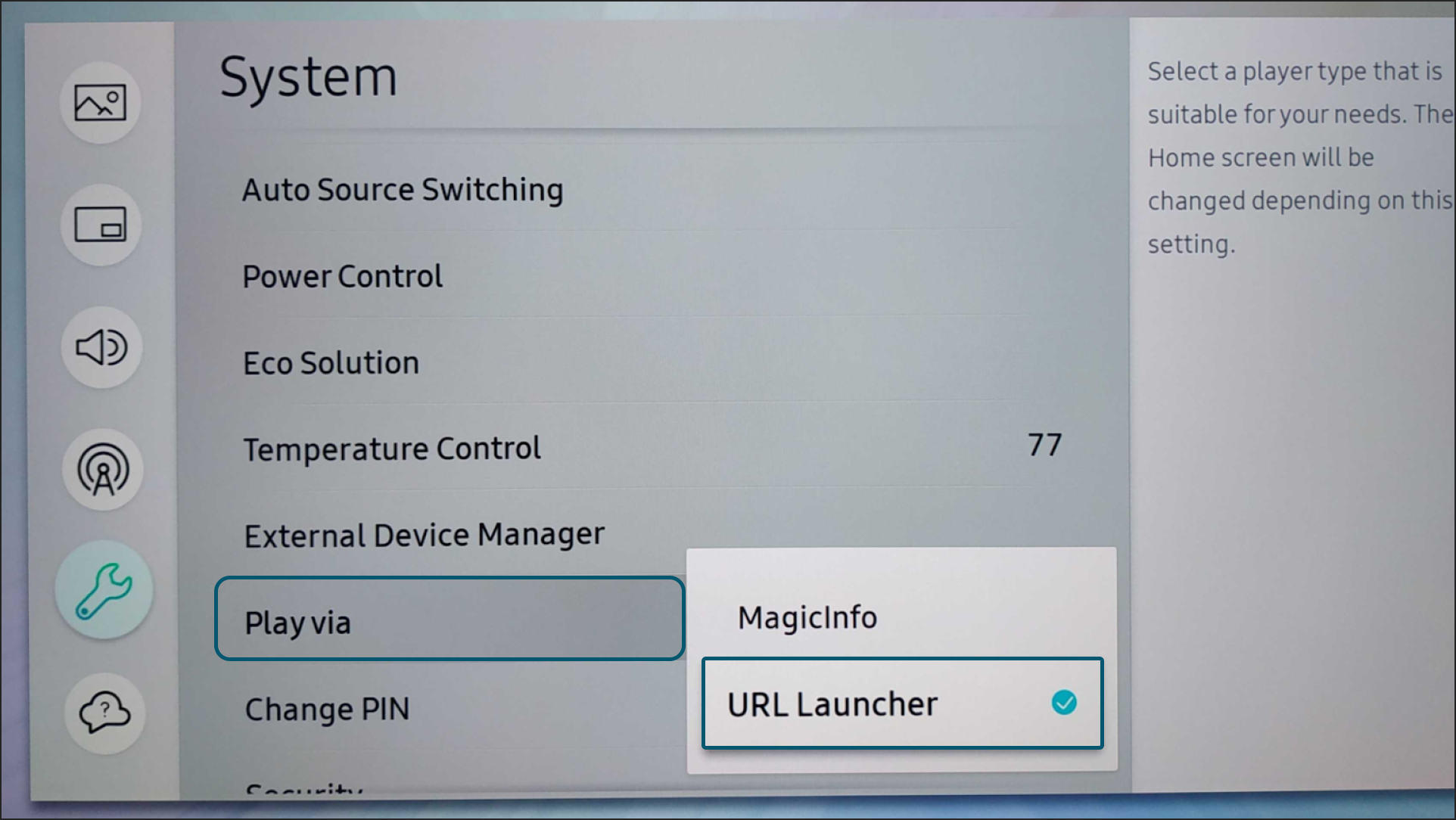
 Scroll down to the bottom of the System menu and locate the **Play Via** option. Change the setting from **MagicInfo** to **URL Launcher**.
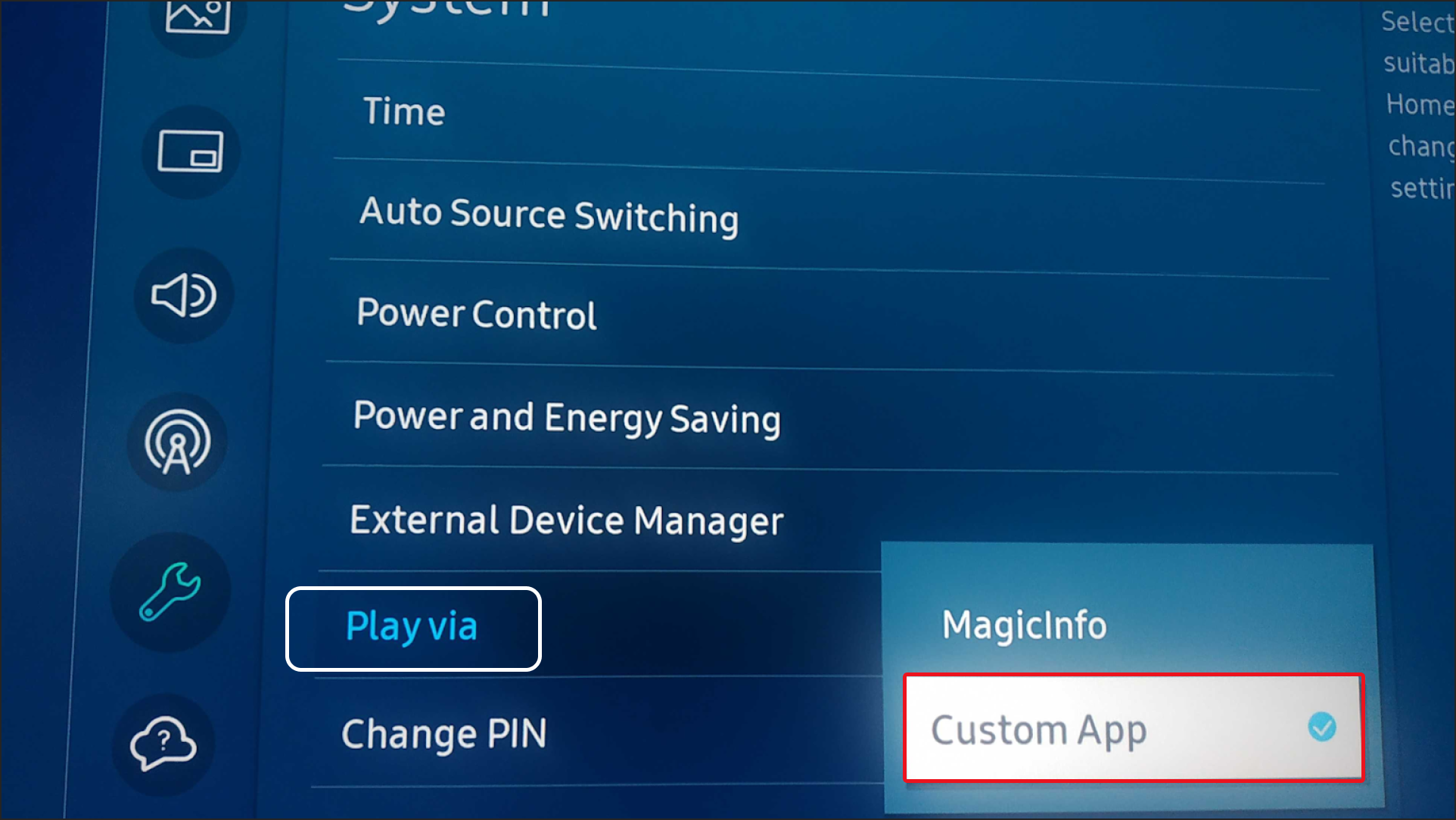
**Version Note:** On Tizen 6.5 and above, this option may appear as **Custom App** instead of URL Launcher.
Scroll down to the bottom of the System menu and locate the **Play Via** option. Change the setting from **MagicInfo** to **URL Launcher**.
**Version Note:** On Tizen 6.5 and above, this option may appear as **Custom App** instead of URL Launcher.
 Power off the display completely, then turn it back on to apply the changes.
After the display restarts, press the **Home** button and select **URL Launcher** from the home menu to launch it.
## Preventing Auto-Switch Back to MagicInfo
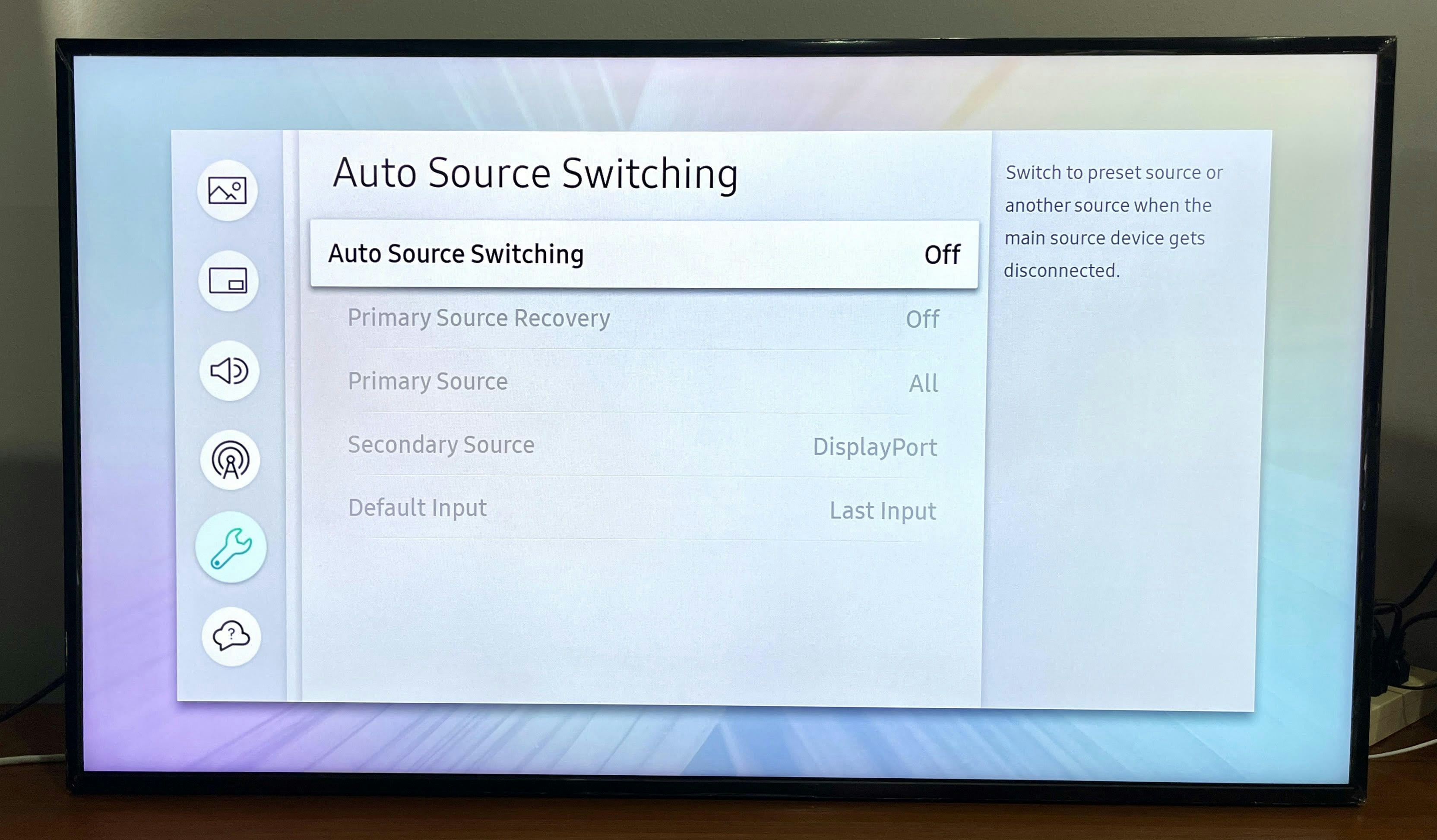
To ensure your display doesn't automatically switch back to MagicInfo, disable the Auto Source Switching feature.
Press **Home** on your remote and select **System**.
Navigate to **Auto Source Switching** in the System menu and set it to **OFF**.
## Reverting to MagicInfo
You can always switch back to MagicInfo by returning to the **Play Via** setting in the System menu and changing it from URL Launcher/Custom App back to MagicInfo.
## Related Articles
Complete guide to install Pickcel on Samsung Tizen using SSSP method
Complete guide to install Pickcel on Samsung Tizen using USB method
Learn how to register your Samsung Tizen display with Pickcel
Browse more troubleshooting guides and FAQs
Power off the display completely, then turn it back on to apply the changes.
After the display restarts, press the **Home** button and select **URL Launcher** from the home menu to launch it.
## Preventing Auto-Switch Back to MagicInfo
To ensure your display doesn't automatically switch back to MagicInfo, disable the Auto Source Switching feature.
Press **Home** on your remote and select **System**.
Navigate to **Auto Source Switching** in the System menu and set it to **OFF**.
## Reverting to MagicInfo
You can always switch back to MagicInfo by returning to the **Play Via** setting in the System menu and changing it from URL Launcher/Custom App back to MagicInfo.
## Related Articles
Complete guide to install Pickcel on Samsung Tizen using SSSP method
Complete guide to install Pickcel on Samsung Tizen using USB method
Learn how to register your Samsung Tizen display with Pickcel
Browse more troubleshooting guides and FAQs