> ## Documentation Index
> Fetch the complete documentation index at: https://docs.pickcel.com/llms.txt
> Use this file to discover all available pages before exploring further.
# Screen control and device management FAQs
> Remotely control Pickcel screens, reboot, reload, clear cache vs clear data, take screenshots, exit or uninstall the app, and manage screens across locations.
How to control and maintain your screens, both remotely from the console and on the device itself.
### Can I reboot my signage screen remotely?
Yes. From the console:
1. Open the **Screens** module and click the screen name to open its details.
2. Click the **three dots** at the top-right and choose **Reboot Display**.
3. Click **Yes, Reboot** to confirm.
The screen turns off completely and comes back up.
### What's the difference between Reload Screen, Clear Cache, and Clear Data?
All three remotely maintain the Pickcel app, find them under the screen's details via the **three dots**. Use the lightest option that fixes your issue:
* **Reload Screen**: refreshes the app and re-fetches the latest schedule. Use it to confirm the screen is connected to the console and playing the scheduled content.
* **Clear Cache**: clears locally stored scripts and schedule definitions, re-fetches them from the console, and reloads the screen. Use it when content or the schedule isn't playing correctly and a reload didn't help.
* **Clear Data**: deletes **all** downloaded files (media and scripts) from local storage, then re-downloads and plays the current content. Use it when media looks corrupted or won't play.
Use **Clear Data** carefully, and avoid it on slow or unstable internet, the device has to re-download everything from scratch.
### Can I take a screenshot of what's playing on a screen?
Yes, you can capture a real-time screenshot to see what's running:
1. Log in to the Pickcel console.
2. Open the **Screens** module and click the screen name to open its details.
3. Click the **screenshot** icon, the captured screenshot appears there.
Not all media players or screen types support remote screenshots.
### Can I refresh all my screens at once?
Screens are refreshed one at a time from each screen's details view. There's no single bulk-refresh action, so each screen is reloaded individually. If you ever need to refresh all your screens at once, reach out to the [support team](mailto:support@pickcel.com) and they'll help you out.
### Do I need to launch the Pickcel app every time I switch on the device?
No. The Pickcel app starts automatically whenever the device is powered on.
### How do I check the Android version on my TV?
On most Android TV or Google TV screens:
Press **Home** on the remote and open **Settings** (the gear icon).
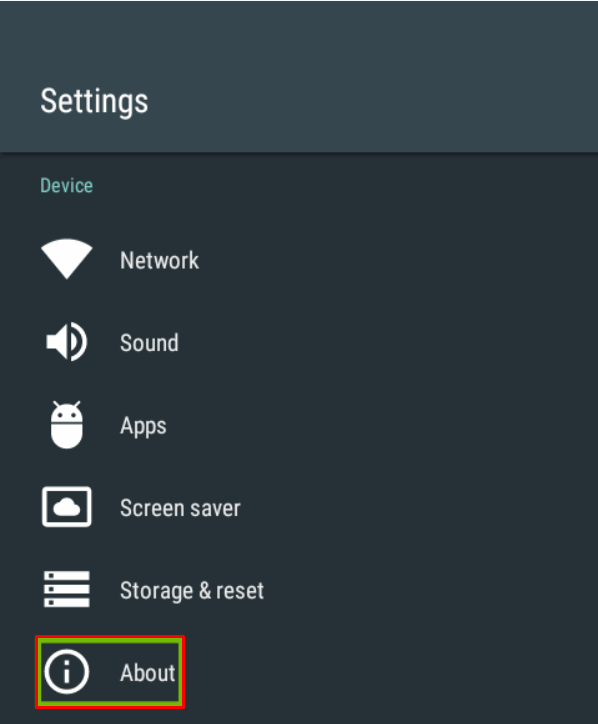
 In the **Settings** menu, scroll to the **Device** section and select **About**. On some newer models this sits under **Device Preferences → About** or **System → About**.
 On the **About** page, look for **Version** (labelled **Android TV OS version** on some models). The number shown there is your Android version.
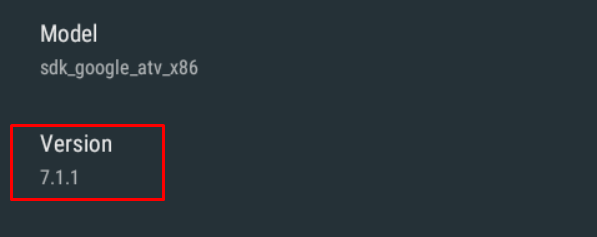 The exact labels vary by manufacturer and software version, but this path works on most Android TVs.
On an Android phone or tablet, the path is **Settings → About phone → Android version** instead.
### How do I exit the Pickcel app on a signage screen?
First, make sure you're actually inside the app, you'll see your content playing on the screen. Then use the method for your device:
Use the remote, or plug a mouse into the box's USB port.
1. Press **Back** or **Home** more than twice (or **right-click** the mouse) to leave the app.
2. If you land on the device's **Settings** page, press **Home** once more (or right-click again) to fully exit.
Using the remote, press **Back** more than twice to return to the home screen. If a **Settings** page appears instead, press **Back** once more to exit.
1. **Minimize** the app: press **Windows + Down arrow** (or **Windows + M**).
2. **Close** it: press **Alt + F4**.
If the keyboard shortcut doesn't work, minimize with **Windows + M**, then right-click the **Pickcel** icon in the taskbar and choose **Close window**.
You can't fully exit the app on Raspberry Pi, but you can open:
* **Settings**: **Ctrl + Shift + S**
* **Network Settings**: **Ctrl + Shift + N**
Press the **Home** button on the remote to exit the app.
### How do I uninstall the Pickcel app?
The steps depend on your device:
On the Android TV home screen, open **Settings** (the gear icon, top-right).
The exact labels vary by manufacturer and software version, but this path works on most Android TVs.
On an Android phone or tablet, the path is **Settings → About phone → Android version** instead.
### How do I exit the Pickcel app on a signage screen?
First, make sure you're actually inside the app, you'll see your content playing on the screen. Then use the method for your device:
Use the remote, or plug a mouse into the box's USB port.
1. Press **Back** or **Home** more than twice (or **right-click** the mouse) to leave the app.
2. If you land on the device's **Settings** page, press **Home** once more (or right-click again) to fully exit.
Using the remote, press **Back** more than twice to return to the home screen. If a **Settings** page appears instead, press **Back** once more to exit.
1. **Minimize** the app: press **Windows + Down arrow** (or **Windows + M**).
2. **Close** it: press **Alt + F4**.
If the keyboard shortcut doesn't work, minimize with **Windows + M**, then right-click the **Pickcel** icon in the taskbar and choose **Close window**.
You can't fully exit the app on Raspberry Pi, but you can open:
* **Settings**: **Ctrl + Shift + S**
* **Network Settings**: **Ctrl + Shift + N**
Press the **Home** button on the remote to exit the app.
### How do I uninstall the Pickcel app?
The steps depend on your device:
On the Android TV home screen, open **Settings** (the gear icon, top-right).
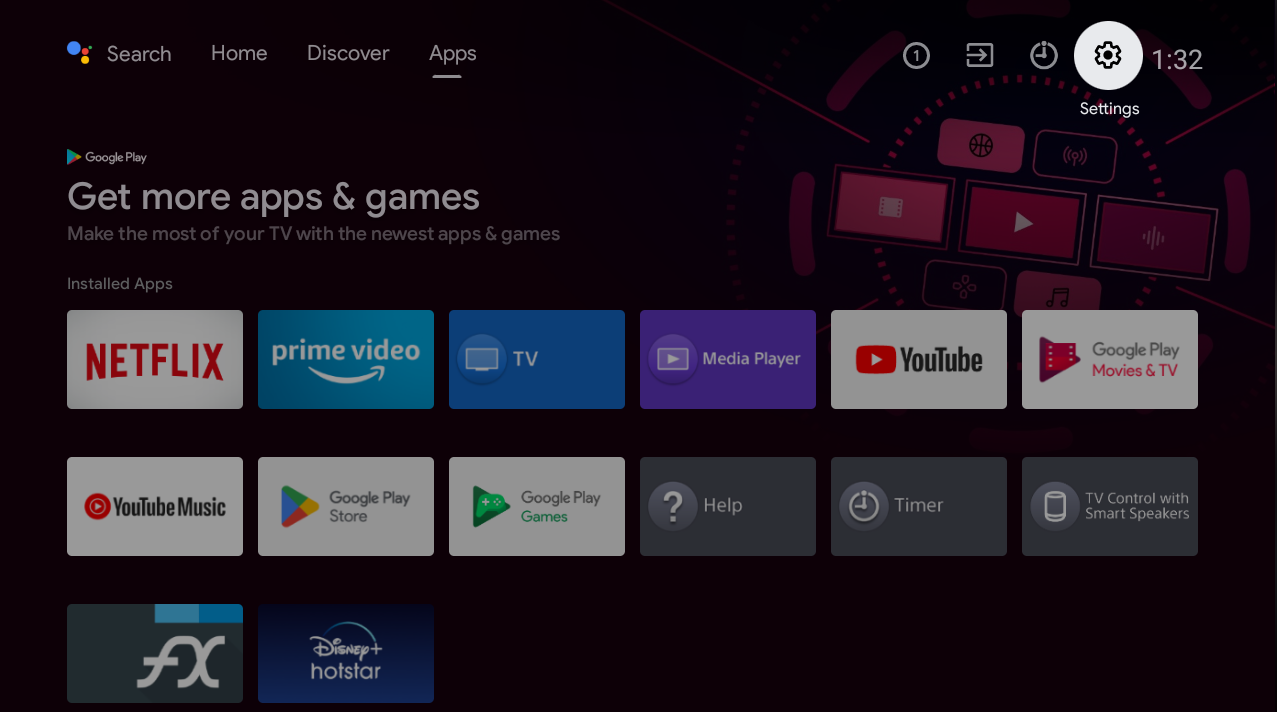 Select **Apps**.
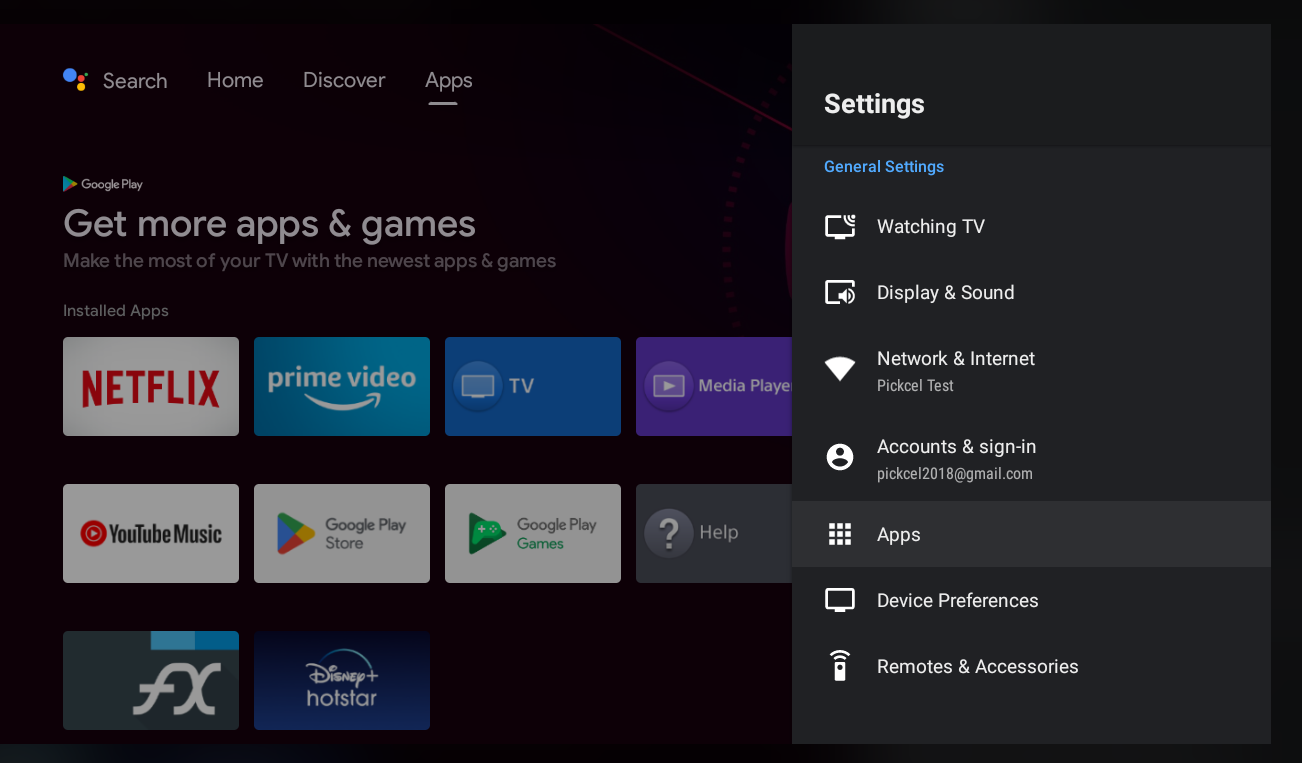 Under the installed apps, select **Pickcel App**.
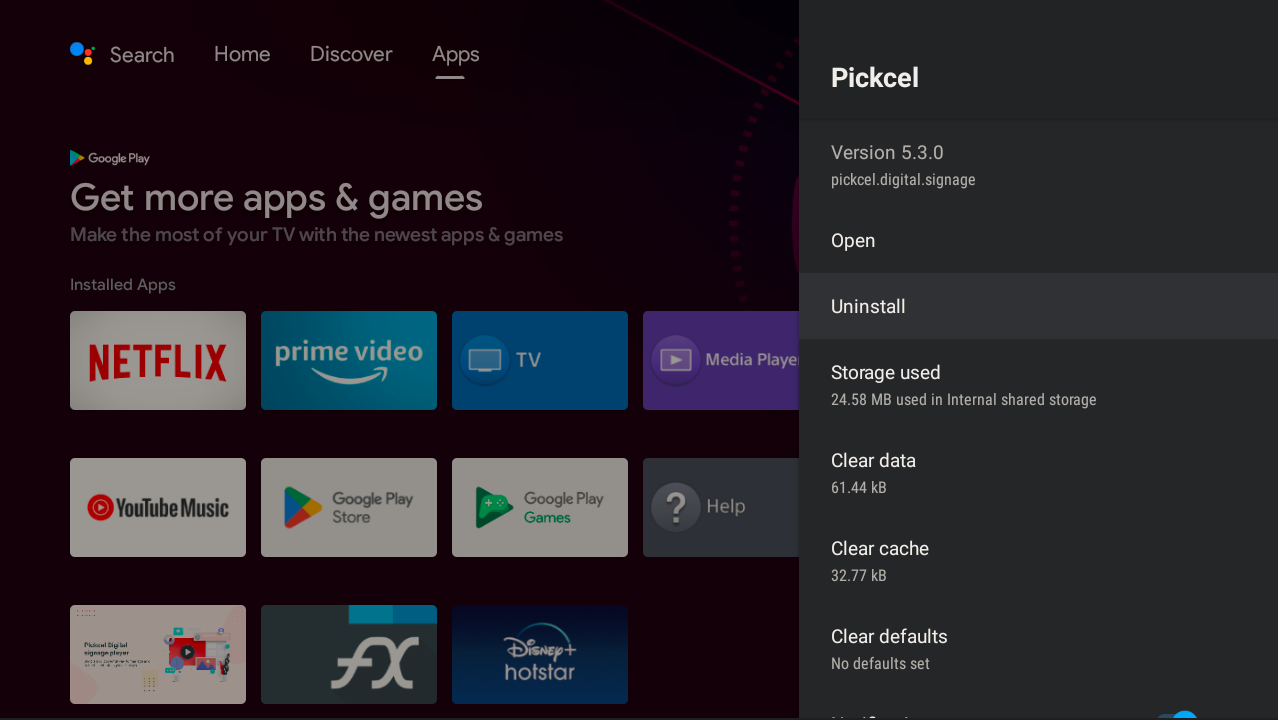
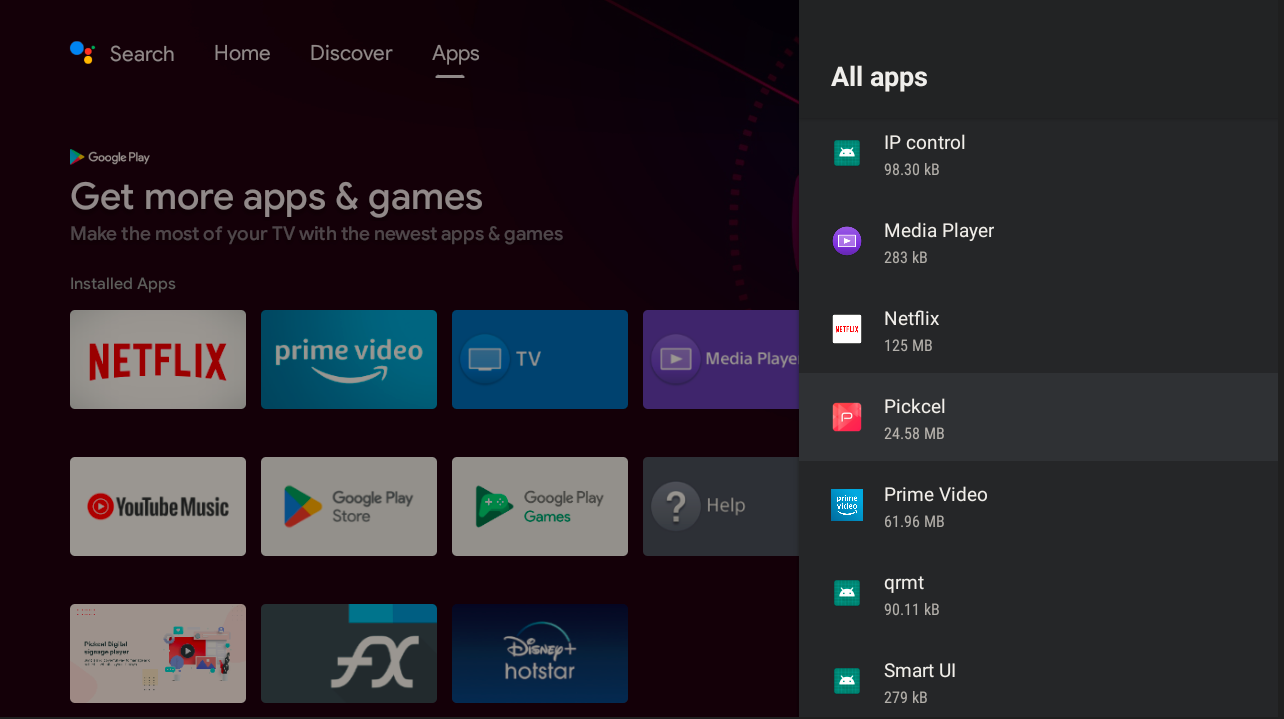 Choose **Uninstall**.
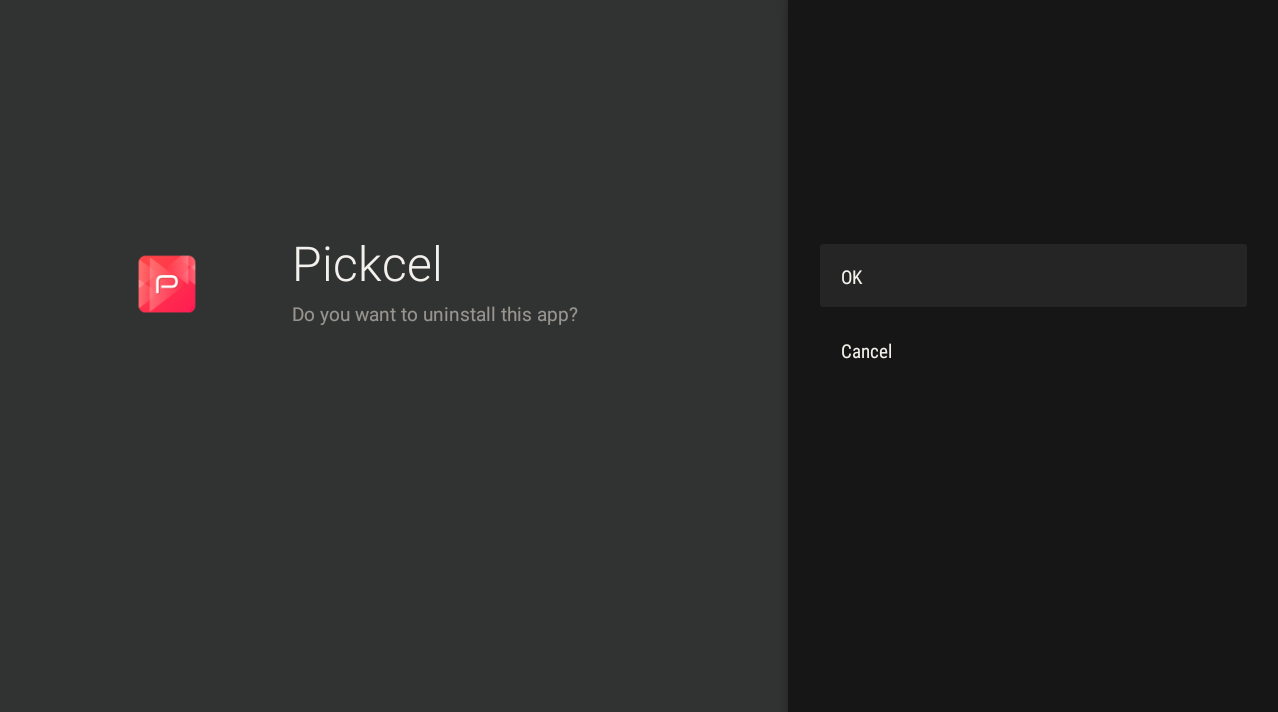
 Click **OK** to confirm.
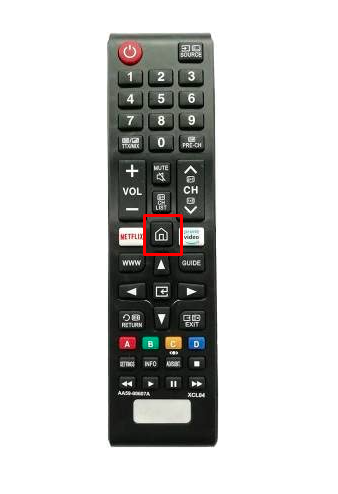
 Press the **Home** button on your TV remote.
 Select **URL Launcher settings**.
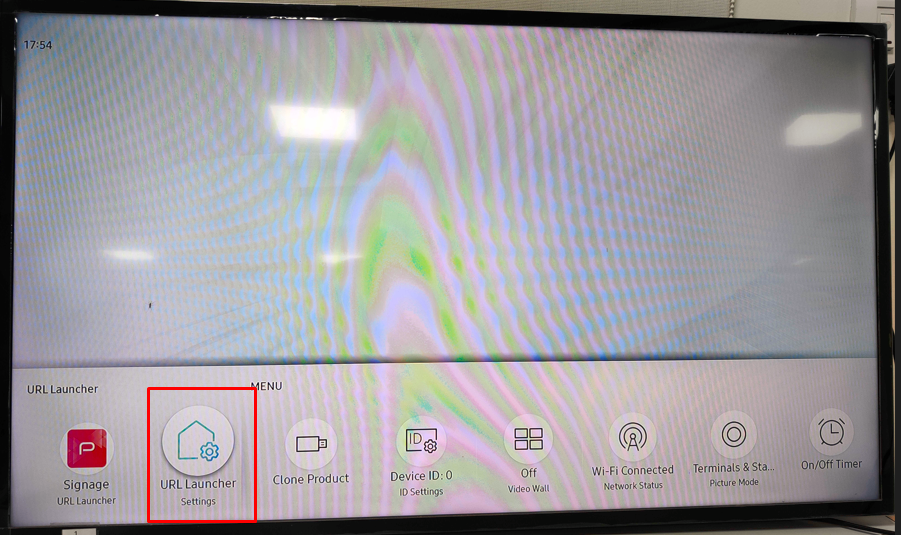 Select **Uninstall Signage**.
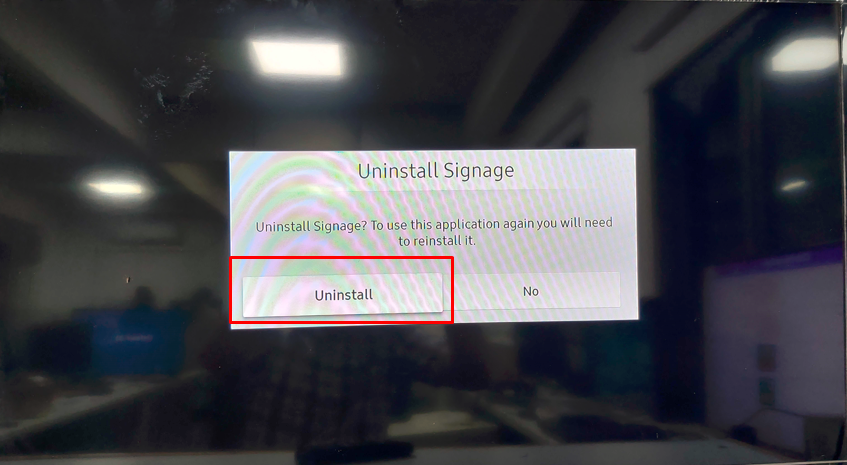
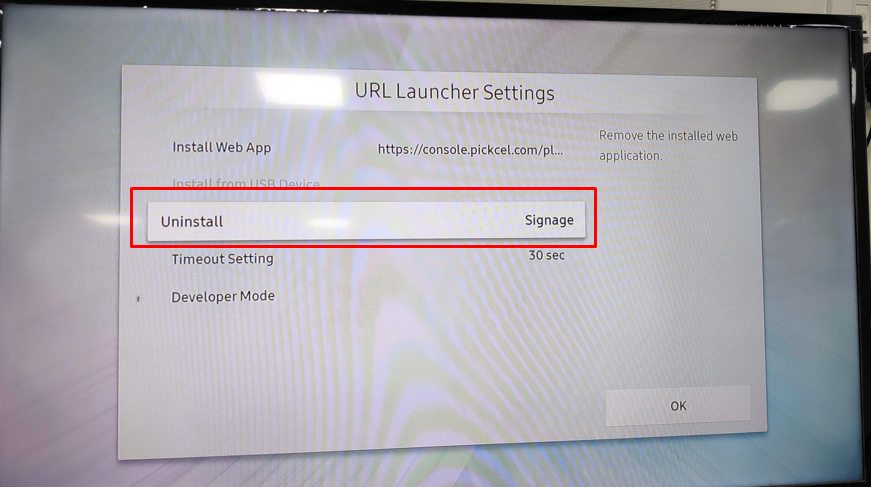 Select **Uninstall** to confirm.
 Select the **Settings** gear on the right side of the screen.
Select **Applications**.
Scroll down and open **Manage Installed Applications**.
From the list of installed applications, select the **Pickcel** app.
Select the **Settings** gear on the right side of the screen.
Select **Applications**.
Scroll down and open **Manage Installed Applications**.
From the list of installed applications, select the **Pickcel** app.
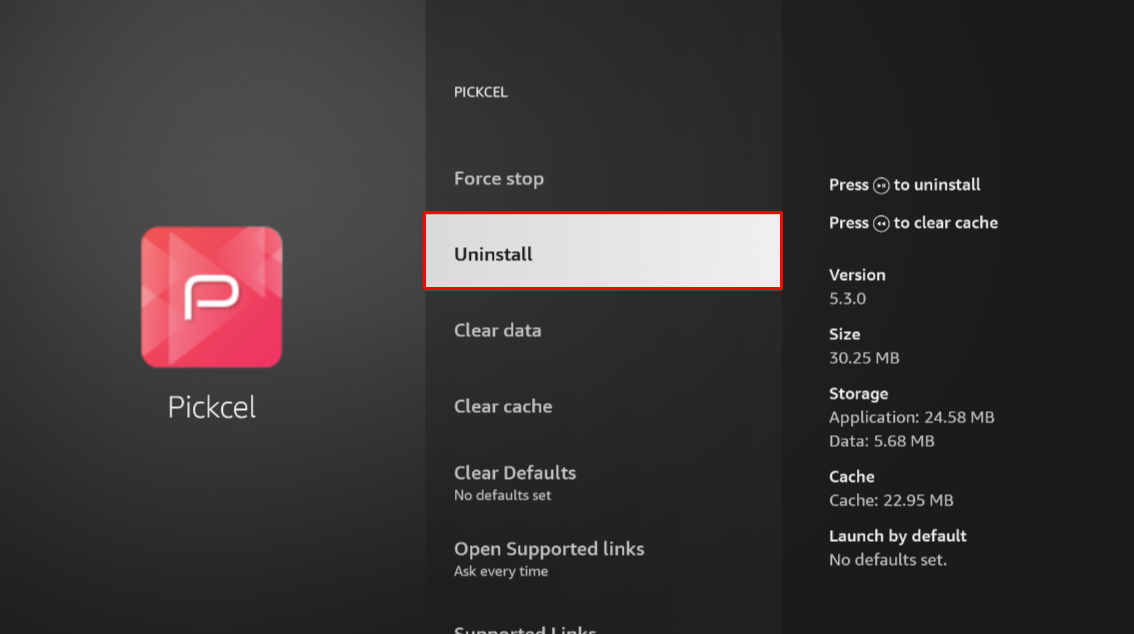
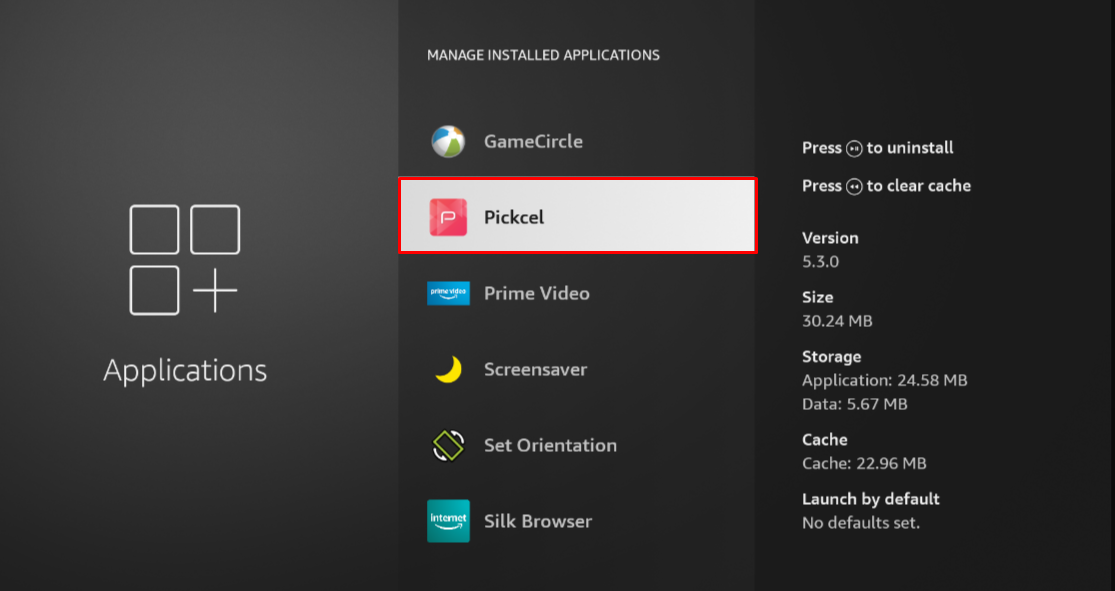 On the **Pickcel** app page, select **Uninstall**. This page also lists **Force stop**, **Clear data**, and **Clear cache**, so make sure you choose **Uninstall**.
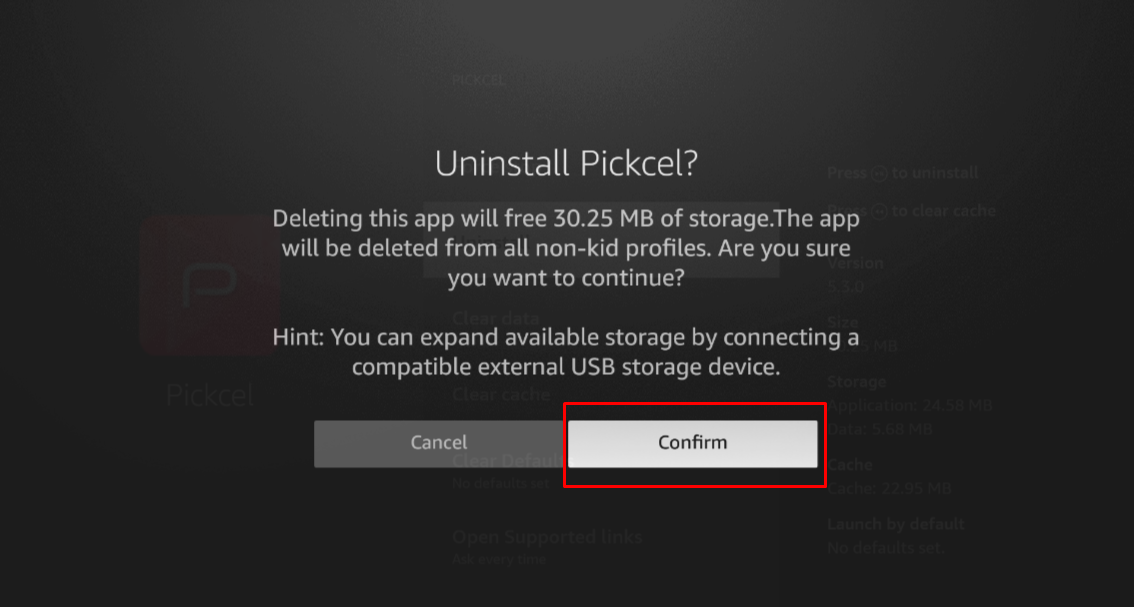
 In the **Uninstall Pickcel?** dialog, select **Confirm**.
 The steps depend on your webOS version.
**webOS 4.0 and above** lets you remove the app straight from the Home screen:
Press the **Home** button on the LG remote to open the app launcher.
Highlight the **Pickcel** app and press and hold **OK** until the **X** mark appears above the app icon. (You can also choose **Edit App List** on the Home screen to show the delete icon on each app.)
Select the **X** mark on the Pickcel app, then choose **Yes** to confirm the deletion.
On the newest webOS sets, the long-press shows a **trash-bin** icon (in **Edit App List**) instead of an **X** mark. Select the trash-bin and confirm to delete the app.
**Older webOS versions** have no uninstall option, so the only way to remove the app is a **Factory Data Reset**:
A Factory Data Reset erases **all** data on the screen, not just the Pickcel app. Use it only if your webOS version has no Home-screen delete option.
Press the **Settings** button on the LG remote.
The steps depend on your webOS version.
**webOS 4.0 and above** lets you remove the app straight from the Home screen:
Press the **Home** button on the LG remote to open the app launcher.
Highlight the **Pickcel** app and press and hold **OK** until the **X** mark appears above the app icon. (You can also choose **Edit App List** on the Home screen to show the delete icon on each app.)
Select the **X** mark on the Pickcel app, then choose **Yes** to confirm the deletion.
On the newest webOS sets, the long-press shows a **trash-bin** icon (in **Edit App List**) instead of an **X** mark. Select the trash-bin and confirm to delete the app.
**Older webOS versions** have no uninstall option, so the only way to remove the app is a **Factory Data Reset**:
A Factory Data Reset erases **all** data on the screen, not just the Pickcel app. Use it only if your webOS version has no Home-screen delete option.
Press the **Settings** button on the LG remote.
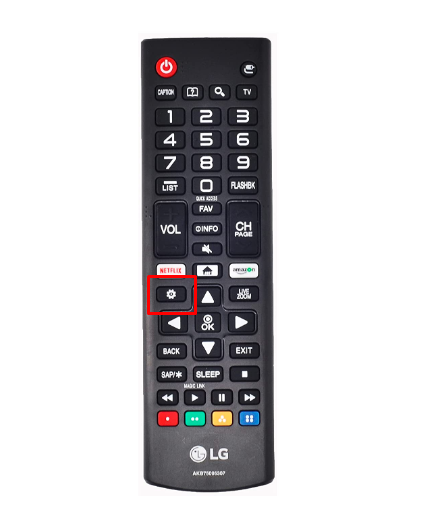 Go to the **Admin** option.
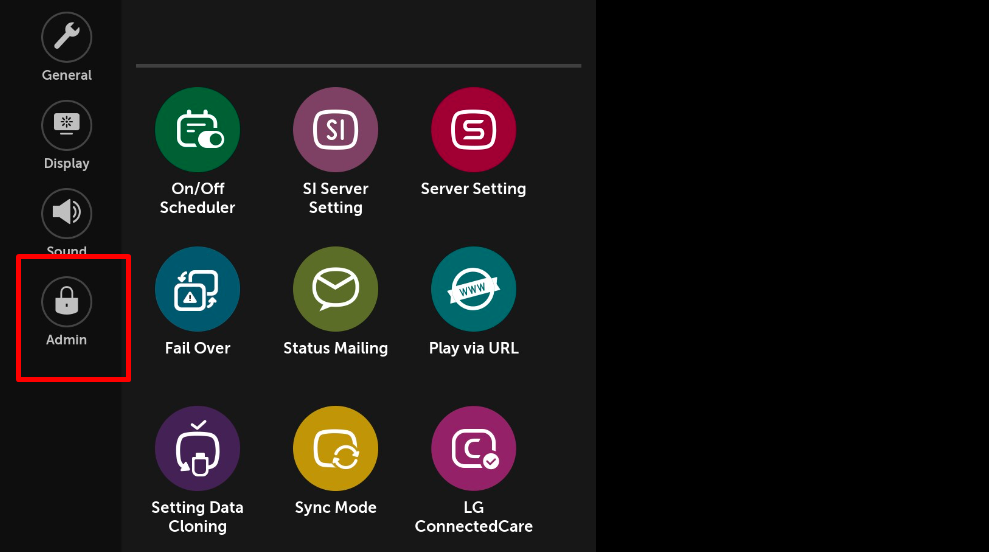 Enter the default password **0000** using the remote.
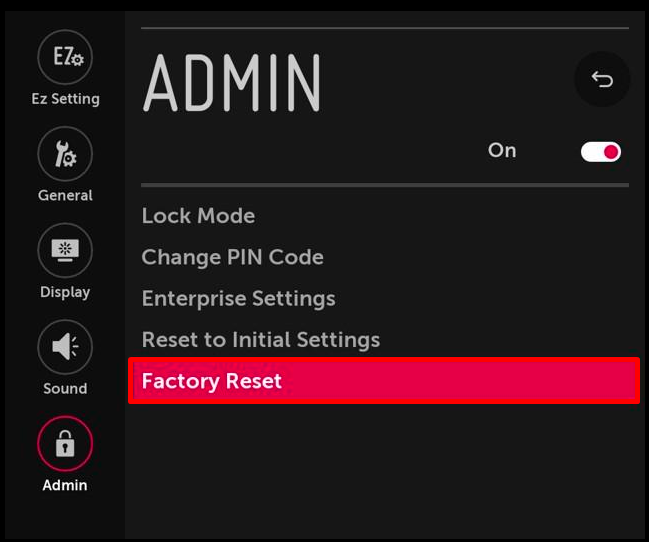
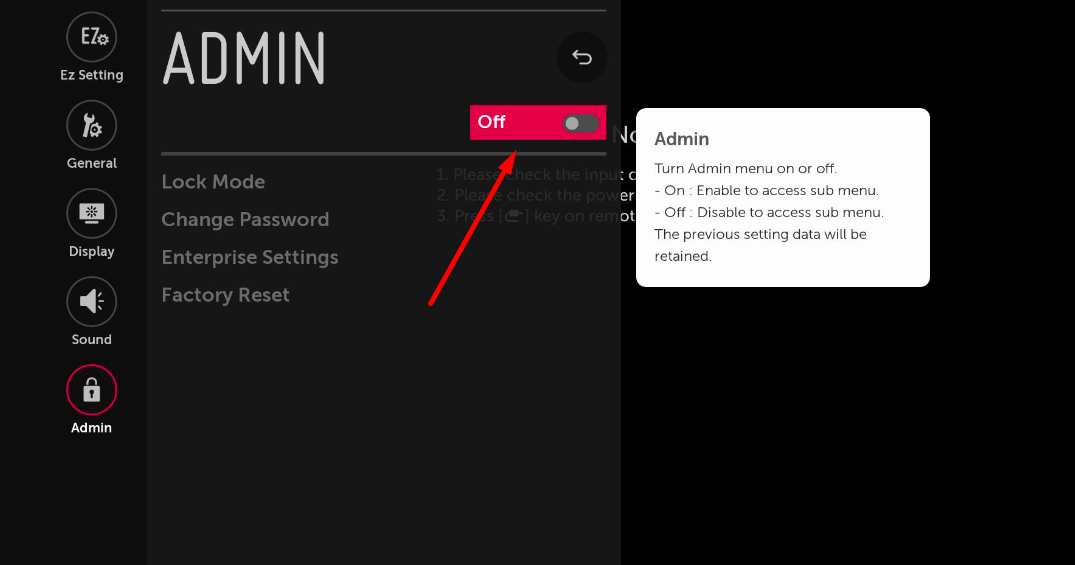 Enable the **Admin** option and select **Factory Data Reset**.
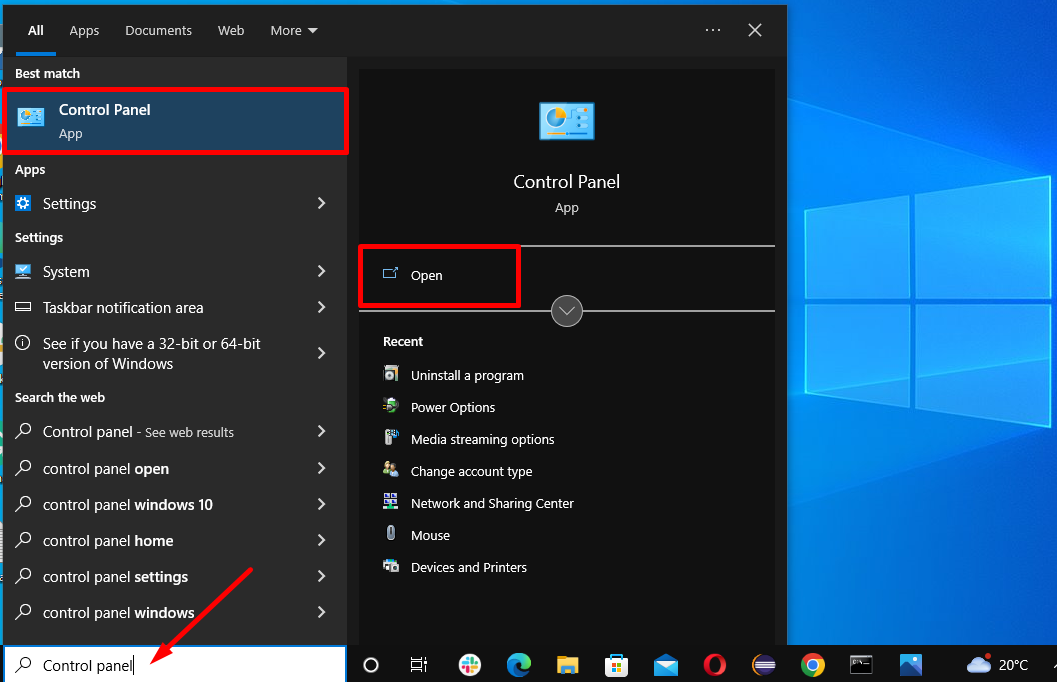
 In the **Search** bar, search for **Control Panel** and click **Open**.
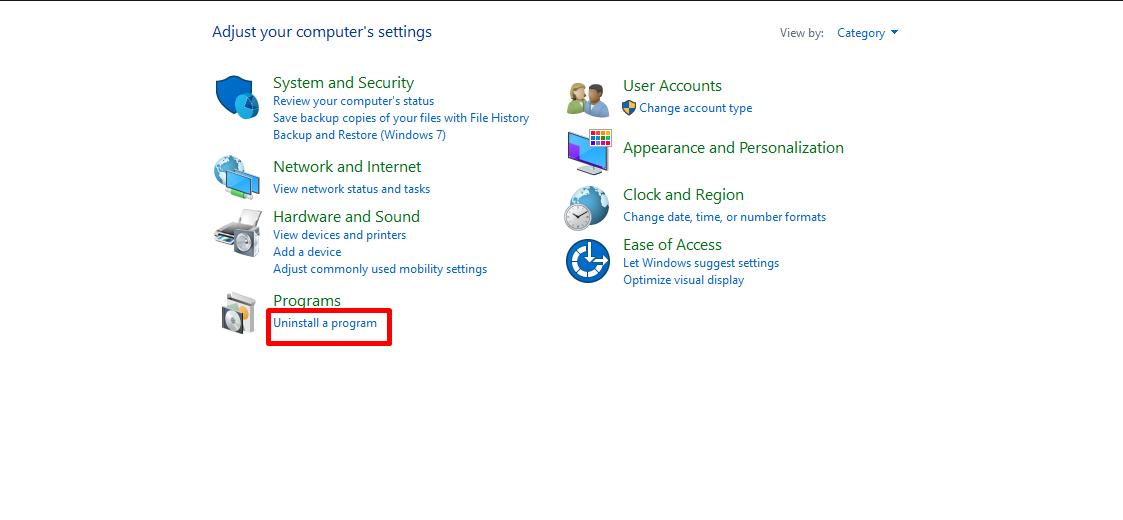
 Click **Uninstall a program**.
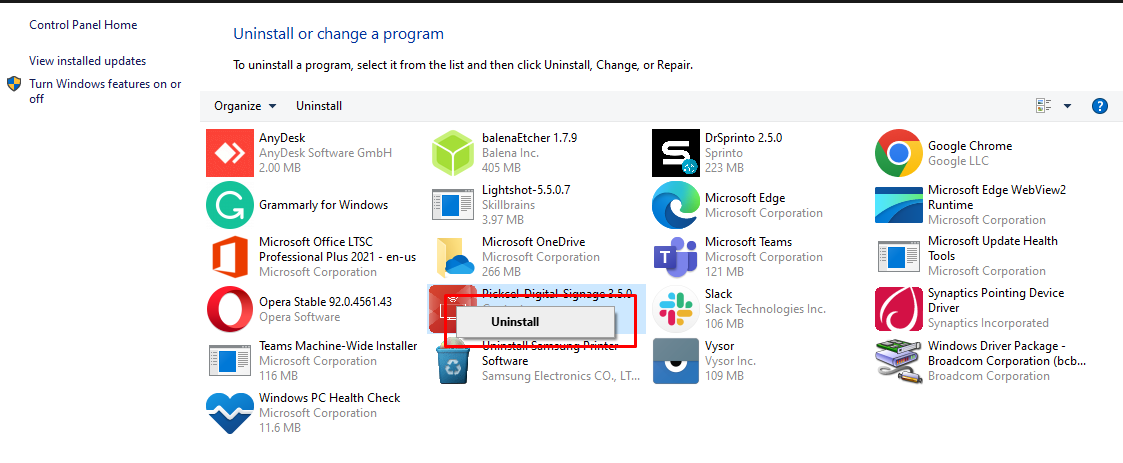
 Hover over the **Pickcel Digital Signage** app, right-click it, and choose **Uninstall**.
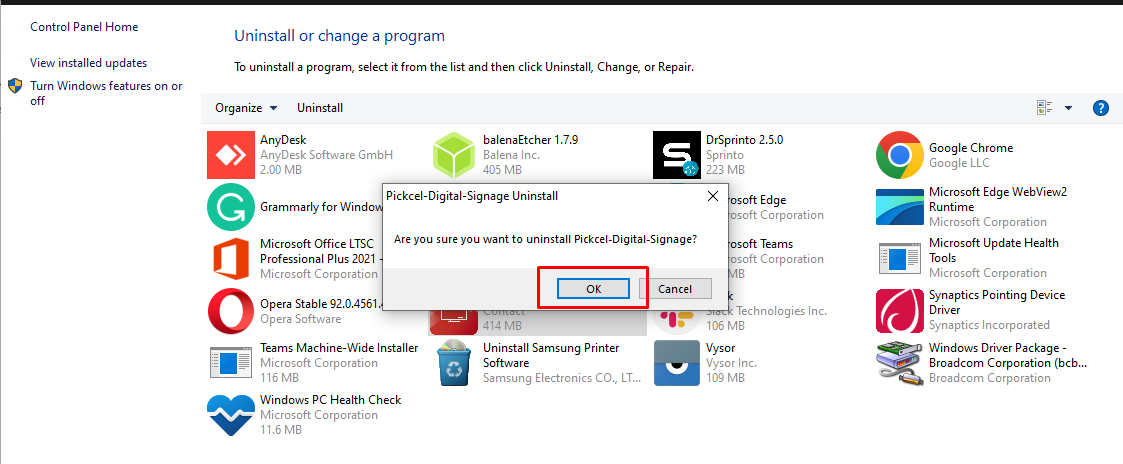
 Click **OK** to confirm.
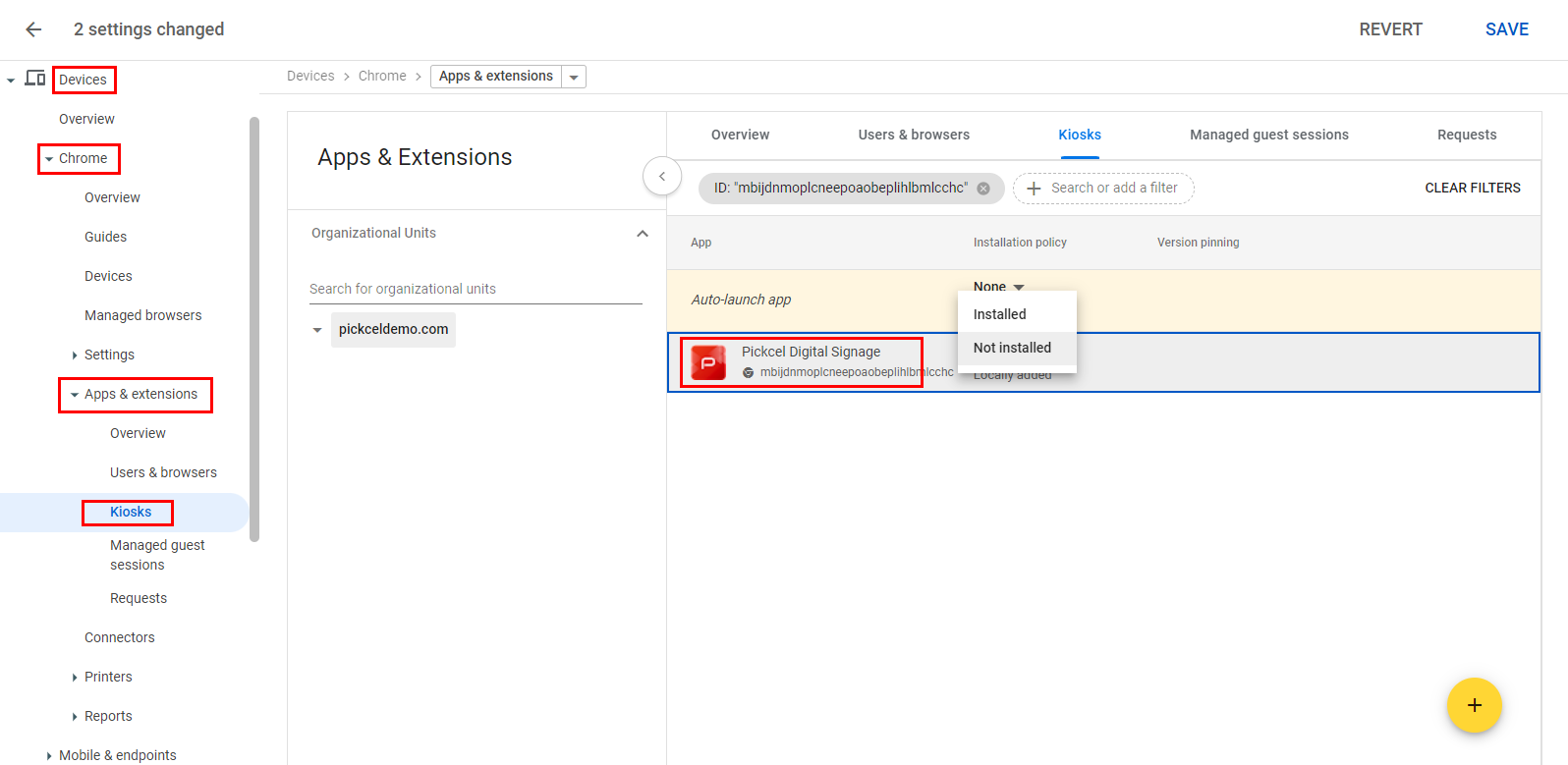
 Log in to the [Google Admin console](https://admin.google.com/AdminHome) and go to **Devices → Chrome → Apps & Extensions → Kiosk**. Click **Pickcel Digital Signage**.
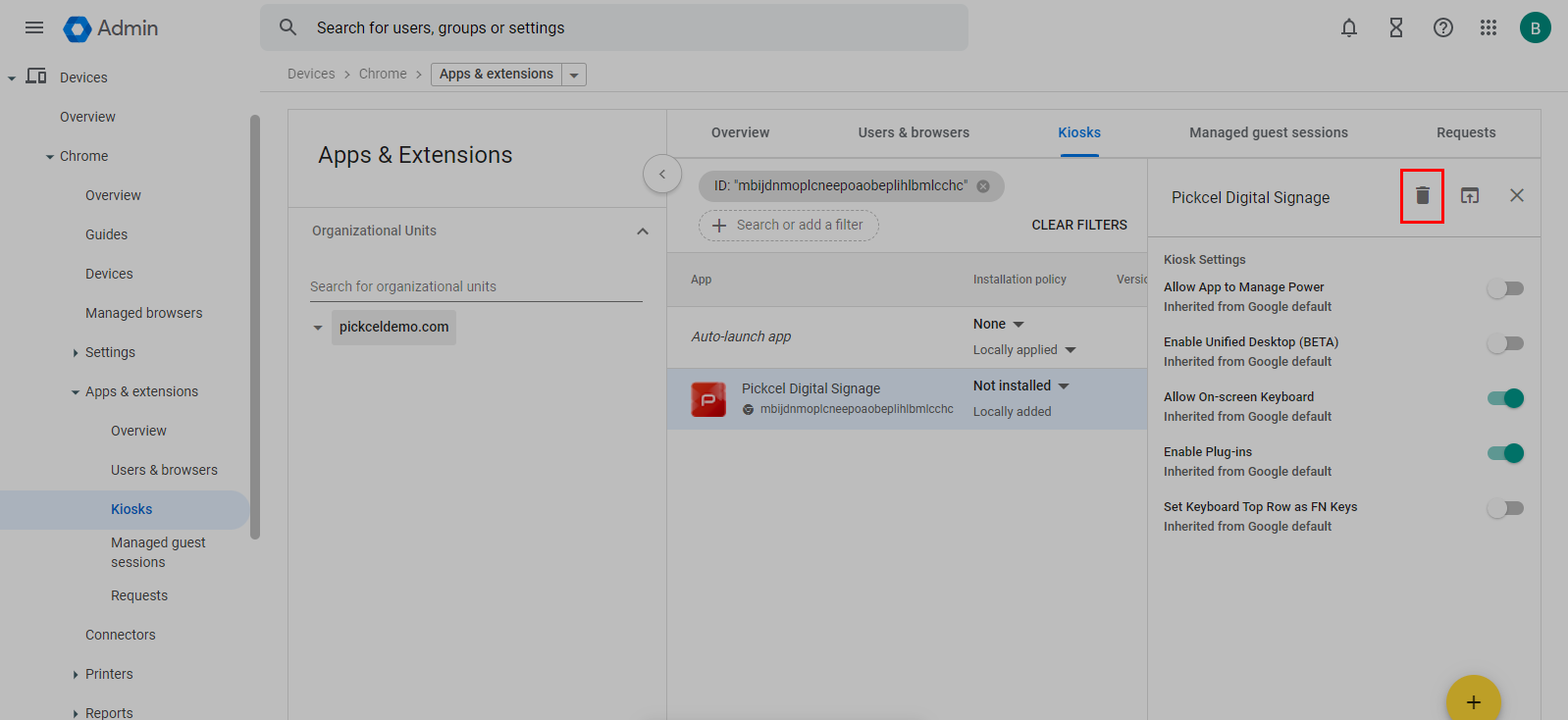
 Click the **Delete** icon, then click **Save**.
 ### Can I move my screen from one account to another?
Direct transfer between accounts isn't supported from the console. Contact [support](mailto:support@pickcel.com) and the team will help with the screen migration.
### Can I manage screens across multiple locations from one place?
Yes. You can centrally manage screens worldwide from a single location. Once each screen is installed and set up, you don't need to be physically present to manage it.
Use [Stores](/store/create-store) to organize screens by location or branch and [monitor and manage them across stores](/store/manage-screens), and [Groups](/settings/groups) to act on a set of screens at once.
### Where can I find my player or device information?
1. Log in and open the **Screens** module.
2. Click the screen name to open its details.
3. Open the **Device** tab.
There you'll see player-side details such as **IP address, MAC address, Device ID, total and available storage, JavaScript version, APK version, and Android version**.
## Related guides
Bring a deactivated screen back to active status.
Fix screens stuck on "Waiting for content" and more.
What the three status dots on your screen mean.
Browse all Pickcel FAQ articles.
### Can I move my screen from one account to another?
Direct transfer between accounts isn't supported from the console. Contact [support](mailto:support@pickcel.com) and the team will help with the screen migration.
### Can I manage screens across multiple locations from one place?
Yes. You can centrally manage screens worldwide from a single location. Once each screen is installed and set up, you don't need to be physically present to manage it.
Use [Stores](/store/create-store) to organize screens by location or branch and [monitor and manage them across stores](/store/manage-screens), and [Groups](/settings/groups) to act on a set of screens at once.
### Where can I find my player or device information?
1. Log in and open the **Screens** module.
2. Click the screen name to open its details.
3. Open the **Device** tab.
There you'll see player-side details such as **IP address, MAC address, Device ID, total and available storage, JavaScript version, APK version, and Android version**.
## Related guides
Bring a deactivated screen back to active status.
Fix screens stuck on "Waiting for content" and more.
What the three status dots on your screen mean.
Browse all Pickcel FAQ articles.