> ## Documentation Index
> Fetch the complete documentation index at: https://docs.pickcel.com/llms.txt
> Use this file to discover all available pages before exploring further.
# How to Schedule Sleep on Samsung QH/QB/QM Signage TVs?
> Configure on/off timers on Samsung QH/QB/QM digital signage TVs so the display automatically turns on and off at scheduled times, saving energy overnight.
You can schedule your Samsung QH/QB/QM signage TV to automatically turn on and off at specific times using the built-in On/Off Timer feature. This is perfect for energy savings and automated display management.
Press the **Home button** on your remote and select **On/Off Timer** from the menu.
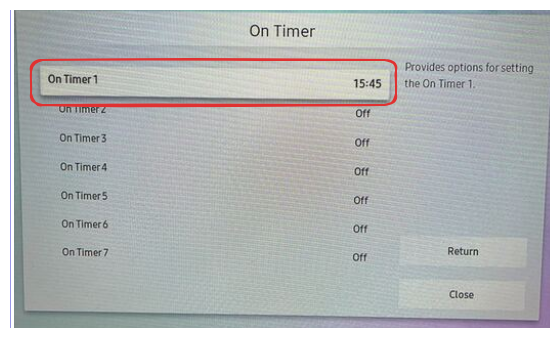
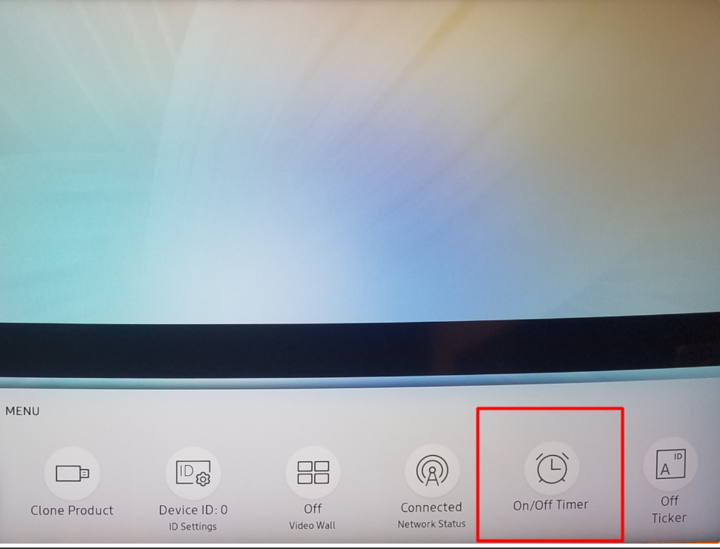 Click on **On Timer** to configure when the TV should turn on.
 Select **On Timer 1** (or any other available timer from the list).
 Click **Setup**. Choose the days you want the TV to turn on, navigate to **Time**, and set the desired time for the timer. Click **Done** when finished.
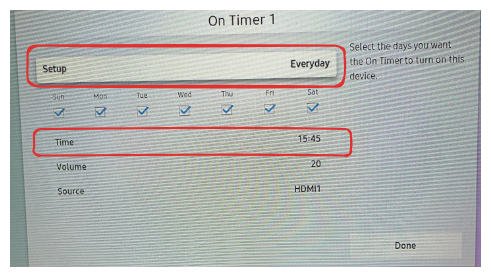 **Time Format:** The TV uses a 24-hour clock format (e.g., 14:30 for 2:30 PM).
Click on **Off Timer** and select **Off Timer 1** (or any other available timer from the list).
**Time Format:** The TV uses a 24-hour clock format (e.g., 14:30 for 2:30 PM).
Click on **Off Timer** and select **Off Timer 1** (or any other available timer from the list).
 Click **Setup**. Choose the days you want the TV to turn off, navigate to **Time**, and set the desired time for the timer. Click **Done** when finished. Return to the previous menu and click **Close**.
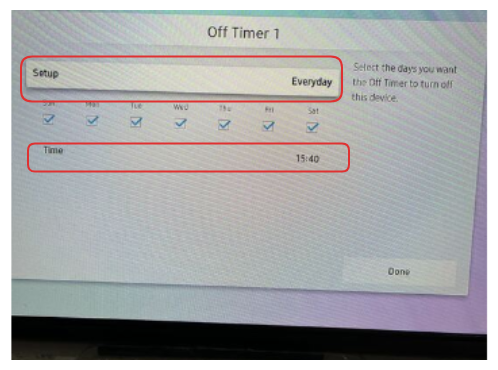 Your Samsung signage TV will now automatically turn on and off according to the scheduled times you've configured.
Set the **On Timer** a few minutes before your Pickcel content schedule is due to start playing. This gives the display time to boot and reconnect before the first scheduled content needs to appear.
## Related Articles
Install Pickcel on Samsung Tizen using SSSP method
Install Pickcel on Samsung Tizen using USB method
Learn how to register your Samsung TV with Pickcel
Browse more troubleshooting guides and FAQs
Your Samsung signage TV will now automatically turn on and off according to the scheduled times you've configured.
Set the **On Timer** a few minutes before your Pickcel content schedule is due to start playing. This gives the display time to boot and reconnect before the first scheduled content needs to appear.
## Related Articles
Install Pickcel on Samsung Tizen using SSSP method
Install Pickcel on Samsung Tizen using USB method
Learn how to register your Samsung TV with Pickcel
Browse more troubleshooting guides and FAQs