> ## Documentation Index
> Fetch the complete documentation index at: https://docs.pickcel.com/llms.txt
> Use this file to discover all available pages before exploring further.
# How to Re-activate your Pickcel Digital Signage Screen?
> Step-by-step guide to re-activate deactivated screens in Pickcel and bring them back to active status
If you've deactivated a screen and need it back online, you can re-activate it from the Pickcel console in a few clicks, no need to re-register the device.
## Re-activate a deactivated screen
Log in to [Pickcel console](https://console.pickcel.com/#/) and navigate to the **Screen** module to access your screens list.
Deactivated screens are hidden from the default screen list, so filter for them first. Click the **filter icon** in the top-right corner of the screen list.
In the filter menu, select **Deactivated screens** and apply the filter.
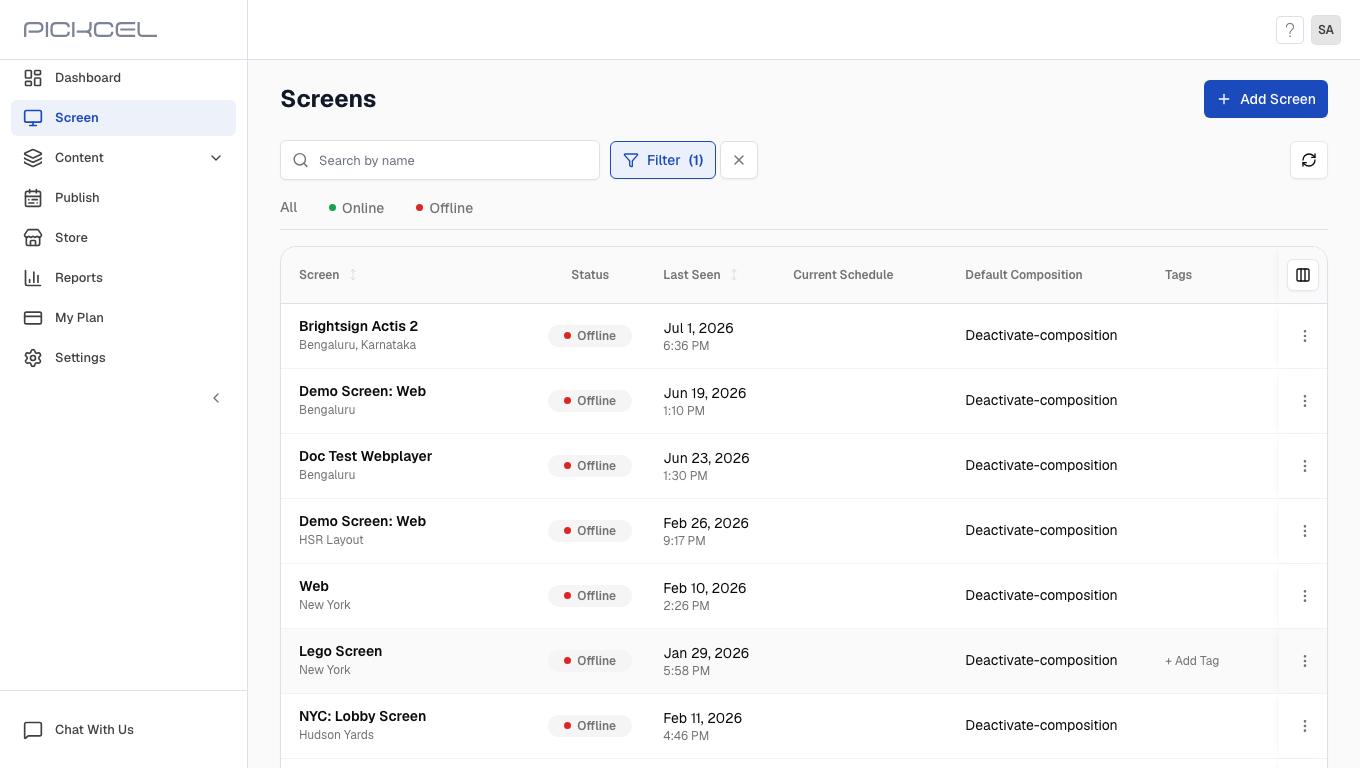
Only your deactivated screens are shown now, making it easy to find the one you want to bring back.
Select the screen you want to reactivate, open its details, and click **Screen actions** (⋮) at the top of the screen details page.
Click **Reactivate** in the dropdown menu.
Confirm the re-activation in the dialog that appears.
A confirmation message appears once the screen has been successfully reactivated.
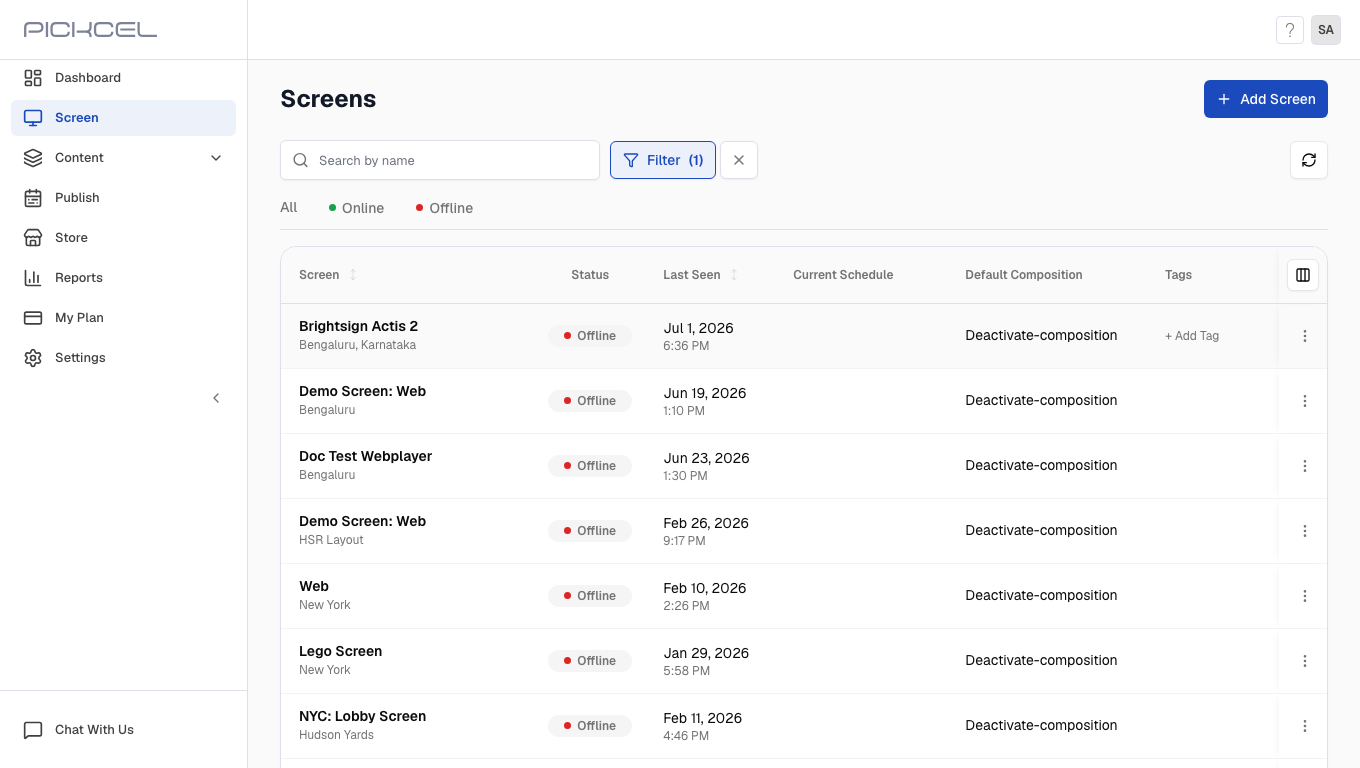
The filter is still applied, so clear it to see the full screen list again.
Your screen is back in the active screens list and ready to display content again.
Reactivating a screen restores its previous default composition automatically, you don't need to reassign content.
## Related guides
What "Deactivated" and other on-screen status messages mean.
Register and configure a new display.
Browse all Pickcel FAQ articles.
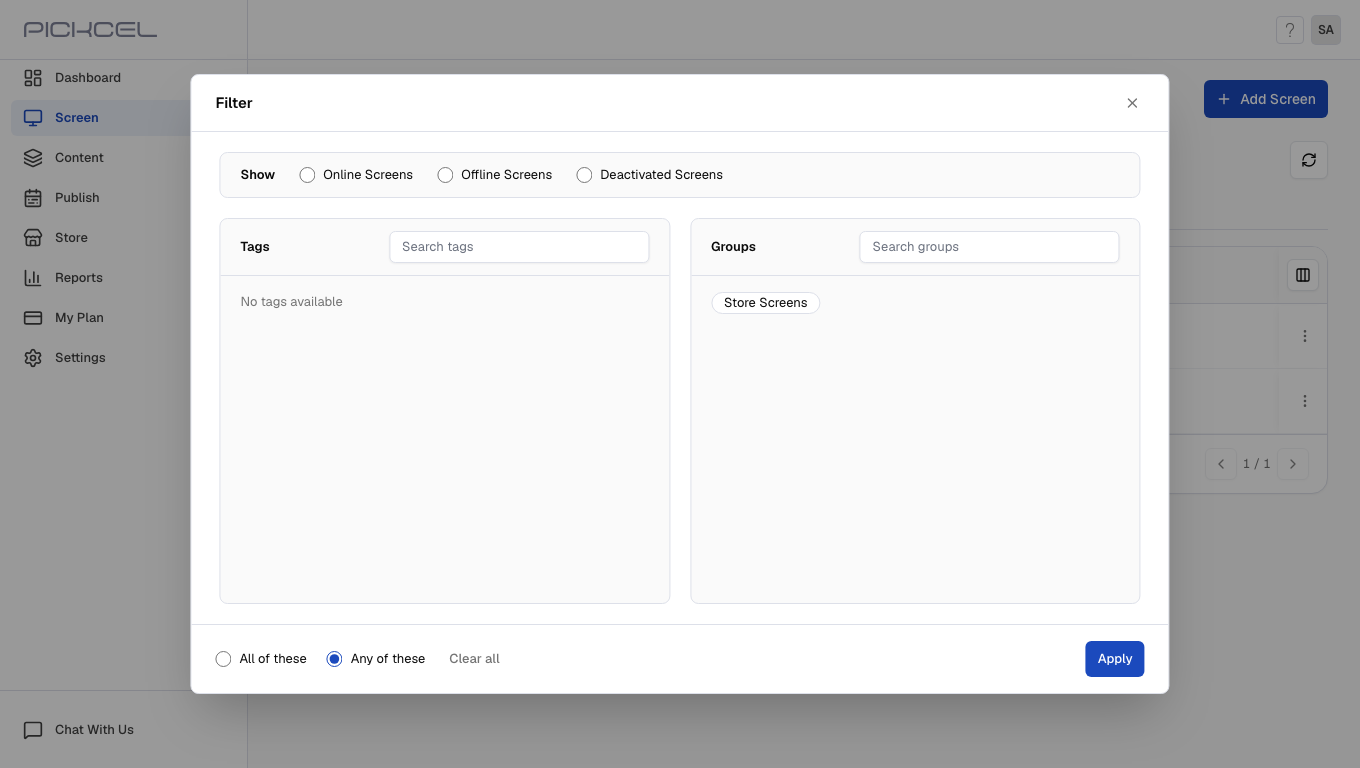 In the filter menu, select **Deactivated screens** and apply the filter.
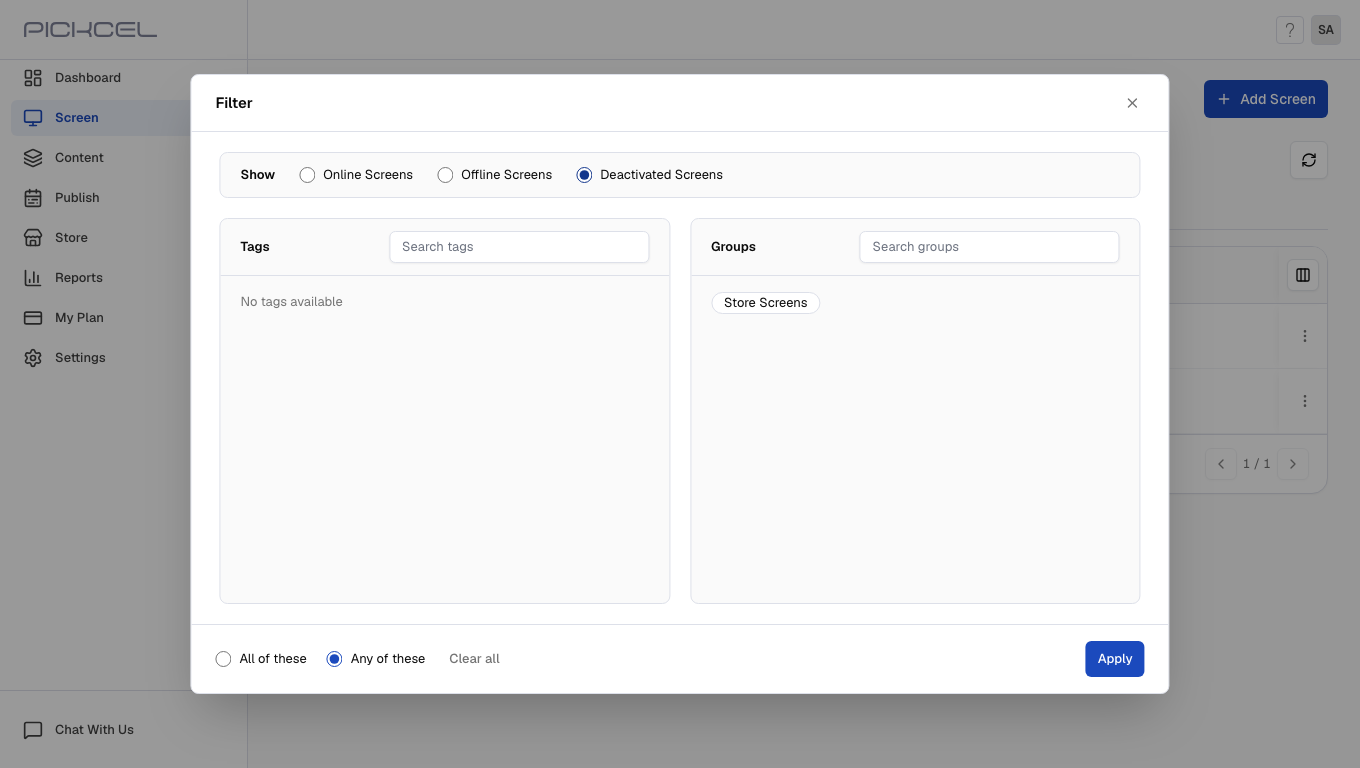 Only your deactivated screens are shown now, making it easy to find the one you want to bring back.
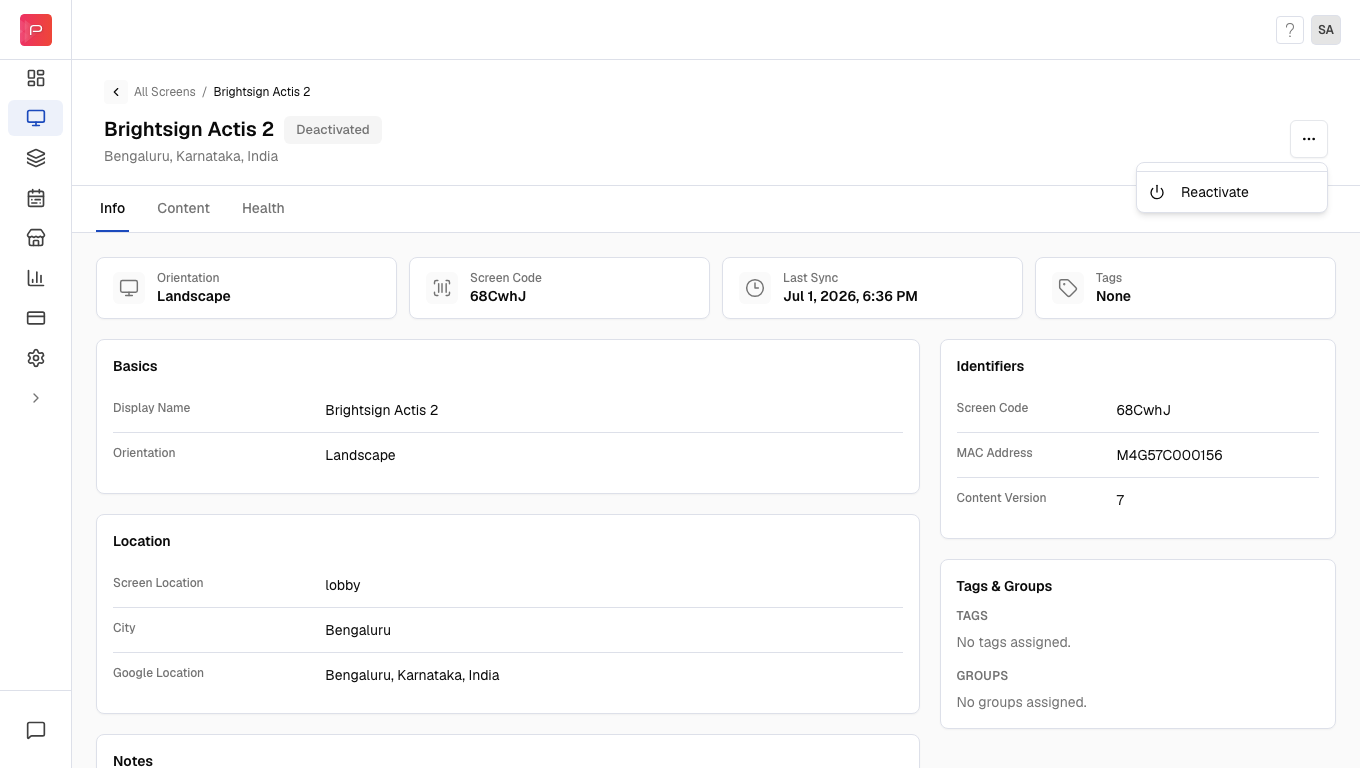 Click **Reactivate** in the dropdown menu.
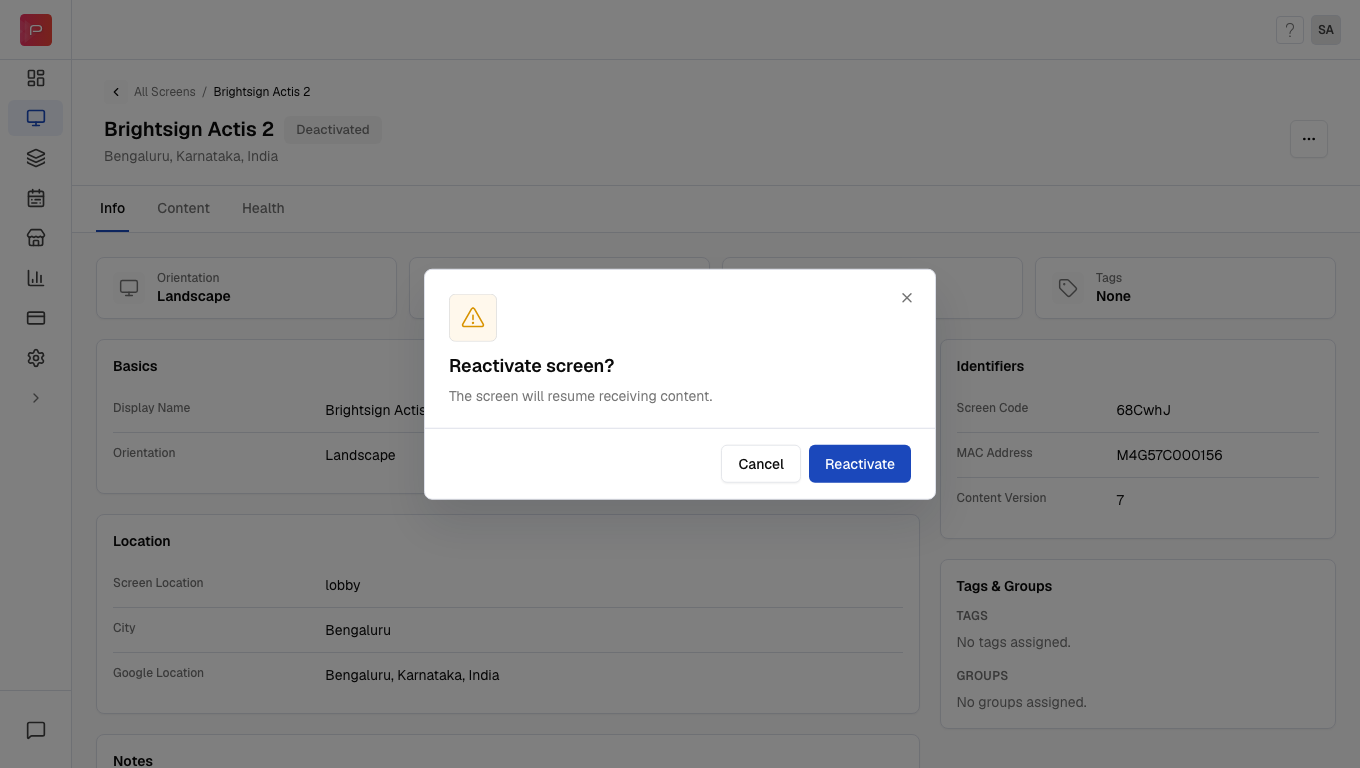 A confirmation message appears once the screen has been successfully reactivated.
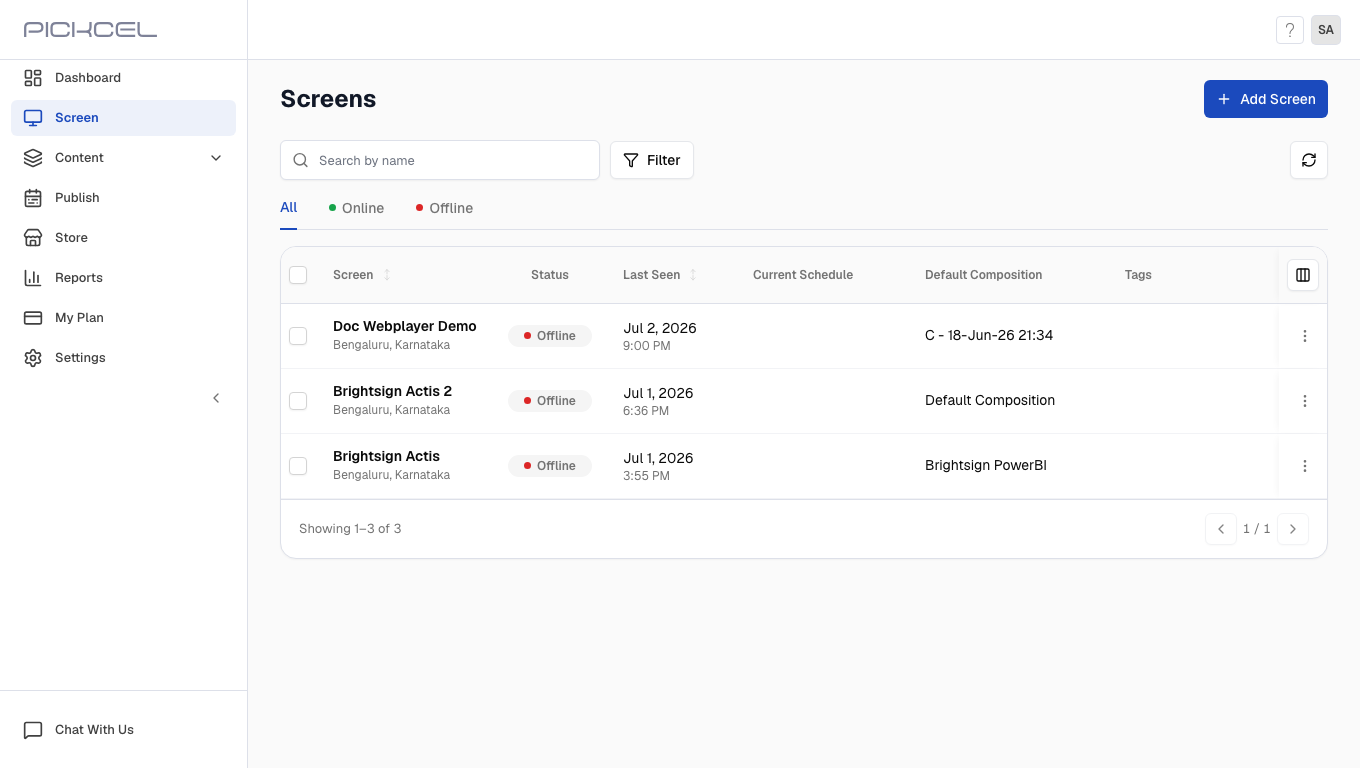 Your screen is back in the active screens list and ready to display content again.