> ## Documentation Index
> Fetch the complete documentation index at: https://docs.pickcel.com/llms.txt
> Use this file to discover all available pages before exploring further.
# How to Turn on Portrait Mode on Samsung Tizen?
> Set a Samsung SSSP (Tizen) signage display to portrait orientation, during first-time or factory-reset setup, or later from the On-Screen Display menu.
There are two ways to turn on **Portrait** mode on a Samsung SSSP (Tizen) display. Use the first method on a fresh or factory-reset TV, and the second if you already have the Pickcel software or URL launcher set up.
## Fresh or factory-reset TV
Use this during the initial setup wizard, right after you power on a new or factory-reset display.
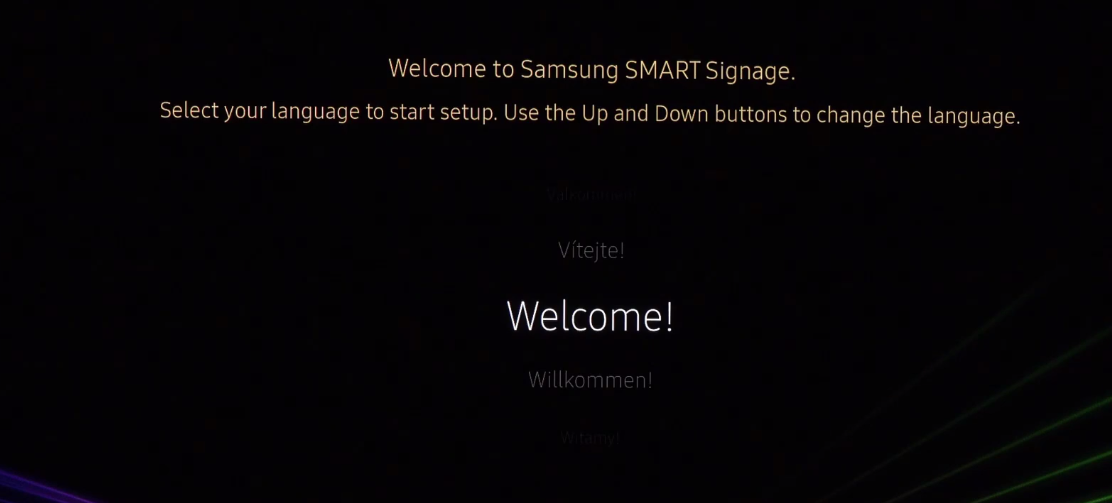
On the **Welcome to Samsung SMART Signage** screen, use the **Up** and **Down** buttons to choose your language, then press **OK**.
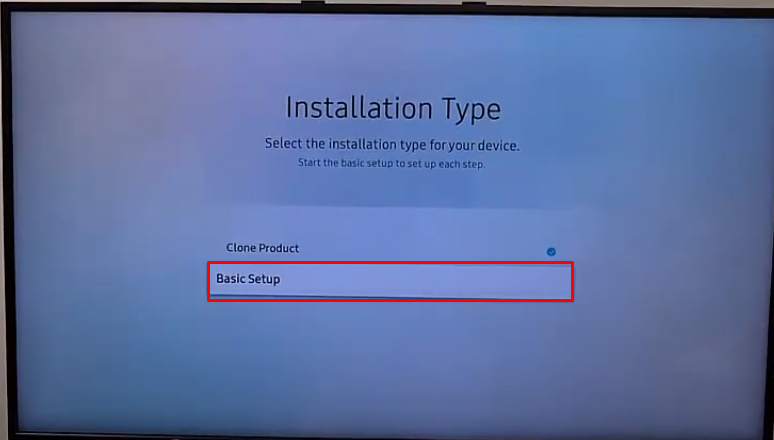
 On the **Installation Type** screen, select **Basic Setup** and press **OK**.
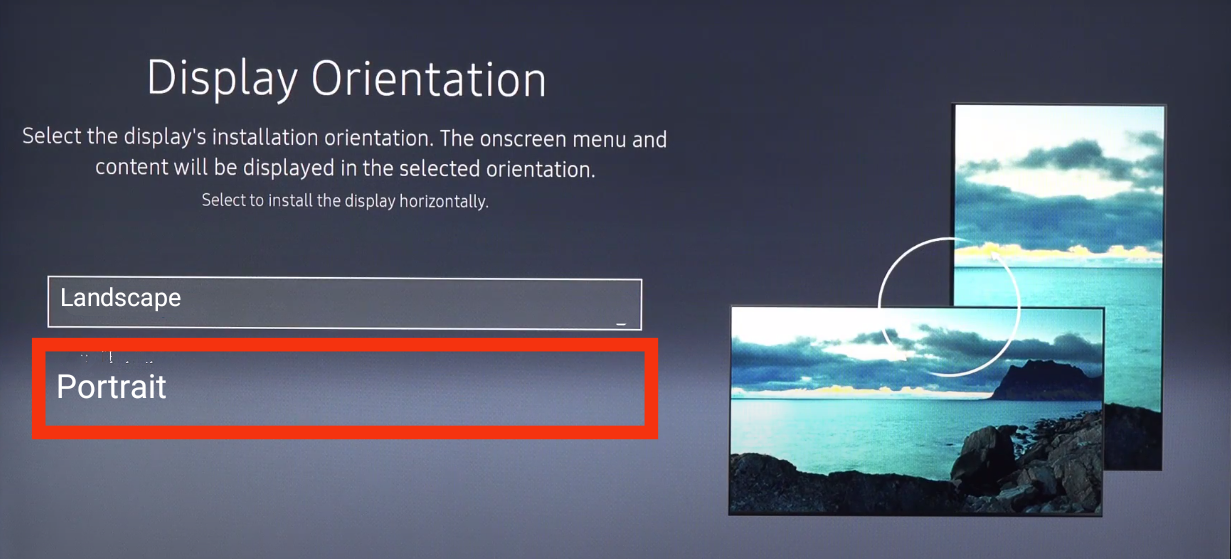
 On the **Display Orientation** screen, select **Portrait** and press **OK**. The display switches to portrait.
 ## TV already set up
Use this if Pickcel software is already installed or the URL launcher settings are already configured. You'll change the orientation from the **On-Screen Display** menu using the remote.
Press the **Home** button on the remote control.
## TV already set up
Use this if Pickcel software is already installed or the URL launcher settings are already configured. You'll change the orientation from the **On-Screen Display** menu using the remote.
Press the **Home** button on the remote control.
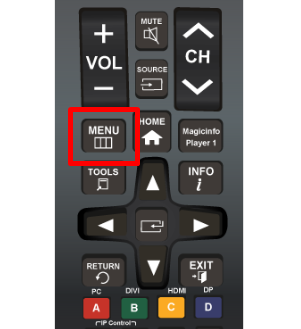
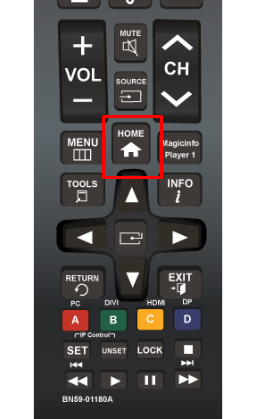 Press the **Menu** button on the remote control.
 In the menu, select **On-Screen Display**.
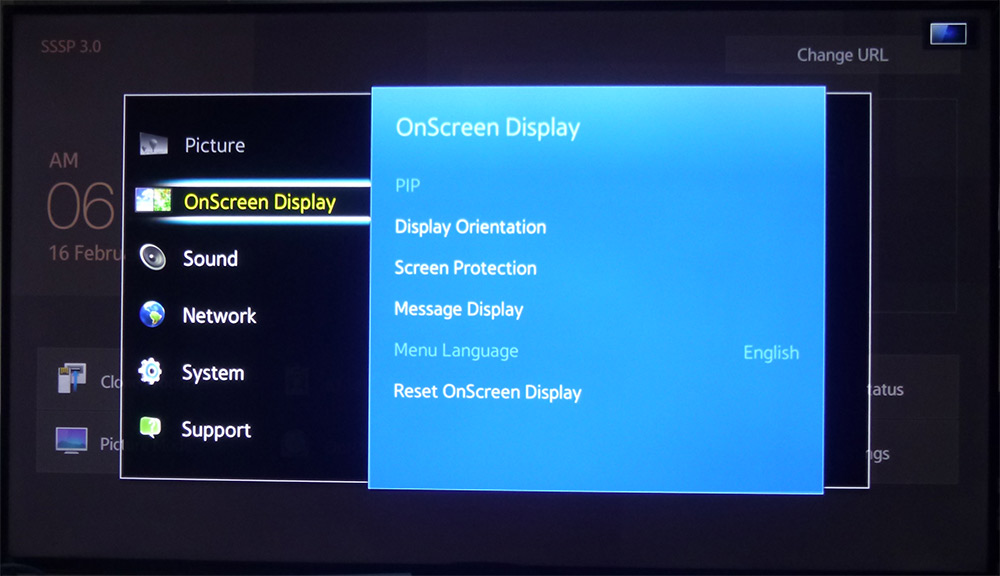 Move to the right and open **Display Orientation**. Change it from **Landscape** to **Portrait**. Your screen switches from landscape to portrait.
## Related Articles
Change orientation from the Pickcel player app on the device.
Change orientation remotely from the Pickcel console.
Move to the right and open **Display Orientation**. Change it from **Landscape** to **Portrait**. Your screen switches from landscape to portrait.
## Related Articles
Change orientation from the Pickcel player app on the device.
Change orientation remotely from the Pickcel console.