> ## Documentation Index
> Fetch the complete documentation index at: https://docs.pickcel.com/llms.txt
> Use this file to discover all available pages before exploring further.
# How to Change Orientation from the Pickcel Console?
> Change screen orientation between landscape, portrait, or custom rotation remotely from the Pickcel console
Use this method when you want to configure orientation remotely from your Pickcel account. This is useful when your screen is placed in landscape, portrait, or needs a custom rotation.
This feature is currently supported only for **Android players**. Support for other player platforms will be rolled out soon.
Open the **Screen** module in your Pickcel console and select the screen you want to configure.
Click the **edit icon** next to the screen name to open the Update Screen window.
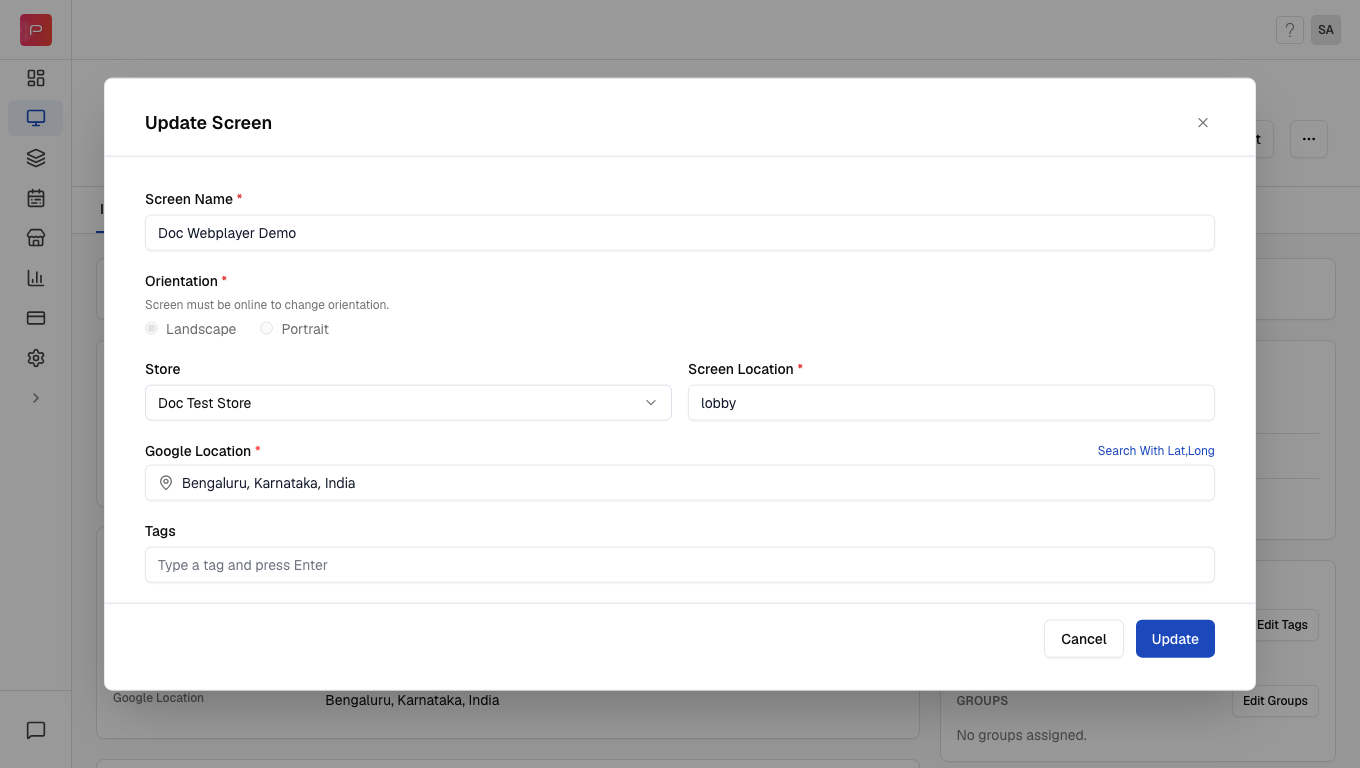 In the **Update Screen** window, choose one of the following options:
* **Landscape**: horizontal screen view
* **Portrait**: vertical screen view
* **Advanced**: manual rotation setting, use this when your mounting angle doesn't match a standard orientation
If you selected **Advanced**, choose the rotation angle that matches how the screen is physically mounted:
| Angle | Result |
| -------- | ------------------------------------ |
| **0°** | Default orientation |
| **90°** | Rotated 90 degrees clockwise |
| **180°** | Upside down |
| **270°** | Rotated 90 degrees counter-clockwise |
Click **Update** to save the new orientation settings. The player picks up the change remotely, without needing to touch the device.
Use **Advanced** when the screen looks sideways or upside down and the standard Landscape/Portrait options don't display correctly.
## Related guides
Change orientation directly on the player device.
Learn how to register and configure your display.
In the **Update Screen** window, choose one of the following options:
* **Landscape**: horizontal screen view
* **Portrait**: vertical screen view
* **Advanced**: manual rotation setting, use this when your mounting angle doesn't match a standard orientation
If you selected **Advanced**, choose the rotation angle that matches how the screen is physically mounted:
| Angle | Result |
| -------- | ------------------------------------ |
| **0°** | Default orientation |
| **90°** | Rotated 90 degrees clockwise |
| **180°** | Upside down |
| **270°** | Rotated 90 degrees counter-clockwise |
Click **Update** to save the new orientation settings. The player picks up the change remotely, without needing to touch the device.
Use **Advanced** when the screen looks sideways or upside down and the standard Landscape/Portrait options don't display correctly.
## Related guides
Change orientation directly on the player device.
Learn how to register and configure your display.