> ## Documentation Index
> Fetch the complete documentation index at: https://docs.pickcel.com/llms.txt
> Use this file to discover all available pages before exploring further.
# How to Change Orientation from the Player App?
> Change screen orientation between landscape and portrait directly on the device running the Pickcel player app
Use this method when you want to change orientation directly on the device running the Pickcel player app, without needing access to the Pickcel console.
Connect a mouse to your device. While the Pickcel app is running on screen, **double right-click** to open the settings screen.
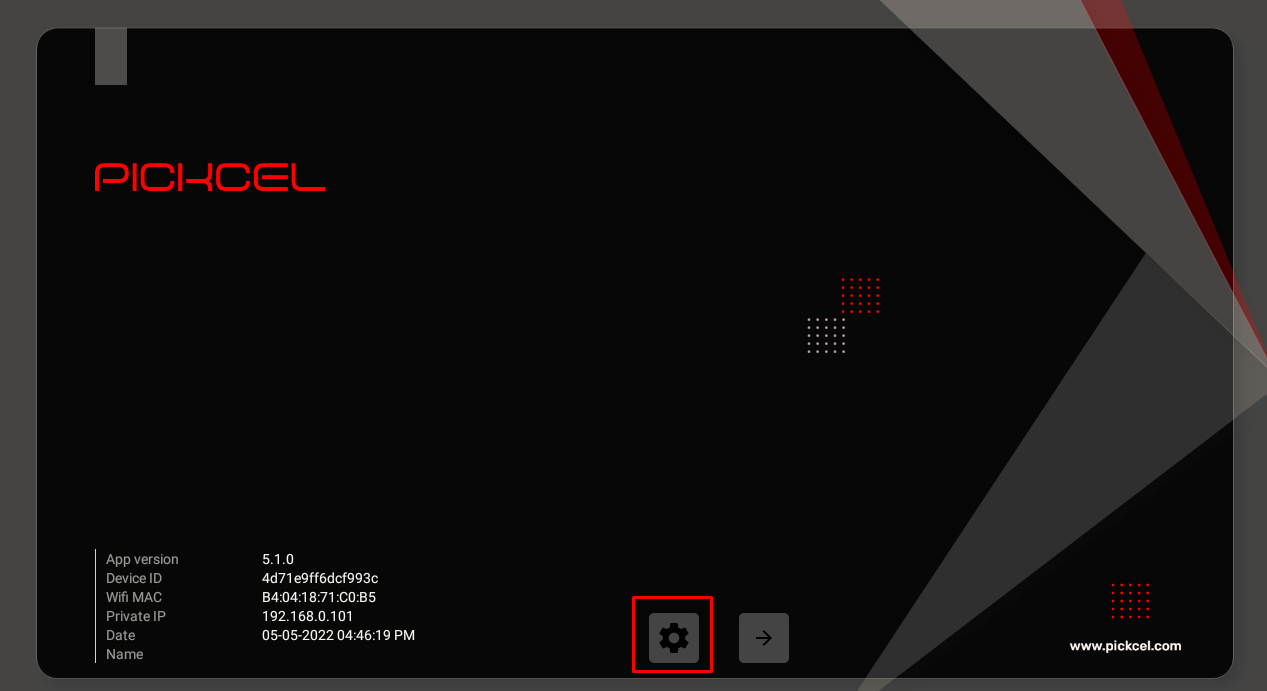 Click on the **Settings** button in the settings screen.
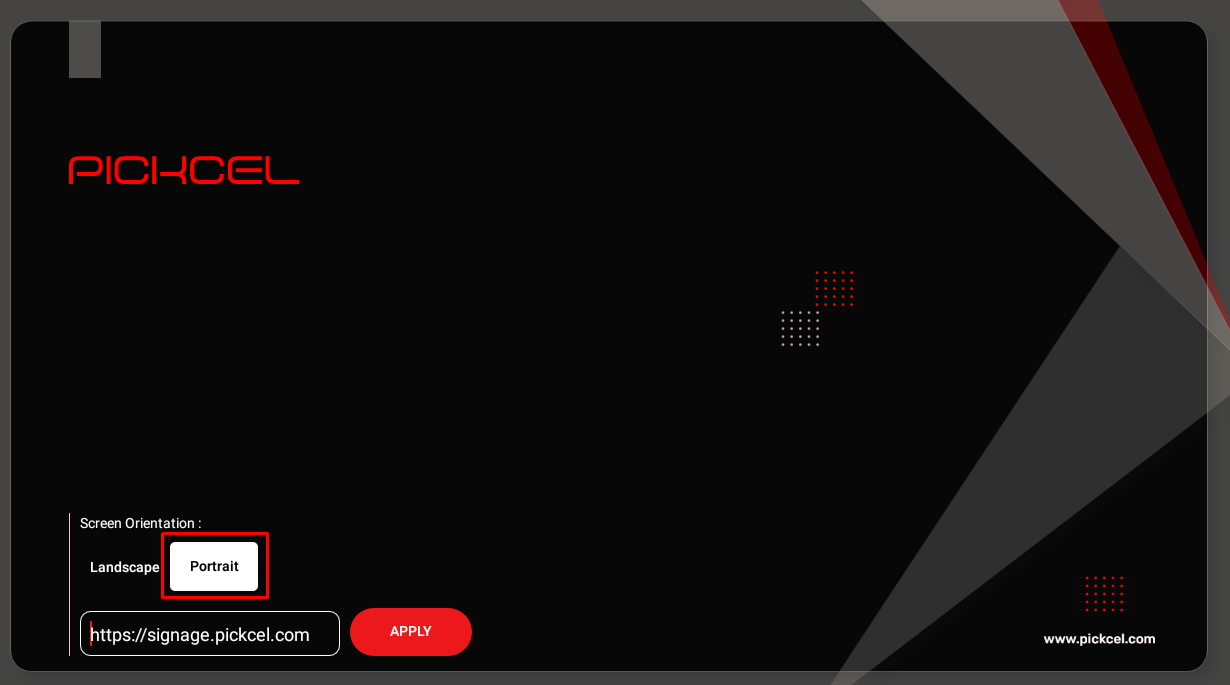 Select your preferred orientation: **Landscape** or **Portrait**.
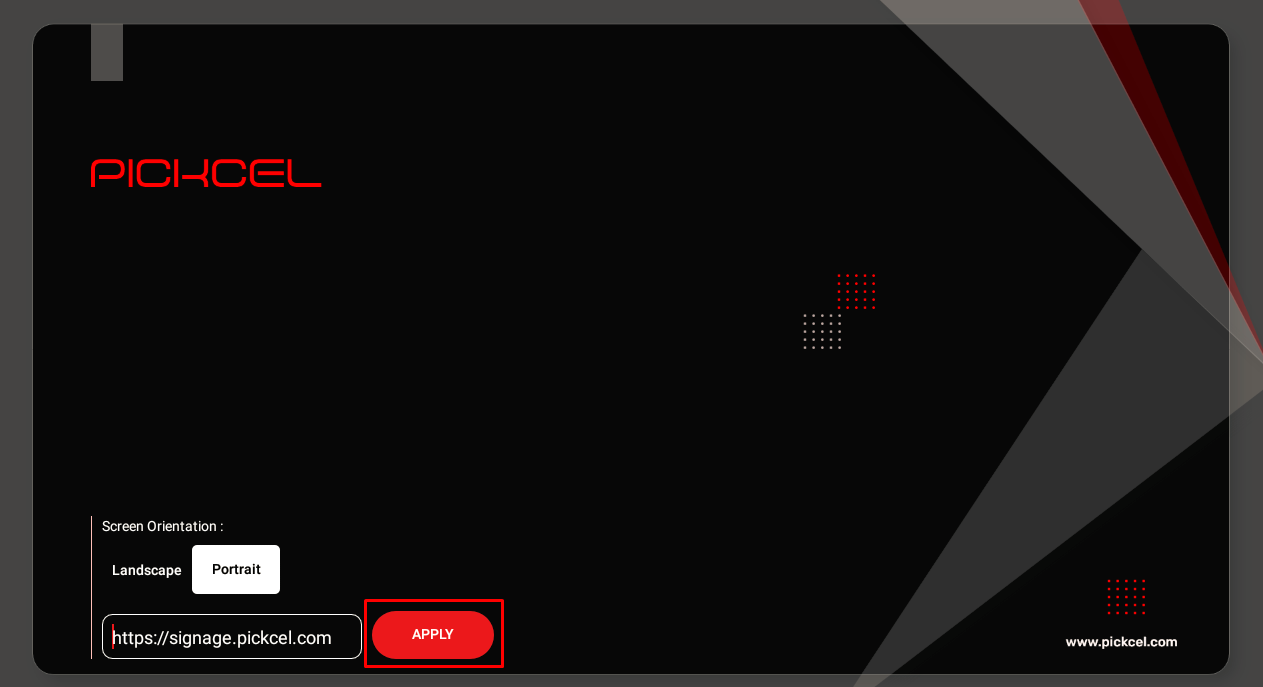 Click on **Apply** to save the orientation settings.
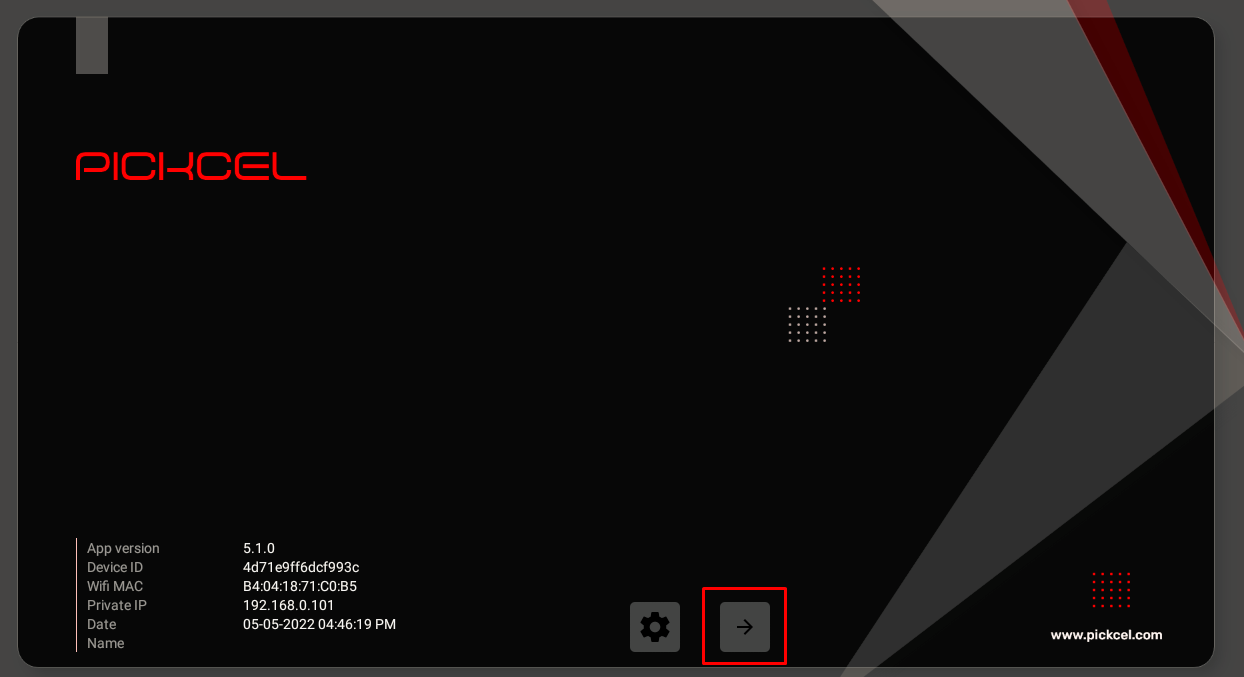 Click on the **Launch app** button to restart the app with the new orientation.
**Device Requirement:** To turn the Pickcel app from landscape to portrait, the device must have the Portrait option available. Not all devices support portrait mode.
## Related Articles
Change orientation remotely from the Pickcel console
Learn how to register and configure your display
Click on the **Launch app** button to restart the app with the new orientation.
**Device Requirement:** To turn the Pickcel app from landscape to portrait, the device must have the Portrait option available. Not all devices support portrait mode.
## Related Articles
Change orientation remotely from the Pickcel console
Learn how to register and configure your display