> ## Documentation Index
> Fetch the complete documentation index at: https://docs.pickcel.com/llms.txt
> Use this file to discover all available pages before exploring further.
# Managing your plan, licenses, and payments FAQs
> Manage your Pickcel subscription, upgrade or change plans, add screen licenses, renew, update card and billing details, apply promo codes, invoices, and GST.
How to manage your subscription, licenses, and payment details. For the free trial, billing cycle, cancellation, and refunds, see [Billing & Plans](/faqs/billing-and-plans).
Most of these actions start the same way: log in, open the **My Plan** module, and click **View Plan** (or **Upgrade** if you're on the trial). Plan and payment changes are handled on the **Stripe** billing pages.
### How does Pickcel's licensing model work?
Pickcel has four licensing models, so you can match your plan to your scale and hosting needs:
* **Professional**: the entry cloud plan for everyday digital signage.
* **Business**: a cloud plan that includes everything in Professional plus premium apps such as Zoom, Queue Management, Visitor Management, Discount Management, Stream, and Flight.
* **Enterprise**: for large deployments that need licenses for **more than 250 displays**, with terms tailored to your rollout.
* **On-premise**: a self-hosted deployment that runs Pickcel on your own servers instead of the cloud.
Choose an **annual** subscription to unlock a **10% discount**. See the [pricing page](https://www.pickcel.com/pricing.html) or contact [support](mailto:support@pickcel.com) for details.
### Who can become an Enterprise user?
You can move to **Enterprise** when you need licenses for **more than 250 displays**. Any existing Trial, Professional, or Business account can be converted to Enterprise. See the [pricing page](https://www.pickcel.com/pricing.html) or contact [support](mailto:support@pickcel.com).
### How do I upgrade or change my plan?
1. Log in and open the **My Plan** module, then click **View Plan**. (Trial users: see [how to upgrade from the trial plan](/plans-and-pricing/how-to-upgrade-from-trial-plan).)
2. Click **Update Plan**.
3. To change plan type, select **Business** (or your target plan); to switch billing cycle, choose **Monthly** or **Yearly**.
4. Click **Continue**, then **Confirm**.
Your updated plan appears in the **My Plan** module once payment completes.
### How do I add or reduce screen licenses?
1. Open the **My Plan** module and click **View Plan**, then **Update Plan**.
2. Set the number of screens with the **+** / **−** buttons (e.g. to go from 2 to 4, click **+** twice).
3. Click **Continue**, then **Confirm**.
After a successful payment, return to Pickcel and add your screens from the **Screens** module. Trial users: add a payment method first under **My Plan → Upgrade**.
### How do I renew or restart my plan?
If you cancelled your plan from the billing portal but your account is still active, you can reactivate it from the same place:
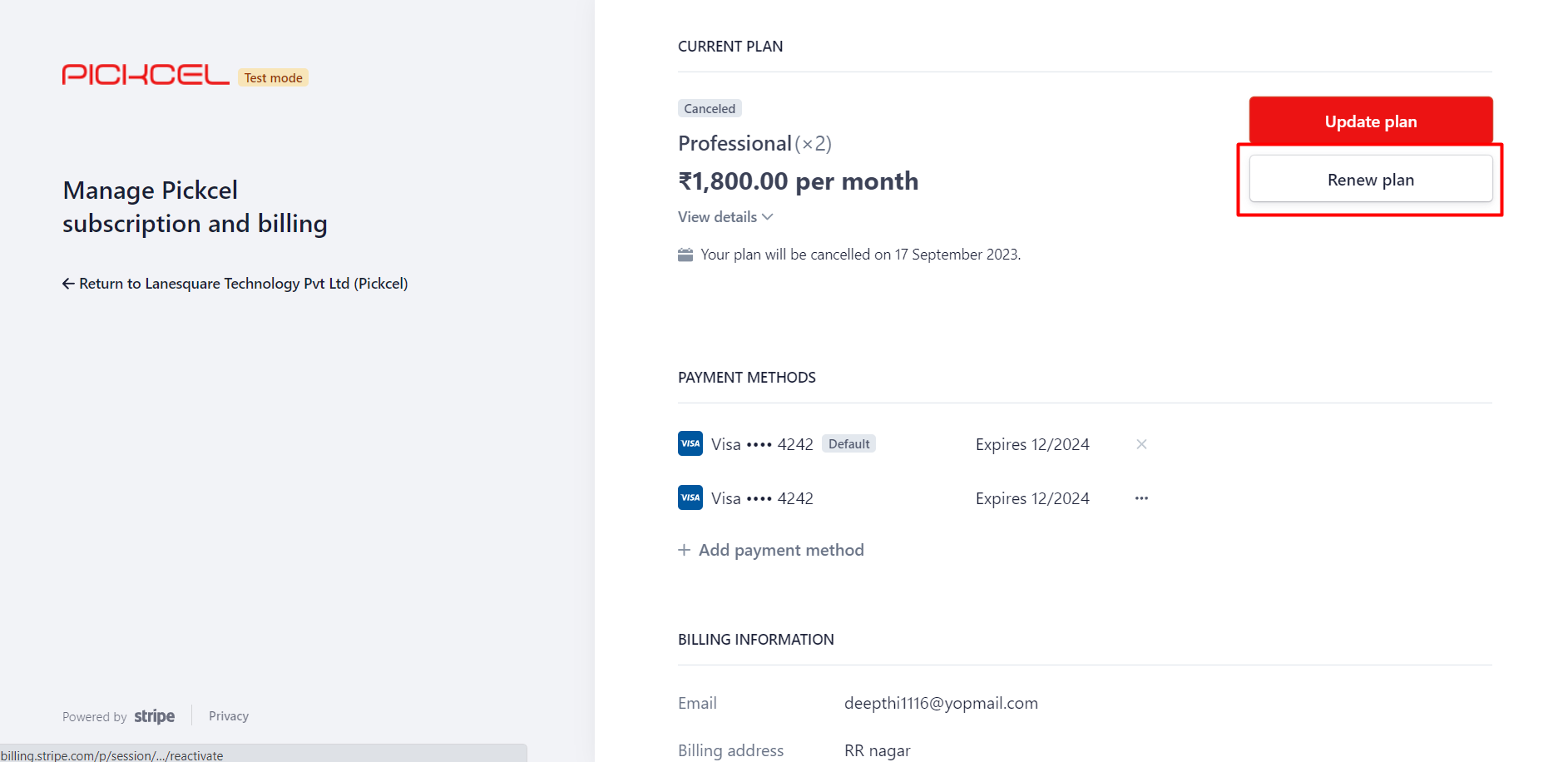
Open the **My Plan** module and click **View Plan**. On the Stripe billing page, your **Current Plan** shows as **Canceled**. Click **Renew plan**.
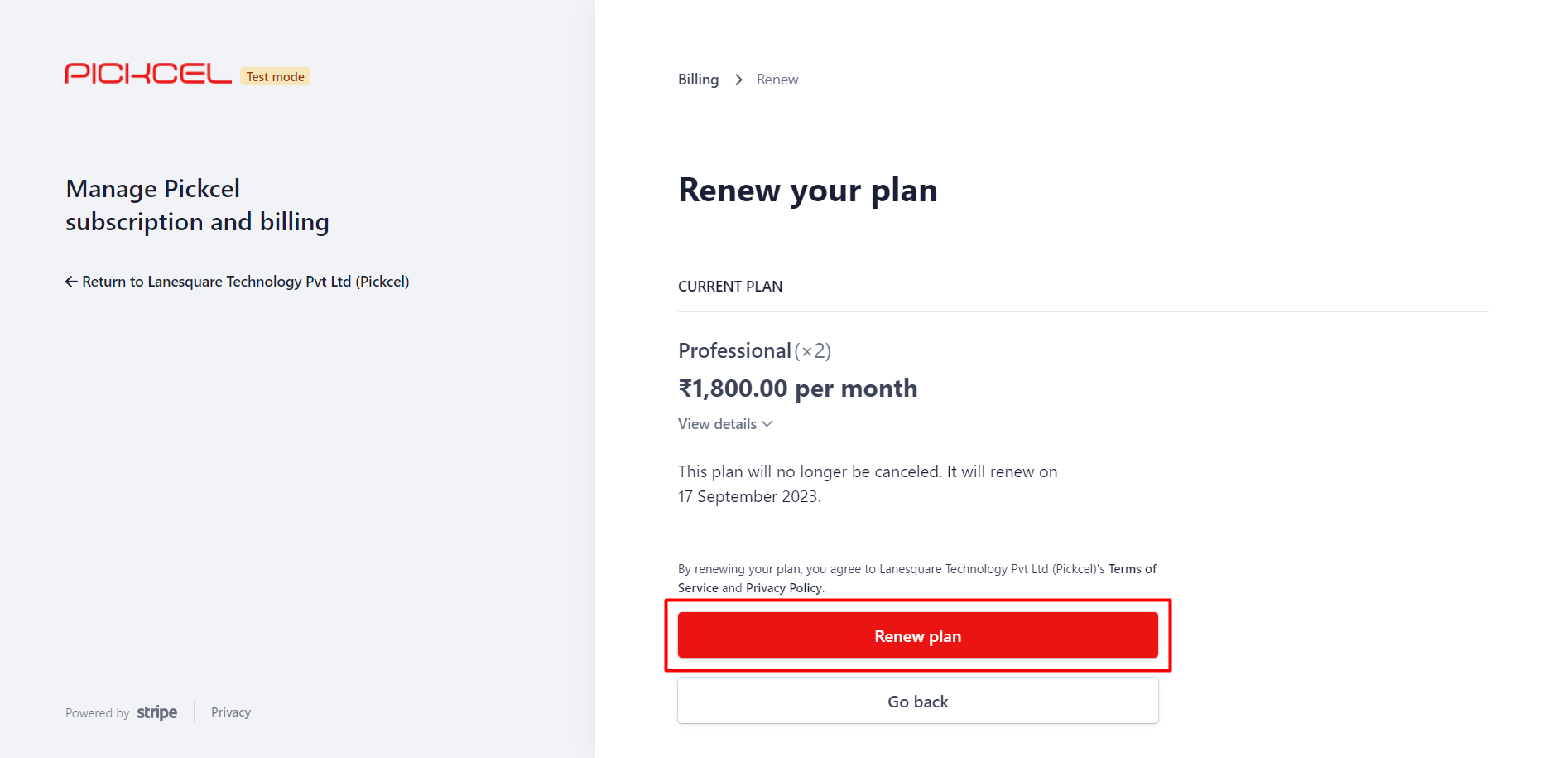
 On the **Renew your plan** page, review the plan and renewal date, then click **Renew plan** to confirm.
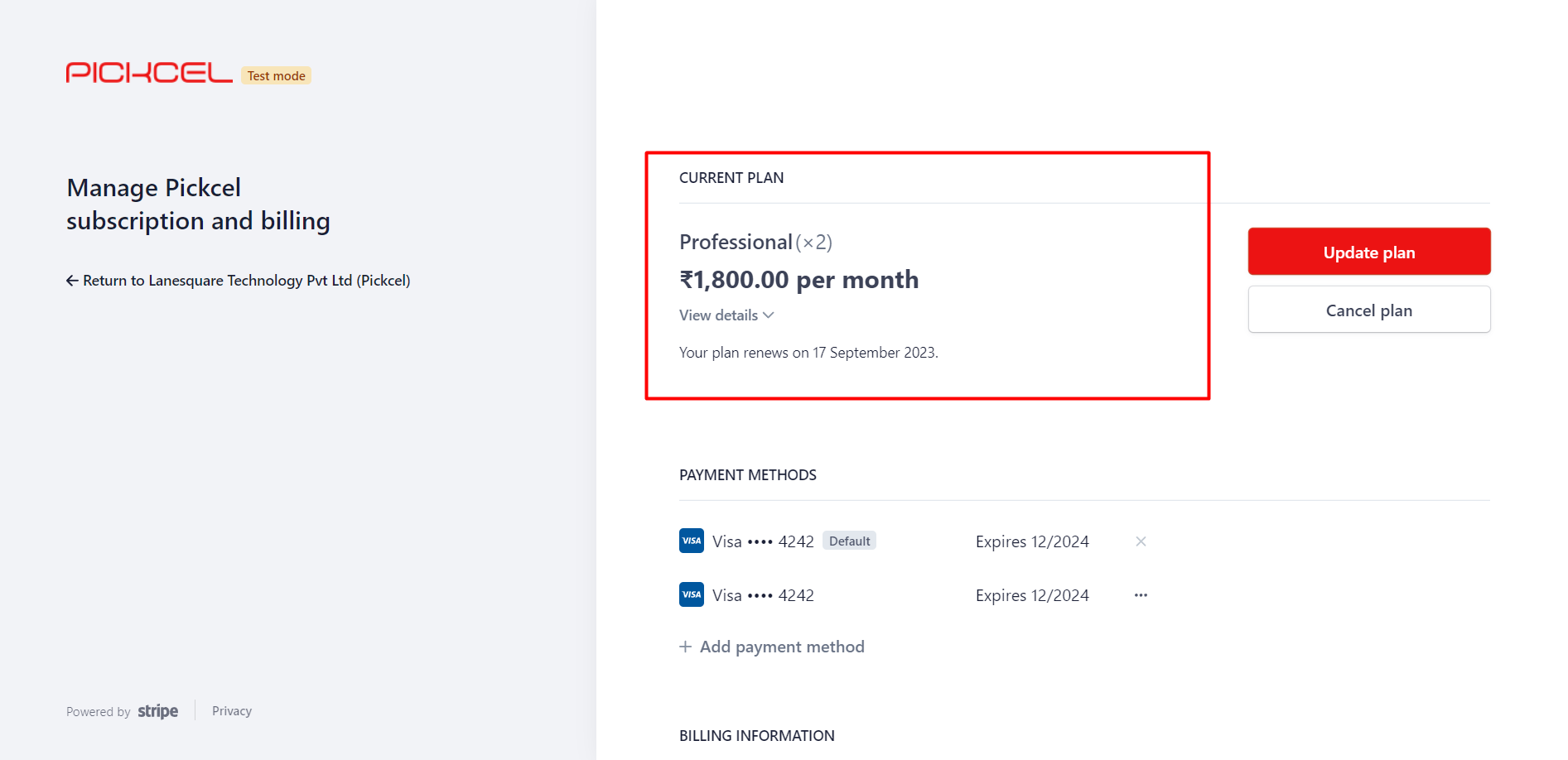
 Your **Current Plan** now shows the renewal date instead of a cancellation notice, confirming the plan is active again.
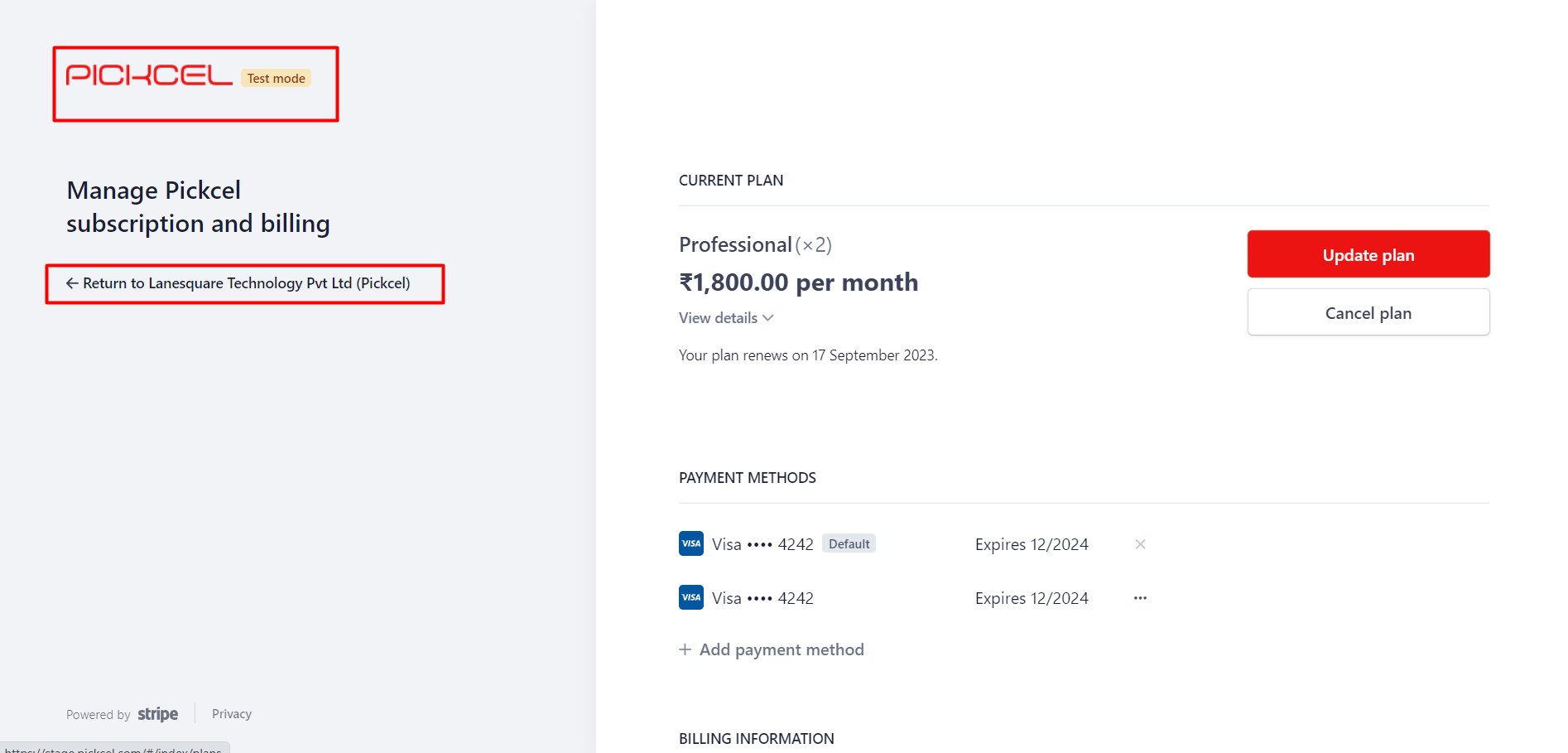
 Click **Return to Pickcel** in the top-left to go back to the console.
 If you cancelled and the remaining time has already expired, you'll resubscribe the same way. For help, contact [support](mailto:support@pickcel.com).
### How do I change my saved card details?
You can add a new card and set it as your default from the Stripe billing page:
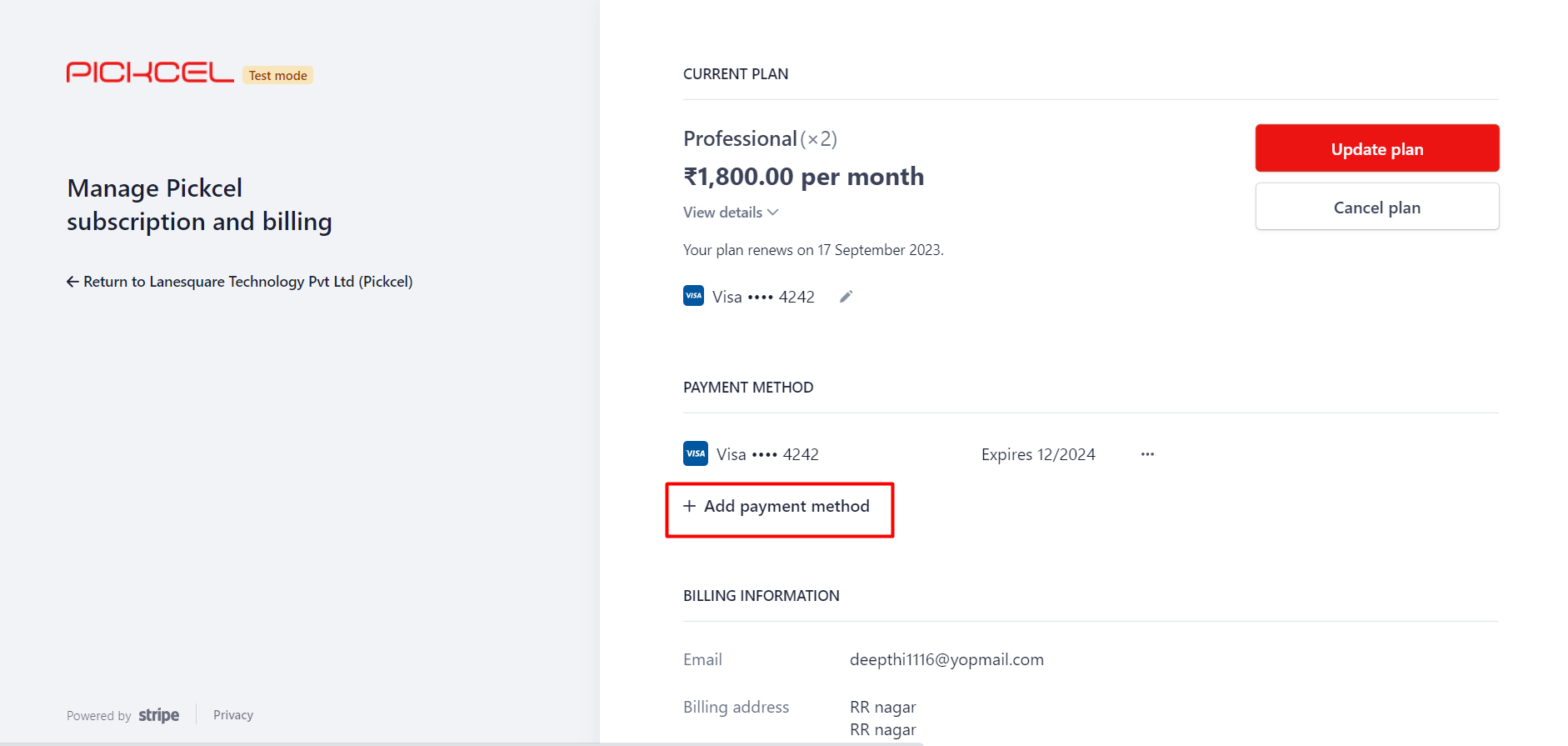
Log in to the console, open the **My Plan** module, and click **View Plan**. You're taken to the Stripe billing page.
Click **Add payment method**.
If you cancelled and the remaining time has already expired, you'll resubscribe the same way. For help, contact [support](mailto:support@pickcel.com).
### How do I change my saved card details?
You can add a new card and set it as your default from the Stripe billing page:
Log in to the console, open the **My Plan** module, and click **View Plan**. You're taken to the Stripe billing page.
Click **Add payment method**.
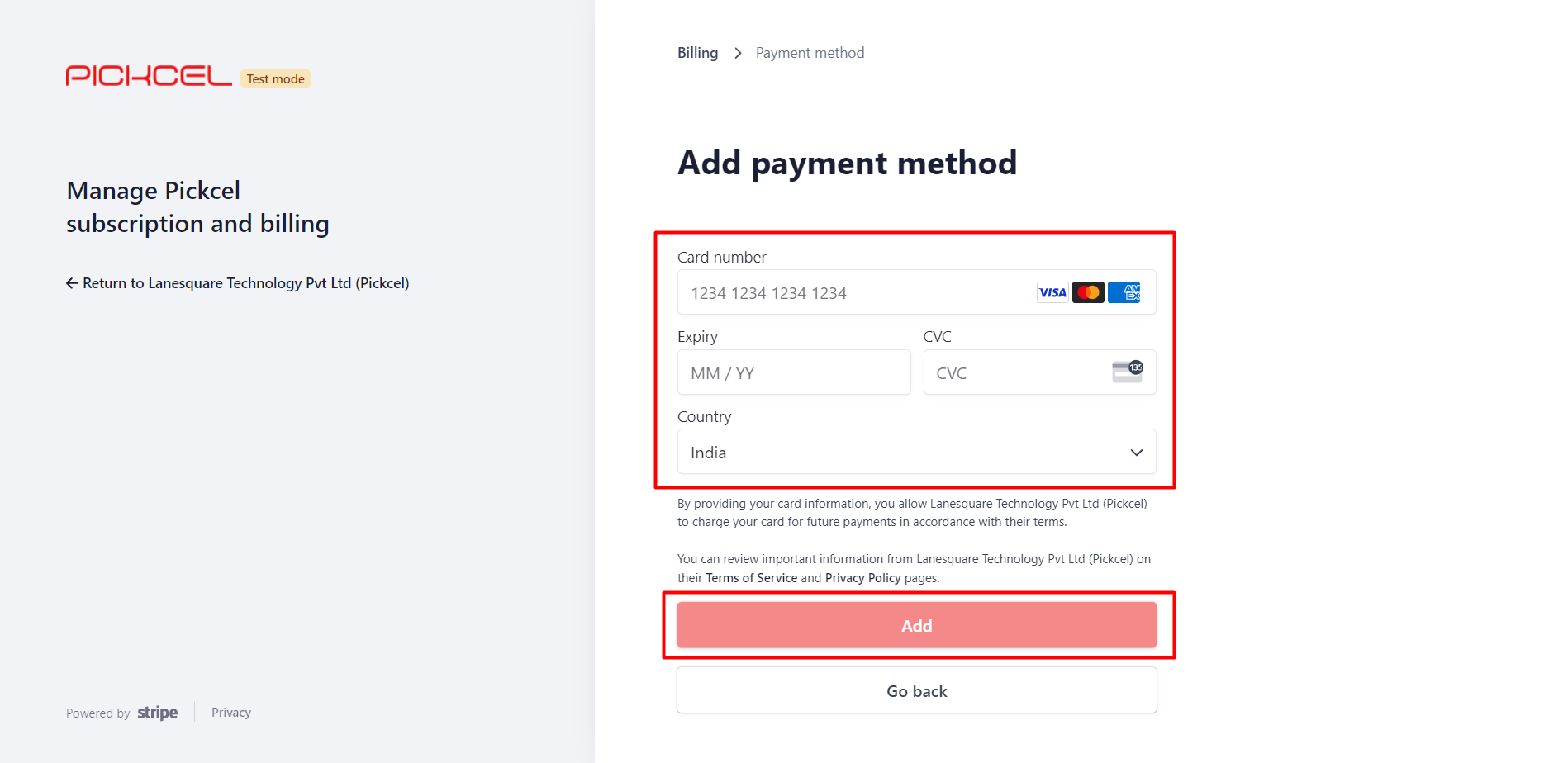
 Enter the new card details and click **Add**.
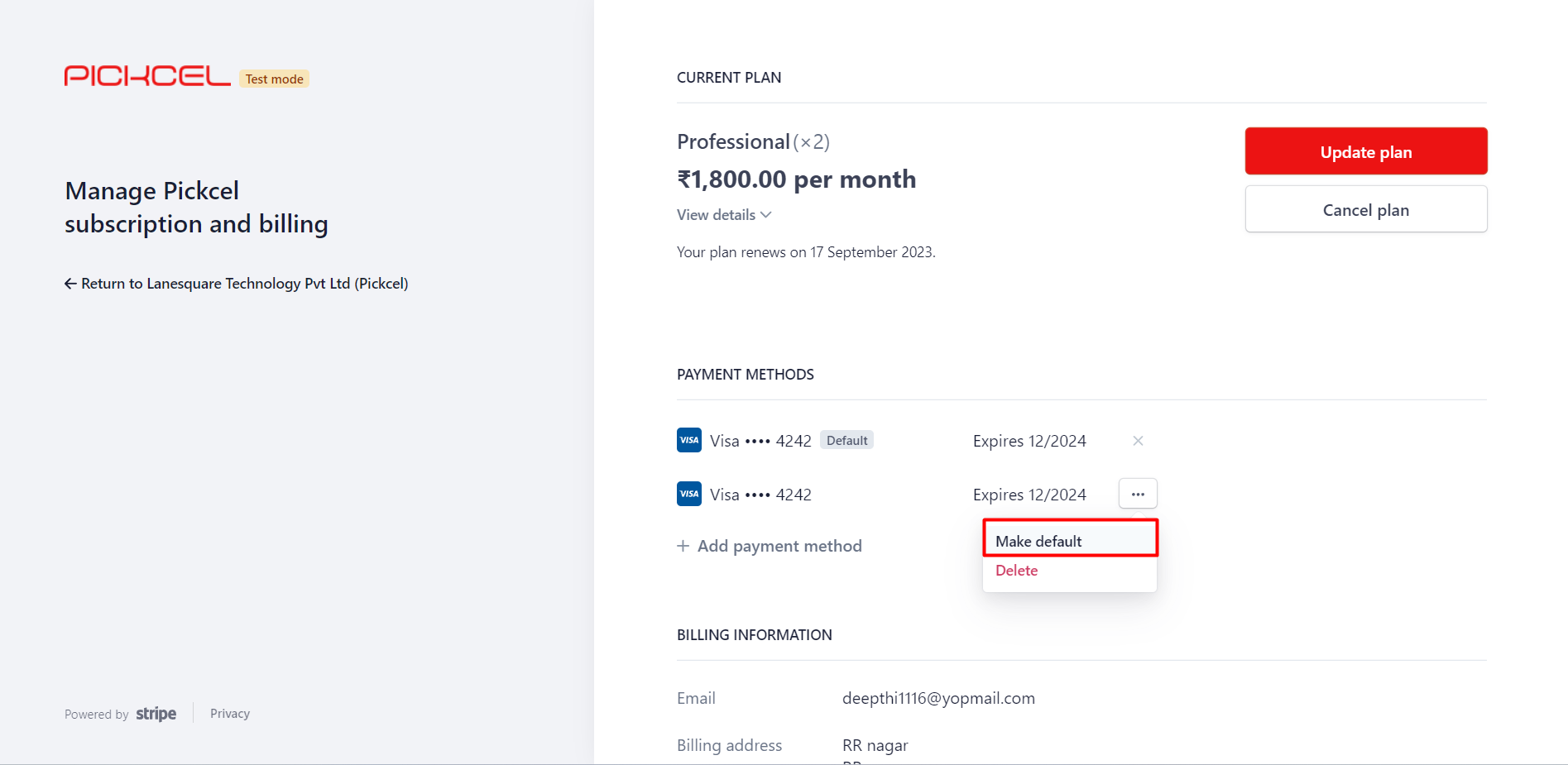
 The new card appears in the list. Click the **three dots** next to it and choose **Make default** to use it for future payments.
 To remove a card, open its **three dots** menu and choose **Delete**.
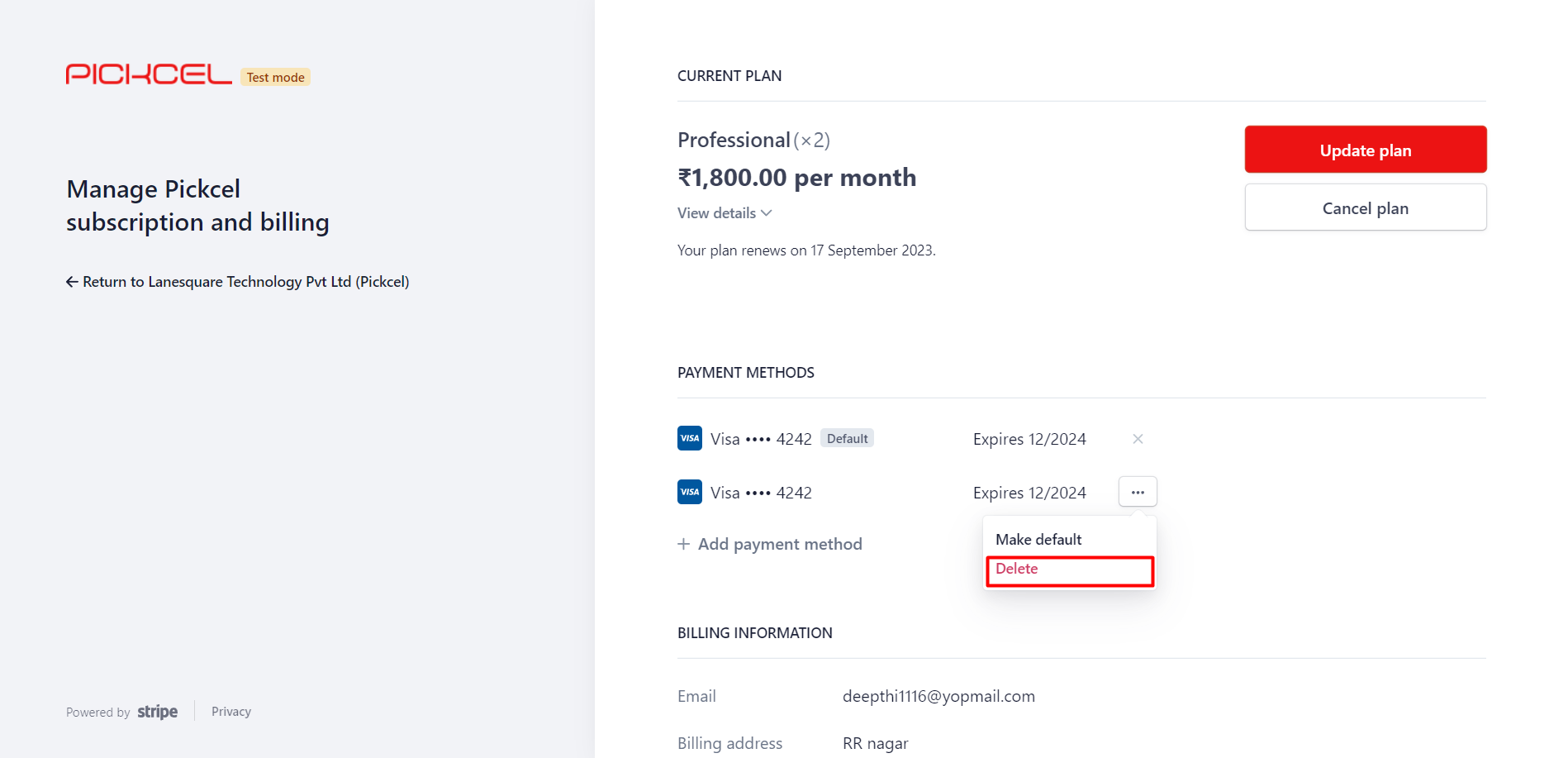 You can't delete a card that's set as **default**, since it's used for your active plan. Make another card default first.
### How do I update my billing address?
1. Sign in and open **My Plan**: click **Upgrade** (trial) or **View Plan** (active).
2. Go to **Billing Information** and choose **Update Information**.
3. Edit your address and email ID, then click **Save**.
### How do I add a GST number I forgot during billing?
There's currently no self-service option to update GST details in the console. Contact [support](mailto:support@pickcel.com) and the team will add or update your GST information so your billing stays accurate.
### How do I apply a promo code?
You add a promo code while upgrading your plan. For the full steps, see [how to apply coupons](/plans-and-pricing/how-to-upgrade-from-trial-plan#learn-how-to-apply-coupons).
Promo codes may or may not work depending on their validity. If you run into any issues or have questions about using a promo code, reach out to our [sales team](mailto:contact@pickcel.com) for assistance.
### Why does my card keep getting declined?
Card declines have several common causes:
* **Incorrect or expired card details**: re-check the number and validity.
* **Credit limit exceeded**: confirm your limit hasn't been reached.
* **Suspicious-activity block**: your bank may flag the charge; contact them to approve it.
* **Bank restrictions on recurring payments**: ask your bank to allow them.
* **Card limitations**: make sure the card permits recurring and online transactions.
Try another card or contact your card issuer. If problems continue, [support](mailto:support@pickcel.com) can guide you through alternate options, including a manual invoice.
### How do I access my invoices and receipts?
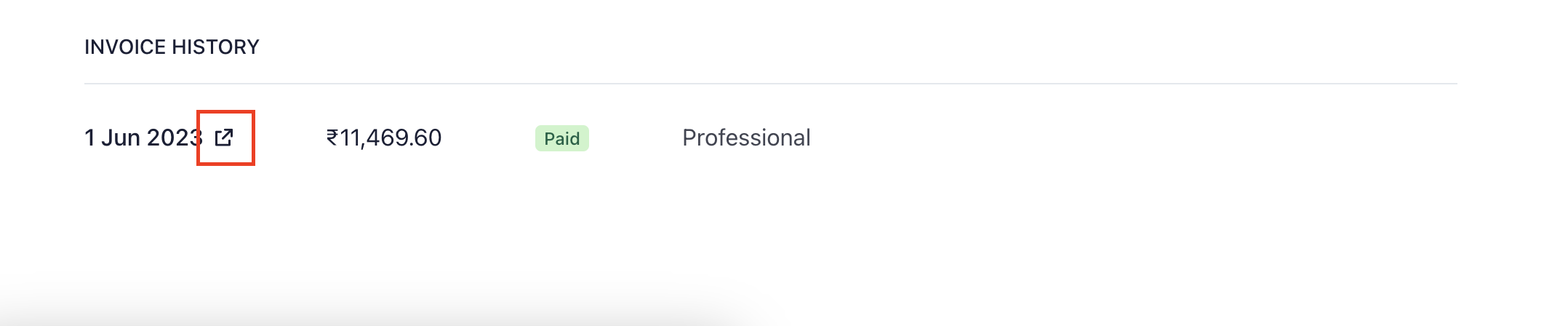
Open the **My Plan** module and click **View Plan**. Scroll to **Invoice History** and click the **new-tab** icon next to the invoice date.
You can't delete a card that's set as **default**, since it's used for your active plan. Make another card default first.
### How do I update my billing address?
1. Sign in and open **My Plan**: click **Upgrade** (trial) or **View Plan** (active).
2. Go to **Billing Information** and choose **Update Information**.
3. Edit your address and email ID, then click **Save**.
### How do I add a GST number I forgot during billing?
There's currently no self-service option to update GST details in the console. Contact [support](mailto:support@pickcel.com) and the team will add or update your GST information so your billing stays accurate.
### How do I apply a promo code?
You add a promo code while upgrading your plan. For the full steps, see [how to apply coupons](/plans-and-pricing/how-to-upgrade-from-trial-plan#learn-how-to-apply-coupons).
Promo codes may or may not work depending on their validity. If you run into any issues or have questions about using a promo code, reach out to our [sales team](mailto:contact@pickcel.com) for assistance.
### Why does my card keep getting declined?
Card declines have several common causes:
* **Incorrect or expired card details**: re-check the number and validity.
* **Credit limit exceeded**: confirm your limit hasn't been reached.
* **Suspicious-activity block**: your bank may flag the charge; contact them to approve it.
* **Bank restrictions on recurring payments**: ask your bank to allow them.
* **Card limitations**: make sure the card permits recurring and online transactions.
Try another card or contact your card issuer. If problems continue, [support](mailto:support@pickcel.com) can guide you through alternate options, including a manual invoice.
### How do I access my invoices and receipts?
Open the **My Plan** module and click **View Plan**. Scroll to **Invoice History** and click the **new-tab** icon next to the invoice date.
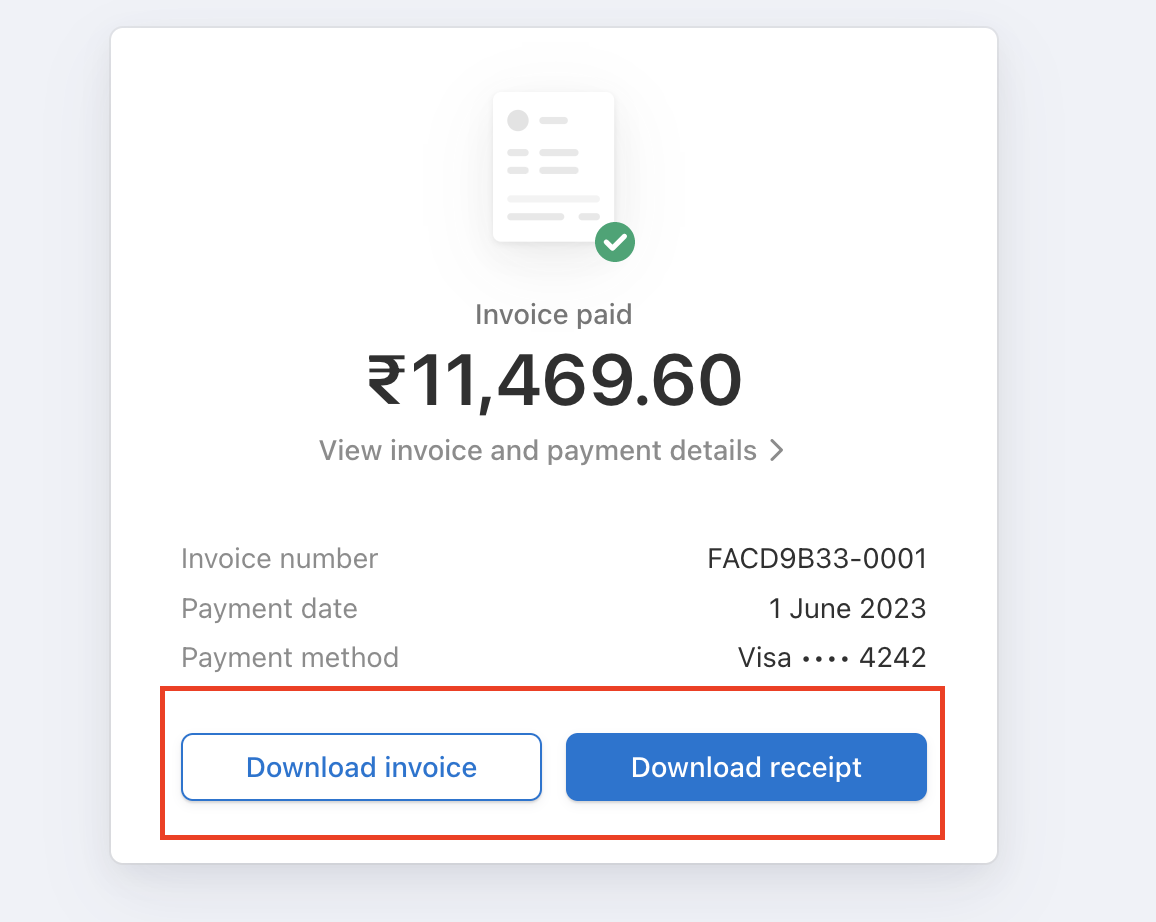
 The invoice opens in a new tab. Click **Download invoice** or **Download receipt** to save your **Invoice** and **Payment Receipt**.
 ### How do I permanently delete my account?
Account deletion isn't available from the dashboard. Contact [support](mailto:support@pickcel.com) to start the permanent-deletion process. If you only want to stop billing, you can [cancel your subscription](/faqs/billing-and-plans#how-do-i-cancel-my-subscription) anytime from your plan settings.
## Related guides
Trial, billing cycle, payment methods, cancellation, and refunds.
Move from the free trial to a paid plan.
Account Cancelled, Trial expired, and other login messages.
Browse all Pickcel FAQ articles.
### How do I permanently delete my account?
Account deletion isn't available from the dashboard. Contact [support](mailto:support@pickcel.com) to start the permanent-deletion process. If you only want to stop billing, you can [cancel your subscription](/faqs/billing-and-plans#how-do-i-cancel-my-subscription) anytime from your plan settings.
## Related guides
Trial, billing cycle, payment methods, cancellation, and refunds.
Move from the free trial to a paid plan.
Account Cancelled, Trial expired, and other login messages.
Browse all Pickcel FAQ articles.