> ## Documentation Index
> Fetch the complete documentation index at: https://docs.pickcel.com/llms.txt
> Use this file to discover all available pages before exploring further.
# How to Submit a Support Ticket in Pickcel?
> Learn how to submit a support ticket from the Pickcel Help Center so the support team can investigate your issue and share a resolution.
If you face an issue in Pickcel or need help from the support team, you can raise a support ticket from the Pickcel Help Center. This sends your request directly to our support engineers so they can investigate and respond.
## Before you begin
You need a **Pickcel Help Center** login to submit support tickets.
* The Help Center login is **different** from your Pickcel Console credentials.
* The Pickcel team will share your Help Center username and password with you.
* If you do not have these credentials, contact Pickcel support at [support@pickcel.com](mailto:support@pickcel.com) and request access to the Help Center.
## Submit a support ticket
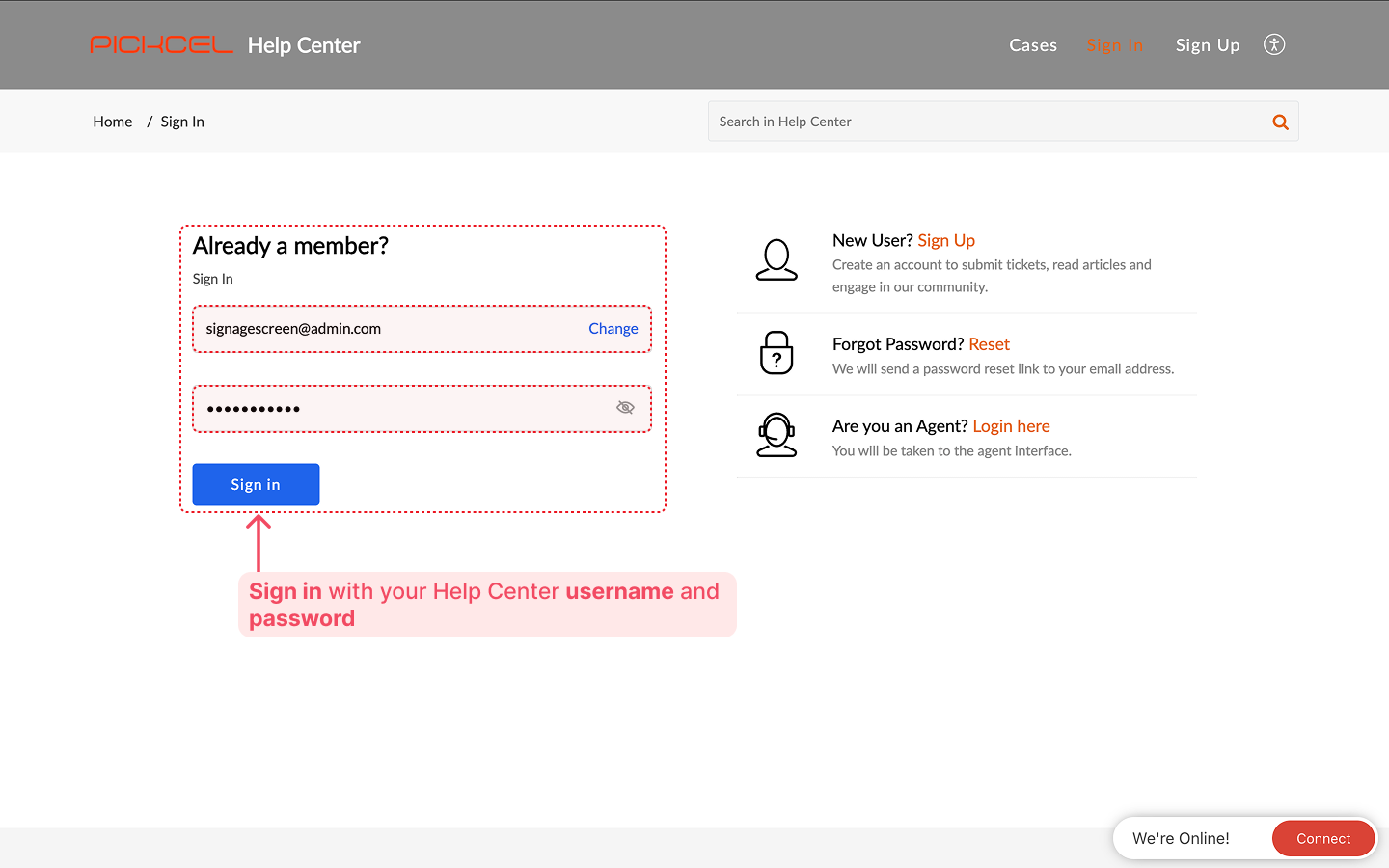
Open [https://support.pickcel.com/portal/en/newticket](https://support.pickcel.com/portal/en/newticket) in your browser and sign in using the Help Center username and password shared by the Pickcel team.
After you sign in, the **Submit a ticket** form will open directly.
 ### Subject
Type a short and clear summary of the issue.
### Subject
Type a short and clear summary of the issue.
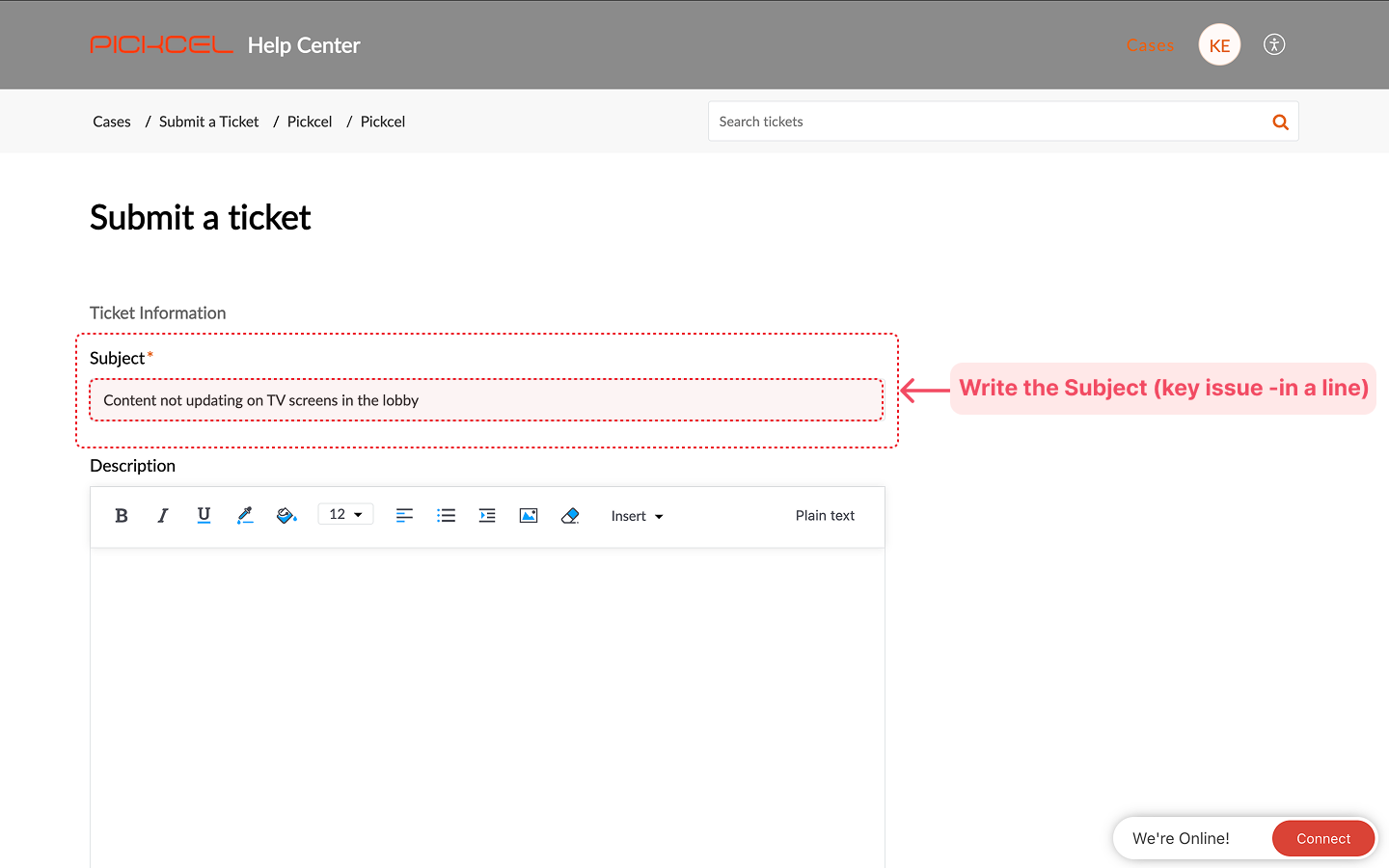 **Good examples:**
* `Weather app is not picking device location`
* `Unable to publish composition to LG webOS display`
* `Error while logging in to Pickcel console`
A clear subject helps the support team quickly understand the ticket.
### Description
Use the **Description** box to describe the issue in detail.
**Good examples:**
* `Weather app is not picking device location`
* `Unable to publish composition to LG webOS display`
* `Error while logging in to Pickcel console`
A clear subject helps the support team quickly understand the ticket.
### Description
Use the **Description** box to describe the issue in detail.
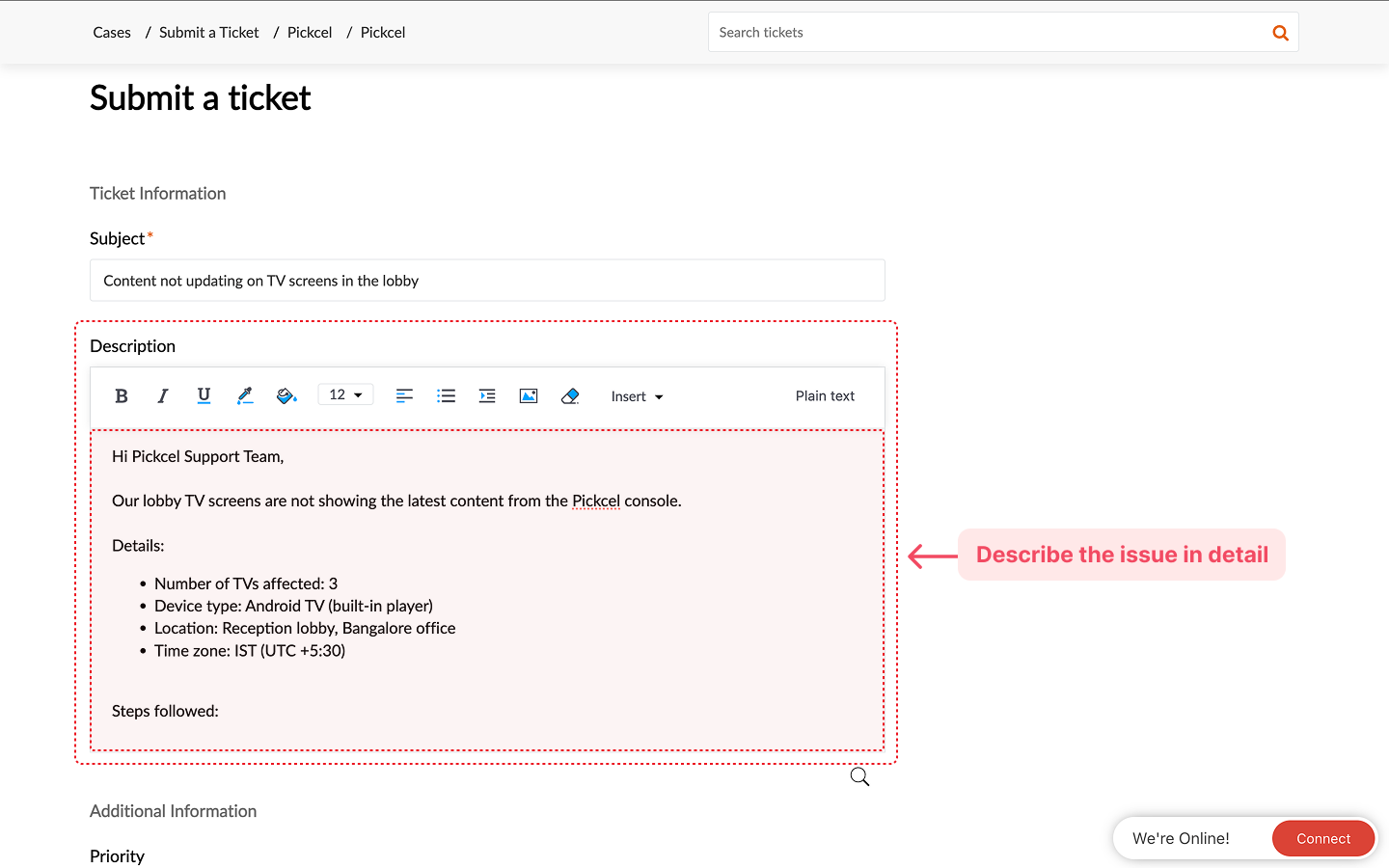 It helps if you include:
* What you were trying to do
* The steps you followed
* What you expected to happen
* What actually happened
* Any error messages you saw
* Device type and operating system (for example: Samsung Tizen, LG webOS, Android player, Windows PC)
* Browser name and version, if the issue is in the Pickcel console
* Date and approximate time when the issue occurred, along with your time zone
The more detail you provide, the easier it is for the team to reproduce and resolve the problem.
Scroll to the **Additional Information** section to specify priority and classification.
It helps if you include:
* What you were trying to do
* The steps you followed
* What you expected to happen
* What actually happened
* Any error messages you saw
* Device type and operating system (for example: Samsung Tizen, LG webOS, Android player, Windows PC)
* Browser name and version, if the issue is in the Pickcel console
* Date and approximate time when the issue occurred, along with your time zone
The more detail you provide, the easier it is for the team to reproduce and resolve the problem.
Scroll to the **Additional Information** section to specify priority and classification.
 ### Priority
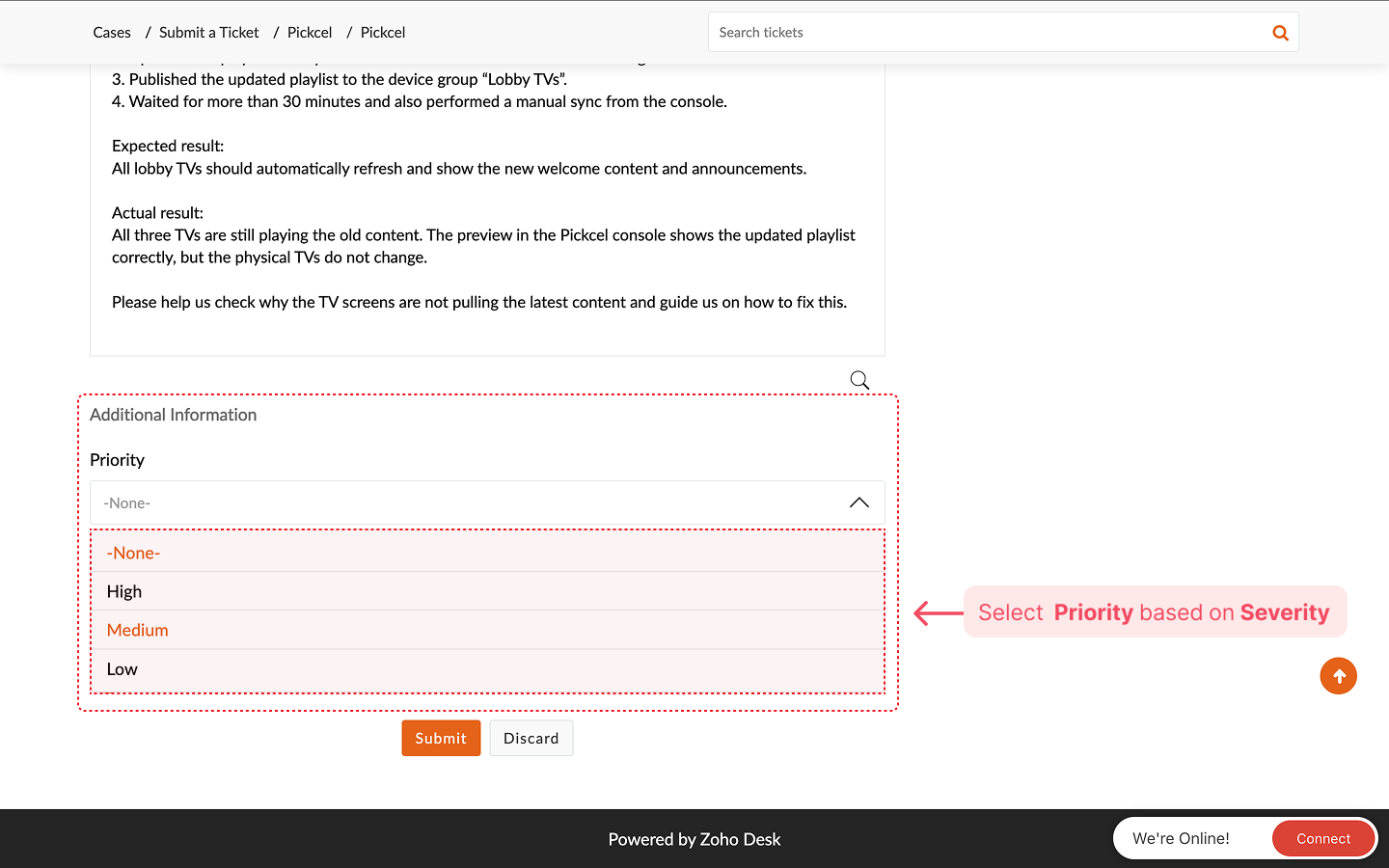
Set how urgent the issue is:
* **High**: Critical impact. Screens are down, core features are not working, or there is a major production outage.
* **Medium**: Important issue affecting work, but some workaround is possible or the impact is limited.
* **Low**: General questions, cosmetic issues, or suggestions for improvement.
### Priority
Set how urgent the issue is:
* **High**: Critical impact. Screens are down, core features are not working, or there is a major production outage.
* **Medium**: Important issue affecting work, but some workaround is possible or the impact is limited.
* **Low**: General questions, cosmetic issues, or suggestions for improvement.
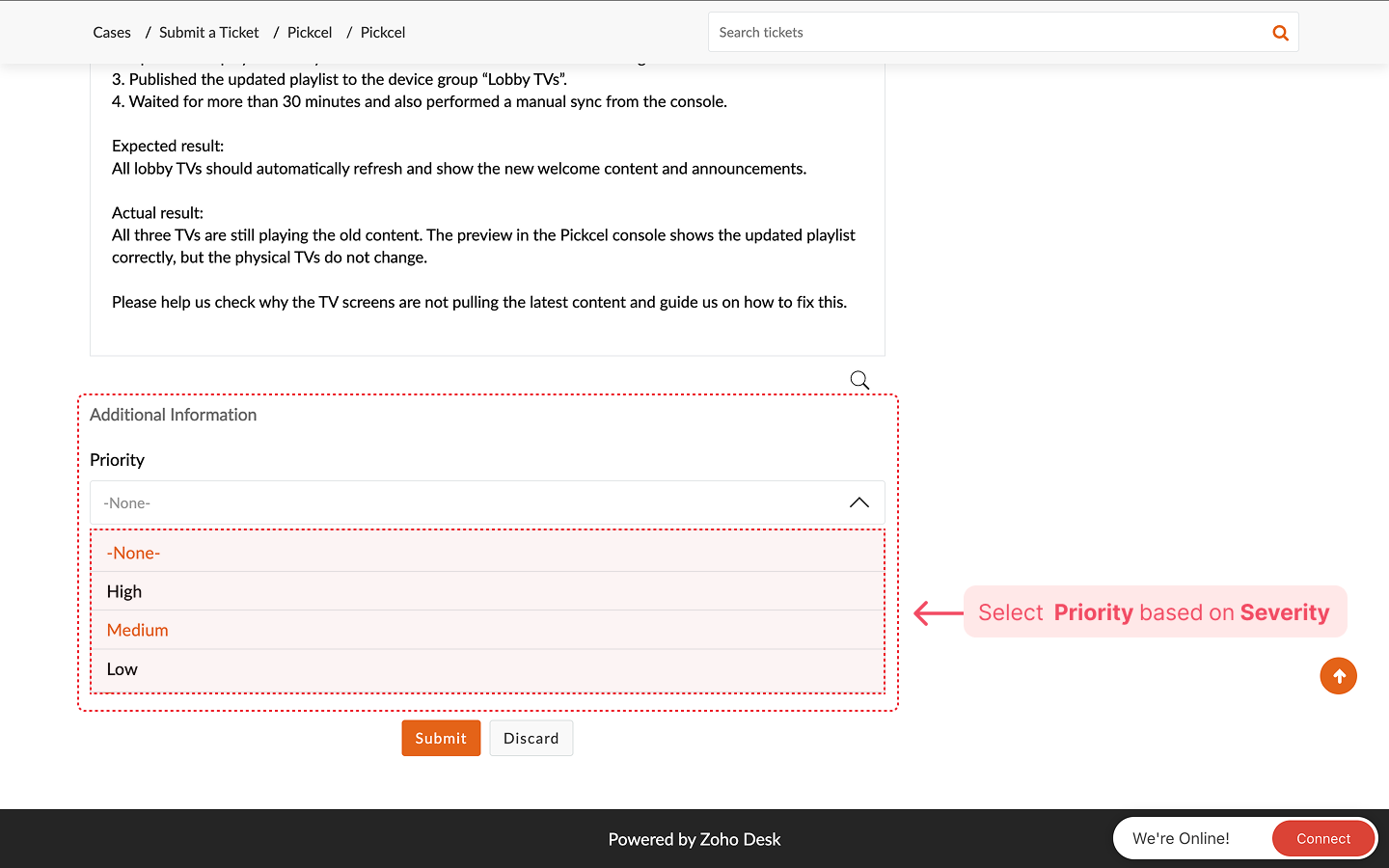 Choosing the right priority helps the team plan responses and resolutions.
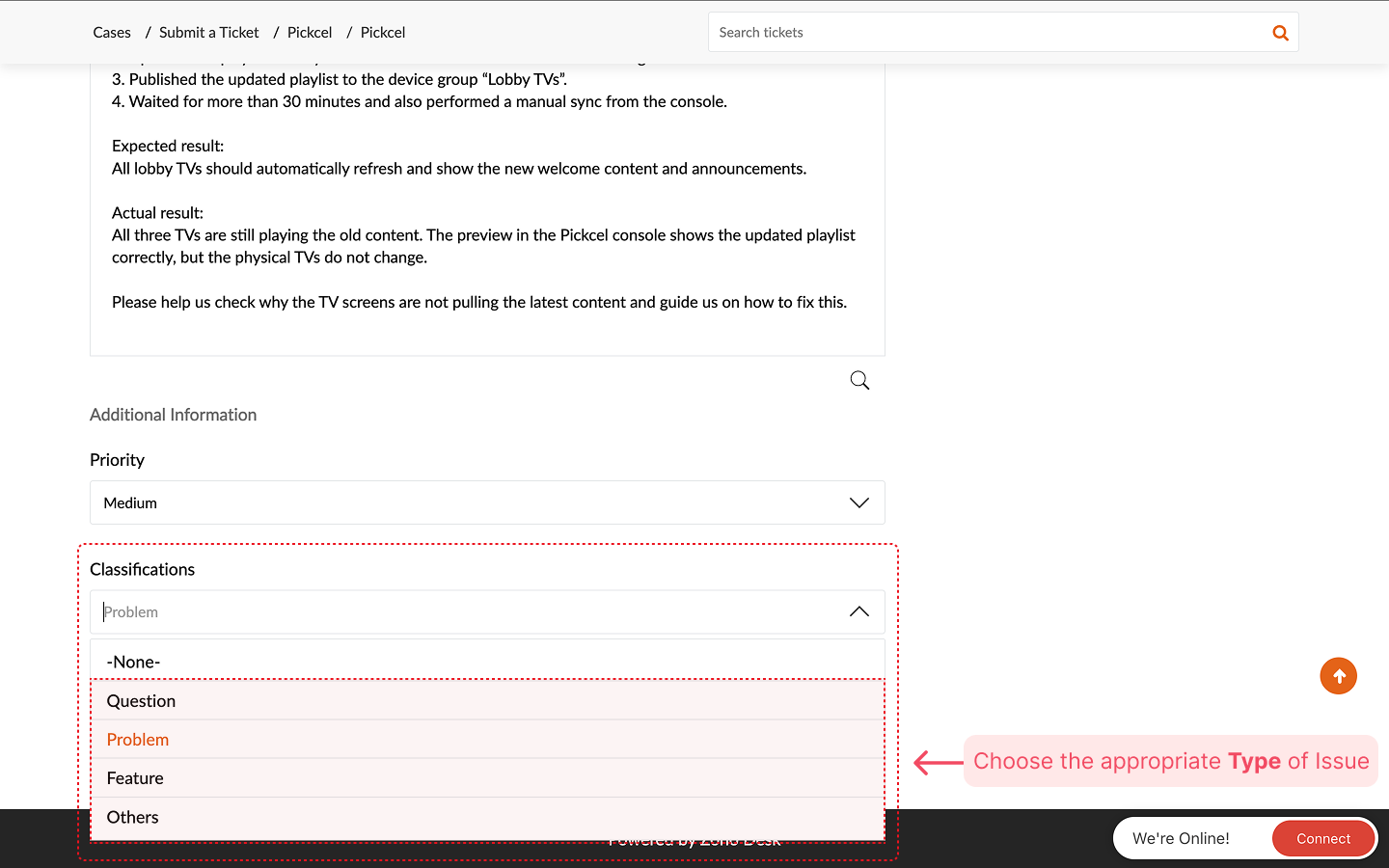
### Classifications
Select the type of request from **Classifications**:
* **Question**: You need guidance or clarification.
* **Problem**: Something that should work is not working.
* **Feature**: You want to request a new feature or enhancement.
* **Others**: Any request that does not fit the above types.
Choosing the right priority helps the team plan responses and resolutions.
### Classifications
Select the type of request from **Classifications**:
* **Question**: You need guidance or clarification.
* **Problem**: Something that should work is not working.
* **Feature**: You want to request a new feature or enhancement.
* **Others**: Any request that does not fit the above types.
 At the bottom of the form you will see **Attach a file (Up to 40 MB)**.
Click **Attach a file** and add:
* Screenshots of the error or issue
* Short screen recordings
* Configuration files or logs, if available
At the bottom of the form you will see **Attach a file (Up to 40 MB)**.
Click **Attach a file** and add:
* Screenshots of the error or issue
* Short screen recordings
* Configuration files or logs, if available
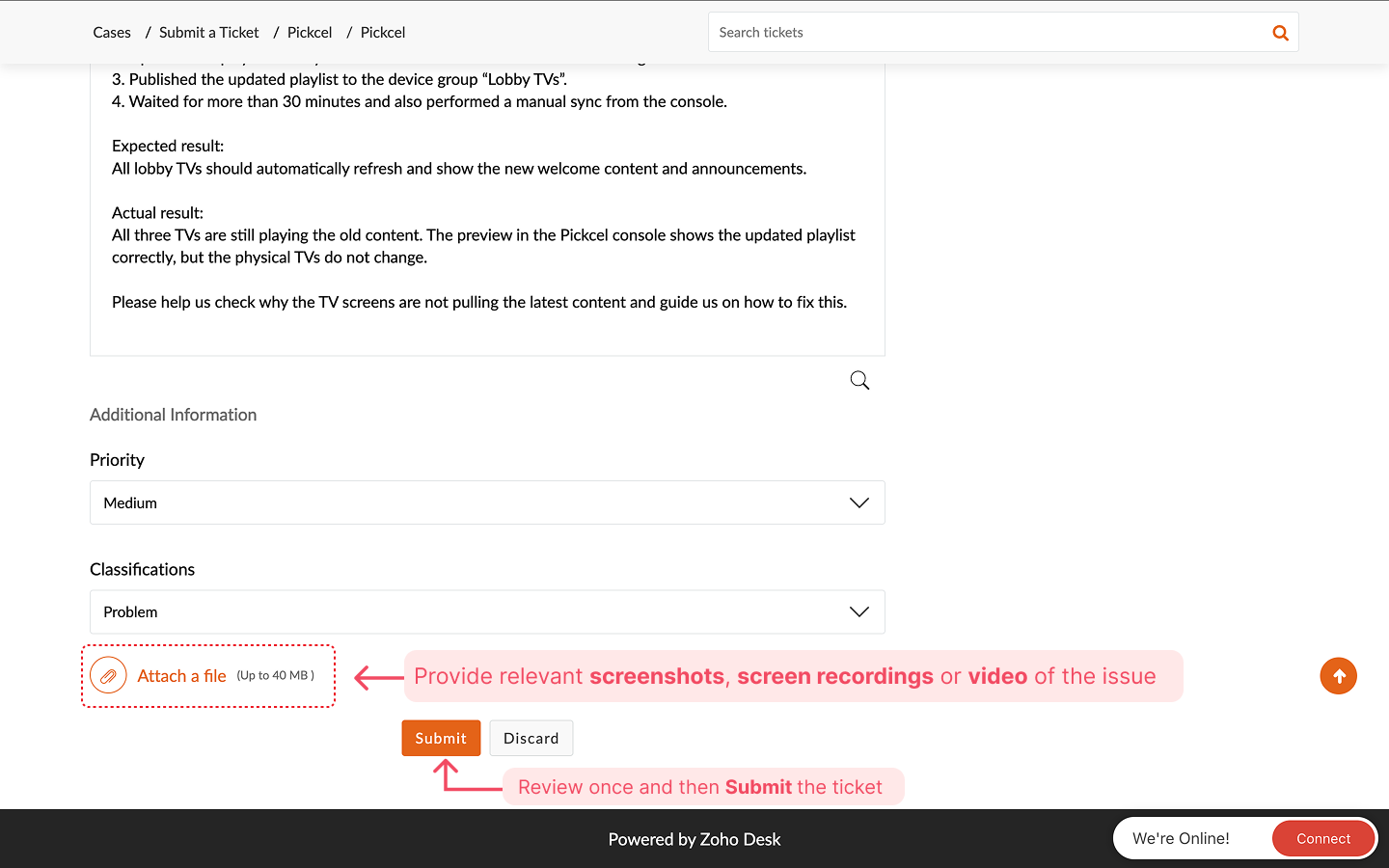 Good attachments make it easier for the team to understand and troubleshoot the problem.
Review all the filled details and click **Submit** to create the ticket.
After submitting, you are taken to the ticket details page. Here you can:
* See the ticket ID and status
* Read replies from the support team
* Add comments or more attachments if needed
Good attachments make it easier for the team to understand and troubleshoot the problem.
Review all the filled details and click **Submit** to create the ticket.
After submitting, you are taken to the ticket details page. Here you can:
* See the ticket ID and status
* Read replies from the support team
* Add comments or more attachments if needed
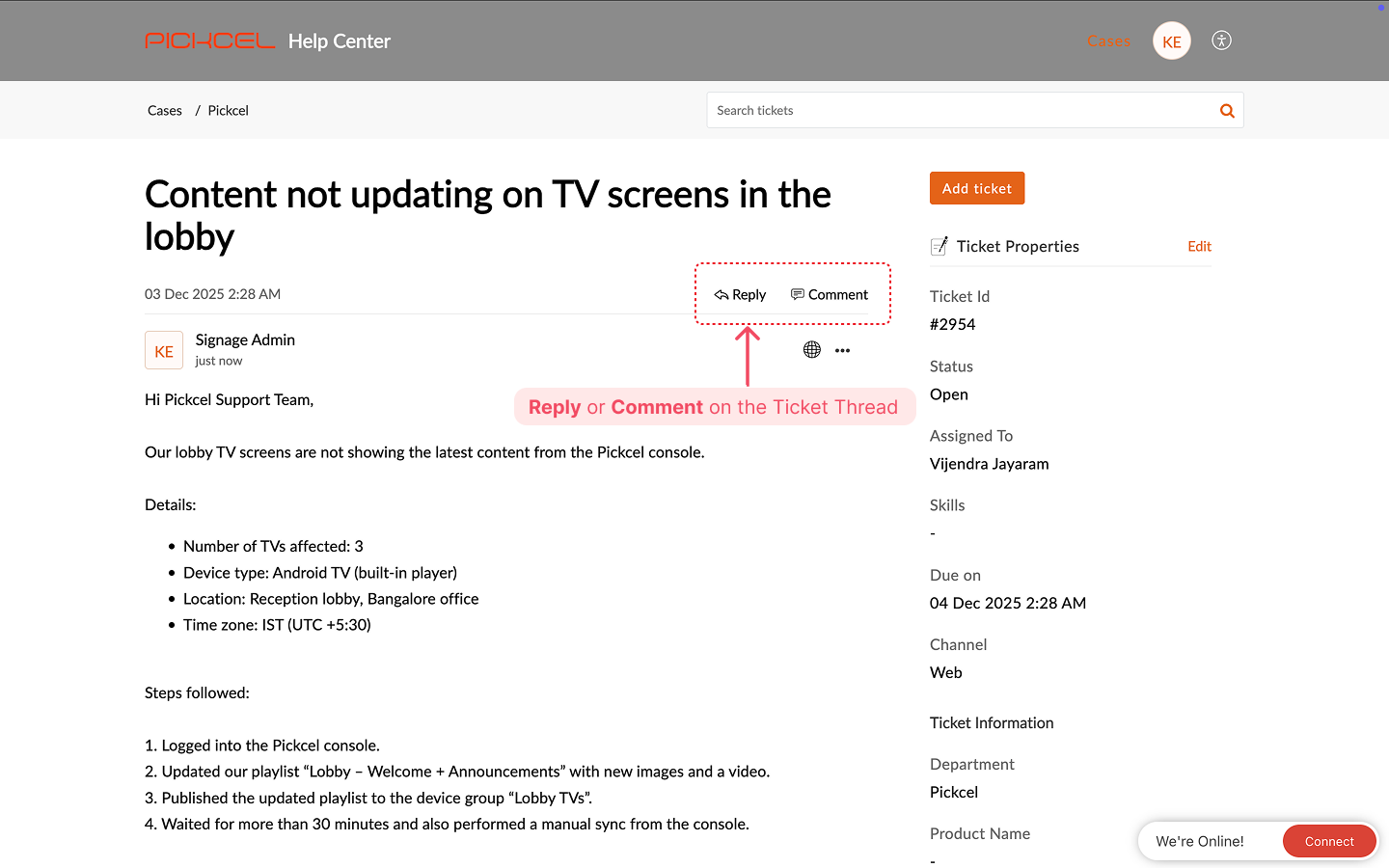 You can return to the **Cases** section at any time to review all your open and closed tickets.
## Chat or call us from the console
If you'd rather reach us directly while working in Pickcel, use the **Chat With Us** option in the bottom-left corner of the console. It lets you call the team or start a live chat without leaving the dashboard.
You can return to the **Cases** section at any time to review all your open and closed tickets.
## Chat or call us from the console
If you'd rather reach us directly while working in Pickcel, use the **Chat With Us** option in the bottom-left corner of the console. It lets you call the team or start a live chat without leaving the dashboard.
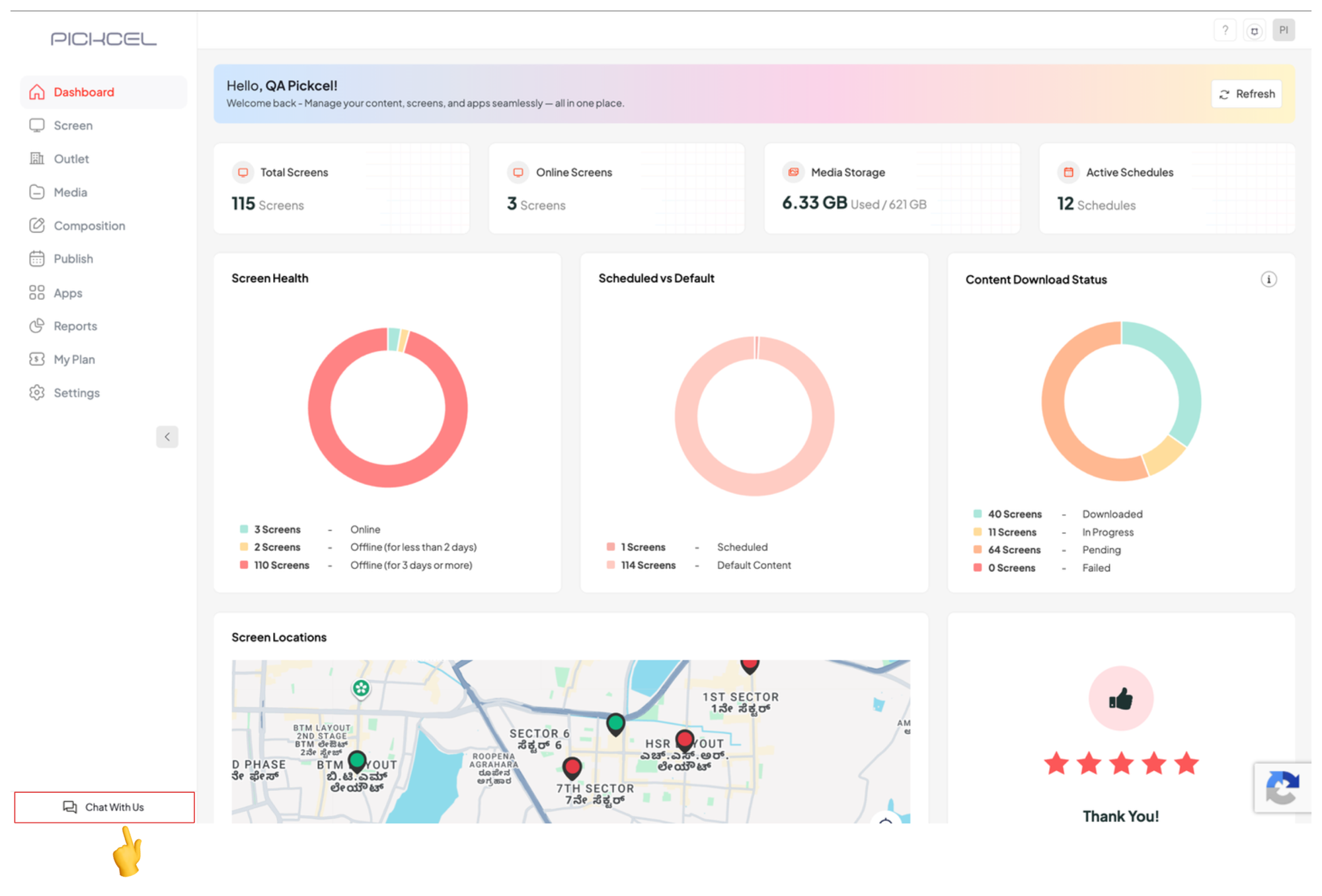 Click **Chat With Us**. A support panel opens with two options, **Call** and **Chat**.
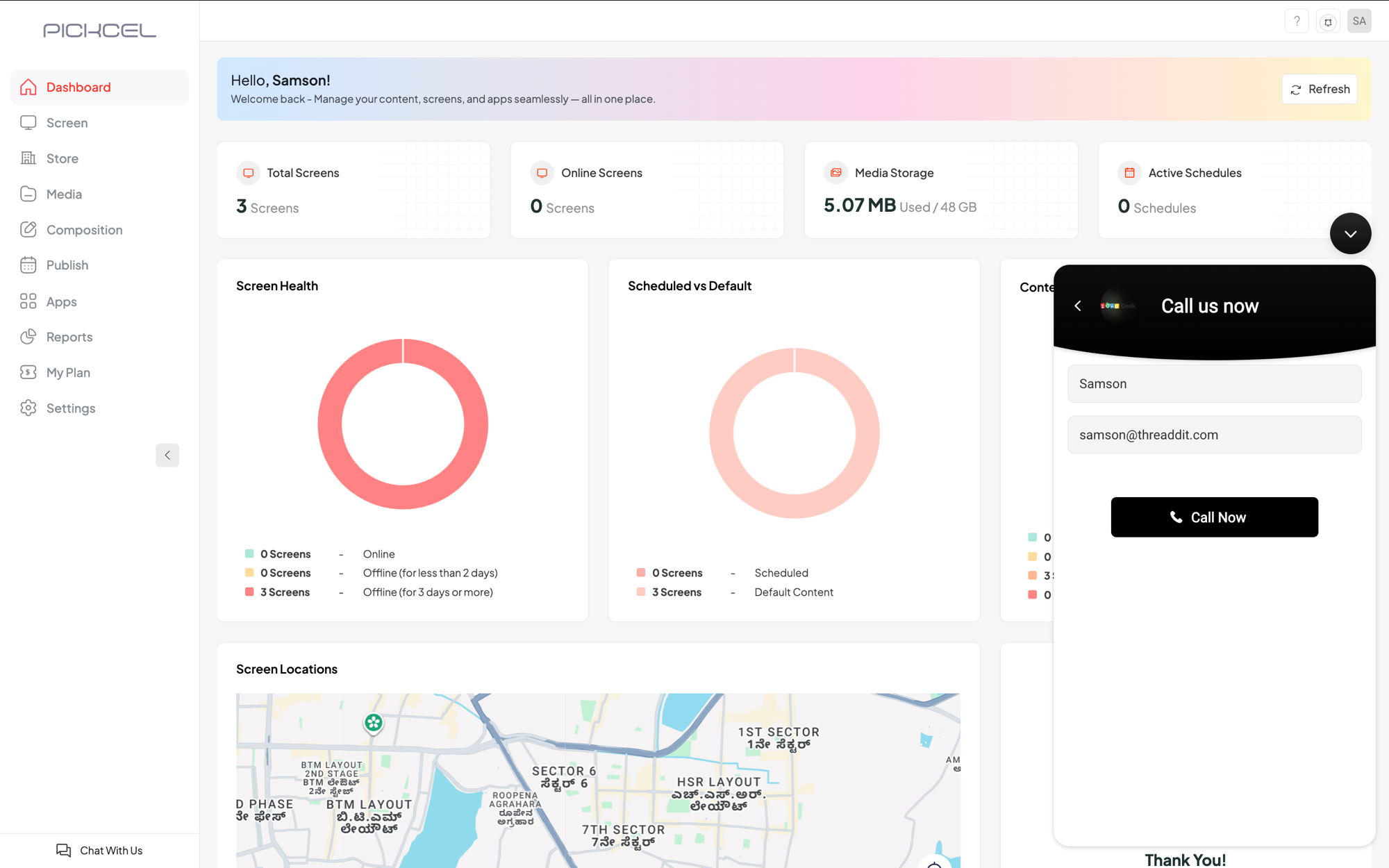
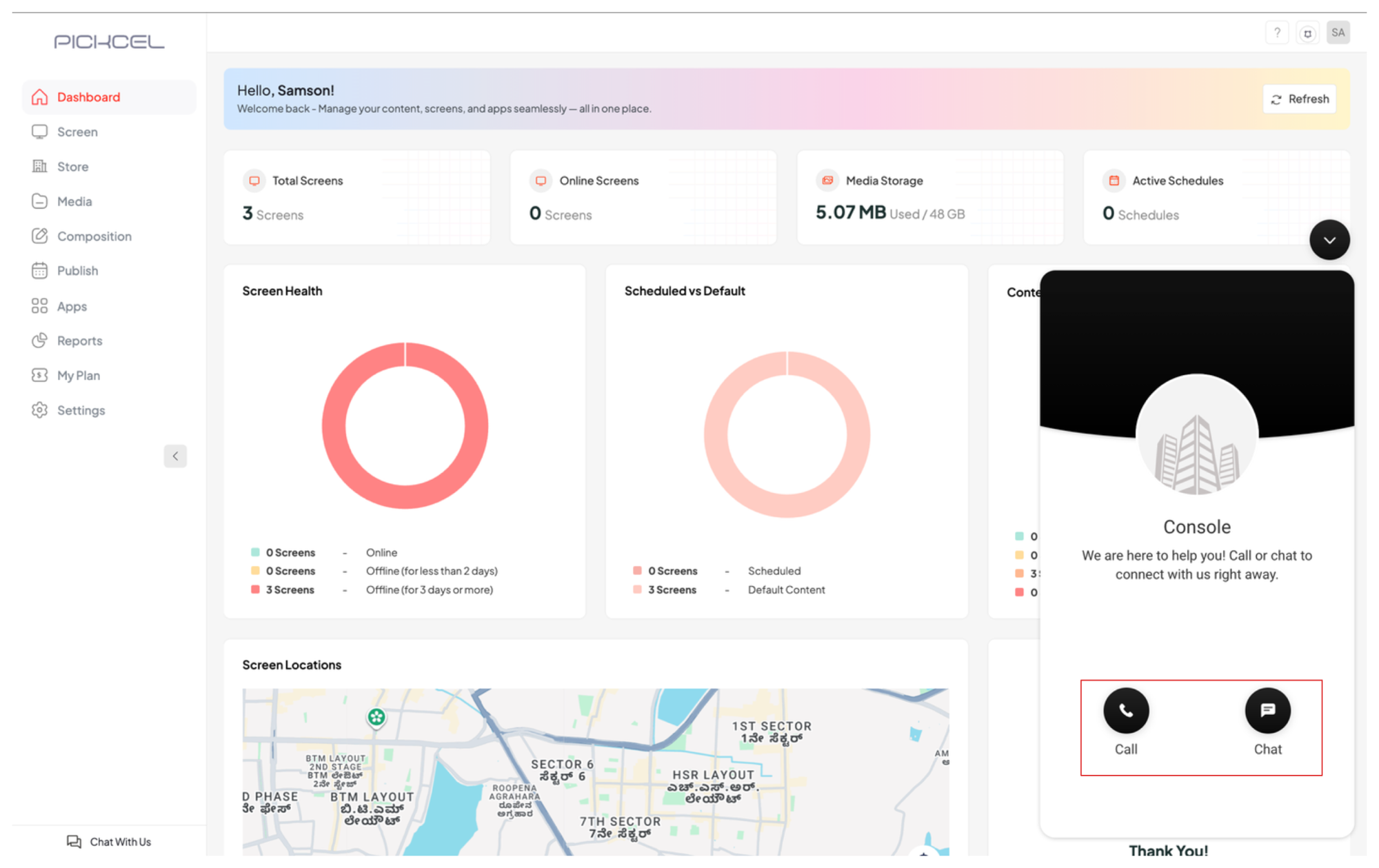 Choose **Call** to speak with the team. Confirm your name and email, then click **Call Now** to connect.
 Choose **Chat** to message **Peko**, your assistant. Pick what you need, **Request feature**, **Report Issue**, **Need a demo**, or **Talk to a salesperson**, and follow the prompts.
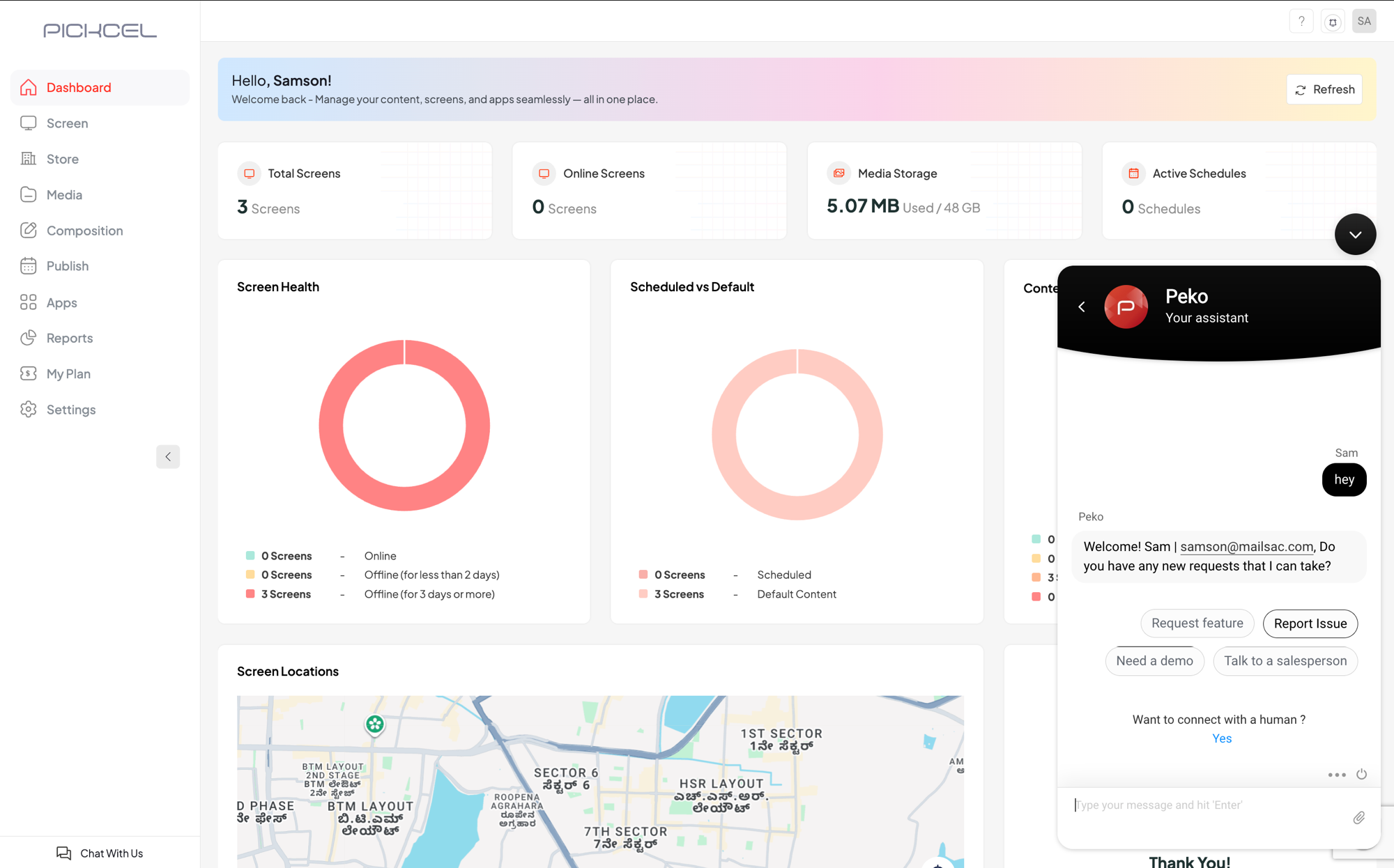 For example, select **Report Issue** and Peko asks which module the issue is in so it can route your request. To reach a person, choose **Yes** under **Want to connect with a human?**
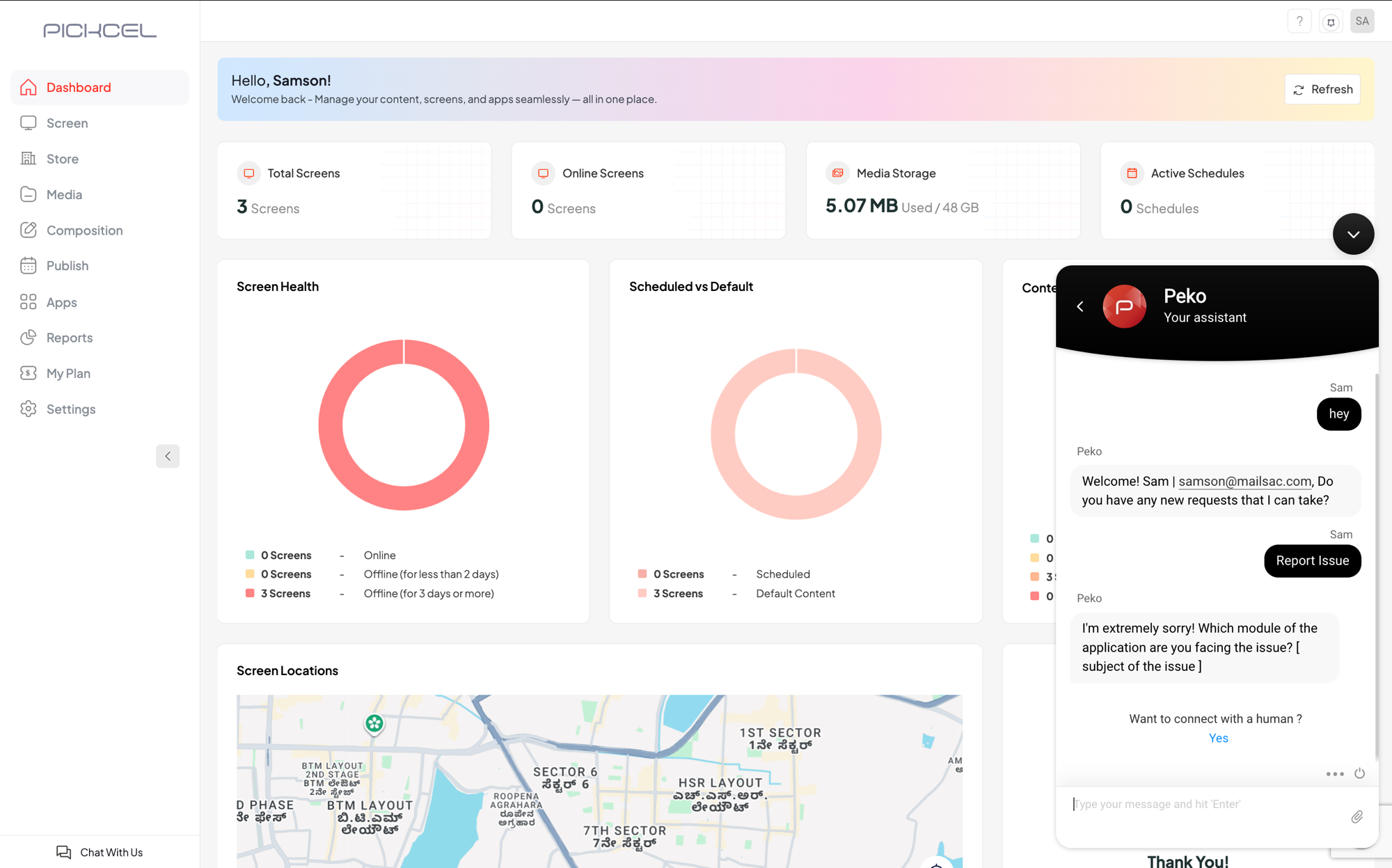 Based on your query, our support team will either pick up your chat and get back to you right away, or review the issue and reach out via email or phone. Either way, we'll work with you to resolve it.
## Related guides
Email the Pickcel support team directly.
Browse all Pickcel FAQ articles.
Based on your query, our support team will either pick up your chat and get back to you right away, or review the issue and reach out via email or phone. Either way, we'll work with you to resolve it.
## Related guides
Email the Pickcel support team directly.
Browse all Pickcel FAQ articles.