> ## Documentation Index
> Fetch the complete documentation index at: https://docs.pickcel.com/llms.txt
> Use this file to discover all available pages before exploring further.
# How to Hide 'Still Watching' Pop-up on Amazon Fire TV Stick - Quick Fix
> Step-by-step guide to disable the 'Still Watching?' dialog box on Amazon Fire TV Stick to prevent device from sleeping and interrupting your digital signage
With Amazon's recent update, you may start seeing a "Still Watching?" dialog box that prompts after 4-6 hours of inactivity. The default setting is "ON", so if you don't respond, the device will go to sleep and interrupt your digital signage display.
We recommend completely disabling this pop-up to avoid interrupting your menu and ensuring uninterrupted playback.
## Quick Fix
**If the pop-up is currently on screen:** Press **"Don't show again"** on the dialog. This will immediately disable the feature and save the setting automatically.
## Disable in System Settings
You can also disable the feature in the device's system settings by following these steps:
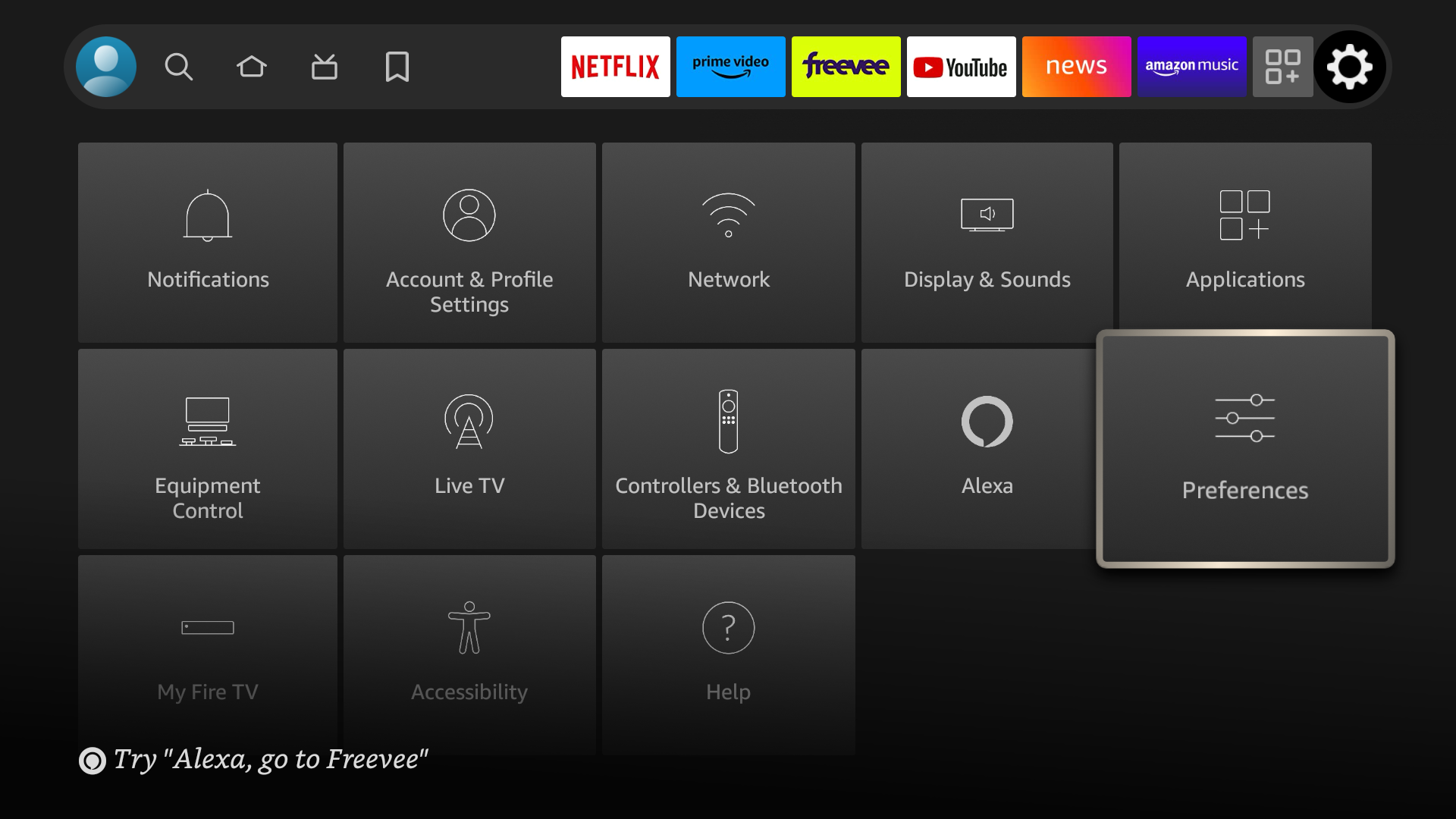
From the Firestick home screen, press the **menu button** on your remote to open the system settings dashboard. Then select **Preferences**.

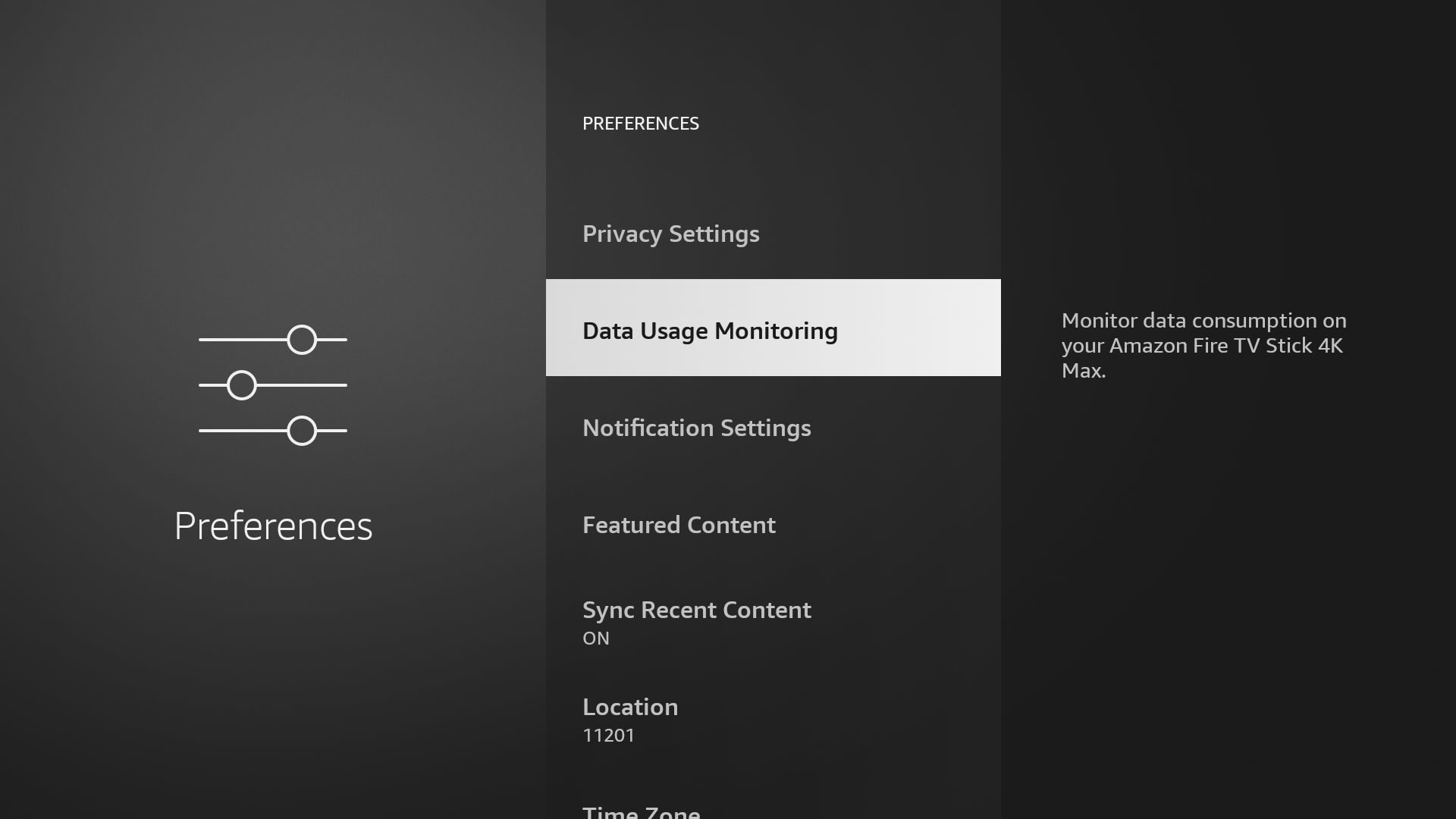
 Click on **"Data Usage Monitoring"** in the Preferences menu.
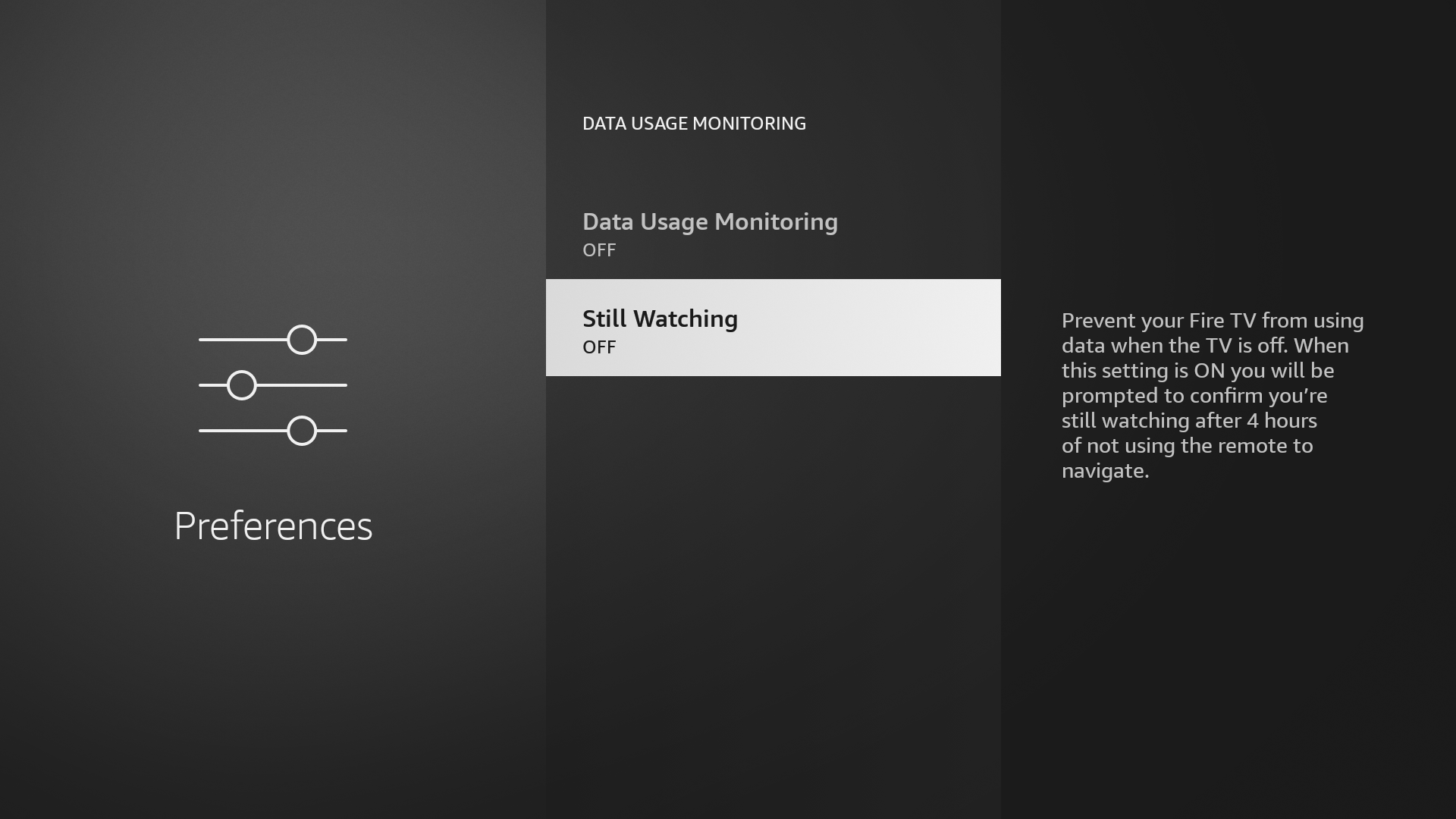
 Toggle the **"Still Watching"** feature to **"Off"** on the Data Usage Monitoring screen.
 After completing the steps above, the pop-up should no longer appear and your Fire TV Stick will remain active.
## Related guides
Step-by-step guide to install Pickcel on Fire TV Stick.
Learn how to register your Fire TV Stick with Pickcel.
Browse more troubleshooting guides and FAQs.
After completing the steps above, the pop-up should no longer appear and your Fire TV Stick will remain active.
## Related guides
Step-by-step guide to install Pickcel on Fire TV Stick.
Learn how to register your Fire TV Stick with Pickcel.
Browse more troubleshooting guides and FAQs.