> ## Documentation Index
> Fetch the complete documentation index at: https://docs.pickcel.com/llms.txt
> Use this file to discover all available pages before exploring further.
# What do the three dots (health indicators) on my screen mean?
> Understand what the three health indicator dots on your digital signage screen mean (server connection, content download status, device date/time) and how to hide them.
The three dots, also known as health indicators, provide insights into the screen/device's status. Each dot conveys specific information:
## First dot, Server/Internet connection
The first dot indicates the server/internet connection. A **green** dot signifies a healthy connection, while **red** indicates that the screen is not connected to the internet.
## Second dot, Content downloading
The second dot represents content downloading. A **yellow** dot means content is being retrieved from the server, turning **green** once it's ready for display.
## Third dot, Device date and time
The third dot reflects the device's date and time. If the device's date/time is inaccurate due to an unstable internet connection, this dot turns **red**; otherwise, it remains **green**.
## How do I turn off the three dots (health indicators) in Pickcel?
The three dots in the corner of your screen are called **health indicators**, and they're controlled by a **Device Profile**, a set of device-level settings you create once and assign to one or many screens. To turn the dots off, you create (or edit) a profile with the **Screen Health Indicator** turned off, then assign that profile to the screens where you want the dots hidden.
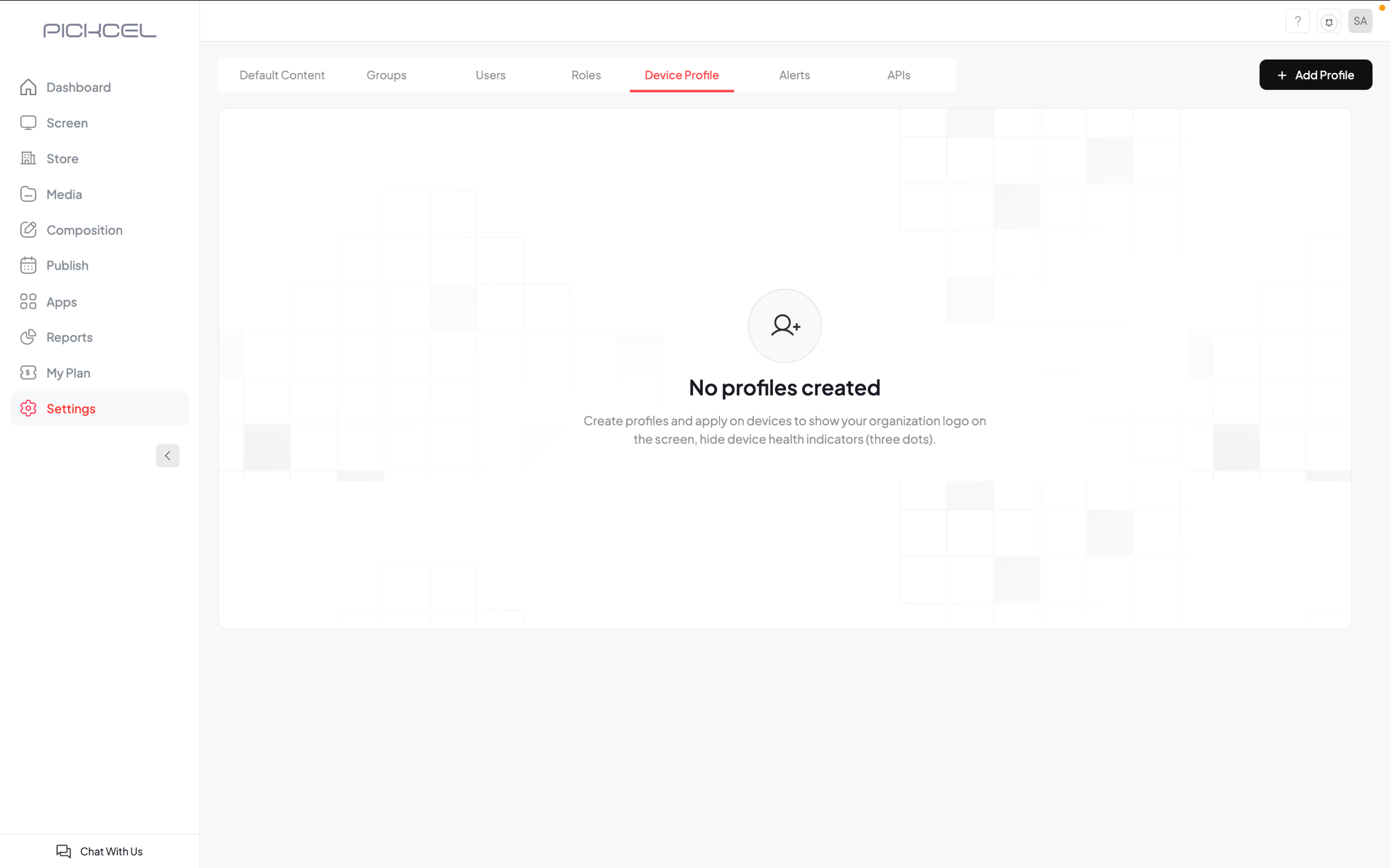
In the Pickcel console, go to the **Settings** module and open the **Device Profile** tab. Click **Add Profile** in the top-right corner.
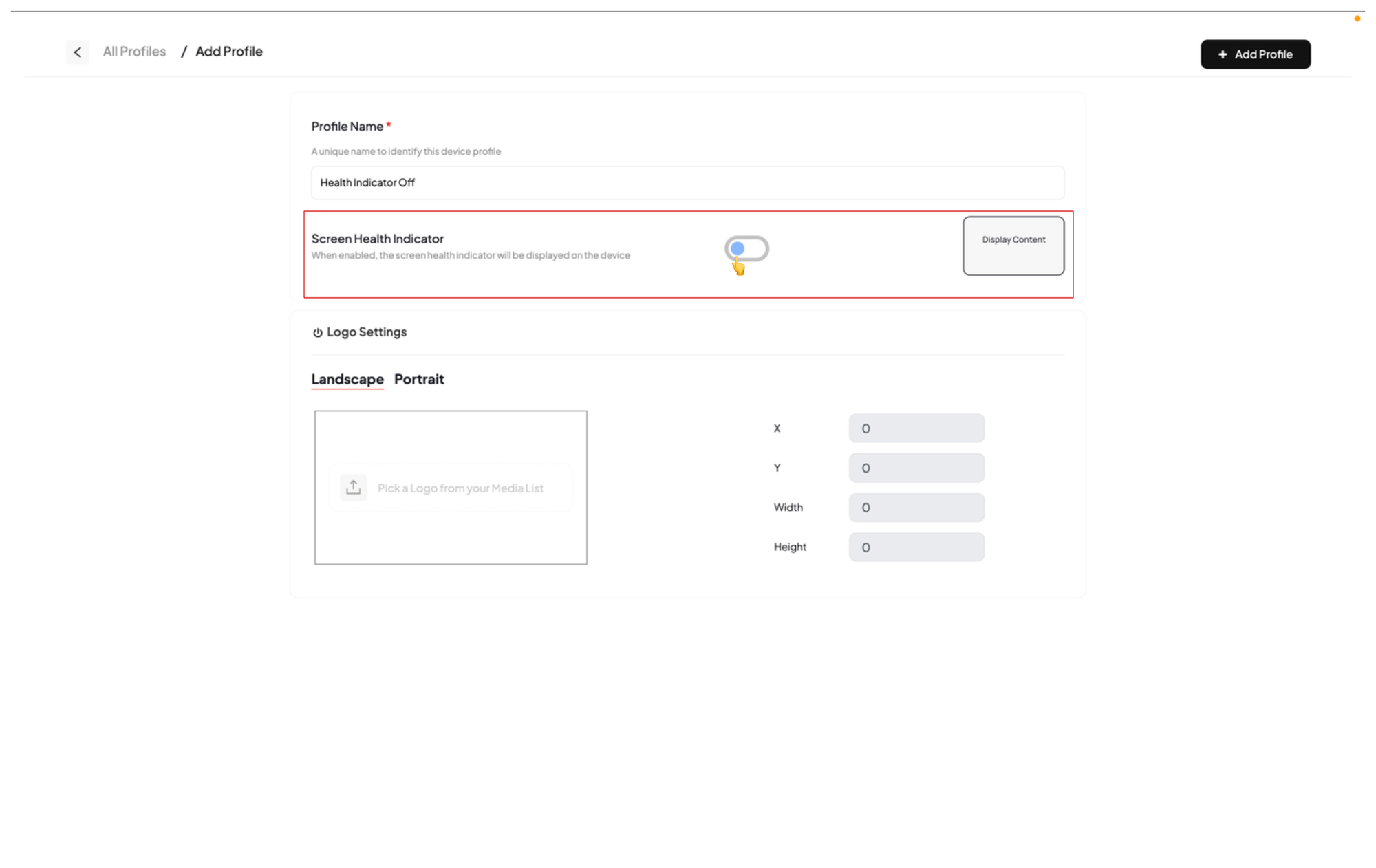
 Enter a unique **Profile Name** so you can identify the profile later (for example, "Health Indicator Off"). Then find the **Screen Health Indicator** toggle and switch it **off**.
The toggle decides whether the three dots show on the device's screen: when it is **on**, the dots appear; when it is **off**, they stay hidden. For a clean screen with no dots, leave this toggle off.
Enter a unique **Profile Name** so you can identify the profile later (for example, "Health Indicator Off"). Then find the **Screen Health Indicator** toggle and switch it **off**.
The toggle decides whether the three dots show on the device's screen: when it is **on**, the dots appear; when it is **off**, they stay hidden. For a clean screen with no dots, leave this toggle off.
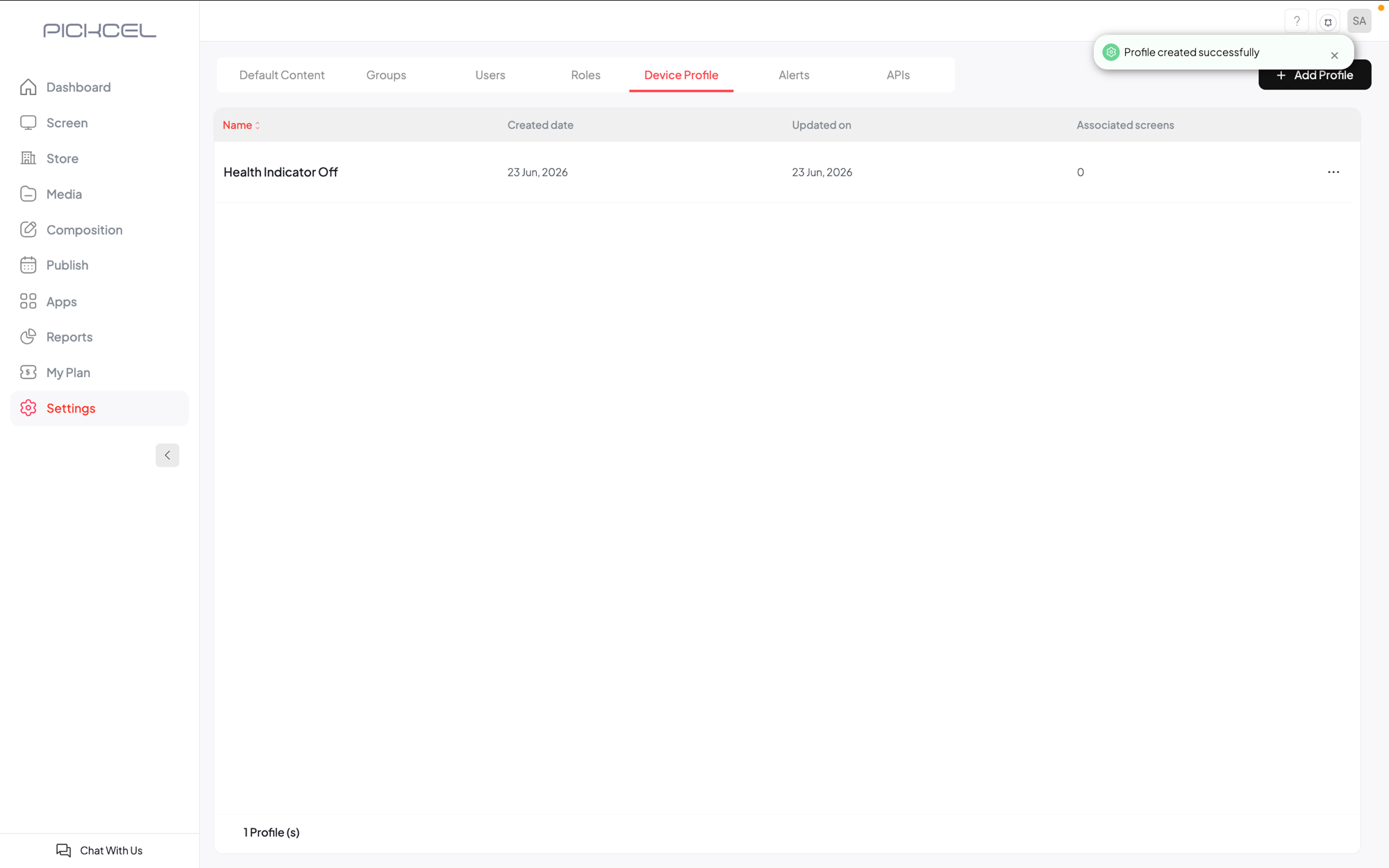
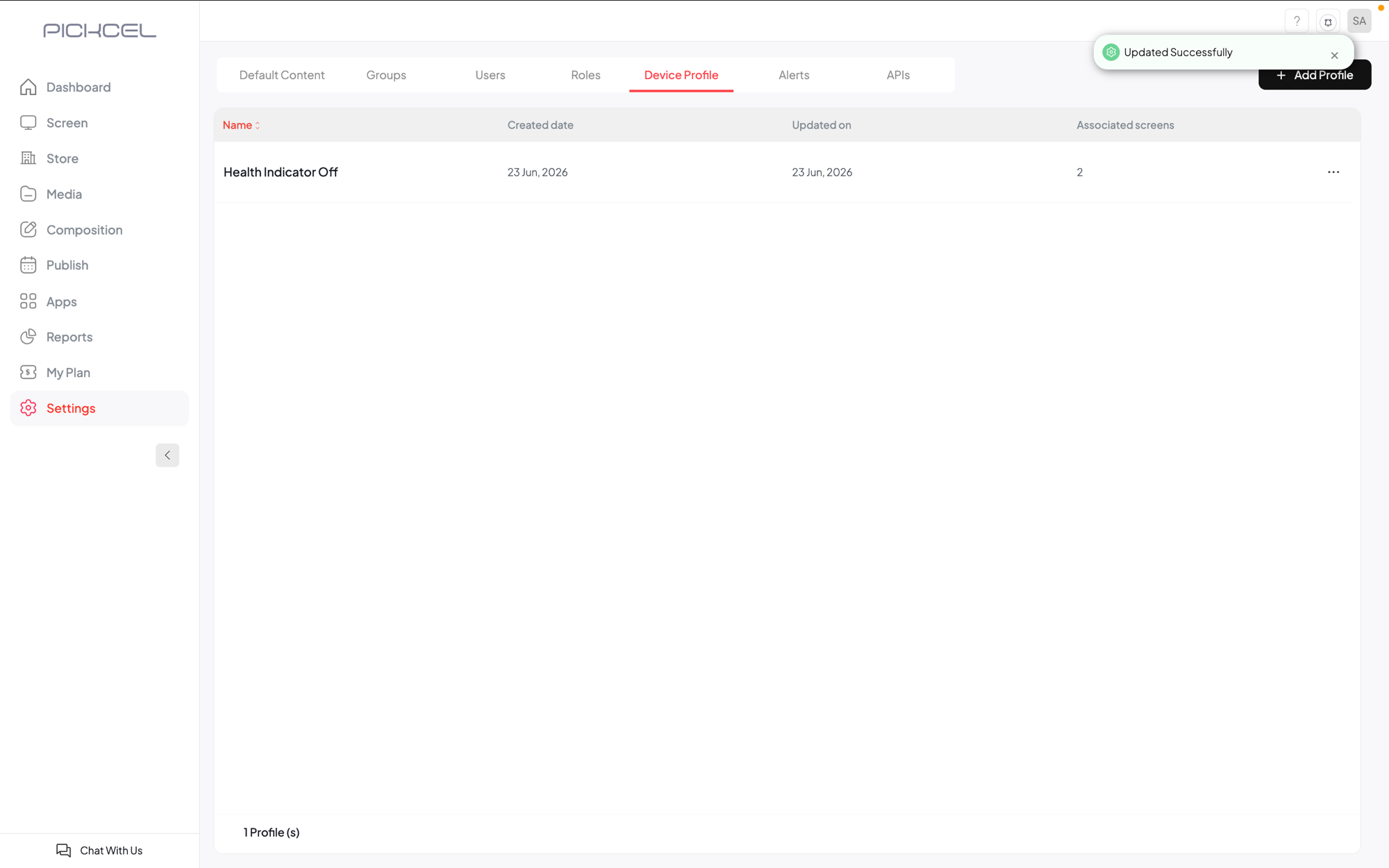
 Click **Add Profile** to save. You'll see a **Profile created successfully** message, and the new profile appears in your Device Profile list with **0** associated screens for now.
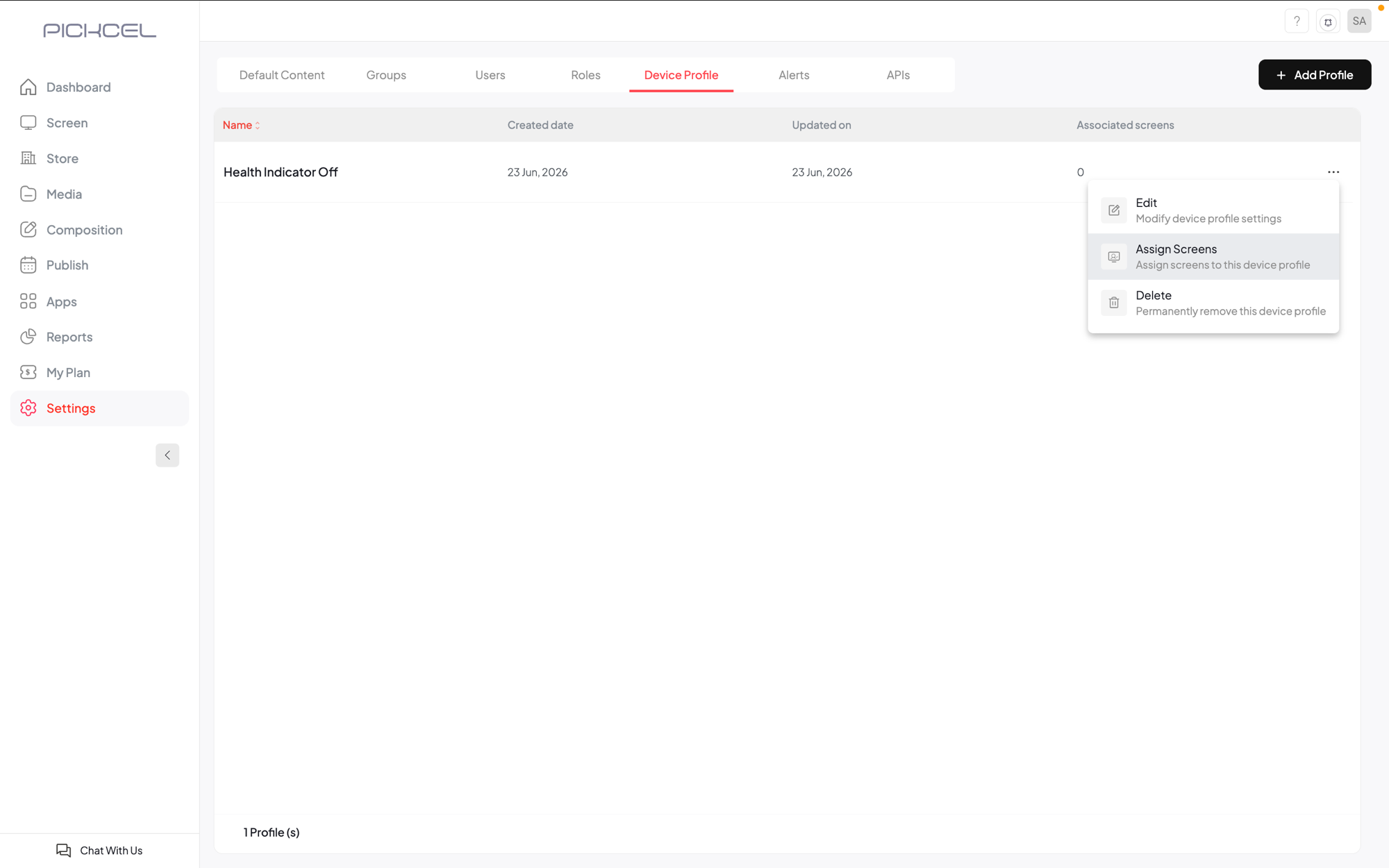
 The profile only takes effect once it's applied to a screen. Click the **three-dot (...)** menu on the right of the profile row and choose **Assign Screens**.
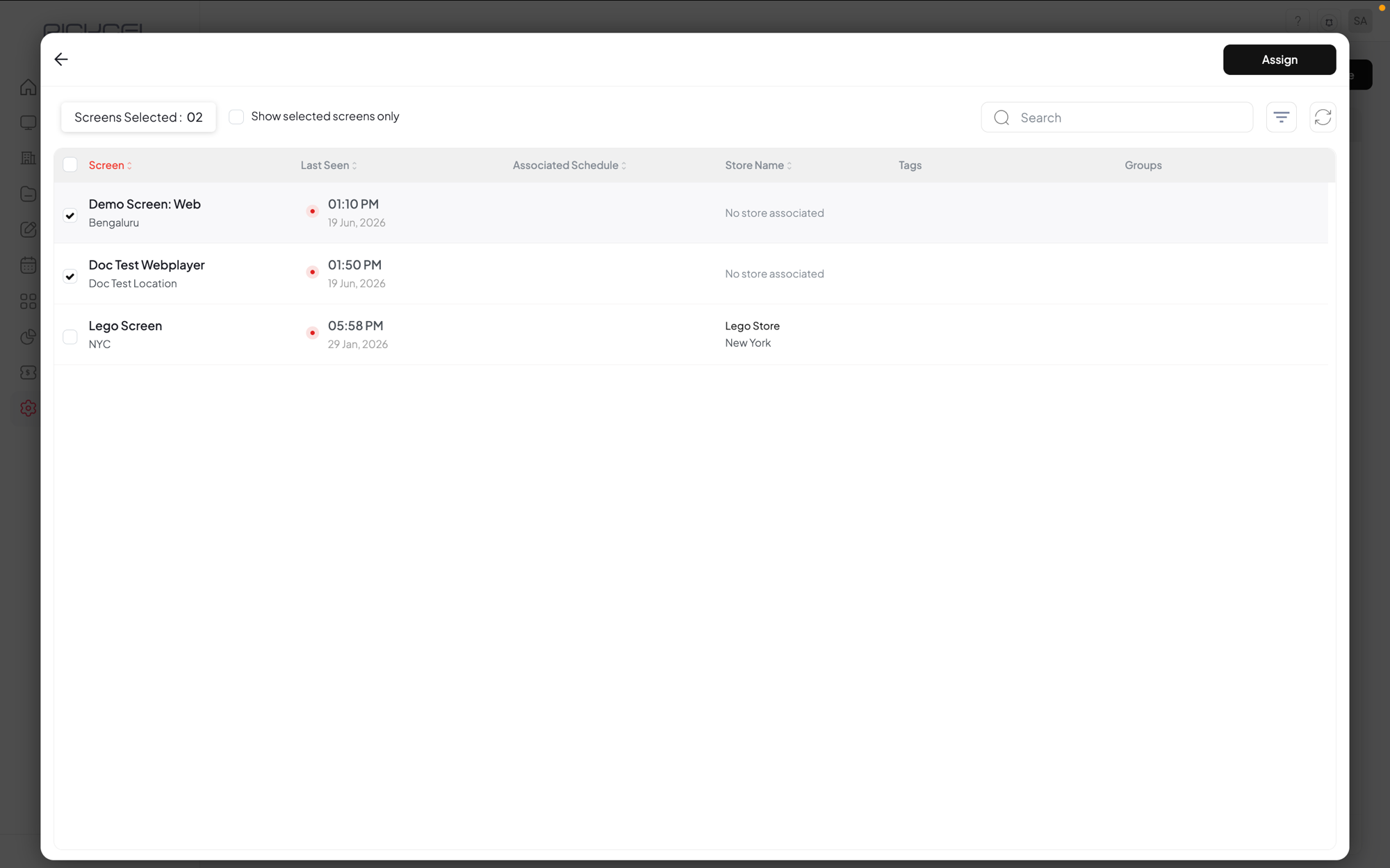
 Tick the screens where you want the dots hidden, then click **Assign** in the top-right corner. You can use the search box to find specific screens.
 You'll see an **Updated Successfully** message, and the **Associated screens** count for the profile now reflects the screens you picked.
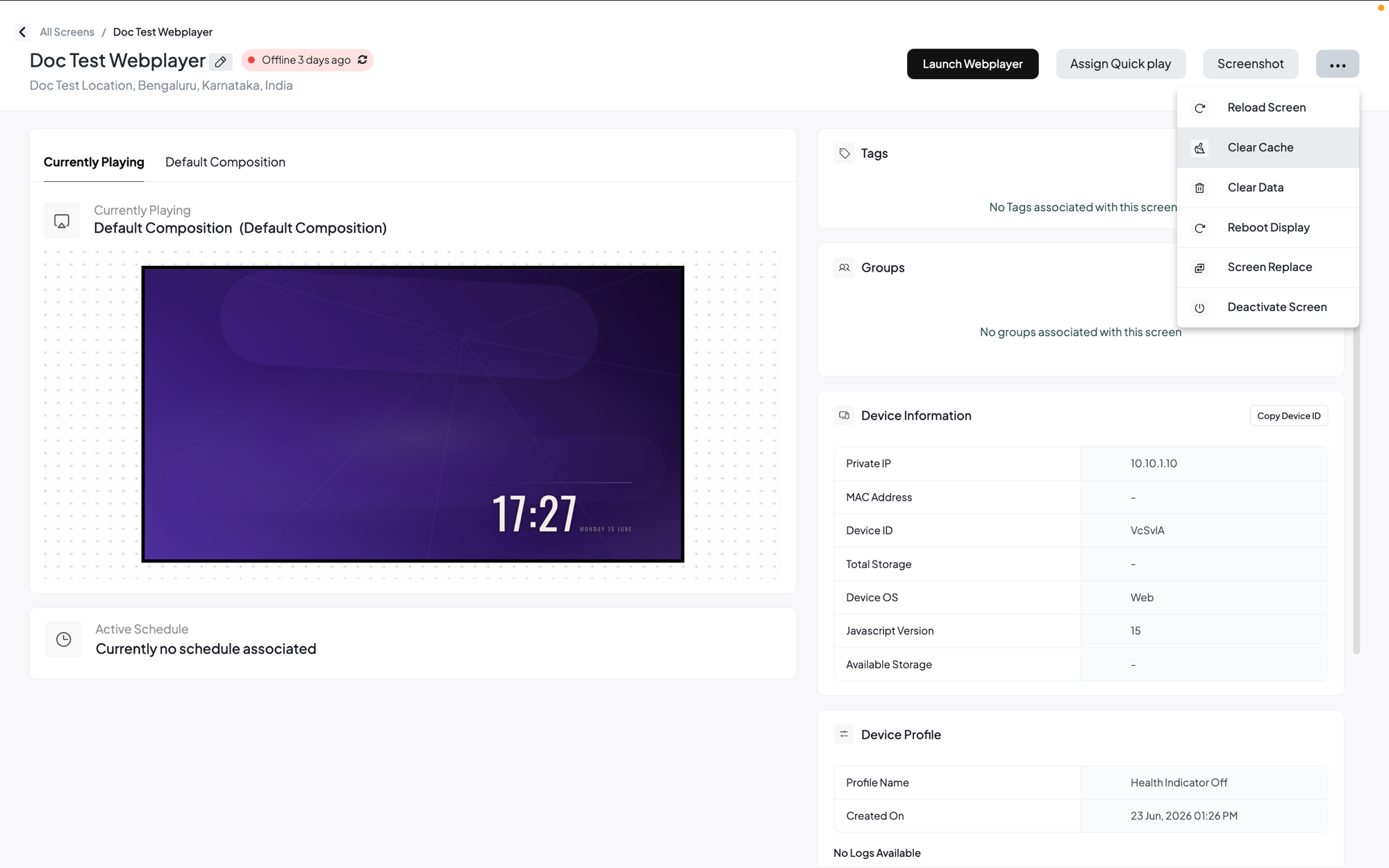
 Now make the screen pick up the new profile, either by restarting it or by clearing its cache:
* **Restart the screen:** switch the display off and then on again.
* **Clear the cache from the console:** open the **Screen** module, click the screen to open its details, click the **three-dot (...)** menu in the top-right, and choose **Clear Cache**. This re-fetches the latest settings and reloads the screen.
Now make the screen pick up the new profile, either by restarting it or by clearing its cache:
* **Restart the screen:** switch the display off and then on again.
* **Clear the cache from the console:** open the **Screen** module, click the screen to open its details, click the **three-dot (...)** menu in the top-right, and choose **Clear Cache**. This re-fetches the latest settings and reloads the screen.
 Once the screen refreshes, the three dots will be gone.
Want the dots back later? Edit the profile, switch **Screen Health Indicator** back on, and refresh the screen (restart it or clear its cache). For more on profiles, see [What is a device profile, and how do I create one?](/faqs/groups-tags-and-organization#what-is-a-device-profile,-and-how-do-i-create-one).
## Need assistance?
For assistance with any issues related to these health indicators, please reach out to our [support team](mailto:support@pickcel.com).
## Related Articles
Learn how to register and configure your display
Browse more troubleshooting guides and FAQs
Once the screen refreshes, the three dots will be gone.
Want the dots back later? Edit the profile, switch **Screen Health Indicator** back on, and refresh the screen (restart it or clear its cache). For more on profiles, see [What is a device profile, and how do I create one?](/faqs/groups-tags-and-organization#what-is-a-device-profile,-and-how-do-i-create-one).
## Need assistance?
For assistance with any issues related to these health indicators, please reach out to our [support team](mailto:support@pickcel.com).
## Related Articles
Learn how to register and configure your display
Browse more troubleshooting guides and FAQs