> ## Documentation Index
> Fetch the complete documentation index at: https://docs.pickcel.com/llms.txt
> Use this file to discover all available pages before exploring further.
# What is a display registration code?
> What a Pickcel display registration code is, when it appears, how to pair a player with it, and how to fix codes that fail or show Invalid registration code.
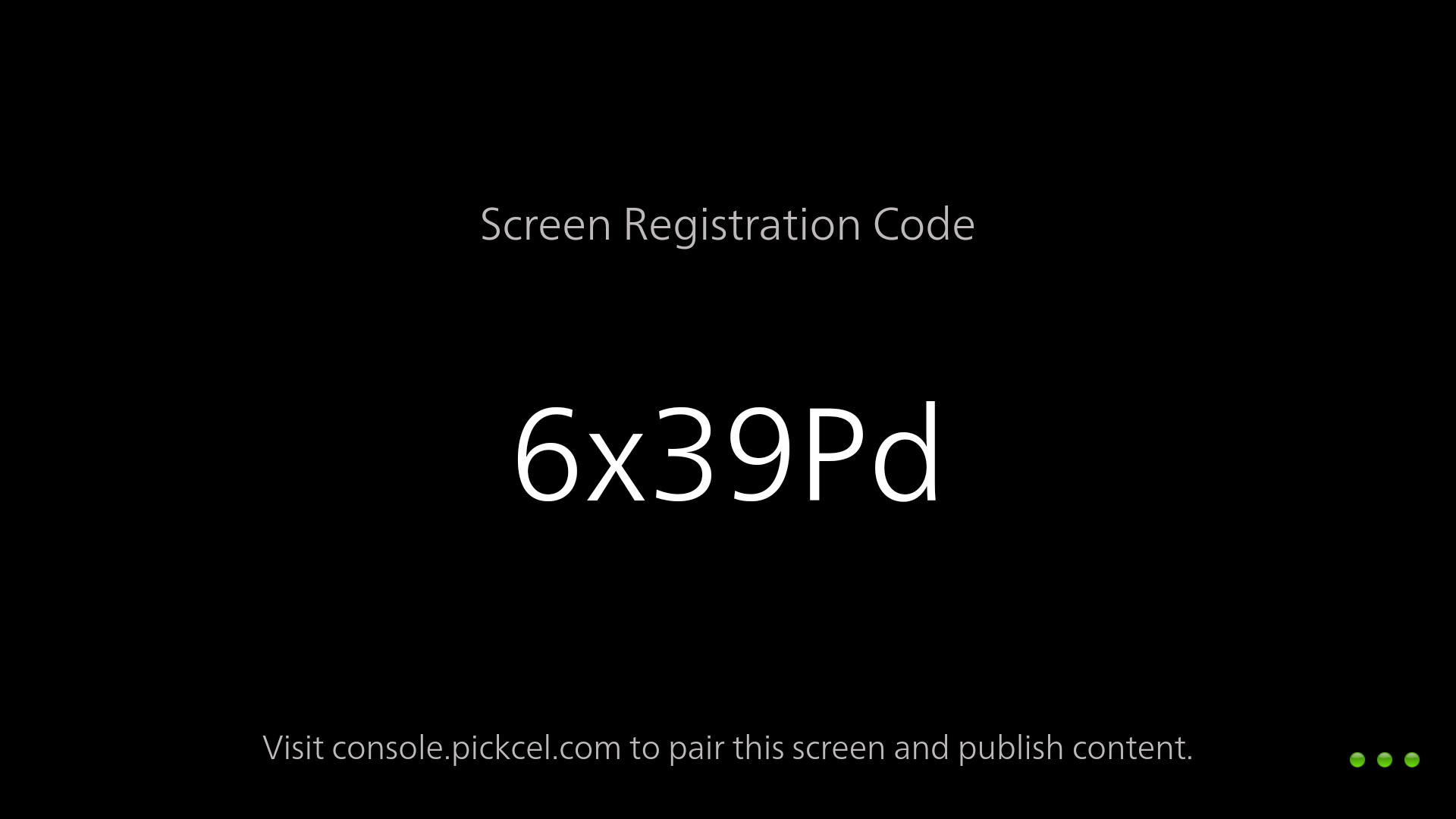
A **display registration code** is a unique **6-digit alphanumeric code** that appears on your TV or player when the Pickcel signage app connects for the first time. You enter this code in the [Pickcel console](https://console.pickcel.com/) to pair the device with your Pickcel cloud account.
 ## When does the code appear?
The registration code is shown when:
* You install and launch the Pickcel player app on a device for the **first time**
* A player is **factory reset** and needs to be paired again
* You use the [Webplayer](/screen-registration/web-player) to create a temporary browser-based screen
Each player generates its own code. The code stays on screen until you successfully register the device in the console.
## How do I use it?
1. Note the code on your display (letter case matters).
2. Log in to the [Pickcel console](https://console.pickcel.com/) and open the **Screen** module.
3. Click **Add Screen**, enter the code, and complete the screen details.
For the full walkthrough, see [Screen Registration](/screen-registration/screen-registration).
## Troubleshooting
### Why is my display registration code not working?
If your code isn't accepted when you add a screen in the [Pickcel console](https://console.pickcel.com/), work through these checks:
* **Case-sensitive code**: Enter the code exactly as shown on the player or Webplayer tab, including uppercase and lowercase letters.
* **Matching server**: The **server name** on the registration screen must match the console you're logged into (for example, `console.pickcel.com` or your on-premise domain). A code from one environment can't be used in another.
* **One code, one screen**: The same registration code can't be used to register more than one screen in the same Pickcel account.
If the player is showing an old or expired code, restart the Pickcel app on the device to generate a fresh one, then try again.
### Why do I see "Invalid registration code!"?
If you get the **Invalid registration code!** error when adding a screen, it's almost always one of two things. Work through both checks:
* **Letter case doesn't match.** The code is case-sensitive. Re-enter it exactly as shown on the player, matching every uppercase and lowercase letter.
* **Wrong server.** The **server name** on the registration screen must match the console you're signing into (for example, `console.pickcel.com` or your on-premise domain). A code generated on one server won't work on another.
Fix whichever applies, then enter the code again. If it still fails, contact [support](mailto:support@pickcel.com).
Still stuck after these checks? Contact [support@pickcel.com](mailto:support@pickcel.com) and include the code and the server name shown on your display.
## Related guides
Step-by-step guide to pair a player with the Pickcel console.
Register a temporary browser-based screen without hardware.
Browse all Pickcel FAQ articles.
## When does the code appear?
The registration code is shown when:
* You install and launch the Pickcel player app on a device for the **first time**
* A player is **factory reset** and needs to be paired again
* You use the [Webplayer](/screen-registration/web-player) to create a temporary browser-based screen
Each player generates its own code. The code stays on screen until you successfully register the device in the console.
## How do I use it?
1. Note the code on your display (letter case matters).
2. Log in to the [Pickcel console](https://console.pickcel.com/) and open the **Screen** module.
3. Click **Add Screen**, enter the code, and complete the screen details.
For the full walkthrough, see [Screen Registration](/screen-registration/screen-registration).
## Troubleshooting
### Why is my display registration code not working?
If your code isn't accepted when you add a screen in the [Pickcel console](https://console.pickcel.com/), work through these checks:
* **Case-sensitive code**: Enter the code exactly as shown on the player or Webplayer tab, including uppercase and lowercase letters.
* **Matching server**: The **server name** on the registration screen must match the console you're logged into (for example, `console.pickcel.com` or your on-premise domain). A code from one environment can't be used in another.
* **One code, one screen**: The same registration code can't be used to register more than one screen in the same Pickcel account.
If the player is showing an old or expired code, restart the Pickcel app on the device to generate a fresh one, then try again.
### Why do I see "Invalid registration code!"?
If you get the **Invalid registration code!** error when adding a screen, it's almost always one of two things. Work through both checks:
* **Letter case doesn't match.** The code is case-sensitive. Re-enter it exactly as shown on the player, matching every uppercase and lowercase letter.
* **Wrong server.** The **server name** on the registration screen must match the console you're signing into (for example, `console.pickcel.com` or your on-premise domain). A code generated on one server won't work on another.
Fix whichever applies, then enter the code again. If it still fails, contact [support](mailto:support@pickcel.com).
Still stuck after these checks? Contact [support@pickcel.com](mailto:support@pickcel.com) and include the code and the server name shown on your display.
## Related guides
Step-by-step guide to pair a player with the Pickcel console.
Register a temporary browser-based screen without hardware.
Browse all Pickcel FAQ articles.