> ## Documentation Index
> Fetch the complete documentation index at: https://docs.pickcel.com/llms.txt
> Use this file to discover all available pages before exploring further.
# Media uploads, files, and apps FAQs
> Answers about Pickcel media, maximum upload size, 4K video, Office files, video compression, Artboard JPEG vs HTML, deleting media, and the App Store.
Common questions about uploading and managing content in Pickcel. For the full upload walkthrough, see [Add Media](/media/add-media).
### Which file formats does Pickcel support?
Pickcel supports a wide range of media formats. Just pick your file and add it:
* **Images**: JPG, JPEG, PNG, GIF, BMP, TIFF.
* **Videos**: MP4, AVI, MOV, WMV, FLV, MKV.
* **Documents**: PDF, PPT, PPTX, DOC, DOCX.
### What is the maximum file size I can upload?
There's no hard limit on media file size, but for the best performance keep individual uploads to around **2 GB**. If your internet connection isn't consistently stable, upload files of up to **500 MB** at a time. If you run into upload issues, contact [support](mailto:support@pickcel.com).
### Is 4K video supported?
4K video is **not enabled by default**. Contact [support](mailto:support@pickcel.com) to turn it on for your account. Only **MP4** 4K files are supported. Before using 4K, confirm your device can play 4K (test a 4K file in any media player on it), otherwise you may see unexpected behaviour such as a black screen.
Once enabled, upload 4K video like any other file, but **uncheck the compress option** so the original quality is preserved:
1. Open the **Media** module and click **Upload files** → **Upload From Computer** (or drag and drop).
2. Unselect the **compress** radio button, then click **Upload**.
### Can I upload PowerPoint, Excel, or Word files?
Office files (PPT, Excel, Word) aren't supported directly. Instead, publish them through the **Google Slides / Sheets / Docs** app and add that app to your screens.
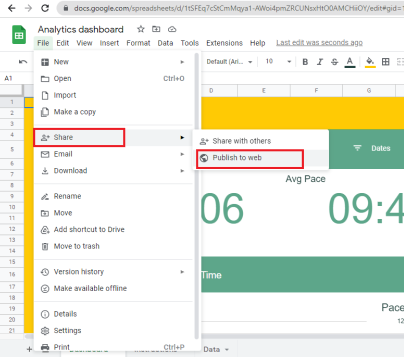
In Google Sheets, Slides, or Docs, go to **File → Share → Publish to the web**.
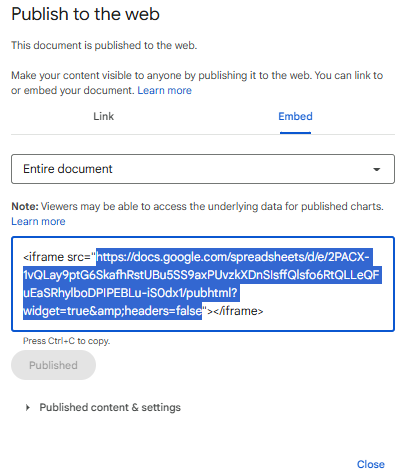
Switch to the **Embed** tab.
For **Google Sheets**, choose **Entire document** (or pick the specific sheets you want), then copy the URL shown between the quotation marks.
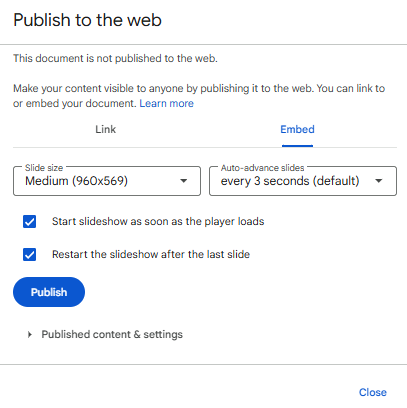
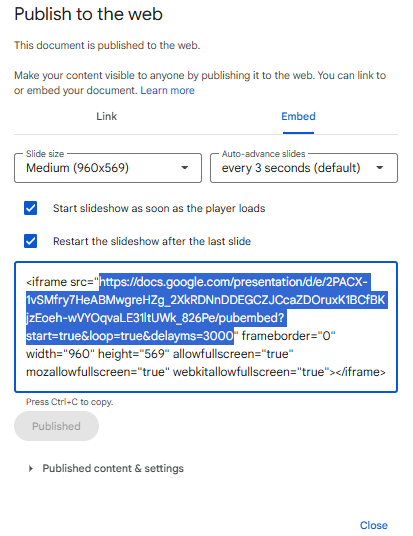
For **Google Slides**, set the slide size and auto-advance duration, and tick both **Start slideshow as soon as the player loads** and **Restart the slideshow after the last slide**.
Click **Publish**, then copy the URL between the quotation marks. You'll paste this into Pickcel.
In the Pickcel console, open **Apps**, select the [Google Slides](/apps/google-slides) (or Sheets/Docs) app, name it, paste the link in the **URL** box, and click **Create App**. Then add the app to a composition and schedule it on your screens.
For the full app setup steps, see the dedicated guides: [Google Slides](/apps/google-slides), [Google Sheets](/apps/google-sheets), and [Google Docs](/apps/google-docs).
### What are the Compress options?
By default, Pickcel **compresses** every video you upload. On a **Business** account, you can choose the output resolution instead:
1. Open the **Media** module and click **Add Media → Upload Media**.
2. Upload from your computer or drag and drop your videos.
3. In the file list, pick a resolution for each video, **720P**, **1080P**, or **2160P**: or choose **Original** to skip compression.
4. Click **Upload**.
### What's the difference between JPEG and HTML files in Artboard?
When you save an [Artboard](/media/artboard/overview) design, you can export it as JPEG or HTML:
| | JPEG | HTML |
| :------------------------ | :------------------------------- | :----------------------------- |
| **Editable after saving** | No | Yes, edits reflect on screen |
| **Responsive** | No | Yes |
| **Resolution / size** | Optimal resolution, smaller file | Higher resolution, larger file |
| **Device support** | All devices | Not supported on LG & Tizen |
### How do I share my media with sub-users?
By default, the media you upload is **private** to you. You can make uploads available to all your sub-users, but the option has to be enabled on your account first. Contact [support](mailto:support@pickcel.com) to turn it on. Once enabled:
1. Open the **Media** menu and click **Add media**.
2. Click **Upload files → Upload From Computer** (or drag and drop).
3. In the pop-up, toggle the media to **Public**, then click **Upload**.
Files uploaded this way appear in the media listing for all sub-users.
### Can I change a video's duration in a composition?
No. Changing a video's duration while creating a composition isn't supported; it's intentionally prevented so video playback isn't cut off mid-stream. The video plays for its full length.
### Why won't my media files delete?
A media file can't be deleted while it's **in use**. If a file is part of a composition, or a Quick Play or schedule, Pickcel blocks the delete and shows an error. Remove the file from the **Quick Play / schedule** first, then from any **compositions** using it, and you'll be able to delete the media.
### What is the App Store, and what apps are available?
The **App Store** lets you publish ready-made applications to your screens with a single click. Apps span many categories, Corporate, Retail, News, Social Media, Video Streaming, Google apps, Traffic, Weather, and more, and new ones are added regularly.
### Why don't I see some apps in my App Store?
Pickcel has two plans, **Professional** and **Business**, and some premium apps are **Business-only**: Zoom, Queue Management, Visitor Management, Discount Management, Stream, and Flight. To use these, upgrade to the Business plan. See the [pricing page](https://www.pickcel.com/pricing.html) or contact [sales](https://www.pickcel.com/company/contact) for details.
Some apps are provided on demand. If you have such a requirement, discuss it with the [support team](mailto:support@pickcel.com): if the app is available, we can add it to your account.
## Related guides
Upload images, videos, and documents to your media library.
Design custom content and export it as JPEG or HTML.
Publish slides, sheets, and docs to your screens.
Browse all Pickcel FAQ articles.
 For **Google Slides**, set the slide size and auto-advance duration, and tick both **Start slideshow as soon as the player loads** and **Restart the slideshow after the last slide**.