> ## Documentation Index
> Fetch the complete documentation index at: https://docs.pickcel.com/llms.txt
> Use this file to discover all available pages before exploring further.
# Connectivity, offline playback, and hosting FAQs
> Answers about Pickcel connectivity, offline playback, when internet is required, cloud vs private-network hosting, cloud storage, and multicast.
Common questions about how Pickcel handles internet connectivity, offline playback, and where your content is hosted.
### Does Pickcel work offline?
Yes. Once your content is downloaded to the device, Pickcel keeps playing it offline, so your screens stay live even without internet. Static media like **images, videos, and PDFs** play offline, and so do most apps using their last synced content. Apps that pull **live data from the internet**, such as web URLs, YouTube, and other apps that stream or fetch real-time content, need an active connection to load and stay up to date. You need internet for the initial setup and content assignment, and again whenever you want to receive **updates** such as new media or app data.
### Do I need an active internet connection to play content?
For **image, video, and Scroller** content, the player downloads everything locally and plays it on schedule; no constant connection required. An active connection on the player **is** needed for:
* Initial **screen registration**
* **Updating** the schedule or content on a screen
* Broadcasting real-time emergency content via **Quick Play**
* **Remote monitoring** and capturing screenshots
* Any **internet-based app**: URL links, YouTube, news, social media, and so on
If a media player has no Real-Time Clock (RTC) and runs without internet, it won't keep accurate local time. It then can't play scheduled content and instead shows the default composition applied to the screen.
### What is RTC (Real-Time Clock), and how does it affect my content schedule?
An **RTC (Real-Time Clock)** is a hardware feature in your media player that stores the local time and time-zone information. A device with an RTC keeps correct time during offline operation and doesn't depend on the internet to know the local time or time zone.
This matters for scheduling: if a device **without** an RTC boots and runs without internet, it has no reliable time information. In that case it can't play **scheduled** content and falls back to playing only the **default composition** configured for the screen.
### Is Pickcel cloud-based, or can it run on a private network?
Pickcel is a **cloud-based** (SaaS) digital signage platform; your media and apps are stored securely on Pickcel's servers, hosted on **AWS**. It can **also** be deployed [on-premise](https://www.pickcel.com/solutions/on-premise-digital-signage) within a private network such as a LAN or WAN. See the [On-Premise Guide](/on-premise/configure-raspberry-pi-on-premise) for self-hosted deployments.
### What are the minimum server requirements for a private-network deployment?
To support roughly **50 displays**, you'll need a small-to-mid-size server with a **quad-core processor**, **16 GB RAM**, and storage to match your media needs (at least **1 TB**, plus external NAS if needed). For larger deployments, contact the [sales team](https://www.pickcel.com/company/contact) for a tailored recommendation.
### How much cloud storage do I get, and can I increase it?
Standard storage depends on your account type:
| Account | Cloud storage |
| :----------------------------- | :----------------------------------------------- |
| **Trial** (1 display) | 250 MB |
| **Professional** | 3 GB per display (can be increased upon request) |
| **Business** | 8 GB per display (can be increased upon request) |
| **Enterprise** (250+ displays) | 3 GB per display (can be increased upon request) |
Need more? Contact [Technical Support](mailto:support@pickcel.com). Full plan details are on the [pricing page](https://www.pickcel.com/pricing.html).
### Does Pickcel support local streaming with multicast?
Yes. Pickcel offers local live/media streaming via **multicast**, provided your network is equipped to handle multicast streaming and has the necessary hardware for in-network video streaming. Contact [support](mailto:support@pickcel.com) for details.
### How do I check whether a screen is online and connected to the internet?
There are three ways to check whether a screen is connected to the internet.
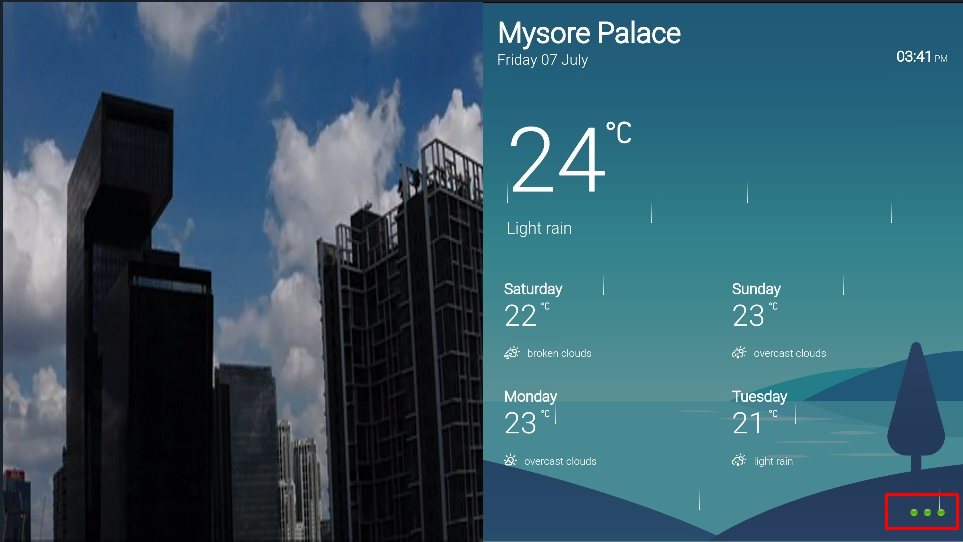
**1. On the Pickcel player.** Look at the [Health Indicators](/faqs/health-indicators), the three small dots in the **bottom-right corner** of the screen. The **first dot** shows the internet connection: **green** means connected, **red** means offline.
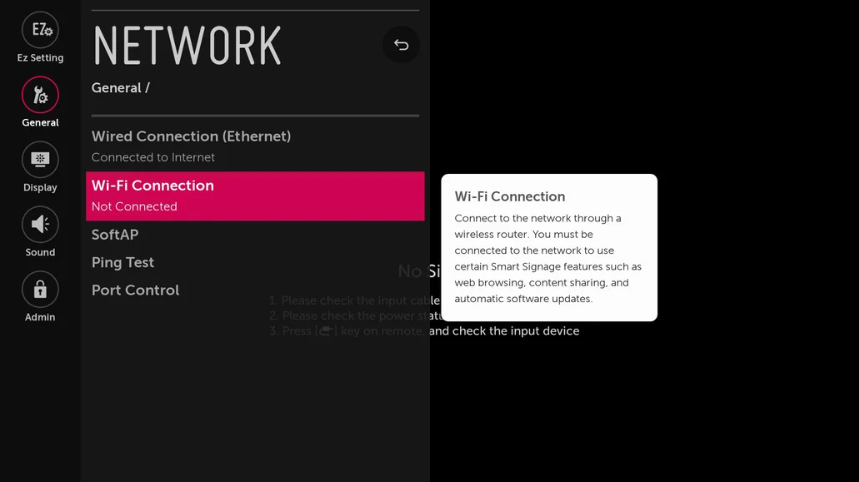
 **2. From the device's network settings.** Open **Settings → Network Settings** on the device and check that **Wi-Fi** or **Ethernet** shows as connected. To confirm, open an internet-based app such as YouTube and check that it loads.
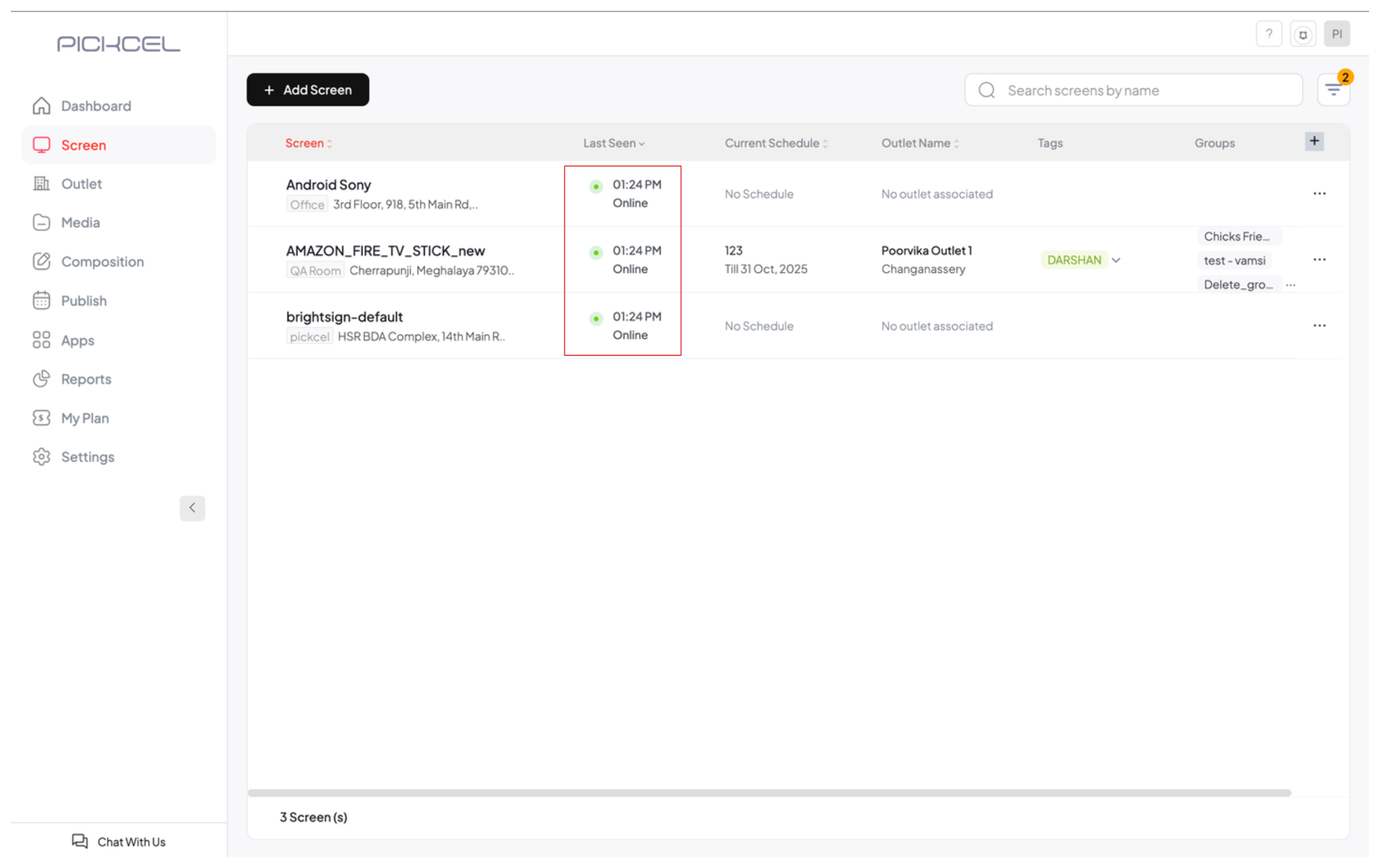
 **3. From the Pickcel console.** Open the **Screen** module. In the **Last Seen** column, each screen shows a colored status dot: **green / Online** means the device is connected, **red / offline** means it isn't.
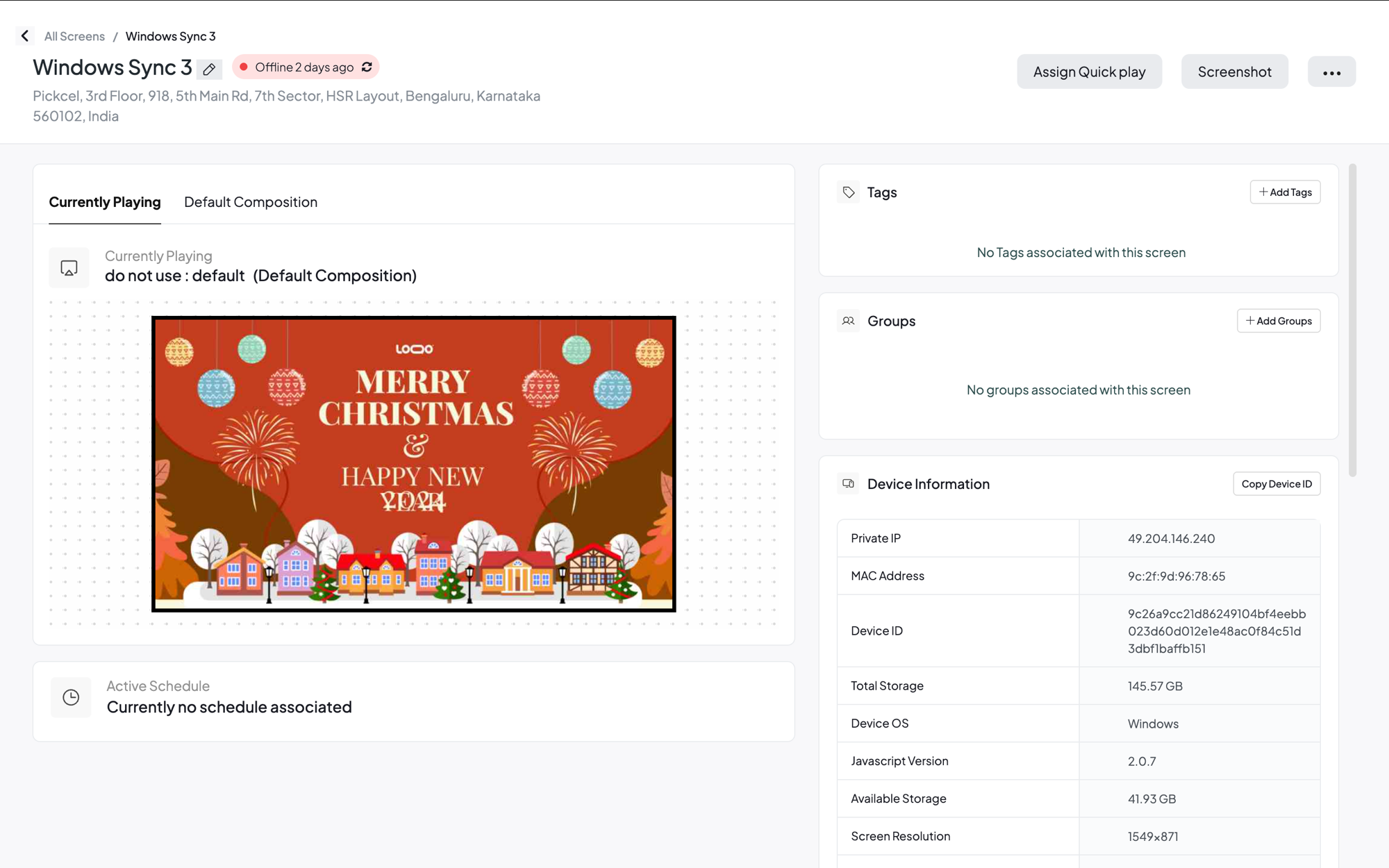
 Open a screen to see the same status on its detail page, shown as a label next to the screen name, such as **Online** or **Offline 2 days ago**.
 ## Related guides
Understand the three status dots shown on your screen.
Deploy Pickcel on your own private network.
How Pickcel protects your content in the cloud.
Browse all Pickcel FAQ articles.
## Related guides
Understand the three status dots shown on your screen.
Deploy Pickcel on your own private network.
How Pickcel protects your content in the cloud.
Browse all Pickcel FAQ articles.