> ## Documentation Index
> Fetch the complete documentation index at: https://docs.pickcel.com/llms.txt
> Use this file to discover all available pages before exploring further.
# How to Fix Pickcel App Not Launching on Android TV?
> Troubleshooting guide to fix Pickcel app launch issues on Android TV by configuring launch on boot and file permissions
If the Pickcel app is not launching on your Android TV, you may need to configure launch on boot permissions and file/media access. Follow the steps below to resolve the issue.
**What is Launch on Boot?** Enabling any application for 'launch on-boot' allows the app to automatically start every time the device or screen is turned on.
## Enable Launch on Boot (General Android TV)
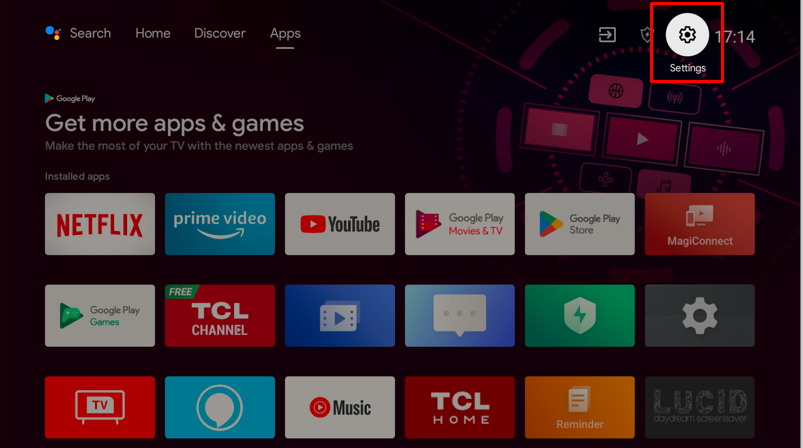
On the top-right corner of your TV screen, locate and click the **settings** gear icon.
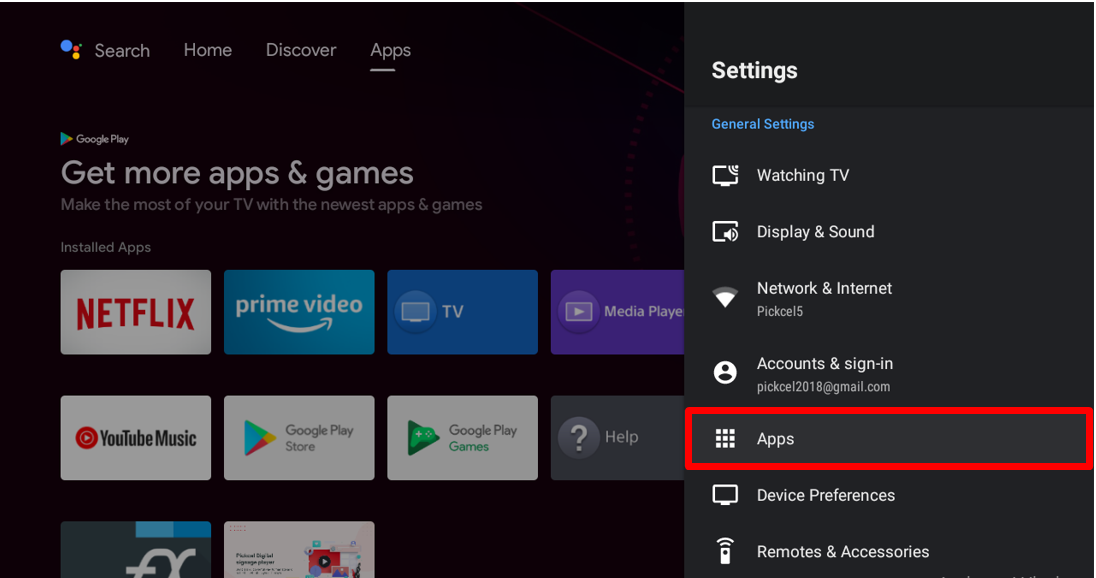
 Navigate to the **Apps** module in the settings menu.
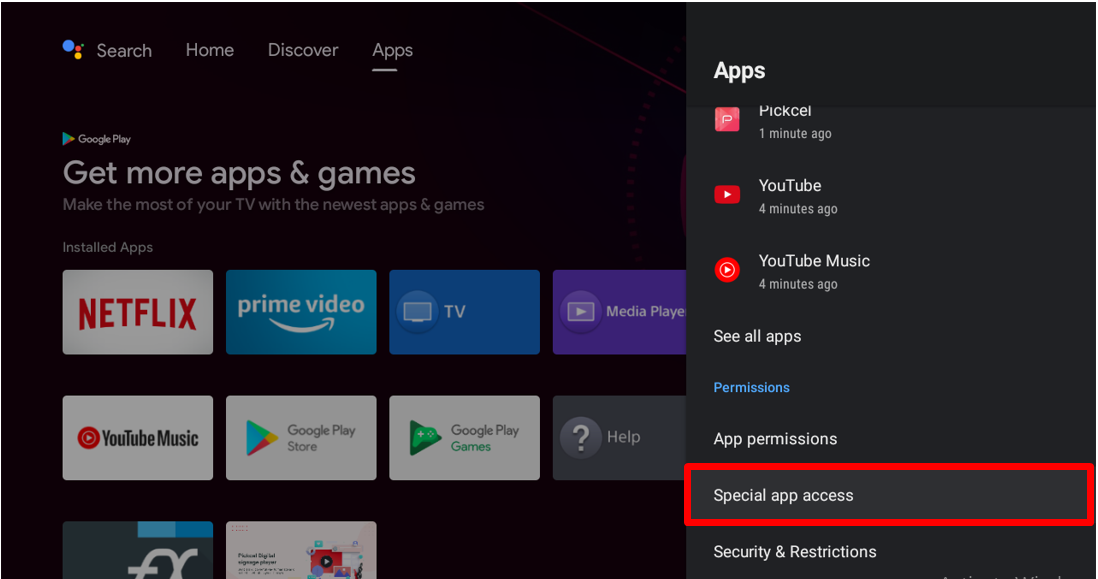
 Click on the **Special app access** option.
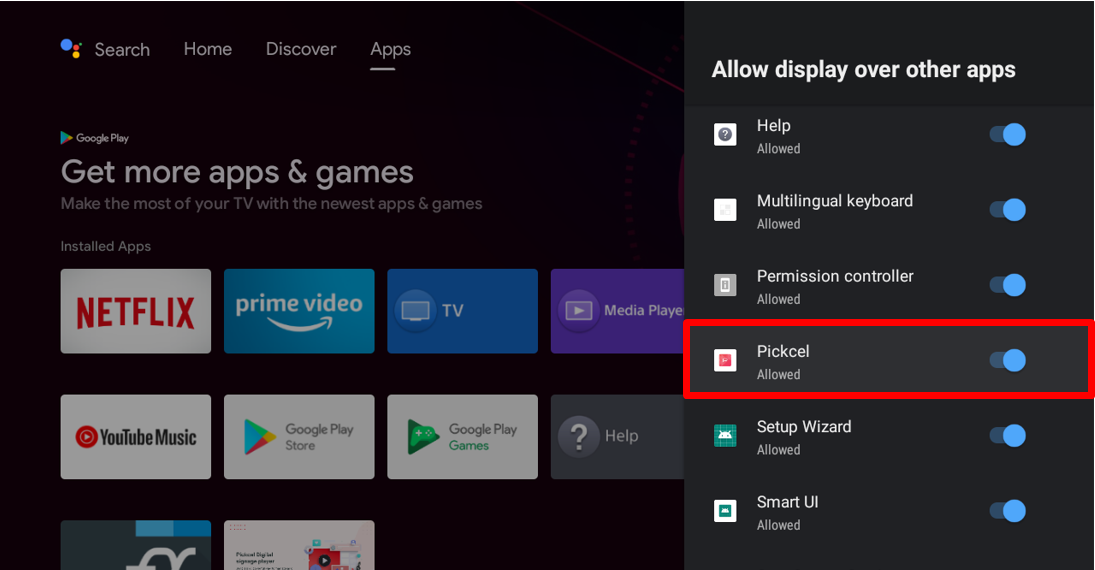
 Click on the **Display over other apps** option.
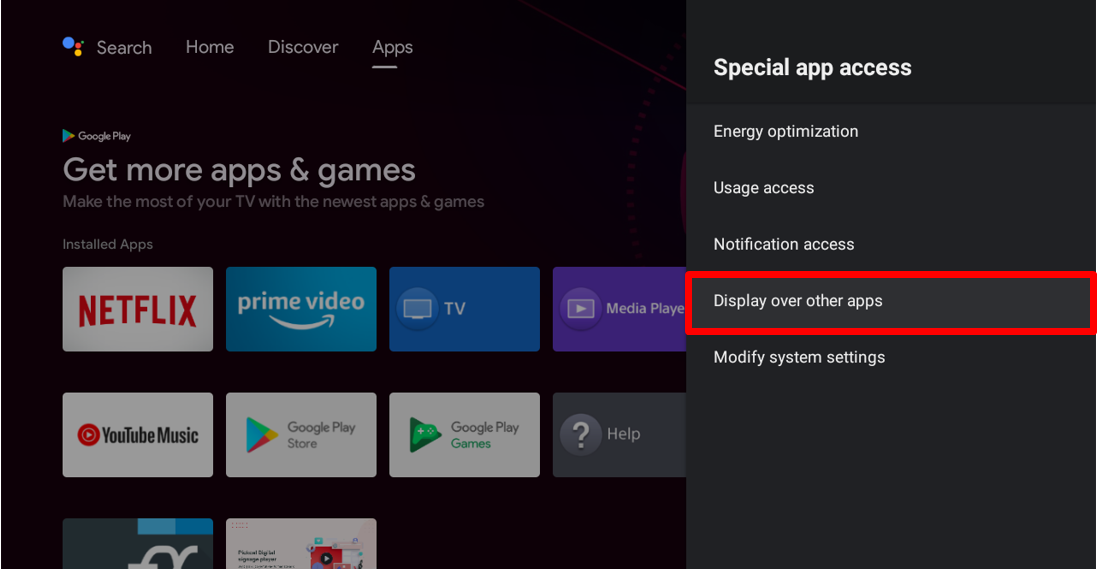 Find the **Pickcel** entry in the list and switch it **on**. This permission lets Pickcel draw its screen on top of the TV's home launcher, which is what allows it to take over the display automatically at boot instead of getting stuck behind the home screen.
 ## Enable Launch on Boot for TCL TV
If you are using a TCL TV, you need to follow the additional steps below to enable Auto Launch permission from the Safety Guard App.
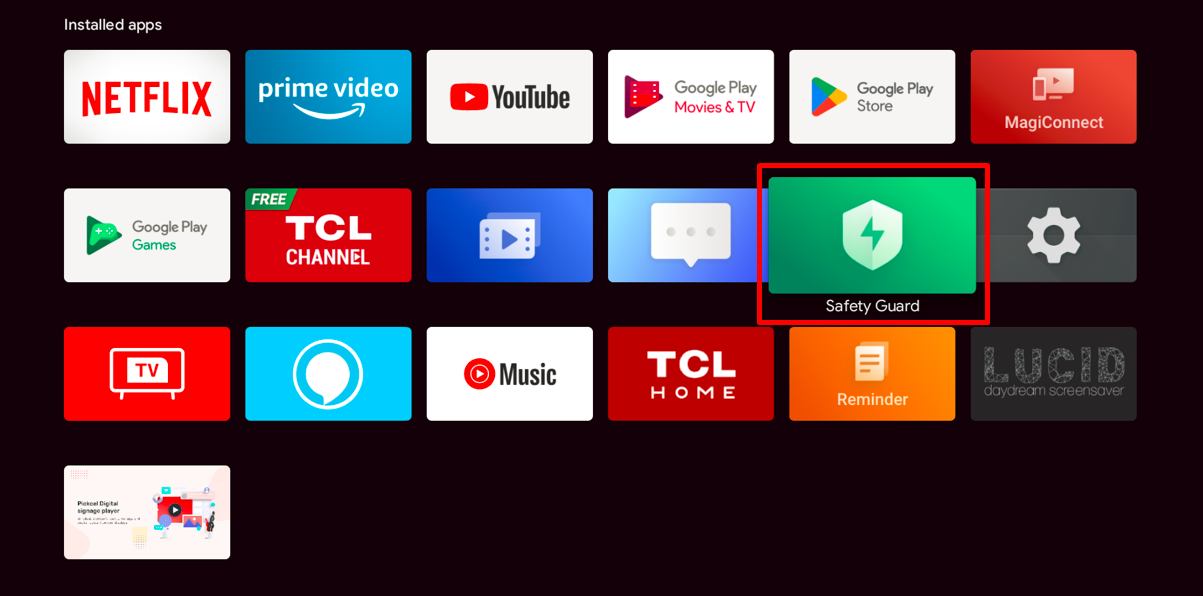
Open the **Safety Guard** app from the Apps Store.
## Enable Launch on Boot for TCL TV
If you are using a TCL TV, you need to follow the additional steps below to enable Auto Launch permission from the Safety Guard App.
Open the **Safety Guard** app from the Apps Store.
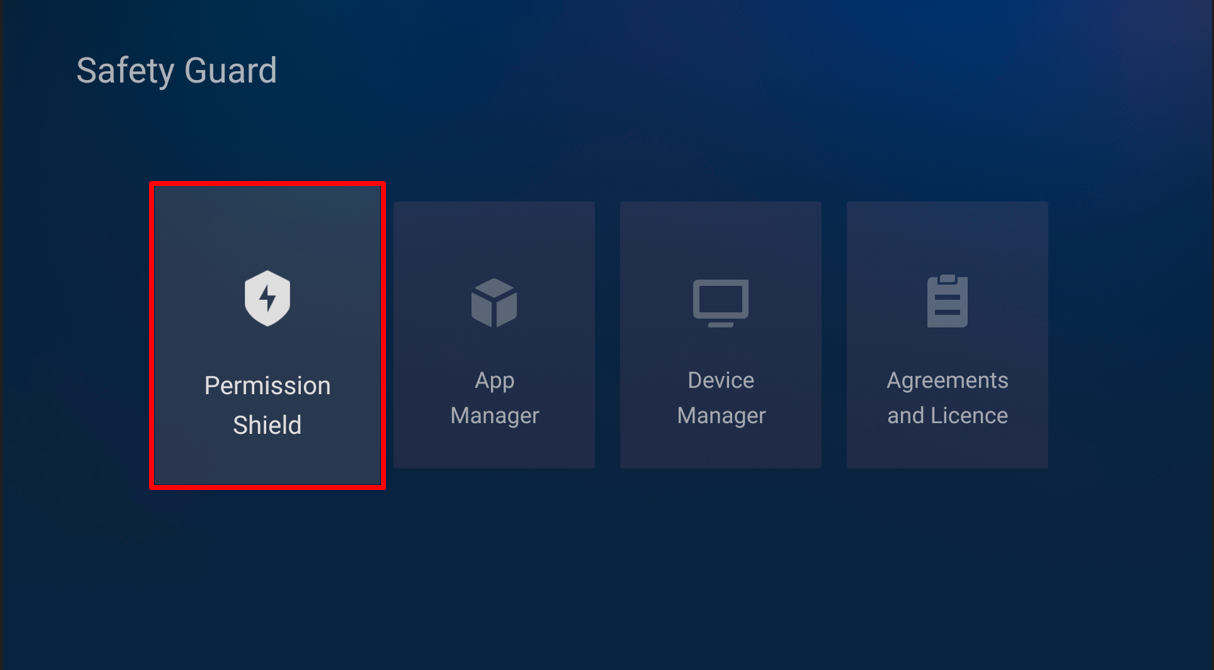
 Click on **Permission Shield** in the Safety Guard app.
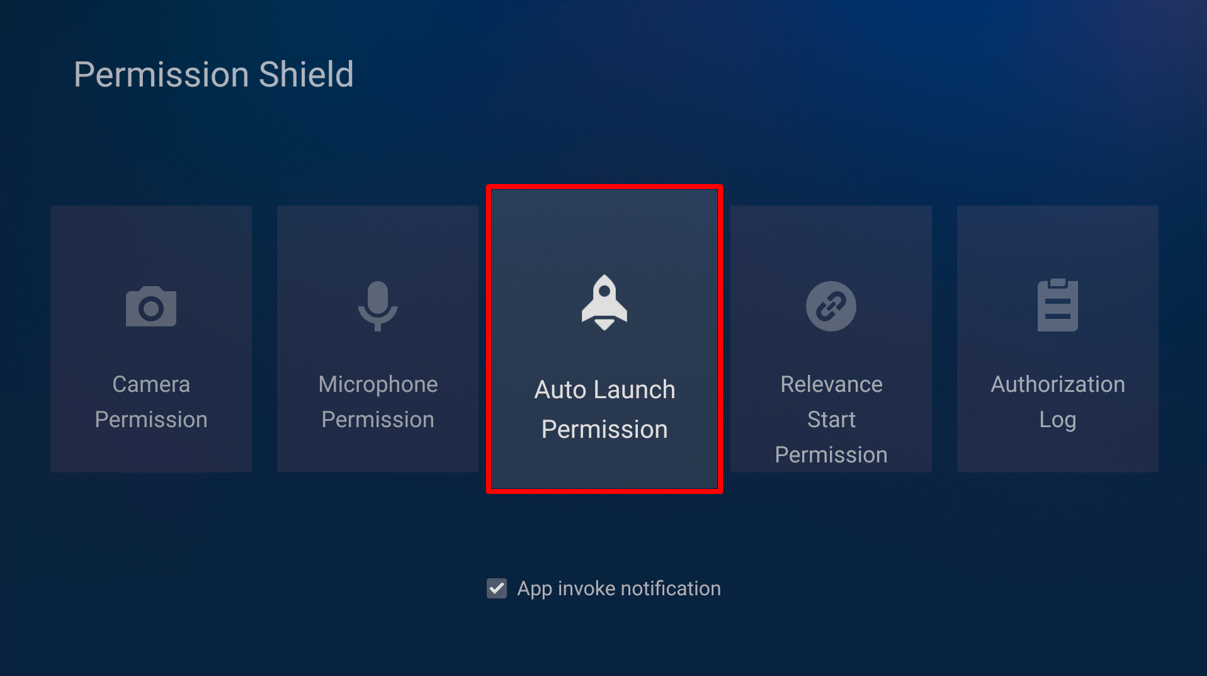
 Select **Auto Launch Permission** from the menu.
 Set the **Auto manager** option to **Closed** and ensure the **Pickcel** app permission is set to **Opened**.
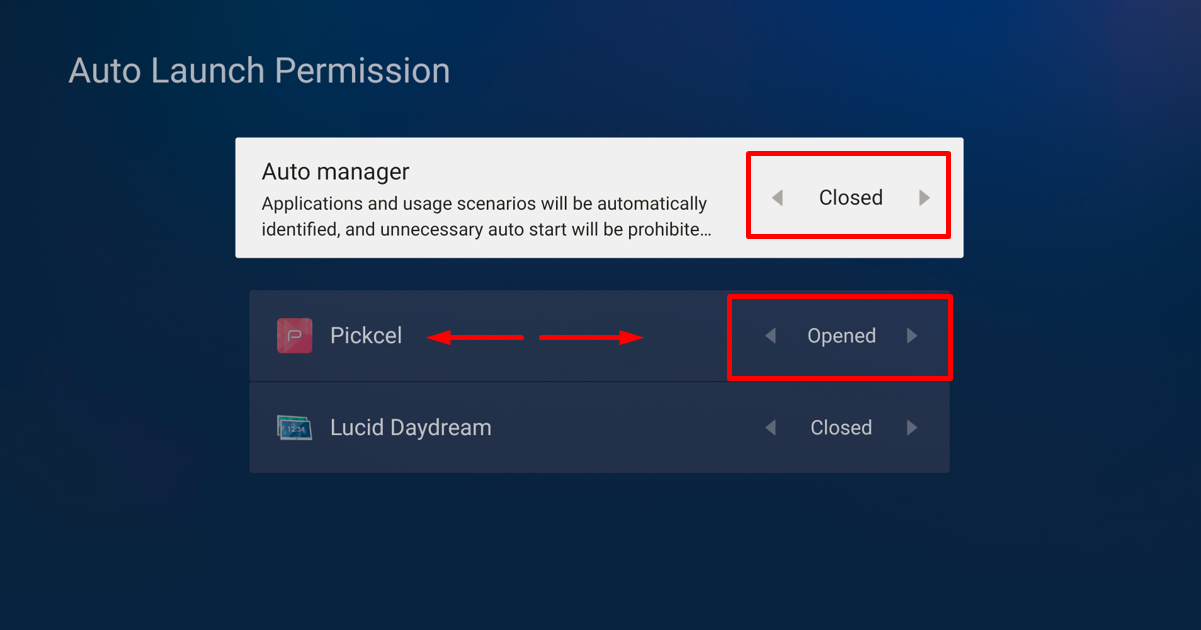 Once the settings are applied, the Pickcel app will launch on boot.
## Configure Files and Media Permissions
Pickcel needs unrestricted access to files and media so it can download and cache content locally on the device. Without it, downloaded content may fail to play even though the app appears to be running.
On the top-right corner of your TV screen, locate and click the **settings** gear icon.
Once the settings are applied, the Pickcel app will launch on boot.
## Configure Files and Media Permissions
Pickcel needs unrestricted access to files and media so it can download and cache content locally on the device. Without it, downloaded content may fail to play even though the app appears to be running.
On the top-right corner of your TV screen, locate and click the **settings** gear icon.
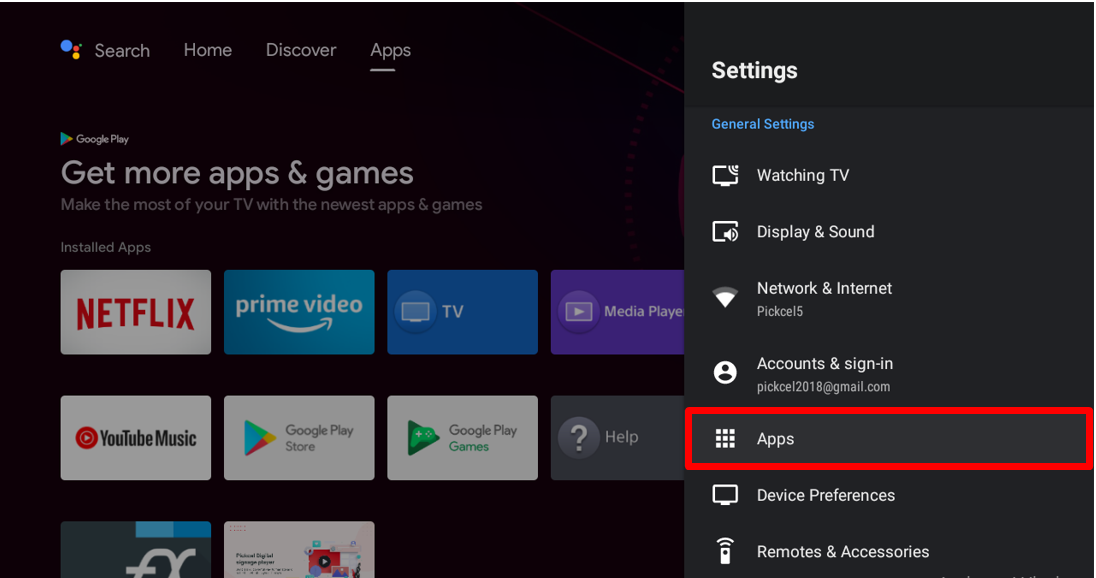
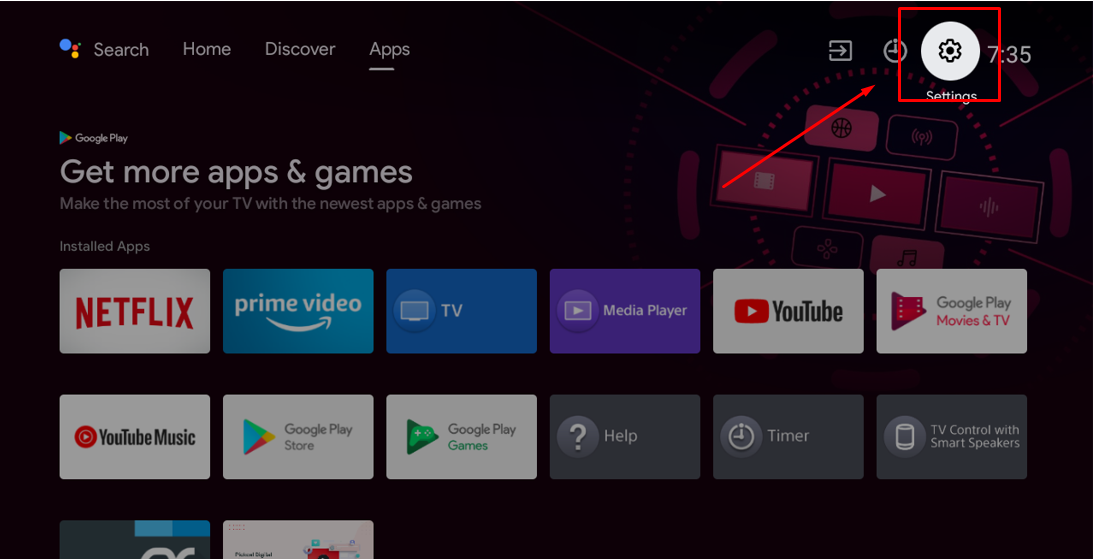 Navigate to the **Apps** module in the settings menu.
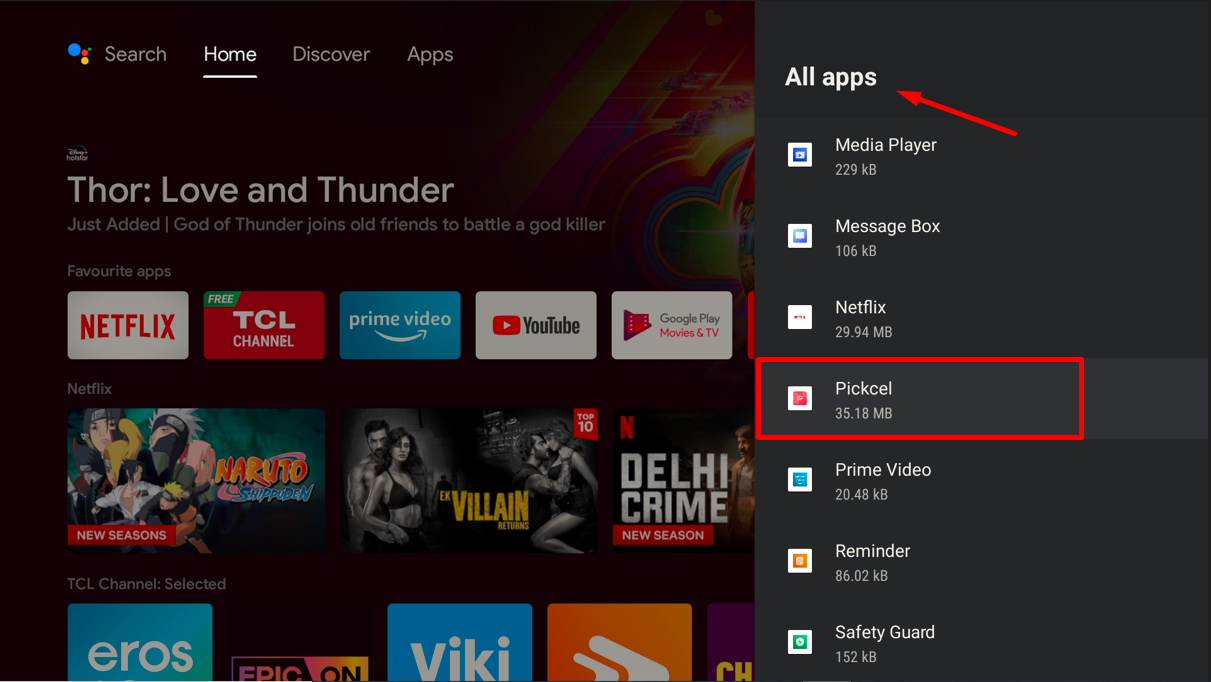
 Scroll through **All apps** and click on the **Pickcel** app.
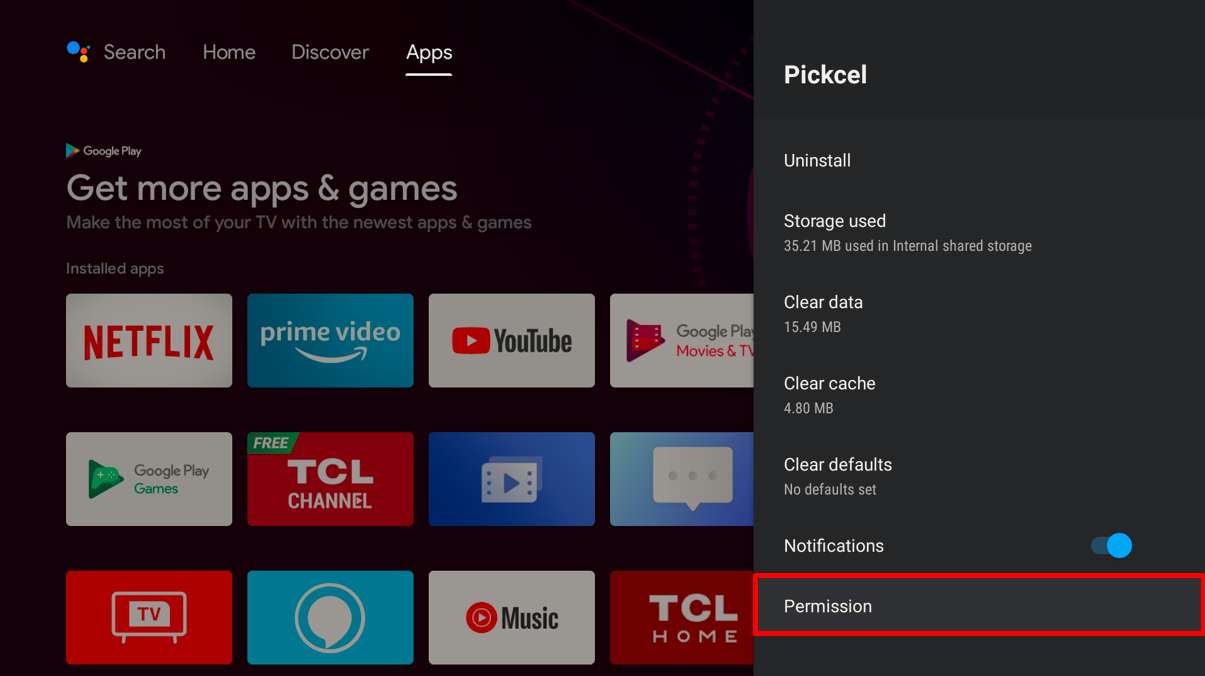
 Click on **Permissions** in the app settings.
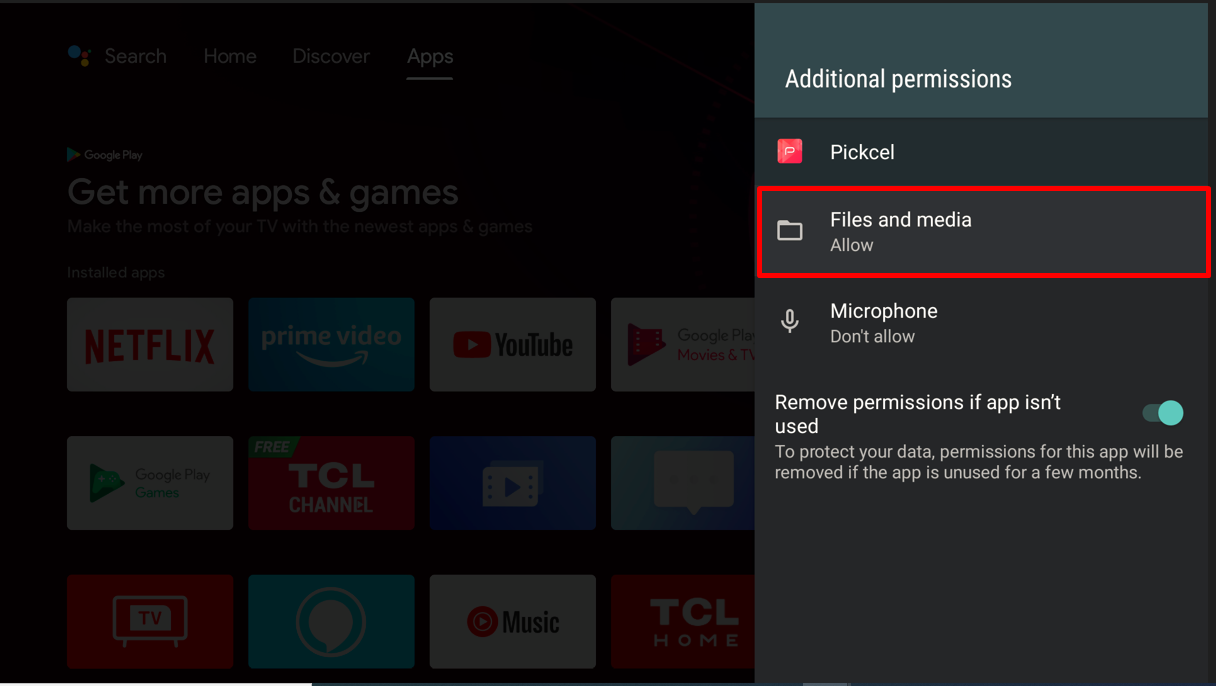
 Under **Additional permissions**, click on **Files and Media**.
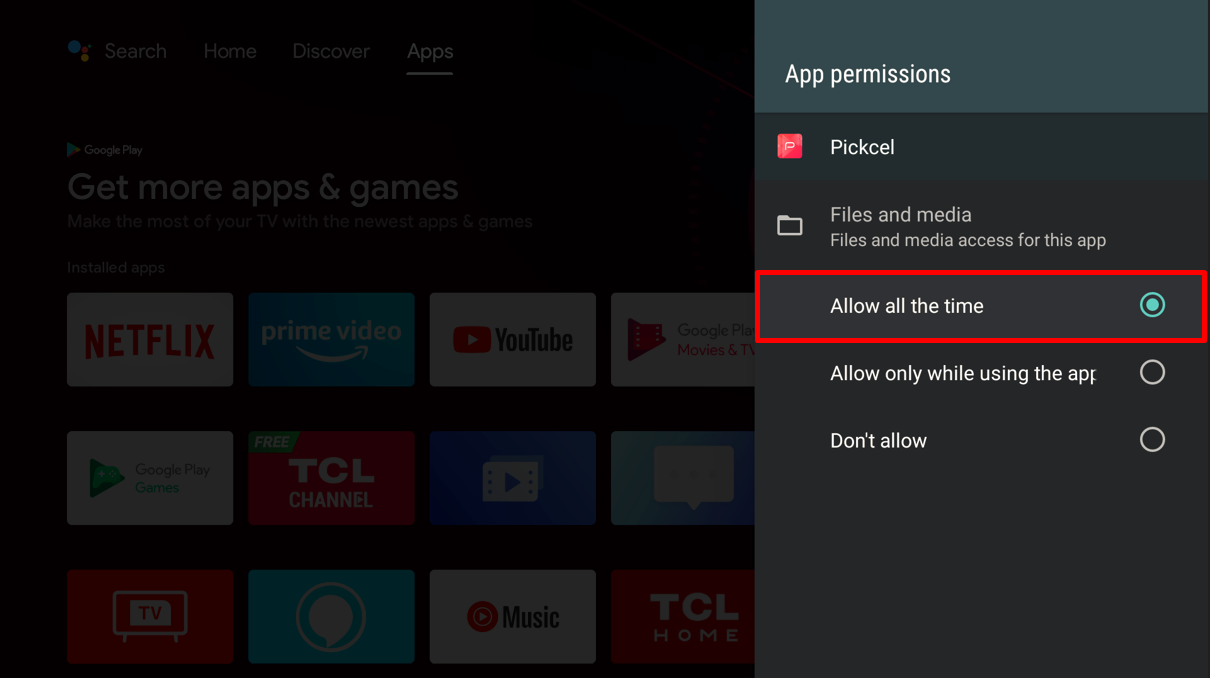
 Select **Allow all the time** to grant permanent file access.
 **Important for Android 11/12 TV:** If there were already downloaded files and you reinstall the app, you may see a black screen for those old files. To avoid such issues:
* Download the app from the [Pickcel website](https://www.pickcel.com/download/#android) in such cases
* Alternatively, if installing from the Play Store, manually clear the Pickcel folder before installing the new app
## Related Articles
Step-by-step guide to install Pickcel from Google Play Store
Install Pickcel using the APK file from our website
Learn how to register your Android TV with Pickcel
Browse more troubleshooting guides and FAQs
**Important for Android 11/12 TV:** If there were already downloaded files and you reinstall the app, you may see a black screen for those old files. To avoid such issues:
* Download the app from the [Pickcel website](https://www.pickcel.com/download/#android) in such cases
* Alternatively, if installing from the Play Store, manually clear the Pickcel folder before installing the new app
## Related Articles
Step-by-step guide to install Pickcel from Google Play Store
Install Pickcel using the APK file from our website
Learn how to register your Android TV with Pickcel
Browse more troubleshooting guides and FAQs